

Archiving your logs - Cold-storage
293 Views
 06.05.2025
  Cloud / Logs Data Platform
Objective
The Logs Data Platform gives you a custom log retention system, you can adjust it when you create your stream. But in some cases you may want to keep your logs beyond the provided duration. It can be for legal reasons, for analytic purposes or maybe only for historical ones. The long-term storage feature allows you to generate a daily archive of any stream with some simple configuration steps.
Requirements
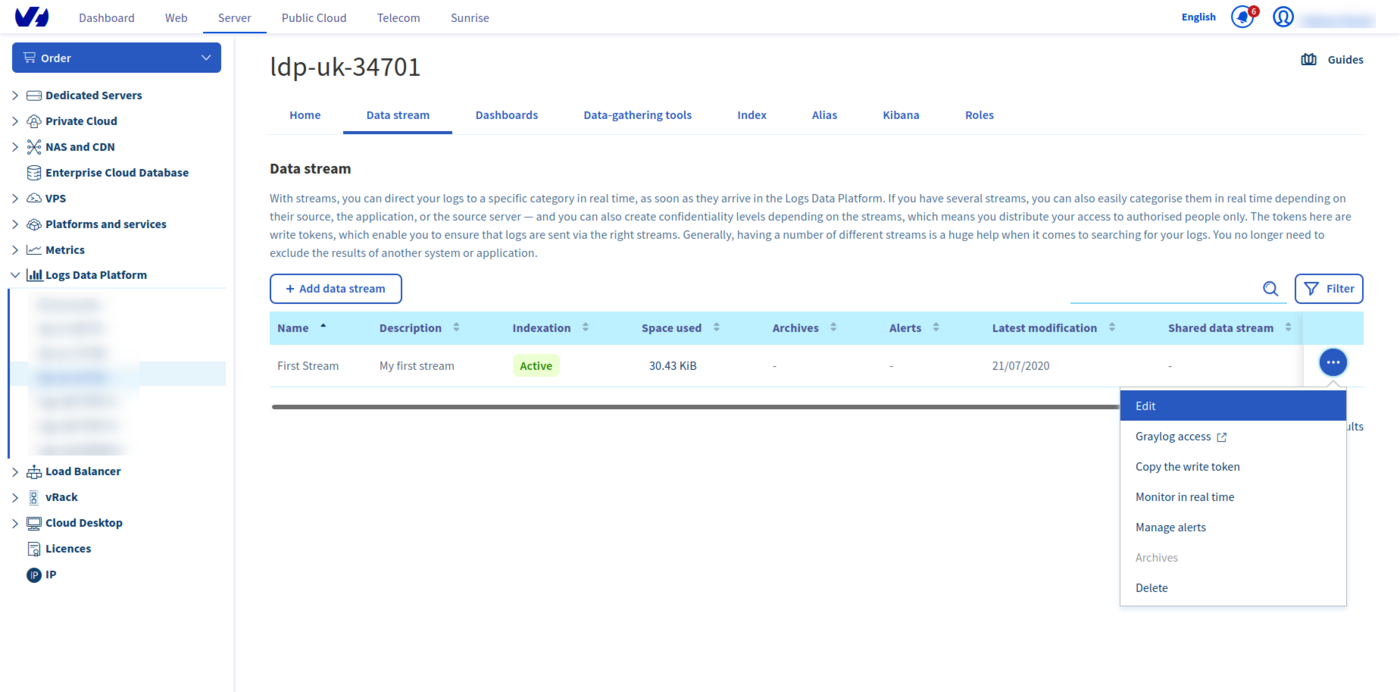
As implied in the title, you will need a stream. If you don't know what a stream is or if you don't have any, you can follow this quick start tutorial. You must edit the stream configuration to activate the cold storage. Click on the Edit button in the menu to go to the stream configuration page.
Instructions
Activating cold storage on a stream
On this page you will find the long-term storage toggle. Once enabled, you will be able to choose different options:
- The compression algorithm. We currently support GZIP, DEFLATE (AKA zip), Zstandard or LZMA (used by 7-Zip).
- The retention duration of your archives (from one year to ten years).
- The content of your archives: GELF, one special field X-OVH-TO-FREEZE, or both (you will get two separate archives in this case)
- The activation of the notification for each new archive available.
The content of your archive is flexible. By default, you get the full log content in GELF format. But you can choose to have an archive containing only the value of the custom LDP field X-OVH-TO-FREEZE. This field can, for example, be used to keep your logs in a human-readable or original format. You can also choose to have two archives simultaneously: the original GELF and the X-OVH-TO-FREEZE archives.
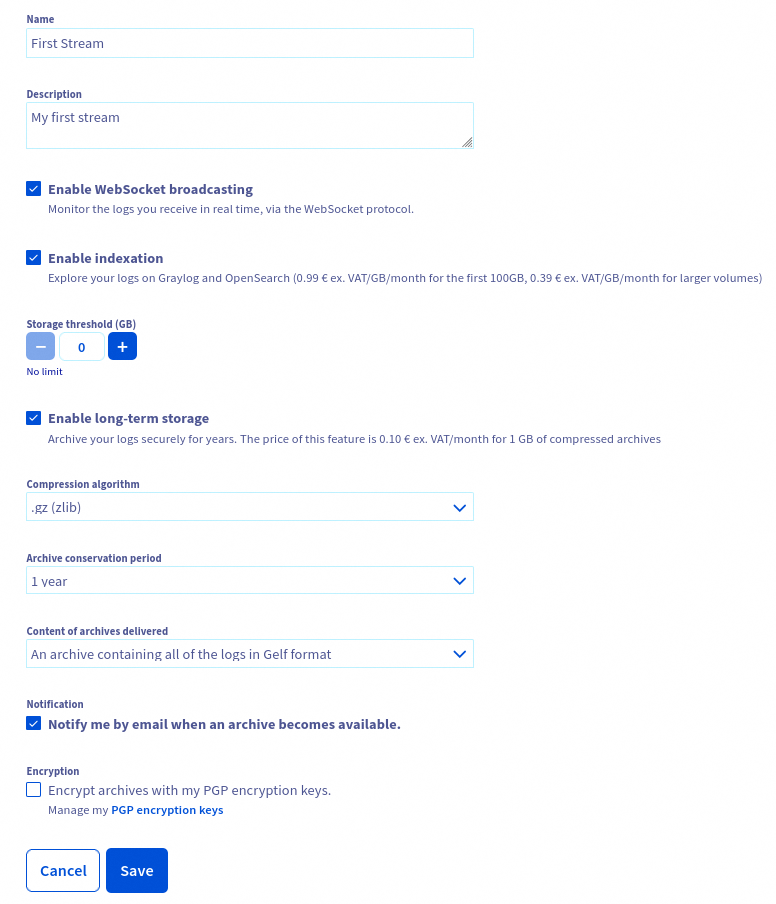
As soon as you click on Save, the cold storage is activated. Here are some more things you need to know about this feature:
As soon as the feature is activated, your logs will be stored for the specified duration. The effect is immediate so the billing of this feature will be also immediate.
- Deactivating the cold storage on a stream will prevent the production of new archives but it won't delete the already produced archives. These archives will be kept for the duration configured.
- Changing the retention duration WILL delete any archive exceeding the new retention (Ex: choosing a one year retention will implicitly delete all archives older than one year).
- We push a daily archive of the 2 days old data you pushed. So every day you will get the archive of the day before yesterday.
- When you activate the feature for the first time we can't create an archive for data older than two days before the activation.
- Deleting the stream WILL delete any archive associated. The stream must be alive to be able to keep its archive.
Retrieving the archives
Using the OVHcloud Control Panel
On a cold storage enabled stream (you can quickly see if they are with the archive checkbox), you have a new Archives item on the bottom of the stream menu. Click on it to navigate to the archives pages. On this page, you have a list of the archives produced. Each archive is named after its date, so you can quickly retrieve an archive of a particular day.
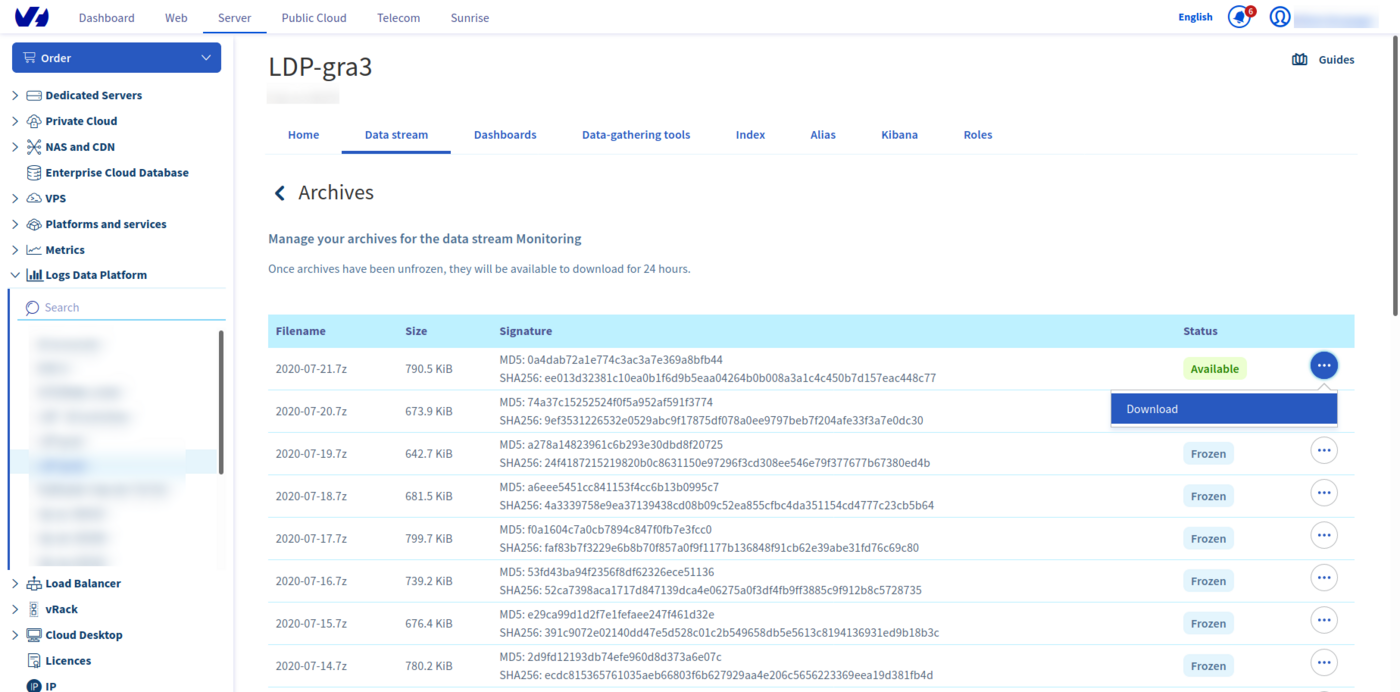
On each archive you can use the Download action to directly download the archive.
Using the API
If you want to download your logs using the API (to use them in a Big Data analysis platform for example), you can do all these steps by using the OVHcloud api available at https://api.ovh.com. You can try all these steps with the OVHcloud API Console.
You will need your OVHcloud service name associated with your account. Your service name is the login logs-xxxxx that is displayed in the left of the OVHcloud Manager.
Retrieve your stream using the streams API call
- Return the list of graylog streams:
Parameters:
serviceName: The internal ID of your Logs Data Platform service (string)
Retrieve the list of your archives and its details with the corresponding endpoints
- Return details of specified archive:
Parameters:
serviceName: The internal ID of your Logs Data Platform service (string)streamId: The stream you want archives fromarchiveId: The archive you want details from
You can generate a temporary URL download by using the following endpoint
- Get a public temporary URL to access the archive:
Parameters:
serviceName: The internal ID of your Logs Data Platform service (string)streamId: The stream you want archives from.archiveId: The archive you want details from.Example result:
It will take some time (depending on the size of your archive file) for your archive to unfreeze. Once it has, you will need to use the API call again. If your archive is available, you will see a result like this:
Using ldp-archive-mirror
To allow you to get a local copy of all your cold stored archives on Logs Data Platform, we have developed an open source tool that will do this passively: ldp-archive-mirror The installation and configuration procedure is described on the related github page
Content of the archive
The data you retrieve in the archive is by default in GELF format. It is ordered by the field timestamp and retains all additional fields that you would have added (with your Logstash collector for example). Since this format is fully compatible with JSON, you can use it right away in any other system.
Remember, that you can also use a special field X-OVH-TO-FREEZE on your logs to craft an additional archive with only the value of this specific field at each line (along with the usual gelf archive). This file can be used for example to restore a common human readable log file.
Go further
- Getting Started: Quick Start
- Documentation: Guides
- Community hub: https://community.ovh.com
- Create an account: Try it!


 Securing Logs Data Platform's APIs with tokens
 263
263