

Retrieving the backup of the FTP space on your Cloud Web hosting plan
105 Views
 31.03.2026
  Web / Web Hosting
Objective
Your Cloud Web hosting plan has a storage space you can use to host your websites or applications.
Find out how to retrieve a backup of the FTP space in your Cloud Web hosting plan.
Backups offered by OVHcloud for Cloud Web hosting plans are non-contractual. They are available to supplement your own backup methods in urgent situations. We recommend regularly creating your own security backups, to avoid any potential data loss.
When you make a security backup for your site and it uses a database, also back up your database. Please refer to our guide on retrieving a backup of your database.
Find out how to retrieve and restore an FTP backup of your Cloud Web hosting plan.
Requirements
- A Cloud Web hosting plan
- Access to the contact email address linked to your OVHcloud customer account
OVHcloud Control Panel Access
- Direct link: Hosting plans
- Navigation path:
Web Cloud>Hosting plans> Select your web hosting plan
Instructions
A Cloud Web hosting plan has automatic backups available from the following relative dates (24-hour format):
- The same day, after 0:00
- The day before, after 0:00
- The day before yesterday, after 0:00
- The previous Sunday, after 01:00
Only the backups mentioned above can be offered by OVHcloud, provided that your Cloud Web hosting already existed on the dates indicated, and subject to the infrastructure’s availability at the requested point in time.
Retrieve a backup
Unlike OVHcloud shared hosting, you cannot restore the FTP space in one click from the OVHcloud Control Panel.
A link to download the backup is generated, then sent by email to the email address associated with the Cloud Web hosting plan’s admin NIC handle.
Click on the tabs below to view each of the 5 steps.
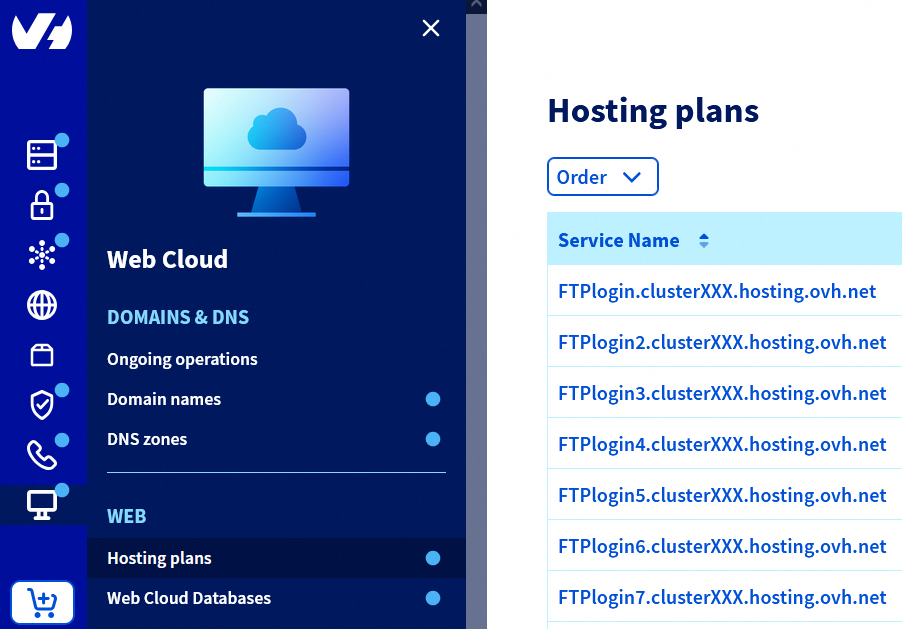
Go to the Hosting plans page, then select the Cloud Web concerned.
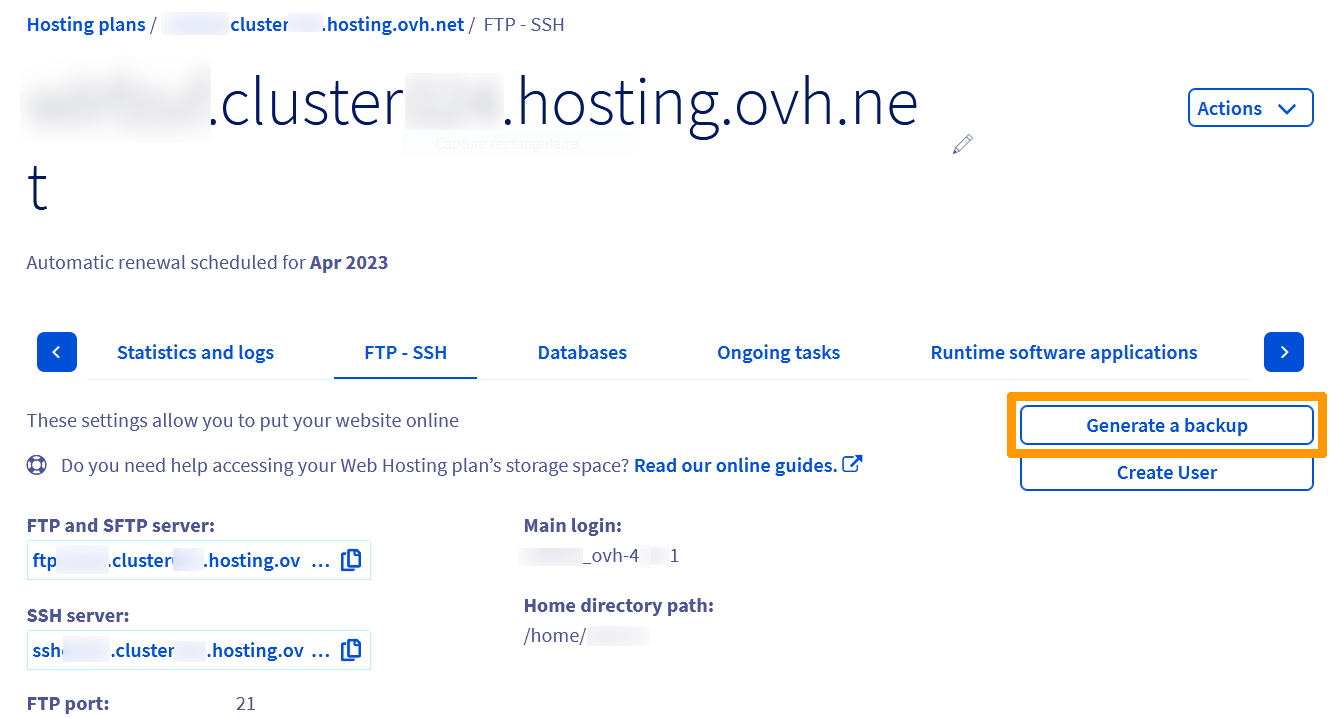
Select the FTP - SSH tab and click the Generate a backup button on the right.
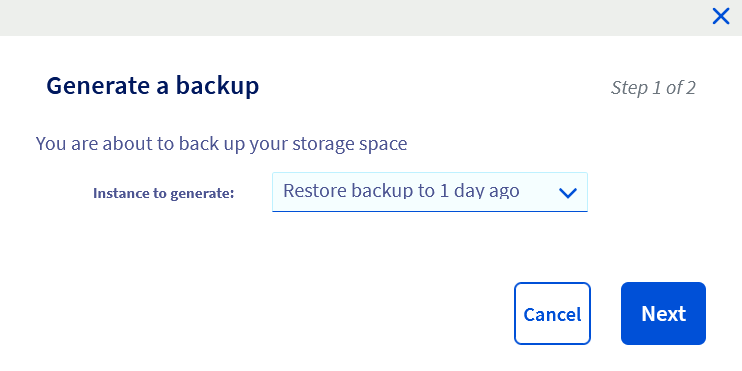
In the window that opens, select one of the available backups, then click Next.
A second window will appear, notifying you that the link to download the backup file will be sent to you by email, and that no automatic restore on your Cloud Web hosting plan will be done by OVHcloud.
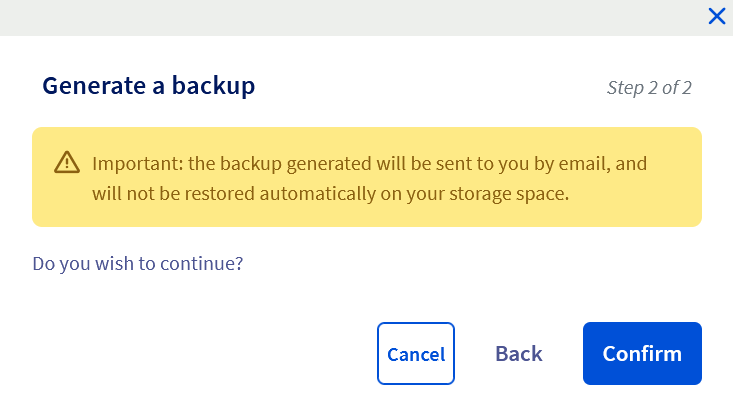
Click Confirm to confirm your request.
If the backup generation has started successfully, the following message will appear in your OVHcloud Control Panel:
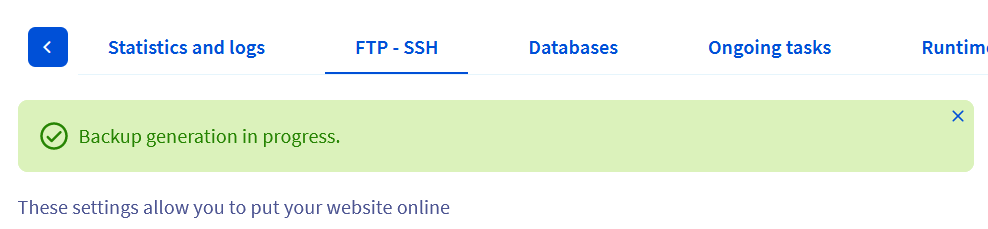
The backup takes between 10 and 15 minutes.
Download the backup
When the backup is ready, you will receive an email via the email address associated with the admin NIC handle for your Cloud Web hosting plan.
This email contains a download link valid for 9 days from receipt of the email:
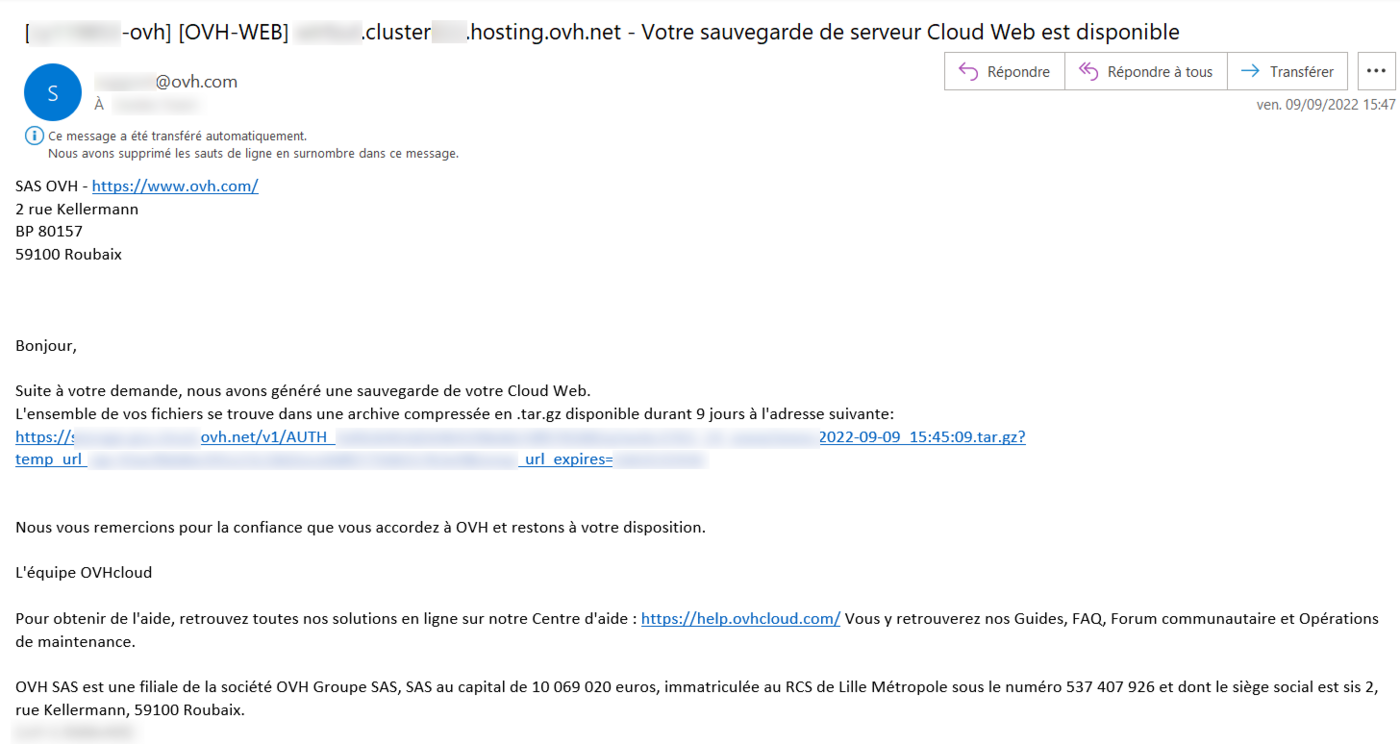
The downloaded file is in the format .tar.gz.
Restore your backup
Once you have downloaded your files, you can connect to your FTP space using FTP software such as Filezilla, then replace the respective files on the hosting with the ones from the backup.
Please use the ports listed in your OVHcloud Control Panel for SFTP and SSH connections, as port 22 will not work for your Cloud Web hosting.
Go further
Logging in to your Web Hosting plan’s storage space
Logging in using the Filezilla software
For specialised services (SEO, development, etc.), contact OVHcloud partners.
If you would like assistance using and configuring your OVHcloud solutions, please refer to our support offers.
Join our community of users.


 Configuring IPv6 for your website
 613
613