

Backup Agent - Managing your backups and restores
20 Views
 03.02.2026
  Backup Agent
Objective
Learn how to back up and restore your data on your Bare Metal servers with Backup Agent.
Find more information on the Backup Agent product on this page.
Requirements
- A Bare Metal server with the Backup Agent installed on it. Read our guide "How to configure your first backup for more information".
OVHcloud Control Panel Access
- Direct link: Backup Agent
- Navigation path:
Bare Metal Cloud>Backup Agent
Instructions
Backup
You have two options for making backups: Automatic Backup and Manual Backup.
Automatic backup
Automatic backup is included in the backup policy that we apply to your Backup Agent.
This backup will make a full backup of your server, which will be sent to your remote storage point.
This will trigger between 10 p.m. and 6 a.m. (CET time zone for Europe - EST time zone for Canada and Asia).
You cannot change or disable this automatic backup. Currently, you cannot modify the policy that backs up your entire server, we are working to improve this configuration in the future.
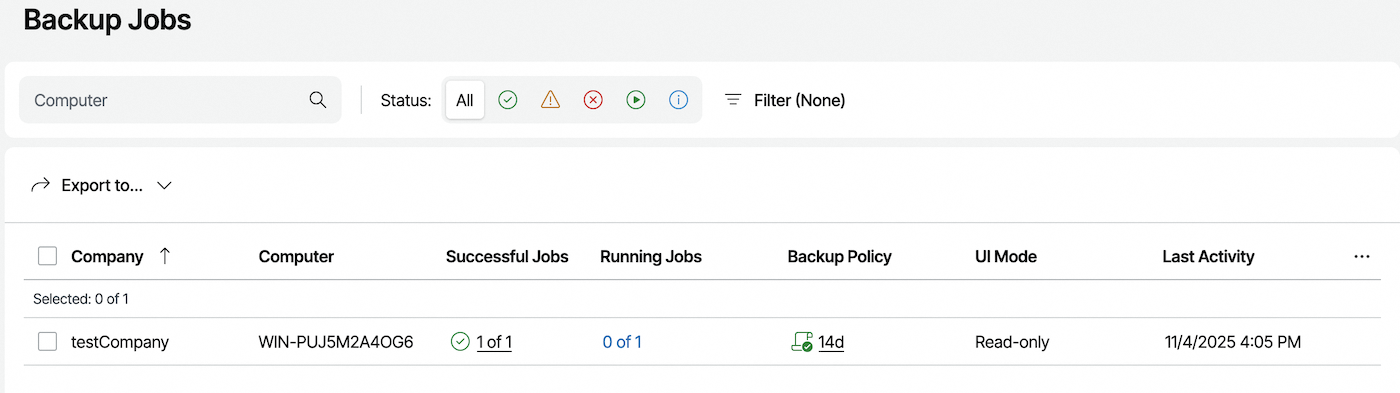
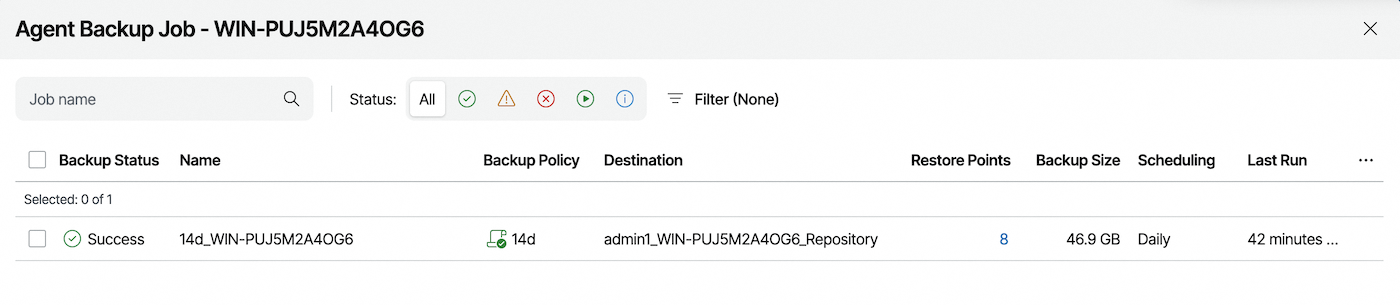
You can view the success of this backup via:
- The daily report of backups.
- The "Backup Jobs" dashboard of the Veeam Service Provider Console.
Manual backup
If necessary, you can trigger a manual backup.
It will also create a full backup of your server and will always be sent to your remote storage point.
To create a manual backup, click on the tab corresponding to your Operating System:
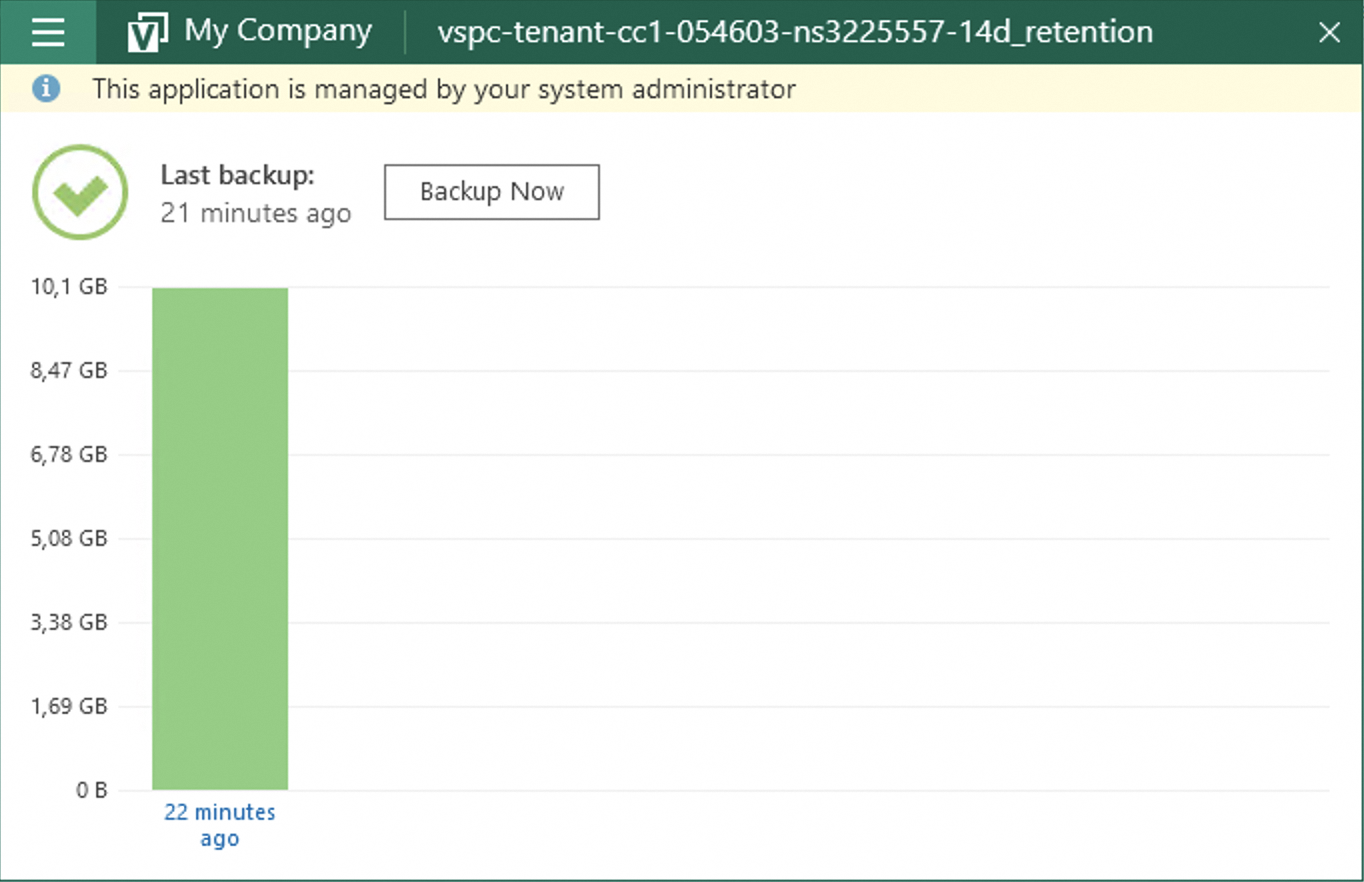
Open the "Veeam Agent" application on your Bare Metal server:

Click the Backup Now button to launch a backup:
To start a manual backup on Linux, you can use the command line.
Connect to your Bare Metal server via SSH and run the following command to list your backup jobs:
To start a manual backup, use the following command, replacing <job_name> with your backup job name:
If you want to start all backup jobs, use:
You can monitor the backup progress by viewing active sessions:
You can also access an interface to interact with the product by typing this command:
Restoration
If you need to restore data, you have two options:
- Via the File Restore wizard.
- Via the Veeam Bare Metal Recovery ISO.
File Restore Wizard
To restore files and folders, click on the tab corresponding to your Operating System:
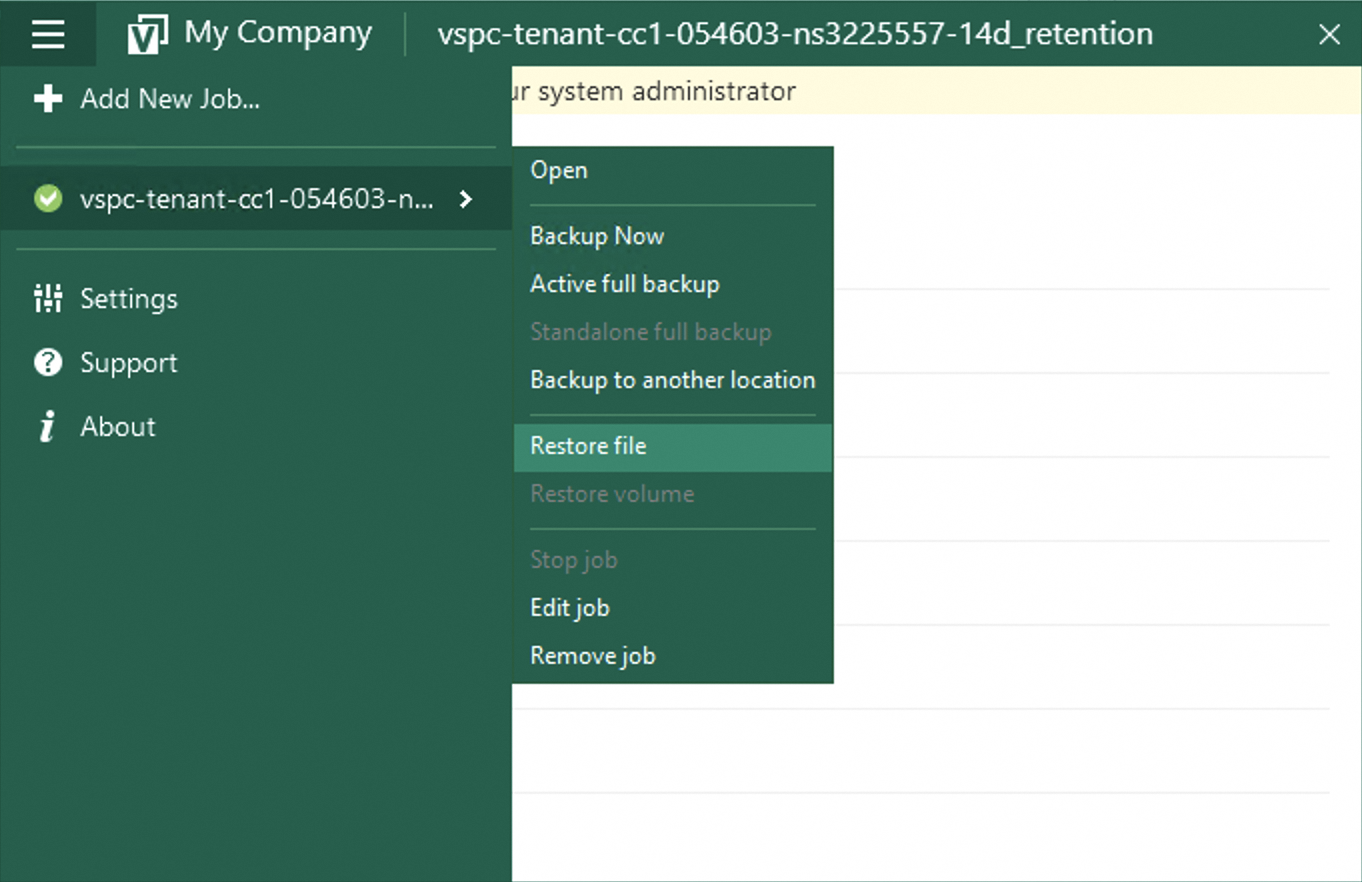
Open the "Veeam Agent" application on your Bare Metal server:
Go to the menu and select Restore File:
Select the desired restore point in the wizard:
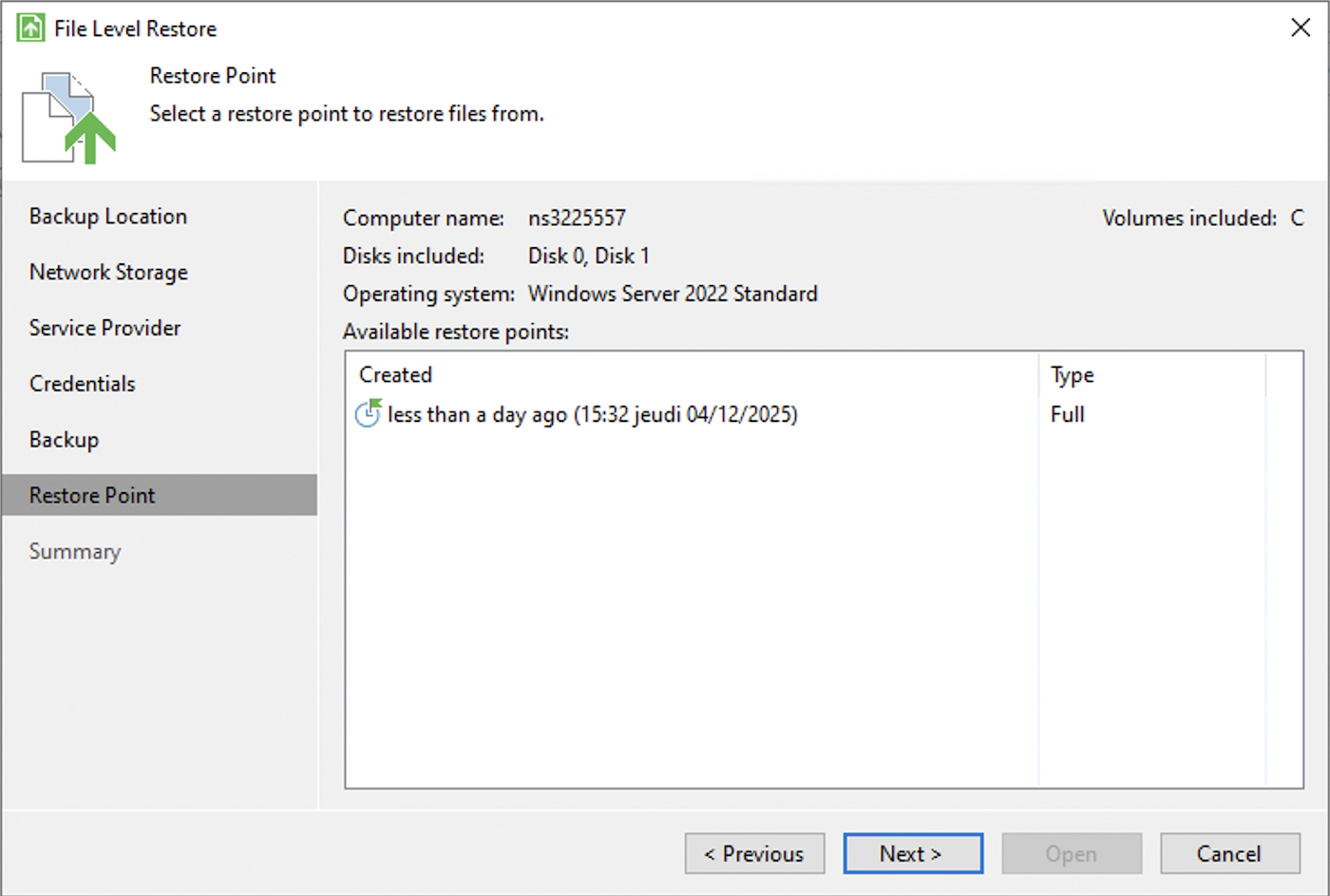
Then confirm:
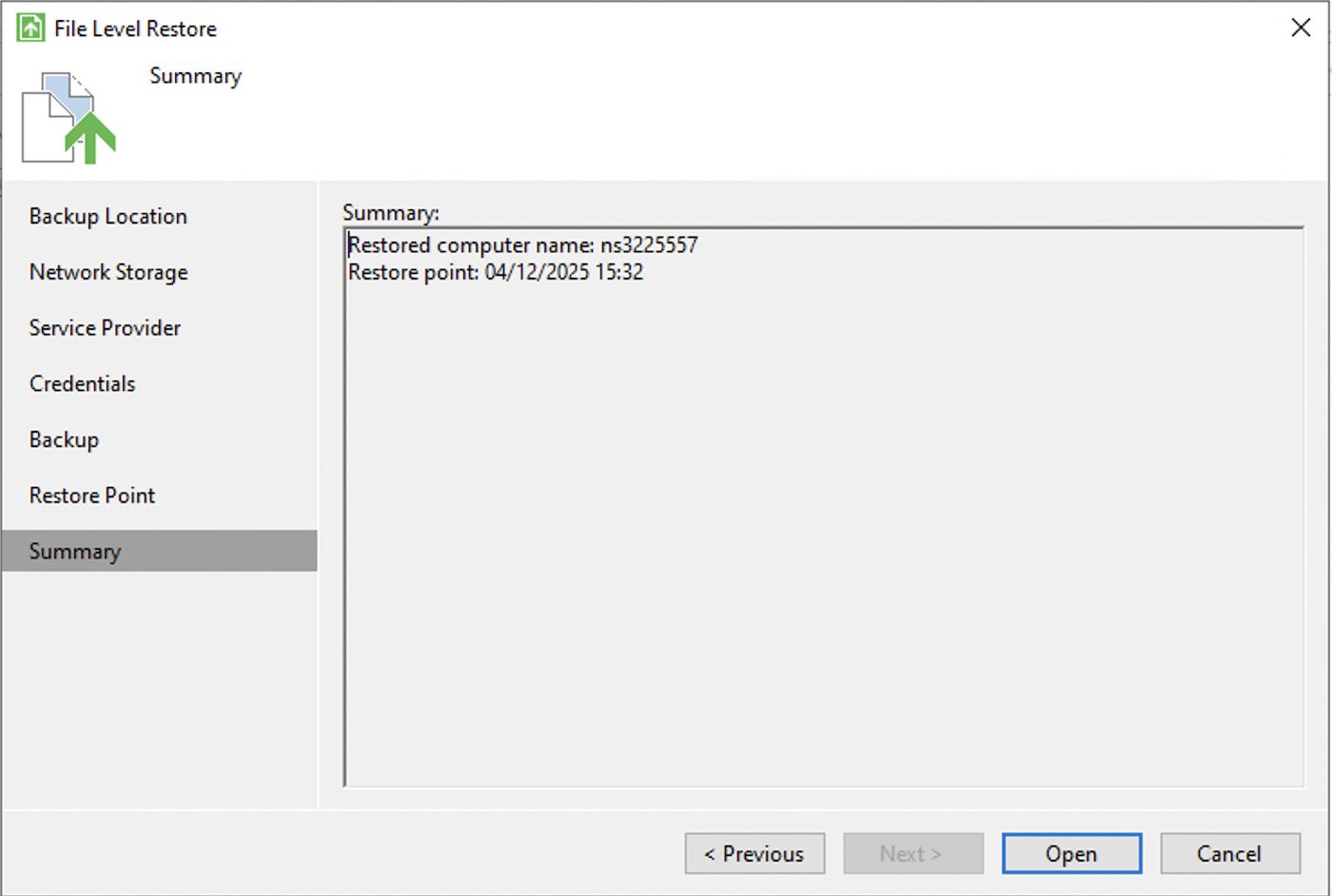
Finally, search for your file and select an option:
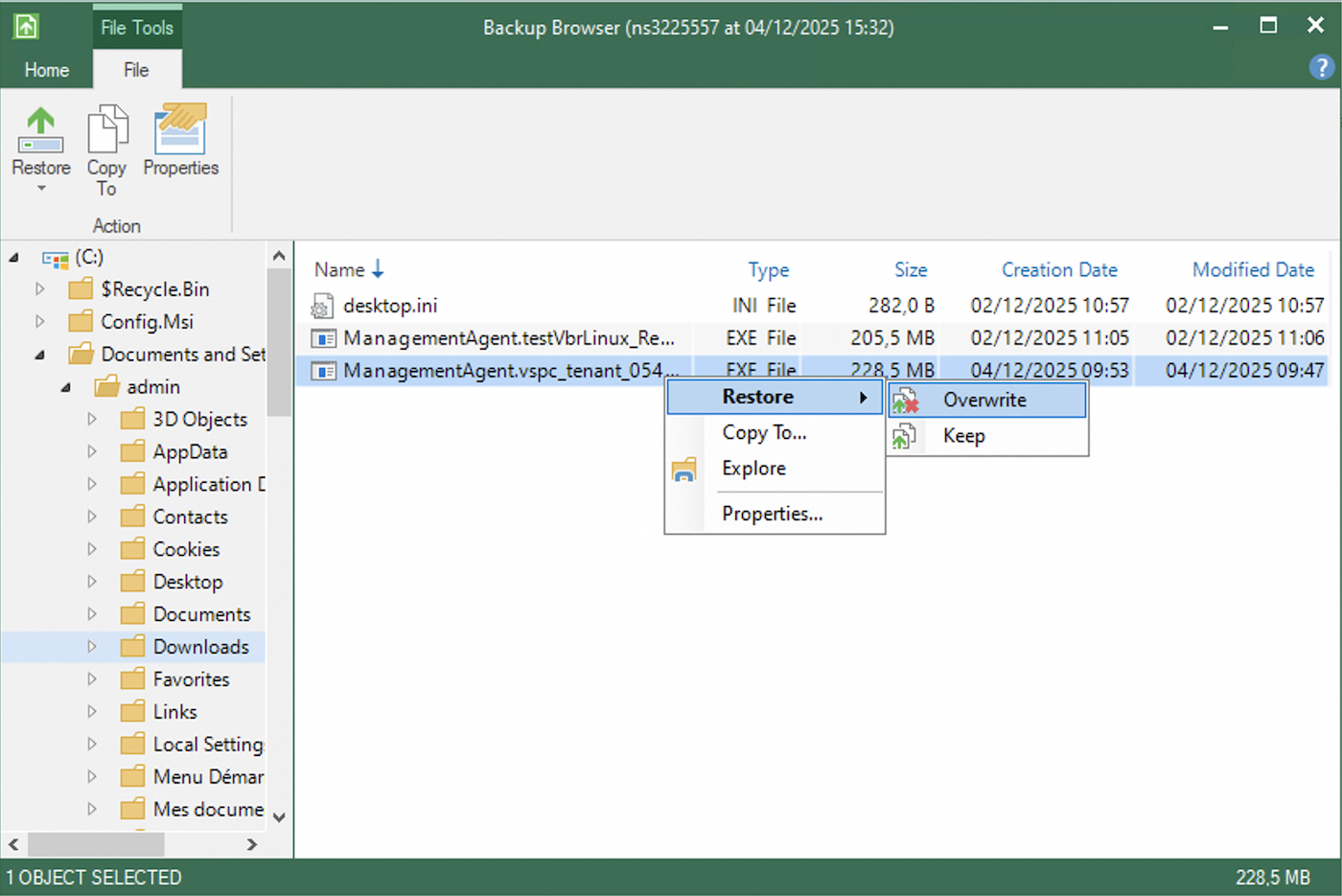
- Restore - Overwrite: Allows you to restore the file while overwriting the one currently on the server.
- Restore - Keep: Allows you to restore the file while keeping the one currently on the server.
- Copy To: Allows you to copy the file to a location on your server.
- Explore: Allows you to explore the backup.
- Properties: Allows you to view the file properties.
Launching a restore will give you a final window that will show the transfer:
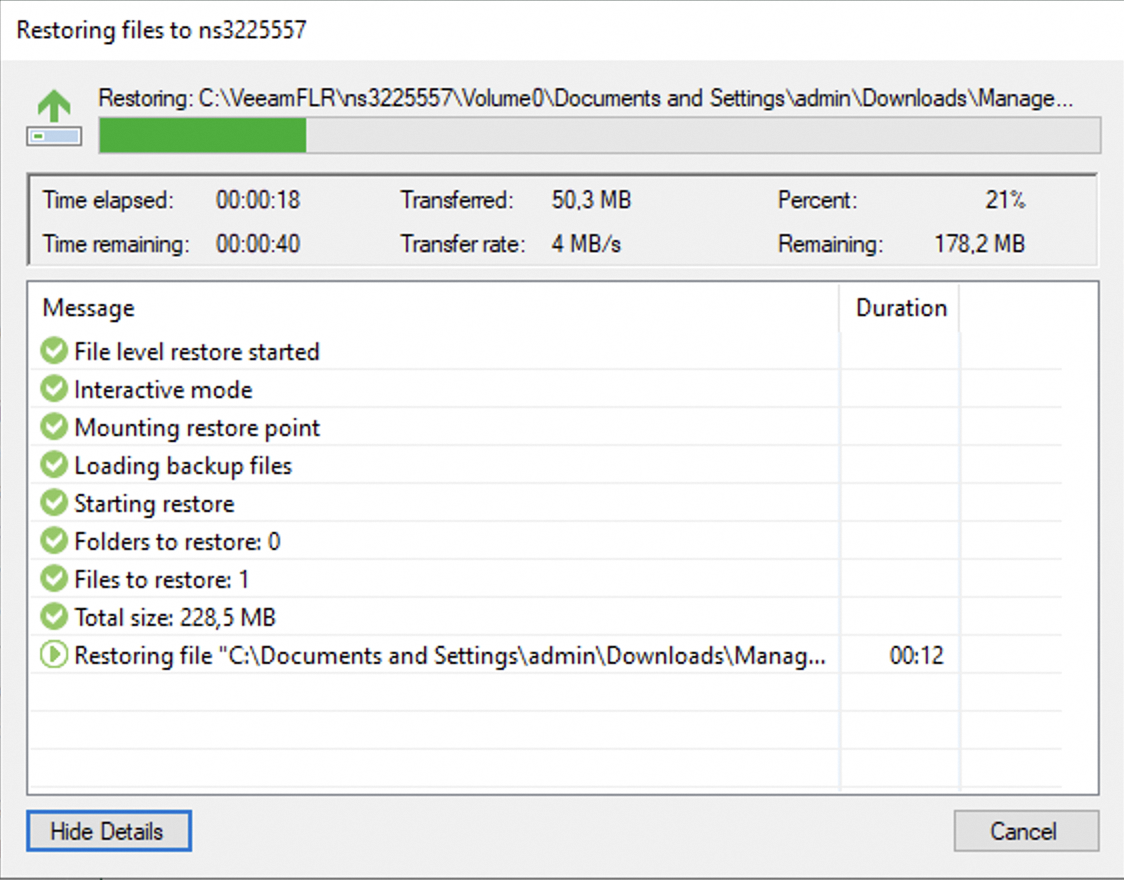
To restore files and folders on Linux, you have two options: via the graphical interface or via the command line.
Via the graphical interface
1. Connect to your Bare Metal server via SSH. 2. Launch the Veeam interface by typing the following command:
3. In the interface, select the file restore option. 4. Select the backup and the desired restore point. 5. Navigate through the backup to find the files or folders to restore. 6. Select the files and choose the restore action: - Restore to original location - Copy to a new location - Explore the backup
Via the command line
To restore files via the command line, you must first mount the backup:
1. List your available backups:
2. List the restore points of a backup:
3. Mount a restore point:
4. Once mounted, you can access the files via the mount point (usually in /mnt/veeam/).
5. Copy the desired files from the mount point to their destination.
6. Once the restore is complete, unmount the backup:
For more information, see the Veeam documentation and the command line restore documentation.
Veeam Baremetal Recovery ISO
Baremetal Recovery is a Veeam feature that involves creating a custom ISO in advance, which can then be used to boot a system and restore it from a backup stored on a different server.
Read this guide for more information: Backup Agent - Bare Metal recovery with Veeam Backup Agent.
You will need to adapt the server and credentials to match the ones we have provided.
Go further
Join our community of users.


 Backup Agent - Connect to VSPC
 25
25