

Install and use OVHcloud Backint Agent for SAP HANA
800 Ansichten
 03.09.2024
  Cloud / SAP HANA on Private Cloud
Objective
This guide provides detailed steps for the installation and usage of OVHcloud Backint Agent for SAP HANA.
OVHcloud Backint Agent for SAP HANA allows you to back up and recover your SAP HANA database on one or many OVHcloud Object Storage buckets.
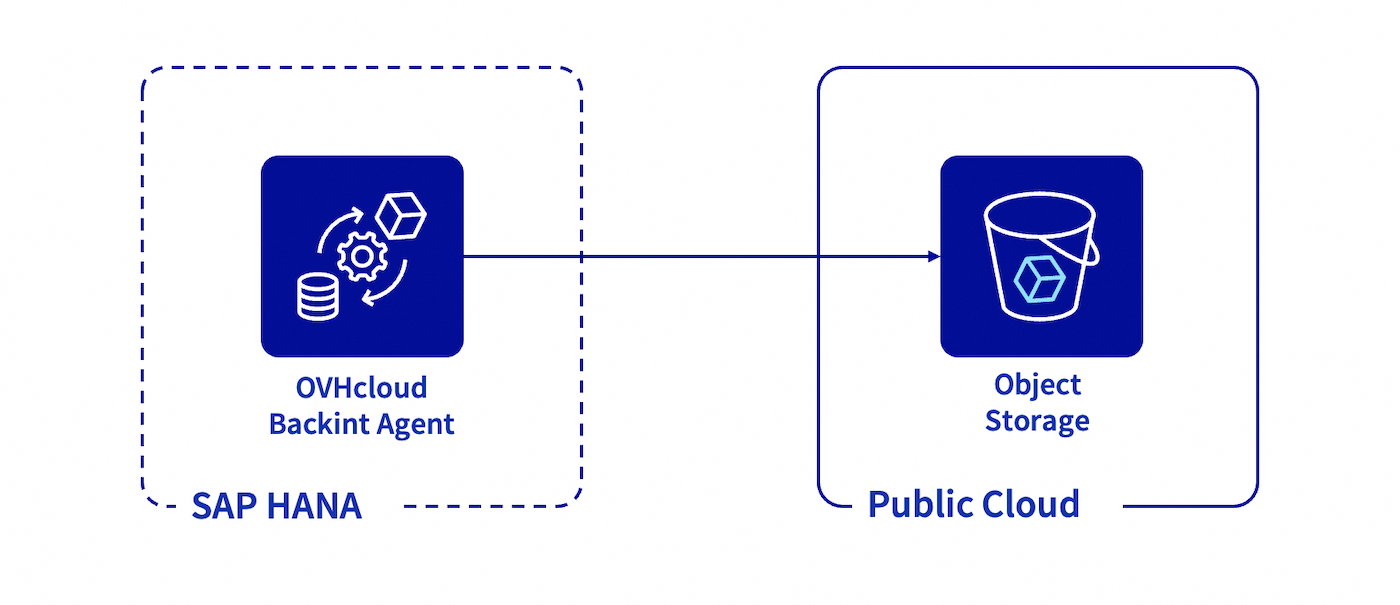
OVHcloud Backint Agent for SAP HANA has been certified by SAP, you can find certification information here:
Requirements
- A Public Cloud project in your OVHcloud account with:
- An Object Storage bucket.
- An Object Storage user with the read and write rights.
- A SAP HANA database installed.
OVHcloud Control Panel Access
- Direct link: Public Cloud Projects
- Navigation path:
Public Cloud> Select your project
Instructions
Object Storage
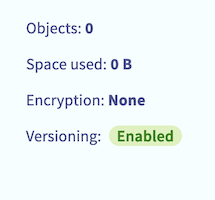
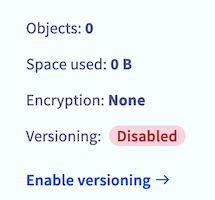
The Object Storage bucket versioning must be enabled to ensure the correct operation of OVHcloud Backint Agent. The versioning allows you to keep several versions of a same object in your Object Storage bucket.
With SAP HANA backups, the versioning allows you to trigger several backups with the same name (for example "COMPLETE_DATA_BACKUP") and keeping the capacity to recover a specific version of the backup named "COMPLETE_DATA_BACKUP". If the versioning is not enabled, only the latest version of the backup named "COMPLETE_DATA_BACKUP" can be recovered.
You can check the versioning status of your Object Storage bucket by following these steps:
- Click
Public Cloudand select your Public Cloud project. Then clickObject Storage. - Click on the Object Storage bucket that will host backups of your SAP HANA database.
- Check the value of the
Versioningparameter, it must have the valueEnabled. If the value of this parameter isDisabled, click onEnable versioning.
| Versioning enabled | Versioning disabled |
|---|---|
 |  |
OVHcloud Backint Agent for SAP HANA
From your SAP HANA server, go to the repository /usr/sap/<SID>/SYS/global/hdb/opt/ and download the OVHcloud Backint Agent for SAP HANA archive which contains:
- The usage license of OVHcloud Backint Agent for SAP HANA
- The NOTICE file including copyrights
- The VERSION file
- A configuration file template
- The OVHcloud Backint Agent for SAP HANA binary
To download the archive, you can use the following command:
The archive ovhcloud-backint-agent.zip must be decompressed, you can execute the following command:
Now, five files are present in the repository /usr/sap/<SID>/SYS/global/hdb/opt/:
- LICENSE
- NOTICE
- VERSION
- hdbbackint.cfg
- hdbbackint
Take note of the LICENSE file. By using or downloading OVHcloud Backint Agent for SAP HANA, you consent to the license terms.
The hdbbackint.cfg file must have the read and write rights, the hdbbackint file must have the read and execution rights. These rights must be applied to the SAP HANA (sid)adm user.
Check that you are able to execute OVHcloud Backint Agent with the SAP HANA user.
Expected output:
Configuration
Edit the content of the hdbbackint.cfg file and replace all values between chevrons by your Object Storage bucket information. Below is an example of its content after edition.
The multipart_chunksize and multipart_threshold parameters can be set with values in byte (example: 52428800 equal 50MB), in KB, in GB, or in TB. If the value is set without unit, the default unit is byte.
- The
multipart_thresholdparameter triggers the upload of an object in multipart. - The
multipart_chunksizeparameter sets the size of each part to be uploaded.
The default values for multipart_chunksize and multipart_threshold parameters in the hdbbackint.cfg file offer an optimal performance in many cases, but you can increase or decrease it, depending on your environment.
The following commands modify the backup configuration of your SAP HANA database, please execute these commands with caution.
We recommend triggering a full backup of your SAP HANA database after this operation to validate the configuration.
Execute the following SQL commands to update the backup configuration of your SAP HANA database.
Replace in the following SQL commands the <SID> characters by the SID of your SAP HANA database.
If the size of your SAP HANA database is greater than 128GB, it is possible to optimise the performance of the back up and recover with enabling the multi-streaming. To do this, please execute the following SQL commands:
The value of the data_backup_buffer_size parameter depends from that parallel_data_backup_backint_channels parameter.
Its value is the result of the "512 x parallel_data_backup_backint_channels" operation.
To discover all backup parameters for SAP HANA, we recommend the SAP documentation. In the column "Section", set "Backup".
Backup
To validate the configuration, you can trigger manual backups with the following commands via SSH access:
Replace in the following commands the <SID> characters by the SID of your SAP HANA database and <NI> characters by the instance number of your SAP HANA database.
You also have the possibility to trigger these backups via SAP HANA Cockpit. Select Backint in the Destination Type category.
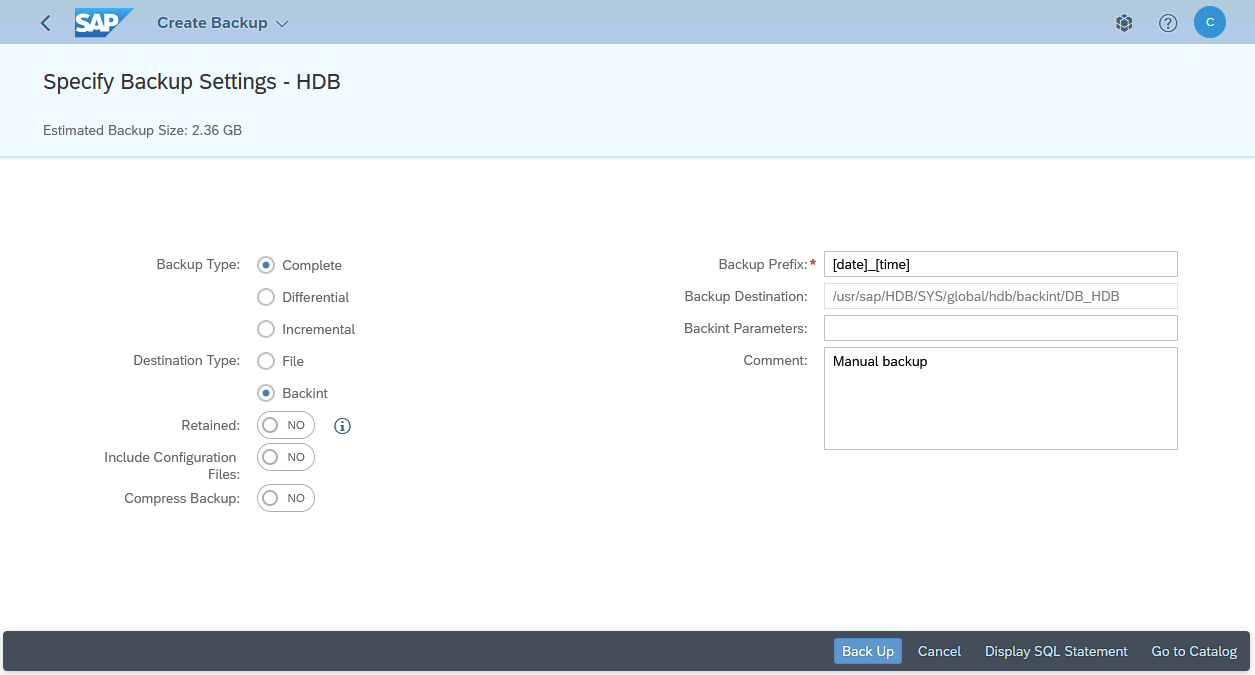
After the execution of these backups, several files named _databackup_ are now present in your Object Storage bucket, these files correspond to backups of your SAP HANA database via OVHcloud Backint Agent.
Two files named log_backup_0_0_0_0 and which have DB_<SID> and SYSTEMDB prefixes are also present in your Object Storage bucket. These files correspond to backups of the SAP HANA backup catalog, allowing you to list backups known by SAP HANA.
Files named log_backup correspond to backups of SAP HANA logs backups.
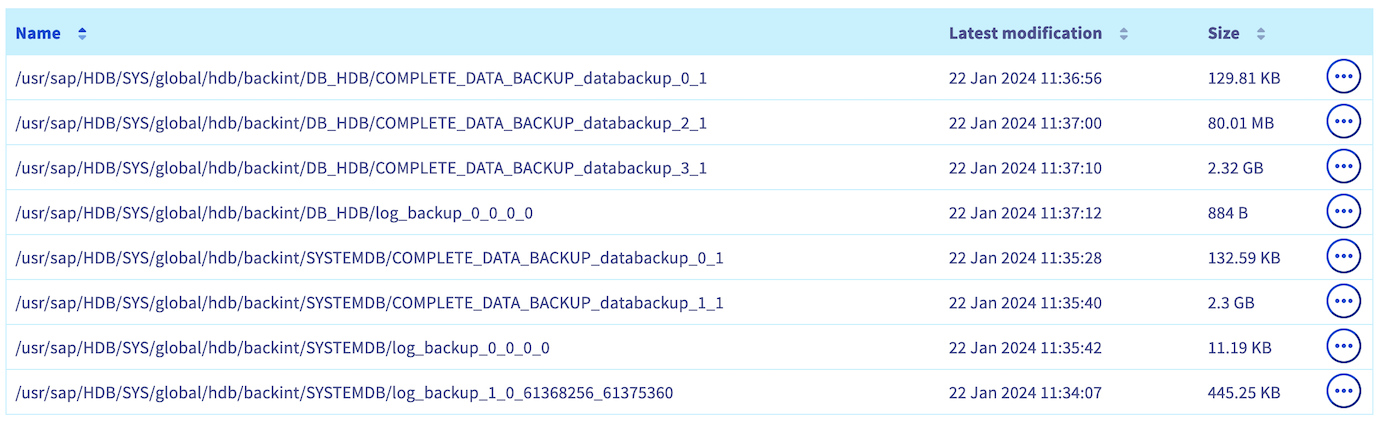
If these backups have not been done as expected, check the content of the following files to search for errors:
- backint.log
- backup.log
Both files are present in the repository /usr/sap/<SID>/HDB<NI>/<hostname>/trace for the SYSTEMDB backup and the repository /usr/sap/<SID>/HDB<NI>/<hostname>/trace/DB_<SID> for the TENANTDB backup.
The backint.log file gives you information about the OVHcloud Backint Agent execution. For example, a permission issue with the Object Storage bucket:
The backup.log file gives you information about the backup execution through SAP HANA, its progress and its encountered errors.
Scheduling
The scheduling of your SAP HANA database backups has to be modified.
We advise you to refer to the SAP Note 2782059 which sets out four options to schedule the backup of SAP HANA databases.
An example of a daily scheduling of a TENANTDB SAP HANA backup via the SAP HANA Cockpit:
1. Select the TENANTDB on which you want to schedule backups. Click on + to add the scheduling.
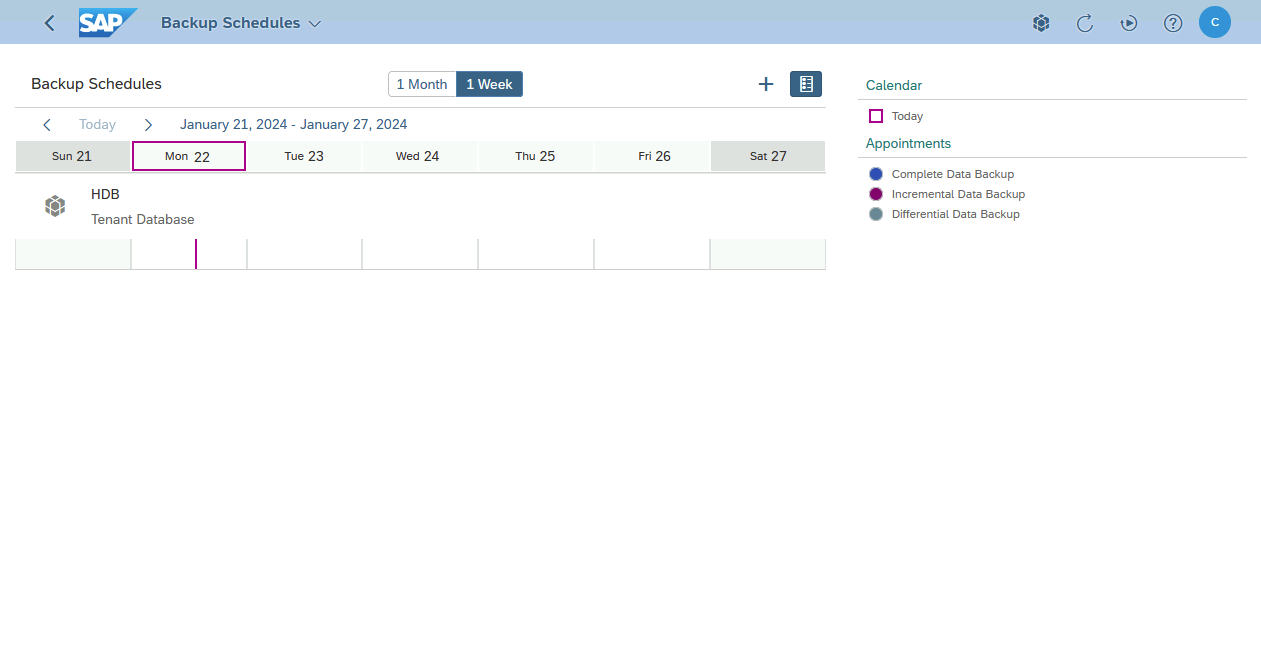
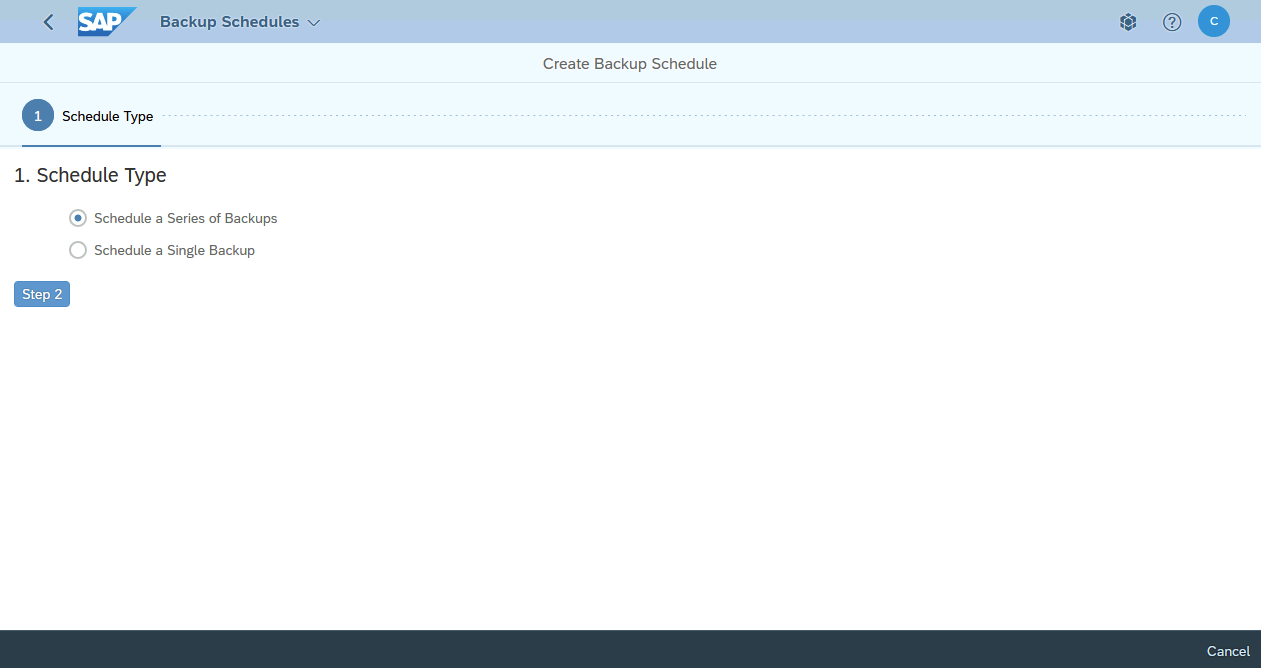
2. Select the Schedule a Series of Backups option.
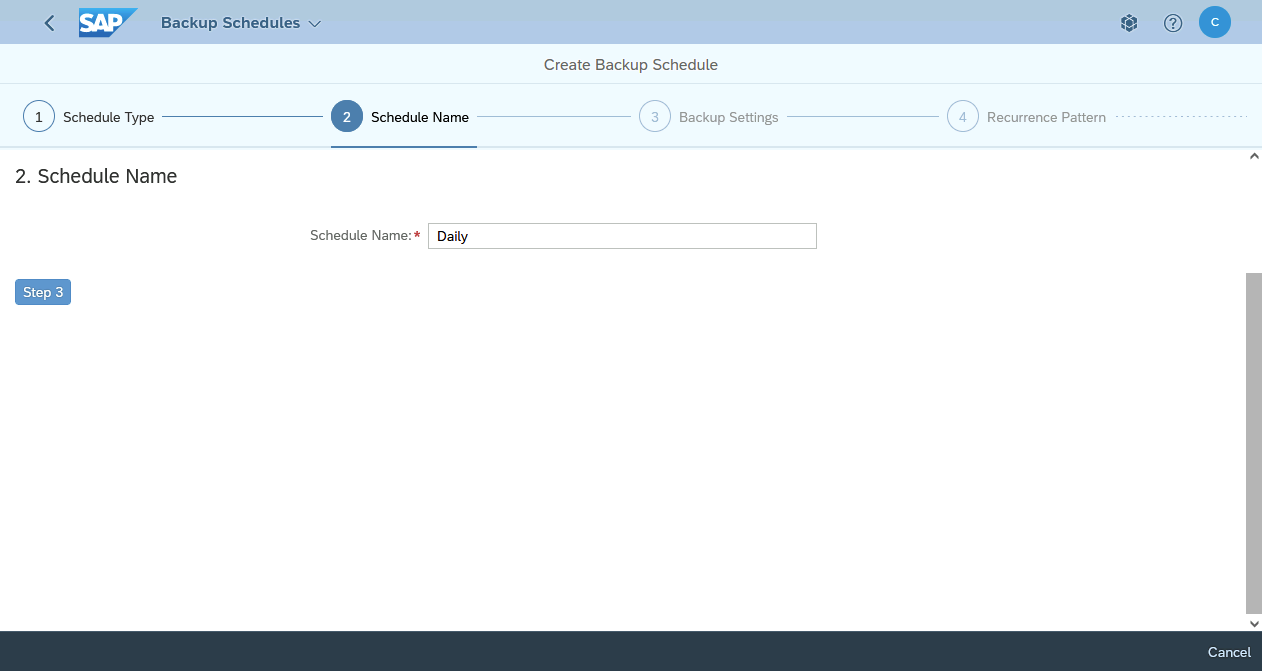
3. Give a name to your scheduling.
4. Select Complete option then Backint. You have the possibility to configure a backup prefix. By default, backups are prefixed with the date and time.
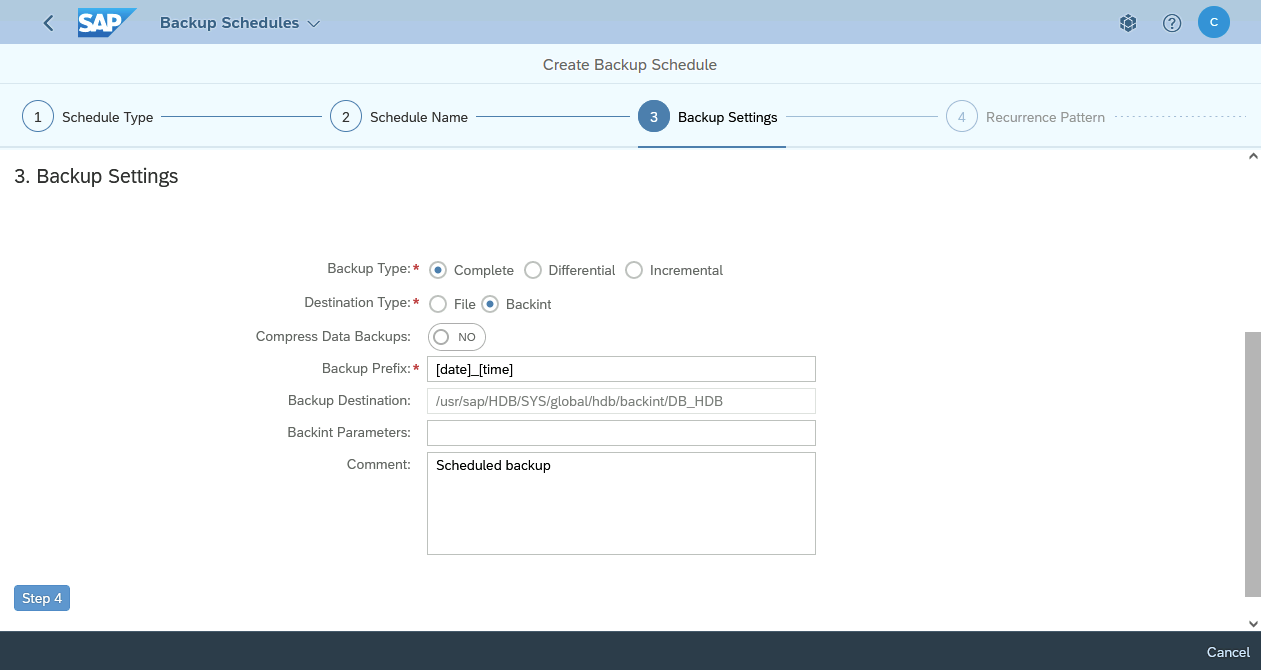
5. Select Weekly option.
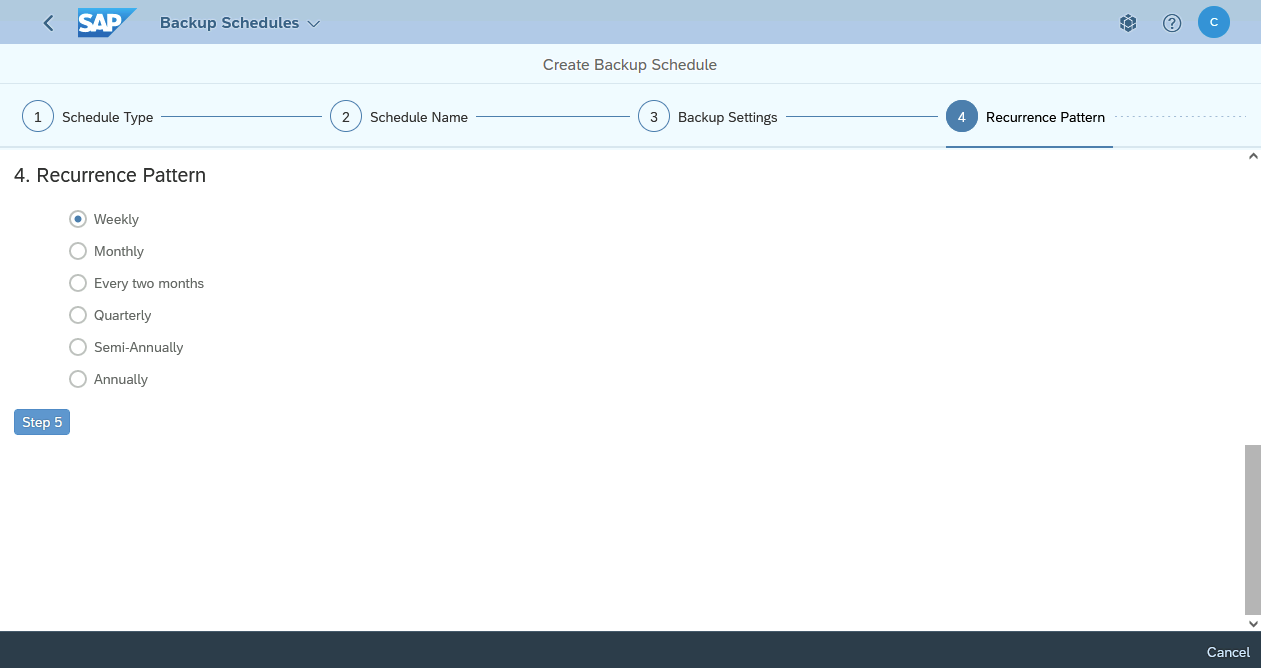
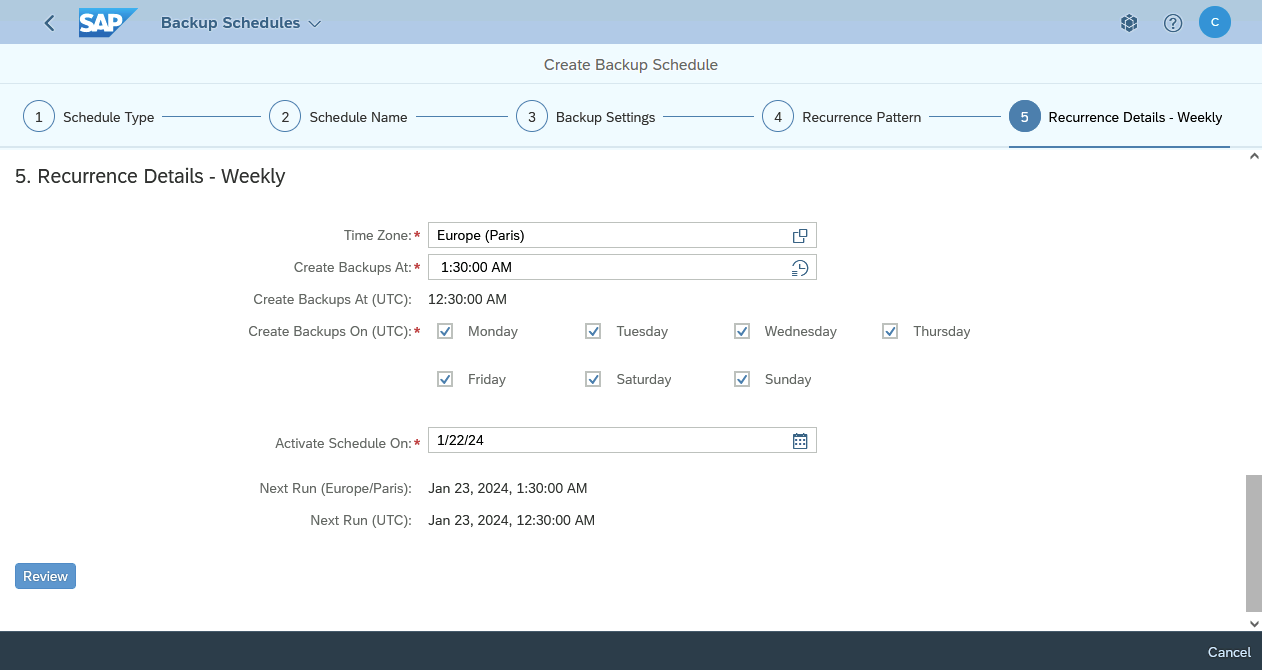
6. Select your time zone, the time and the day when the backup has to be triggered. In this daily backups example, we check all days of the week.
7. Please check parameters of your scheduling before applying.
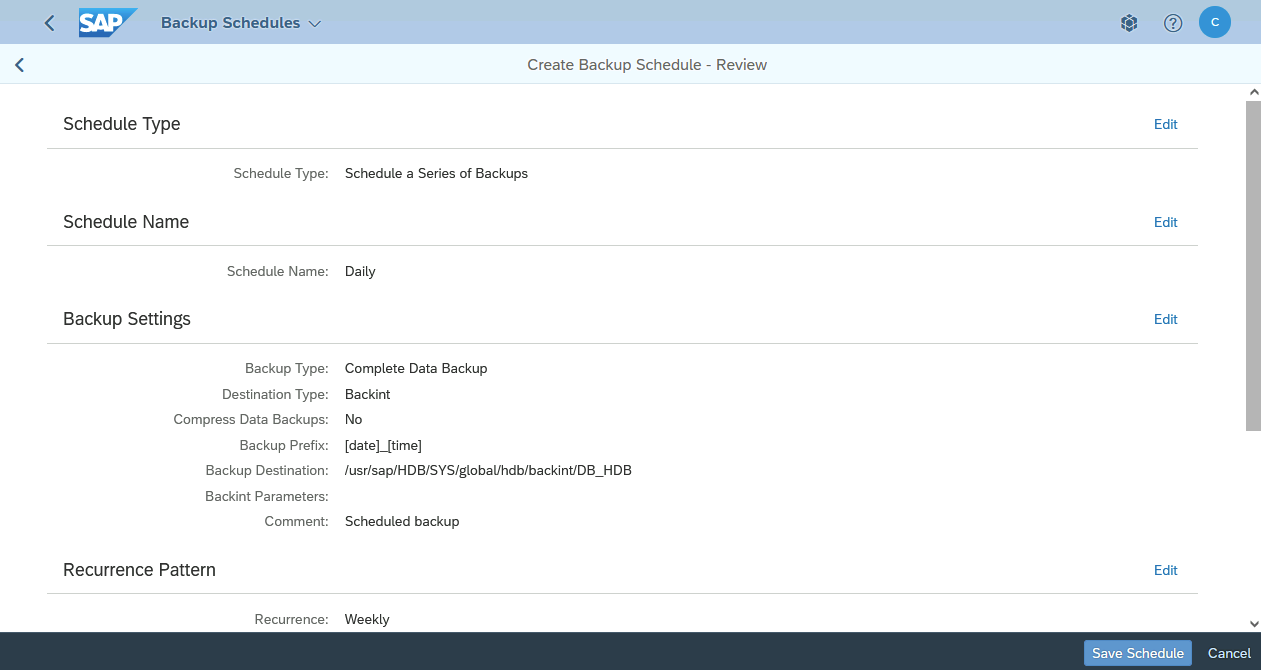
8. The daily scheduling is now configured for your TENANTDB.
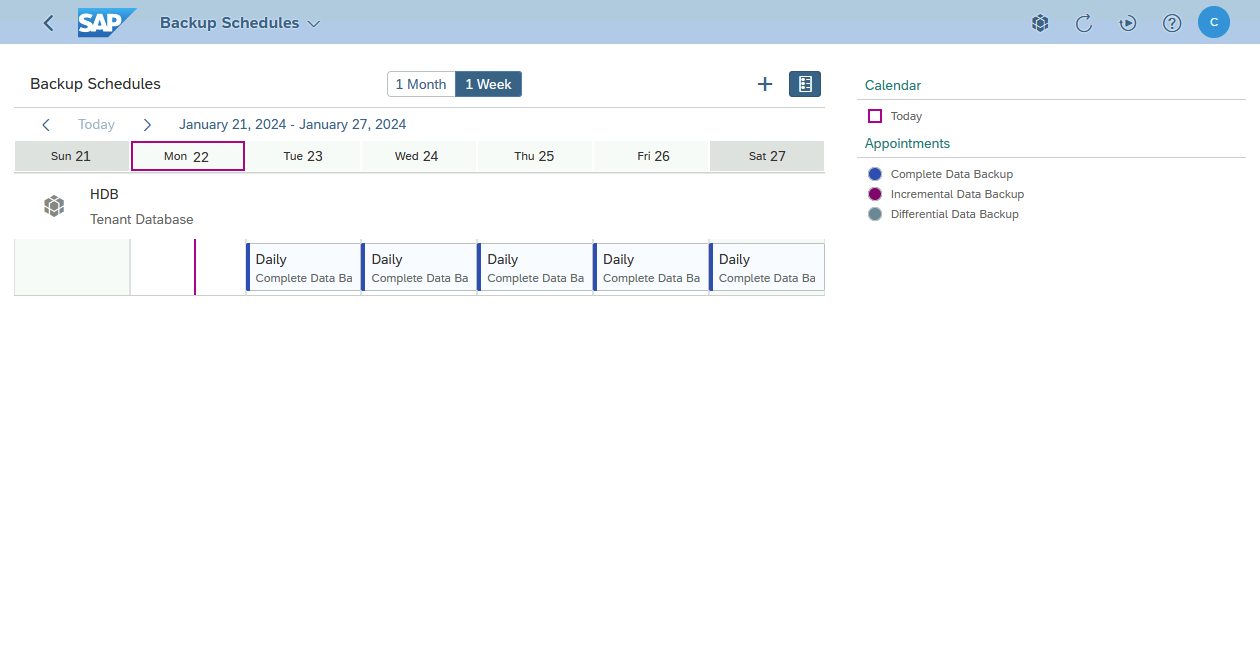
Find below the same daily backups scheduling of the TENANTDB SAP HANA via crontab:
Replace in the following commands the <SID> characters by the SID of your SAP HANA database and <NI> characters by the instance number of your SAP HANA database.
The -U option allows you to call a stored key in the hdbuserstore. To know more about the addition of a key in the hdbuserstore, we suggest you to read the SAP documentation available at this address.
In this example, the BACKUP key has been created with a login and password for a SAP HANA user which has the role BACKUP. The privileges to grant to this user are explained in the SAP HANA documentation.
Recovery
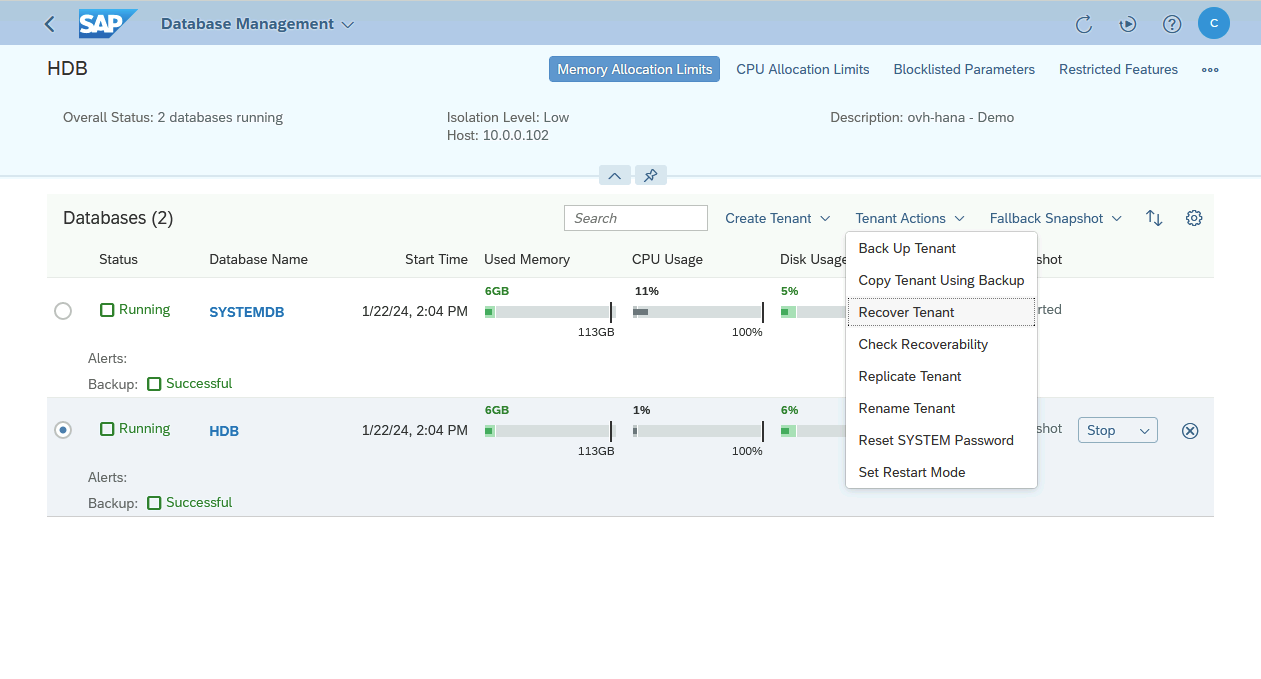
To recover a SAP HANA database from a backup done with OVHcloud Backint Agent, follow these steps in SAP HANA Cockpit:
1. In the Database Management tab, select your TENANTDB. Click on Tenant Actions then select Recover Tenant.
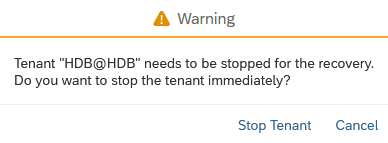
2. The TENANTDB has to be stopped to do the recovery.
Make sure to stop your SAP system linked to this SAP HANA database before starting the recovery.
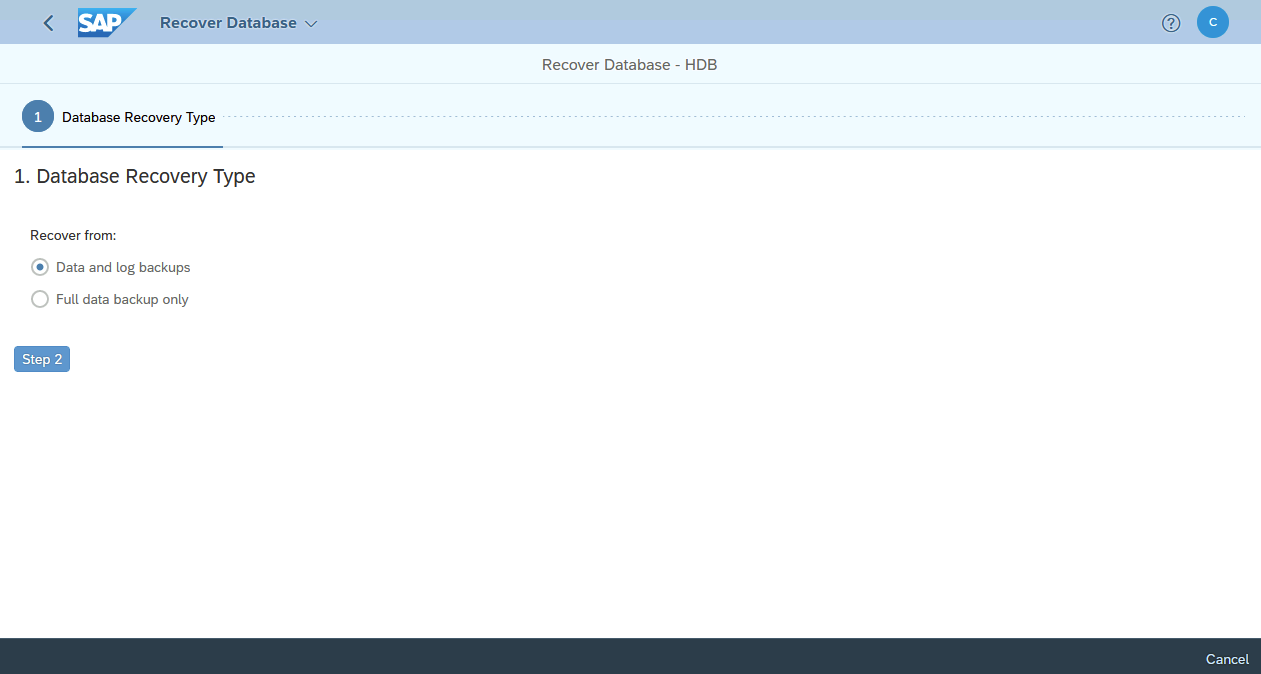
3. Select the wanted option :
Data and logs backupsallows you to recover to a specific point in time.Full data backup onlyallows you to recover to a state of a full backup.
In our example, we select the Data and logs backups option.
4. If you previously selected the Data and logs backups option, you have two options:
Recover to the most recent stateallows you to recover to the most recent state.Recover to a specific point in timeallows you to recover to a specific point in time.
In our example, we select the Recover to the most recent state option.
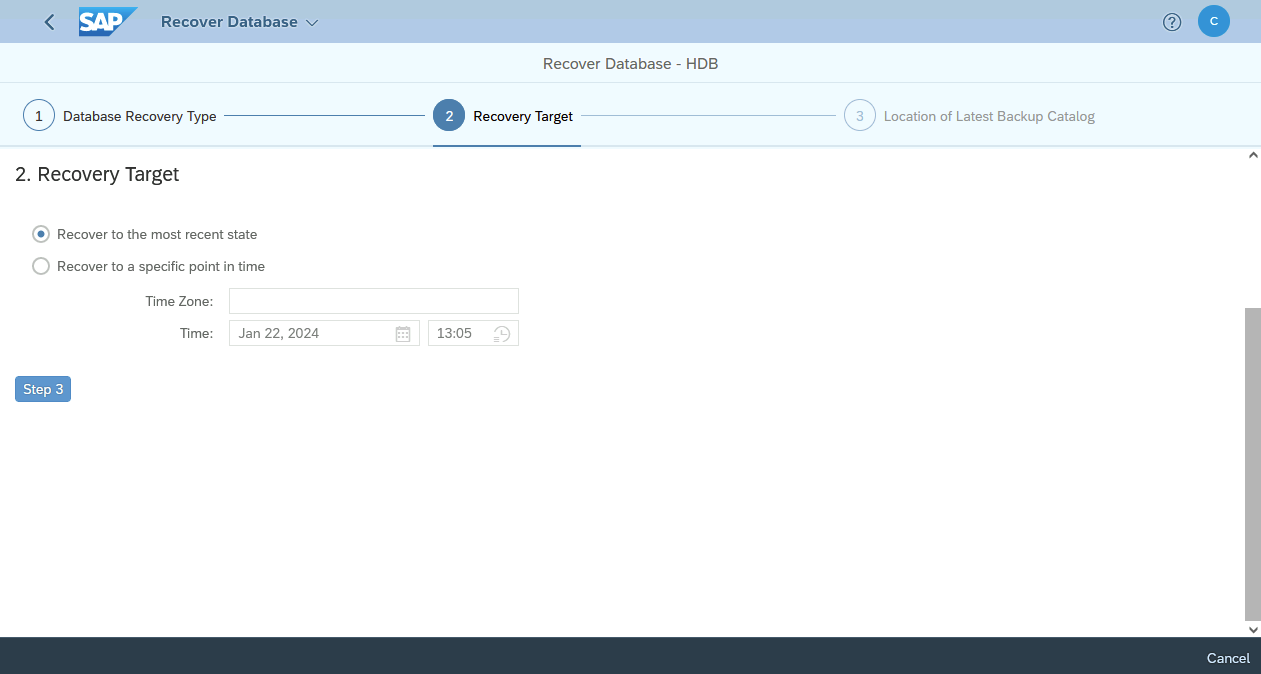
5. If you did not modify the backups catalog location, the Backint location only option is right.
Otherwise, please give the path.

6. After few seconds, all full data backups recorded in the backups catalog of your SAP HANA database are listed.
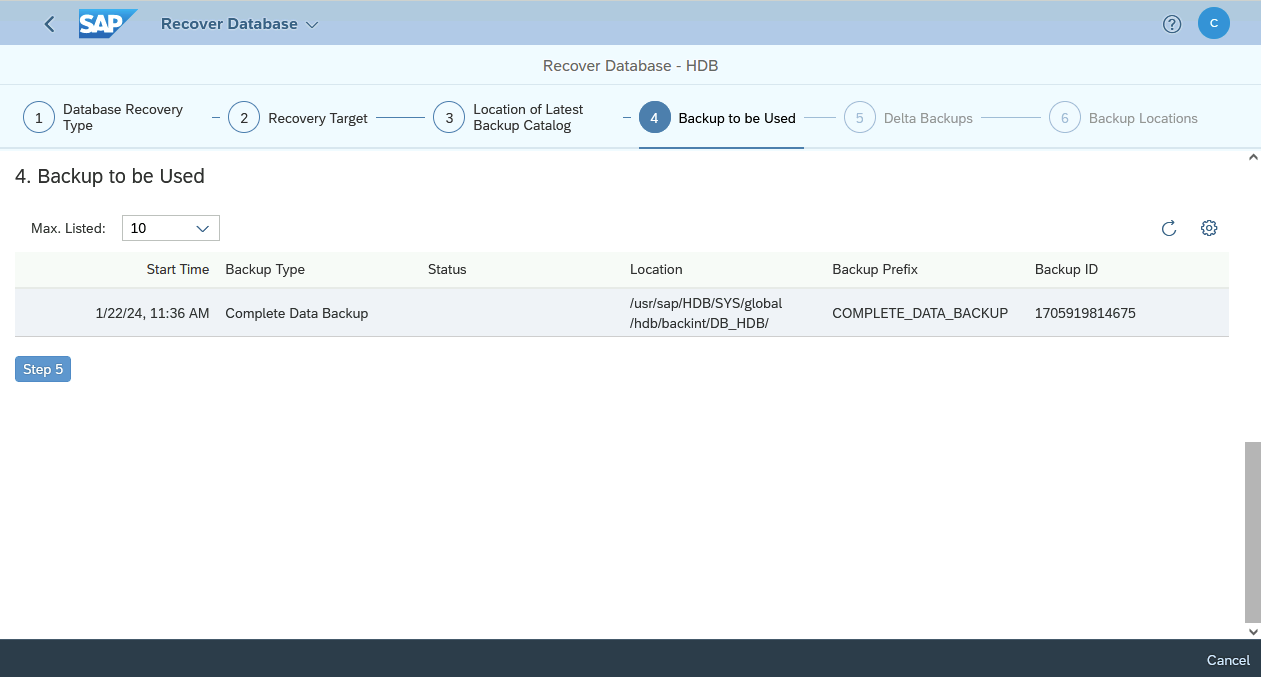
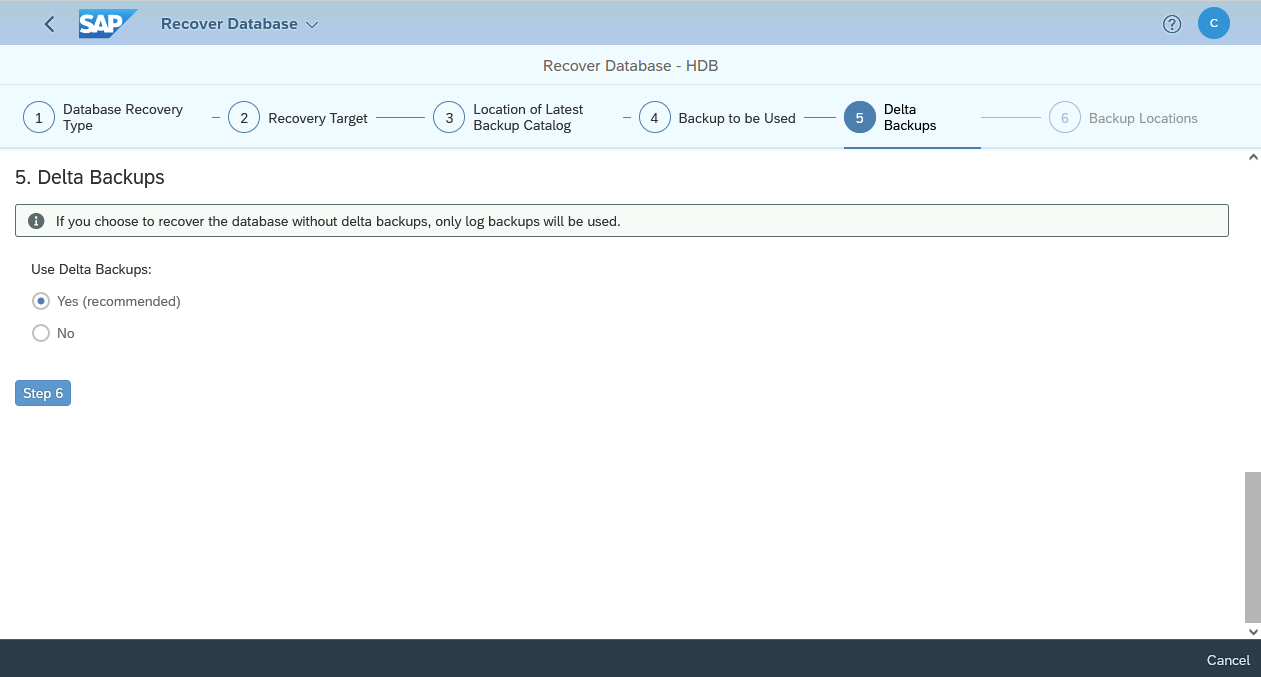
7. You can leave the Yes (recommended) option selected.
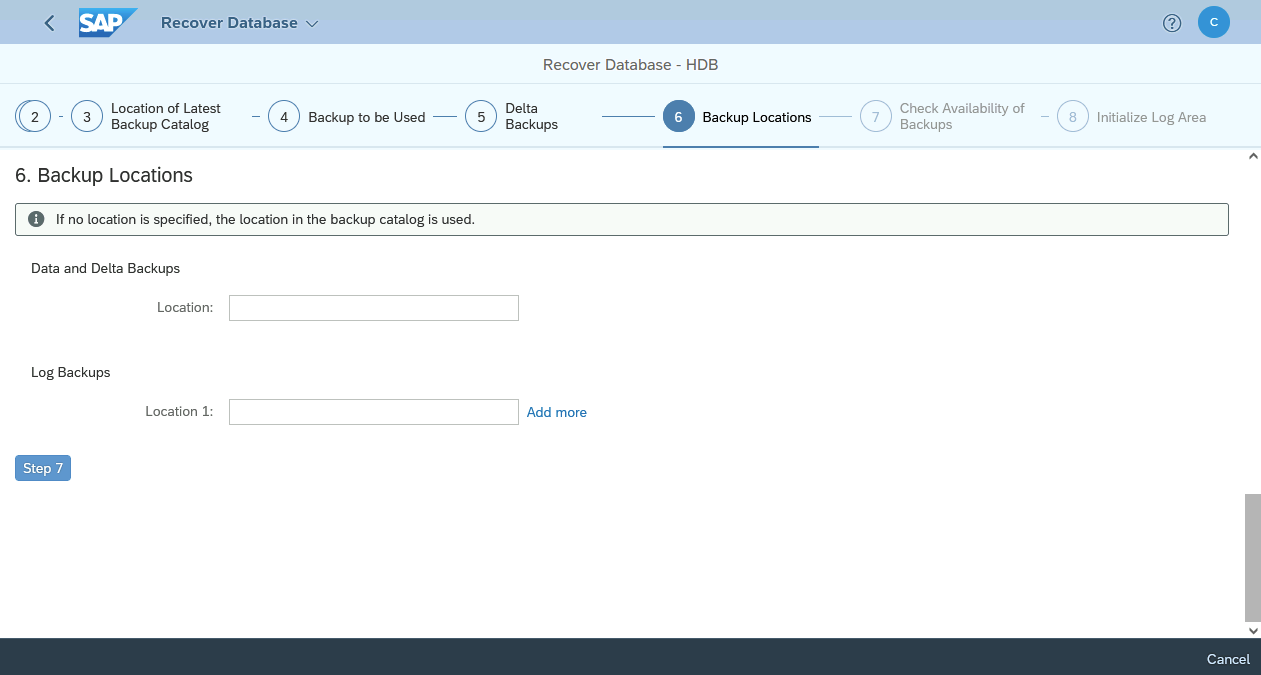
8. If you did not modify the backups and logs backup location, please leave the fields empty.
Otherwise, please set paths.
9. We recommend selecting Yes for the Backint category. This option allows you to check the availability of backups before triggering the recovery.
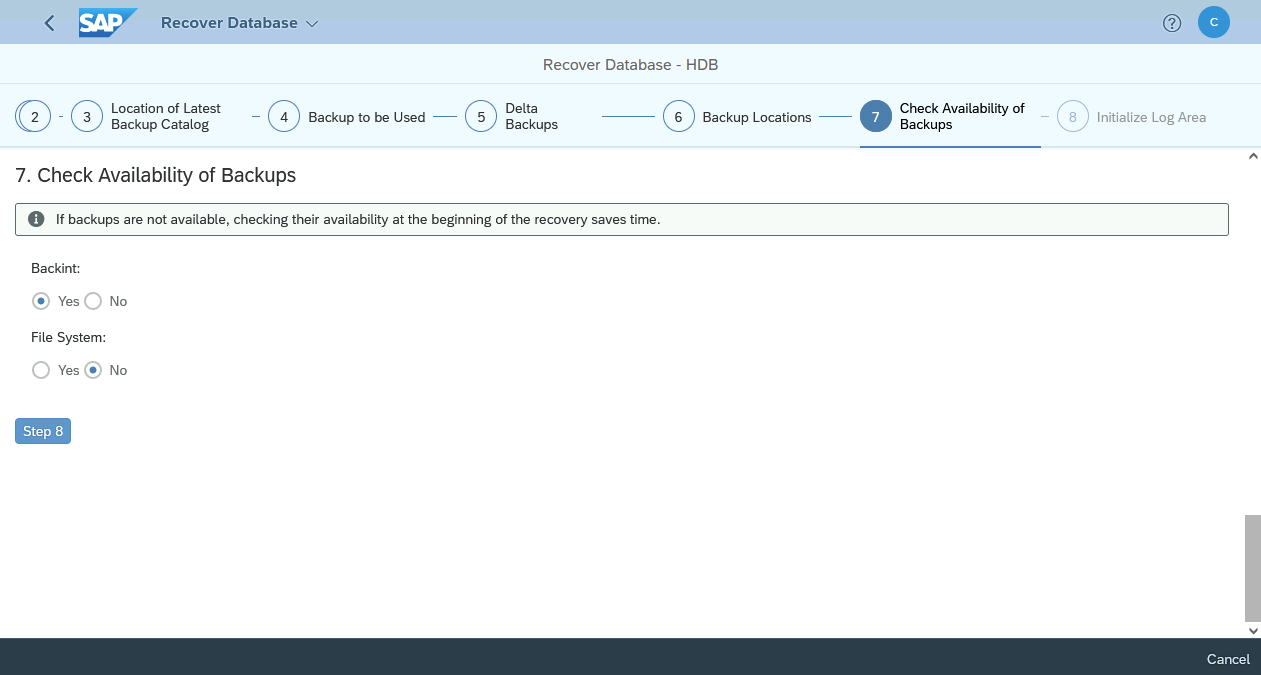
10. In our example, we select No for the Initialize the log area step.
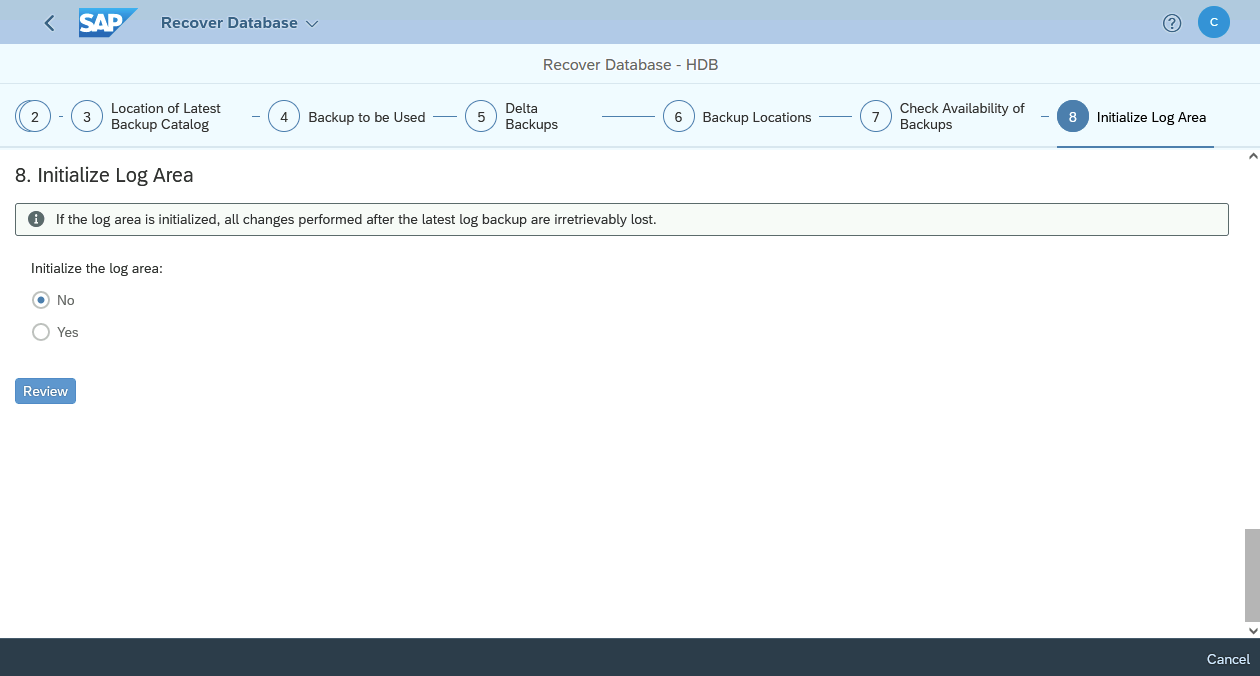
11. Please check parameters of your recovery before applying.
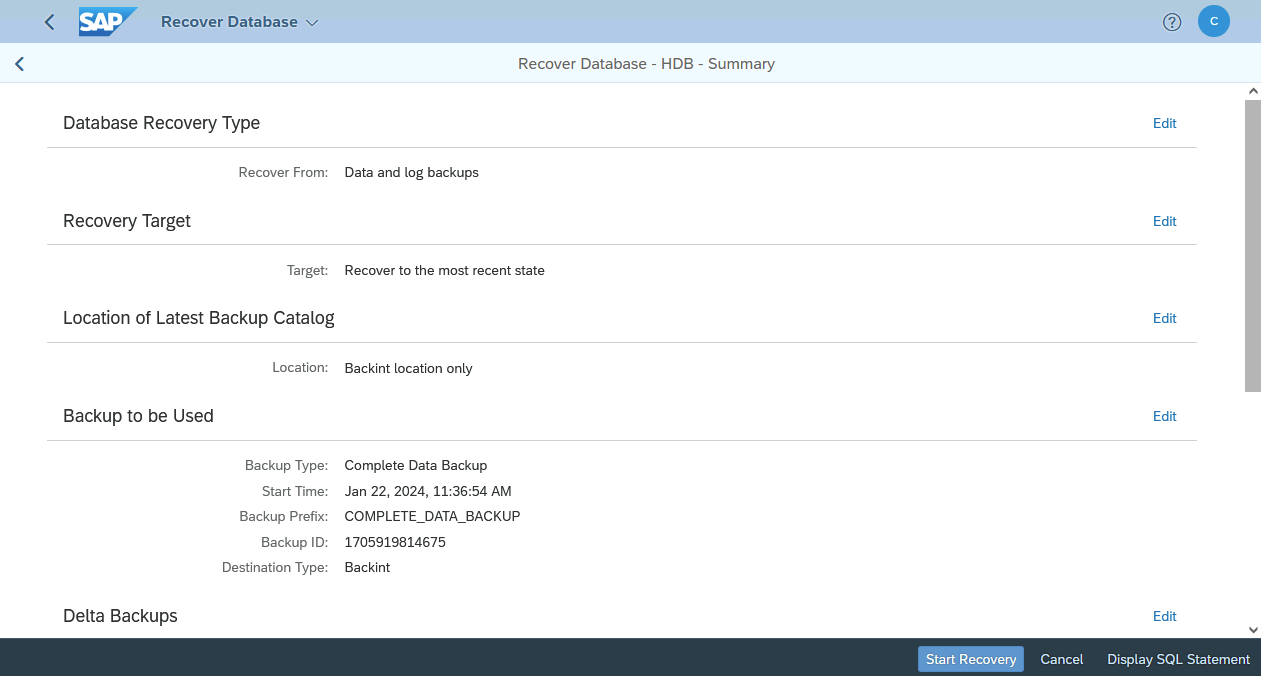
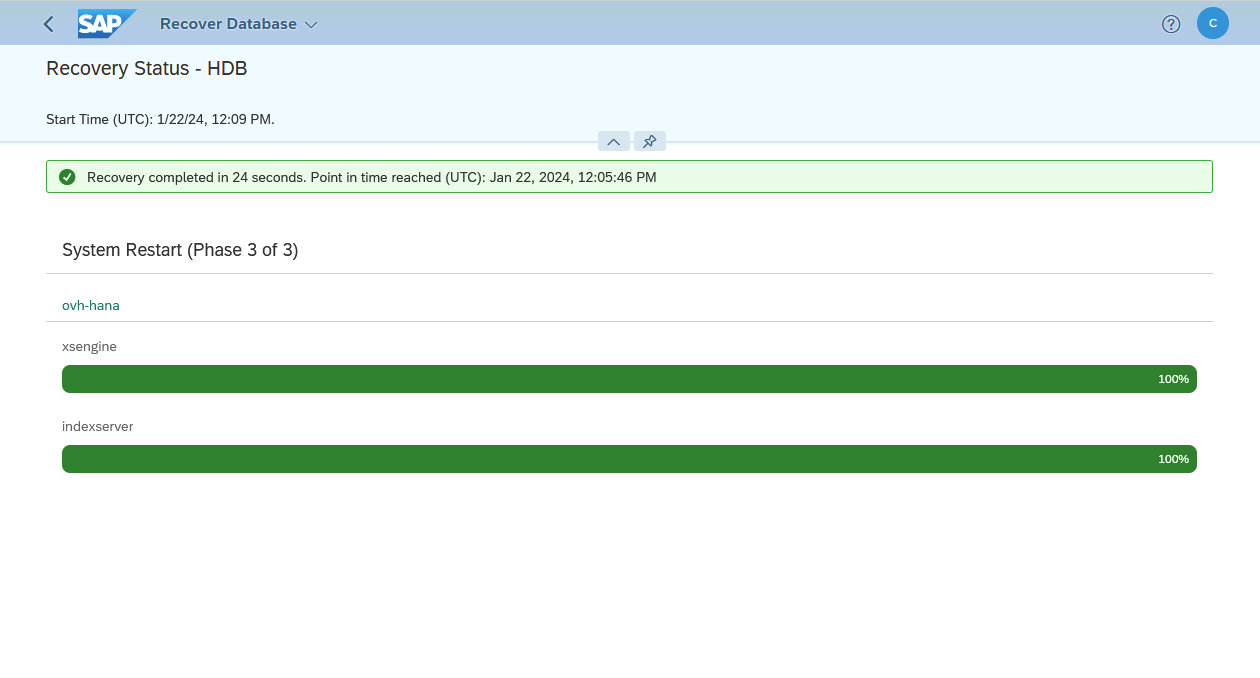
12. The recovery of your TENANTDB services starts.
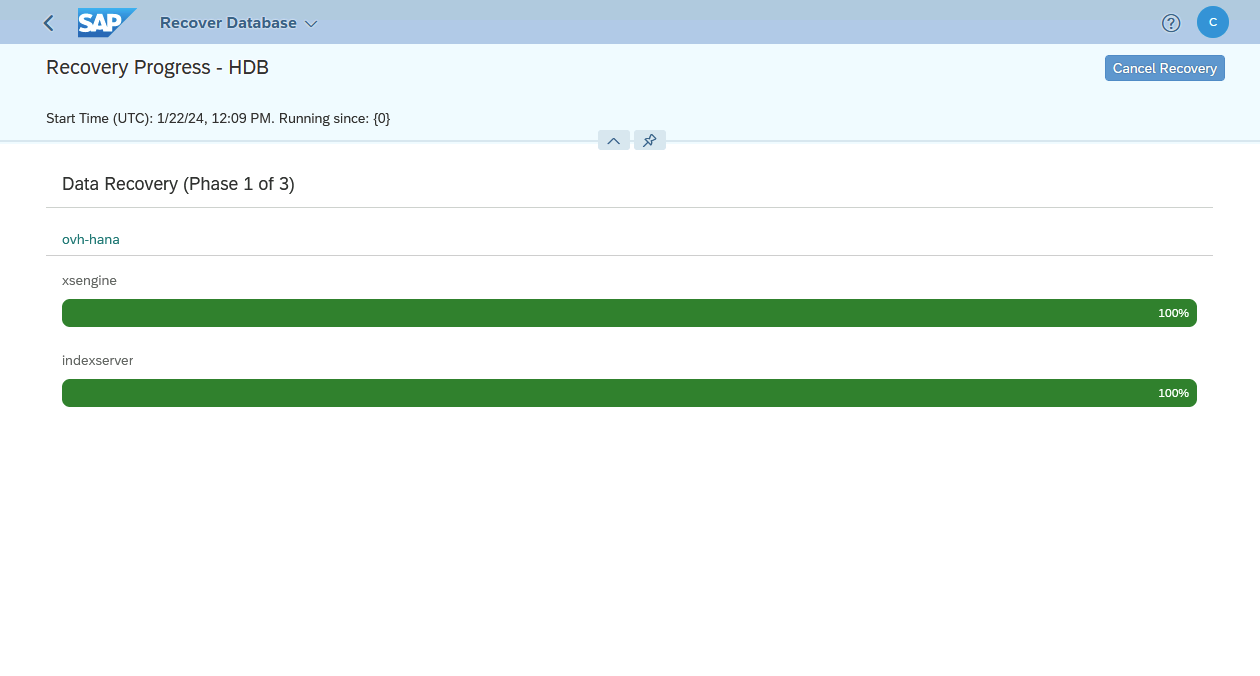
13. Once the recovery has been done successfully, your SAP HANA database is started and available.
Go further
- To improve the security of your backups, we advise you to set the object immutability.
- You also have the possibility to trigger SAP HANA backup to several Object Storage buckets.
If you need training or technical assistance to implement our solutions, contact your sales representative or click on this link to get a quote and ask our Professional Services experts for assisting you on your specific use case of your project.
Join our community of users.


 Backing up SAP HANA with Veeam Backup and Replication
 560
560