

Change your block storage volume type
1456 Ansichten
 13.04.2026
  Block Storage
Objective
The purpose of this guide is to show you how to change a block storage volume type from Classic or High speed to High speed gen2.
Requirements
- Access to the Horizon interface
- A Block Storage volume created in your Public Cloud project
OVHcloud Control Panel Access
- Direct link: Public Cloud Projects
- Navigation path:
Public Cloud> Select your project
Instructions
When trying to change a block storage volume type to a "High speed gen2" one, the migration policy will need to be changed from Never to On-demand.
The migration policy is set by default to Never as the volume stays on the same CEPH cluster. However, for the "High speed gen2" type, the volume will need to be migrated to a new cluster.
This modification can be made via Horizon or the OpenStack CLI.
If the block storage volume is attached to an instance, you must first detach it before proceeding. For more information, see the Detach a volume section of the guide "How to create and configure an additional disk on an instance".
Changing the volume type (retyping) via the OVHcloud Control Panel or the OVHcloud API is available only for unencrypted volumes. Encrypted volumes of type -LUKS cannot be retyped.
Conversions from -LUKS to non -LUKS (or vice versa) are not supported, including via OpenStack / Horizon.
Click on Block Storage in the left-hand menu under Storage & Backup.
Locate the relevant volume in the list, then click the ... button on the right. Select Change the volume type.
A new window opens, displaying the available volume types. Select the desired type, then confirm by clicking Edit.
Changing the volume type (retyping) may take a few minutes.
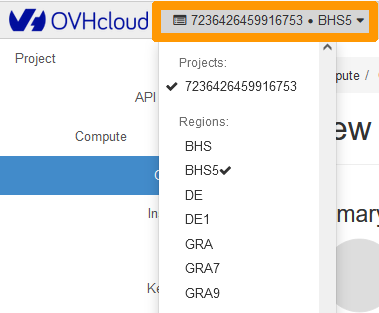
Log in to the Horizon interface and make sure you are in the correct region. You can verify this in the top left corner.
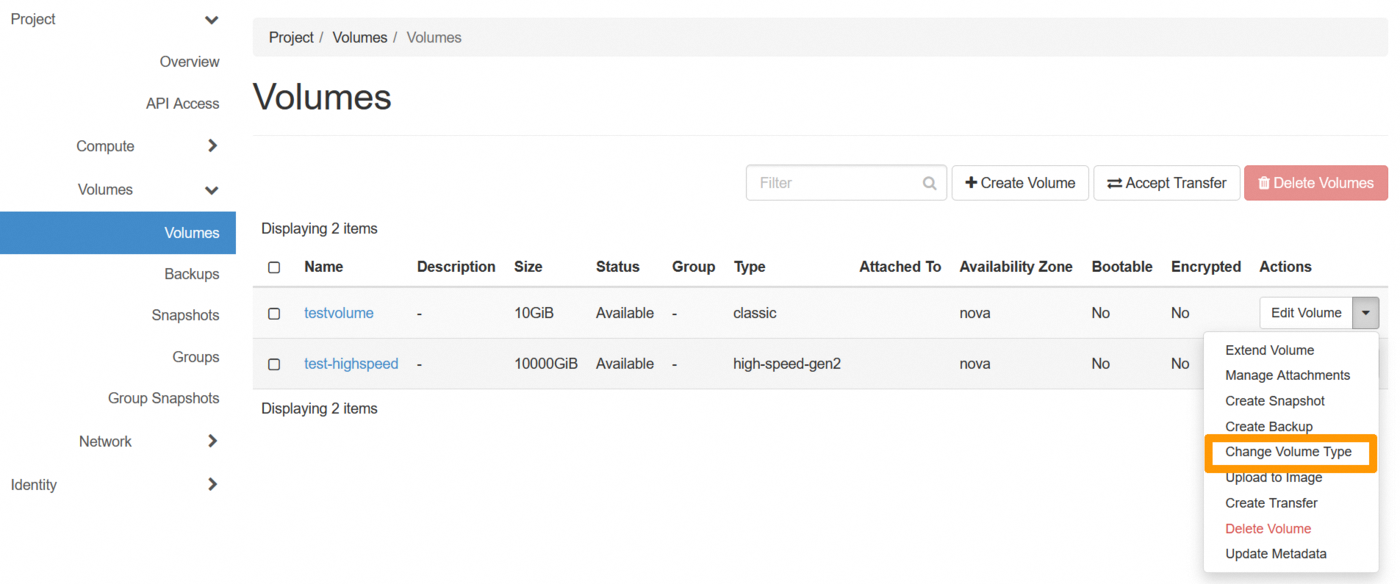
Next, click on the Volumes menu on the left side and click on Volumes.
Click on the drop-down arrow next to Edit Volume and select Change Volume Type.
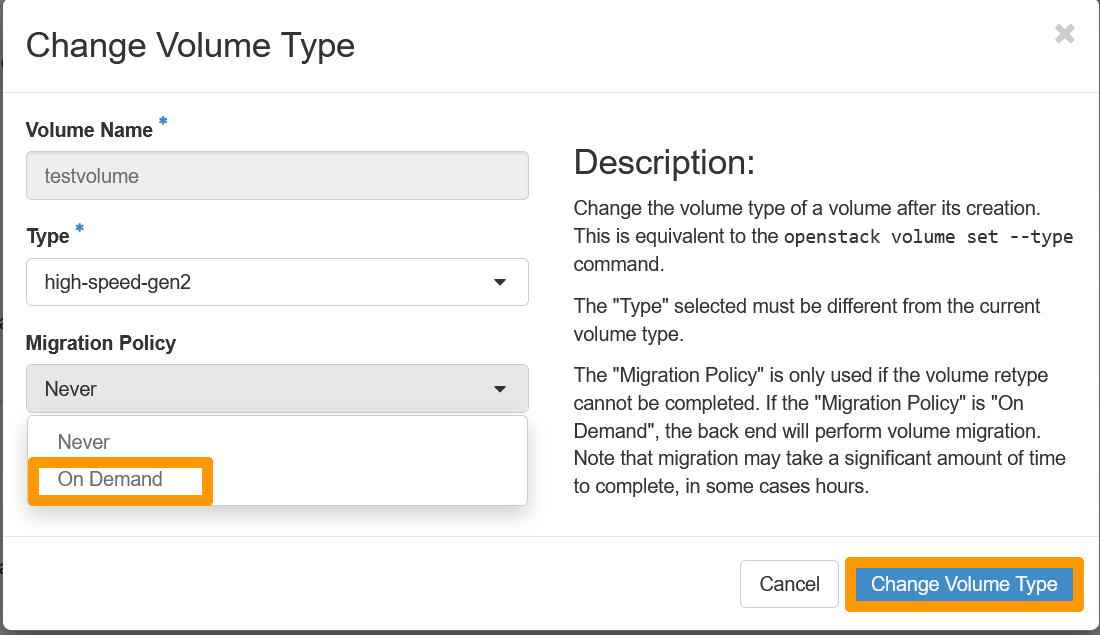
In the pop-up window, click on the drop-down menu under Type and select high-speed-gen-2. Next, click on the drop-down arrow under Migration Policy, and select On Demand.
Once done, click on Change Volume Type to confirm the change.
Make sure to consult the following guide before proceeding:
First, list the type of volumes available in your region with the following command:
Please note that if the "high-speed-gen2" or -LUKS volume types do not appear in the list, it means that they are not available in this region.
-LUKS volume types are only displayed when they are supported in the region and compatible with the volume's encryption type.
Next, switch volume types with the following command:
Go further
To learn how to migrate a Block Storage volume to an encrypted LUKS volume, check out our dedicated guide: Migrating a Block Storage volume to an encrypted LUKS volume.
If you need training or technical assistance to implement our solutions, contact your sales representative or click on this link to get a quote and ask our Professional Services experts for assisting you on your specific use case of your project.
Join our community of users.


 Block Storage Volume bearbeiten
 270
270