

Migrating to Nutanix via the Nutanix Move tool
7982 Ansichten
 10.02.2025
  Cloud / Nutanix on OVHcloud
Objective
Nutanix provides a tool called Nutanix Move that allows migrations from other environments to AHV.
This guide explains how to perform a migration with the Move software.
OVHcloud provides services for which you are responsible, with regard to their configuration and management. It is therefore your responsibility to ensure that they work properly.
This guide is designed to assist you as much as possible with common tasks. However, we recommend reaching out to the OVHcloud Professional Services team or a specialized provider if you encounter difficulties or have any doubts about managing, using, or setting up a service on a server.
Some options, such as the use of compression or deduplication, require specific licences provided by Nutanix through OVHcloud. Please contact OVHcloud Sales for more information.
Finally, if the procedure involves a VMware on OVHcloud service, the intervention of OVHcloud Professional Services is mandatory.
Requirements
- A Nutanix cluster in your OVHcloud account
- You must be connected to the cluster via Prism Central
- A connection to an environment other than Nutanix
Nutanix Move Overview
Nutanix Move is a tool that allows virtual machine migrations from VMware ESXI, Hyper-V, Azure and AWS to AHV.
It can also be used to migrate from Nutanix AHV to AWS.
This software works on a virtual machine whose sources are available on the Nutanix website with a customer account.
For optimal use, we recommend installing Nutanix Move as close as possible to the destination.
The Nutanix Move software is the only software that communicates between the source and the destination.
It is strongly discouraged to use Nutanix Move with virtual machines on a Windows Server running Active Directory or Microsoft Exchange. It is best to migrate as recommended by Microsoft.
For VMs that use databases in Microsoft SQL, it is best to stop the database service when completing a migration.
Ensure that the original virtual machine is compatible with the destination Nutanix environment.
Instructions
We will look at how to migrate between a remote environment on Hyper-V to an OVHcloud Nutanix environment.
The source and the destination are on two interconnected private networks through an IPSEC VPN.
Preparing the original virtual machines before migration
The virtual machine must be in the list of supported virtual machines in the compatibility matrix for the migration to work.
Log in to the site below to verify the compatibility of the source machines with the destination environment on Nutanix:
Specificity of virtual machines on LINUX
Some virtual machines will not start correctly after migration via Nutanix Move.
Check the compatibility list as it is likely that the SCSI driver is not supported and needs to be changed with the PCI driver.
In this case, you will need to follow this procedure to change the disk controller of a Virtual Machine after the virtual machine is migrated.
Specificity of the Microsoft environment
Microsoft does not provide the SCSI adapter and network card Virtio drivers. These drivers must be installed prior to a migration. These drivers are available on the Nutanix website with a customer account.
Microsoft Windows 2008 is no longer supported by Microsoft or Nutanix. However, you can install older Virtio drivers and attempt a migration.
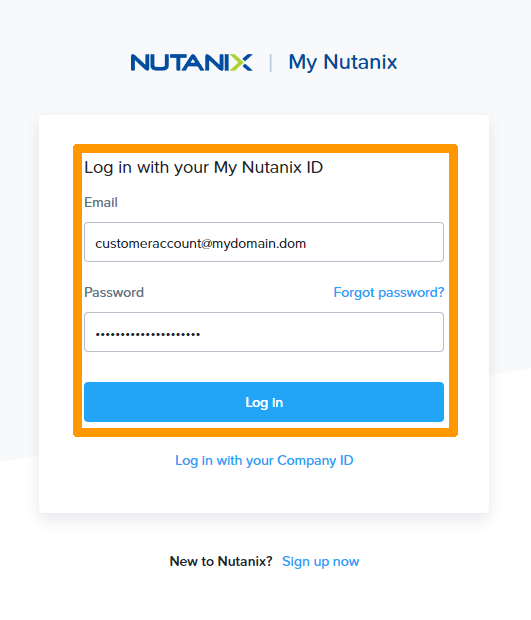
Login to the Nutanix website with a customer account to download the VIRTIO drivers.
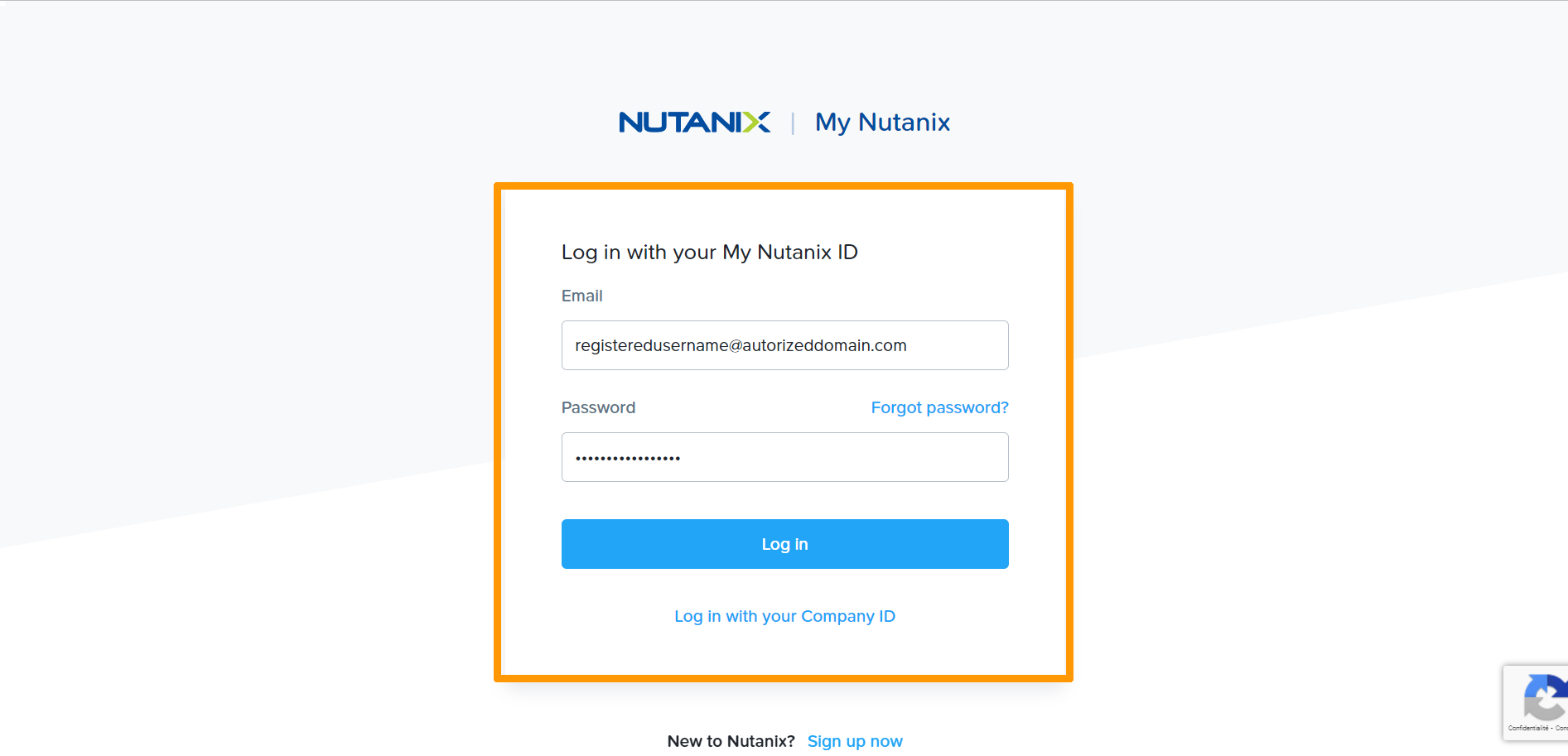
Enter your user name in Emails, your password in Password and click Log In.
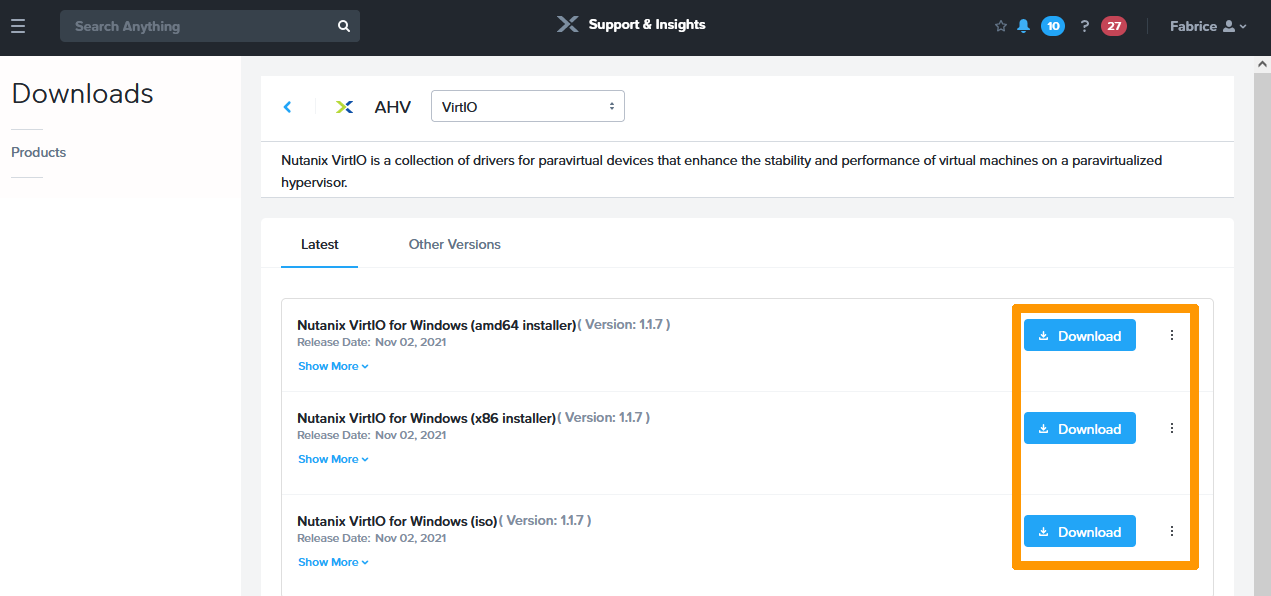
Click the Download link that suits you.
For our example, we will download the driver for amd64.
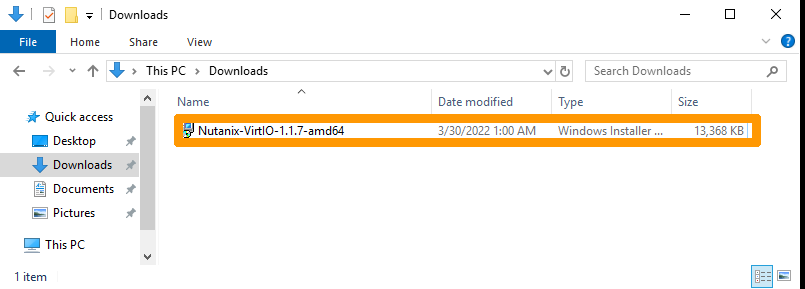
From a Windows virtual machine in the Hyper-V environment, double-click Nutanix-VirtIO-1.1.7-amd64.
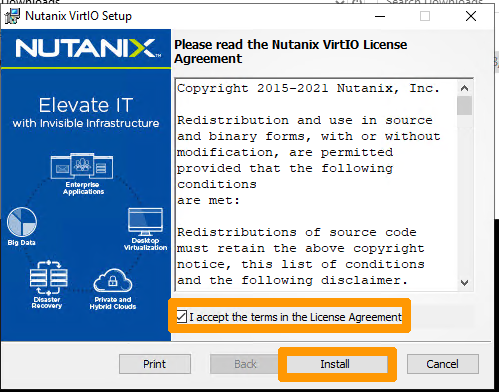
Read the licence terms and conditions, accept them by ticking the box and then click Install.
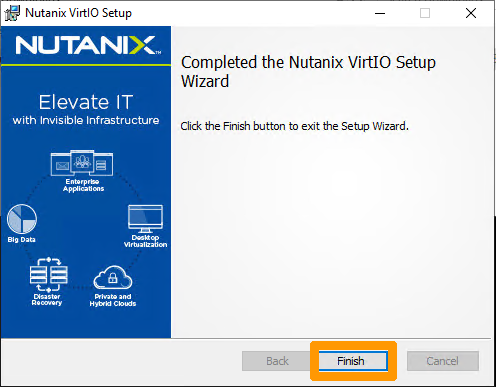
Click Finish to complete the installation without having to restart the virtual machine.
Installing Move on the Nutanix Cluster.
Downloading and importing sources.
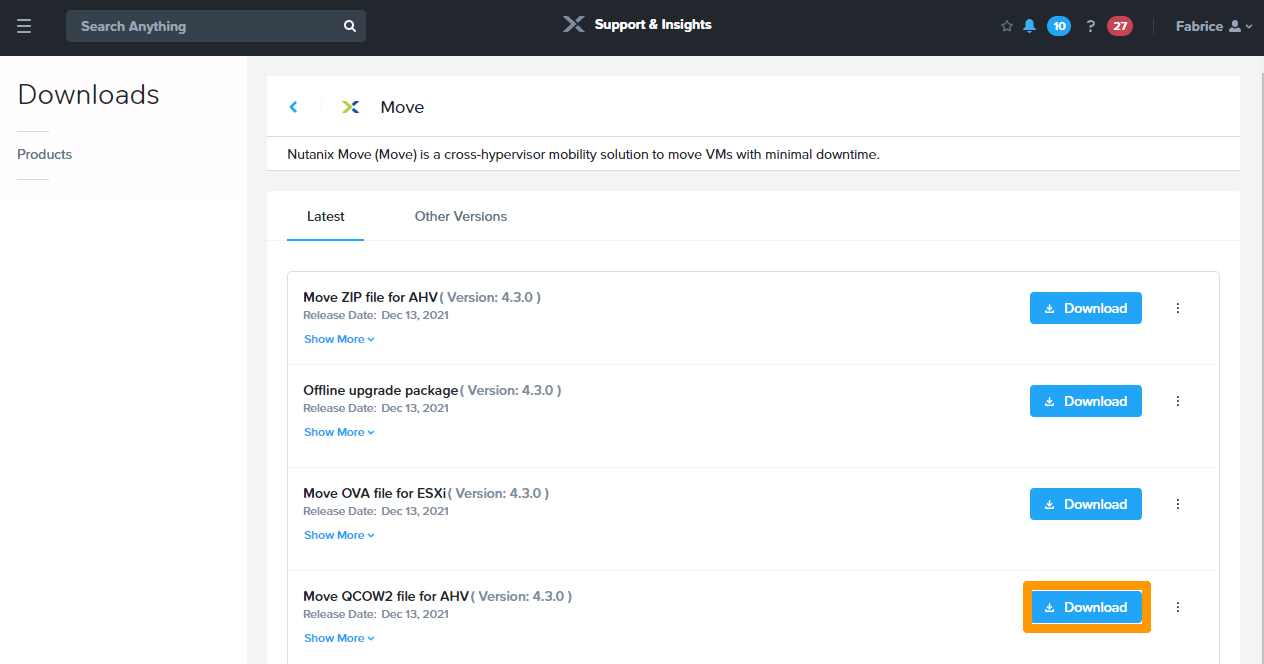
Retrieve the file in qcow2 format from this site: Download link for Nutanix Move.
Sign in with an account registered with Nutanix.
Click Download to the right of Move QCOW2 file for AHV.
Import the downloaded image from Nutanix Move into the cluster. For more information on importing images, see our guide on importing images.
Installing the Move virtual machine
Create a virtual machine from the Move image.
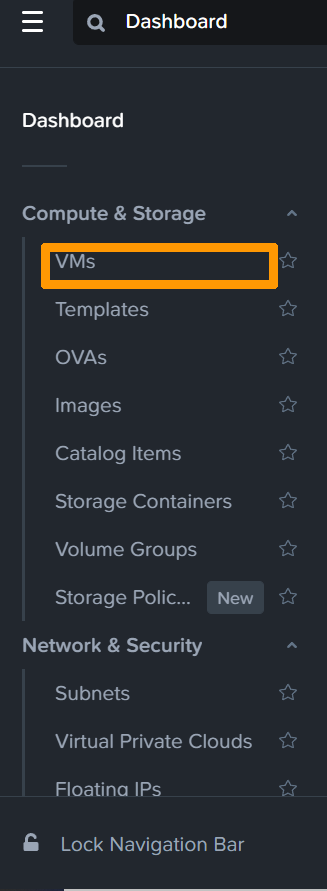
From Prism Central, open the main menu by clicking on the button in the top left-hand corner.
Click VMs in the menu.
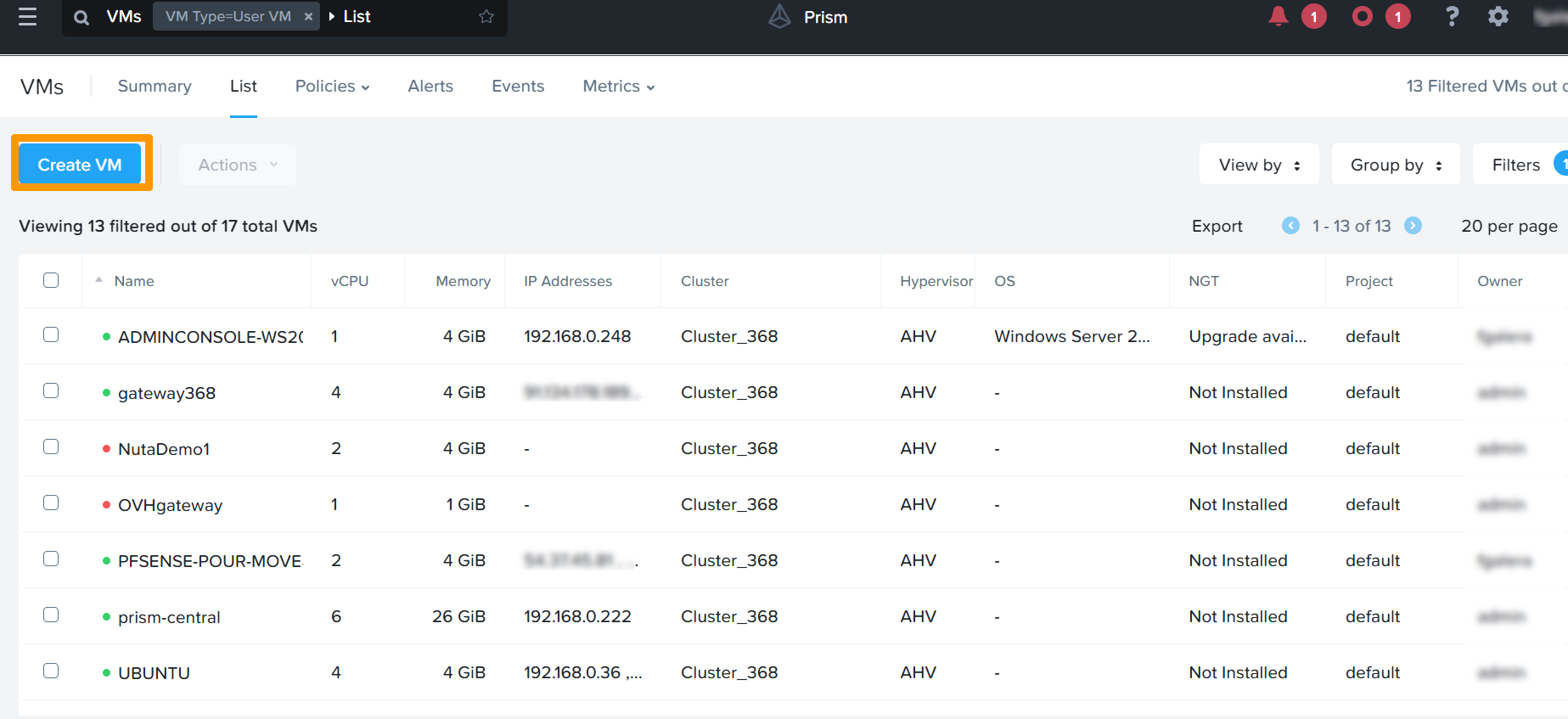
Click Create VM.
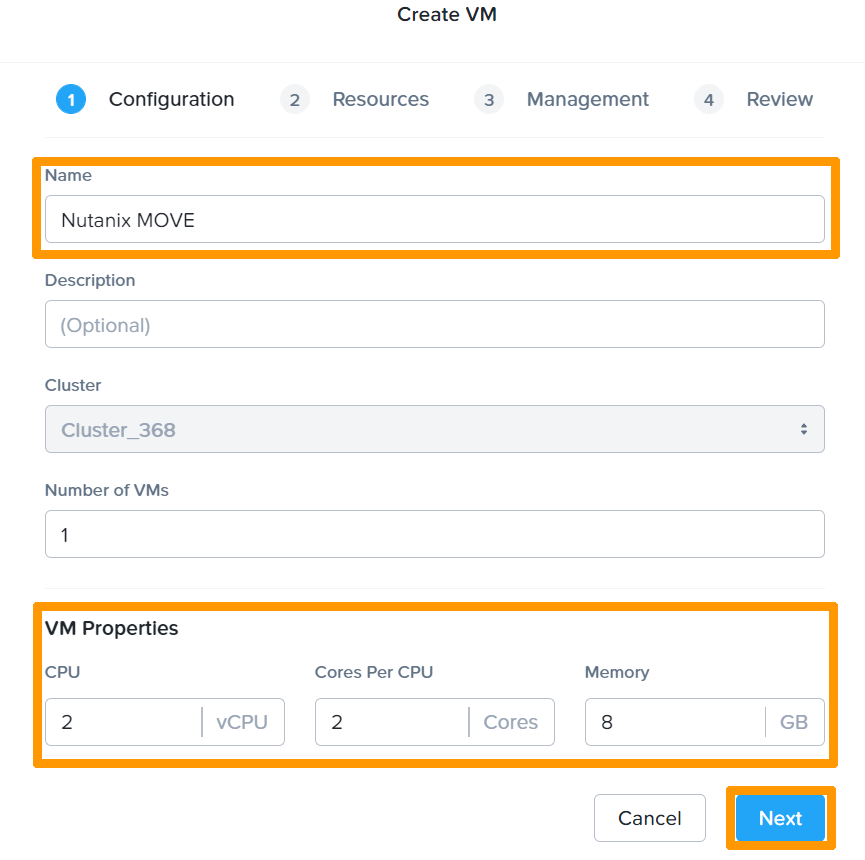
Type Nutanix Move in the Name field.
Choose the 2 vCPU, 2 Cores and 8 GB options in the VM Properties fields and click Next.
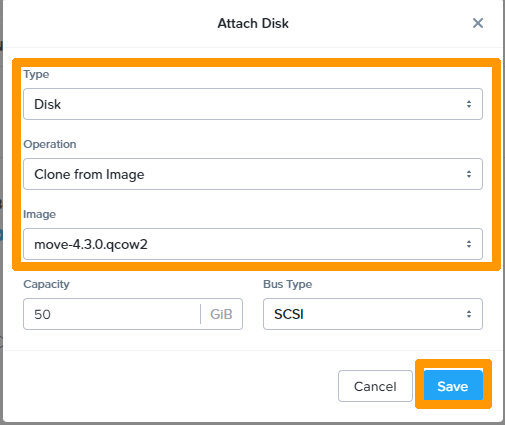
Click Attach Disk.
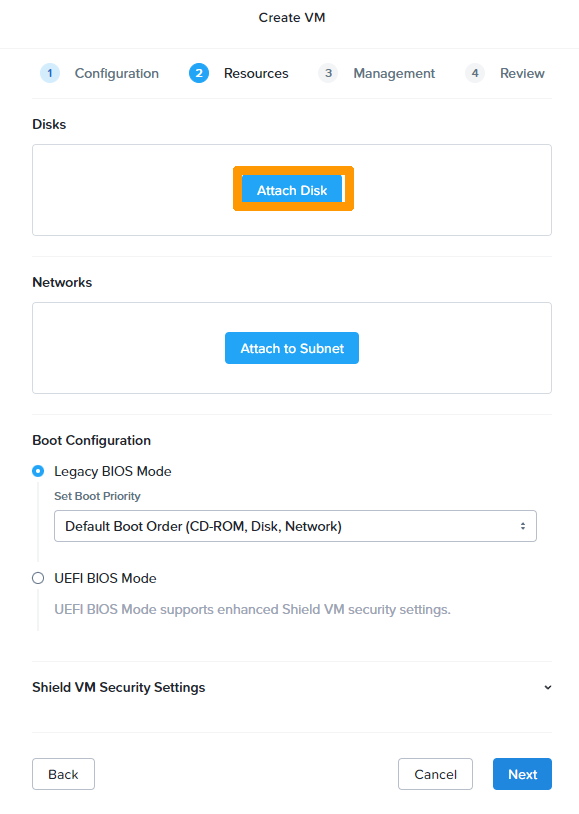
Choose the Disk, Clone from Image and move-4.3.0.qcow2 options and click Save.
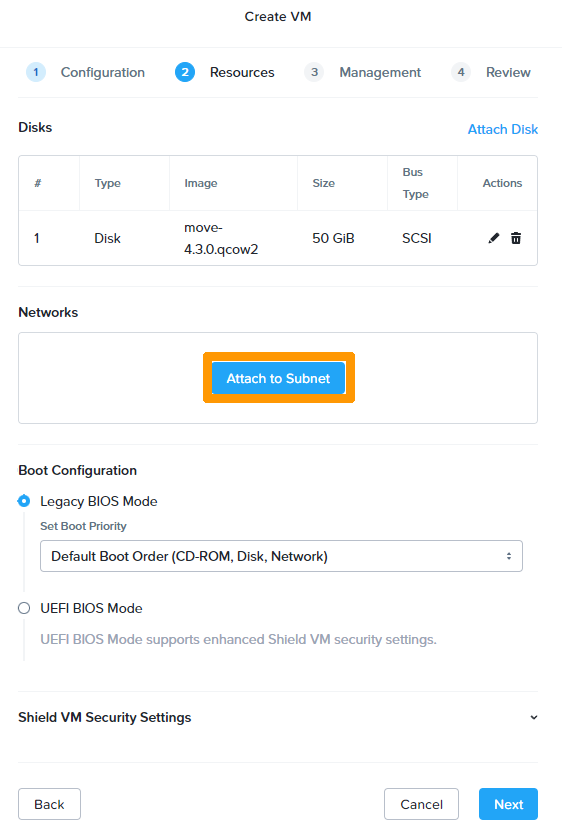
Click on Attach to Subnet.
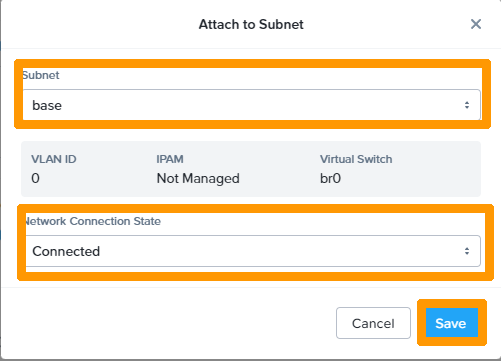
Choose the network in Subnet, make sure it is connected in Network Connection State, and click Save.
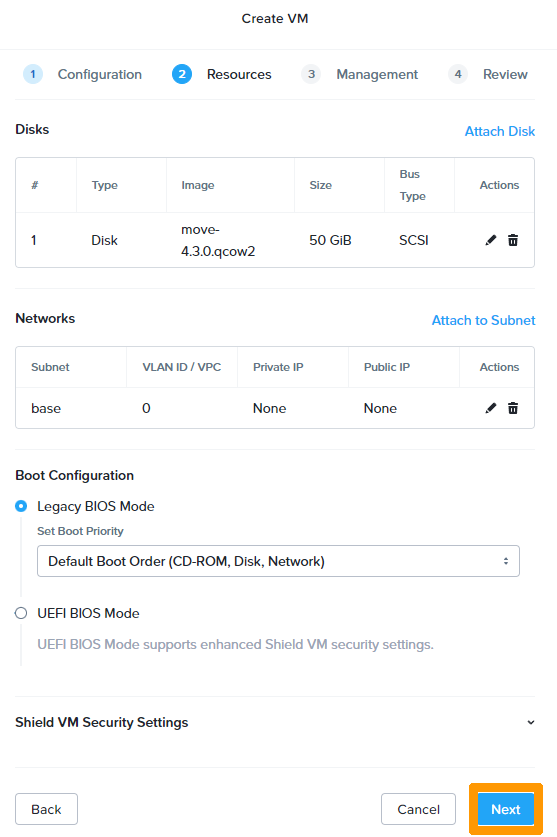
Click Next.
Leave the default time zone options and click Next.
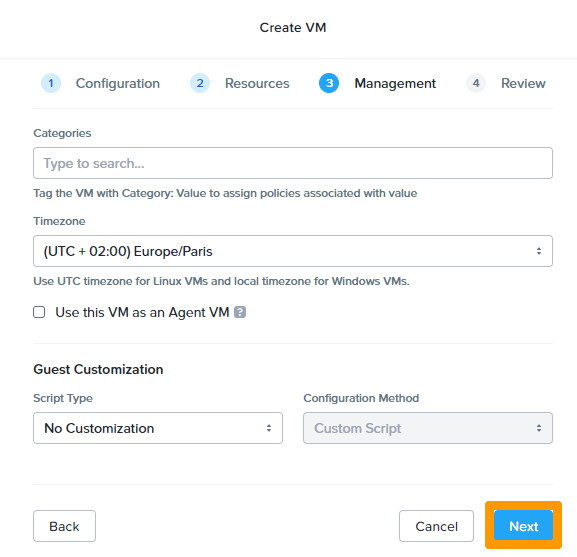
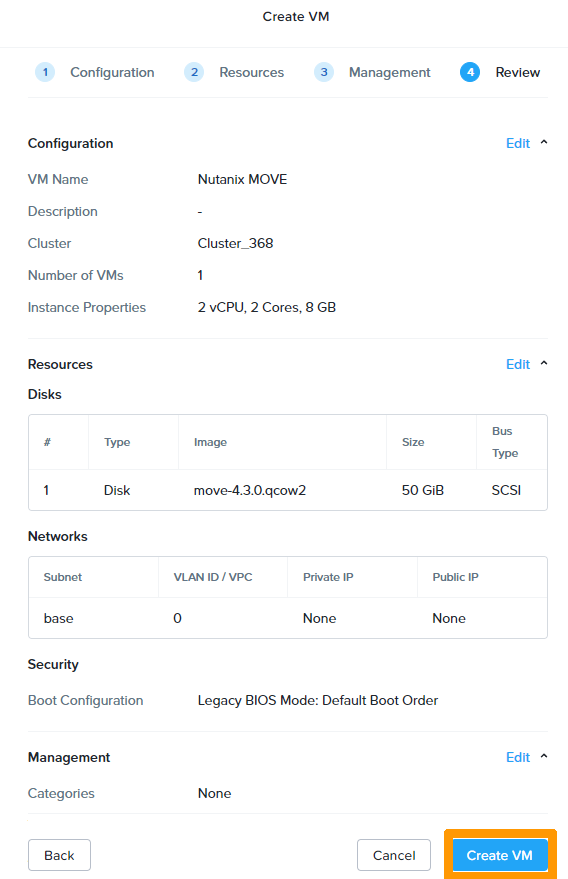
Click Create VM to complete the installation of the Nutanix Move virtual machine.
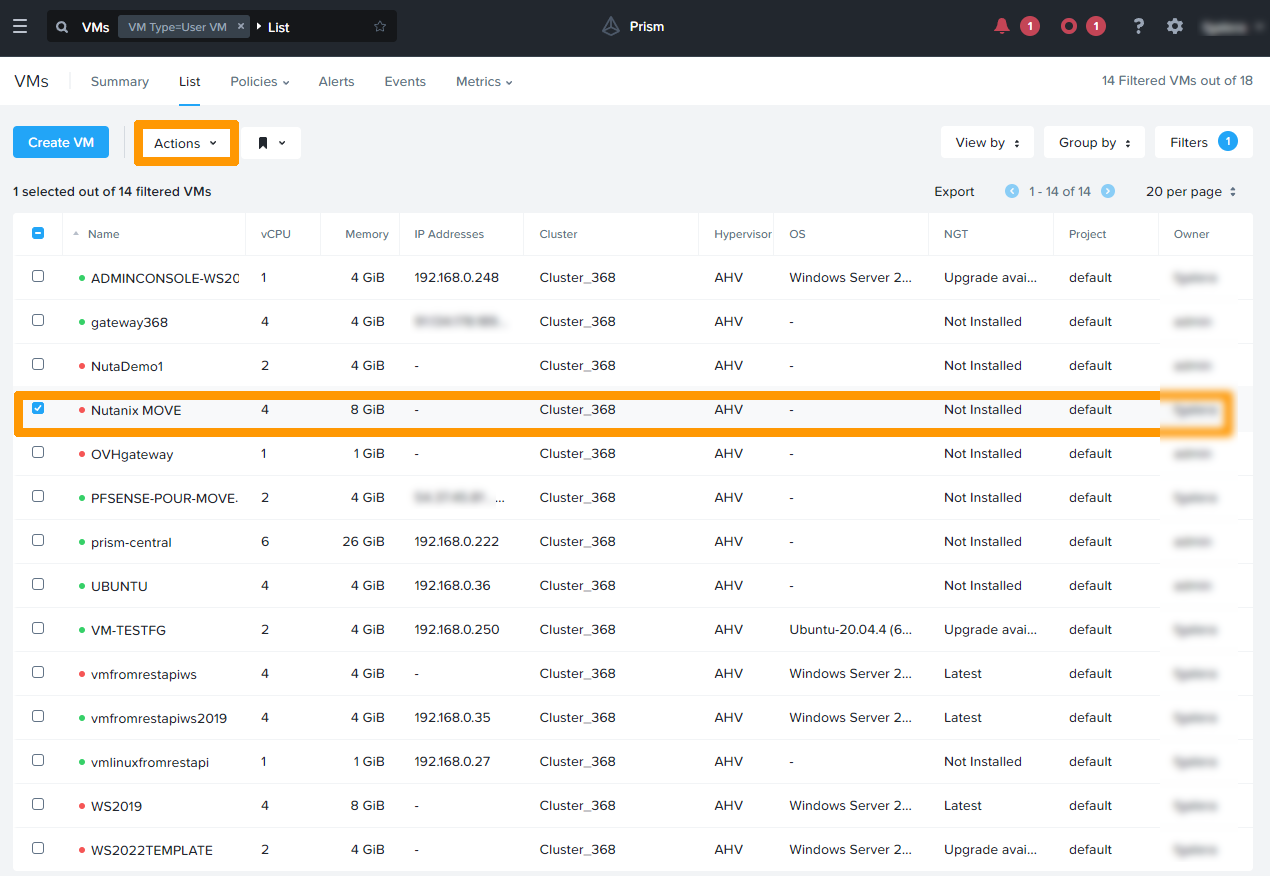
Select the Nutanix Move virtual machine and click the Actions menu.
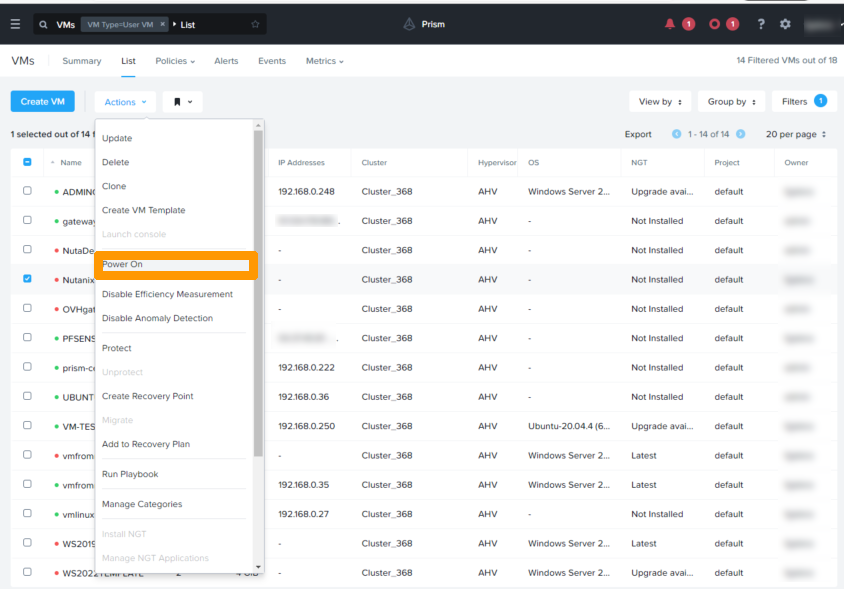
Click Power On in the Actions menu to start the virtual machine.
The virtual machine is started and an IP address is obtained if a DHCP server is operational on that network.
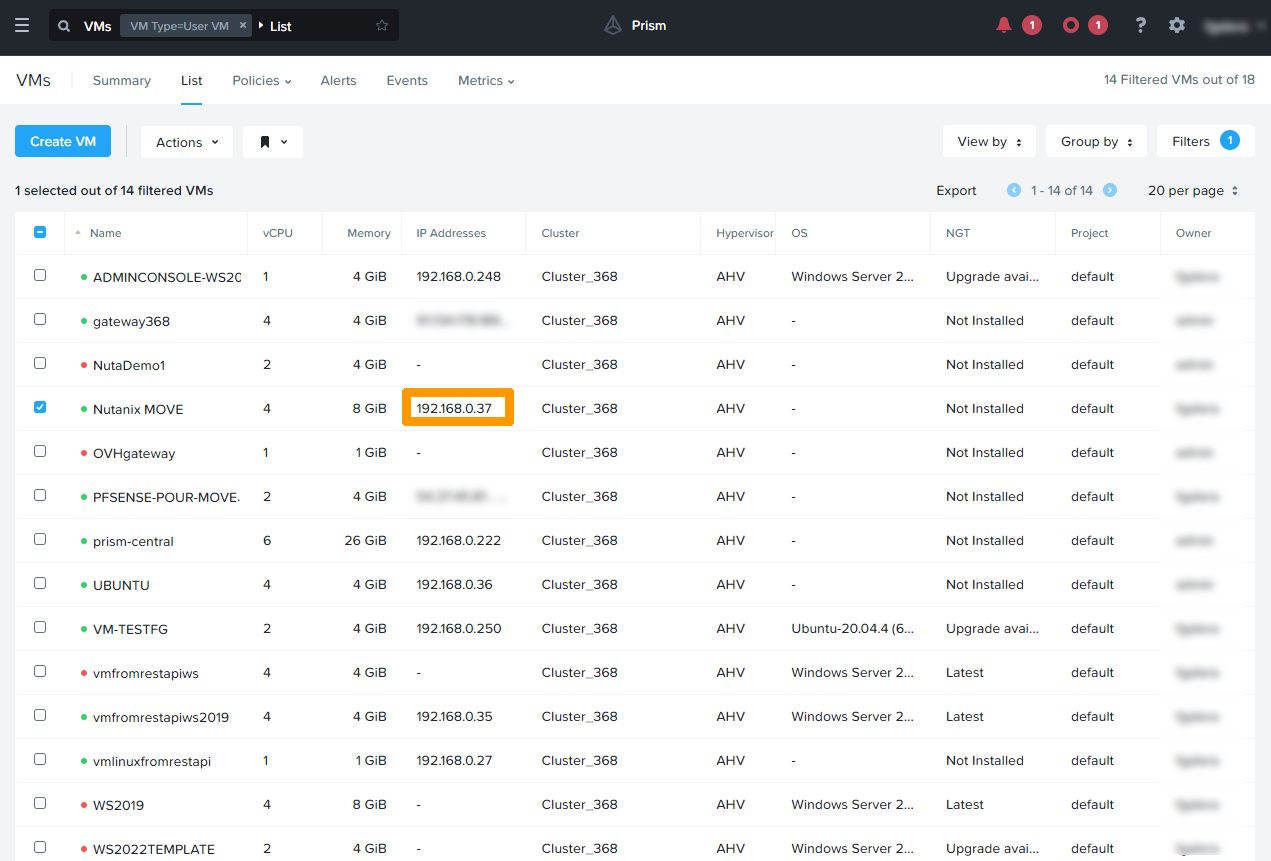
This installation of Nutanix Move is done on a network that has a DHCP server, but it is possible to configure the virtual machine on a network without a DHCP server.
For more information about Nutanix Move, see the Go further section of this guide.
Configuring Nutanix Move
Logging in to the web interface and creating environments for migration
Connect to the IP address of the Nutanix Move virtual machine through a web browser in HTTPS, as follows: https://IPaddressNutanixMove/.
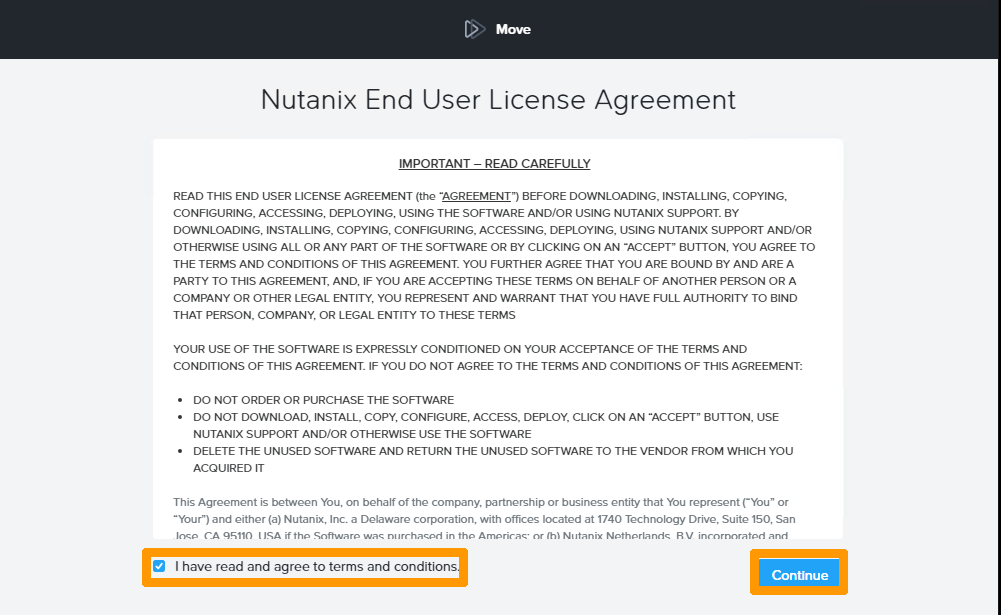
Read the licence conditions, accept them and click Continue.
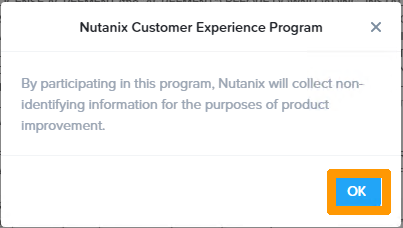
Click OK to continue.
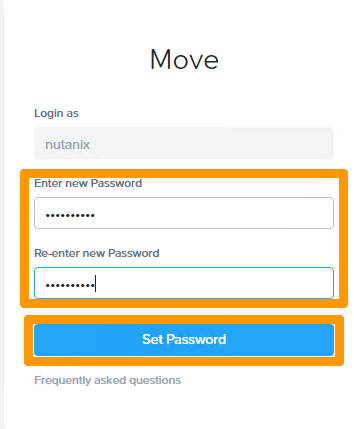
Select and confirm a password in the fields provided, then click Set Password to validate the creation of the Nutanix Move password.
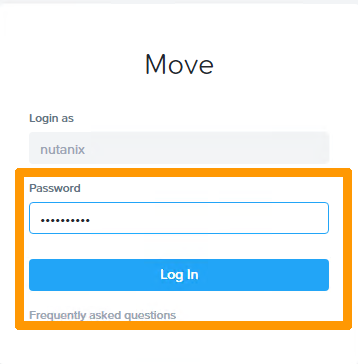
Type the password in Password and click Log In to log into the Nutanix Move web interface.
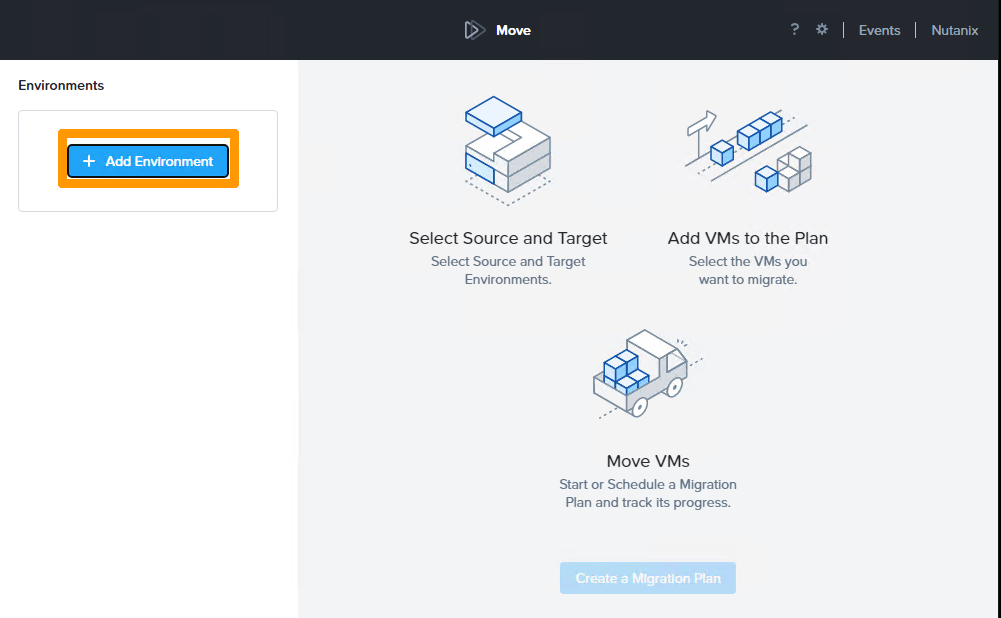
Click + Add Environment.
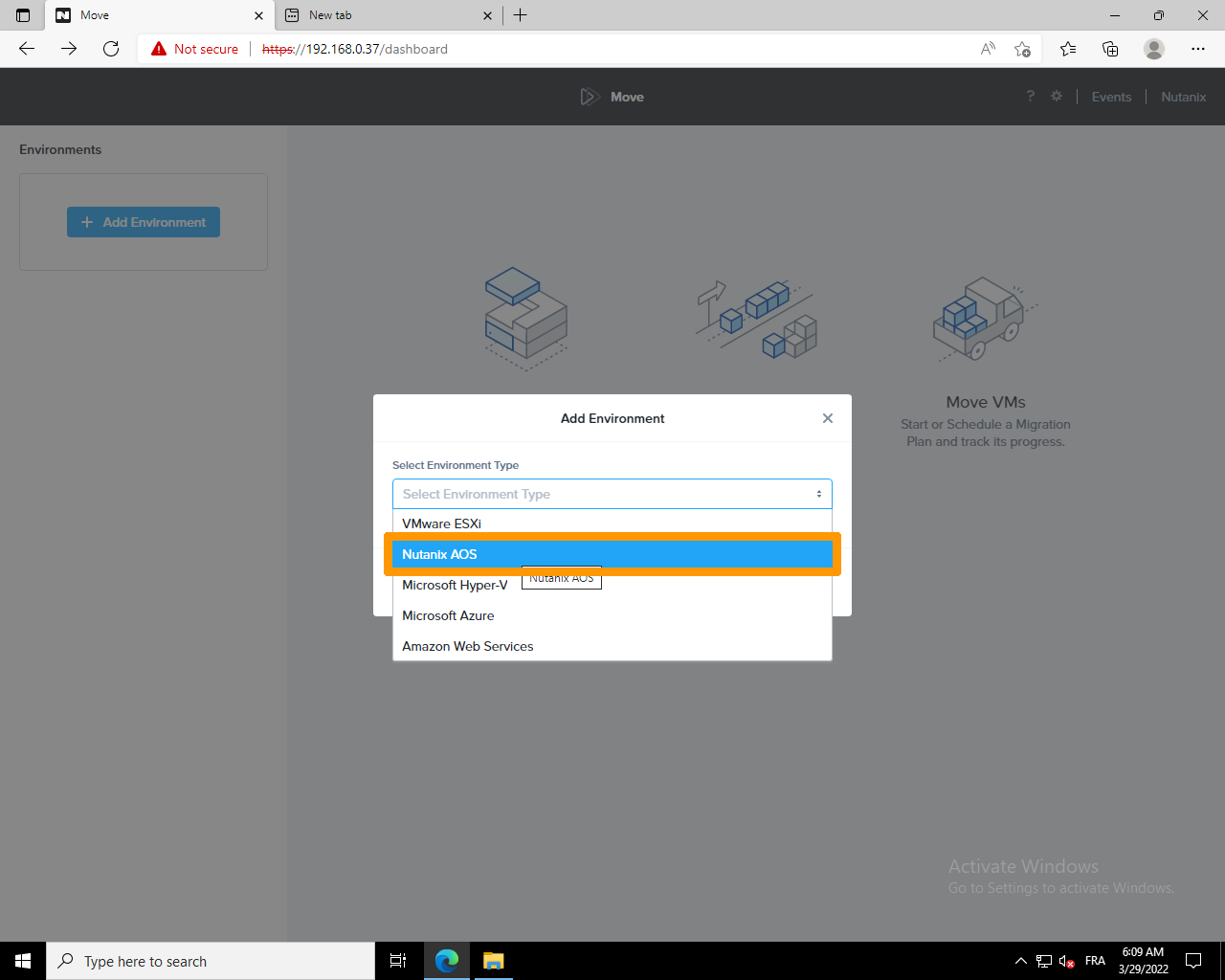
Choose Nutanix AOS.
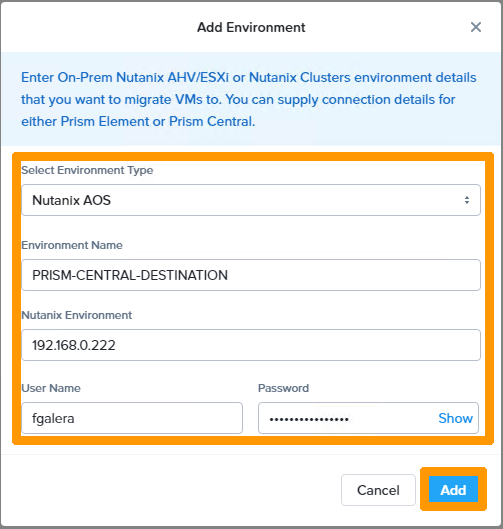
Enter the following information:
- PRISM-CENTRAL-DESTINATION in the
Environment Namefield - the private IP address of Prism Central in the
Nutanix Environmentfield - a Prism Central administration account in the
Usernamefield - the account password in the
Passwordfield
Click ADD to add the Prism Central environment.
Click Add Environment.
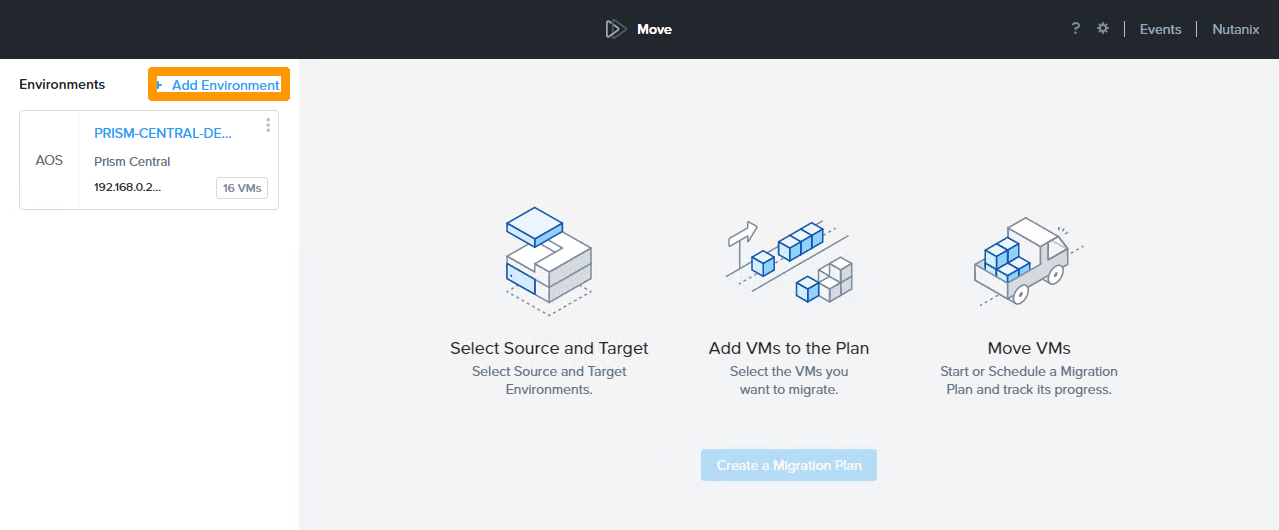
Choose Microsoft Hyper-V.
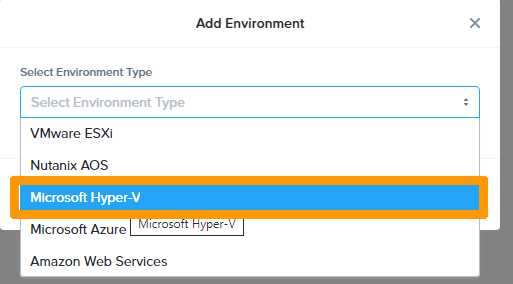
Enter the following information:
- HyperV-SOURCE in the
Environment Namefield - the private IP address of the Hyper-V server in the
Hyper-V Server/Clusterfield - a Hyper-V administration account in the
Usernamefield - the password for this account in the
Passwordfield
Click ADD to add the Hyper-V environment.
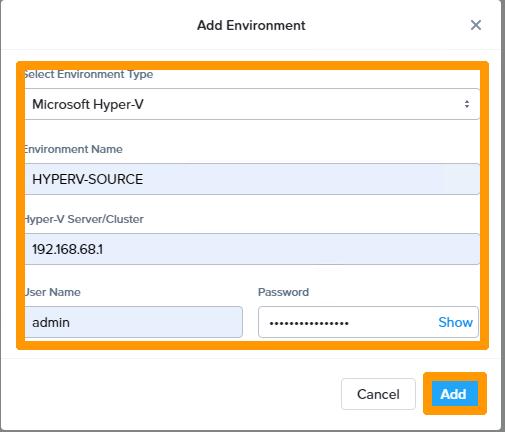
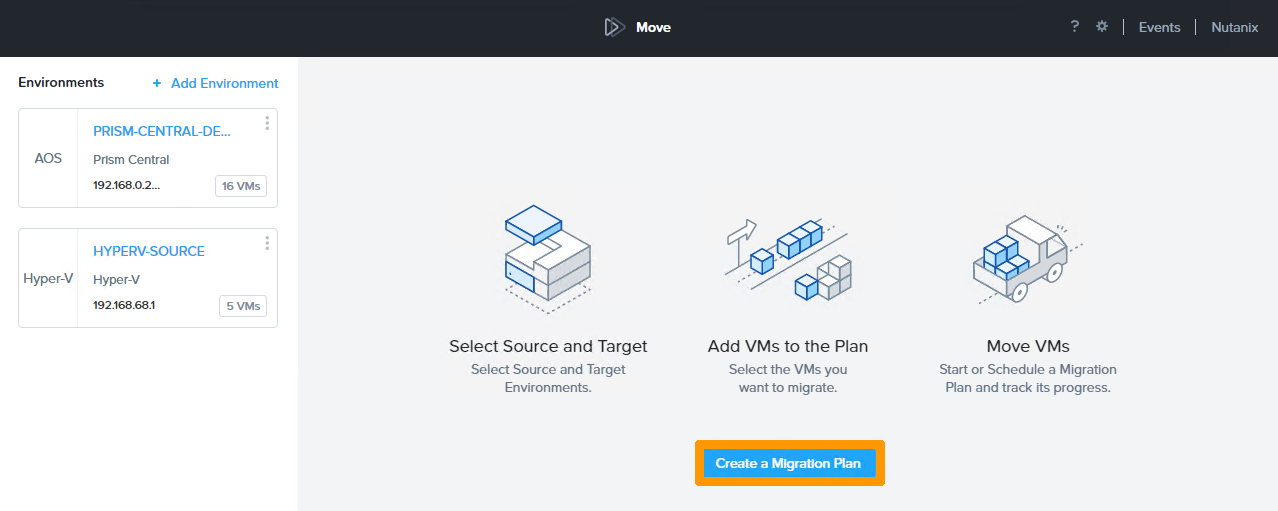
Both migration environments appear in the top left-hand corner.
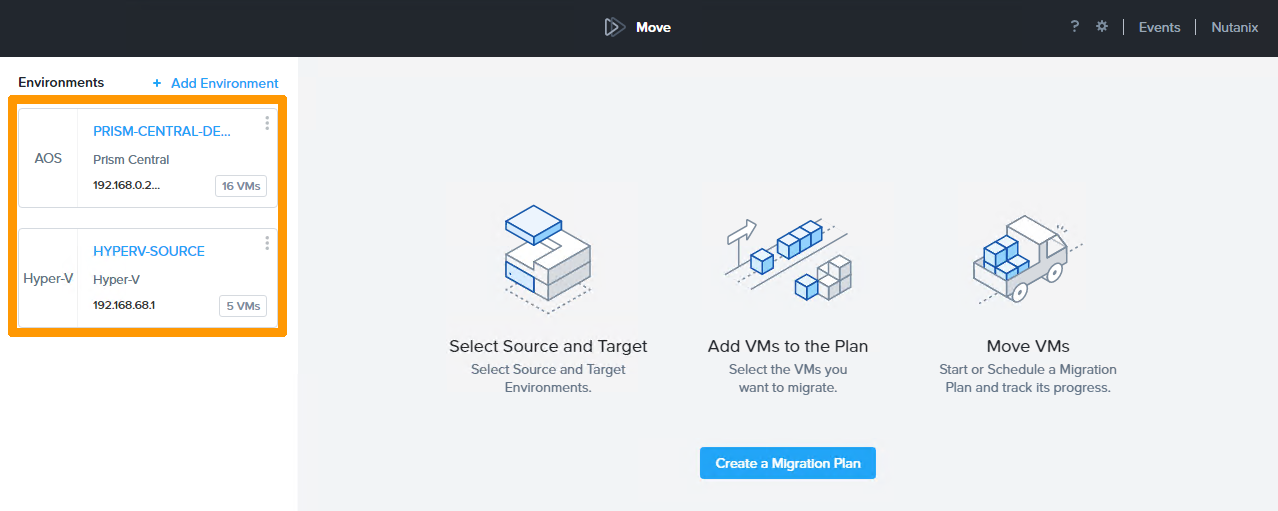
Creating a migration plan
We will create a migration plan from the two environments created previously.
The source will be the Hyper-V server, and the destination will be the Nutanix cluster.
Click Create a Migration Plan.
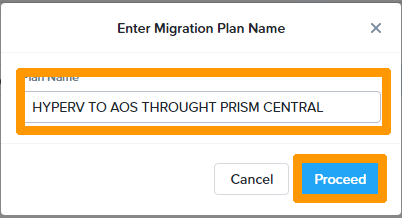
Choose a name in the Plan Name field and click Proceed.
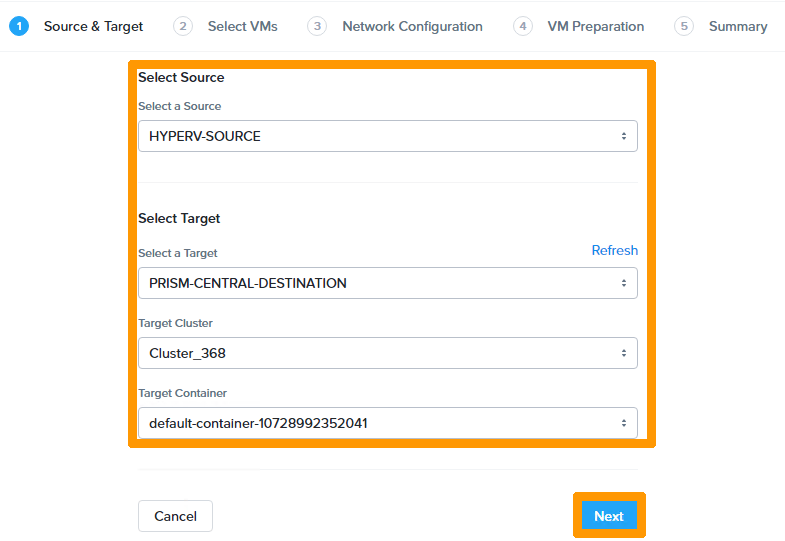
Enter the following information:
- HyperV-SOURCE in the
Select a Sourcefield - PRISM-CENTRAL-DESTINATION in the
Hyper-V Server/Clusterfield - the CLUSTER name in the
Target Clusterfield - the name of the destination container in the
Target Containerfield
Then click Next to continue to the next step.
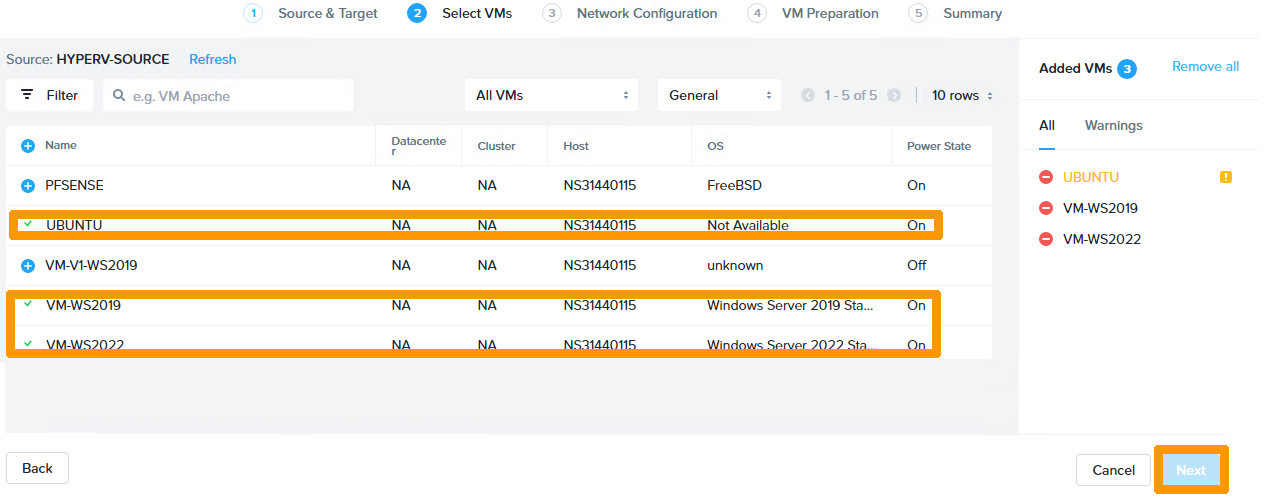
Select the virtual machines you want to migrate from the Hyper-V environment to AOS by clicking on the + icon to the left of the VM.
Click Next to continue creating the migration plan.
Choose the network in Target Network and click Next.
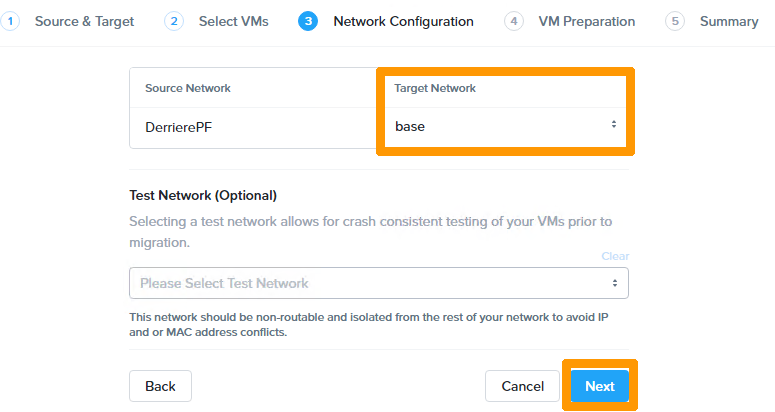
Click Next to confirm the migration.
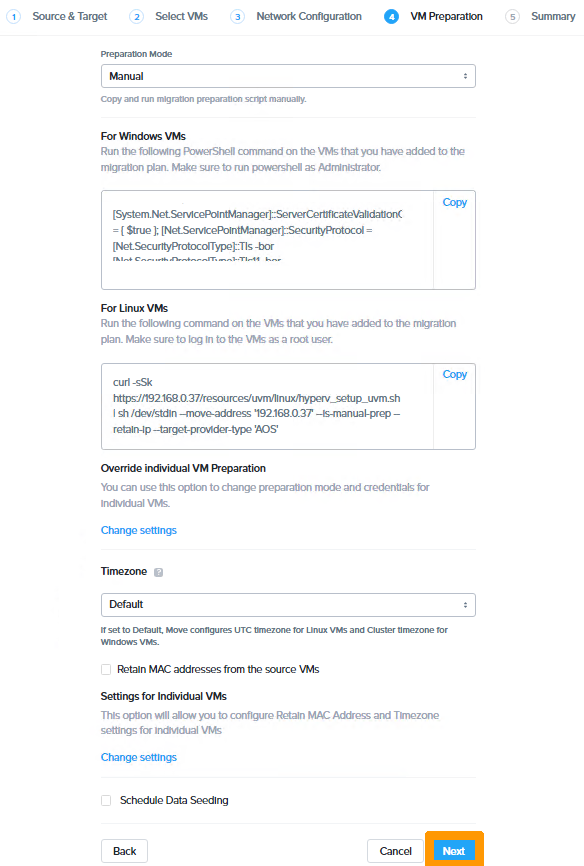
Click Save to save the migration plan without running it.
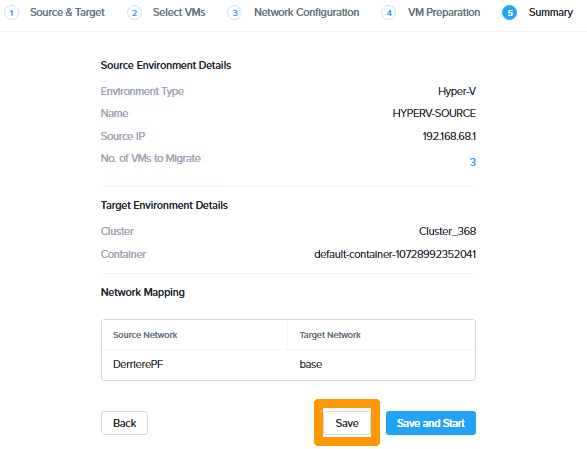
Launching the migration
After the migration plan is created, you can manually launch it.
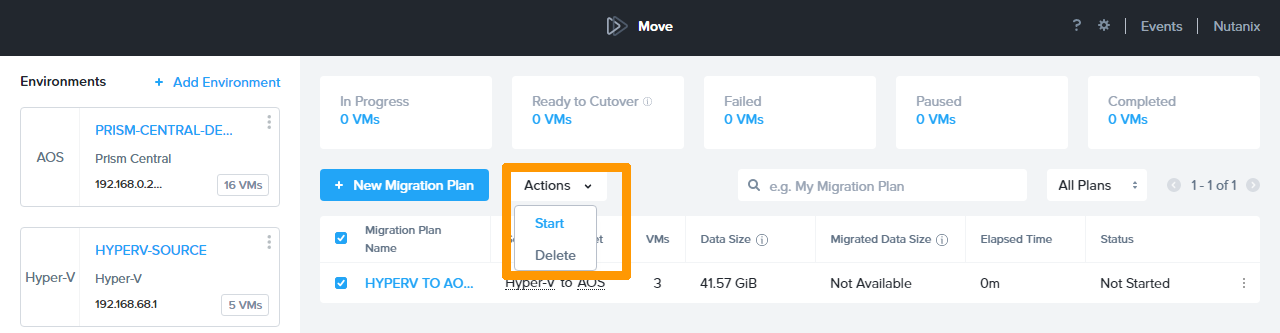
Check the box next to the desired migration plan.
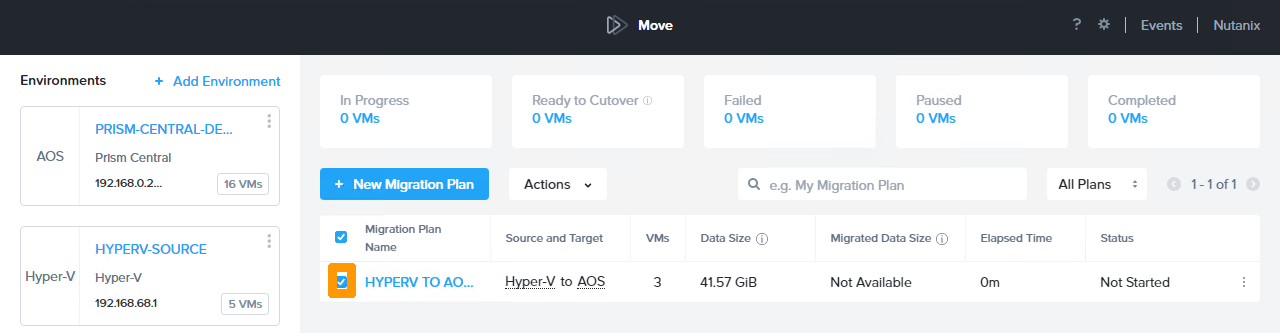
On the Actions menu, click Start.
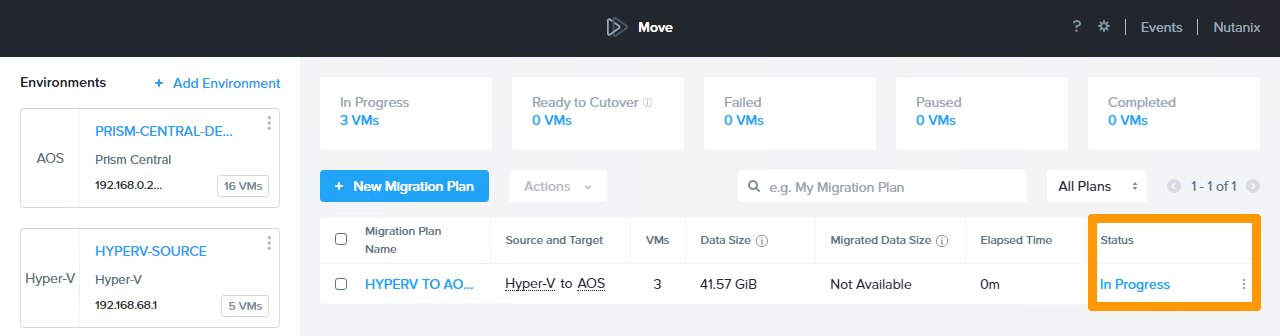
The migration is in progress. The Status column gives you information on the status of the migration.
Finalising the migration
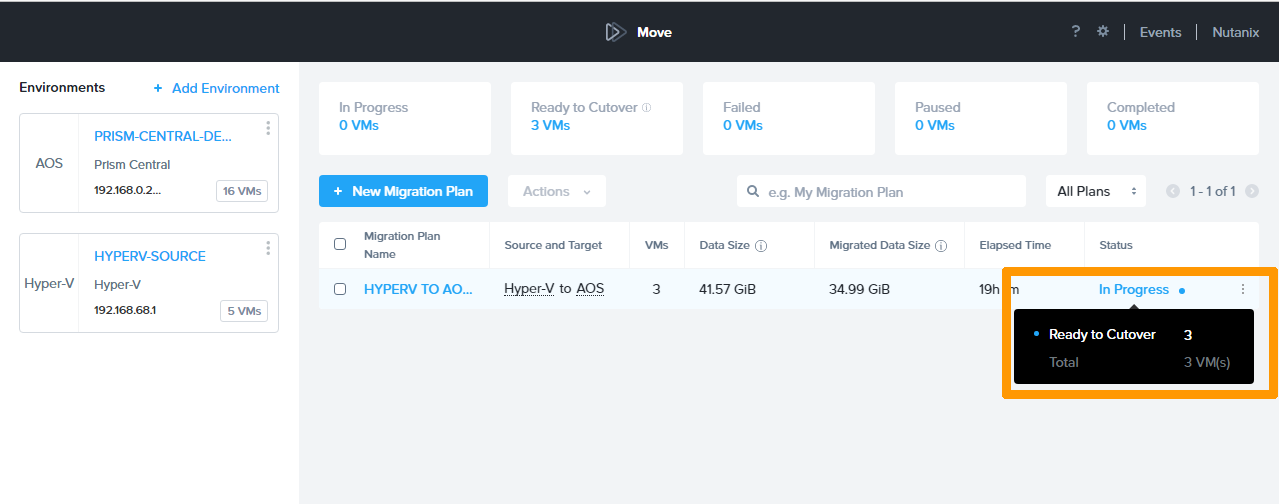
Check the status of the migration by hovering over the In Progress status.
A window with the information Ready to Cutover N should appear, listing the number of VMs that can be migrated.
Click In Progress to start the completion process.
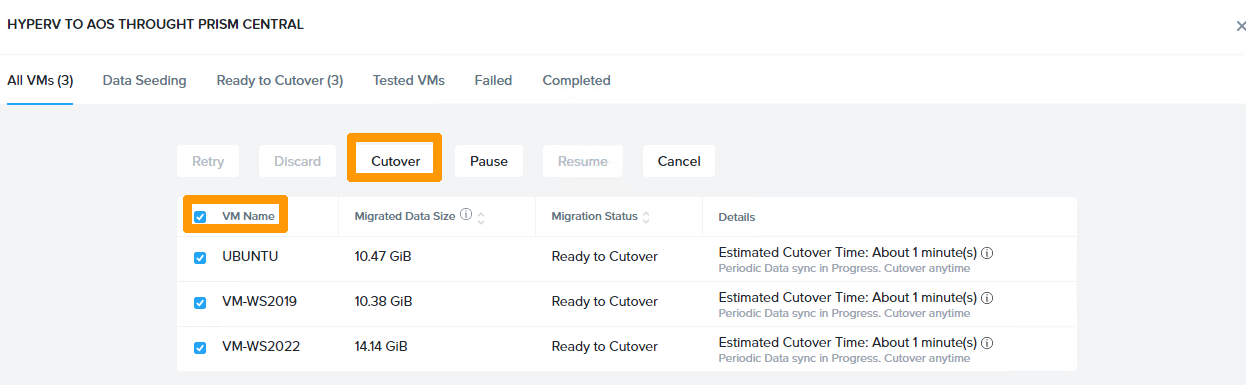
Select all the VMs by ticking the VM Name box and click Cutover.
Click Continue.
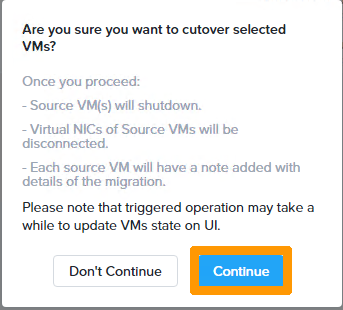
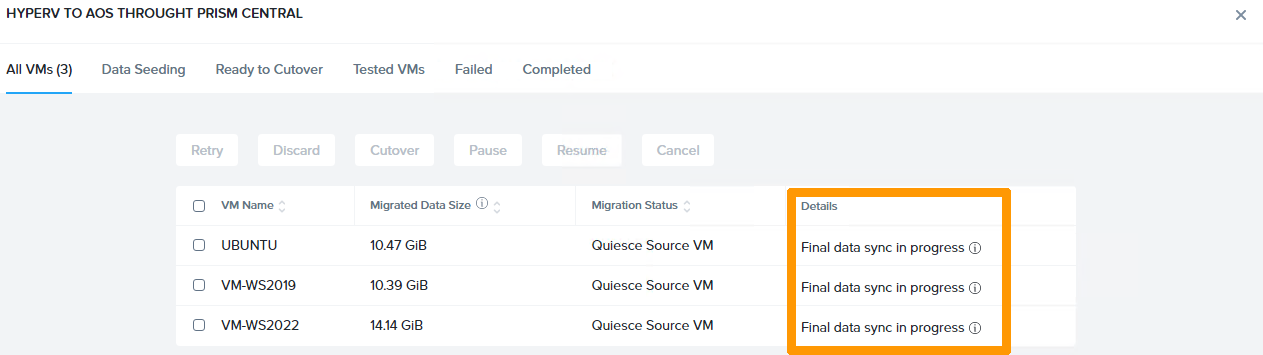
Wait a few moments while it completes.
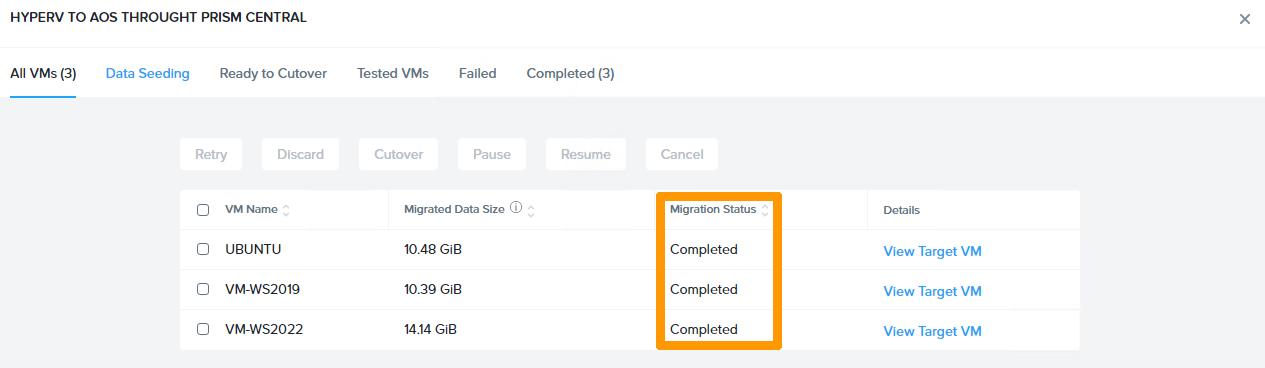
The migration is complete when Completed appears in the Migration Status column.
Log into Prism Central to view the 3 migrated VMs that are present and running.

Changing the Disk Controller on a Linux Virtual Machine
If the virtual machine does not start properly after the migration, it may be due to a bad disk controller in the virtual machine configuration. In this case, it should be changed by following this procedure:
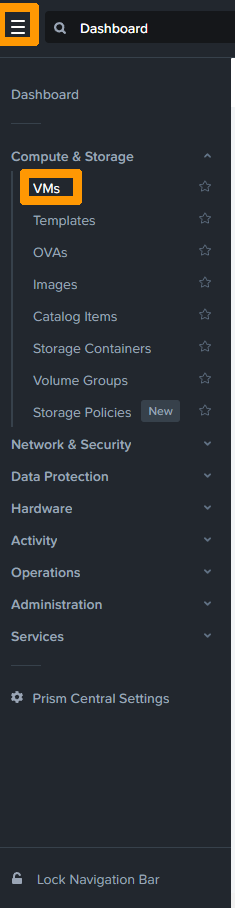
Go to the main menu of Prism Central and click on VMs.
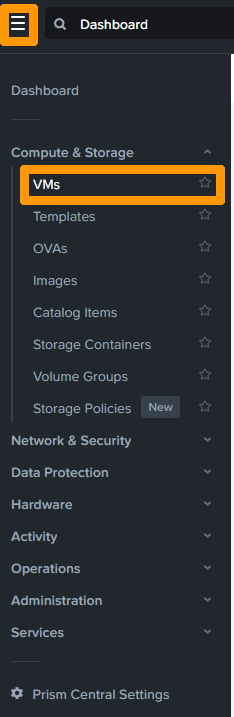
Make sure the virtual machine is turned off.
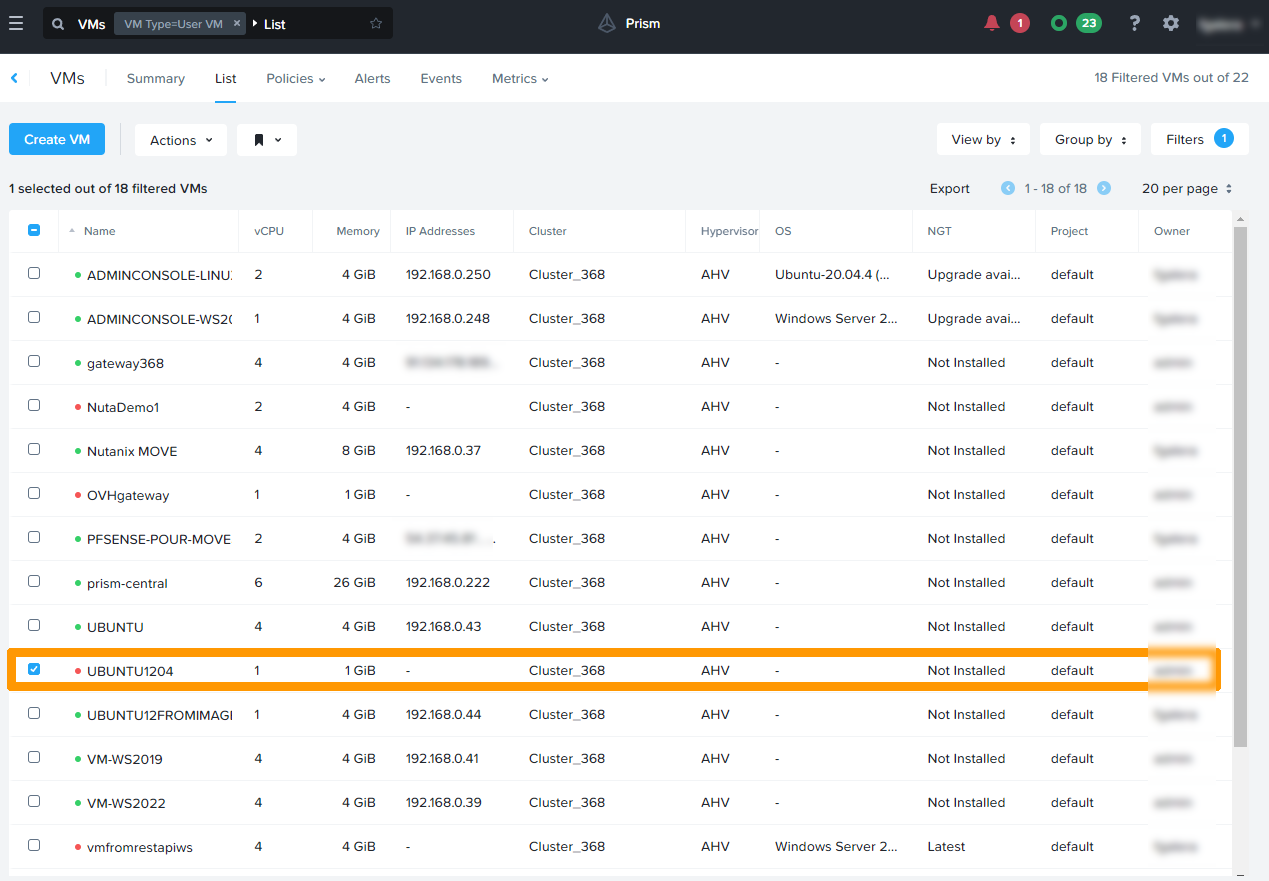
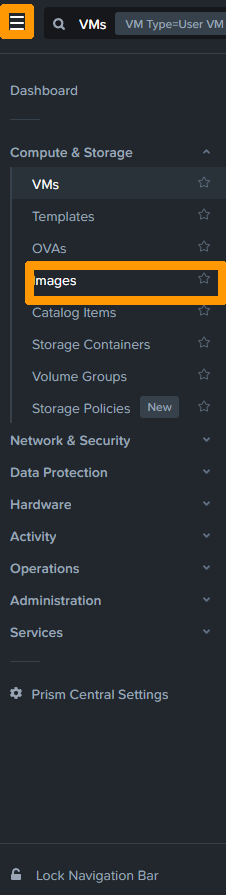
Return to the main menu and click Images.
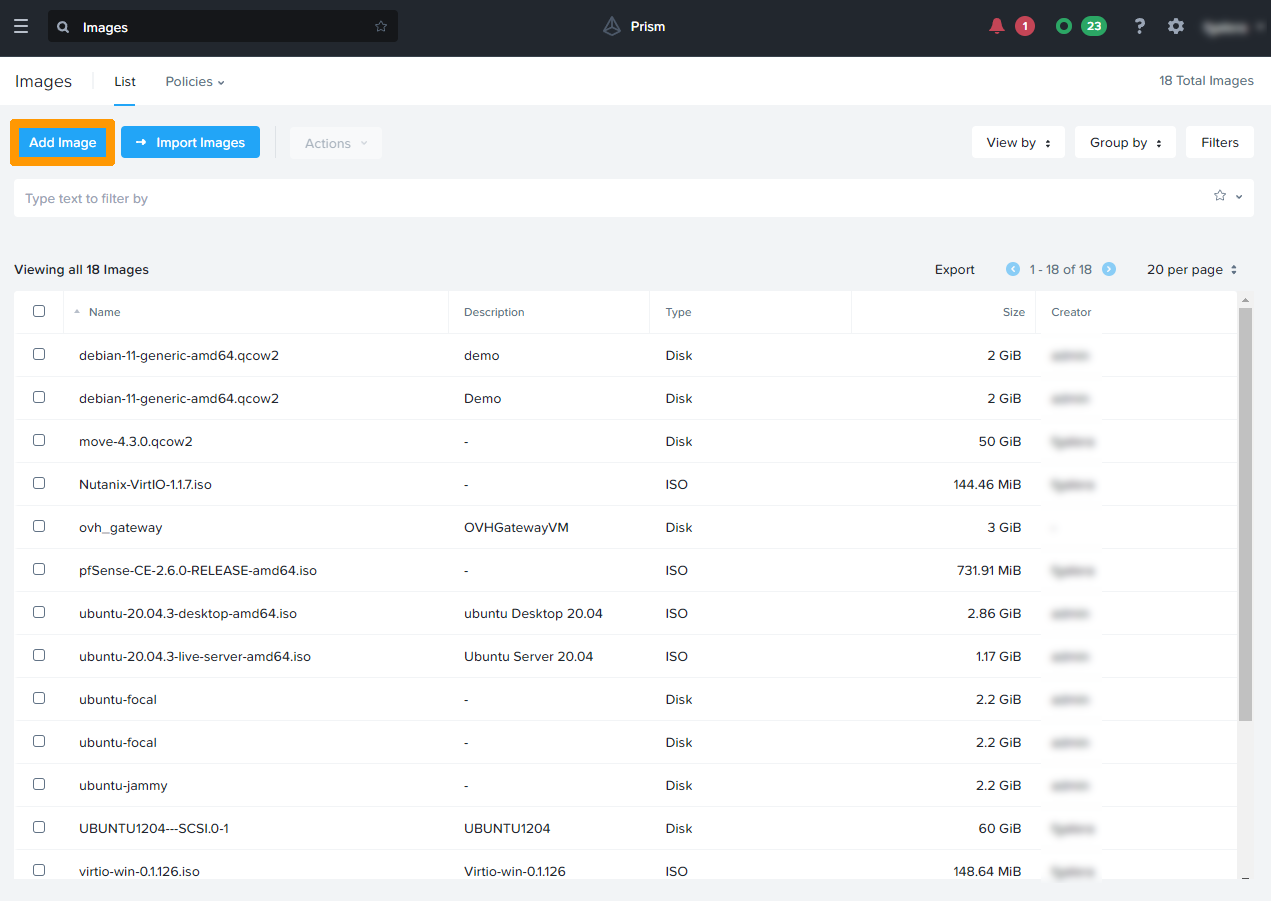
Click Add Image.
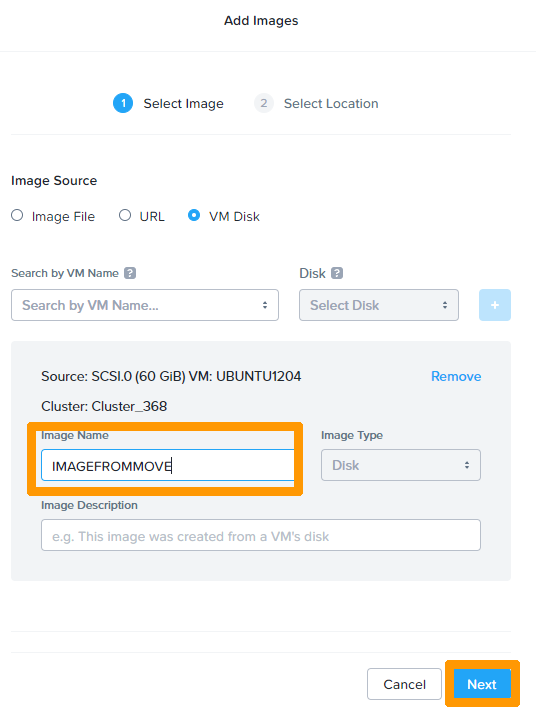
Select VM Disk as the Image Source. Type a name in Search by VM Name and click +.
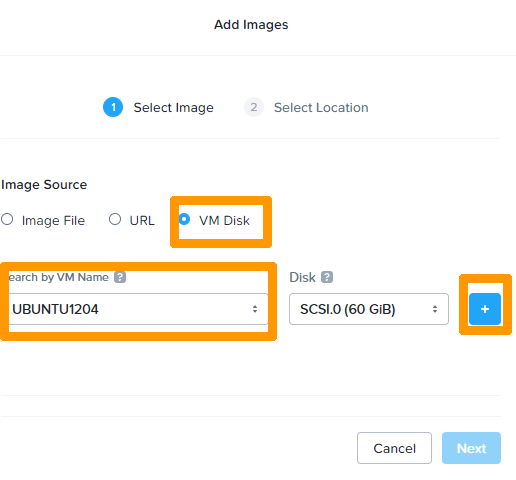
Type a name in the Image Name field and click Next.
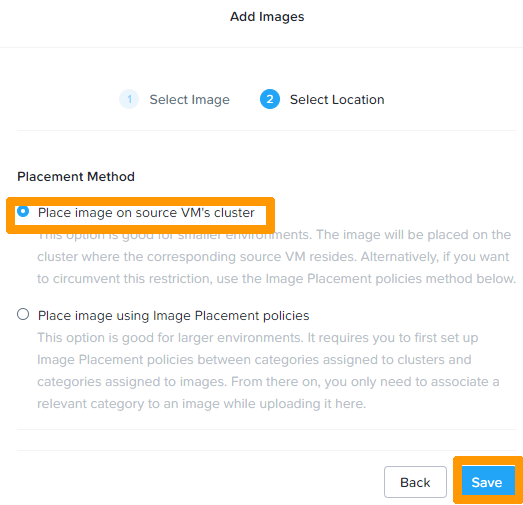
Select Place image on source VM's cluster and click Save.
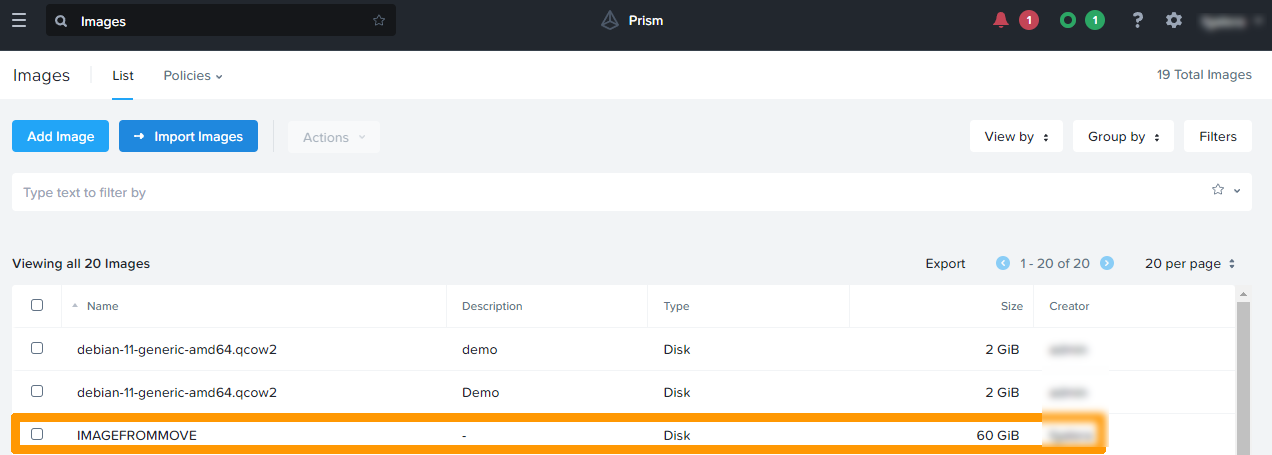
The image created from the virtual machine appears after a few moments.
Open the main menu and click VMs.
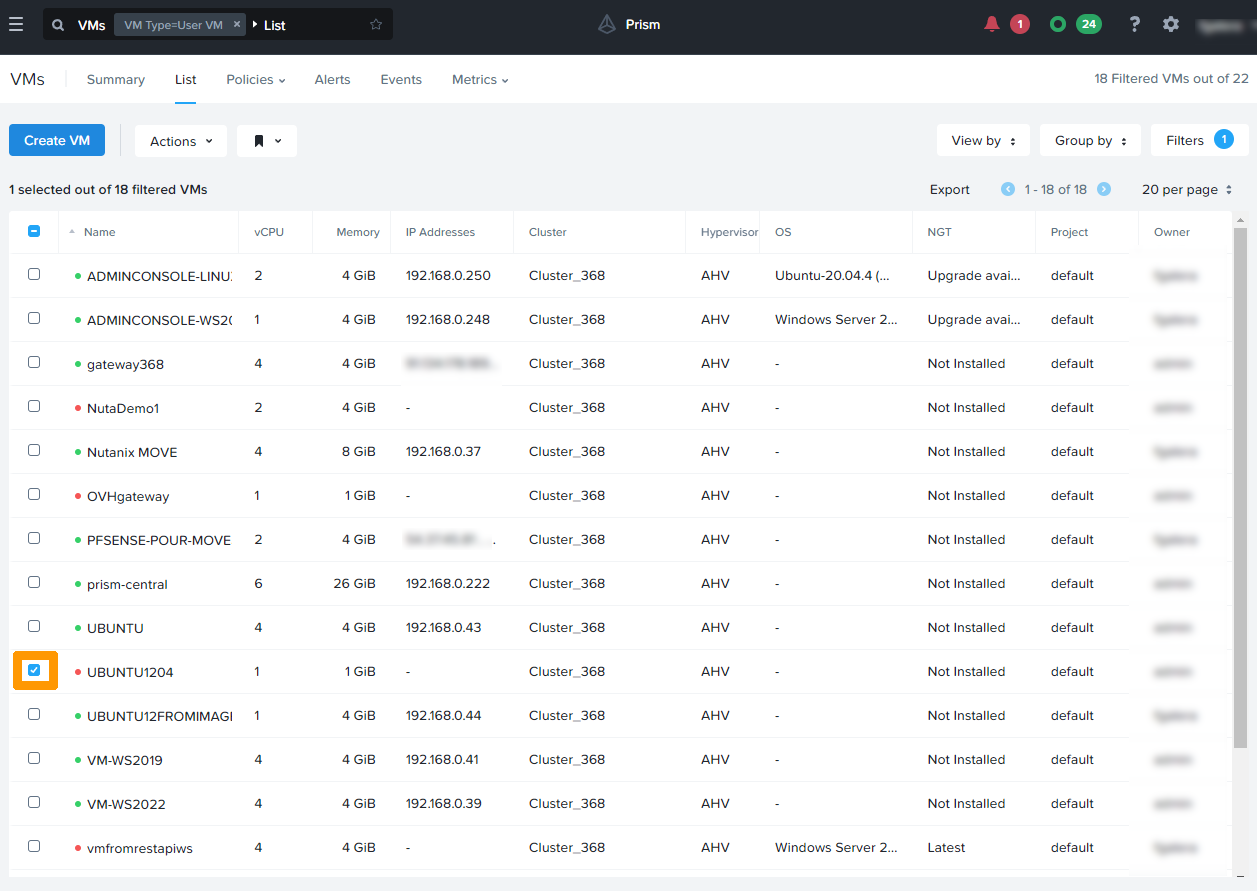
Check the box to the left of the virtual machine.
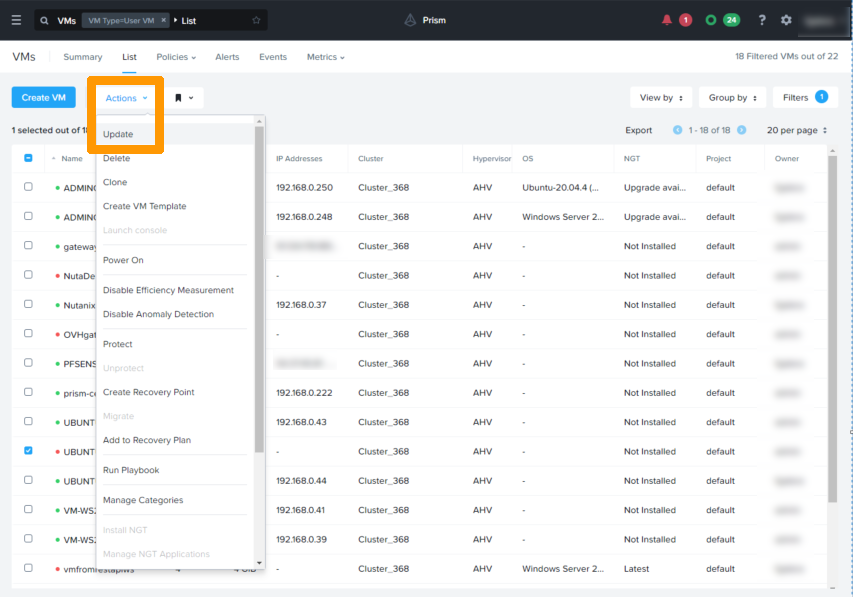
Open the Actions menu and choose Update.
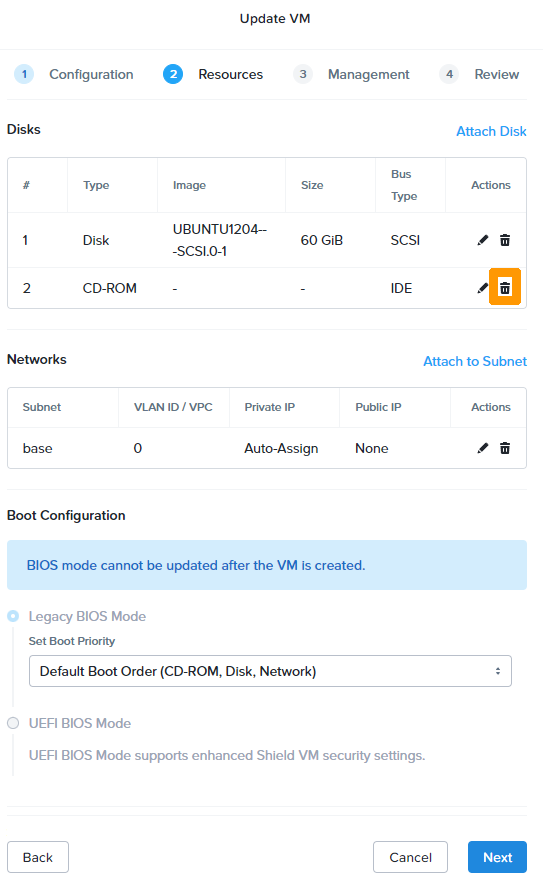
Click on the trash can icon next to the CDROM drive.
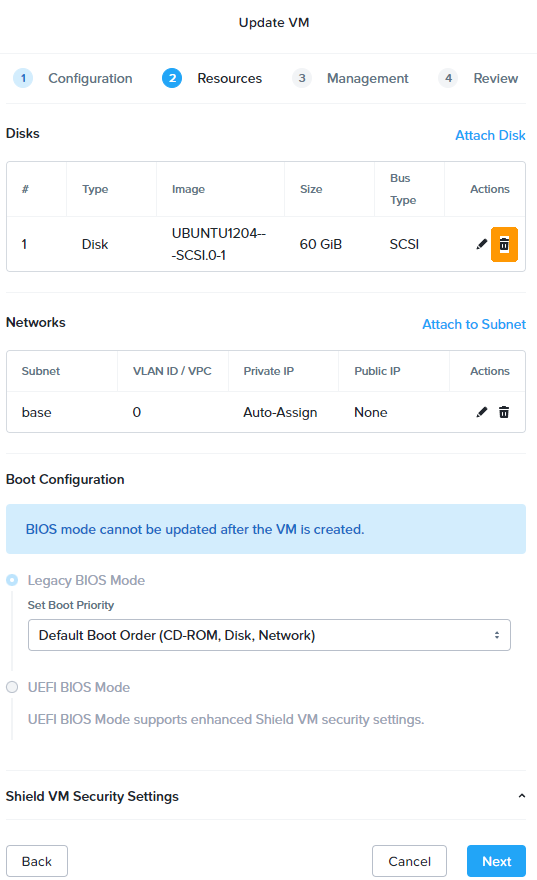
Click on the trash can icon next to the disk drive.
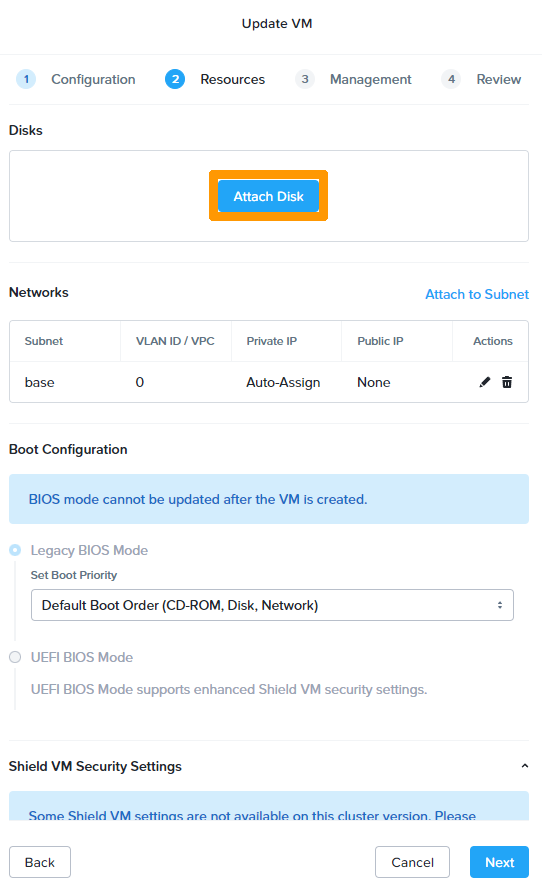
Click Attach Disk.
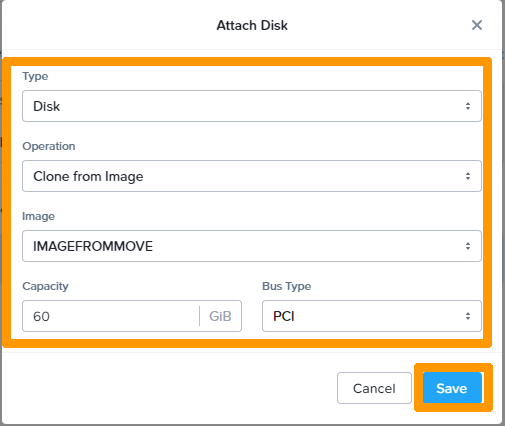
Select:
- Disk In
Type; - Select Clone from image;
- Enter the name of the image created in
Image; - Select PCI as the
Bus typeand clickSave
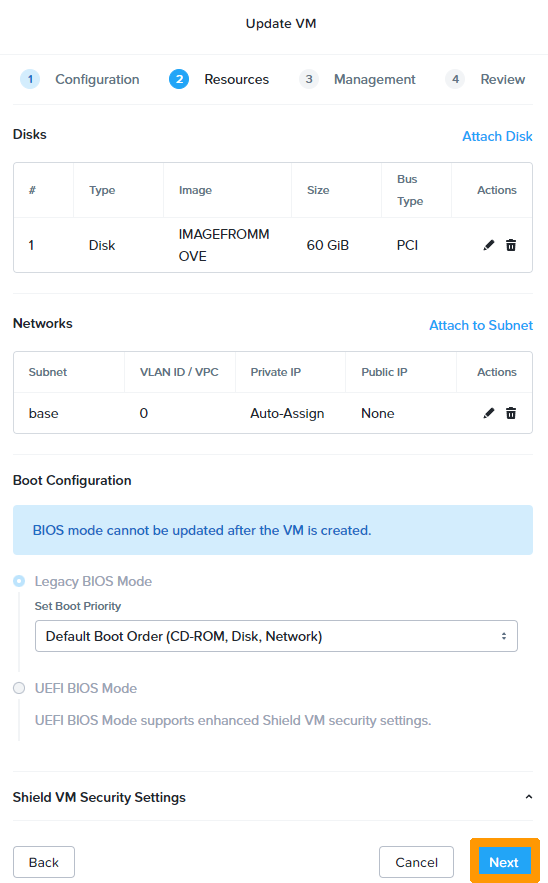
Click Next.
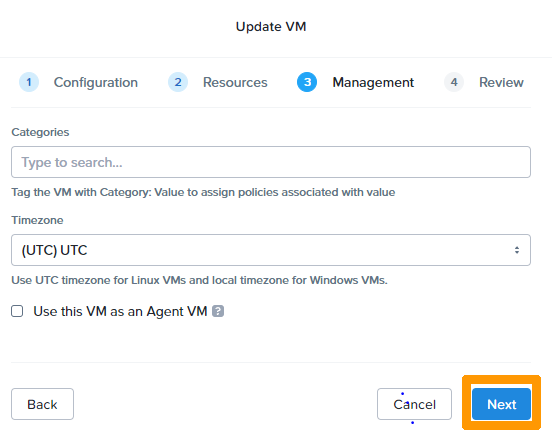
Click Next.
Click Save.
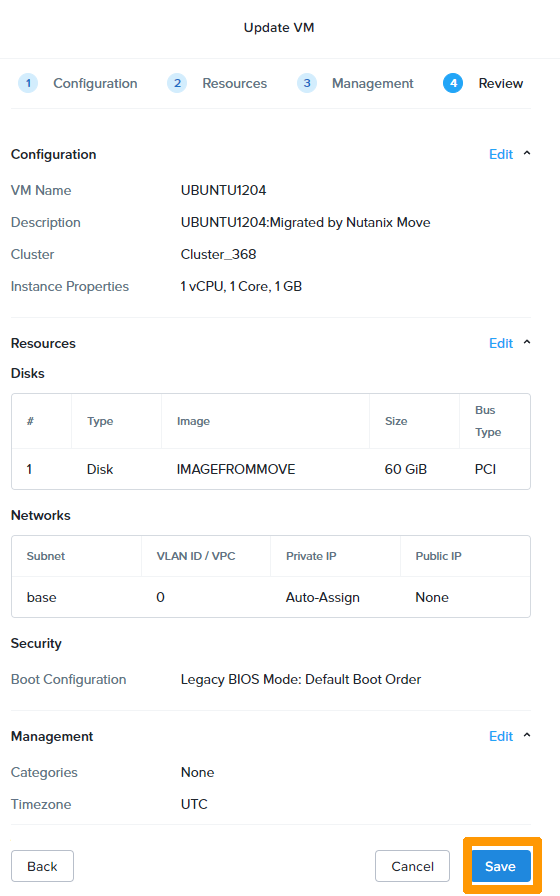
The disk controller has been modified and the virtual machine boots properly.
Go further
Installation and configuration of Move
If you need training or technical assistance to implement our solutions, contact your sales representative or click on this link to get a quote and ask our Professional Services experts for assisting you on your specific use case of your project.
Join our community of users.


 Migration zu Nutanix über das Nutanix Move Tool (EN)
 406
406