

VLAN creation
897 Views
 18.11.2020
  Product-specific guides
Objective
In a Managed Bare Metal infrastructure, you have a base of 11 VLANs provided with the vRack.
This guide shows how to create additional VLANs
Requirements
- access to the vSphere Web client (HTML5)
Instructions
Create VLANs
In the Managed Bare Metal solutions, you get two virtual distributed switches (vDS).
These vDS have several different portGroups, each with their own purpose.
The first vDS has a single portGroup type, the VMnetwork being used to communicate to the internet.
The second vDS also has a single portGroup type, with VLANs that can be used to isolate private communications within the Managed Bare Metal interface, and between different OVHcloud services that are vRack-compatible(Dedicated Server, Public Cloud...).
On this switch, 11 VLANs are created as standard (VLAN10 to VLAN20). By giving the administrator right on Access to the V(x)LAN in the users management tab of your Control Panel, you can create additional VLANs.
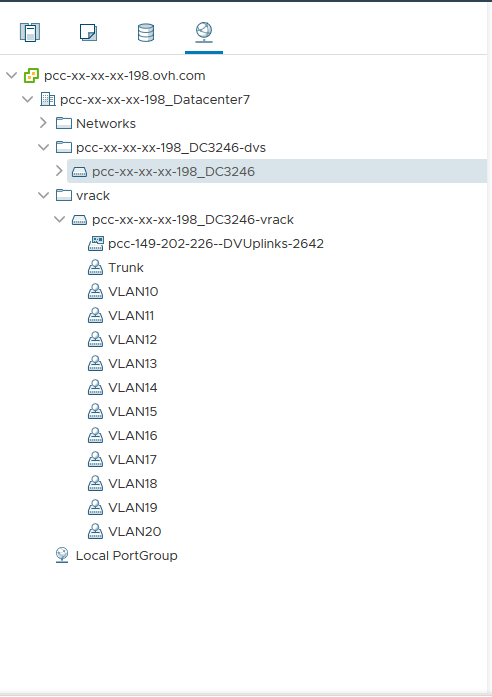
First, go to your vSphere client's networking view. Deploy the vrack folder then right-click on the dVS ending in -vrack and finally click on New Distributed Port Group.
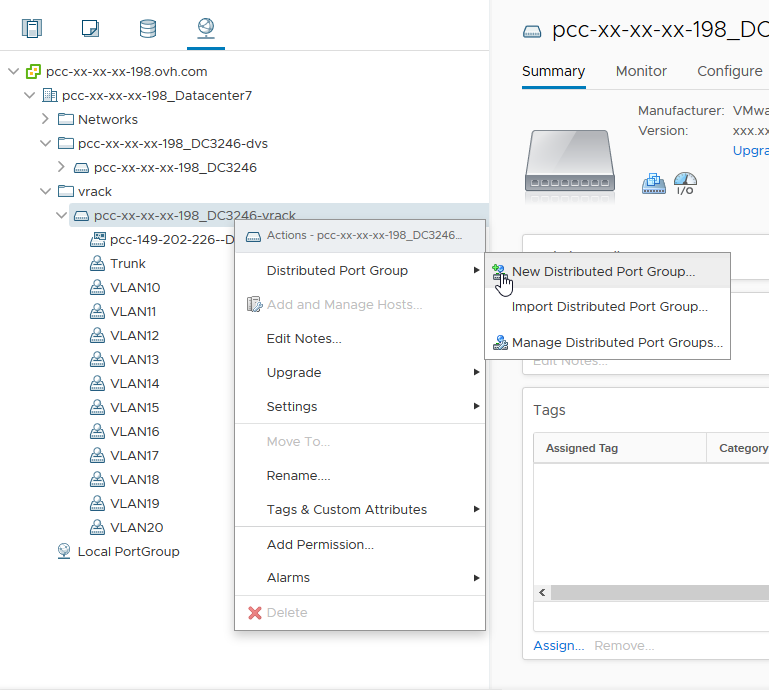
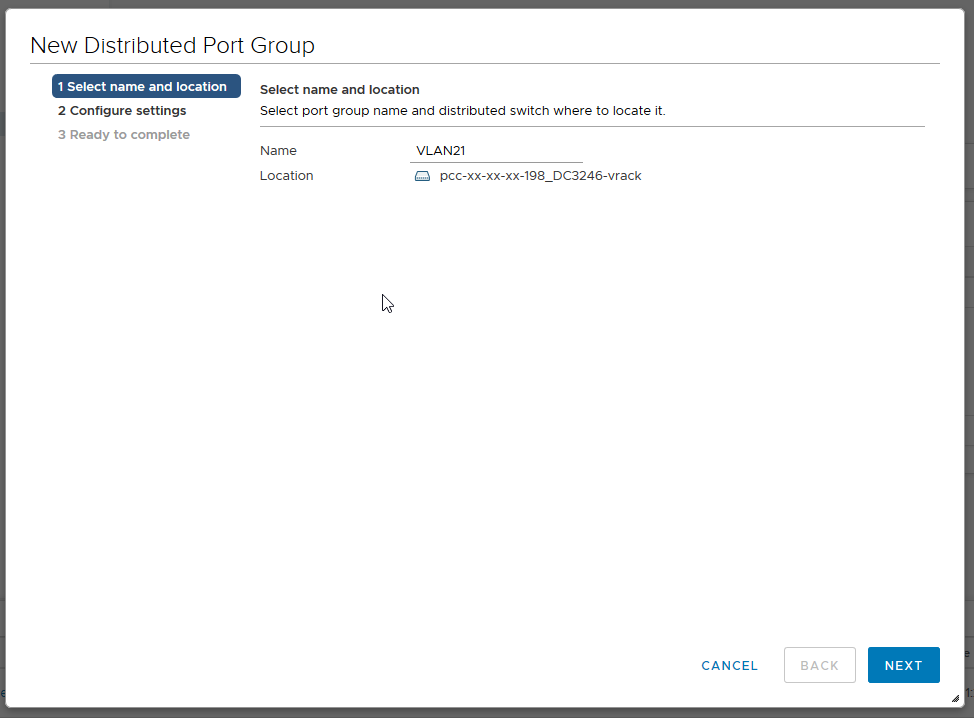
The next step is to name your PortGroup:
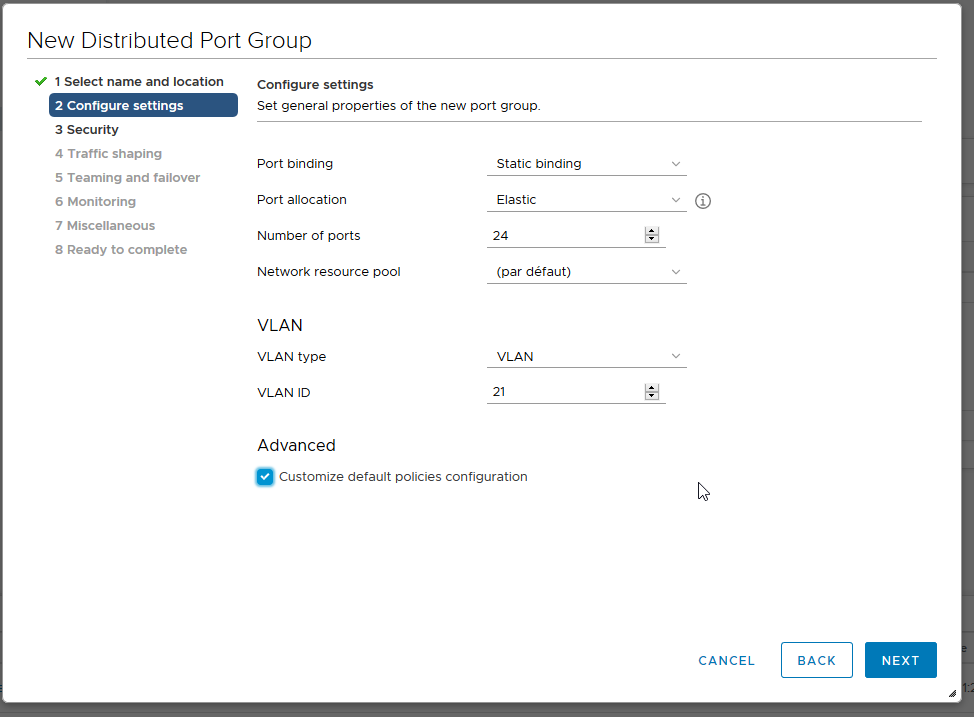
Then configure the settings recommended by OVHcloud:
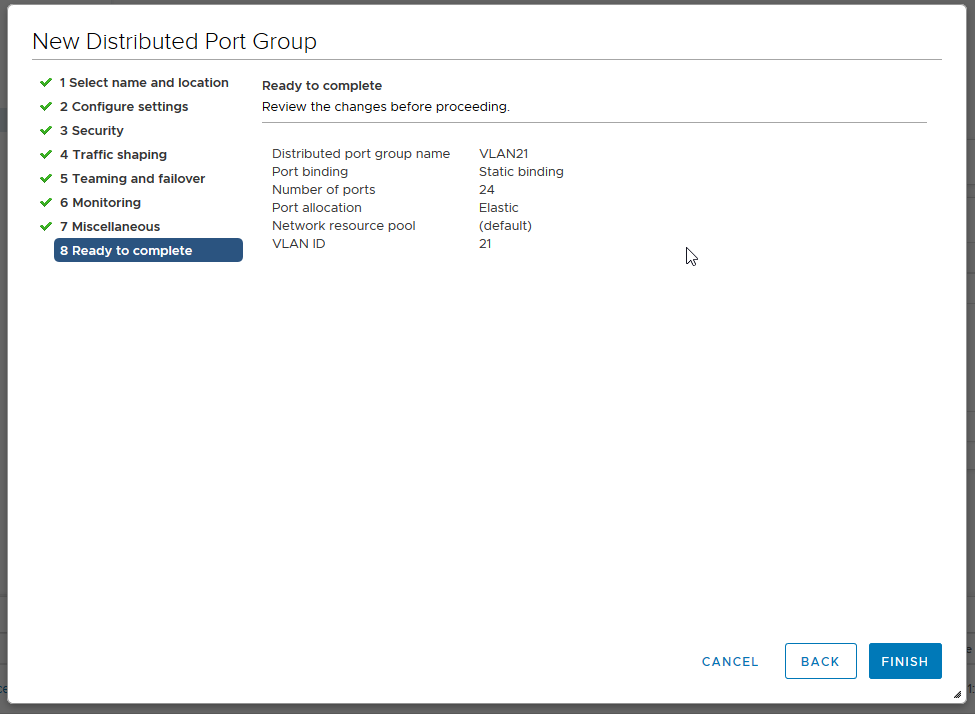
- Port binding: Static (reserving and assigning the port to a virtual machine)
- Port allocation: Elastic (Allows the number of ports to be hot-wired)
- Number of ports: 24
- VLAN type: VLAN (The others are PVLAN and Trunk)
- VLAN ID: 21 (Knowing that the ID can be configured from 1 to 4096)
- Check the option Customize default policies configuration.
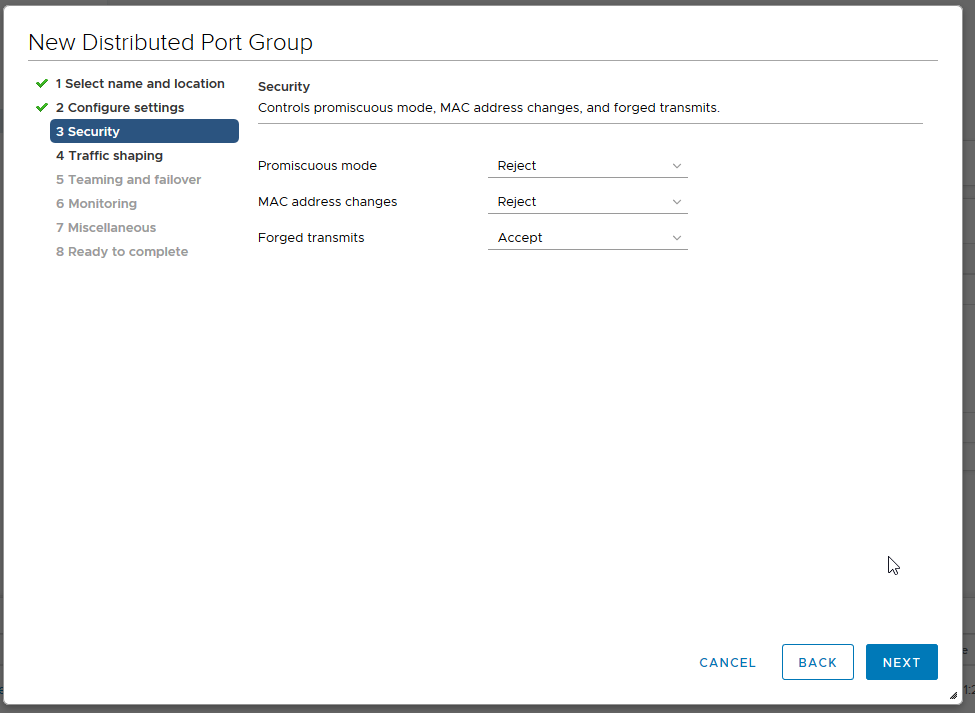
You have 3 security settings that can be activated according to your need:
- Promiscuous mode: Eliminates any filtering that the VM adapter can perform so that the guest operating system receives all observed traffic on the network.
- MAC address changes: When set to Accept, ESXi will accept requests to change the effective MAC address to an address other than the initial MAC address.
- Forged transmits: Affects traffic transmitted from a virtual machine. When set to Accept, ESXi does not compare the source and effective MAC addresses.
The most frequent use of these 3 parameters is the CARP, especially used on pfSense.
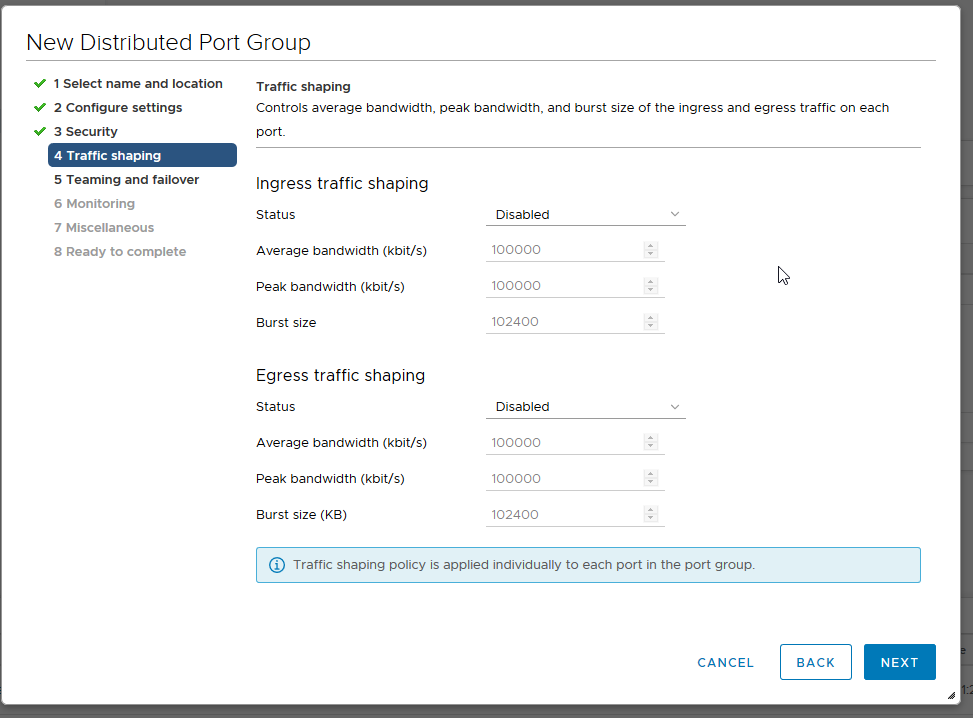
We leave Traffic shaping disabled.
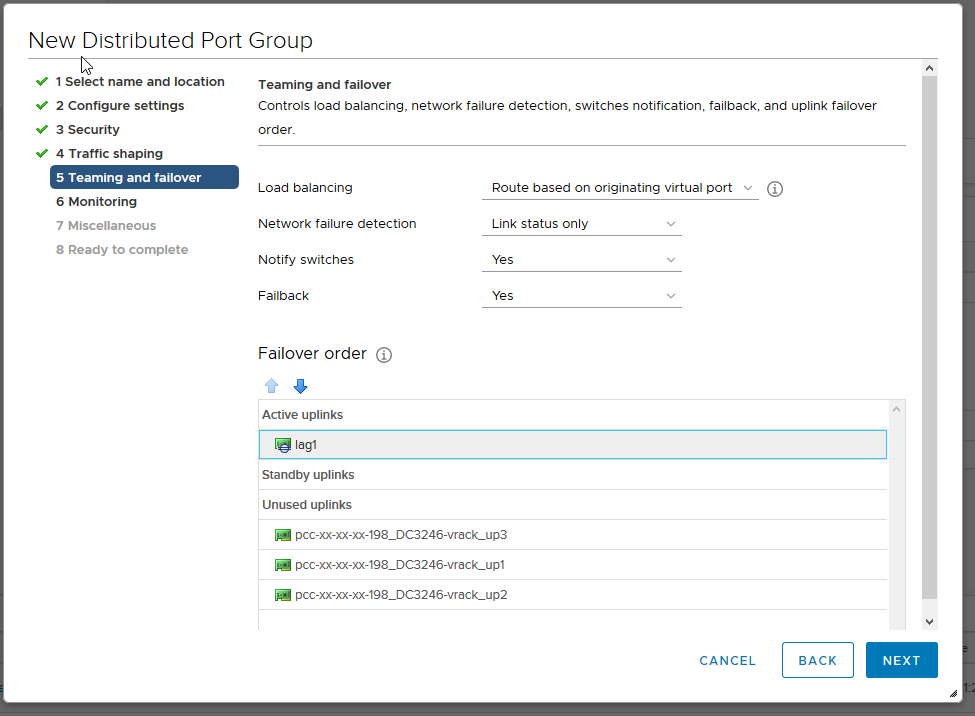
In terms of load balancing, select Route Based on IP hash, which is the best method for redundancy and load balancing.
Be careful when configuring the failover order: It is necessary to set the lag1 uplink to Active (connection between the virtual network and the physical network), otherwise no communication between the hosts will be possible.
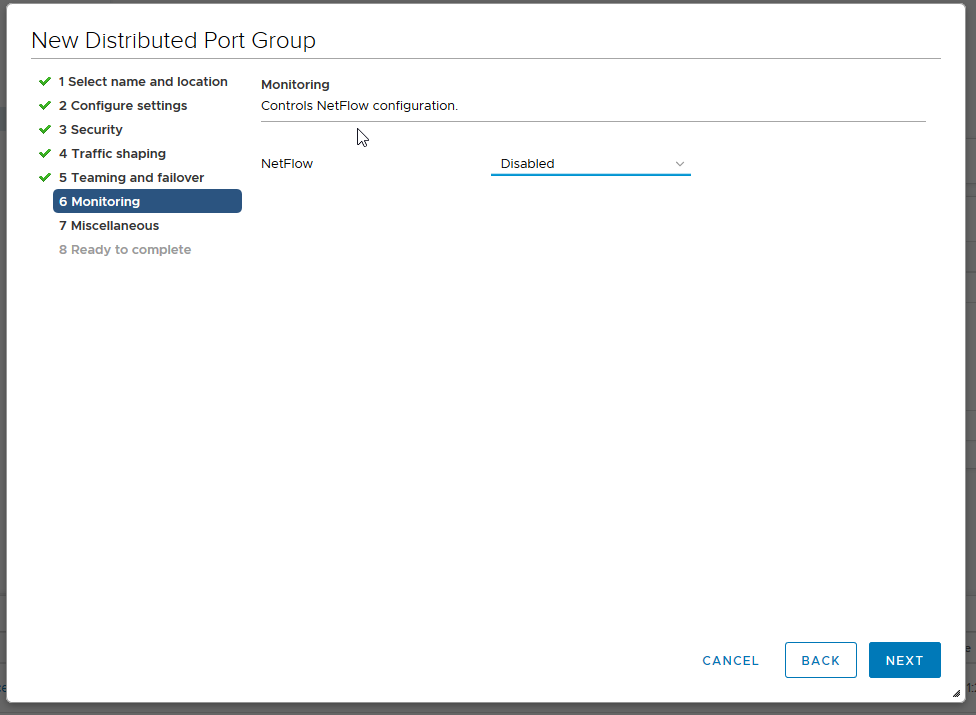
The NetFlow is disabled (traffic flow activity report).
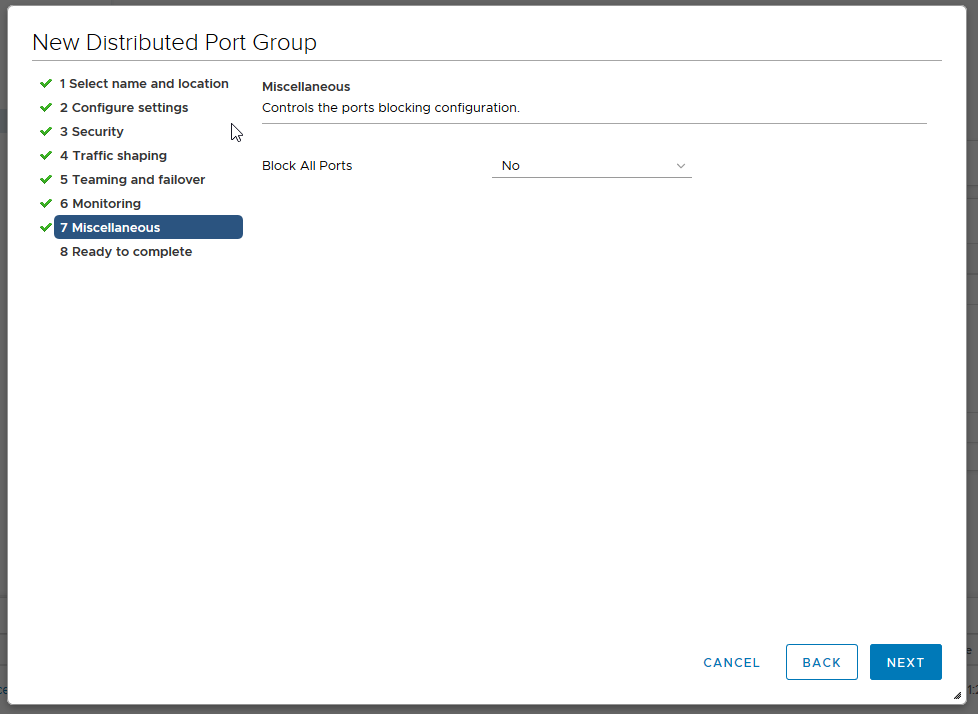
Leave the Block All Ports value at "No".
You will then be presented with a summary of the changes. Click Finish to confirm the creation.
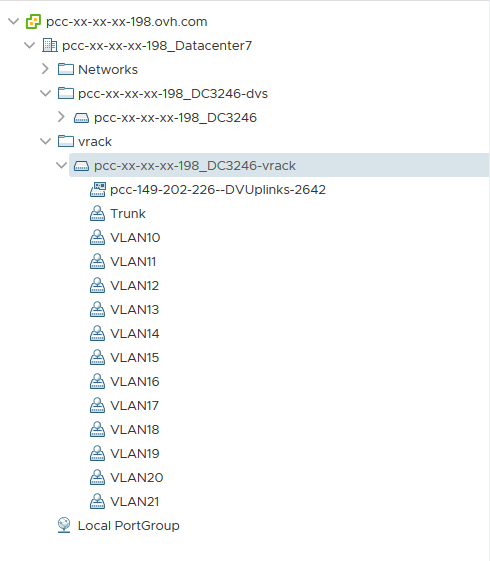
Here we can see that VLAN21 is available and functional.
Go further
Join our community of users on https://community.ovh.com/en/.


 VLAN creation
 461
461