

Adding an IP block
766 Ansichten
 18.11.2020
  Produkt-spezifische Anleitungen
Objective
An IP address block can be used to make your services available over the Internet.
This guide explains how to order and migrate an IP block for your Managed Bare Metal.
Requirements
- a Managed Bare Metal infrastructure
- access to the OVHcloud Control Panel
Instructions
To order an additional IP block for your Managed Bare Metal, log in to your OVHcloud Control Panel. In the Bare Metal Cloud section, click on IP in the left column and then click on Order additional IPs. Then select your Managed Bare Metal from the drop-down menu before proceeding to the next step.
Several fields will be required to create your IP block:
- IP block size (from /28 to /24)
As a reminder, here is an array of IP addresses in a block, and the number of IPs that can be used:
| Block size | IPs in block | IPs usable in OVHcloud |
|---|---|---|
| 28 | 16 | 11 |
| 27 | 32 | 27 |
| 26 | 64 | 59 |
| 25 | 128 | 123 |
| 24 | 256 | 251 |
Please consult our guide "Using the OVHcloud Network plugin" to find out which IP addresses are reserved in a block as well as their use.
- Country of IP block, important in some cases for the SEO of your services (an English-language website will have a better SEO in England if the IP is also English)
- Network name (information visible in the Whois of an IP block).
- Number of clients estimated (how many end clients will be hosted on these IPs).
- Network description (information visible in the Whois of an IP block).
- Use (information about the general usage (Web, SSL, Cloud...)).
After confirming the last step, you can view the order form for your IP block. If the order is in accordance with your wishes, you only have to pay it with the payment methods offered at the bottom of the page in order for it to be delivered.
Migrate an IP block between two Managed Bare Metal services
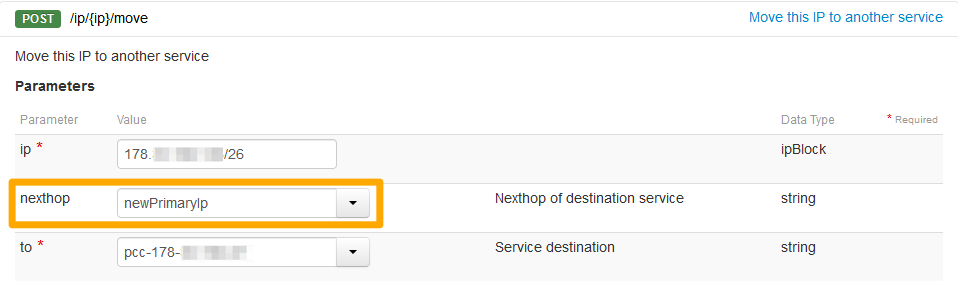
Migrating an IP block requires manually moving blocks through the OVHcloud APIv6.
Use the following API call:
The fields must be completed as follows:
- ip: IP block with /mask
- nexthop "newPrimaryIp" (case sensitive)
- to: Destination Managed Bare Metal in the form pcc-XXX-XXX-XXX-XXX
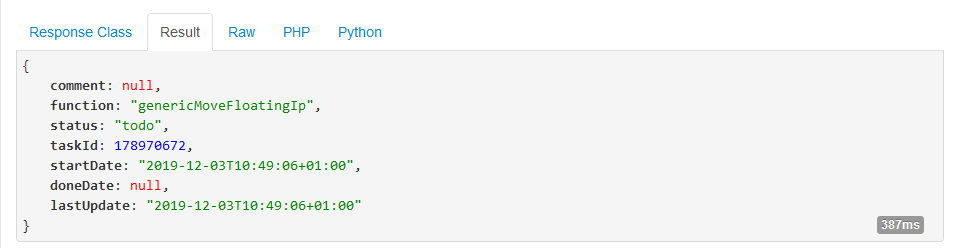
The result will be in this form:
Then use this API call to move the IP addresses to "IP parking":
This call cuts the network on VMs that use the IPs in question.
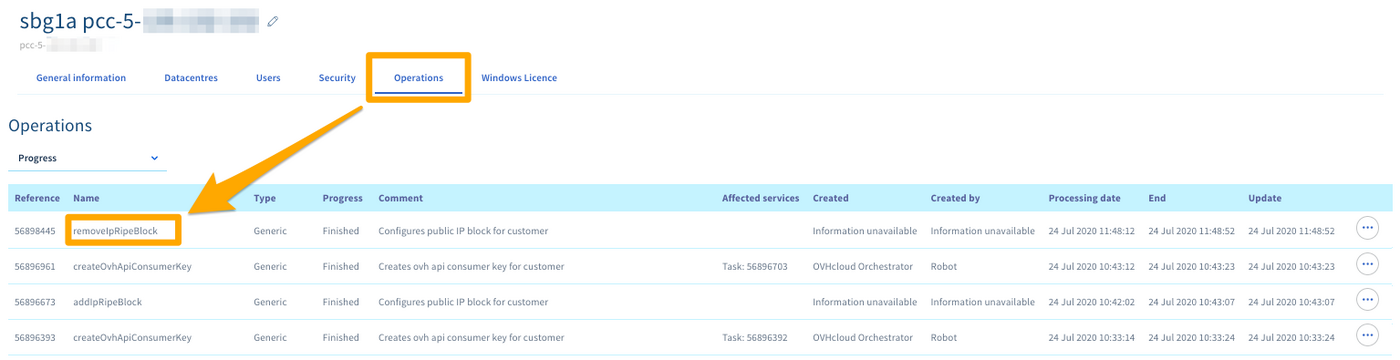
You can track the IP block movement from your OVHcloud Control Panel in the Bare Metal Cloud part and then Managed Bare Metal. Click on your Managed Bare Metal service and then click the Operations tab.
The operation name is removeIpRipeBlock.
Go further
Join our community of users on https://community.ovh.com/en/.


 IP-Block hinzufügen
 295
295