

How to recover a deleted database backup
80 Views
 01.04.2026
  Web / Web Hosting
Objective
Databases are included in most of our web hosting plans. If you accidentally delete a database linked to your web hosting plan, you can try to retrieve the backup via our APIs.
This guide explains how to retrieve a database backup via the OVHcloud API once it has been deleted via the OVHcloud Control Panel.
OVHcloud provides services for which you are responsible with regard to their configuration and management. It is therefore your responsibility to ensure that they function correctly.
This guide is designed to help you with common tasks. However, we recommend contacting a specialist service provider if you encounter any difficulties. We will not be able to provide you with any additional API support. You can find more information in the Go further section of this guide.
Requirements
- You have an active OVHcloud web hosting plan that includes at least one shared database.
- The database deletion must be less than 30 days old.
OVHcloud Control Panel Access
- Direct link: Hosting plans
- Navigation path:
Web Cloud>Hosting plans> Select your web hosting plan
Instructions
The OVHcloud API is made available to developers or integrators to associate features, such as those not present in the OVHcloud Control Panel, directly with their applications or solutions.
The backups offered by OVHcloud for shared hosting plans and their associated databases are non-contractual. We offer them in addition to your services to help you in urgent situations. We recommend creating your own regular security backups to compensate for any potential data loss.
Furthermore, when a database is deleted by its user or administrator, OVHcloud cannot guarantee that its backup will be recovered, for the reasons mentioned above.
1 - Retrieve the name of the web hosting plan that the deleted database was linked to
To retrieve the name of your web hosting plan, click on the tabs below to view each of the 2 steps.
Go to the Hosting plans page, then select the web hosting plan concerned.
In the top left-hand corner of the page that opens, you will find the name of your web hosting plan on the right-hand side, with the words Hosting plans /.

2 - Log in to the OVHcloud API and allow access to your services
To do this, perform the following steps:
- Go to our website OVHcloud API (check that you are on
https://eu.api.ovh.comif your services are hosted in Europe, and onhttps://ca.api.ovh.comif they are hosted outside Europe). - On the page that pops up, middle-click
Explore the OVHcloud API. - On the left-hand side the new page that appears, go to the form to the right of
v1, then select or enter/hosting/web. - From the list of endpoints that appears in the left-hand column, click on: GET /hosting/web/{serviceName}/dump. You can also click directly on the following path to access it:
- On the right-hand side of the page, you will then see the API path with its various parameters.
- Click the button in the top right-hand corner labeled
Authenticate, then theLogin with OVHcloud SSObutton. - The interface for connecting to your OVHcloud Control Panel will open.
- Log in with your NIC handle, then click
Authorizeto use the OVHcloud API with the services in the OVHcloud Control Panel. - You will then be automatically redirected to the previous page of the path GET /hosting/web/{serviceName}/dump, while you are logged in to the OVHcloud Control Panel.
3 - Check the availability of backups and retrieve the ID of the last backup
To do this, fill in the forms as detailed below:
-
For the section entitled
PATH PARAMETERS:serviceName: Enter the name of your web hosting plan, which you retrieved in part 1 of this guide.
-
For the section entitled
QUERY-STRING PARAMETERS:creationDate.from: Leave the form empty.creationDate.to: Leave the form empty.databaseName: Enter the name of the database that was accidentally deleted (example: deletedDatabase.mysql.db).deletionDate.from: Leave the form empty.deletionDate.to: Leave the form empty.orphan: Enter lowercase value:true.
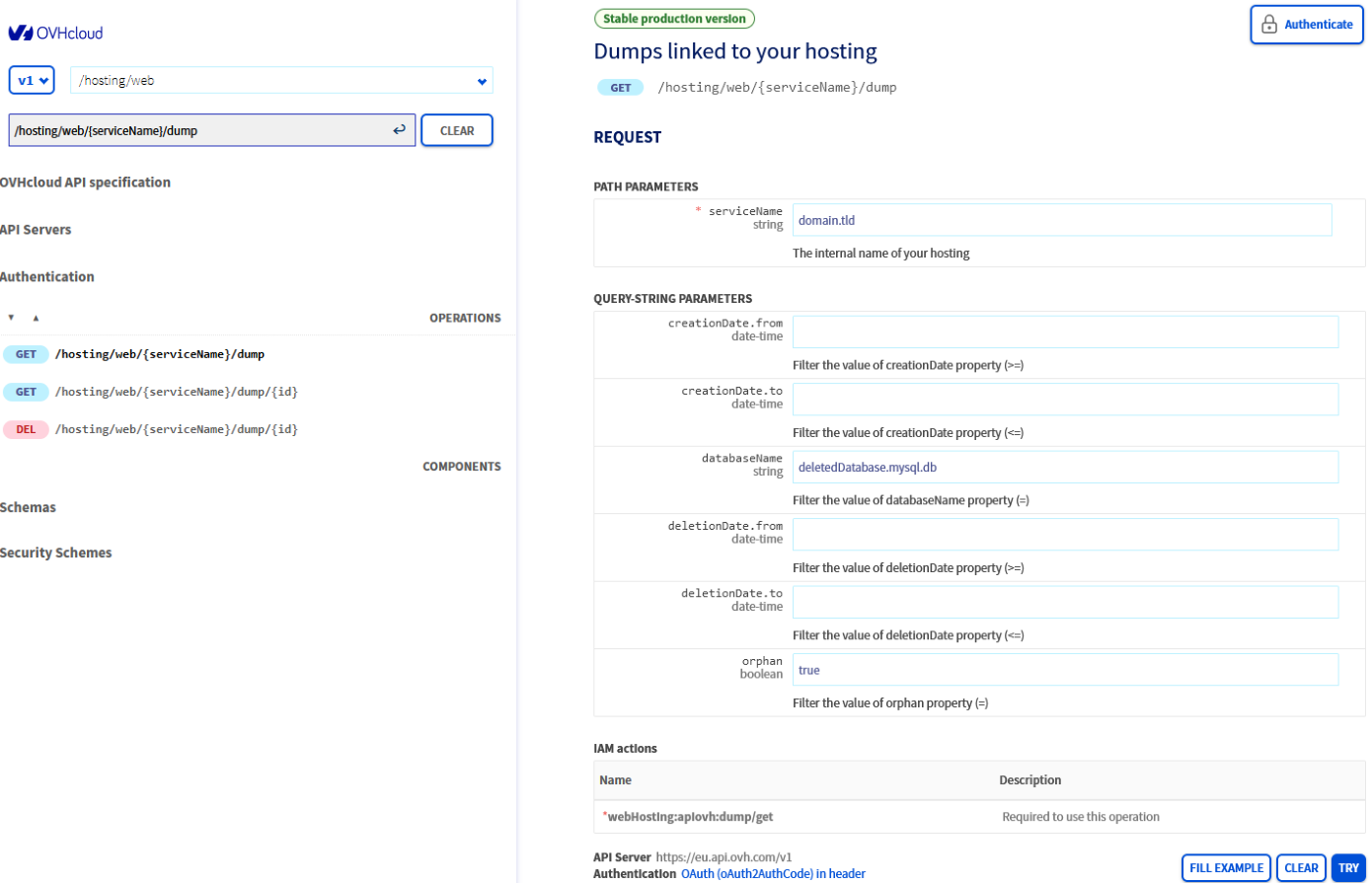
Once you have filled in the forms, click on the blue EXECUTE button in the bottom right-hand corner of the two sections that have been filled in.
If everything has been entered correctly and backups are available for the deleted database, a list of backup ID numbers will appear in the RESPONSE window below the EXECUTE button.
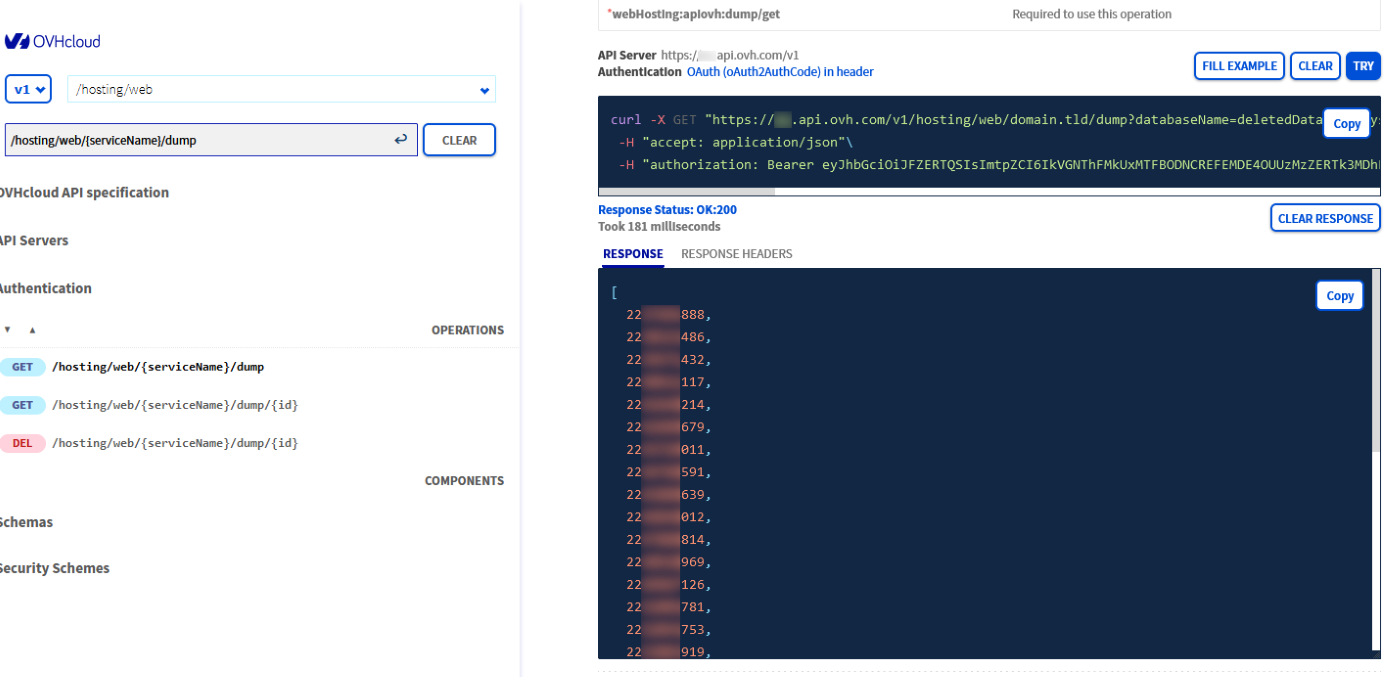
Each of these numbers corresponds to an available backup ID. These backup ID numbers appear from the most recent to the oldest. Copy the highest ID from the list (without the , at the end) if you want to recover (in part 4 of this guide) the most recent backup of your deleted database.
If no ID appears in the window, check that you are logged in correctly with the correct OVHcloud NIC handle (if you have several). Also, check the information entered in the PATH PARAMETERS and QUERY-STRING PARAMETERS sections. Then try the operation again.
If you still do not have an ID, it means that there are no or no more backups available for the deleted database on our infrastructure.
4 - Retrieve the last backup
Using the backup ID number retrieved in part 3, you can download the last backup of your deleted database using an API-generated link.
To do this, perform the following actions on our website OVHcloud API:
- On the left-hand side of the page, go to the form to the right of
v1, then select or enter/hosting/web. - From the list of endpoints that appears in the left-hand column, click on: GET /hosting/web/{serviceName}/dump/{id}. You can also click directly on the following path to access it:
- On the right-hand side of the page, you will then see the API path with its various parameters.
Fill in the various forms in the PATH PARAMETERS section as follows:
id: Copy the backup ID number retrieved in part 3. If you were not logged out of our OVHcloud API website, the interface can offer you the different backup ID numbers available. If this is the case, you can click on the first ID number in the list just below the form id.serviceName: Enter the name of your web hosting plan, which you retrieved in part 1 of this guide.
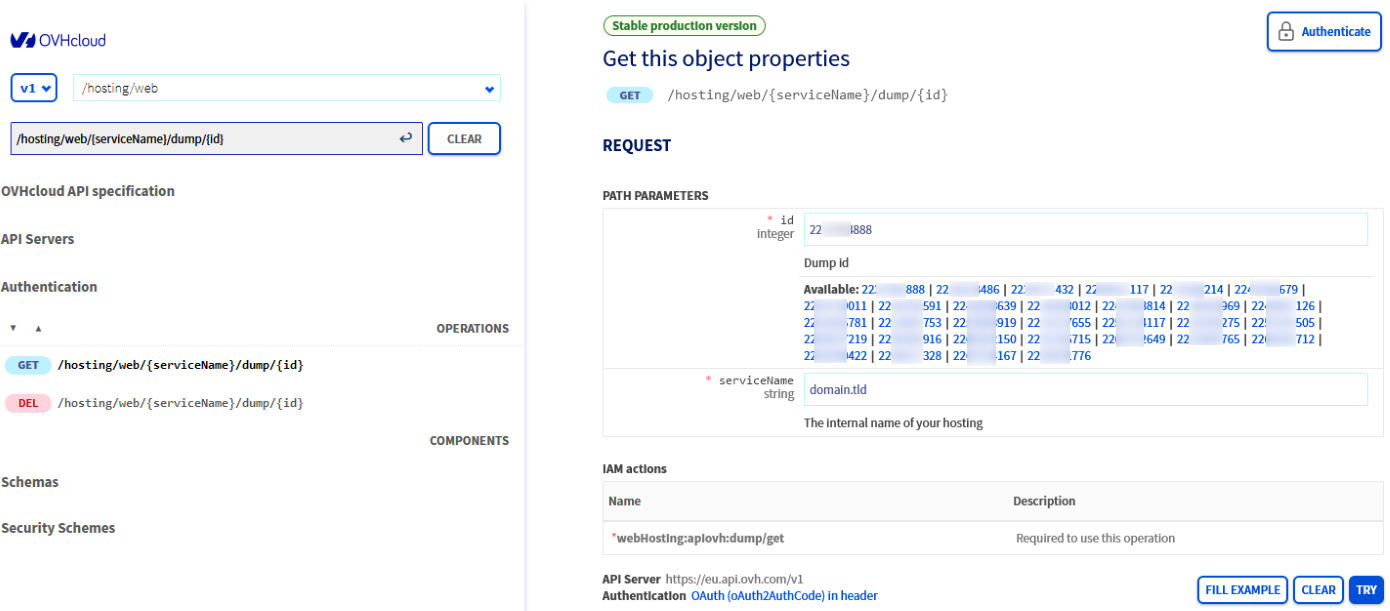
Once you have filled in the forms, click on the blue EXECUTE button in the bottom right-hand corner of the section that has been filled in.
If everything has been entered correctly, the following result will appear in the RESPONSE window below the EXECUTE button:
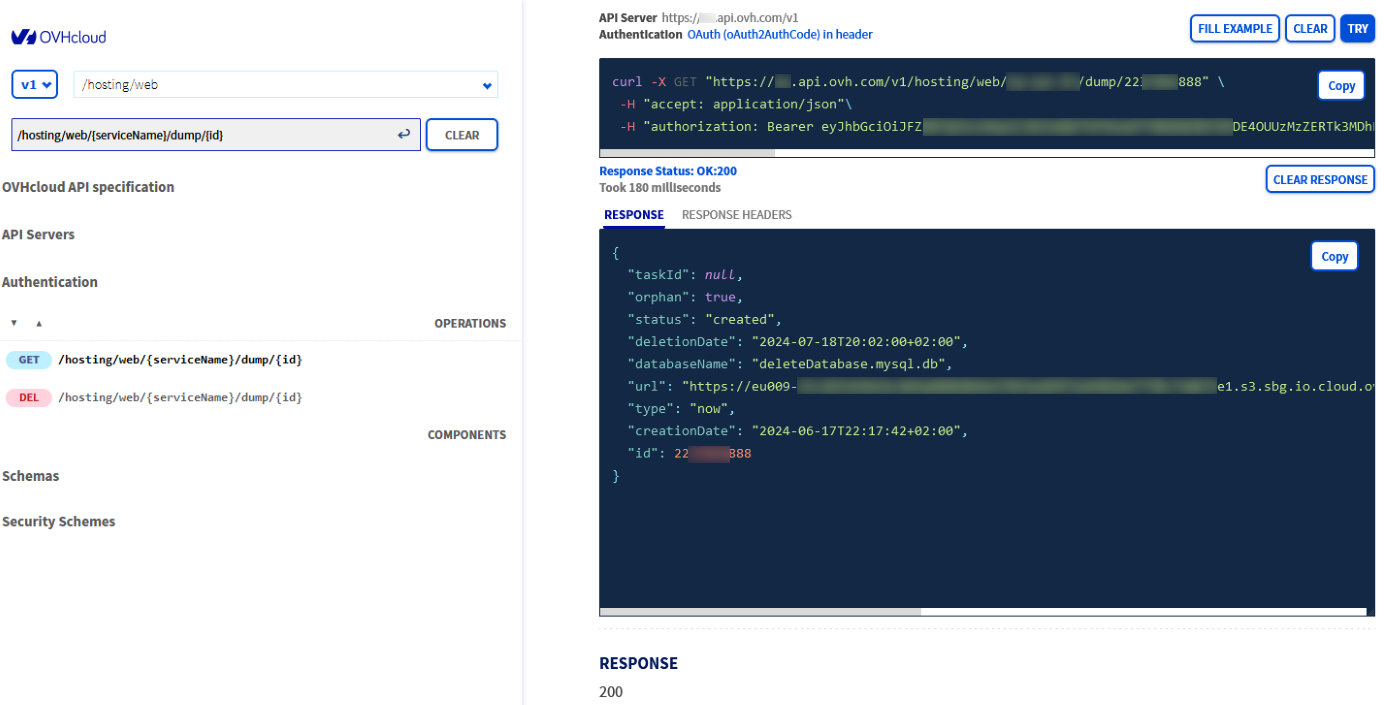
Rows in the above result may not always appear in this order.
In this result, copy the entire URL in HTTPS without the quotation marks in the line "url":, then paste it into the search bar of your web browser to start downloading the backup.
5 - Create a new database, import the backup file and re-establish the link between your website and the new database
Once you have retrieved the backup of your database, you will need to create a new database. To do this, please refer to our guide on "Creating a database on your web hosting plan".
Once this new database has been created, import the backup using our guide "Importing a backup into a Web Hosting plan database".
Finally, link your OVHcloud database with your website's configuration file in the FTP storage space of your OVHcloud hosting plan. To do this, replace the connection information of the database accidentally deleted with that of your new OVHcloud database. This information can be found in your website's "configuration/connection to your database" file.
To link your new database if you are using a Content Management System (CMS) such as WordPress, Joomla!, Drupal or PrestaShop, you can find information on their configuration files in part 2 of the guide "Changing a database password".
Go further
Creating a database on your web hosting plan.
Importing a backup into a web hosting database.
For specialised services (SEO, development, etc.), contact OVHcloud partners.
If you would like assistance using and configuring your OVHcloud solutions, please refer to our support offers.
Join our community of users.


 Creating a database on your web hosting plan
 105
105