

Tutorial - Installation and configuration of Cecil, a static site generator (SSG) in PHP
63 Views
 27.10.2025
  Web / Web Hosting
Objective
This tutorial will show you how to install and configure Cecil. It is an application written in PHP that can generate and manage static web pages.
A website essentially composed of static web pages guarantees a better loading time for your visitors and greater security. Without dynamic content, your pages are more robust against cyber attacks. By creating a static website, you get more freedom to create the website of your choice. You will also save time since you will not have to start from scratch.
This tutorial explains how Cecil allows you to create your static website using a modern template engine (Jamstack).
OVHcloud provides services which you are responsible for with regard to their configuration and management. You are therefore responsible for ensuring they function correctly.
If you experience any difficulties following the steps in this tutorial, we recommend contacting a specialist provider or reach out to the OVHcloud community. We will not be able to assist you. You can find more information in the Go further section of this guide.
Requirements
- Have an OVHcloud web hosting plan that includes SSH access. With this access, you can install one or more alternative solutions online, to those offered by default in our web hosting plans.
- Be familiar with command line input.
- Be able to transfer files via FTP with a client like FileZilla.
- Configure your DNS zone to point your domain name (or subdomain) to your shared web hosting. This is particularly useful if you want to host multiple websites on your shared web hosting.
- Install Composer with the file
composer.pharin the root of your web hosting or in the target folder of your domain name.
Instructions
A shared web hosting allows you to declare domains or subdomains on the websites it contains. A domain or subdomain is required to deploy your website created with Cecil.
To help you declare a domain or subdomain on one of the websites on your hosting, see our page " Sharing your hosting between multiple websites ".
Create the directory where your files will be located
Once you have logged in to your web hosting plan via SSH, create a root directory with the following command:
Replace mystaticwebsite with the folder name of your choice (no accents and no spaces).
Then go to this directory:
Replace mystaticwebsite with your folder name.
Download
In the directory you just created, download Cecil:
Installation
Start the Cecil installation with the following command:
Enter the information requested:
- Your website (title)
- A baseline
- Your website URL (e.g.
https://mywebsite.ovh) - A description of your website

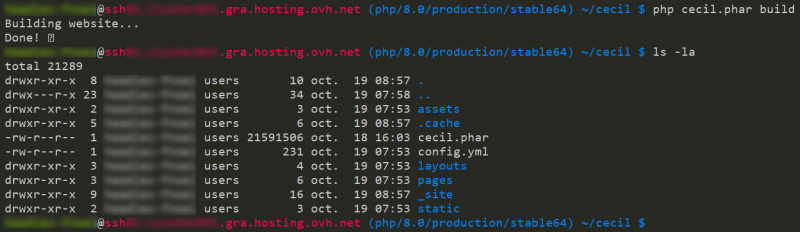
Once you have entered this information, you will now need to deploy the website by typing the following command:
If you view the contents of the directory, you will see a _site directory. This directory will contain all HTML files and assets:
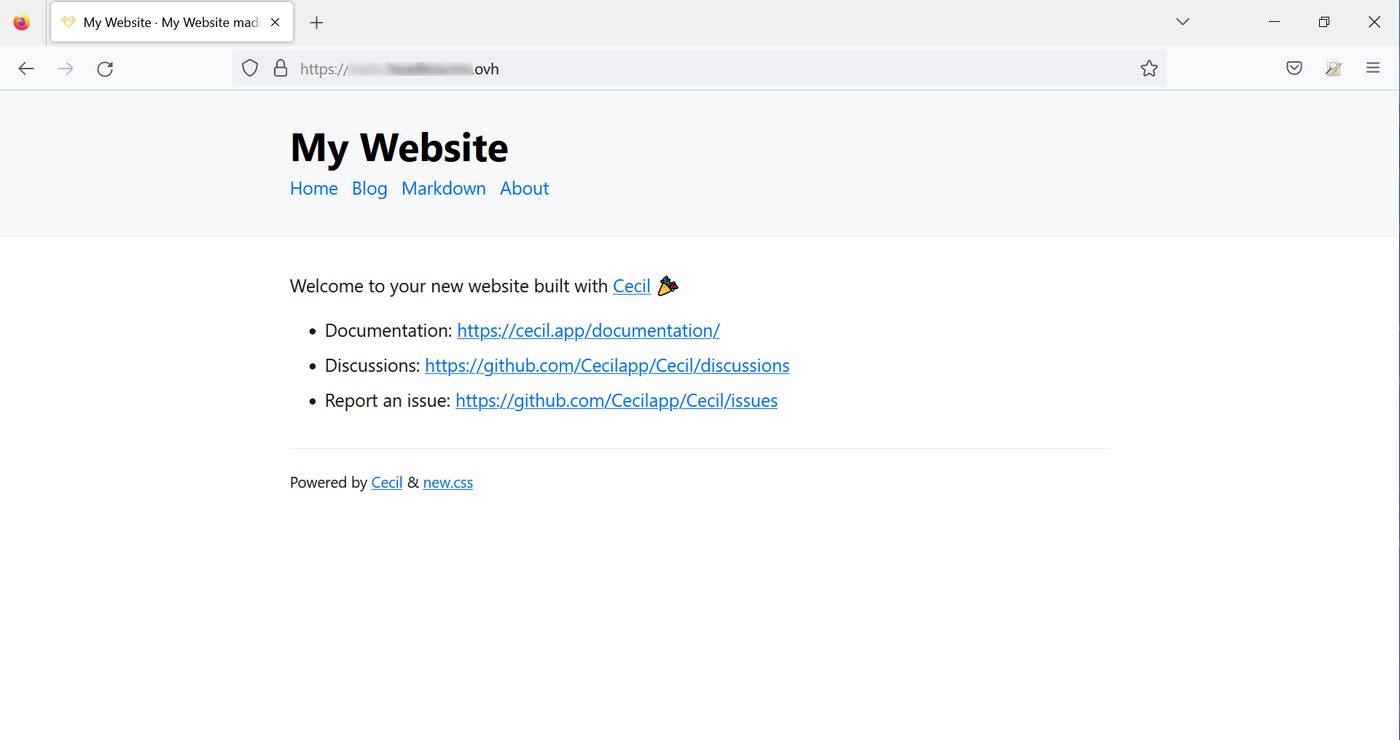
You can now see the result by going to your domain name:
Configuration of the pointing of the domain or subdomain
To view your website's results in your browser, change the way your domain or subdomain points to the _site directory you created when you installed Cecil.
If your domain name or subdomain is hosted with OVHcloud, see our guides on DNS configuration and setting up a website on your web hosting.
Configure your website
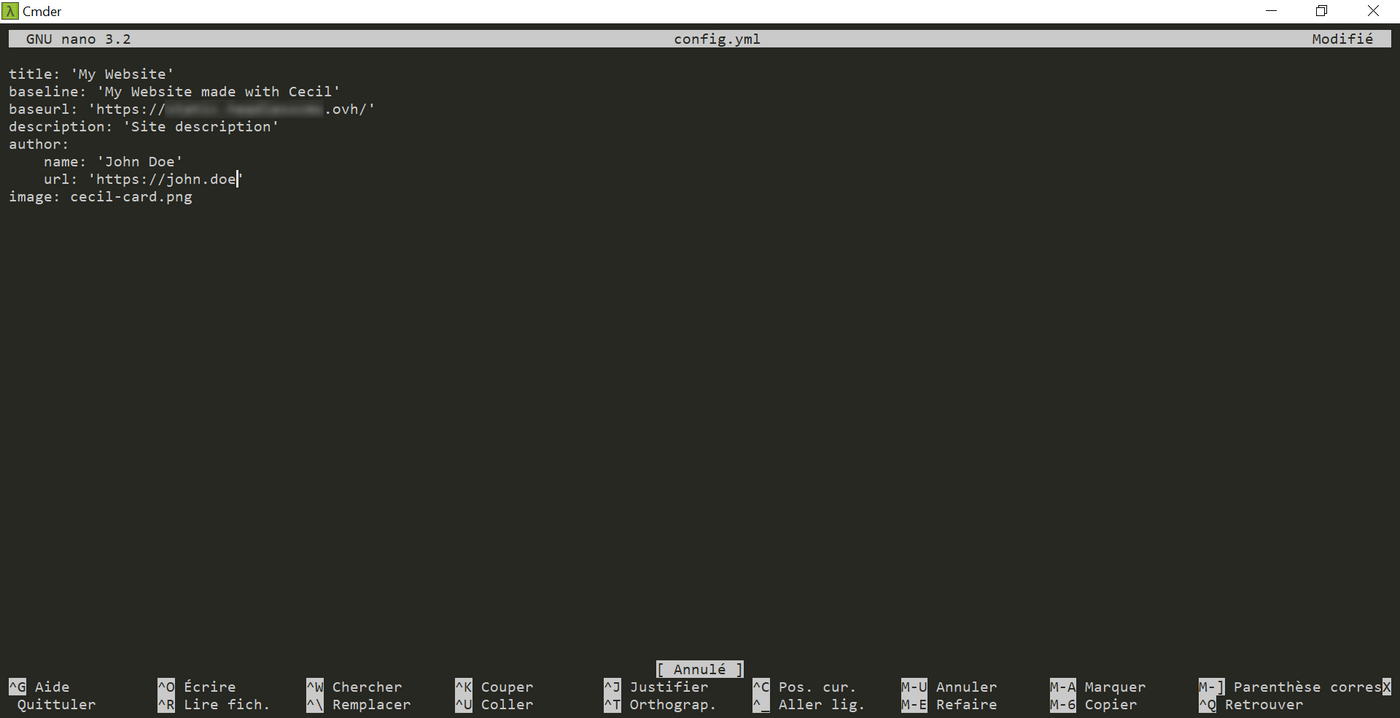
You can configure general information for your website in the file config.yml:
Replace the default information with your own and save the file.
Create a new page
You can create pages containing your website’s data using files in the Markdown format. These pages are customisable. Cecil includes Twig, the template engine used by default with the Symfony framework.
Folders and files are organised as follows:
assets: Contains graphics, audio, video, JavaScript, and styles (CSS, Sass).layouts: Contains templates.pages: Contains Markdown files._site: Directory that contains the generated files and is pointed to by your domain name.static: Contains all static PDF files.
Create a Markdown file in the command line
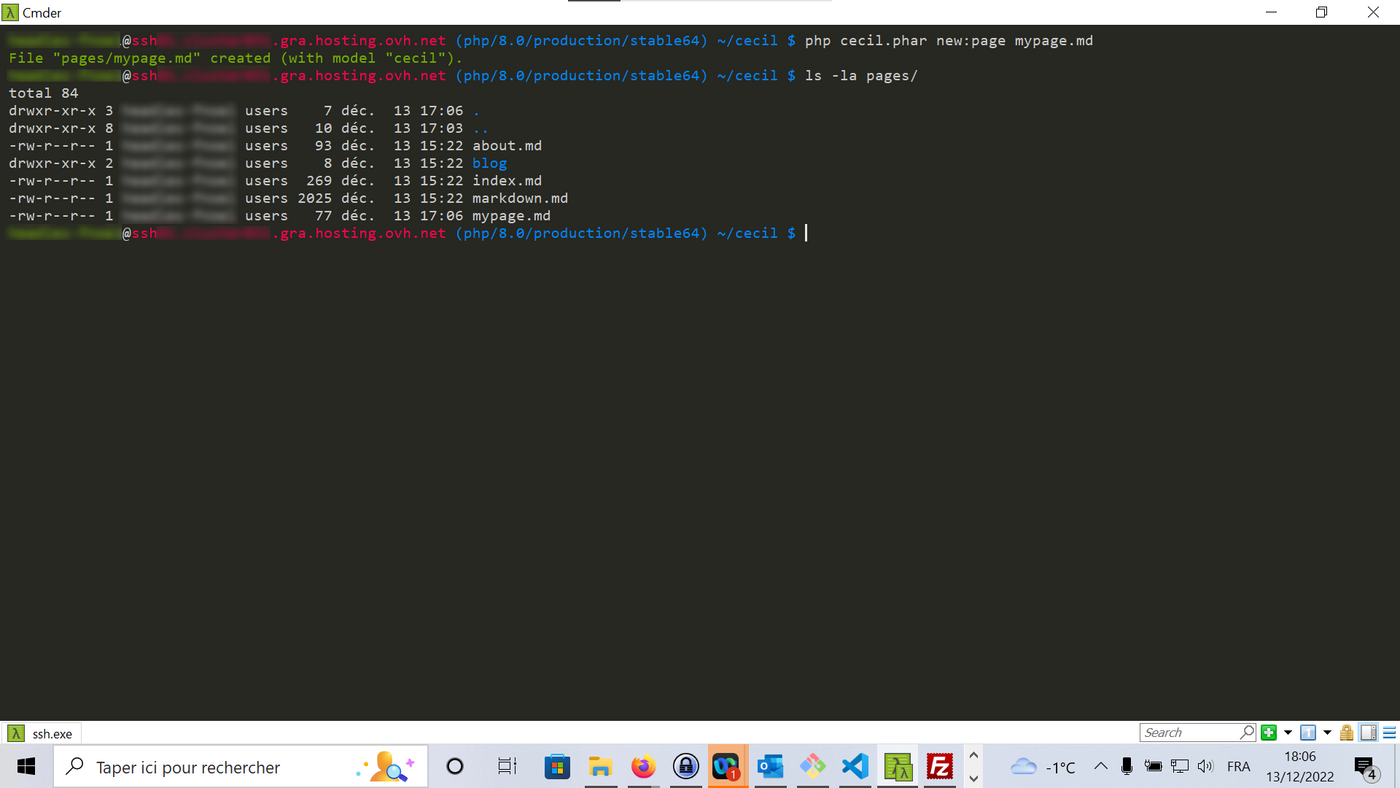
At the root of the site, type the following command:
A file mypage.md is then created in the root directory /pages.
Replace mypage with the name of your own page.
Generate static files
At the root, type the following command:
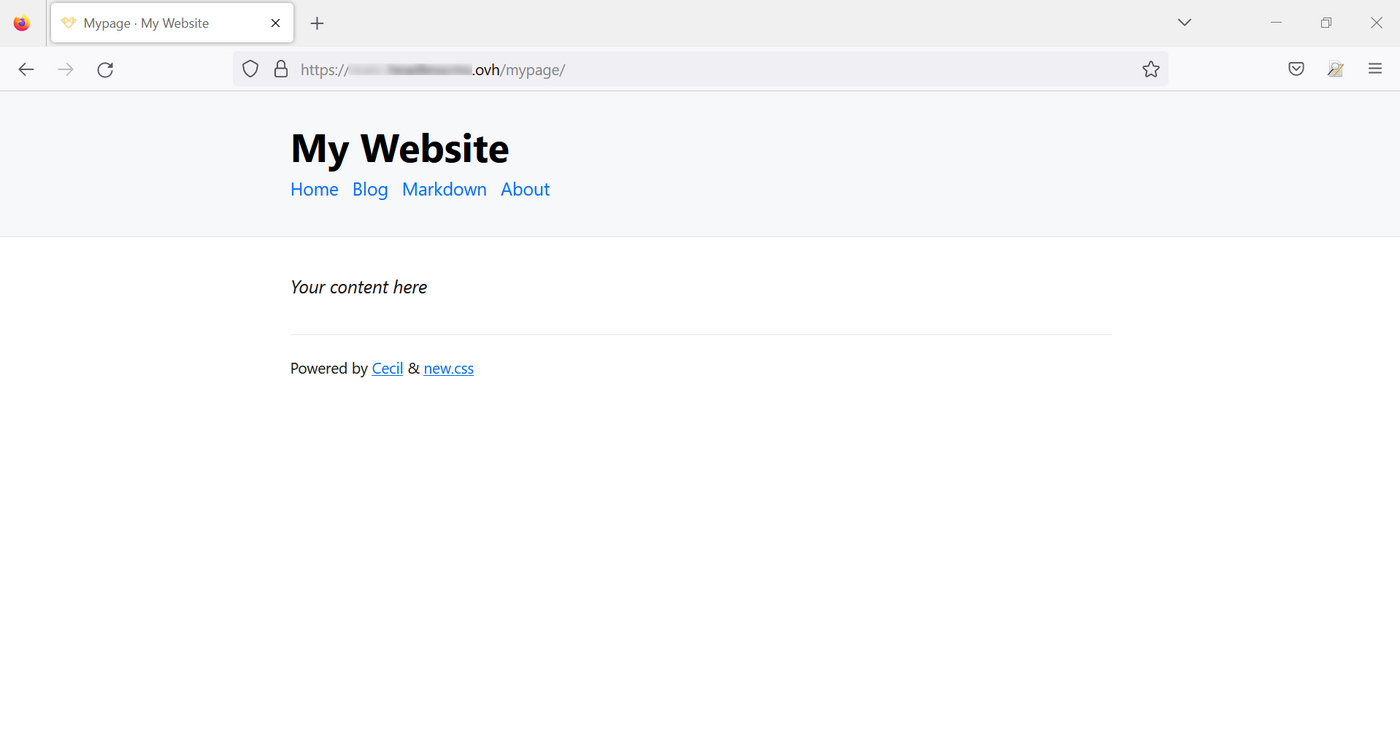
Your file is located in the directory _site/mypage/:

You can view it on your server by typing your website URL, followed by /mypage/:
Customise your website files
Change on server
You can edit Markdown files directly on the Web Hosting server. With your Performance Hosting SSH access, you can use GNU nano, vi or vim. The screenshots of this tutorial were taken under GNU nano.
Edit the file mypage.md located in the pages directory by typing the following command if you are at the root of your site:
Replace mypage with the name of your own page.
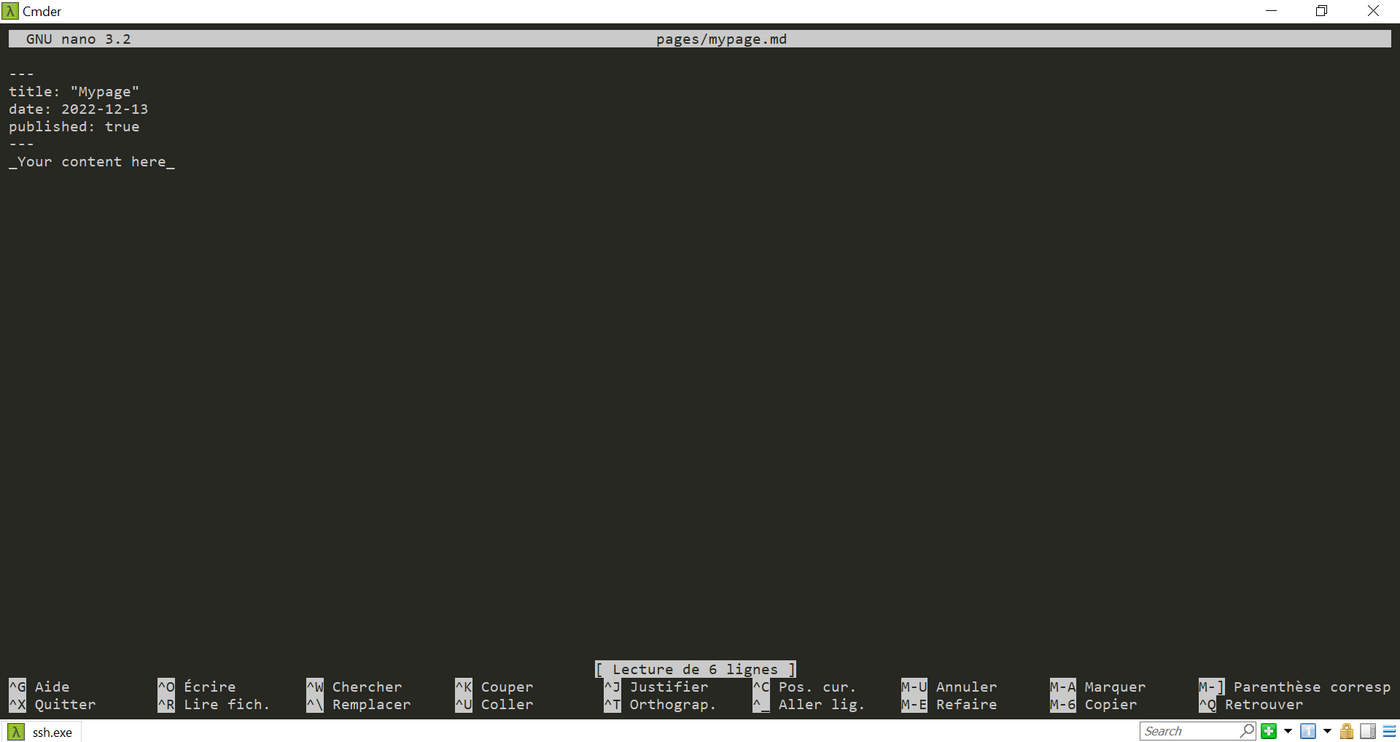
Add a few lines using the Markdown syntax:
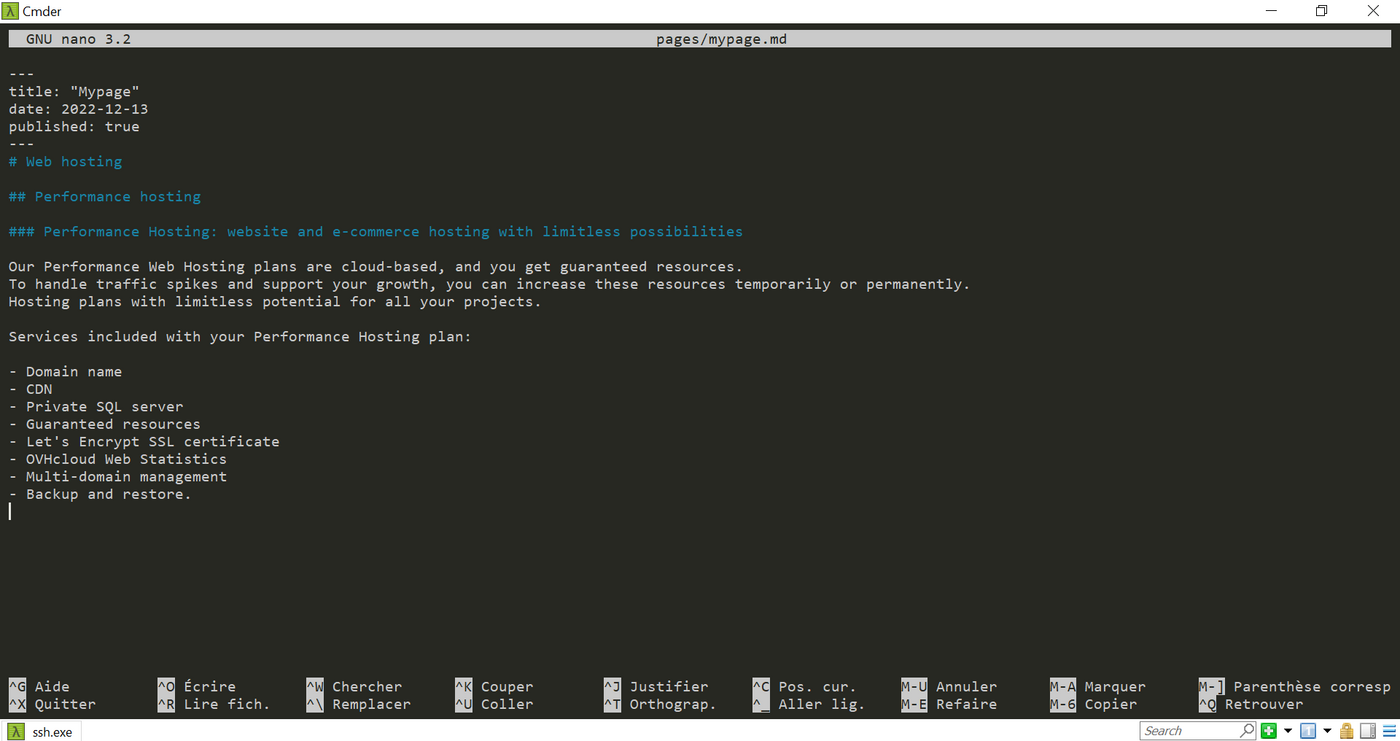
Delete the files in the cache using the following command:
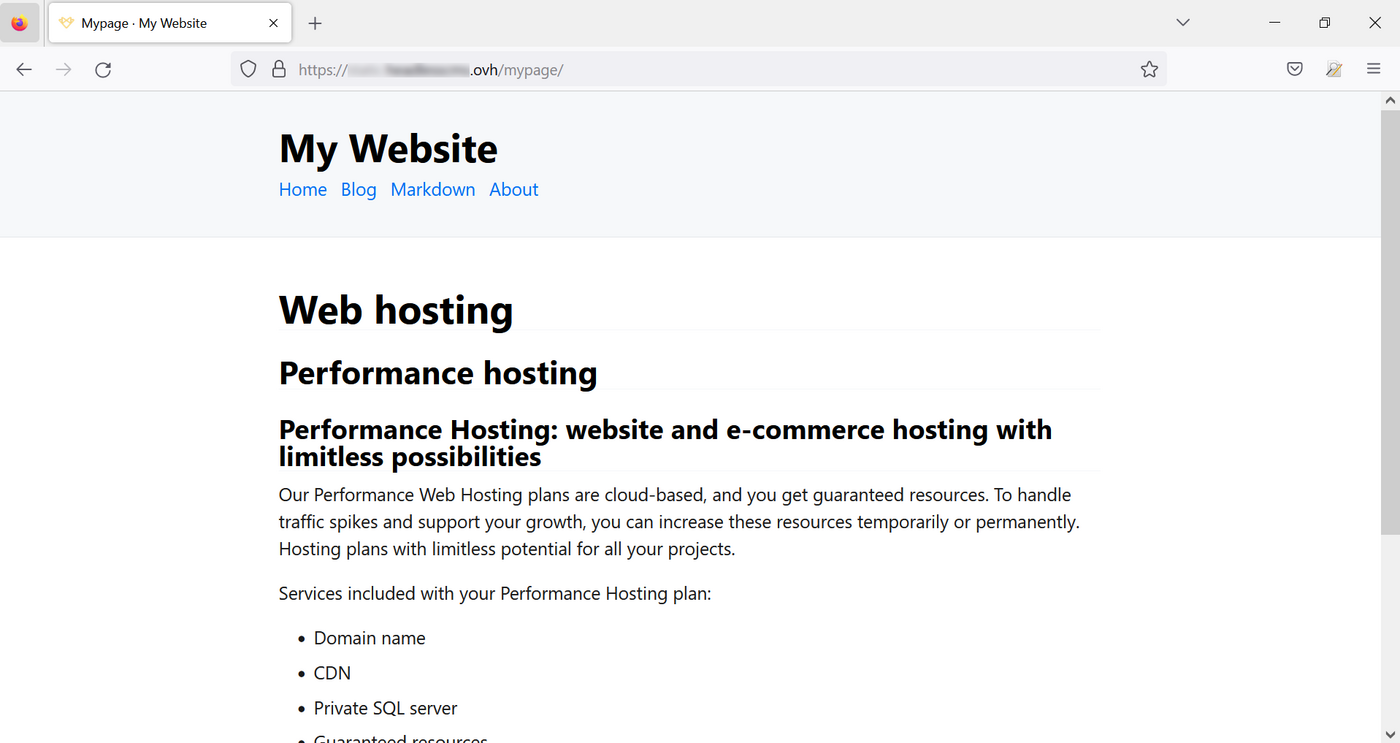
Rebuild your pages after saving your file:
Then return to your page to see the result:
Change your workstation
If you prefer to use your usual code editor on your computer, log on to your server with an FTP client and retrieve the files:
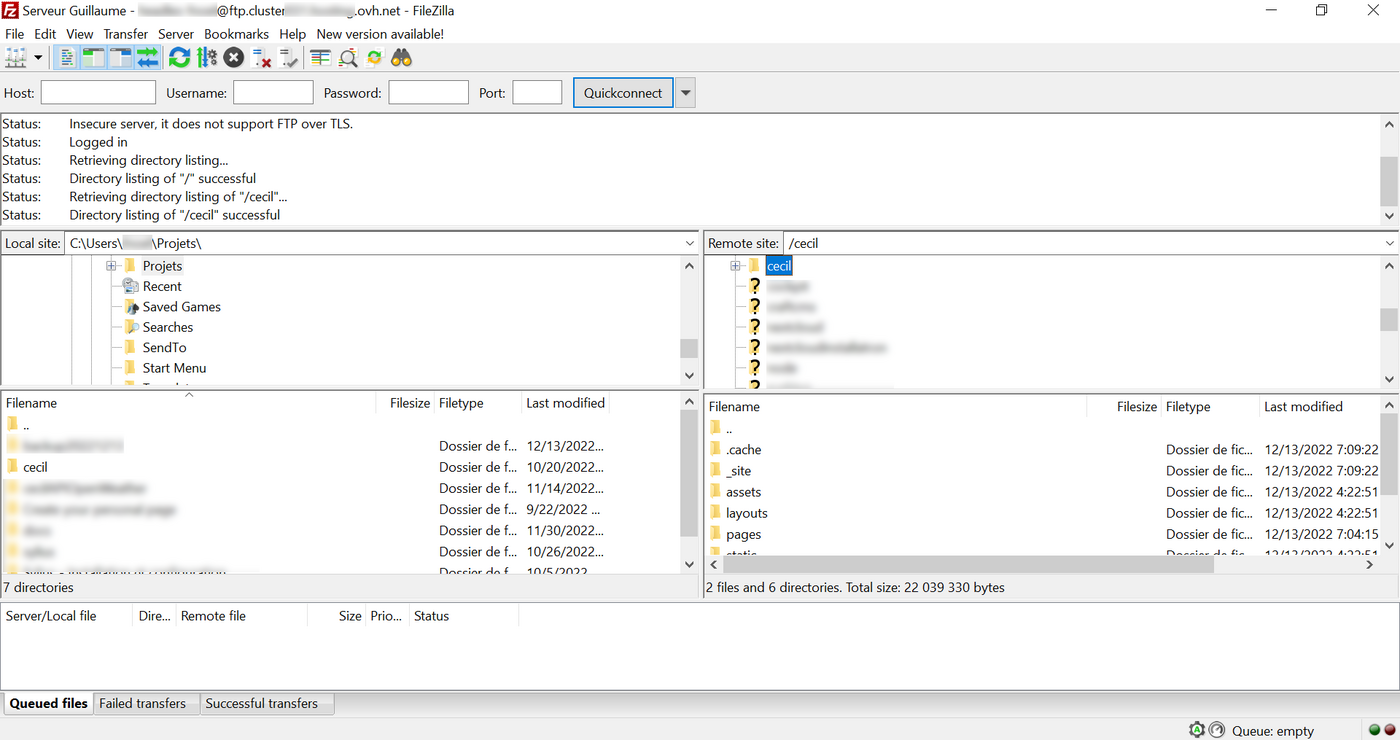
You can now edit the files in your I.D.E.:
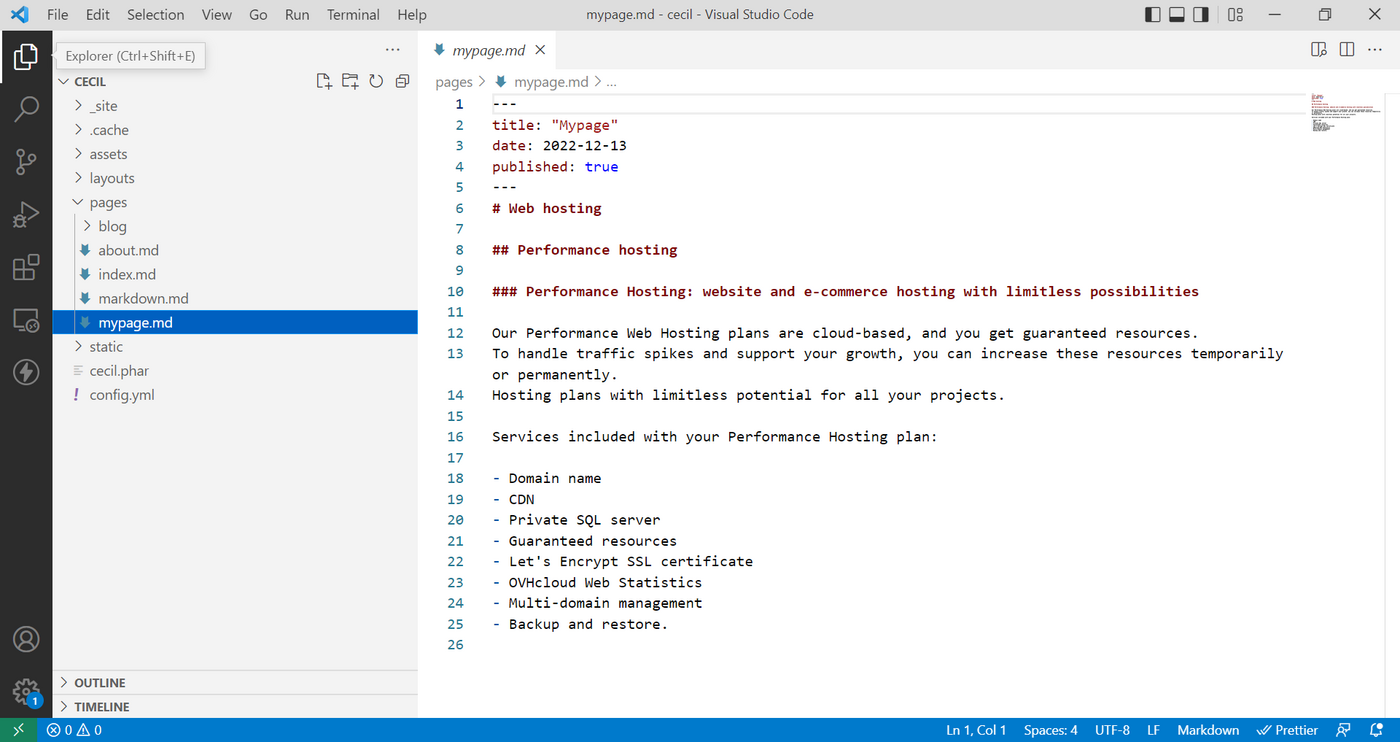
Simply upload your modified files or new files to your server and rebuild to get your pages online.
Add the page generated to your site menu
To add this new page to the website menu, manually change the header of the .md file by adding the following line:
Conclusion
Cecil is a tool to effectively build a static site from Markdown files, a markup language easier to implement than HTML. Organising Markdown files determines the hierarchy of your web pages.
Using a template engine, widely used in the web developer community, will allow you to easily find many sources on the Internet to design a professional looking interface.
Go further
Add dynamic content to a static web page generated with Cecil
Cecil application official website
For specialised services (SEO, development, etc.), contact OVHcloud partners.
Join our community of users.


 Installing Composer on a Web Hosting plan
 81
81