

Tutorial - Add dynamic content to a static web page generated with Cecil
75 Views
 16.01.2023
  Web / Web Hosting
Objective
This tutorial describes how to use the Cecil site builder to display the contents of a dynamic page. All this while calling an API to retrieve and display information on a page generated via Cecil.
Find out how to add a call to an external API from your static web page.
OVHcloud provides services which you are responsible for with regard to their configuration and management. You are therefore responsible for ensuring they function correctly.
If you experience any difficulties following the steps in this tutorial, we recommend contacting a specialist provider or reach out to the OVHcloud community. We will not be able to assist you. You can find more information in the Go further section of this guide.
Requirements
- Have an OVHcloud web hosting plan that includes SSH access. With this access, you can install one or more alternative solutions online, to those offered by default in our web hosting plans.
- Be familiar with command line input.
- You need to have installed and configured the Cecil application on your web hosting plan (see our tutorial on installing and configuring Cecil).
Instructions
The chosen example is to use one of the APIs of a service providing meteorological data. It relies on a city entered by the user.
The steps are as follows:
- Create a new page on Cecil and add this page to the website menu.
- Create an account and retrieve the key for making requests to the weather API.
- Modify the
.mdfile created by adding HTML code. - Add
assets(JavaScript and CSS). - Build and test the solution.
Create a new page
Prepare your environment by logging in via SSH to your web hosting plan, and refer to the tutorial “Installation and configuration of Cecil” to install your Cecil application in a dedicated directory.
Create a directory and switch to it:
mkdir myWebSite
cd myWebSite
Using the OpenWeather API
For this tutorial, we will use an API provided by the OpenWeather website. It allows to retrieve weather information based on the name of a city.
Create an account on https://home.openweathermap.org/users/sign_up.
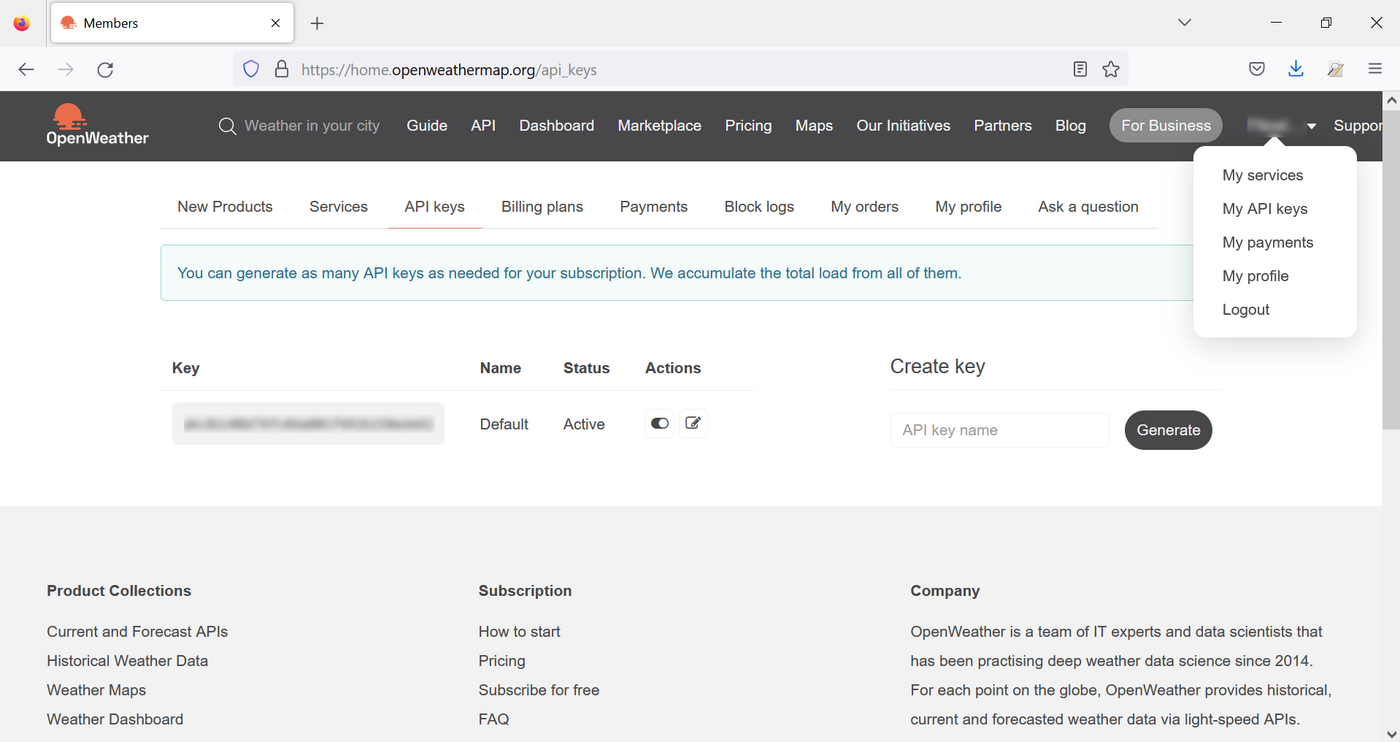
Once your account has been validated (by sending a confirmation email), go to the “My API keys” menu. A key was generated by default, retrieve it and save it for the rest of this tutorial.
Add HTML
Create a new page with the following command:
php cecil.phar new:page weather.mdThen edit the page that you generate:
nano pages/weather.mdChange the file header so that the page appears in the menu:
---
title: "Weather"
date: 2022-11-28
published: true
menu: hand
---
After the header, add the HTML code to display the chosen city, the temperatures returned by the API and a button to change the parameter:
---
title: "Weather"
date: 2022-11-28
published: true
menu: hand
---
<h1>Weather</h1>
<div>
    <span id="city">Roubaix</span>
    <div id="temperature"><span id="temperatureValue"></span> °C</div>
    <div id="modify">Change city</div>
</div>
Generate the HTML page with the following command:
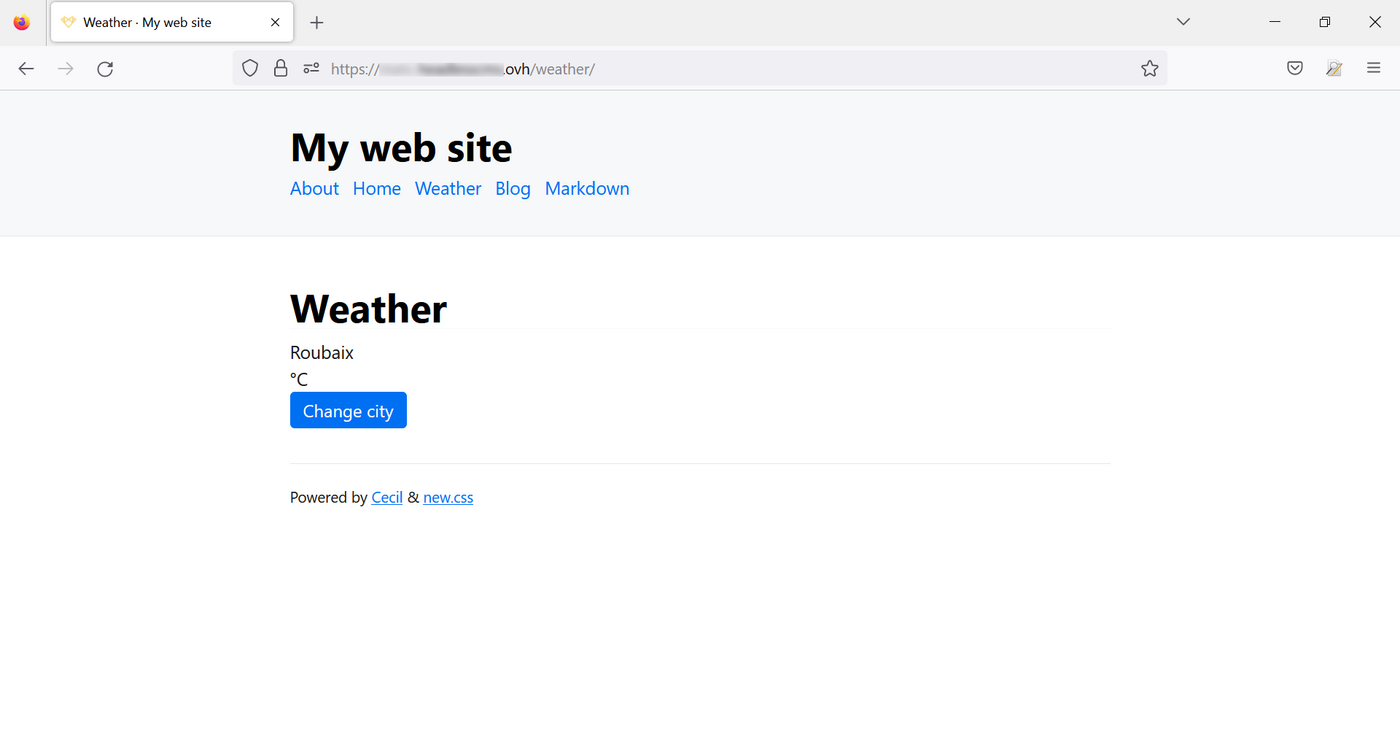
php cecil.phar buildCheck the result in your browser and click the "Weather" link that was added to the main menu:
Add JavaScript
You cannot add a <script> tag to a Markdown file. You will need to modify the template provided by default.
Modify the template
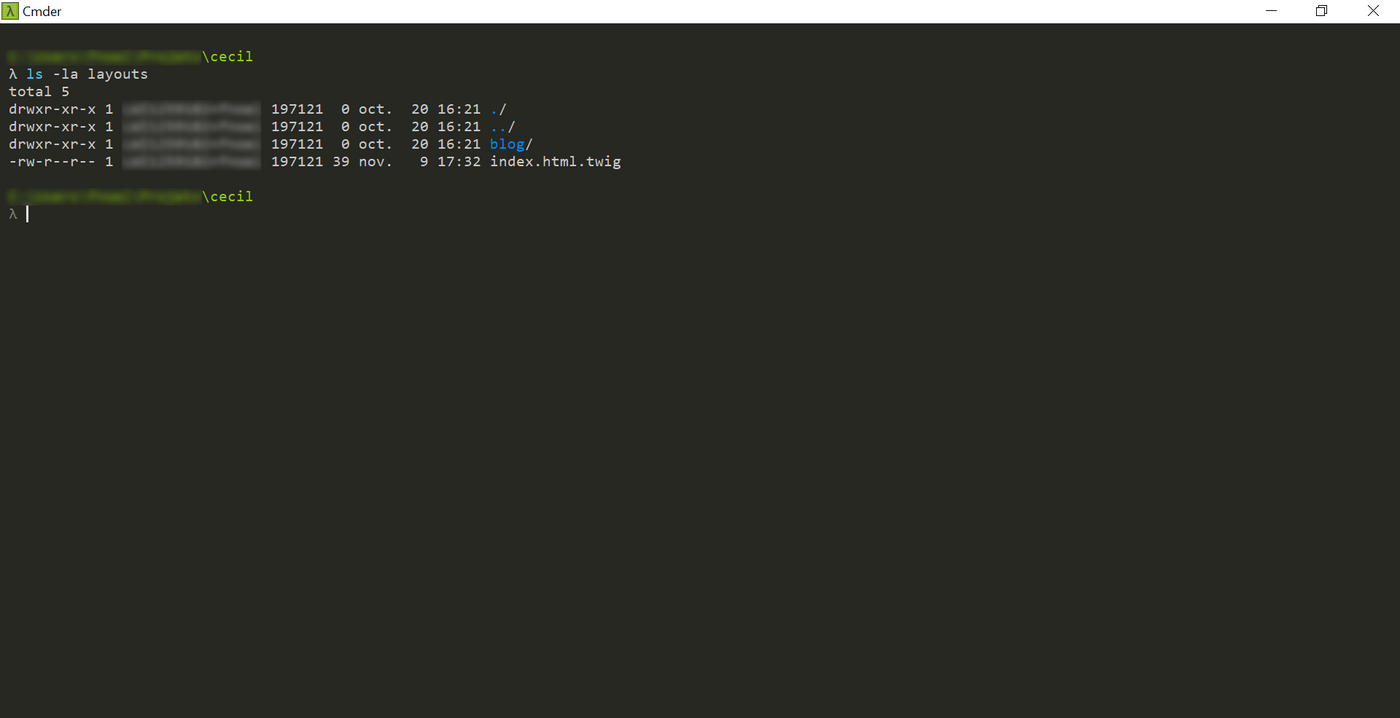
Templates are arranged in the layouts directory. You can view them with the following command:
ls -la layoutsThe file contains a blog directory and an index.html.twig file:
Open the file index.html.twig:
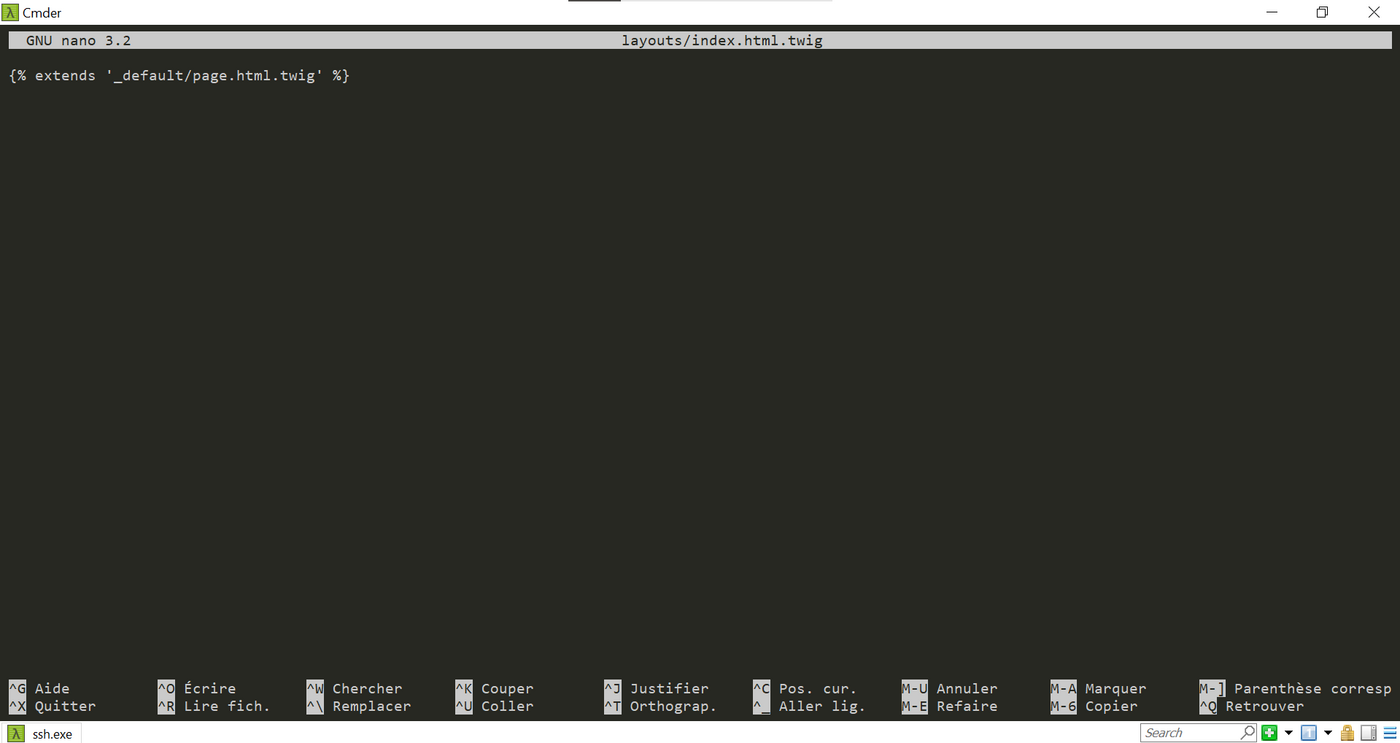
The file references a template that is not present in the directory. This file (and others) are actually inside cecil.phar. Files with the .phar extension are PHP file archives that can be manipulated without being decompressed.
Unzip the files in this archive to make them visible:
php cecil.phar util:extractDisplay the contents of the layouts directory again:
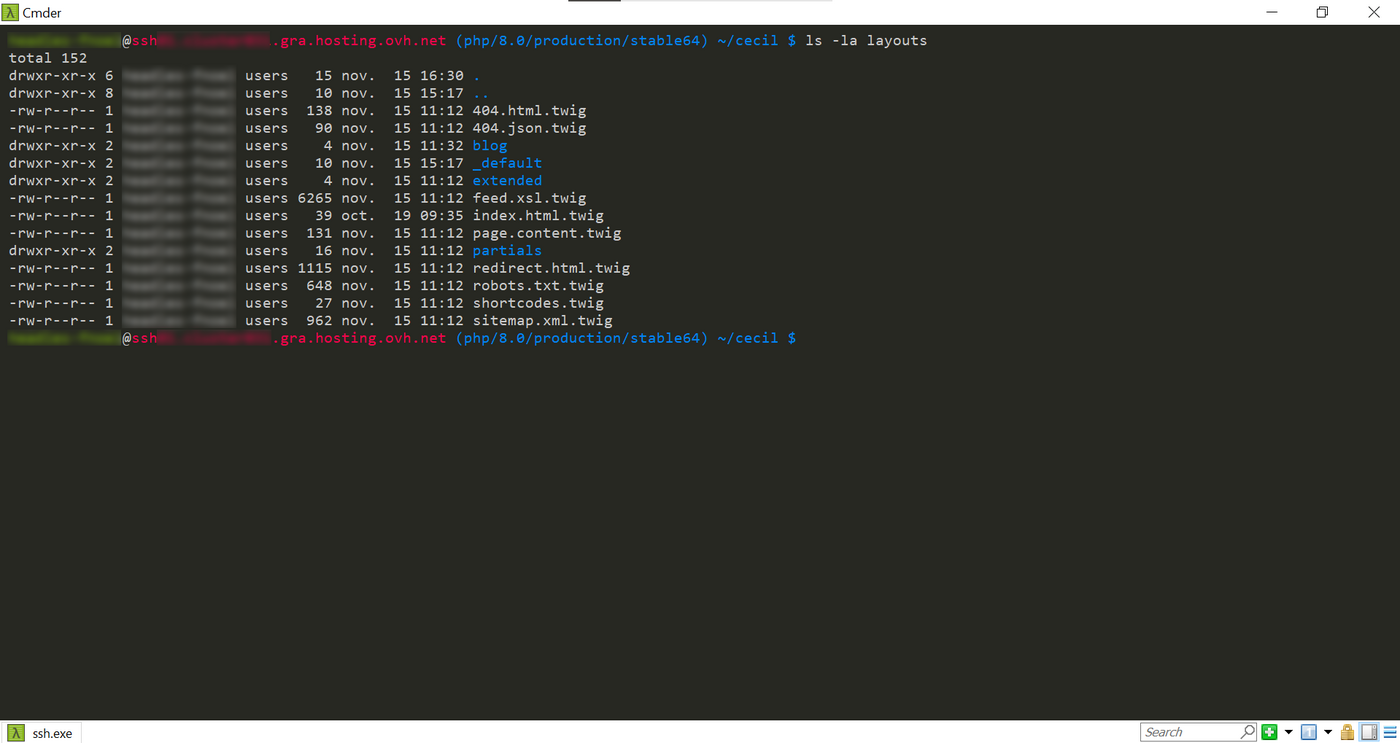
Modify the default template to insert a <script> tag that will contain the code to call the API:
nano layouts/_default/page.html.twigThis tag and its contents must be placed before the closing tag </body> at the bottom of the page:
    </footer>
    {%- include 'partials/googleanalytics.js.twig' with {site} only ~%}
    {% block javascript %}
    <script src="{{ asset('script.js', {minify: true}) }}"></script>
    {% endblock %}
  </body>
</html>
When one or more asset files are modified, rebuild the cache with the following command:
php cecil.phar cache:clear:assetsIf the modifications are not displayed in your web browser, clear the cache. You can also delete the files generated on your Web Hosting plan:
php cecil.phar clearThen rebuild your solution using the command below:
php cecil.phar buildAdd JavaScript
JavaScript files, such as CSS files, must be placed in the assets directory. You can organise them in different directories.
Create the previously mentioned script.js file at the root of the assets directory:
nano assets/script.jsReplace the value of the apiKey variable with the key retrieved earlier on the OpenWeather site.
let apiKey = '123456789'; // Replace this value
let city = 'Roubaix'; // Indicate here the default city that will be displayed on the weather page
getTemperature(city);  // Call function calling the API with the parameter "city"

// Add an event by clicking on the “Change city” button
let button = document.querySelector('#modify');
button.addEventListener('click', () => {
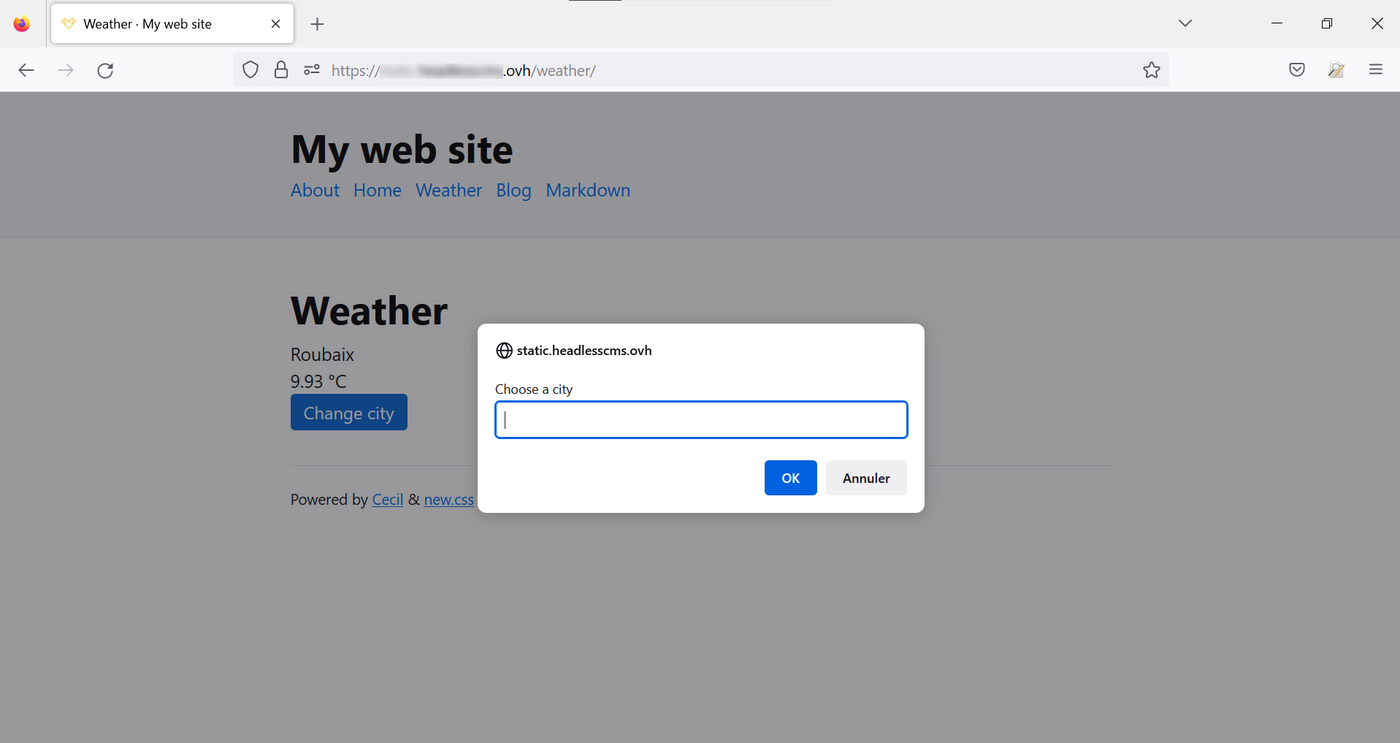
    city = prompt('Choose a city');
    getTemperature(city);
});

// API call function using an XMLHttpRequest object for asynchronous request
function getTemperature(city) {
    let url = 'https://api.openweathermap.org/data/2.5/weather?q=' + city + '&appid=' + apiKey + '&units=metric';
    let xhrQuery = new XMLHttpRequest();
    xhrQuery.open('GET', url);
    xhrQuery.responseType = 'json';
    xhrQuery.send();

    xhrQuery.onload = function() {
        if (xhrQuery.readyState === XMLHttpRequest.DONE) {
            if (xhrQuery.status === 200) {
                let city = xhrQuery.response.name;
                let temperature = xhrQuery.response.main.temp;
                document.querySelector('#city').textContent = city;
                document.querySelector('#temperatureValue').textContent = temperature;
            } else
                alert('A problem has occurred, please try later.');
            }
        }
    };
}
Tests
Now visit your website in a web browser:
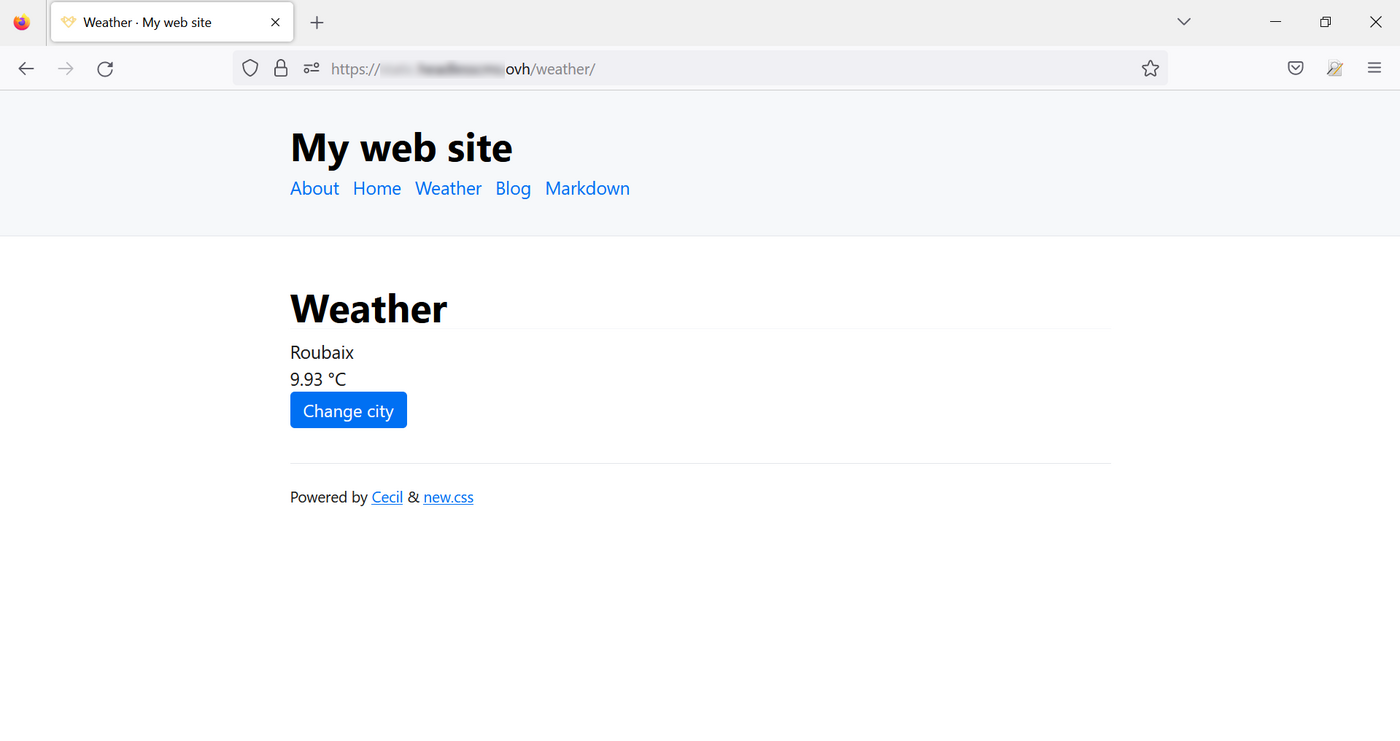
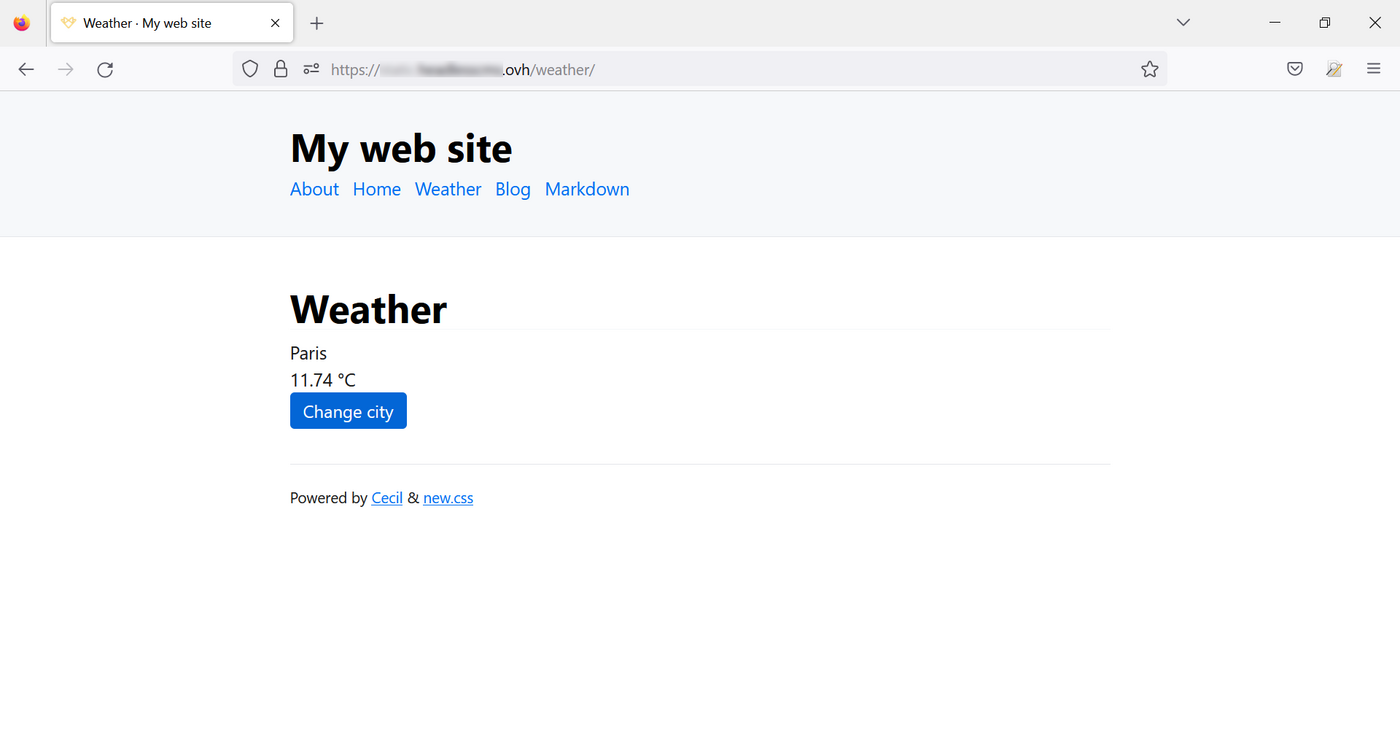
Click on “Change city” and enter the name of a municipality:
Conclusion
This tutorial shows you an example of how to integrate dynamic data retrieved from external sources using APIs. Build and maintain a website by manually editing the content of these pages, or create new ones. All this while enriching their content from other websites.
Go further
- Some APIs to test on your website:
- Cecil commands
For specialised services (SEO, development, etc.), contact OVHcloud partners.
If you would like assistance using and configuring your OVHcloud solutions, please refer to our support offers.
Join our community of users.


 Installing Composer on a Web Hosting plan
 81
81