

Backing up and exporting a database on your database server
82 Views
 24.03.2026
  Web / Web Cloud Databases
Objective
Your database can contain a large amount of essential information for your website. It is therefore vital to be able to back it up or export it.
Find out how to back up and export your database from your database server.
Requirements
- A Web Cloud Databases instance (included in a Performance web hosting plan).
OVHcloud Control Panel Access
- Direct link: Web Cloud Databases
- Navigation path:
Web Cloud>Web Cloud Databases> Select your database service
Instructions
Web Cloud Databases solutions do not provide access to the database management system itself, but to the databases hosted on it.
- There is no super user "root" access.
- Generic SQL commands work normally, and software such as HeidiSQL, SQuirreL SQL or Adminer is fully compatible.
Backing up and exporting a database from the Control Panel
- Backups are automatically performed once a day on all your databases.
- Automatic and manual backups are kept for 30 days. After this period, they are automatically deleted.
Creating a manual backup
Click on the tabs below to view each of the 3 steps.
Go to the Web Cloud Databases page, then select the solution concerned.
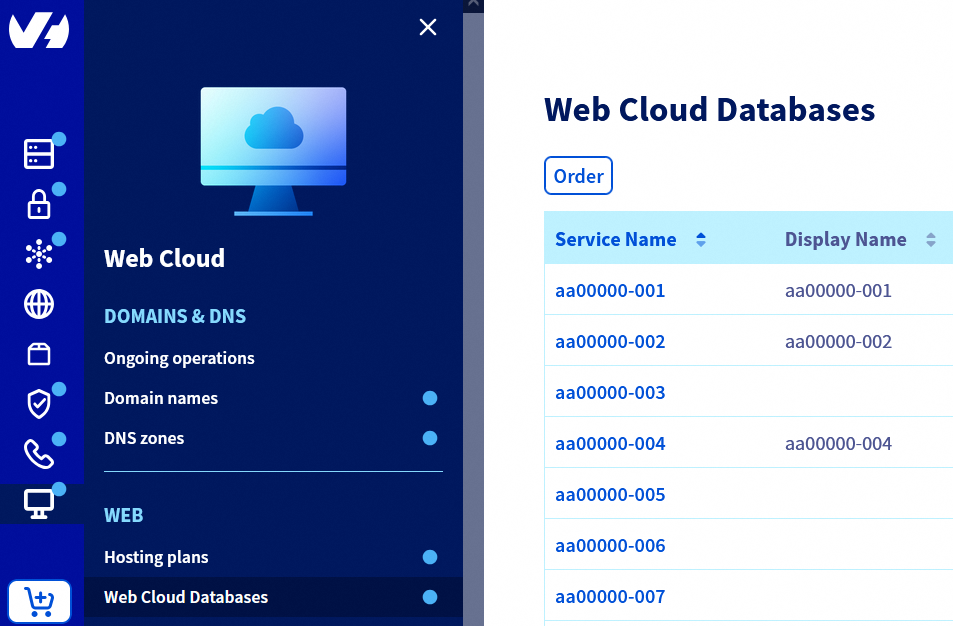
Click on the Databases tab.
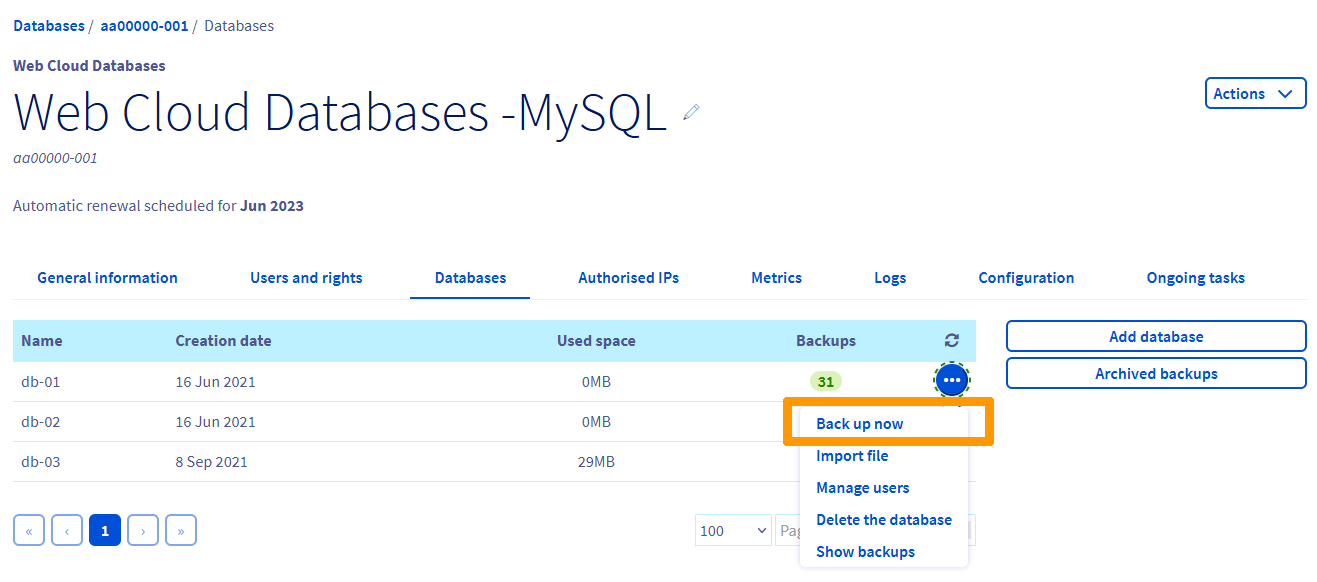
In the Backups column, the number corresponds to the number of available backups for your database.
Click the ... button to the right of the database, then on Back up now.
Exporting a backup
Click on the tabs below to view each of the 4 steps.
Go to the Web Cloud Databases page, then select the solution concerned.
Click on the Databases tab.
In the Backups column, the number corresponds to the number of available backups for your database.
Click the ... button to the right of the database, then on Show backups.
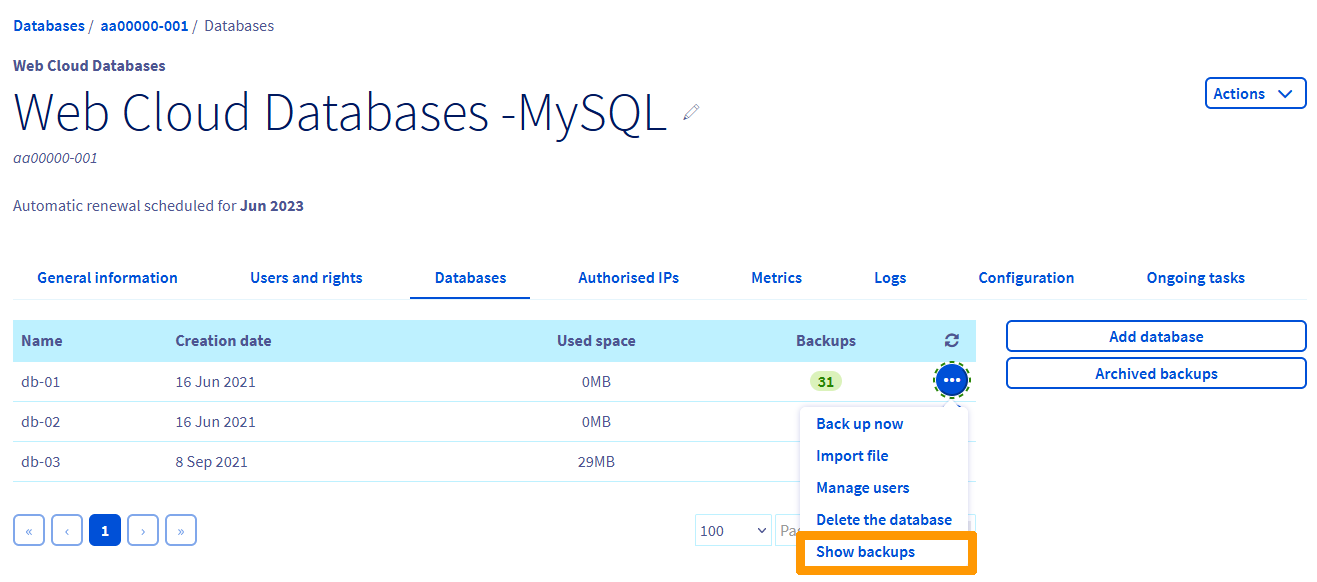
The list of available backups appears. Click the ... button to the right of the backup you want, then on Download the backup.
Backing up and exporting a database outside the Control Panel
If the available RAM on your server does not allow the desired export, use the OVHcloud tool in the Control Panel, which uses resources external to your plan. Refer to the section "Backing up and exporting a database from the Control Panel" of this documentation.
Click on the export method of your choice to view the content.
Export a MySQL or MariaDB database from OVHcloud phpMyAdmin
To export your database directly from phpMyAdmin, first log in using the guide "Connecting to a database".
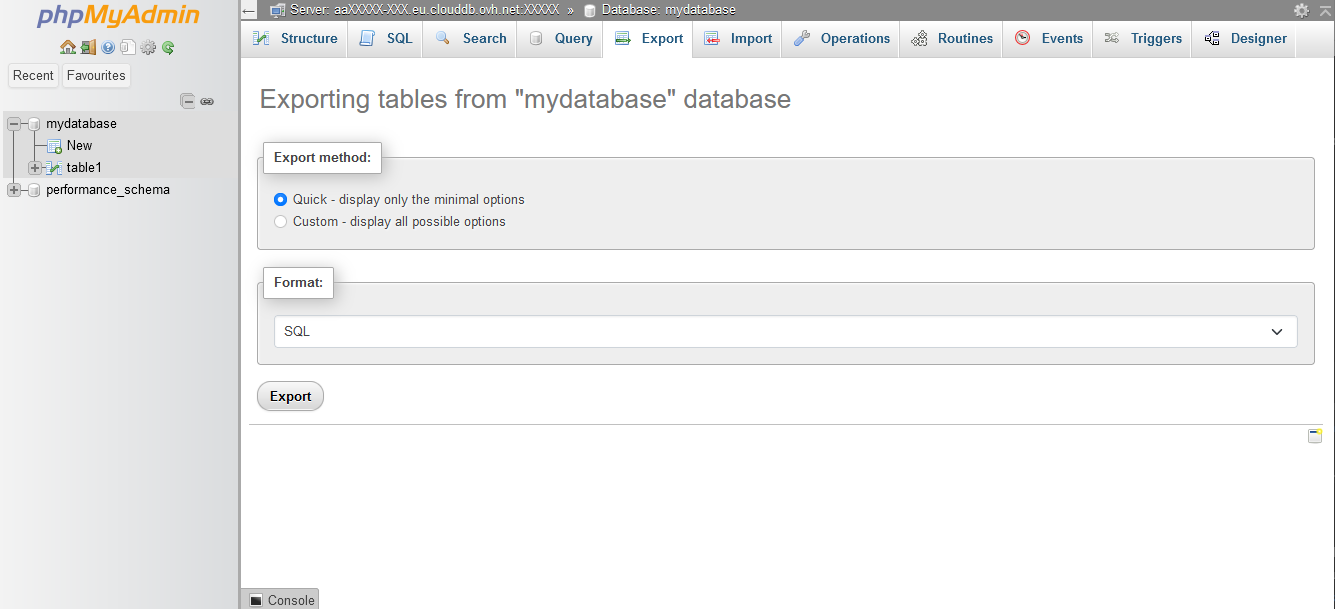
Once logged in to phpMyAdmin, click on the name of the database you want to export, then on the Export tab at the top.
There are two possible export modes. If you do not have a specific need, we recommend using the quick mode in SQL format.
Export a MySQL or MariaDB database via command line
Export a MySQL or MariaDB database from a PHP script
- To prevent third-party access to this file containing sensitive data, secure access to it using the guide: How do I password-protect a directory?
- This action is only possible from an OVHcloud shared hosting plan.
Export a PostgreSQL database via command line
Export a PostgreSQL database from a PHP script
- To prevent third-party access to this file containing sensitive data, secure access to it using the guide: How do I password-protect a directory?
- This action is only possible from an OVHcloud shared hosting plan.
Go further
Backing up and exporting a database from the Control Panel
For specialised services (SEO, development, etc.), contact OVHcloud partners.
If you would like assistance using and configuring your OVHcloud solutions, please refer to our support offers.
Join our community of users.


 Restoring and importing a database to your database server
 71
71