

End of Plesk and cPanel support for VPS - Ensuring continuity of your services
56 Views
 29.09.2025
  Cloud / Virtual private servers
Objective
This guide will explain how you can ensure continuity for your services by migrating your OVHcloud VPS to an operating system that is compatible with the latest versions of Plesk and cPanel, following the end of support announced for several OSs.
Find the end-of-support dates for the operating systems on your OVHcloud VPS that affect Plesk and cPanel licenses.
Requirements
- A VPS solution with a compatible distribution.
OVHcloud Control Panel Access
- Direct link: VPS management
- Navigation path:
Bare Metal Cloud>Virtual private servers> Select your VPS
Instructions
The Plesk and cPanel publishers announce the end of support for the following operating systems:
| Operating system | Product | End of Support |
|---|---|---|
| Ubuntu 18.04 | Plesk | 1st January 2027 |
| Debian 10 | Plesk | 1st January 2027 |
| CentOS 7 | Plesk/cPanel | 1st January 2027 |
| CloudLinux 7 | Plesk/cPanel | 1st January 2027 |
For more details on support purposes, please refer to the official documentation:
What can I do concretely?
From a security point of view, continuing to use an unsupported OS exposes you to attacks. We recommend reading:
1. Check your current system
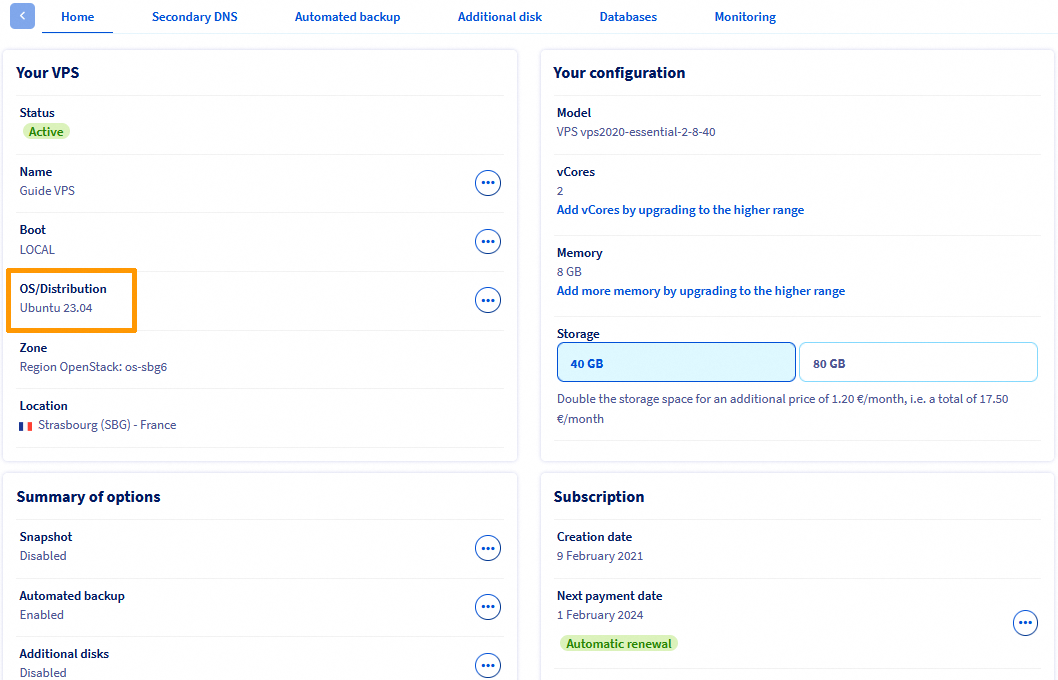
In the Home tab, find the details of your operating system in the OS/Distribution section in the Your VPS box.
2. Identify a compatible OS
If your operating system is part of the OS that will no longer be supported, migrate to a compatible system recommended by the publisher.
Consult the official documentation of supported OSs:
3. Migrate your service
Option A — Manual reinstallation
- Back up your data (web content, database, emails, etc.).
- Reinstall a compatible OS from the OVHcloud Control Panel by following the
Reinstalling your VPSsection of our guide How to get started with a VPS. - Reinstall cPanel or Plesk on the new system.
- Restore your data from your backups.
Option B — Migration via Plesk or cPanel
This method is recommended if you can deploy a new VPS with an updated system alongside the old one.
Order a new VPS with a compatible OS if you have not already done so. Install cPanel or Plesk.
Use the migration tool of your choice. These tools allow you to automatically transfer your websites, databases, email accounts and configurations from one VPS to another:
- Plesk Migrator - Official documentation.
- cPanel Transfer Tool - Official documentation.
Option C — On-site update (advanced users)
If you cannot deploy a new VPS, you can use certain tools to upgrade your operating system directly, while keeping Plesk or cPanel installed. This method is intended for advanced users, as it carries risks if executed incorrectly.
-
For Plesk (switching from CentOS 7 to AlmaLinux 8), use the
centos2almascript provided by the official Plesk documentation. See also detailed instructions in Plesk support. -
For cPanel (switching from CentOS 7 to AlmaLinux 8), use the Elevate tool provided by the official cPanel documentation.
These tools are not 100% guaranteed and require full backups before proceeding. Also make sure that your VPS has sufficient resources (RAM, CPU, disk).
Security Best Practices
Regardless of Plesk/cPanel, it is essential to keep your VPS operating system up to date to benefit from security patches, software compatibility, and vendor support. If your distribution is end of life (EOL), plan an upgrade or migration to a still-supported version.
To find out the end-of-life and end-of-support dates for images and operating systems (VPS & Public Cloud), refer to our guide Public Cloud & VPS - Lifecycle and End-of-Life/Support Announcements for Images and Distributions.
Go further
For specialized services (SEO, development, etc.), contact the OVHcloud partners.
Join our community of users.

