

Public VCF as-a-Service - Logging in to your organization
72 Views
 16.04.2024
  Cloud / Hosted Private Cloud
Objective
This guide provides step-by-step instructions on how to log in to Public VCF as-a-Service.
Requirements
- A web browser
- The delivery email
Instructions
First login
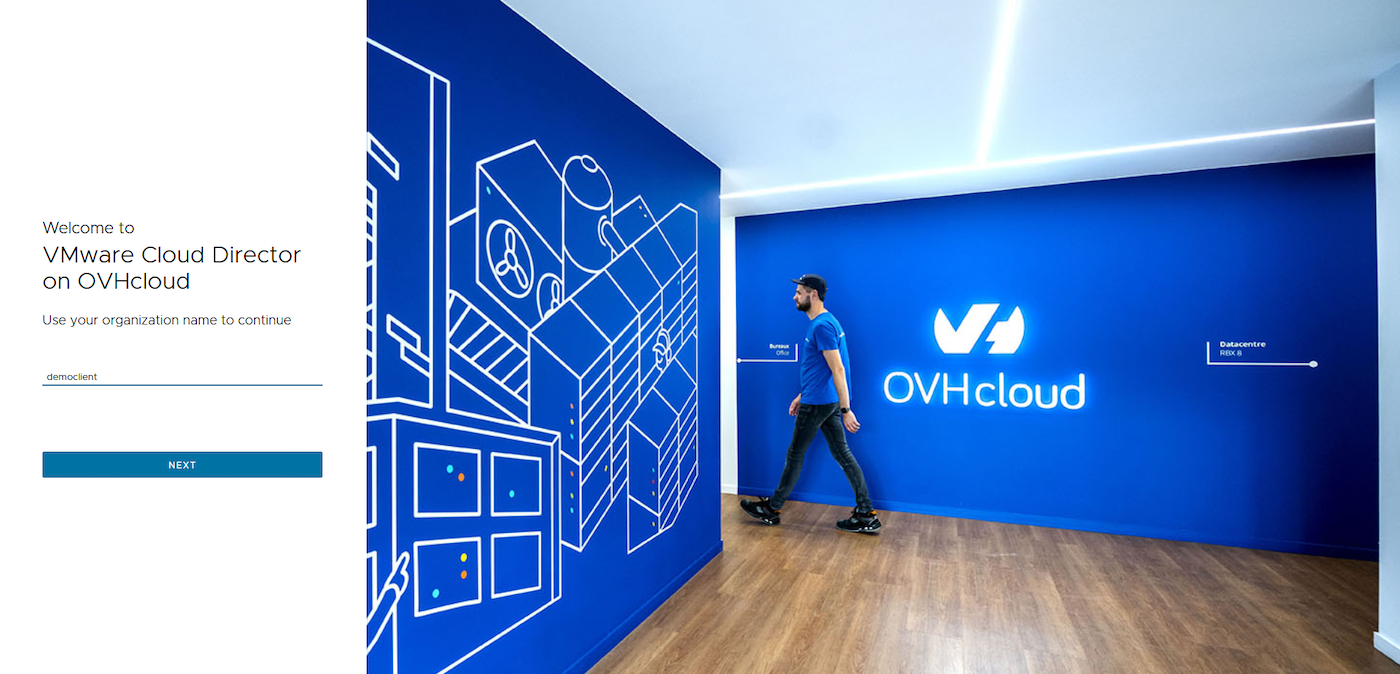
Open your web browser and go to the Public VCF as-a-Service login page. Enter your organization name (provided in the account creation email).
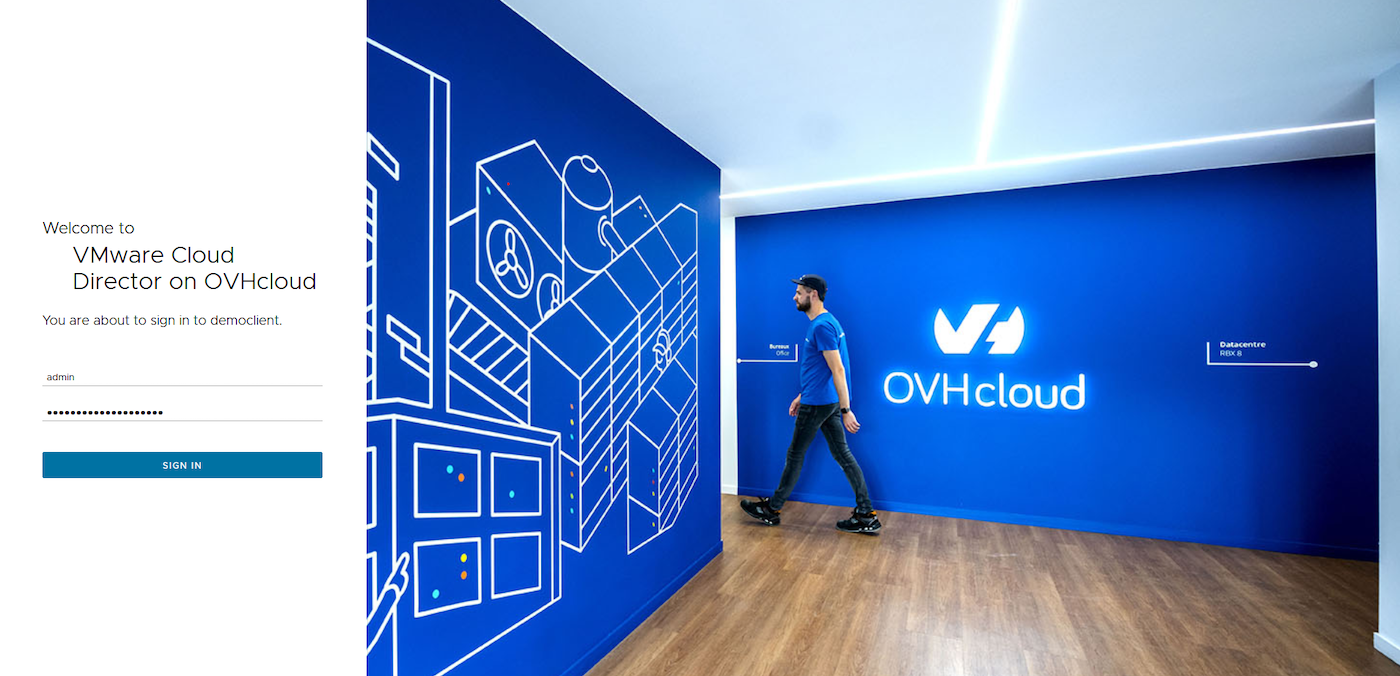
You will now be prompted to enter your username and password in the appropriate fields (this information is provided in the creation email).
Click the Log in button to access Public VCF as-a-Service.
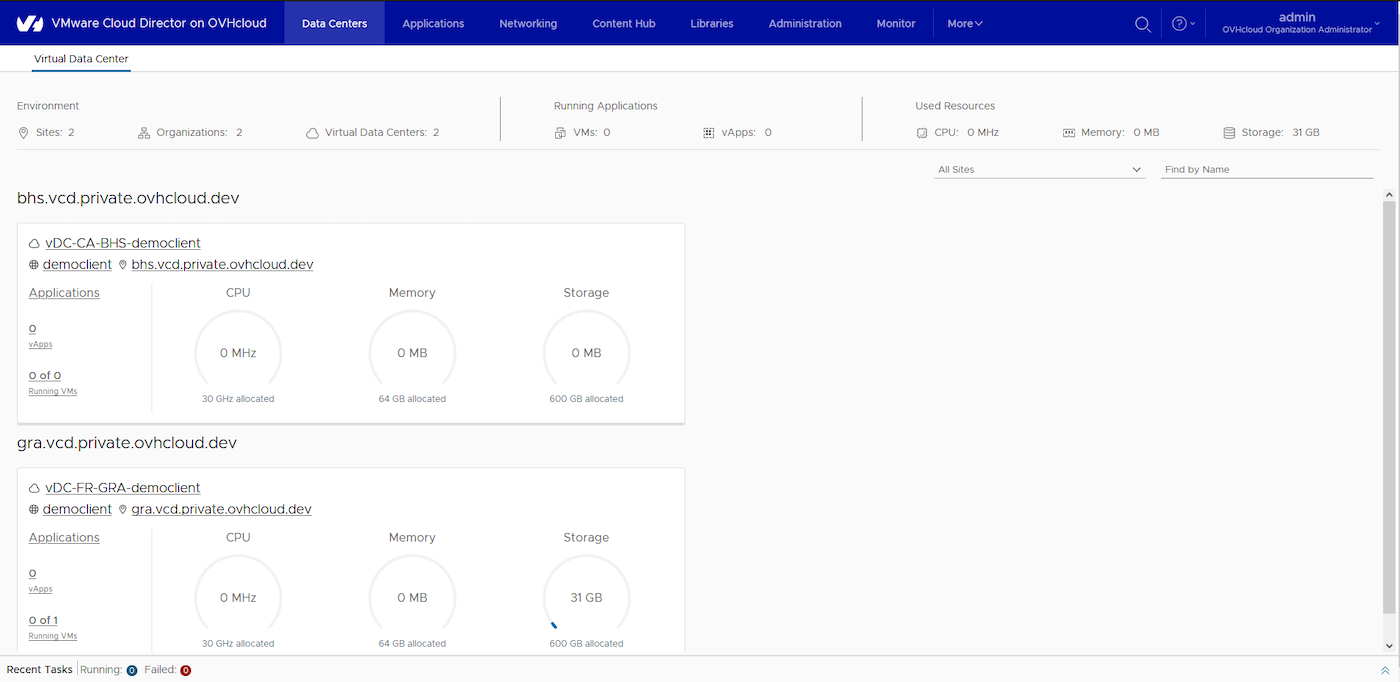
You will be redirected to your organization’s dashboard, which we will describe in this guide.
Change password
Once logged in, look for a link or button labeled OVHcloud Organization Administrator Admin or similar. This is located in the upper-right corner of the user interface.
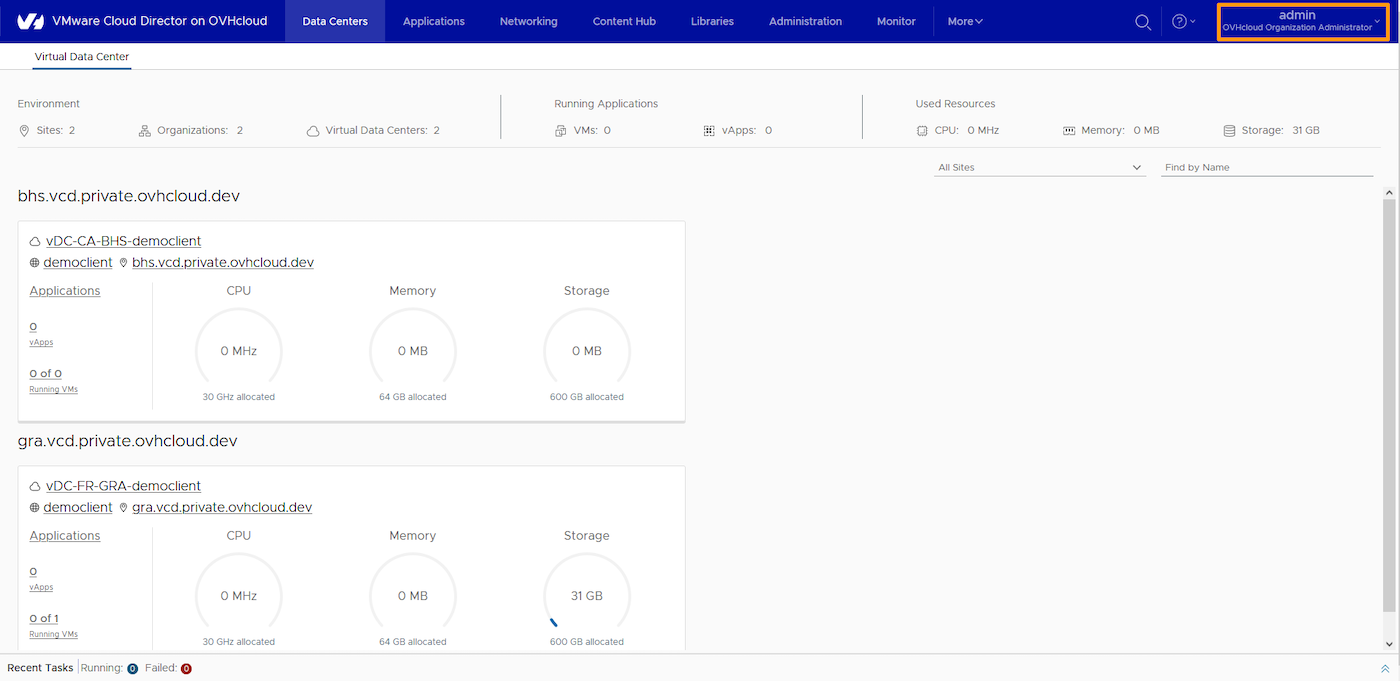
Select the Change Password option from the drop-down menu.
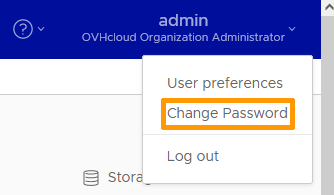
You will be prompted to enter your old password and your new password.
Fill in the fields and click SAVE.
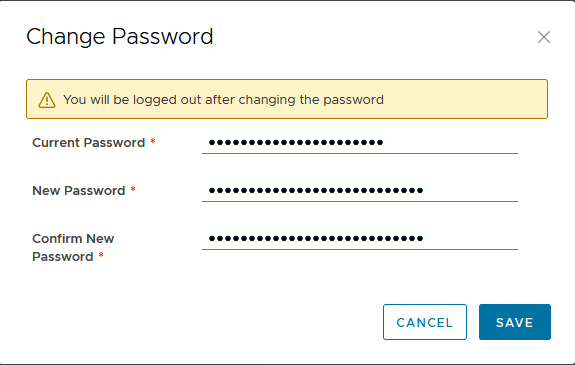
When you change your password, you should receive a confirmation email.
Go further
If you need training or technical assistance to implement our solutions, contact your sales representative or click on this link to get a quote and ask our Professional Services experts for a custom analysis of your project.
Join our community of users on https://community.ovh.com/en/.


 Introduction to the Hosted Private Cloud Control Panel
 77
77