

Updating hosts using vSphere Lifecycle Management (vLCM)
69 Views
 08.08.2025
  Cloud / Hosted Private Cloud
Objective
This guide explains how to update your ESXi hosts using vSphere Lifecycle Management (vLCM), directly from the vSphere interface.
vLCM helps you detect required updates and keep your hosts up to date quickly and securely by applying a complete image.
Unlike VMware Update Manager, vLCM provides a full lifecycle approach by including software updates, drivers, firmware, and hardware components.
This gives you a centralised view of your hosts’ status and helps you make informed decisions to maintain performance and security.
Requirements
- Your vCenter must be running vSphere 8 to access the vLCM feature.
- Make sure the DRS (Distributed Resource Scheduler) feature is enabled in automatic mode.
- Check that your
.isoor.vmdkfiles are not stored locally on the hosts.
Instructions
Step 1: Log in to vSphere
Log in to your vSphere interface, then select the host cluster you want to update.
Step 2 : Enable Maintenance Mode (Zerto)
If you are using the Zerto option (Disaster Recovery Plan):
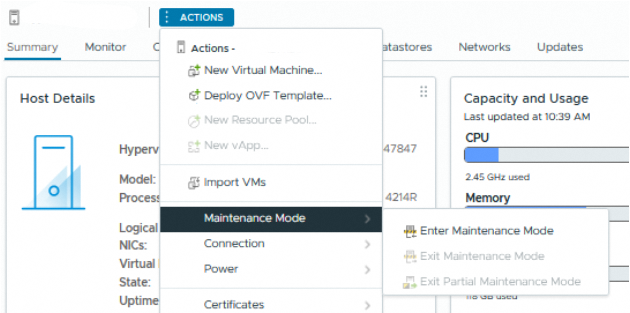
You must first switch the hosts in your cluster to Maintenance Mode before starting the update with vLCM:
Step 3: Select a new image
Go to Updates > Hosts > Image to view the current image.
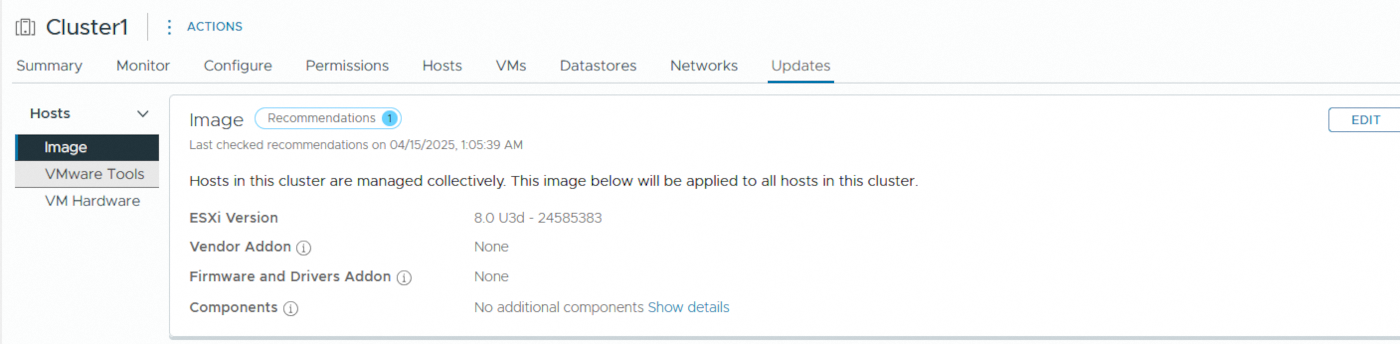
Click Edit to modify the image.

From the dropdown list, select the desired ESXi version. The first option usually corresponds to the latest version published by Broadcom.
Click Save to confirm and save the selected image.
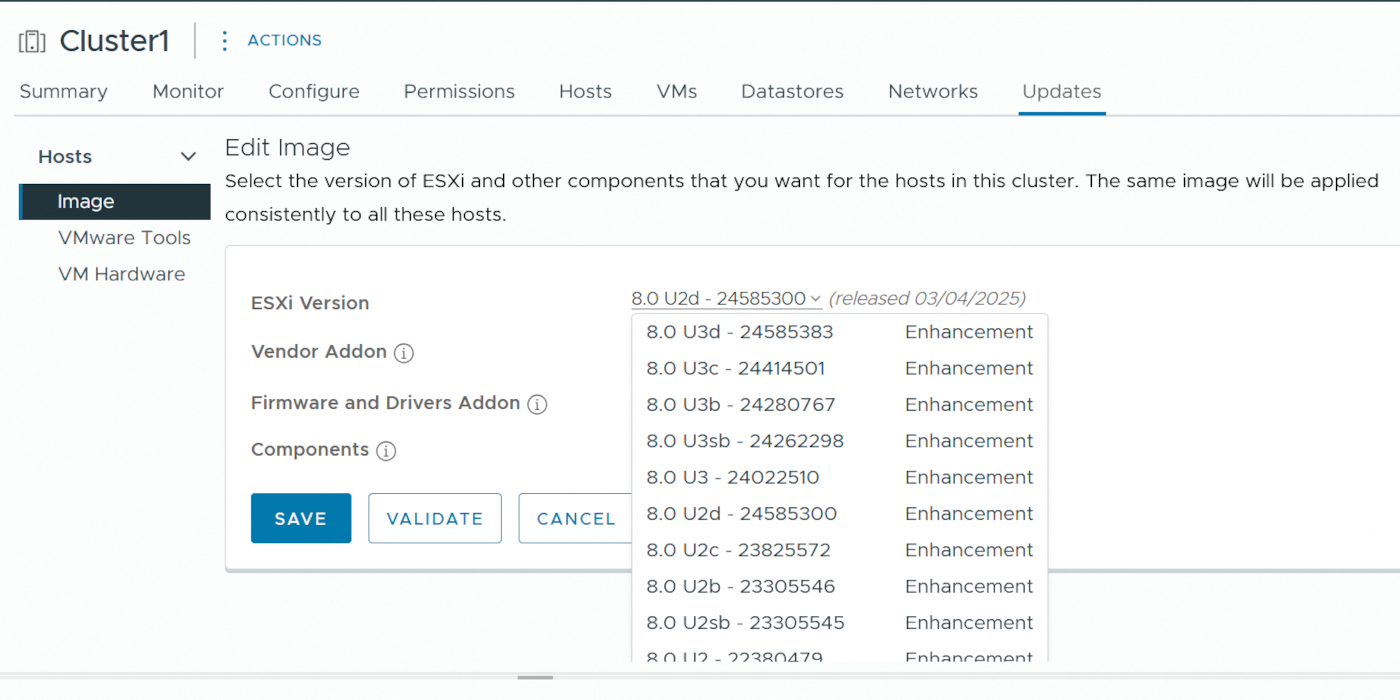
OVHcloud recommends always using the suggested version. Avoid downgrading to a previous version.
Your image is now loaded.
Step 4: Launch the update
Click Remediate All to apply the image to all hosts in the cluster.

This action triggers the maintenance mode for the affected hosts. Virtual machines will be automatically moved using vMotion.
Before launching the update, make sure that:
- The DRS feature is enabled in automatic mode.
- No anti-affinity rules are preventing virtual machine relocation.
- No
.isoor.vmdkfiles are stored locally on the hosts.
Click Start Remediation to begin the process.
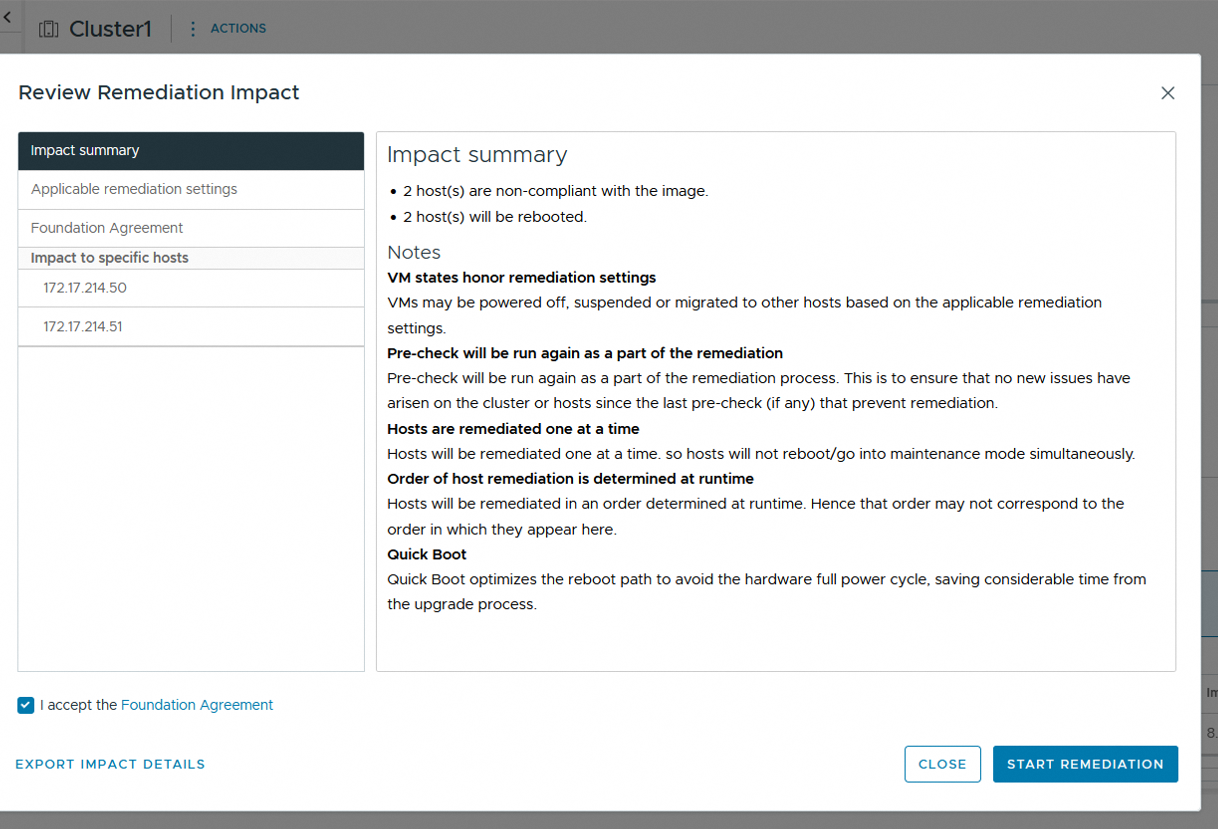
The update process is now running. It may take several minutes per host.

Zerto option: When the update is complete, you can exit Maintenance Mode on the hosts in your cluster.
Go further
If you need training or technical assistance to implement our solutions, please contact your Technical Account Manager or click on this link to get a quote and ask our Professional Services experts for a custom analysis of your project.
Ask questions, give your feedback and interact directly with the team building our Hosted Private Cloud services on the dedicated Discord channel.
Join our community of users.


 VMware on OVHcloud maintenance operations
 77
77