

Restoring a Bare Metal Server with Veeam Enterprise
72 Views
 05.04.2024
  Cloud / Dedicated Server (bare metal)
Objective
If you are unable to restore data from a backup, it serves no purpose. After reading this article, you should have a clear process for restoring a Bare Metal Server or an individual file using Veeam Backup & Replication.
Learn how to restore a Bare Metal Server using the Veeam Backup & Replication application.
Requirements
This guide presupposes that you have followed the steps detailed in our Backing up a Bare Metal Server guides.
Instructions
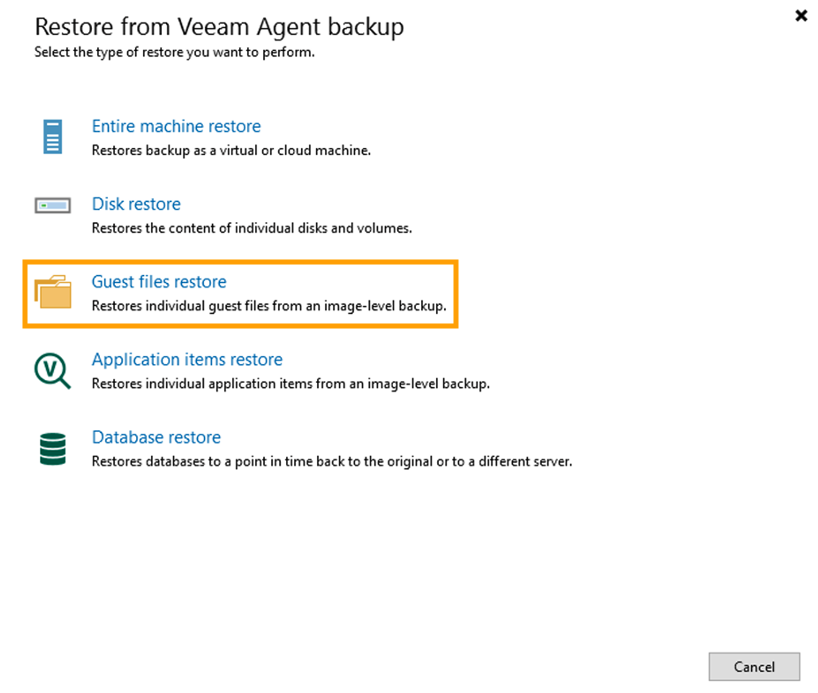
There are several options for restoring data on a server. In this guide, we will be showing you the "Guest files restore" option.
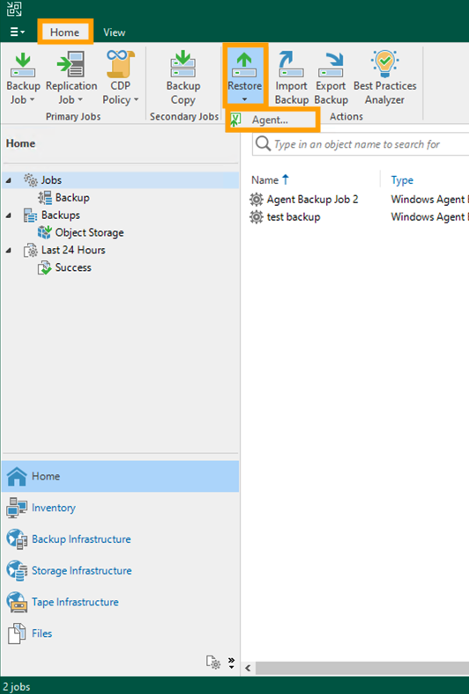
In the Veeam Backup & Replication application, from the Home tab, click Restore and select the Agent... option.
In the pop-up window, select Guest files restore.
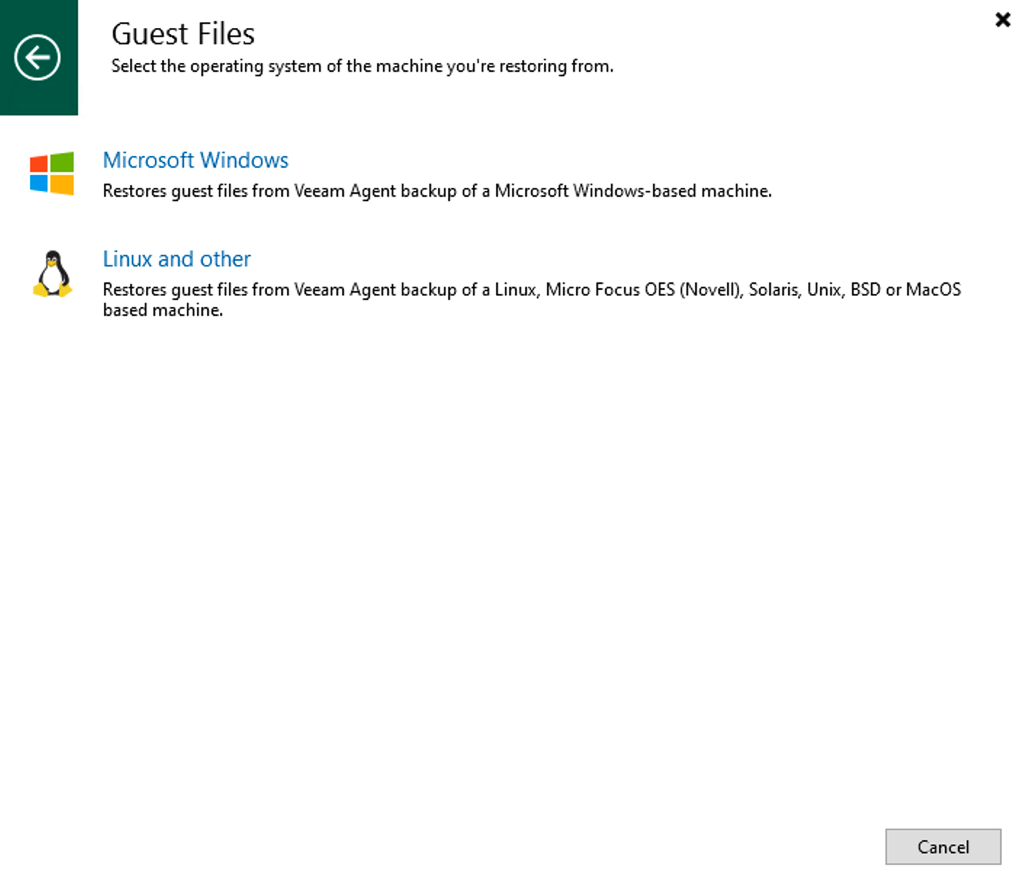
Choose the operating system of the machine from which you are restoring.
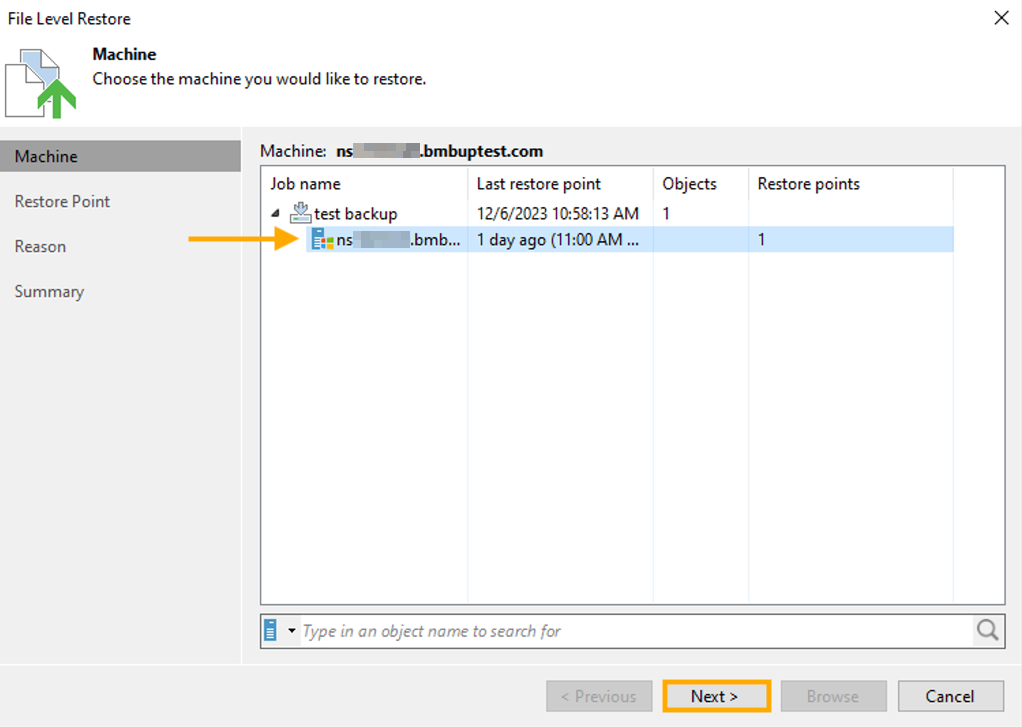
Select the Machine that has the files you wish to restore.
Click the Next button.
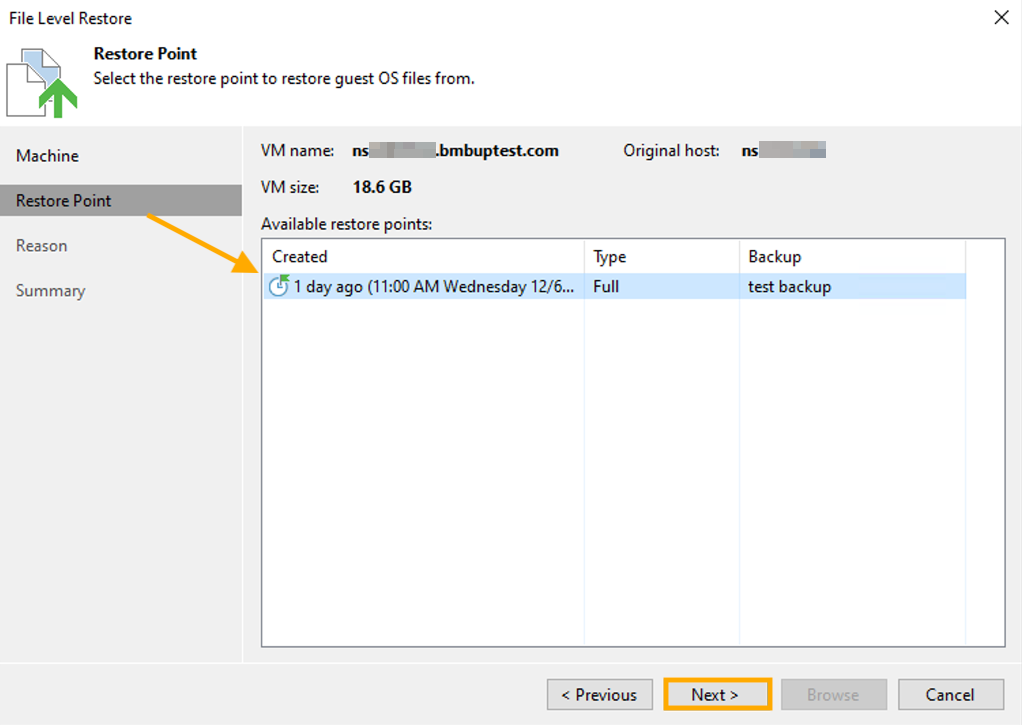
Choose the Restore Point from which to restore the files.
Click the Next button.
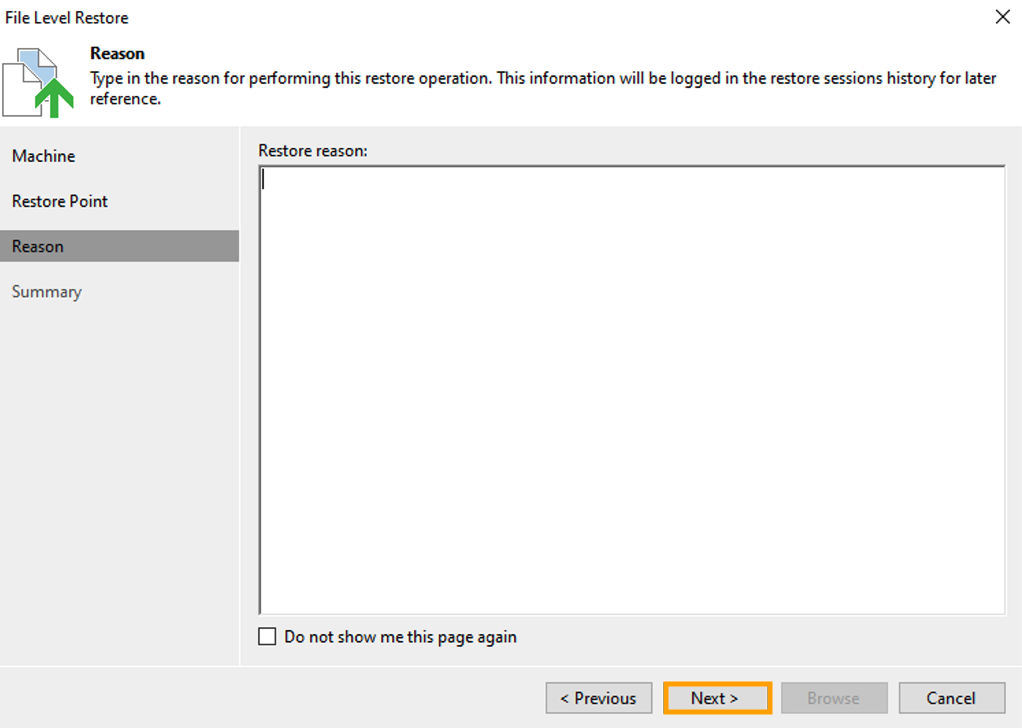
Enter the Restore reason.
Click the Next button.
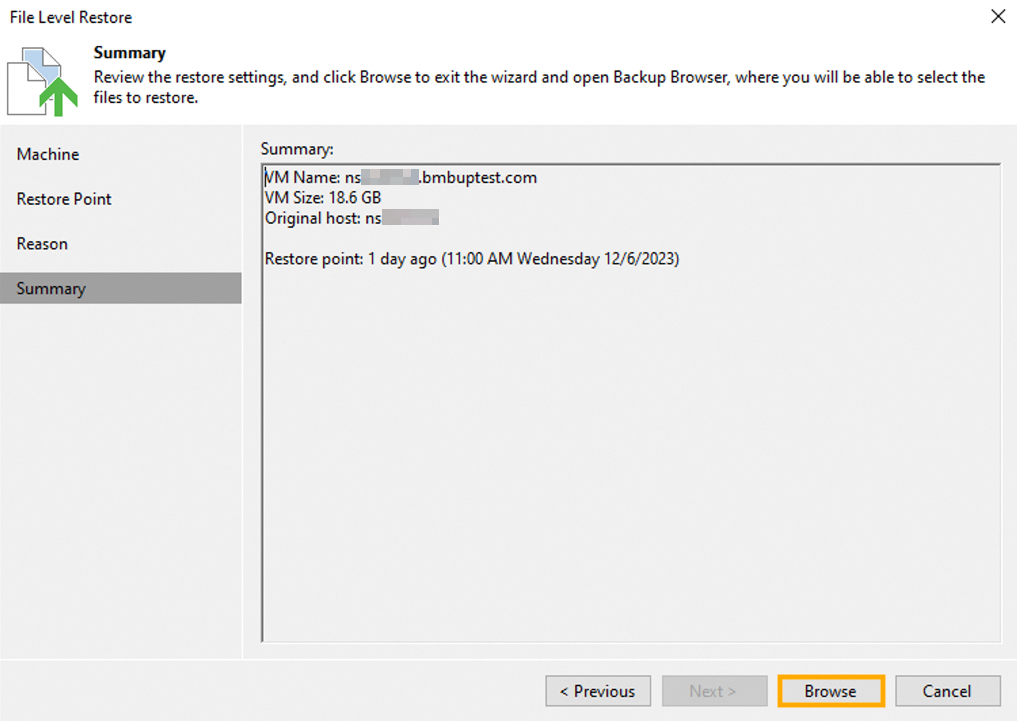
At the Summary section, click the Browse button.
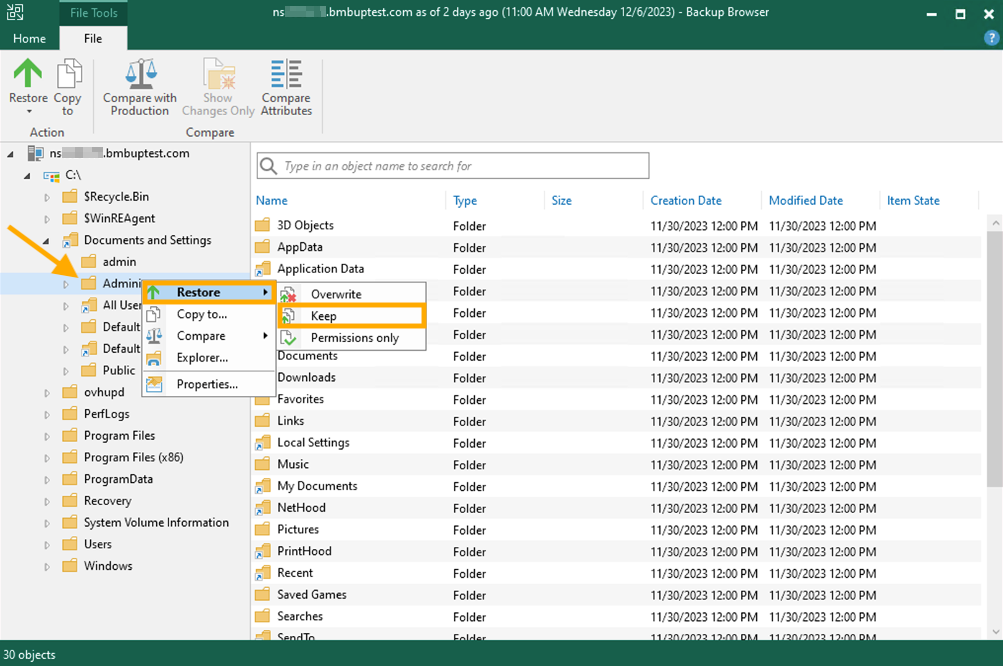
Navigate through the browser and choose the file or files that you wish to restore. Once you have selected the file(s), right-click on one of them, hover your mouse over Restore.action}, and select Keep.action}.
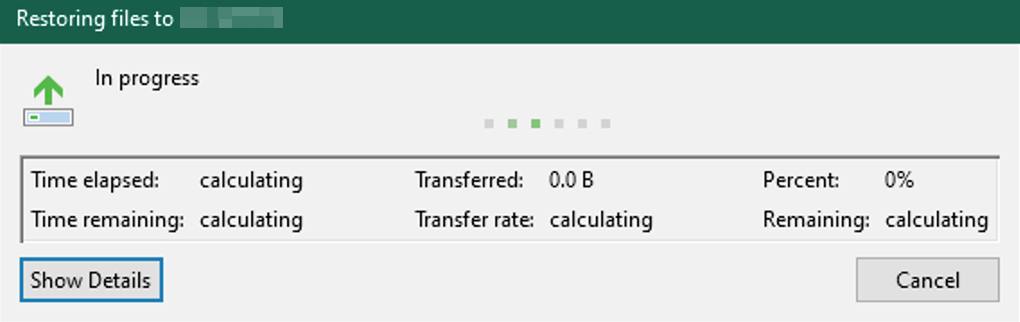
A pop-up window will appear that displays the progress of the restore. Once the progress is complete, the file has been restored and you can close the "Backup Browser" window.
Go further
Join our community of users.


 How to use the backup storage on a dedicated server
 93
93