

Configure access control using OVHcloud IAM on an OVHcloud Managed Private Registry
36 Views
 25.02.2026
  Managed Private Registry (MPR)
Objective
OVHcloud Managed Private Registry (MPR) supports authentication through OVHcloud IAM, allowing you to manage access using centralized user identities and roles.
This guide explains how to enable IAM authentication and control user access to your registry using OVHcloud IAM users and roles.
Requirements
- An OVHcloud Managed Private Registry (see the creating a private registry guide for more information).
- An access to the Harbor UI to operate the private registry (see the connecting to the UI guide for more information).
OVHcloud Control Panel Access
- Direct link: Public Cloud Projects
- Navigation path:
Public Cloud> Select your project
Instructions
Introduction to OVHcloud IAM
OVHcloud IAM (Identity and Access Management) is a centralized system that lets you manage who can access your OVHcloud services and what they are allowed to do. It provides fine-grained access control through users, groups and roles.
When used with Managed Private Registry (MPR), OVHcloud IAM replaces Harbor’s local user database. This enables you to:
- use SSO (Single Sign-On) with your OVHcloud credentials to access Harbor.
- assign predefined IAM roles (admin, standard) to control access levels.
- manage permissions at scale using IAM groups and projects.
By integrating IAM with your registry, you ensure consistent access control across your OVHcloud services — reducing manual management and improving security.
Activate/disable authentication via OVHcloud IAM
When you enable OVHcloud IAM authentication on your Managed Private Registry:
- all existing Harbor users will be removed.
- existing robot accounts remain functional.
- new robot accounts can still be created and managed.
From this point on, all users access are managed through OVHcloud IAM roles and policies.
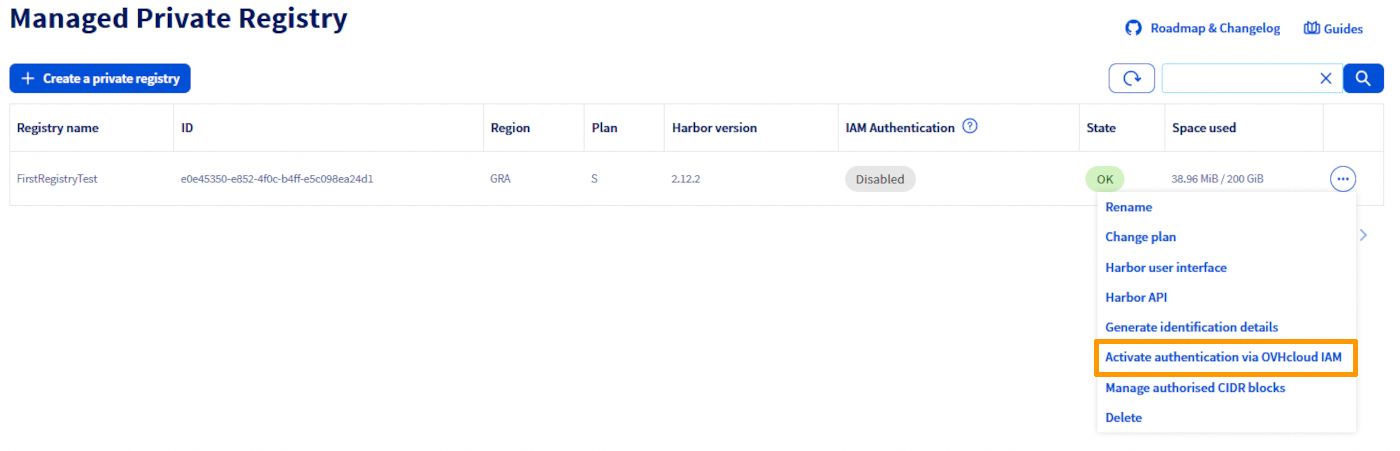
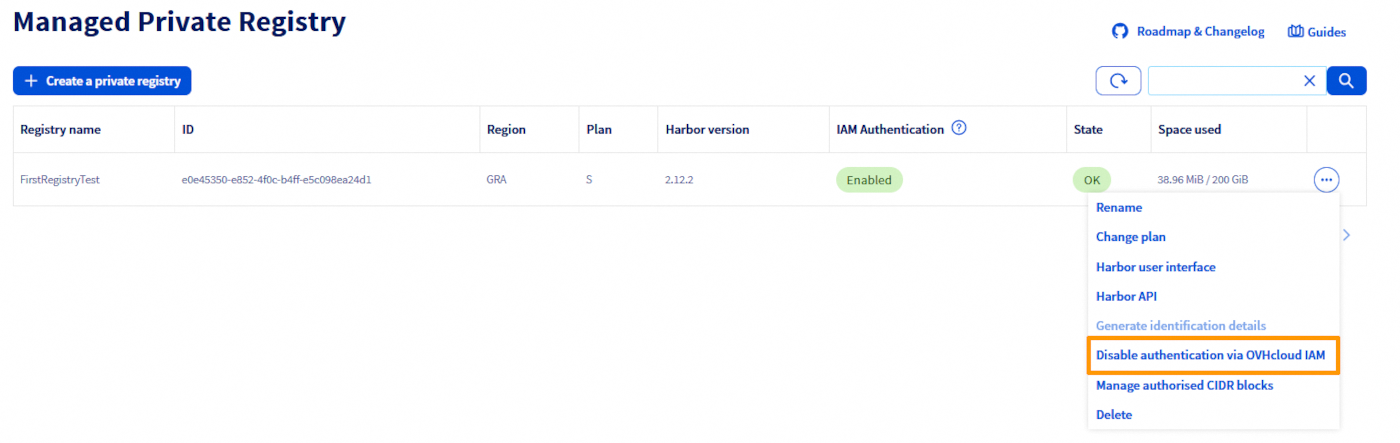
In the left-hand menu under Containers & Orchestration, click on Managed Private Registry. In the list of registries, click the ... button for the relevant registry, then select:
Activate authentication via OVHcloud IAMto enable it.
Disable authentication via OVHcloud IAMto disable it.
Enable IAM authentication
Disable IAM authentication
Replace:
serviceNamewith the ID of your Public Cloud project.registryIDwith the ID of the Managed Private Registry.
You can retrieve the registryID in two ways:
- Via API:
- Via the OVHcloud Control Panel:
In the Managed Private Registry list, click on your registry — the registryID is visible in the URL.
Authentication using SSO with OVHcloud IAM users
Once IAM authentication is enabled, access to the Harbor UI is handled via OVHcloud Single Sign-On (SSO). Users no longer log in with Harbor-local credentials but authenticate directly using their OVHcloud IAM identity.
To log in via SSO:
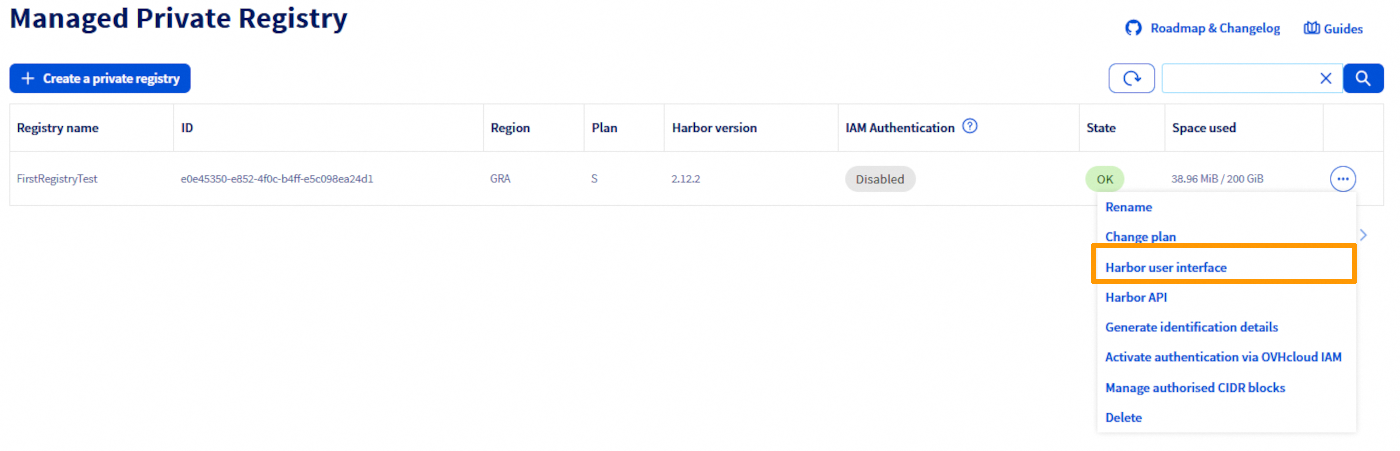
- Open the
Harbor user interfacefrom the Control Panel.
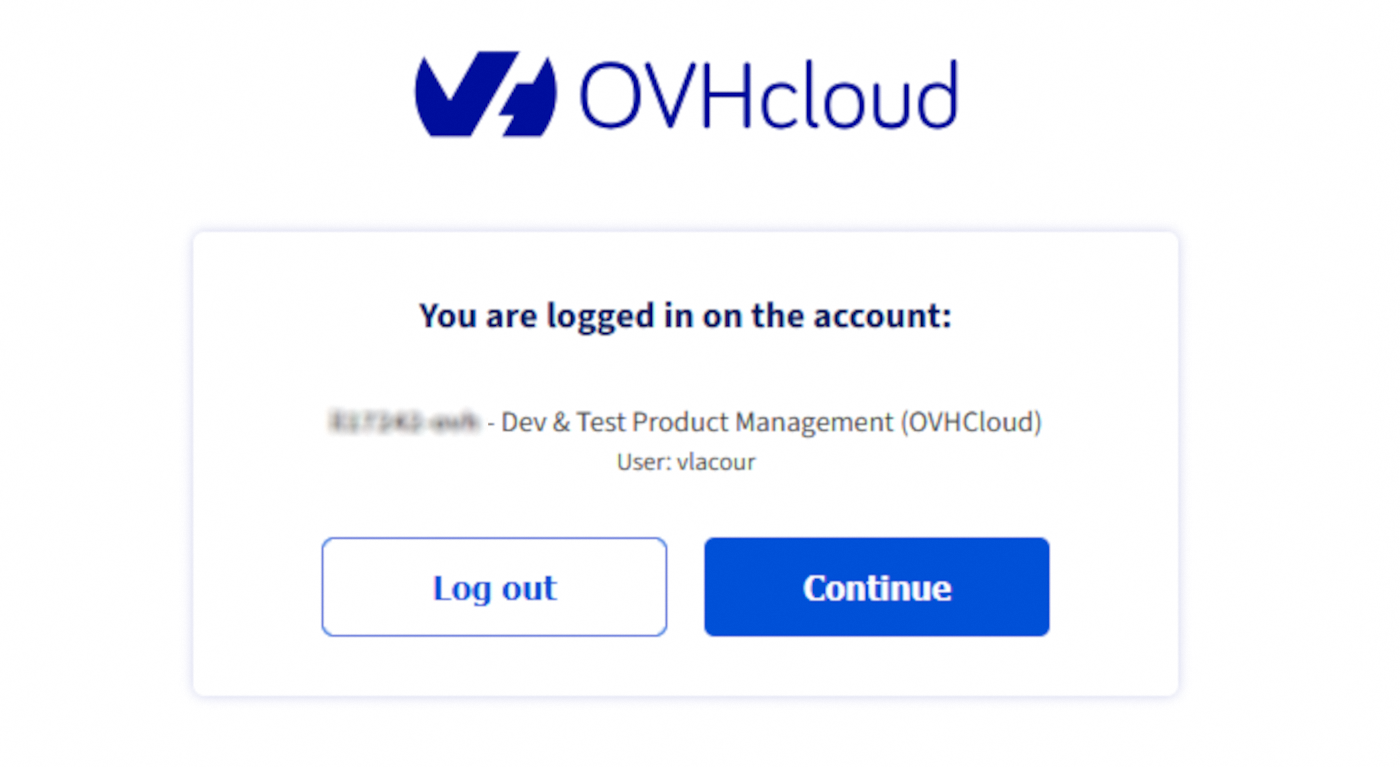
- You will be redirected to the OVHcloud authentication page, log in using your OVHcloud IAM credentials.
- Access to Harbor is granted based on the IAM role associated with your user account.
Only users with the appropriate IAM role (admin or standard) can access the registry after IAM authentication is enabled.
Managing access rights with OVHcloud IAM
OVHcloud IAM provides two predefined roles for managing access to your Managed Private Registry (MPR):
- Standard
- Admin
Admin role: Regardless of the user group defined in the Identities section, assigning the Admin role will grant full administrative privileges on the selected registry.
Standard role: Be aware that users belonging to the Default group in the Identities section automatically inherit admin privileges on the registry. Assigning them the Standard role will not override these inherited rights. To ensure proper separation of roles, we recommend:
- Organizing users into clearly defined groups.
- After changing a user’s group and assigning the Standard role, fine-tune their permissions directly in Harbor for better control and consistency. See the different roles in Harbor here.
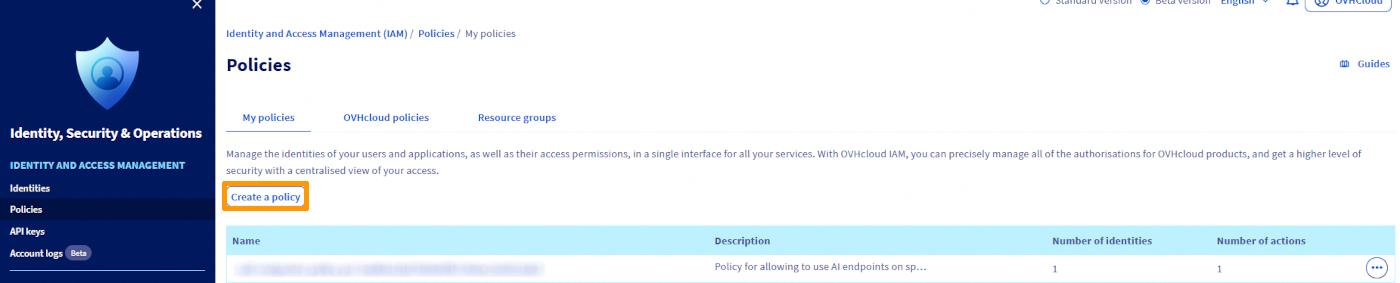
These roles are assigned through IAM policies. To create and configure a policy, navigate to the Identity, Security & Operations section. Then, in the left-hand menu under Identity and Access management, click on Policies and click the Create a policy button.
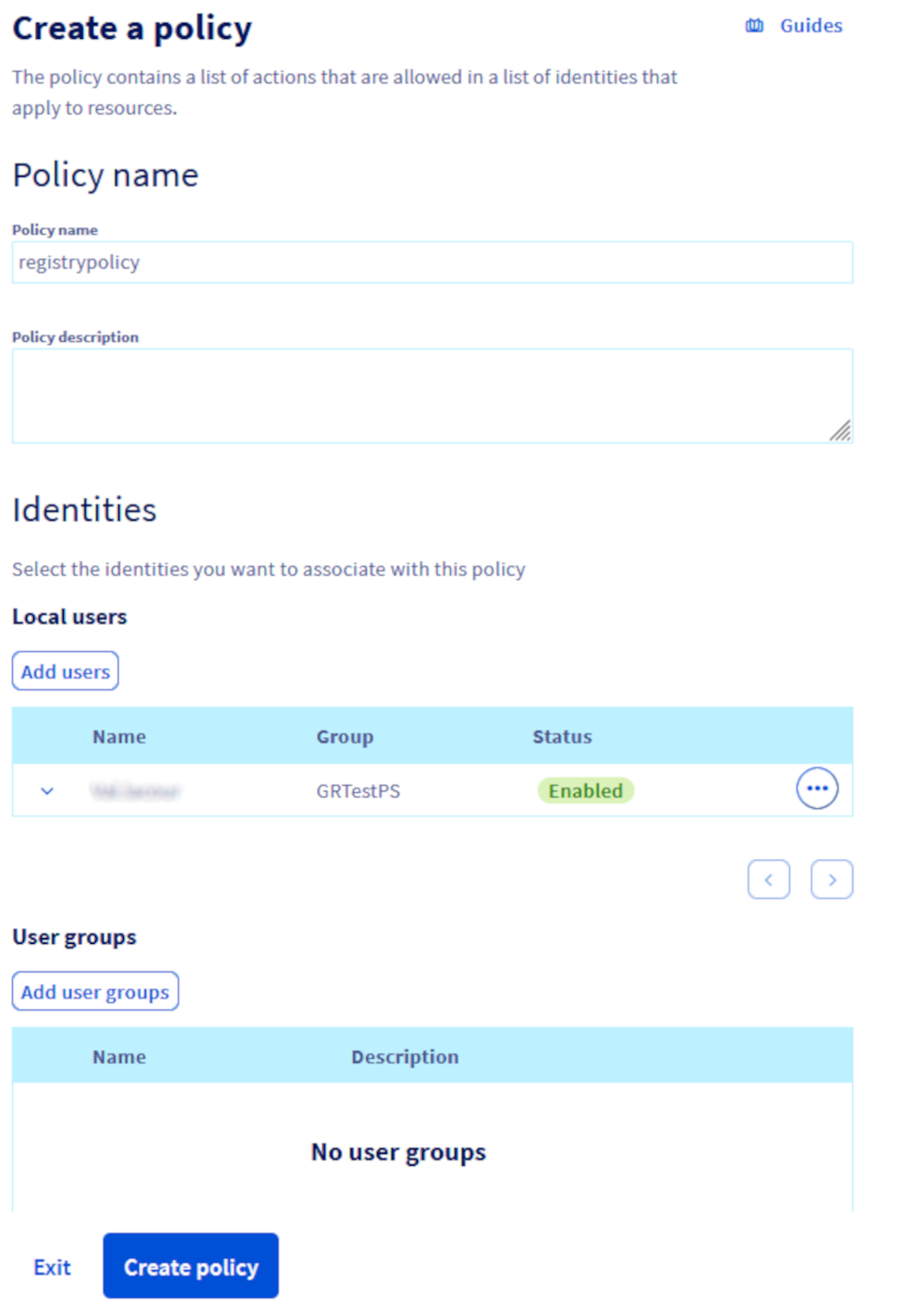
Define users and groups, name your policy, add the users you want to include and optionally, add user groups if they have already been created.
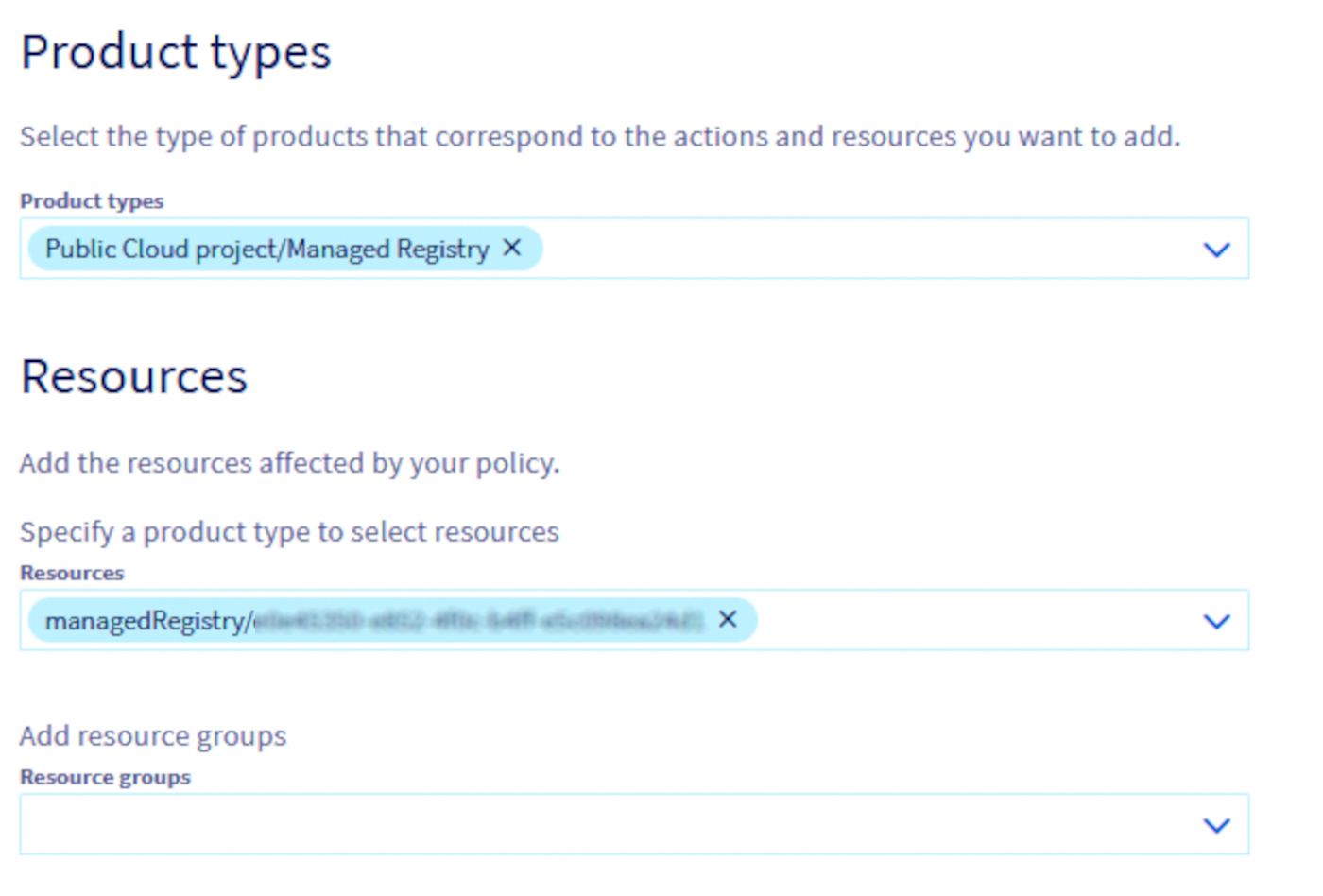
Set permissions for MPR:
- In the
Product typessection, selectPublic Cloud Project/Managed Registry. - In the
Resourcessection, choose the specific MPR instance to which the policy will apply.
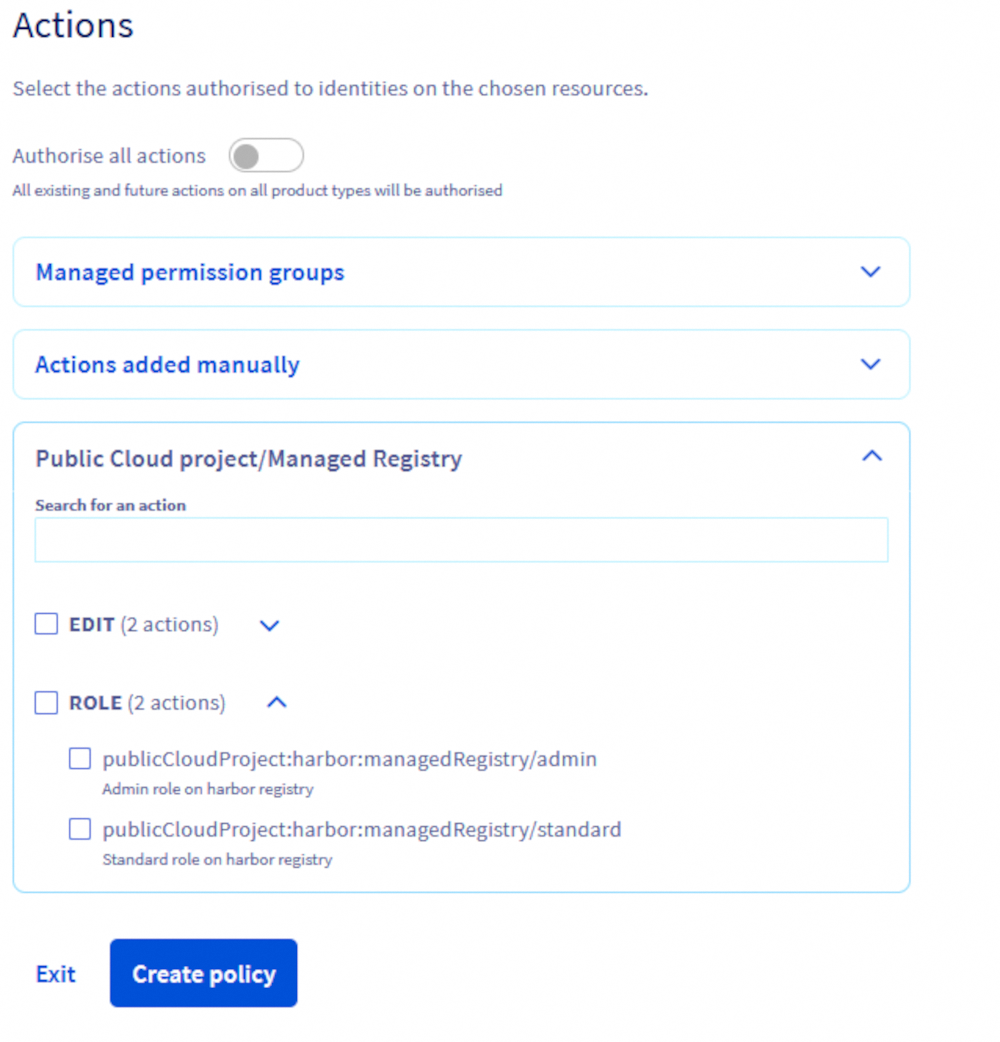
Expand Public Cloud Project/Managed Registry and select the desired role for the users defined in the policy.
Go further
To go further you can look at our guides on:


 Configure the authentication via an OIDC provider on an OVHcloud Managed Private Registry
 80
80