

Updating a Load Balancer size via the Horizon interface
60 Views
 10.12.2024
  Cloud / Network Gateway for Public Cloud
Objective
This guide explains how to change the size of your Public Cloud Load Balancer using the Horizon interface.
Find more information about the different Load Balancer sizes and their capacities on our Load Balancer page.
Requirements
- Access to the OVHcloud Horizon interface
- A Load Balancer already created and available
- User privileges to modify the Load Balancer settings
OVHcloud Control Panel Access
- Direct link: Public Cloud Projects
- Navigation path:
Public Cloud> Select your project
Instructions
Step 1 - Log in to Horizon
Go to the OVHcloud Horizon interface and log in with your credentials. For more information on how to connect to Horizon, read the Introducing Horizon guide.
Step 2 - Locate the Load Balancer
Once you are logged in, go to the Load Balancer section and find your existing Load Balancer in the list.
Step 3 - Edit the Load Balancer
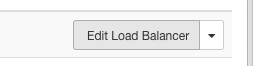
Click the down arrow button on the right side of your load Balancer entry.
Select Edit Load Balancer in the dropdown menu.
Step 4 - Resize the Load Balancer
In the options menu, choose Resize Load Balancer.
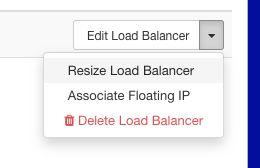
A window will prompt you to select a new size for your load balancer.
- small
- medium
- large
- xl
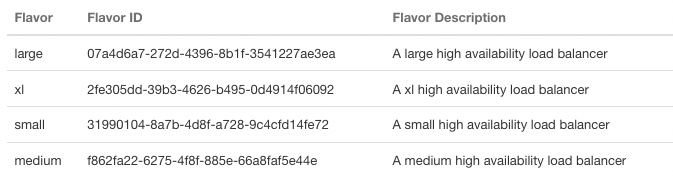
Confirm your selection and apply the changes.
Once the new flavor is selected, click Apply or Save to update the size of your Load Balancer.
Go further
Join our community of users.


 Public Cloud Load Balancer TCP / HTTP / HTTPS Logs Forwarding
 85
85