

Importing an Additional IP
72 Views
 28.04.2025
  Cloud / Network Gateway for Public Cloud
Since October 6th, 2022 our service "Failover IP" is named Additional IP. This renaming has no effect on its technical features.
Objective
You might need to configure an Additional IP address on your instances because:
- You have multiple websites on your instance.
- You host international projects.
- You want to migrate from a Dedicated Server to a Public Cloud instance.
Instead of buying additional ones, you can import an Additional IP address that is linked to a different OVHcloud service.
This guide explains how to import Additional IP addresses into your OVHcloud Public Cloud project.
Requirements
- A Public Cloud project in your OVHcloud account
- An Additional IP address
OVHcloud Control Panel Access
- Direct link: Public Cloud Projects
- Navigation path:
Public Cloud> Select your project
Instructions
In the left-hand menu, open Public IPs under Network.
Open the Additional IP tab and click on the Actions button. Select Import an Additional IP to display all the IP addresses that can be imported into your Public Cloud project.
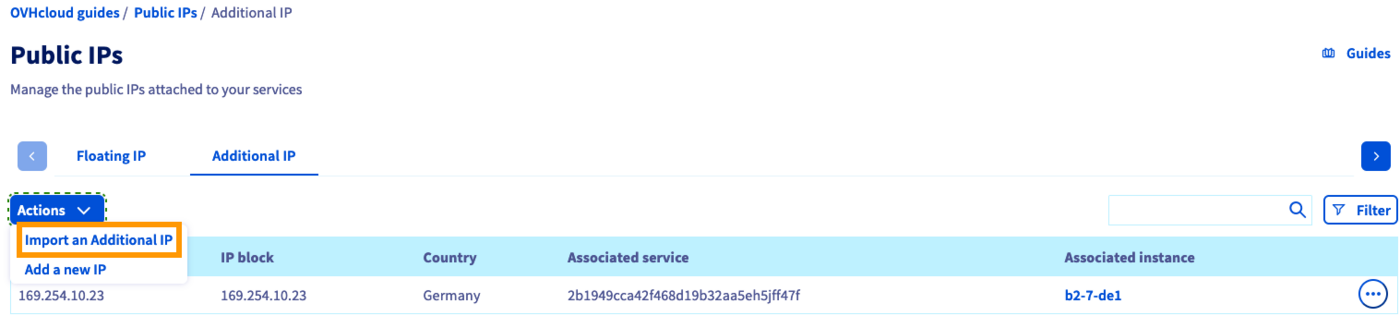
If you do not currently have an Additional IP on your Public Cloud project, the option to import one will be displayed on the homepage.
Click on ... next to the IP address you would like to import and click Import this Additional IP.

Confirm by clicking on Import.
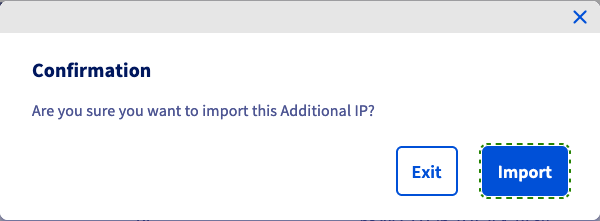
Allow a few minutes for the import process to complete. Open the Additional IP tab to find the imported Additional IP address. Refresh the page if necessary.
Click on ... on the right and select Update attached instance.
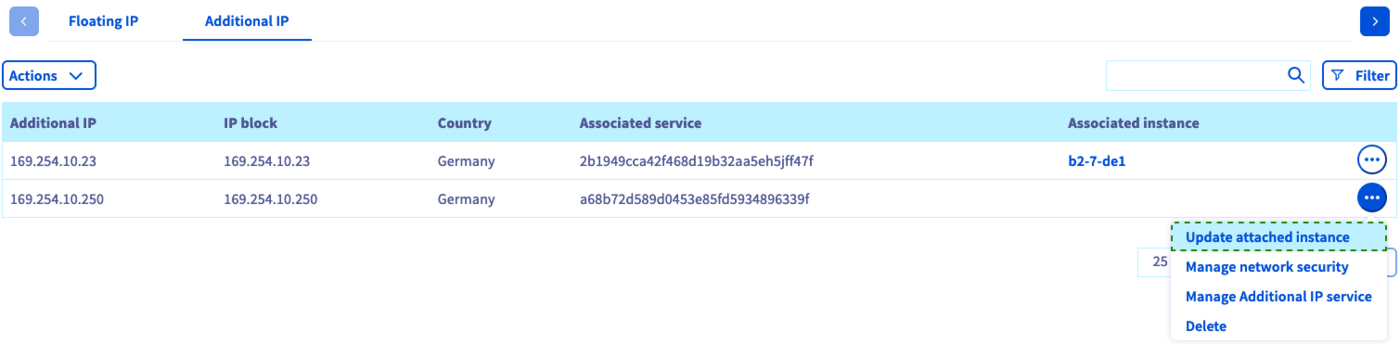
A popup window will appear to choose the instance to which your IP address should be attached.
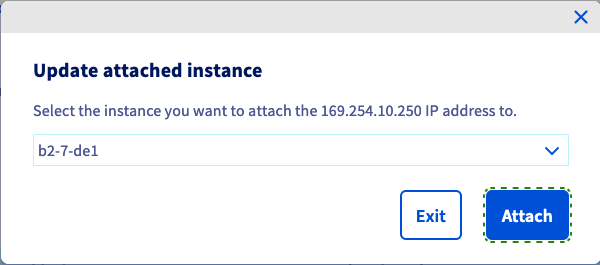
Click on Attach to confirm. The page will display a modification message.
An Additional IP cannot be moved between different zones. For example, an IP located in the SBG data centre can be moved to GRA or RBX, but cannot be moved to BHS.
The IP address is now associated with your instance. The next step will be the IP configuration in your OS; please refer to our guide.
Go further
If you need training or technical assistance to implement our solutions, contact your sales representative or click on this link to get a quote and ask our Professional Services experts for assisting you on your specific use case of your project.
Join our community of users.


 Configuring an Additional IP
 153
153