

Configure access control using OVHcloud IAM on an OVHcloud Managed Rancher Service
22 Views
 04.11.2025
  Managed Rancher Service (MRS)
Objective
OVHcloud Managed Rancher Service (MRS) supports authentication through OVHcloud IAM, allowing you to manage access using centralized user identities and roles.
This guide explains how to enable IAM authentication and control user access to your Rancher service using OVHcloud IAM users and roles.
Requirements
- An OVHcloud Managed Rancher Service (see the Creating, updating and accessing a Managed Rancher Service guide for more information).
OVHcloud Control Panel Access
- Direct link: Public Cloud Projects
- Navigation path:
Public Cloud> Select your project
Instructions
Introduction to OVHcloud IAM
OVHcloud IAM (Identity and Access Management) is a centralized system that lets you control who can access your OVHcloud services and what actions they can perform. It provides fine-grained access management through users, groups, and roles.
When integrated with the Managed Rancher Service (MRS), OVHcloud IAM replaces Rancher’s local authentication system. This allows you to:
- Use Single Sign-On (SSO) with your OVHcloud credentials to access Rancher.
- Assign predefined IAM roles (such as base, ovhRestrictedAdmin, standard) to define access levels.
- Manage permissions efficiently at scale using IAM groups and projects.
Integrating IAM with your Rancher service ensures consistent access control across all your OVHcloud resources, reducing manual management and improving overall security.
Activate/disable authentication via OVHcloud IAM
When you enable OVHcloud IAM authentication on your Managed Rancher Service:
- Local users will remain functional, so you can continue logging in with your usual Rancher accounts.
- If the "admin" password is regenerated while IAM authentication is enabled, or if no user has ever logged in locally, the ability to log in with the IAM root user will be impossible. To restore access with the IAM root user, log in first with a local admin account.
From this point on, IAM roles and policies control access for users authenticated via OVHcloud IAM.
Managing IAM from the OVHcloud Control Panel is not yet available and will be added in a future release.
With the request body:
Make sure all the information in the JSON (service name, plan, version) is correct. Using incorrect values will result in an error when activating or disabling IAM.
Replace:
projectIdwith the ID of your Public Cloud project.rancherIdwith the ID of the Managed Rancher Service.
You can retrieve the rancherId in two ways:
- Via API:
- Via the OVHcloud Control Panel:
In the left-hand menu under Containers & Orchestration, click on Managed Rancher Service.
Authentication using SSO with OVHcloud IAM users
Once IAM authentication is enabled on your Managed Rancher Service, access to the Rancher UI is managed via OVHcloud Single Sign-On (SSO). Users no longer log in with local Rancher credentials but authenticate directly using their OVHcloud IAM identity.
Local Rancher users remain functional even after enabling OVHcloud IAM, but their use is not recommended. Access and permissions should be managed through OVHcloud IAM roles and policies for consistency and security.
To log in via SSO:
- Open the
Rancher user interfacefrom the Control Panel.
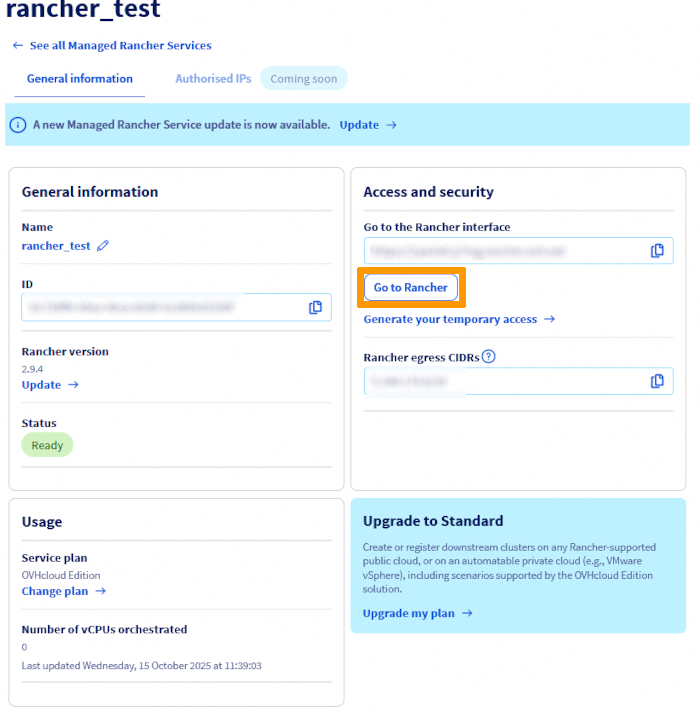
- You will be redirected to the Managed Rancher Service authentication page.
No user has ever logged in locally
Click on Use a local user to go to the local login page.
To recover the admin password required for authentication, use the following API call:
Replace:
projectIdwith the ID of your Public Cloud project.rancherIdwith the ID of the Managed Rancher Service.
Copy the returned password, then paste it on the authentication page.
Make sure to check the box to accept the End User License Agreement & Terms & Conditions, then click Continue.
You can now log out and proceed with your normal workflow.
Click on Log in with OIDC, which will take you to the OVHcloud authentication page. There, log in using your OVHcloud IAM credentials.
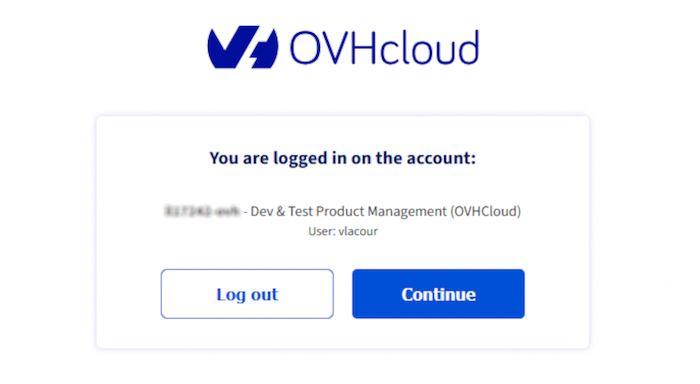
- Access to Rancher is granted based on the IAM role associated with your user account.
Only users with the appropriate IAM role (base, standard and ovhRestrictedAdmin) can access the registry after IAM authentication is enabled.
Managing access rights with OVHcloud IAM
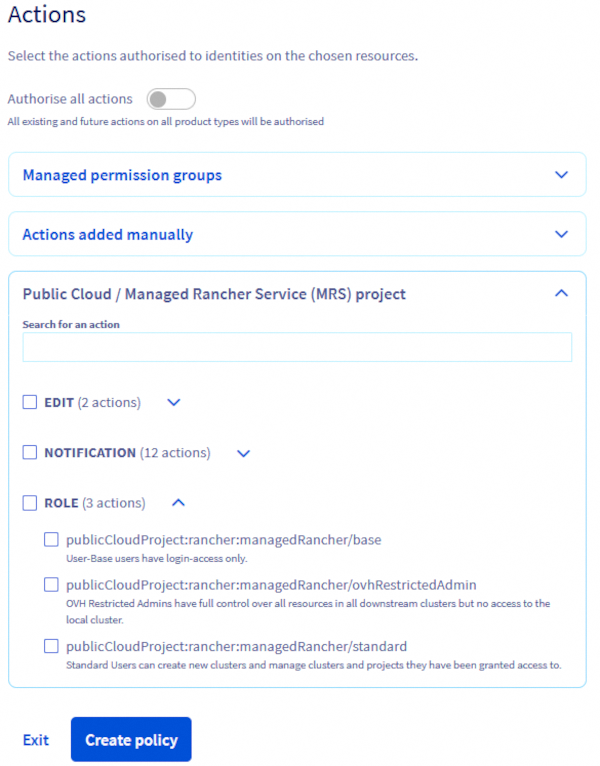
OVHcloud IAM provides three predefined roles for managing access to your Managed Rancher Service (MRS):
- base
- standard
- ovhRestrictedAdmin
base role: Base users can only log in and do not have any additional permissions.
standard role: Standard users can create new clusters and manage clusters and projects they have been granted access to.
ovhRestrictedAdmin role: OVHcloud Restricted Admins have full control over all resources in downstream clusters but do not have access to the local cluster.
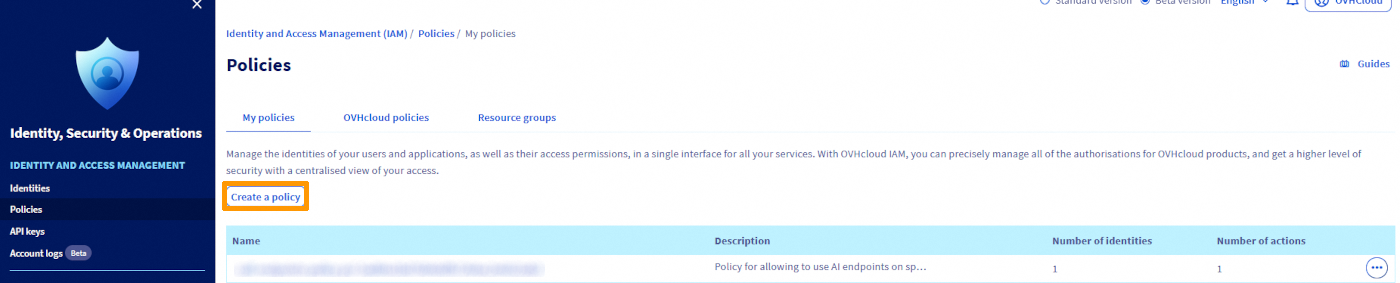
These roles are assigned through IAM policies. To create and configure a policy, navigate to the Identity, Security & Operations section. Then, in the left-hand menu under Identity and Access management, click on Policies and click the Create a policy button.
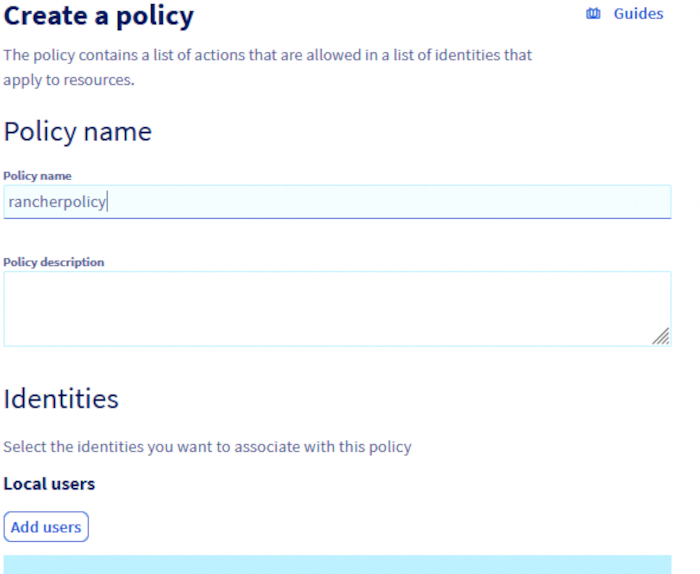
Define users and groups, name your policy, add the users you want to include and optionally, add user groups if they have already been created.
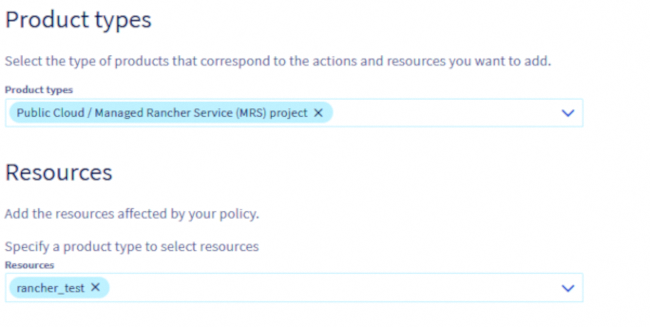
Set permissions for MRS:
- In the
Product typessection, selectPublic Cloud / Managed Rancher Service (MRS) project. - In the
Resourcessection, choose the specific MRS service to which the policy will apply.
Expand Public Cloud / Managed Rancher Service (MRS) project and select the desired role for the users defined in the policy.
Go further
To go further you can look at our guides on:
If you need training or technical assistance to implement our solutions, contact your sales representative or click on this link to get a quote and ask our Professional Services experts for assisting you on your specific use case of your project.
Our team remains available on our dedicated Discord Channel, do not hesitate to join and reach us : https://discord.gg/ovhcloud. Ask questions, provide feedback and interact directly with the team that builds our Container and Orchestration services.
Join our community of users.


 Getting Started with Managed Rancher Service
 127
127