

Connect using PgAdmin for Public Cloud Databases for PostgreSQL
76 Views
 30.10.2025
  PostgreSQL
Objective
Public Cloud Databases allow you to focus on building and deploying cloud applications while OVHcloud takes care of the database infrastructure and maintenance in operational conditions.
This guide explains how to connect to a PostgreSQL database instance with one of the world's most famous Open Source management tool for PostgreSQL: pgAdmin.
Requirements
- Access to the OVHcloud Control Panel.
- A Public Cloud project in your OVHcloud account.
- A PostgreSQL database running on your OVHcloud Public Cloud Databases (this guide can help you to meet this requirement)
- Configure your PostgreSQL instance to accept incoming connections
- A pgAdmin stable version installed and public network connectivity (Internet). This guide was made in pgAdmin 4 version 9.9.
Concept
A PostgreSQL instance can be managed through multiple ways. One of the easiest, yet powerful, is to use a Command Line Interface (CLI), as shown in our guide: Connect to PostgreSQL with CLI or by using programming languages, such as PHP or Python.
Another way is to interact directly using a management tool for PostgreSQL: pgAdmin.
In order to do so, we will need to install pgAdmin, then configure our Public Cloud Databases for PostgreSQL instances to accept incoming connections, and finally configure pgAdmin 4.
Instructions
Installation
To interact with your PostgreSQL instance with pgAdmin 4 you need to install it.
Please follow the official pgAdmin to get the latest information.
We are now ready to learn how to connect to our PostgreSQL instance.
Connect with pgAdmin 4
Configuration
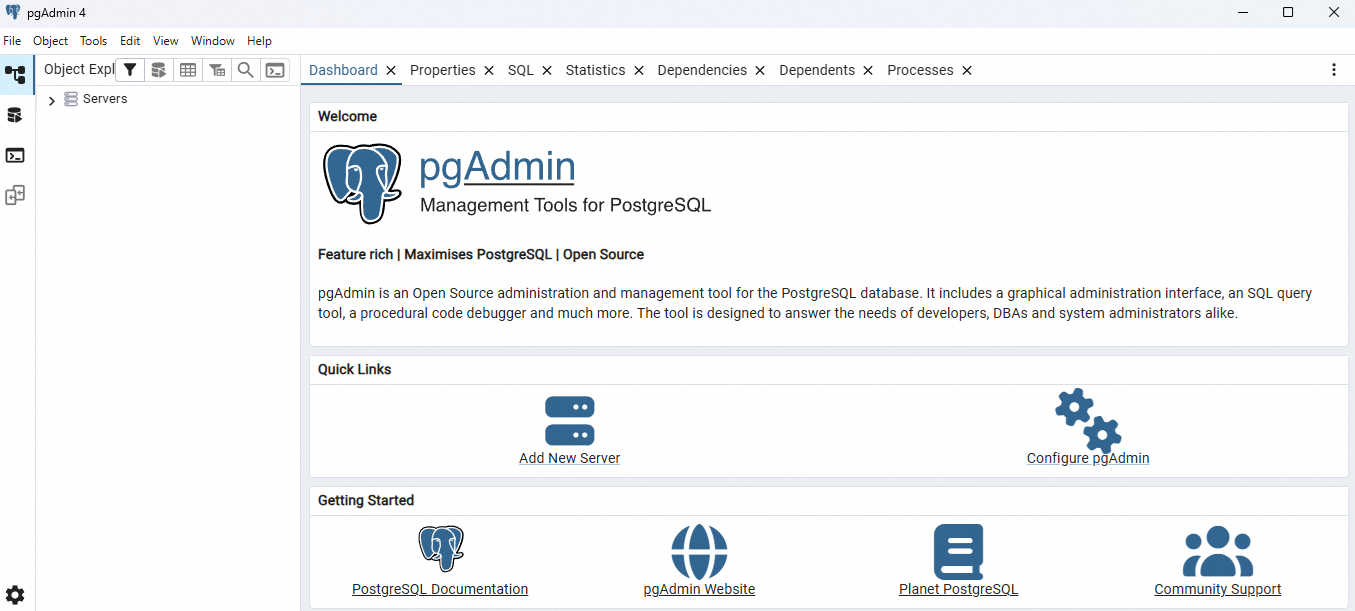
Once logged in pgAdmin, from the Servers dashboard view select Add new server.
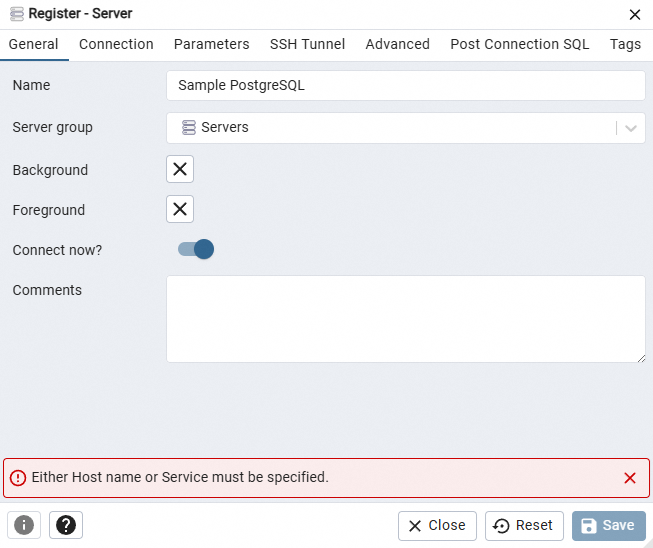
Fill in the name from the General tab of the Register - Server dialog.
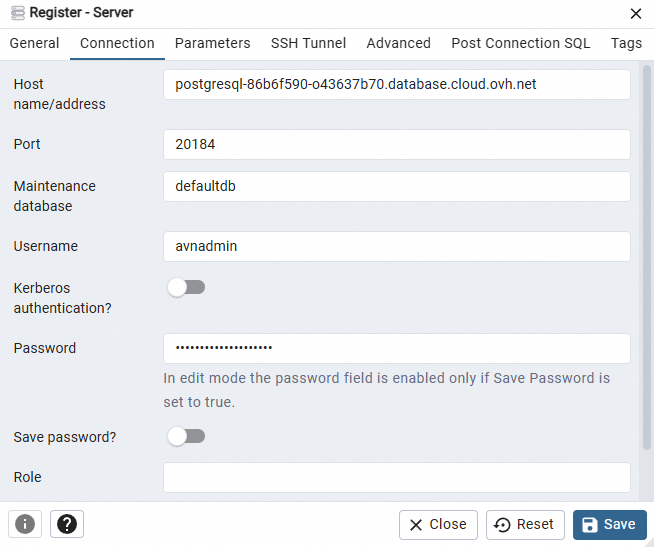
Then select the Connection tab and fill in the following fields with the collected credentials:
- Host
- Port
- Maintenance database
- Username
- Password
Finally, select the Parameters tab and set the SSL mode to require.
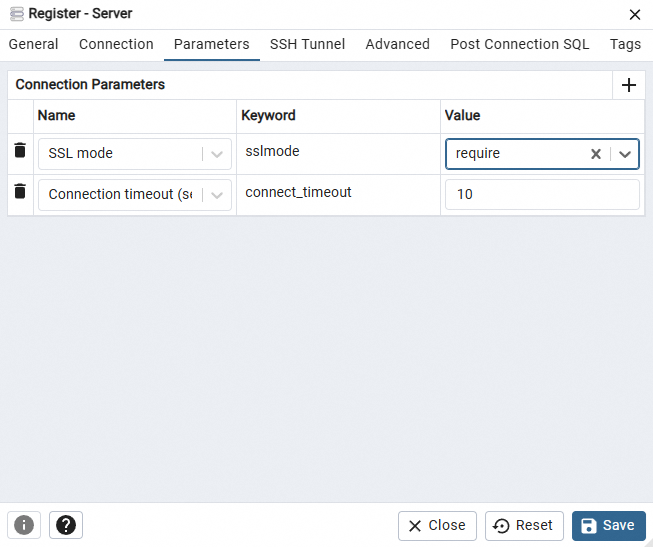
If needed you can also adjust the connection timeout from the same tab.
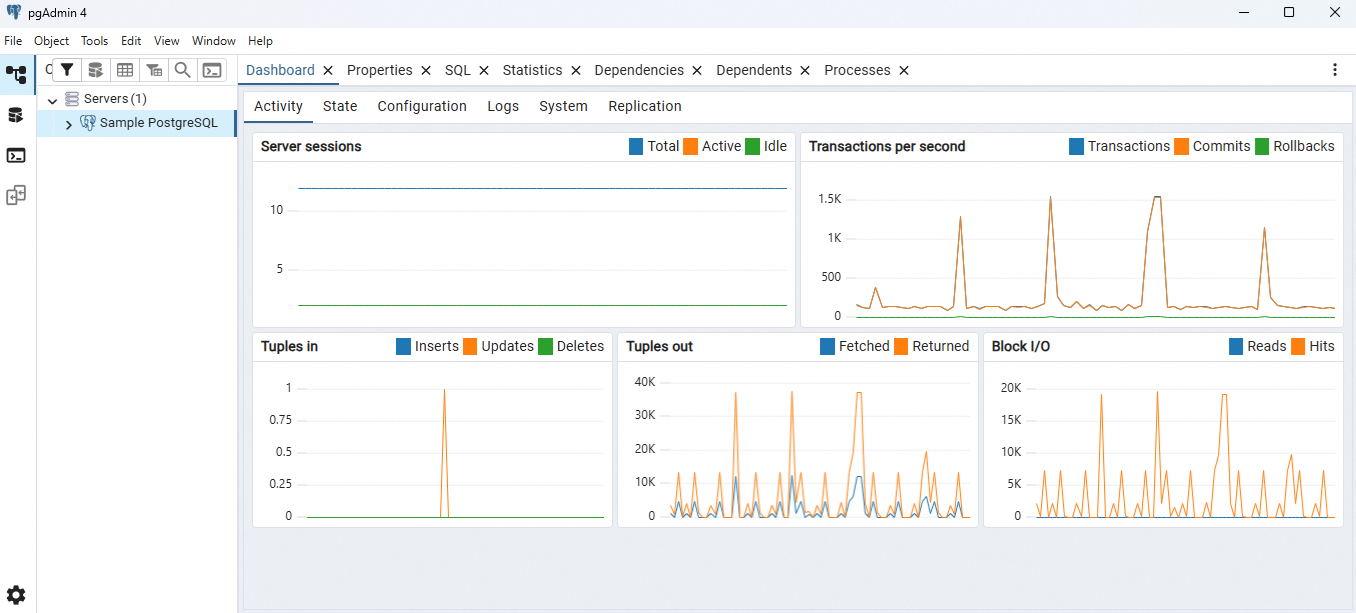
Once saved, select your server in the servers list on the left. In the Dashboard view, you can observe that the connection is active:
Go further
Visit the Github examples repository to find how to connect to your database with several languages.
Visit our dedicated Discord channel: https://discord.gg/ovhcloud. Ask questions, provide feedback and interact directly with the team that builds our databases services.
If you need training or technical assistance to implement our solutions, contact your sales representative or click on this link to get a quote and ask our Professional Services experts for a custom analysis of your project.
Join our community of users.


 Configure incoming connections of a Public Cloud Databases for PostgreSQL service
 81
81