

Managing snapshots of an instance in Horizon
74 Views
 03.09.2024
  Configuration
Objective
During your activity, you will probably need to back up your data, configurations and even your entire instances. To do this, you can create snapshots of your instances. These can be used to restore a later configuration on your instance, or to create an exact copy of an instance.
This guide explains how to manage snapshots from the OpenStack Horizon interface.
Requirements
Instructions
Snapshot creation
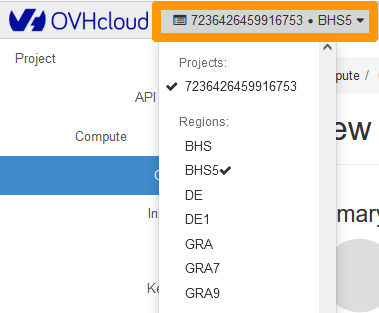
Log into the Horizon interface, and ensure that you are in the correct region. You can verify this on the top left corner.
Next, click on the Compute menu on the left side and select Instances. Select Create Snapshot next to the corresponding instance.

In the pop-up window, enter the required information:
- Snapshot Name: Set a name for the snapshot and click on
Create Snapshot.
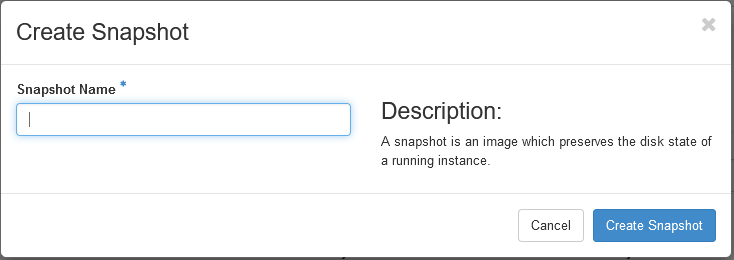
The snapshot will then be listed in the Images section. For this reason, we recommend naming each snapshot explicitly.
Restore a snapshot
You can restore a snapshot by creating a new instance from it.
In the horizon interface, click on the Compute menu on the left side, then click on Images.
Click on Launch next to the selected snapshot.

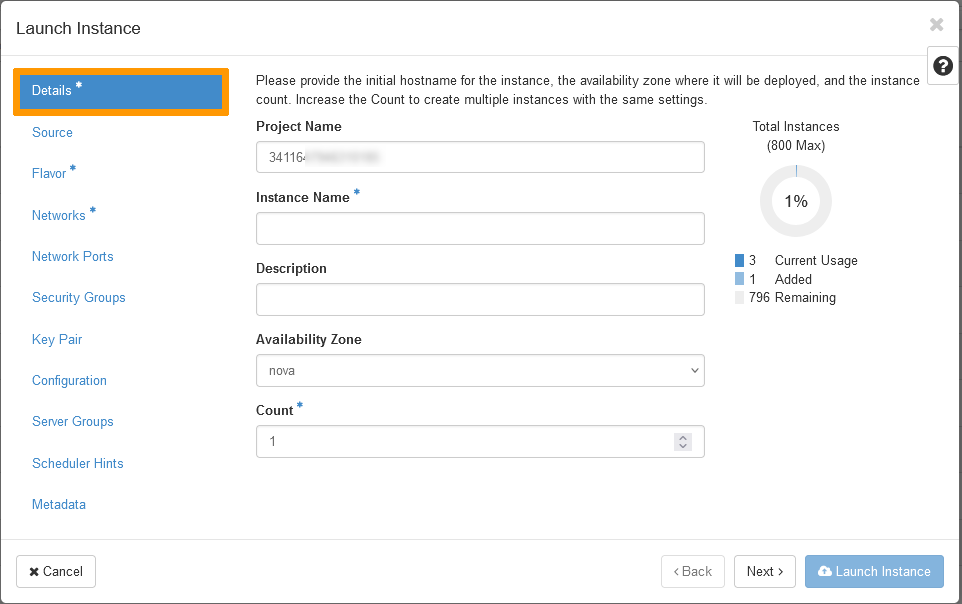
In the pop-up window, a number of options need to be selected to complete the restoration of the snapshot.
Instance Name: Specify the name you want for the instance.
Count: Select the amount of instances you want to launch from the snapshot.
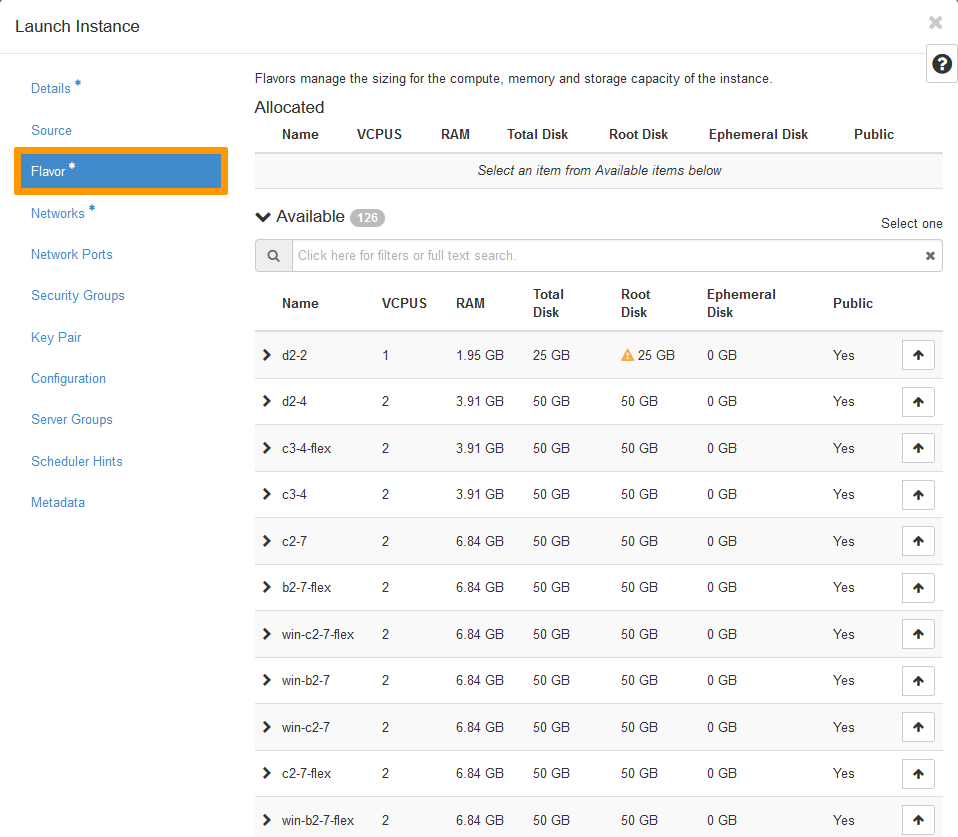
Select the flavor you want. Make sure you select a flavor whose resources are equal to or greater than the size of the image (snapshot).
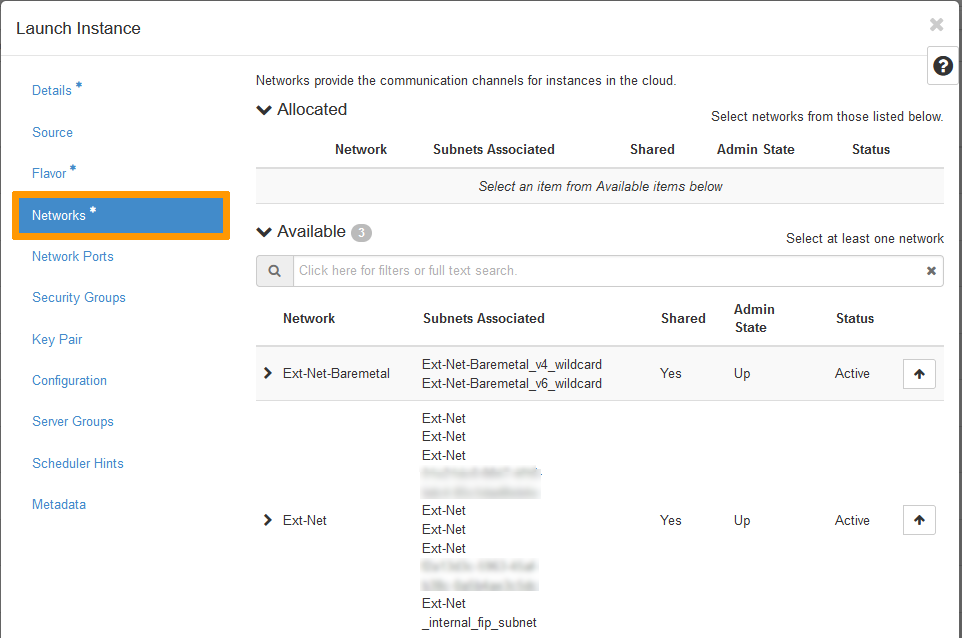
Select a public network (Ext-Net) to attach to the instance.
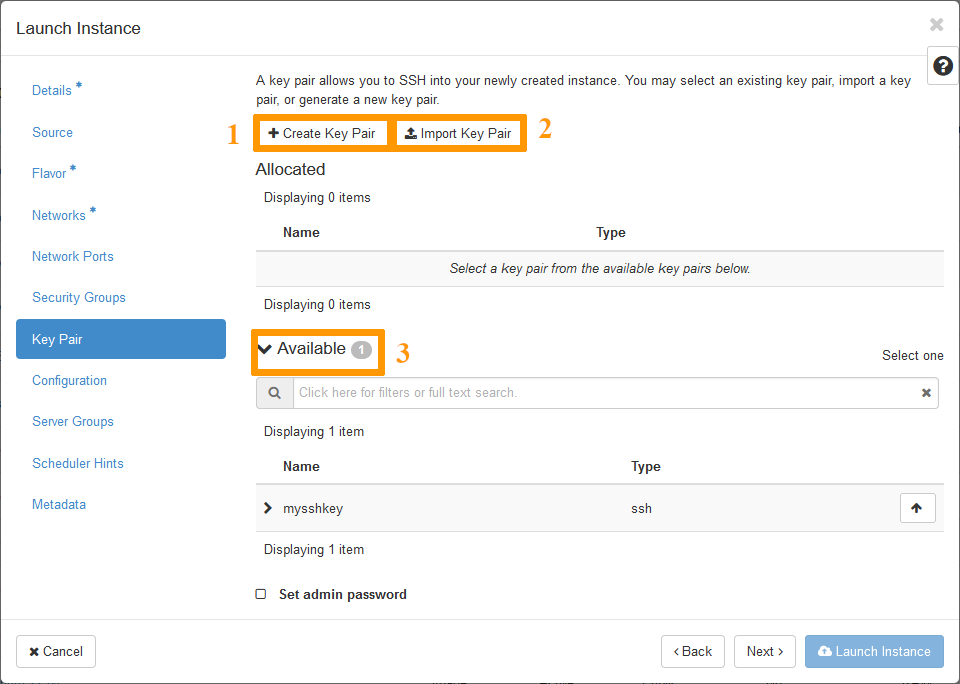
Select (3), create (1) or import (2) a key pair.
Once done, click on Launch Instance to begin the creation of your instance.
Deleting a snapshot
In the horizon interface, click on the Compute menu on the left side, then click on Images.
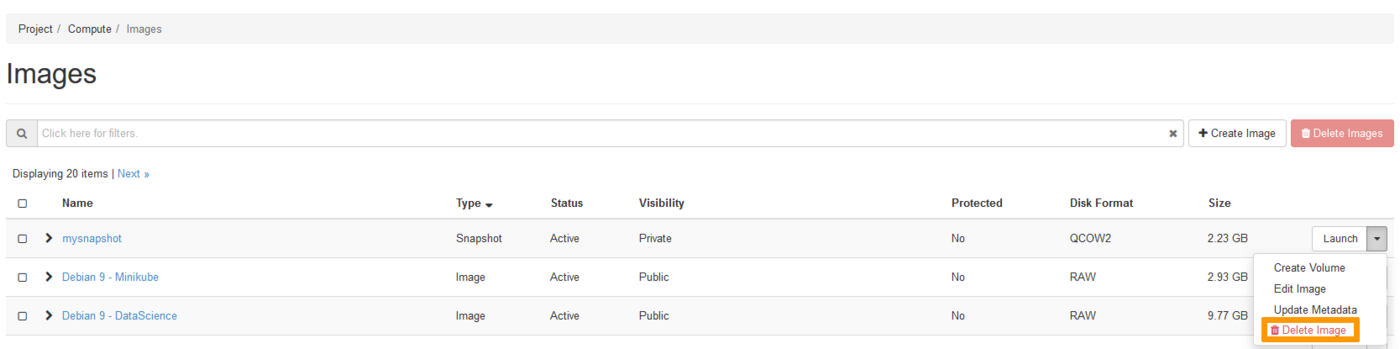
Next, click the drop-down arrow next to the snapshot you want to delete and click on Delete Image. Confirm the deletion of the snapshot.
Go further
Join our community of users.


 Creating and configuring a security group in Horizon
 85
85