

AI Endpoints - Create your own audio summarizer
72 Views
 15.04.2026
  AI Endpoints
AI Endpoints is covered by the OVHcloud AI Endpoints Conditions and the OVHcloud Public Cloud Special Conditions.
Introduction
Are you looking for a way to efficiently summarize your meetings, broadcasts, and podcasts for quick reference or to provide to others? Look no further!
Objective
In this tutorial, you will create an Audio Summarizer assistant that can not only transcribe but also summarize all your audio files.
Indeed, thanks to AI Endpoints, it’s never been easier to create a virtual assistant that can help you stay on top of your meetings and keep track of important information.
This tutorial will explore how AI APIs can be connected to create an advanced virtual assistant capable of transcribing and summarizing any audio file using ASR (Automatic Speech Recognition) technologies and popular LLMs (Large Language Models). We will also build an app to use our assistant!
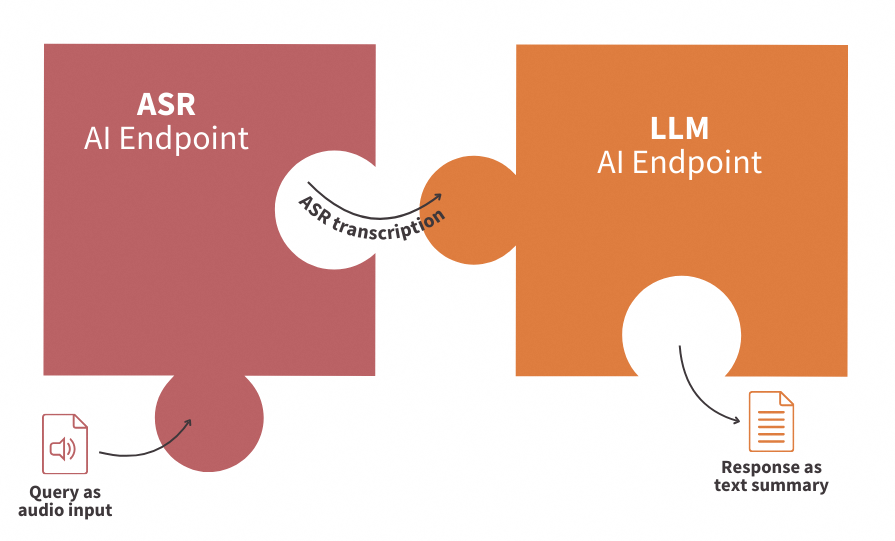
Definitions
- Automatic Speech Recognition (ASR): Technology that converts spoken language into written text. ASR will be used in this context to transcribe long audio recordings into text, which will then be summarized using LLMs.
- Large Language Models (LLMs): Advanced models trained to understand context and generate human-like responses. In this use case, the LLM prompt will be designed to generate a summary of the input text based on the output from the ASR endpoint.
Requirements
- A Public Cloud project in your OVHcloud account
- An access token for OVHcloud AI Endpoints. To create an API token, follow the instructions in the AI Endpoints - Getting Started guide.
Instructions
Set up the environment
In order to use AI Endpoints APIs easily, create a .env file to store environment variables:
Make sure to replace the token value (OVH_AI_ENDPOINTS_ACCESS_TOKEN) by yours. If you do not have one yet, follow the instructions in the AI Endpoints - Getting Started guide.
Then, create a requirements.txt file with the following libraries:
Then, launch the installation of these dependencies:
Note that Python 3.11 is used in this tutorial.
Importing necessary libraries and variables
Once this is done, you can create a Python file named audio-summarizer-app.py, where you will first import Python librairies as follows:
After these lines, load and access the environnement variables of your .env file:
Then define the client that communicates with the APIs and authenticates your requests:
💡 You are now ready to start coding your web app.
Transcribe audio file with ASR
First, create the Automatic Speech Recognition function in order to transcribe audio files into text:
In this function:
- The audio file is preprocessed as follows:
.wavformat,1channel,16000frame rate - The transformed audio
processed_audiois read - An API call is made to the ASR endpoint named
whisper-large-v3 - The full response is stored in
respvariable and returned by the function
🎉 Now that you have this function, you are ready to transcribe audio files.
Now it’s time to call an LLM to summarize the transcribed text.
Summarize audio with LLM
In this second step, create the chat_completion function to use gpt-oss-120b effectively (or any other model):
What to do?
- Check that the transcription exists
- Use the OpenAI API compatibility to call the LLM
- Customize your prompt in order to specify LLM task
- Return the audio summary
⚡️ You're almost there! The final step is to build your web app, making your solution easy to use with just a few lines of code.
Build the app with Gradio
Gradio is an open-source Python library that allows to quickly create user interfaces for Machine Learning models and demos.
What does it mean in practice?
Inside a Gradio Block, you can:
- Define a theme for your UI
- Add a title to your web app with gr.HTML()
- Upload audio thanks to the dedicated component, gr.Audio()
- Obtain the result of the written transcription with the gr.Textbox()
- Get a summary of the audio with the powerful LLM and a second gr.Textbox() component
- Add a clear button with gr.ClearButton() to reset the page of the web app
Then, you can launch it in the main:
Launch Gradio web app locally
🚀 That’s it! Now, your web app is ready to be used! You can start this Gradio app locally by launching the following command:
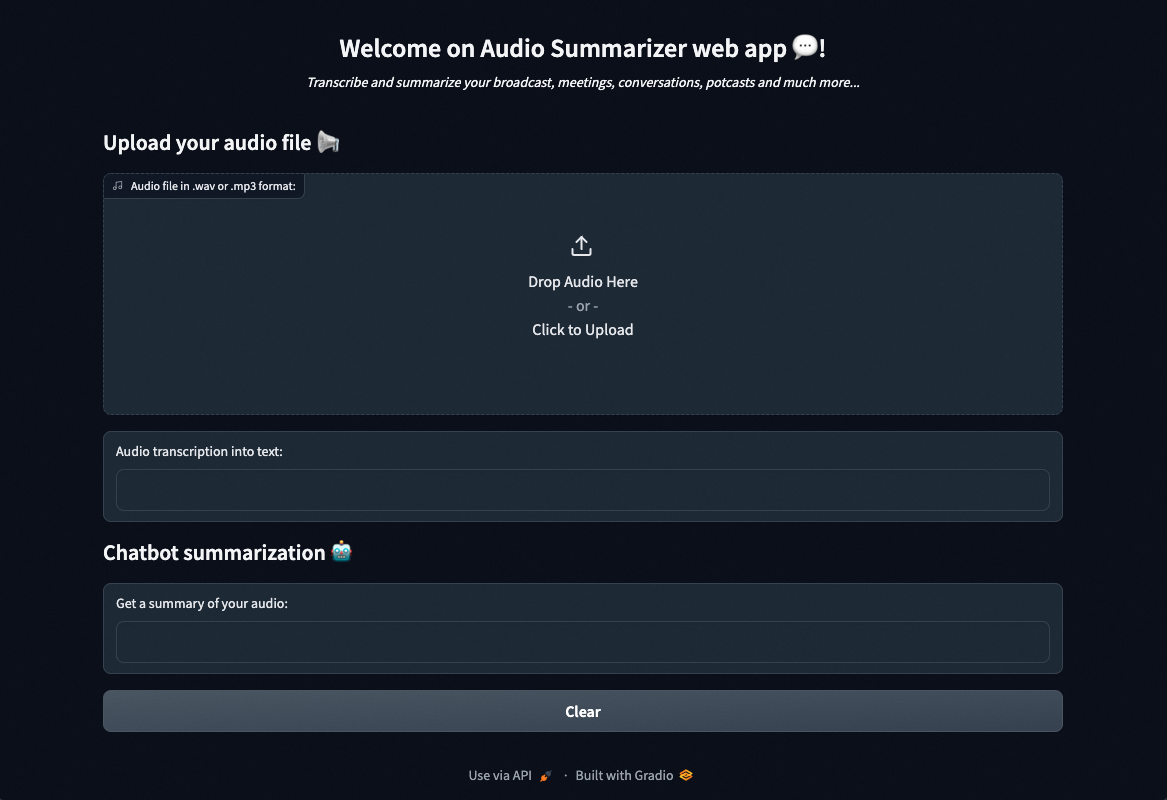
You can upload your audio files, get a transcript and then a summary!
Conclusion
Well done 🎉! You have learned how to build your own Audio Summarizer app in a few lines of code. You’ve also seen how easy it is to use AI Endpoints to create innovative turnkey solutions.
➡️ Access the full code here.
Going further
If you want to go further and deploy your web app in the cloud, making your interface accessible to everyone, refer to the following articles and tutorials:
- AI Deploy – Tutorial – Build & use a custom Docker image
- AI Deploy – Tutorial – Deploy a Gradio app for sketch recognition
If you need training or technical assistance to implement our solutions, contact your sales representative or click on this link to get a quote and ask our Professional Services experts for a custom analysis of your project.
Feedback
Please feel free to send us your questions, feedback, and suggestions regarding AI Endpoints and its features:
- In the #ai-endpoints channel of the OVHcloud Discord server, where you can engage with the community and OVHcloud team members.


 AI Endpoints - Create your own voice assistant
 71
71