

AI Deploy - Tutorial - Deploy LLaMA 2 in a Streamlit application
86 Views
 27.06.2025
  AI Deploy
On July 18, 2023, Meta released LLaMA 2, the latest version of their open-source Large Language Model (LLM).
Trained between January 2023 and July 2023 on 2 trillion tokens, LLaMA 2 outperforms other LLMs on many benchmarks, including reasoning, coding, proficiency, and knowledge tests. This release comes in different flavors, with parameter sizes of 7B, 13B, and a mind-blowing 70B. Models are intended for free for both commercial and research use in English.
Objective
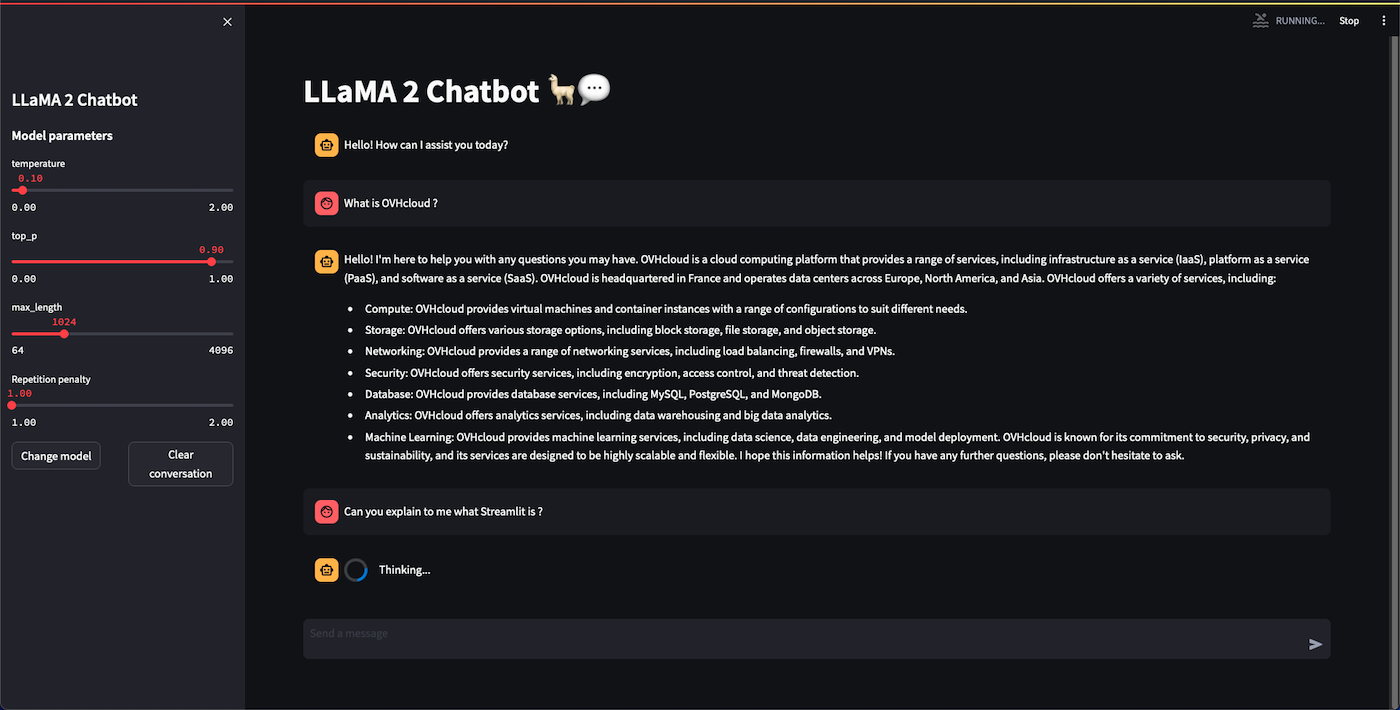
The purpose of this tutorial is to show you how to deploy LLaMA 2 in an application, which allows to interact with the model from an interface, such as ChatGPT. Deploying your app will allow you to benefit from very powerful resources which will make your chatbot application extremely fast. It can also be easily shared, unlike a local application.
In order to do this, we will use Streamlit, a Python framework that turns scripts into a shareable web application. You will also learn how to build and use a custom Docker image for a Streamlit application.
Here is an overview of our image segmentation app:
Requirements
To deploy your app, you need:
- An AI Deploy Project created inside a Public Cloud project in your OVHcloud account
- A user for AI Deploy
- The OVHcloud AI CLI installed on your local computer
- Docker installed on your local computer, or access to a Debian Docker Instance, which is available on the Public Cloud.
- Some knowledge about building image and Dockerfile
- The full code of the application, which can be found on this GitHub repository, which we advise you to clone.
- An access to Llama 2 Models. To obtain Llama 2, you will need to:
- Fill Meta's form to request access to the next version of Llama. Indeed, the use of Llama 2 is governed by the Meta license, that you must accept in order to download the model weights and tokenizer.
- Have a Hugging Face account (with the same email address you entered in Meta's form).
- Have a Hugging Face token.
- Visit the page of one of the LLaMA 2 available models (version 7B, 13B or 70B), and accept Hugging Face's license terms and acceptable use policy. Once you have accepted this, you will get the following message: Your request to access this repo has been successfully submitted, and is pending a review from the repo's authors, which a few hours later should change to: You have been granted access to this model.
Instructions
We are going to follow different steps to deploy our LLaMA 2 chatbot application:
- Write the requirements.txt that contains the required libraries that need to be installed so that our application can work.
- Write the
Dockerfilethat contains all the commands to launch our LLaMA 2 Streamlit application. - Build the Docker image from the Dockerfile.
- Push the image into a registry.
- Deploy the app.
If you have cloned the app's repository, you will not need to rewrite the files (requirements.txt and Dockerfile) since you already have them. In this case, you can go directly to the "Build the Docker image" step, even if it is better to understand the global process.
Write the requirements.txt file for the application
The requirements.txt file will allow us to write all the modules needed by our application. This file will be useful for the Dockerfile.
Put this file (and the next ones) in the same directory as your python scripts.
Write the Dockerfile for the application
A Dockerfile is a text document that contains all the commands a user could call on the command line to build an image.
This file should start with the FROM instruction, indicating the parent image to use. In our case, we choose to start from the official python:3.10-slim image:
Then, define the home directory and add all your files (python scripts, requirements.txt and the Dockerfile) to it thanks to the following commands:
With AI Deploy, workspace will be your home directory.
Now, let's indicate that we must install the requirements.txt file which contains our needed Python modules, by using a pip install command:
Give correct access rights to the OVHcloud user (42420:42420).
Finally, define the command to run the Streamlit application when the container is launched:
Build the Docker image from the Dockerfile
From the directory containing your Dockerfile, run one of the following commands to build your application image:
-
The first command builds the image using your system’s default architecture. This may work if your machine already uses the
linux/amd64architecture, which is required to run containers with our AI products. However, on systems with a different architecture (e.g.ARM64onApple Silicon), the resulting image will not be compatible and cannot be deployed. -
The second command explicitly targets the
linux/AMD64architecture to ensure compatibility with our AI services. This requiresbuildx, which is not installed by default. If you haven’t usedbuildxbefore, you can install it by running:docker buildx install
The dot . argument indicates that your build context (place of the Dockerfile and other needed files) is the current directory.
The -t argument allows you to choose the identifier to give to your image. Usually image identifiers are composed of a name and a version tag <name>:<version>. For this example we chose llama_app:latest.
Test it locally (optional)
Launch the following Docker command to launch the application locally on your computer:
Notes
-
The
-p 8501:8501argument indicates that you want to execute a port redirection from the port 8501 of your local machine into the port 8501 of the Docker container. The port 8501 is the default port used by Streamlit applications. -
Don't forget the
--user=42420:42420argument if you want to simulate the exact same behaviour that will occur on AI Deploy apps. It executes the Docker container as the specific OVHcloud user (user 42420:42420).
Once started, your application should be available on http://localhost:8501.
Push the image into the shared registry
Warning The shared registry should only be used for testing purposes. Please consider creating and attaching your own registry. More information about this can be found here. The images pushed to this registry are for AI Tools workloads only, and will not be accessible for external uses.
Find the address of your shared registry by launching this command:
Log in on your shared registry with your usual AI Platform user credentials:
Tag the compiled image and push it into your shared registry:
Launch the AI Deploy app
The following command starts a new app running your LLaMA 2 Streamlit application:
Notes
-
--default-http-port 8501indicates that the port to reach on the app URL is8501. -
--gpu 1indicates that we request 1 GPU for that app. We recommend that you use at least 1 GPU for proper performance when using LLMs. Keep in mind that the more parameters your model has, the more memory it will require. Depending on the model you want to use, using more than one GPU may be essential. -
Consider adding the
--unsecure-httpattribute if you want your application to be reachable without any authentication.
Go further
- Discover how to fine-tune LLaMA 2 on your own dataset
- Create a voice chatbot with Speech to Text
If you need training or technical assistance to implement our solutions, contact your sales representative or click on this link to get a quote and ask our Professional Services experts for a custom analysis of your project.
Feedback
Please send us your questions, feedback and suggestions to improve the service:
- On the OVHcloud Discord server


 AI Deploy - Tutorial - Build & use a custom Docker image
 124
124