

MX Plan - Configure your email account on Mail for macOS
93 Views
 22.10.2024
  Web / MX Plan Email (legacy infrastructure)
Objective
You can configure MX Plan accounts on email clients, if they are compatible. By doing so, you can use your email address through your preferred email application. The Mail app on macOS is available for free on all Macs.
Find out how to configure your MX Plan email address on the macOS Mail app.
OVHcloud provides services which you are responsible for with regard to their configuration and management. You are therefore responsible for ensuring they function correctly.
We have provided you with this guide in order to help you with common tasks. Nevertheless, we recommend contacting a specialist provider and/or the service’s software publisher if you encounter any difficulties. We will not be able to assist you ourselves. You can find more information in the "Go further" section of this guide.
Requirements
- an MX Plan email address (included in the MX Plan solution and in OVHcloud web hosting plans).
- Mail installed on your Mac.
- the required credentials for the email address you would like to configure.
Instructions
Add account
-
When the application is first started: a setup wizard will appear, prompting you to choose your account type.
-
If an account has already been set up: click
Mailin the menu bar at the top of your screen, thenAccounts.
Follow the installation steps by clicking on the tabs below:
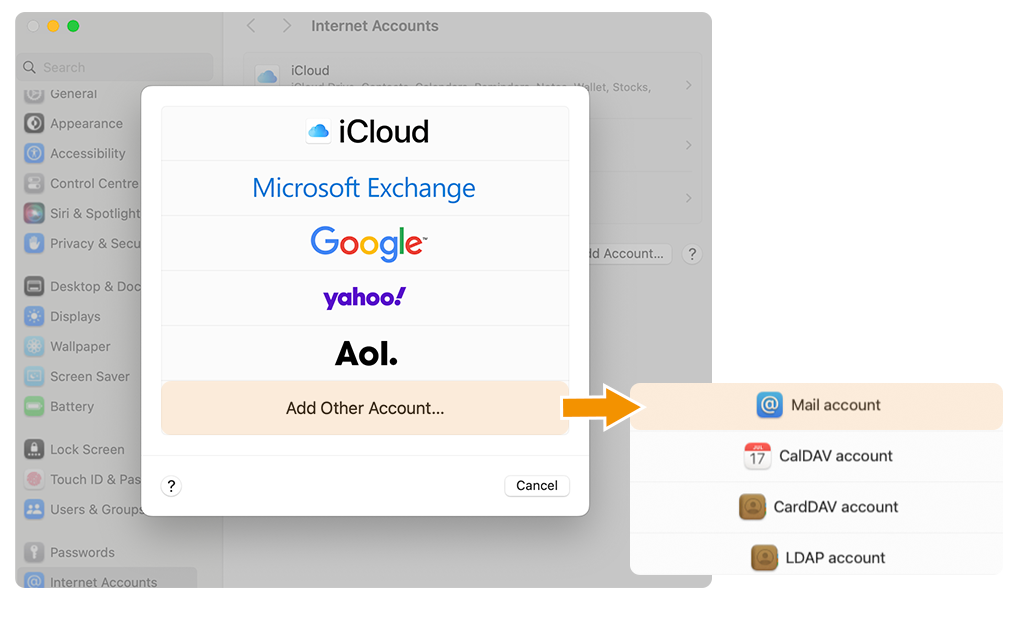
Select Other Mail Account then click Mail Account.
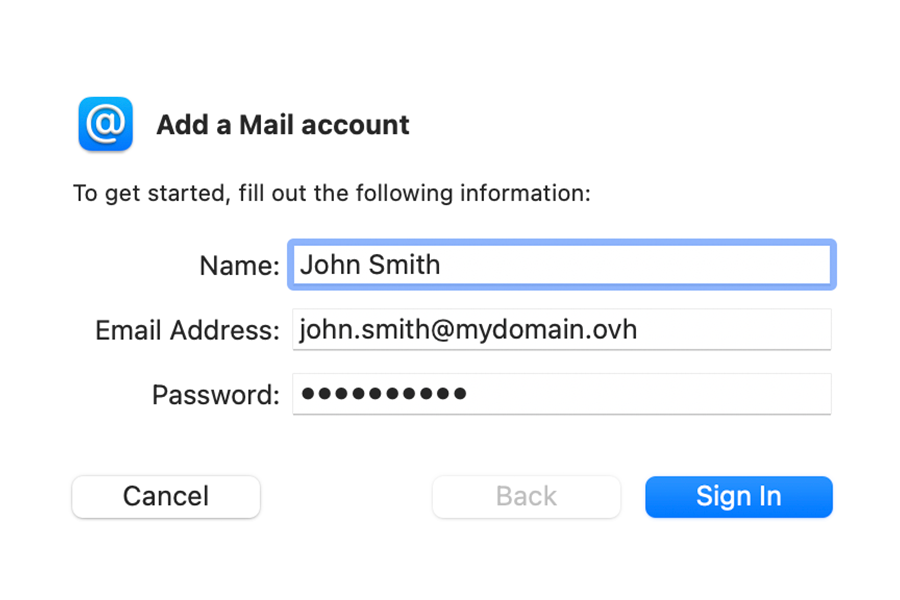
Enter the following information in the "Add a Mail account" window:
- A Name for your email account
- Your Email address
- The Password of your email address
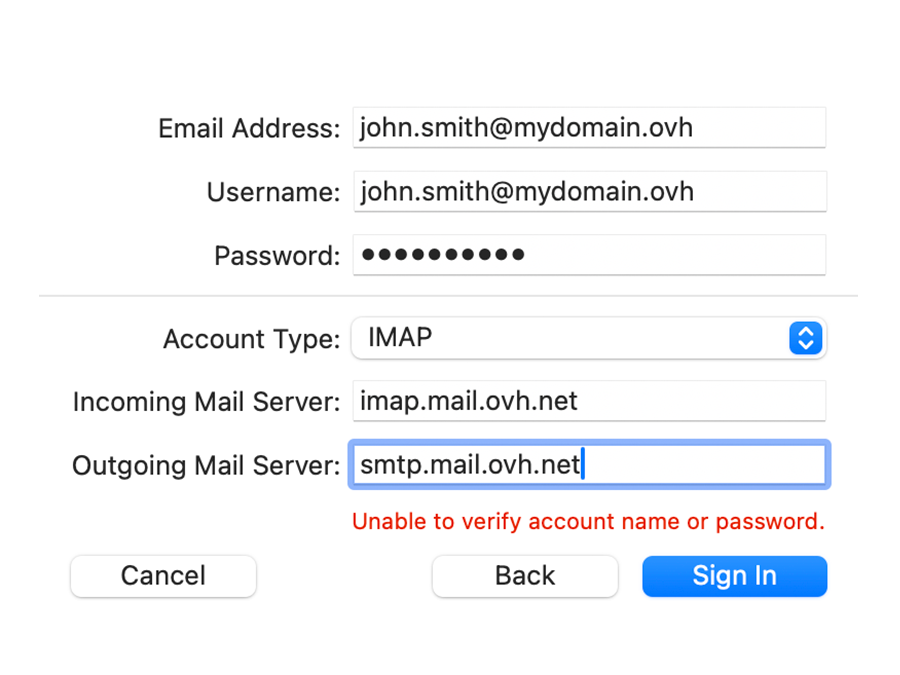
In the next window, enter the information:
- Email address
- Username : Enter your full email address
- Password
- Account type: Select
IMAP(recommended) orPOP - Incoming Mail Server:
- EUROPE: Typeimap.mail.ovh.netorssl0.ovh.net
- AMERICA/ASIA: Typeimap.mail.ovh.ca - Outgoing Mail Server:
- EUROPE: Typesmtp.mail.ovh.netorssl0.ovh.net
- AMERICA/ASIA: Typesmtp.mail.ovh.ca
To finalize the configuration, click Log in
It is normal to see the red message "unable to verify account name or password" when the window appears for the first time. However, if this message persists after validation, the information entered is incorrect.
If, after following the configuration steps below, you encounter a sending or receiving error, go to the section Modify existing settings.
Use email address
Once you have configured your email address, you can start using it! You can now send and receive emails.
OVHcloud also has a web application you can use to access your email address from your browser. You can access this application at Webmail. You can log in using your email credentials. If you have any question about how to use it, you can refer to our guide on Using an account in the OWA interface.
Retrieve a backup of your email address
If you need to make any changes that could lead to the loss of your email account data, we advise backing up the email account concerned beforehand. To do this, please read the "Export" section in the "Mail on macOS" chapter of our guide on Manually migrate your email address.
Modify existing settings
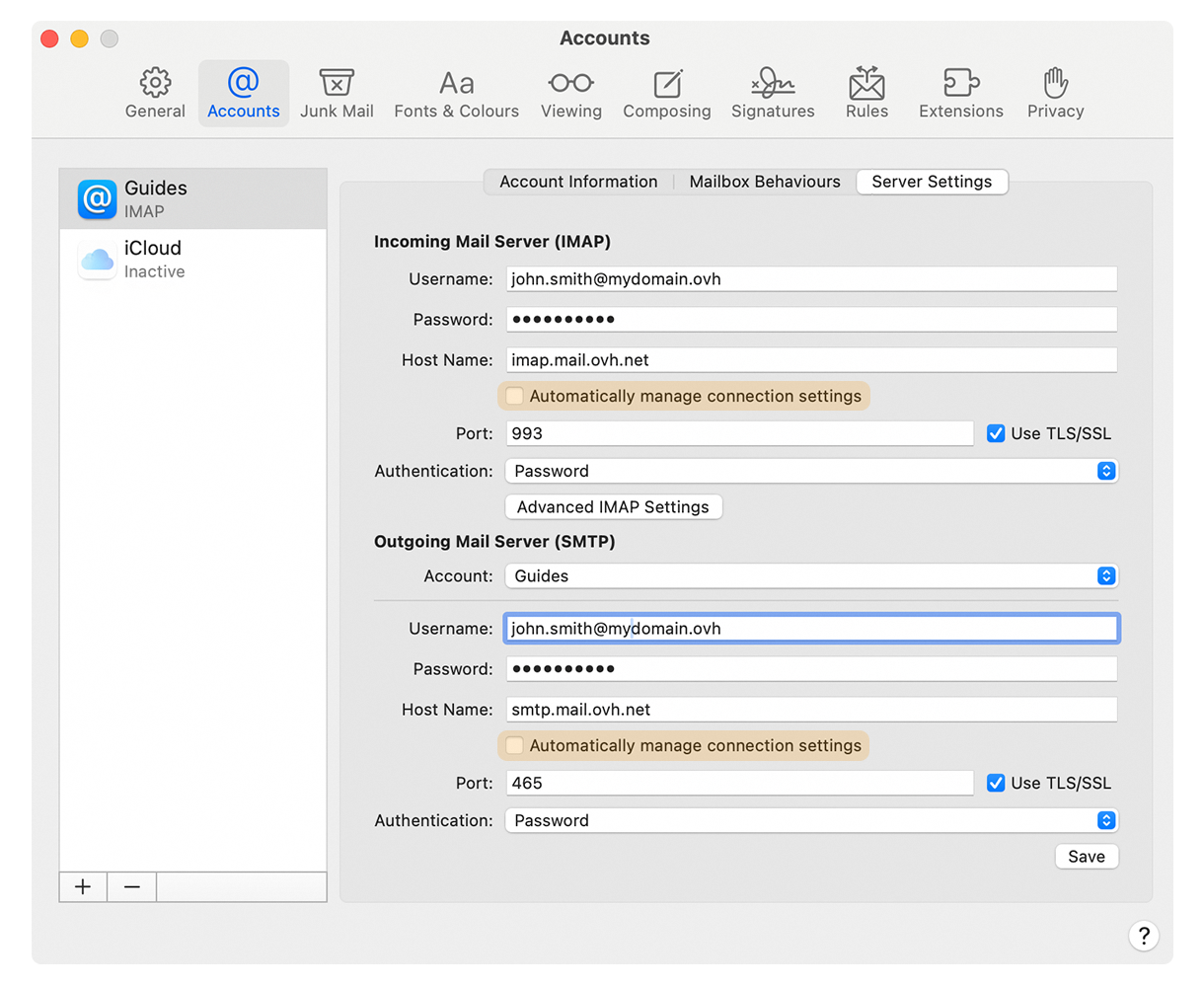
If your email account has already been set up and you need to access the account settings to change them:
- Click
Mailin the menu bar at the top of your screen, then clickPreferences. - Select the account concerned in the left-hand column, then click
Server settings. - In the
Incoming Mail Server (POP)orIncoming Mail Server (IMAP)section, enter your full email address in theUser namebox, and thePasswordassociated with it in the box provided. - In the
Outgoing Mail Server (SMTP)section, enter your full email address in theUsernamebox, and thePasswordassociated in the box provided. - Untick the
Automatically manage connection settingsboxes to display thePortandAuthenticationsettings. - Make sure that the
Use TLS/SSLboxes are ticked. - In the
Authenticationdropdown menus, check thatPasswordis selected. - For the
Host nameandPortboxes, refer to the values in the "POP, IMAP and SMTP settings reminder" section. Make sure that the server type (IMAP, POP and SMTP) matches your region (Europe or Asia-Pacific).
To finalize the configuration, click Save.
Change your configuration
If your email address is configured in IMAP and you want to change this configuration to POP, you will need to delete the account on Mail from MacOS and then recreate it in POP.
Reminder of POP, IMAP and SMTP settings
When you choose your account type, we recommend using IMAP to receive emails. However, you can select POP.
Please note down the value that corresponds to your location (EUROPE or AMERICA/ASIA-PACIFIC)
- POP configuration
| Information | Description |
|---|---|
| Username | Enter the full email address full |
| Password | Enter the password for the email address |
| Server EUROPE (incoming) | pop.mail.ovh.net or ssl0.ovh.net |
| Server AMERICA/ASIA-PACIFIC (incoming) | pop.mail.ovh.ca |
| Port | 995 |
| Security type | SSL/TLS |
- IMAP configuration
| Information | Description |
|---|---|
| Username | Enter the full email address full |
| Password | Enter the password for the email address |
| Server EUROPE (incoming) | imap.mail.ovh.net or ssl0.ovh.net |
| Server AMERICA / ASIA-PACIFIC (incoming) | imap.mail.ovh.ca |
| Port | 993 |
| Security type | SSL/TLS |
For sending emails, if you have to enter the SMTP settings manually in your account preferences, you will find the settings below:
- SMTP configuration
| Information | Description |
|---|---|
| Username | Enter the full email address full |
| Password | Enter the password for the email address |
| Server EUROPE (outgoing) | smtp.mail.ovh.net or ssl0.ovh.net |
| Server AMERICA / ASIA-PACIFIC (outgoing) | smtp.mail.ovh.ca |
| Port | 465 |
| Security type | SSL/TLS |
Change configuration
When you configure your email address in IMAP and you want to change the configuration to POP, it is necessary to delete the account from Mac Mail and then recreate it in POP to change the configuration.
What do I do if I cannot receive/send my emails?
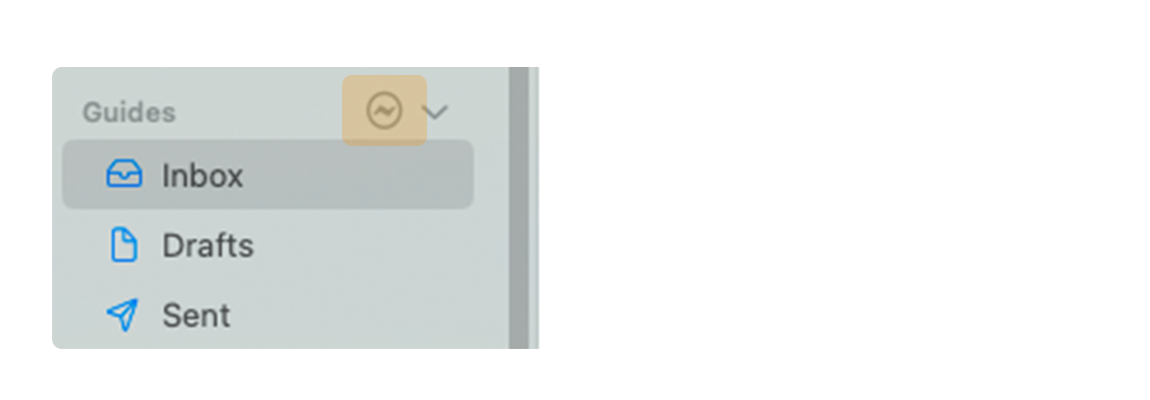
- If you see the icon visible in the screenshot below, it is a network disconnection. Check that your internet connection is working properly.
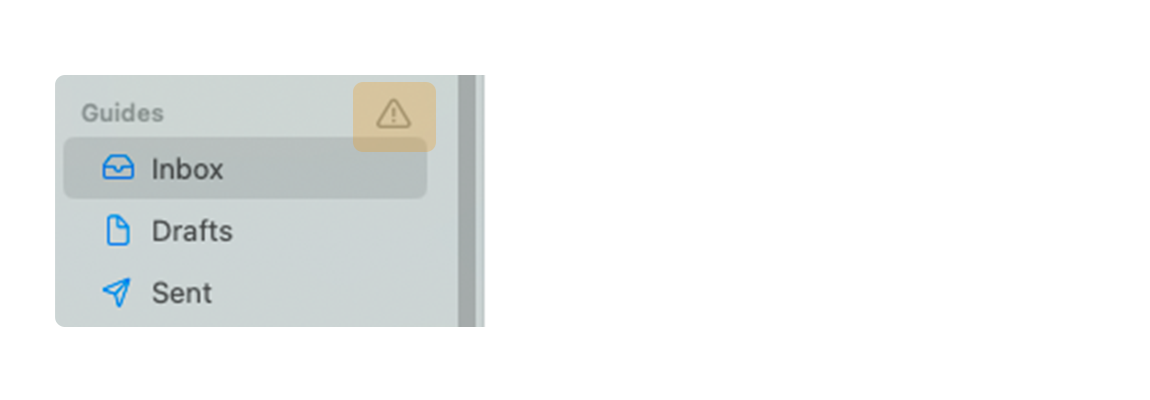
- If you see the icon visible in the screenshot below, it is a synchronization fault. Check the configuration settings for your email account in the Modify existing settings section.
Go further
For more information on configuring an email address from the Mail app on macOS, see the Apple Help Center.
MX Plan - Configuring your email account on Mail for iPhone and iPad
For specialized services (SEO, development, etc.), contact OVHcloud partners.
If you would like assistance using and configuring your OVHcloud solutions, please refer to our support offers.
Join our community of users.


 MX Plan - Setting up your email account on Thunderbird for Windows
 166
166