

How do I configure the WHOIS display for a domain name?
74 Views
 10.02.2026
  Web / Domain Names
Objective
WHOIS, short for "Who is?", is a protocol that allows you to access different information related to a domain name.
For example, you can find the following information (non-exhaustive list):
- Contact details of the holder (subscriber), the administrator and the technical contact of the service.
- Indication of availability for purchase.
- Creation, expiry, last modification and renewal dates.
- Status (created, blocked, expired, etc.).
- etc.
When using your domain name, you may find that you need to show or hide certain information in WHOIS.
Find out how to show or hide certain information contained in a domain name’s WHOIS in the OVHcloud Control Panel.
Requirements
OVHcloud Control Panel Access
- Direct link: Domain names
- Navigation path:
Web Cloud>Domain names> Select your domain name
Some registries (organizations that manage domain name extensions, such as .com, .net, etc.) do not authorize the masking or display of certain information contained in WHOIS. Registries define the display rules and determine what information the WHOIS extension they manage should or should not contain.
Therefore, it is possible that despite your wishes in terms of display or masking in the WHOIS of your domain name, your request will not be taken into account.
Instructions
Click on the tabs below to view each of the 3 steps.
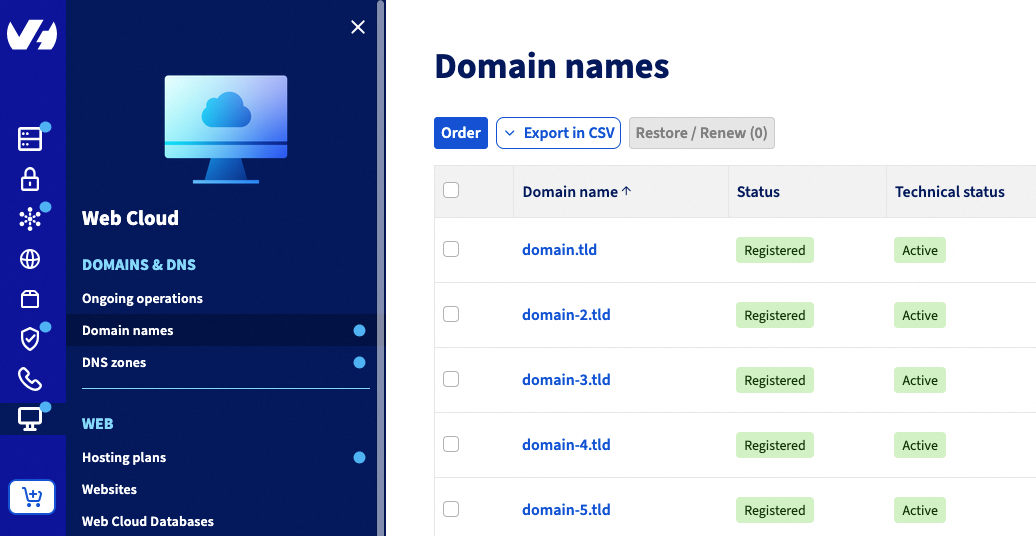
Go to the Domain names page, then choose the domain name concerned.
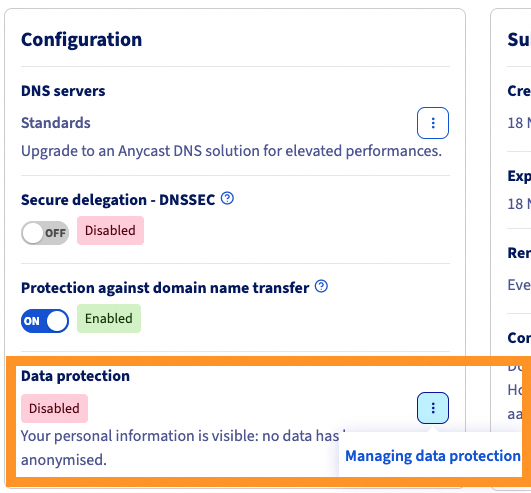
On the page that pops up, in the Configuration box, click the Managing data protection button.
On the new page that pops up, you can choose to Display or Hide the information relating to the holder, administrator and technical contacts of the domain name, subject to the actions authorized by the registry managing the extension.
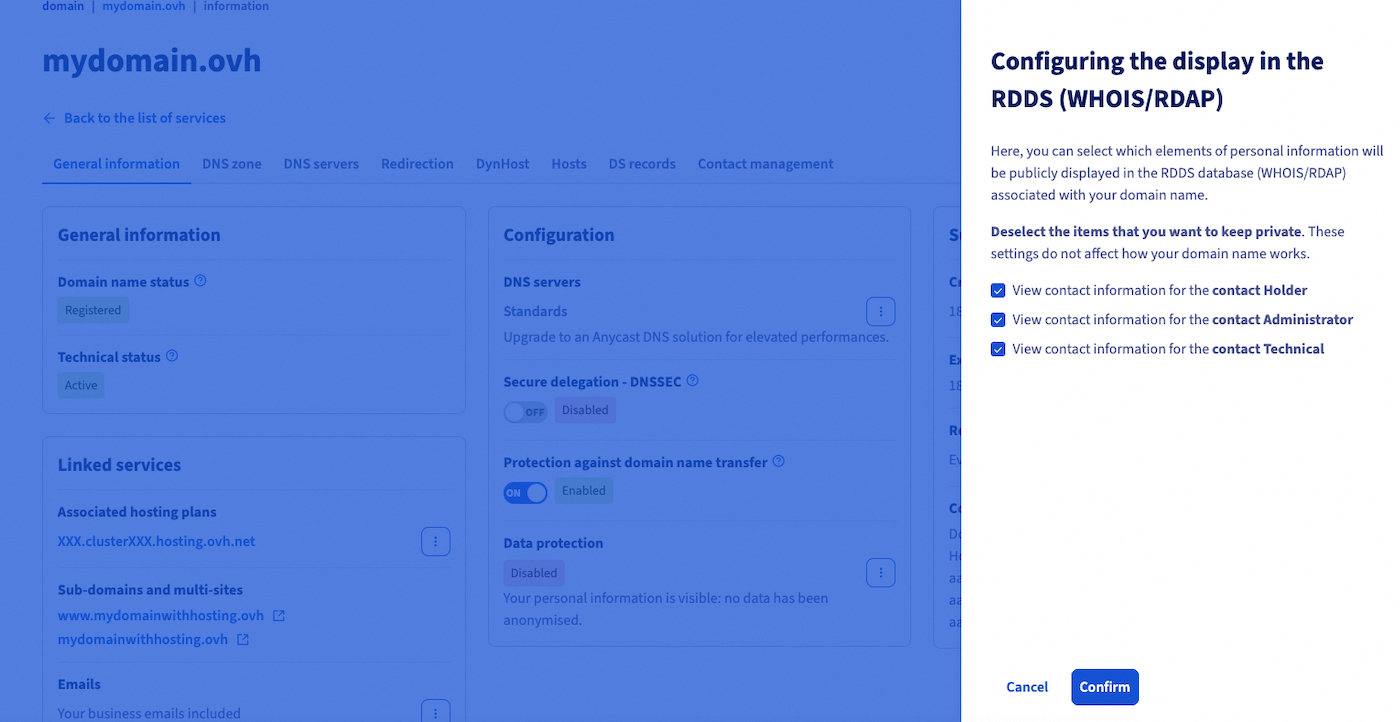
Once you have made your choices, click the Confirm button.
Changes may take up to 48 hours to take effect. These changes will only be applied if authorized by the registry managing your domain name extension.
Go further
For specialised services (SEO, development, etc.), contact OVHcloud partners.
If you would like assistance using and configuring your OVHcloud solutions, please refer to our support offers.
Join our community of users.


 How to renew OVHcloud domain names
 87
87