

How to manage Intel SGX on a dedicated server
96 Views
 20.11.2025
  Cloud / Dedicated Server (bare metal)
Objective
Enabling Intel Software Guard Extensions (SGX) on your server allows you to run SGX-ready applications. Intel SGX provides advanced hardware and RAM security encryption features, in order to isolate specific parts of code and data for each application.
This guide explains how to enable the SGX feature, via the OVHcloud Control Panel or via the OVHcloud API.
Requirements
- Access to the OVHcloud API (optional)
- A dedicated server compatible with the SGX option in your OVHcloud account
- The credentials received by email after installation
- Ubuntu 24.04 or equivalent is installed on the server
OVHcloud Control Panel Access
- Direct link: Dedicated Servers
- Navigation path:
Bare Metal Cloud>Dedicated servers> Select your server
Instructions
Enabling SGX
The activation of SGX is possible from the OVHcloud Control Panel, the OVHcloud API, or your server's BIOS.
1 - Logging in to the OVHcloud Control Panel
Select the server on which you want to enable SGX.
2 - Enabling SGX
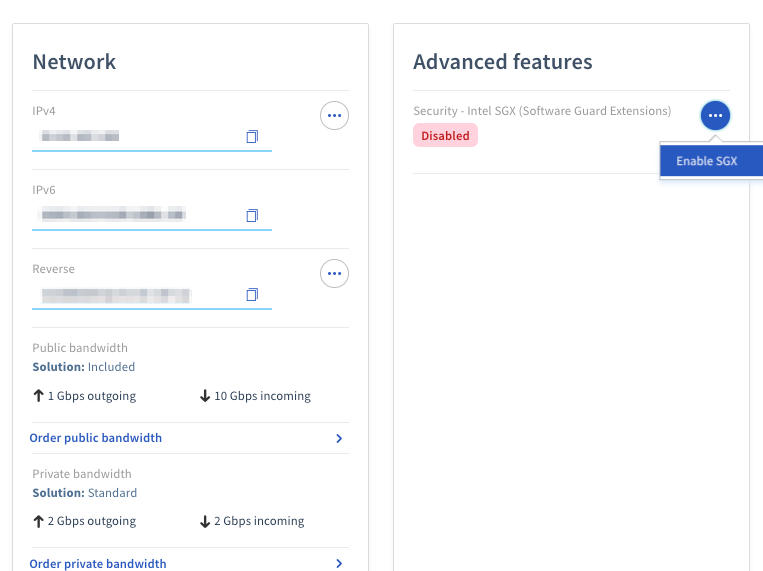
From the General Information tab, in the Advanced Features box, click on ... next to the Security - Intel SGX (Software Guard Extensions) entry and select Enable SGX from the dropdown menu.
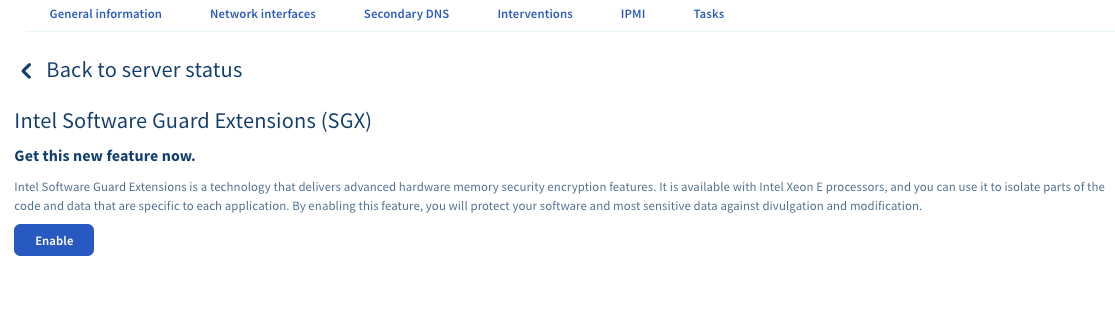
On the next screen, click on the Enable button.
You can choose to enable SGX with a specific amount of reserved memory or allow your application to automatically reserve the memory it needs. Once your choice is made, click on Confirm.
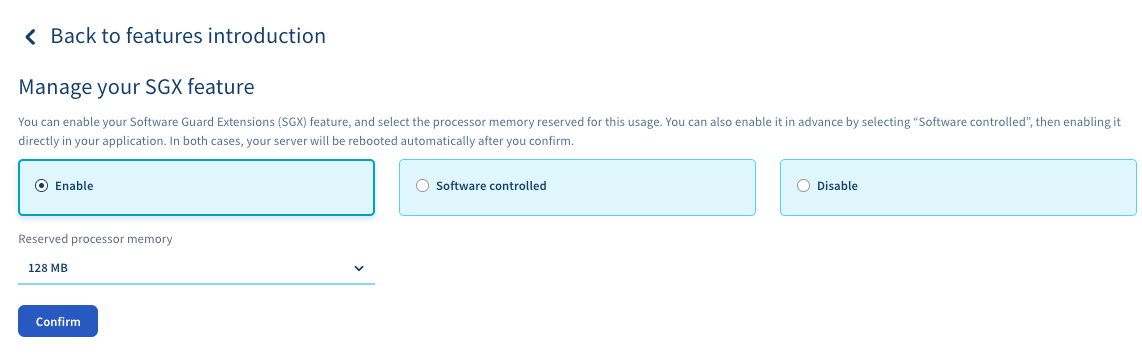
A confirmation window will appear. Please confirm that you understand that enabling Intel SGX technology will result in a server reboot.

This will result in one or more server reboots, depending on its model.
1 - Logging in to the API console
On the OVHcloud API page:
- Click on
Authenticationin the top left. - Then click on
Login with OVHcloud SSO. - Enter your OVHcloud credentials.
- Click on the
Authorizebutton to authorise API calls from this site.
2 - Enabling SGX
Retrieve the name of your server from the list returned by the following call:
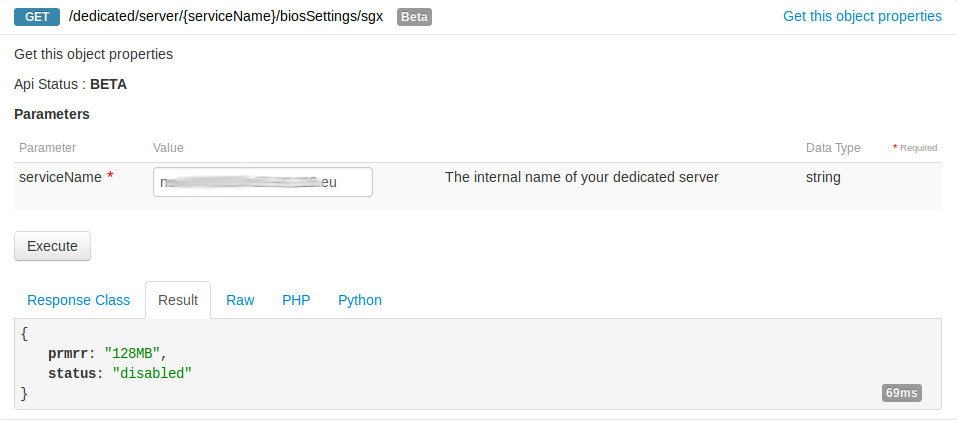
Check that your service has the SGX option using this call:
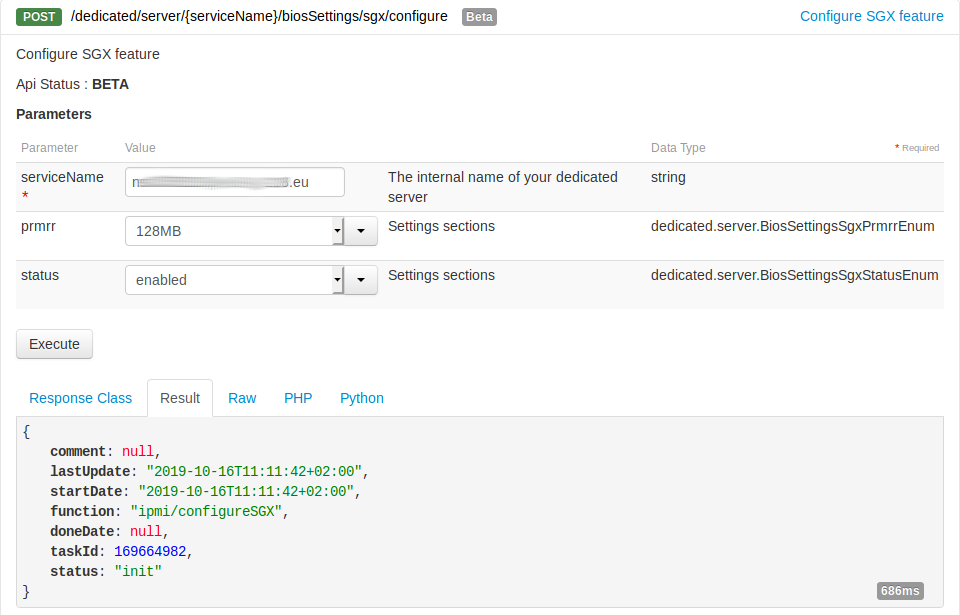
Enable SGX using the server name:
This will result in one or more server reboots, depending on its model.
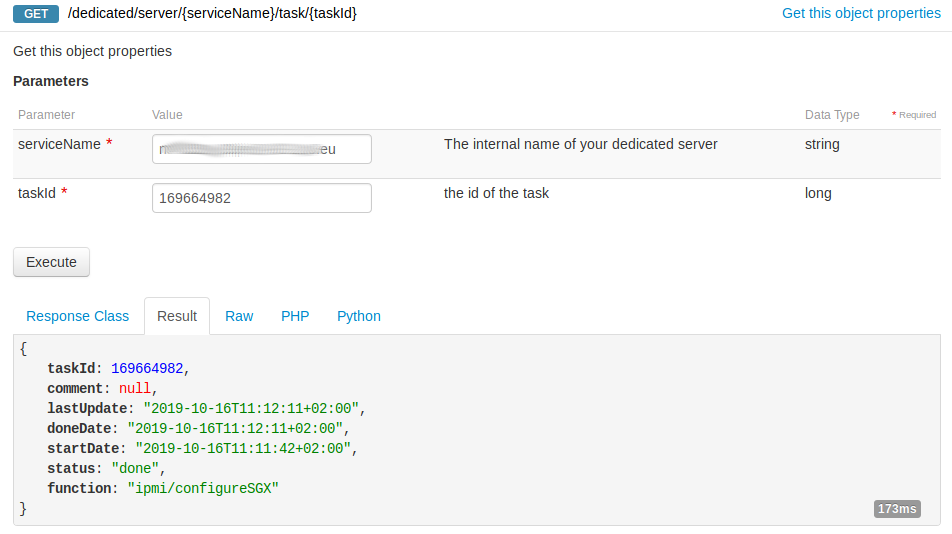
Check the progress of the configuration task by calling this endpoint with the taskId returned by the previous call:
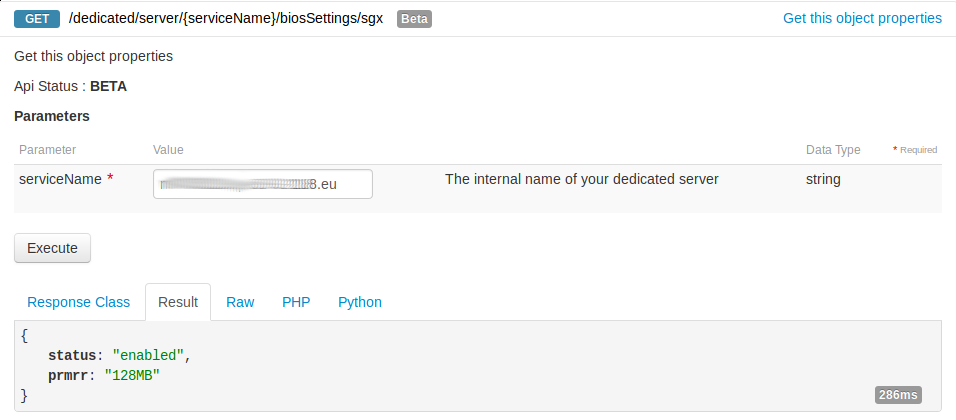
You can verify that the status is enabled:
1 - Start a Remote KVM session
Select the server on which you want to enable SGX.
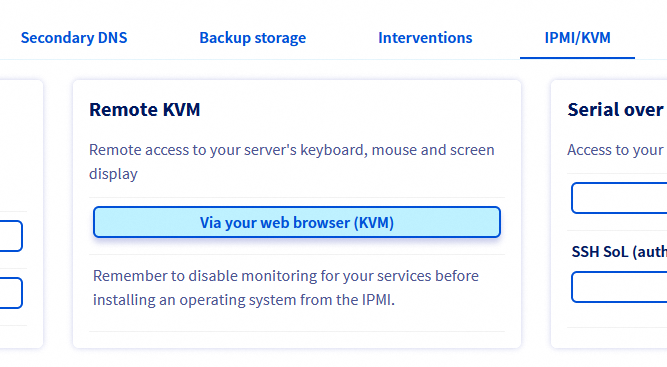
From the IPMI/KMV tab, start a Remote KVM session:
2 - Enabling SGX
Then, from the KVM, initiate a server reboot and enter the BIOS (usually by pressing the DEL or F2 key).
In the BIOS, go to the Advanced > Processor Configuration section.
Enable the TME and SGX options and configure the desired PRMRR size:
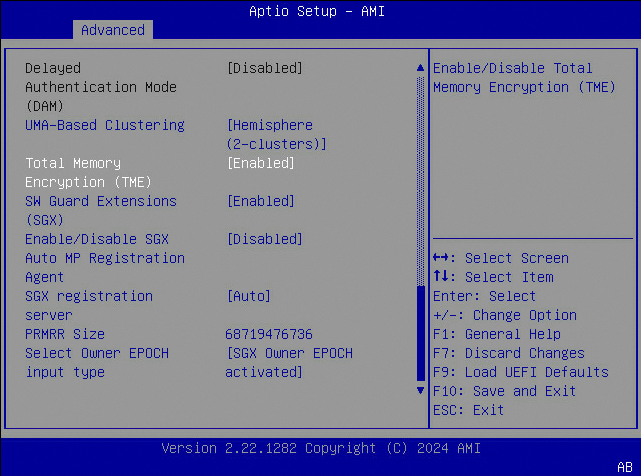
Save the changes by pressing the F10 key. A confirmation window will appear, please confirm with the Yes option.
Your server will then reboot into your operating system.
Installing the SGX software stack
Use the following commands to install the Intel SDK in order to develop and run SGX applications.
First, install some dependencies:
Next, download the source code and prepare the submodules and prebuilt binaries:
Build and install the SGX SDK:
Test the sample application in simulation mode
To build and run the LocalAttestation sample code in simulation mode:
Build and install the Intel SGX PSW
The Intel SGX Platform Software (PSW) provides software libraries to run SGX applications in hardware mode. To create the local Debian repository that hosts the packages, run the following commands:
Create the following file to add the local Debian package repository to the repository configuration system:
Then, install the following packages:
Test the sample application in hardware mode (optional)
To build and run the LocalAttestation sample code in hardware mode:
Go further
To go further (develop your own application, register for remote attestation, etc.), here are some useful resources:


 How to configure user accounts and root access on a server
 127
127