

Phishing - How to recognise fraudulent emails
2016 Views
 03.03.2026
  Account Information
Objective
Phishing is a fraudulent technique designed to deceive Internet users into providing personal data (access accounts, passwords, etc.) and/or banking details by pretending to be a trusted third party or site.
In practice, this is often done by sending an email asking you to click on a link. This link will redirect you to a form that fraudulently uses the colours of a brand and asks you to enter your personal details.
This guide explains how to recognise a phishing email, and what to do if you click on a fraudulent link.
Instructions
I have received an email or SMS message in the name of OVHcloud, how do I know if it is legitimate?
Identifying a phishing email
First, check whether the email you received is also visible on the My messages page. You will find copies of all official emails sent by OVHcloud there.
Here are some tips to visually distinguish a genuine OVHcloud email from a phishing attempt.
Click on the image to enlarge it. Find the details and explanations in the table below.
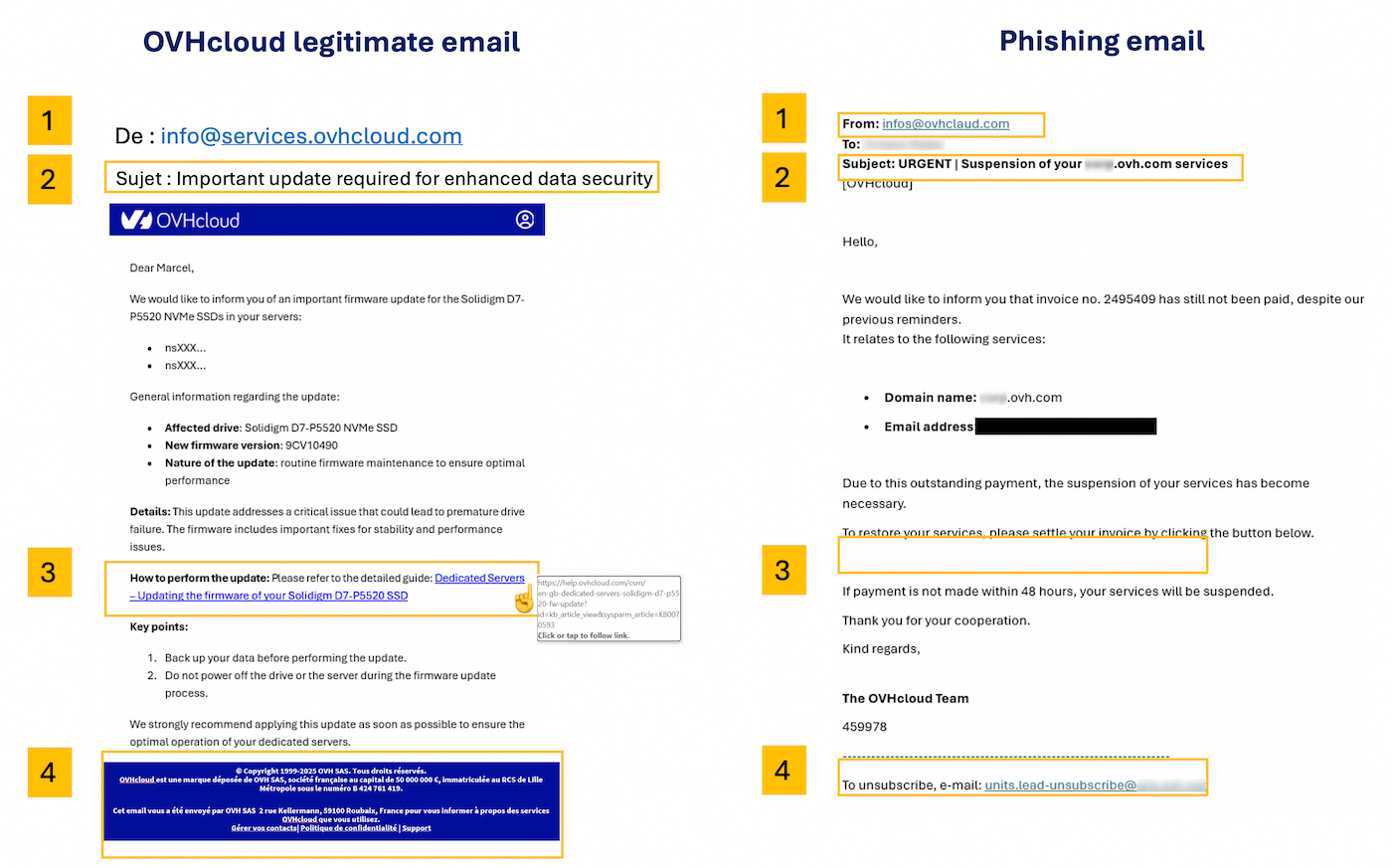
The numbers in the table correspond to those visible in the image above.
| Number - Description | Legitimate OVHcloud email | Fraudulent phishing email |
|---|---|---|
| 1 - Sender | Check that the email is sent from an address ending with a domain name (or sub-domain, for example events.ovhcloud.com) belonging to OVHcloud (see the list below) | The email sender is very likely to be an address that does not come from OVHcloud. |
| 2 - Subject | Check that your OVHcloud account ID (NIC Handle) (which usually starts with the initials of the person who created the OVHcloud account) and/or your account email address appear in the subject line of the message. | Very often, the email will be marked as [SPAM] and your NIC Handle will not appear or will be incorrect. |
| 3 - Link | Without clicking on it, hover your mouse over the link or button and you will directly see its destination (just below or at the bottom of your browser). In our example, the link correctly points to an address at https://www.ovh.com/. When you click a link, always check the address in the browser. OVHcloud uses a set of recognisable domain names, usually ovhcloud.com or ovh.com (see the lists below for legitimate domains and tips to verify suspicious links). | In a phishing email, the link will not be from an official OVHcloud page. Do not click it. |
| 4 - Email header and footer | OVHcloud sends emails in both TXT and HTML formats. The header will contain the OVHcloud logo, and the footer will contain legal information related to OVHcloud | The header or footer may contain links that have nothing to do with OVHcloud. Do not click on these links. |
List of legitimate OVHcloud domain names (click to display)
- ovhcloud.com
- ovh.com
- ovh.fr
- services.ovhcloud.com
- news.ovhcloud.com
- clientmanager.fr
- kimsufi.com
- soyoustart.com
- ovh.ca
- ovh.com.au
- ovh.co.uk
- ovh.ie
- ovh.de
- ovh.es
- ovh.it
- ovh.lt
- ovh-hosting.fi
- ovh.net
- ovh.nl
- ovh.pl
- ovh.pt
- ovh.sn
- ovh.us
- robot.ovh.net
Emails may also be sent from genuine sub-domains such as:
- events.ovhcloud.com
- news.soyoustart.com
- services.kimsufi.com
Tips to verify a suspicious link (click to display)
Read the URL from right to left
The real domain name is the part just before the first single / in the address. Phishing URLs often stack words before the domain to make it look legitimate:
https://www.ovhcloud.com/account/login— the real domain is ovhcloud.com ✓https://ovhcloud.com.login-secure.xyz/account— the real domain is login-secure.xyz ✗
To find the real domain, look at the address bar and read from the first / backwards — the last two parts before that slash are the actual domain.
Watch out for lookalike characters
Attackers sometimes swap letters with visually similar ones to create convincing fake addresses:
ovhcIoud.com(capital I instead of lowercase L)0vhcloud.com(zero instead of the letter O)ovhclould.com(extra letter added)
If something looks slightly off, do not click. Instead, type ovhcloud.com manually in your browser.
URL shorteners are a red flag
Short links such as bit.ly/xxx, tinyurl.com/xxx or t.co/xxx hide the real destination. OVHcloud never uses URL shorteners in official emails.
On mobile: long-press instead of hovering
On a phone or tablet, you cannot hover over a link. Instead, long-press (press and hold) the link without lifting your finger. A preview of the full URL will appear. If the domain is unfamiliar, do not open it.
When in doubt, go directly to the website
The safest reflex: never click a link in an email to access your account. Instead, open your browser and type www.ovhcloud.com yourself, then log in from there. If OVHcloud genuinely requires action from you, you will see the notification in your Control Panel.
Identifying a phishing SMS
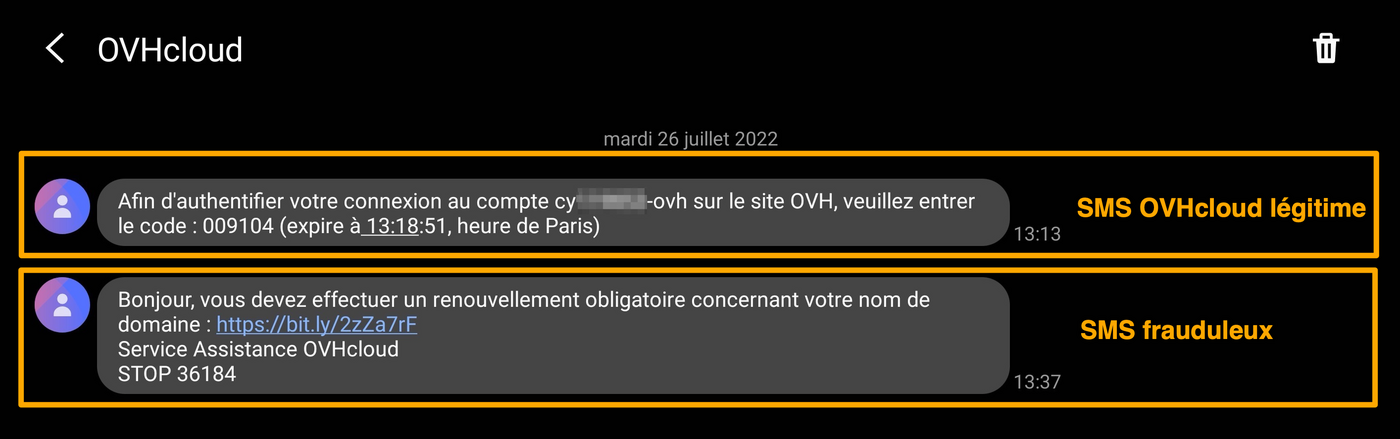
OVHcloud will never send you a link via SMS. The SMS messages we send are usually related to two-factor authentication in your OVHcloud Control Panel.
Below are 2 examples of SMS messages, the first one is legitimate and corresponds to two-factor authentication. The second SMS is fraudulent.
How to report a phishing email?
After performing the checks outlined above, if you are certain that you have received a phishing email impersonating OVHcloud, you can report it by saving the email as a file (.eml or .msg) and sending it as an attachment in a new message to fraude@ovh.com.
These file formats preserve the hidden technical information (called "headers") that our teams need to trace the source of the fraud and take action against it.
Do not forward the phishing email directly. Forwarding it means your own mailbox sends out the fraudulent content, which may cause your email address to be flagged as spam. Instead, save the email as a file and attach it to a new message.
How to save an email as a file:
Click on the heading that matches the email application you use.
Email software (desktop)
Outlook for Windows
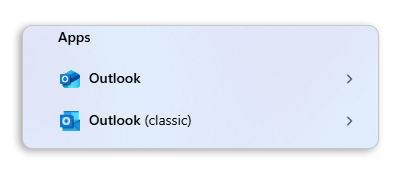
There are two versions of Outlook for Windows: classic Outlook and new Outlook. To distinguish between the two, type "Outlook" in the Windows search bar. The classic version displays the mention "(classic)", while the new Outlook has no special mention.
Classic Outlook:
- Select the phishing email in your inbox (do not open it).
- Click
Filein the menu bar, thenSave As. - In the "Save as type" dropdown, select Outlook Message Format - Unicode (.msg).
- Choose a location on your computer (e.g. your Desktop) and click
Save.
You can also drag and drop the email from your inbox directly onto your Desktop. This will create a .msg file that you can attach to your report.
New Outlook:
- In the message list, right-click the phishing email.
- Select
Save as, then chooseSave as EML. - Choose a location on your computer and click
Save.
Thunderbird
- Right-click the phishing email in your inbox.
- Select
Save As. - The email will be saved as a
.emlfile. Choose a location on your computer and clickSave.
Apple Mail (macOS)
- Select the phishing email in your inbox.
- In the menu bar, click
File>Save As. - Choose the Raw Message Source format, select a location on your computer and click
Save.
Webmail (browser)
OWA - Outlook Web Application
- Open the phishing email.
- Click the three horizontal dots (⋯) in the top-right corner of the email.
- Select
View>View message source. - Select all the text (
Ctrl+AorCmd+A), copy it (Ctrl+CorCmd+C), paste it into a plain text editor (e.g. Notepad or TextEdit), and save the file with the extension.eml.
Roundcube (OVHcloud Webmail)
- Select the phishing email in your inbox.
- Click
More(or the ⋮ icon) in the toolbar. - Select
Download (.eml). - The file will be saved to your Downloads folder.
Zimbra (OVHcloud Webmail)
- Select the phishing email in your inbox.
- Click
Morein the toolbar. - Select
Show Original. The raw content of the email will open in a new browser tab. - In this new tab, use
Ctrl+S(orCmd+Son macOS) to save the page. Save the file with the extension.eml(if your browser suggests.txt, rename the file after saving).
Gmail
- Open the phishing email.
- Click the three vertical dots (⋮) in the top-right corner of the email.
- Select
Download message. - A
.emlfile will be saved to your Downloads folder.
Once you have saved the file, create a new email to fraude@ovh.com and attach it.
Please note that the information you provide may be shared with third parties to help us combat these threats.
I have entered my personal information: what should I do?
Click on the headings below to view the instructions.
If you have entered your credit card number on a fraudulent website
The only thing you can do is contact your bank as soon as possible, to have your card blocked. Tell them the date and (if possible) the time at which you entered your credit card number.
Only your bank can cancel fraudulent transactions that may have been made without your knowledge.
If you have entered your OVHcloud password on a fraudulent website
Open the Account security page and change your password.
In our guide Changing your account password, you will find instructions for changing your password via the OVHcloud Control Panel, as well as our recommendations for generating a strong password, and saving it in a password manager.
We strongly advise you to enable two-factor authentication to permanently secure your account.
To ensure that your data is secure, your password must meet the criteria listed below:
- It must contain at least 12 characters.
- It must contain at least 1 upper-case letter, 1 lower-case letter and 1 number.
- It must contain special characters (e.g.
%,#,:,$,*). - It must not contain a dictionary word.
- It must not contain any personal information (e.g. your first name, surname or date of birth).
- It must not be used as a password by any other user accounts.
- It must be stored in a password manager.
- It must be changed every three months.
- It must not be identical to any previously used passwords.
Go further
Setting and managing an account password
Secure your OVHcloud account with two-factor authentication
Secure your OVHcloud account and manage your personal information
Join our community of users.


 Securing your OVHcloud account with two-factor authentication
 106
106