

Troubleshooting recurring errors when using FTP software
655 Views
 31.03.2026
  Web / Web Hosting
Objective
Using FTP software when logging in to your Web Hosting plan can cause various anomalies. This guide will help you resolve the most common ones.
Find out how to resolve the most common FTP software related issues.
OVHcloud is providing you with services for which you are responsible, with regard to their configuration and management. You are therefore responsible for ensuring they function correctly.
This guide is designed to assist you in common tasks as much as possible. Nevertheless, we recommend that you contact a specialist service provider and/or discuss the issue with our community on if you have difficulties or doubts. You can find more information in the Go further section of this guide.
Requirements
- An OVHcloud Web Hosting plan
OVHcloud Control Panel Access
- Direct link: Hosting plans
- Navigation path:
Web Cloud>Hosting plans> Select your web hosting plan
Instructions
"This server does not support FTP on TLS" (FileZilla)
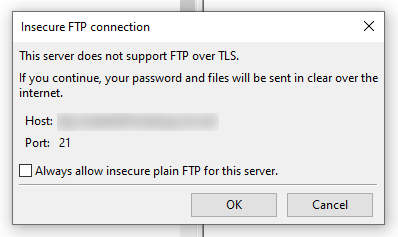
This message coming from FileZilla indicates that you have not enabled the SFTP or SSH option from your OVHcloud Control Panel. As a result, the information exchanged between your OVHcloud hosting server and your computer will not be encrypted.
If the data you want to exchange via this link is not confidential, click OK.
Otherwise, enable the SFTP protocol by following our guide "Web Hosting - How to enable SFTP access".
For any other error messages, see the Troubleshooting section of our Web Hosting guides.
I transferred my files with FTP software, but my website does not appear.
First of all, check that your website’s files and folders are in the root folder of your Web Hosting plan.
If you have made a change to your DNS servers or DNS zone less than 48 hours ago, please wait and reboot your devices regularly to clear their cache.
My FTP credentials are not working.
If you are unable to log in, change your FTP password as described in this guide.
I encounter random errors on my website.
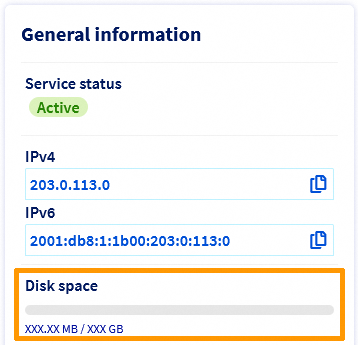
A lack of file storage capacity on your Web Hosting plan may cause your site to malfunction when you try to modify or update it.
To check the remaining storage space on your hosting, click on the tabs below to view each of the 2 steps.
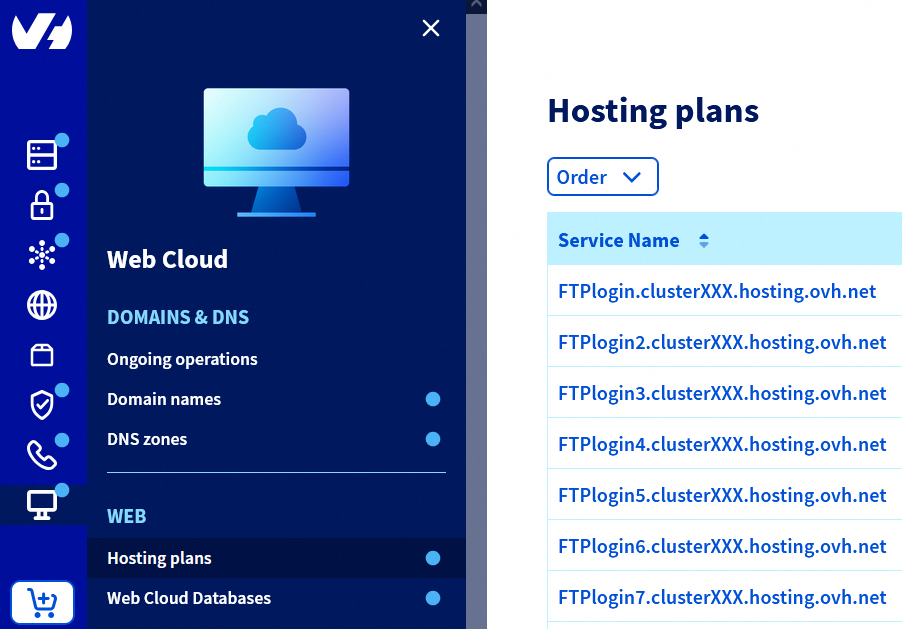
Go to the Hosting plans page, then select the web hosting plan concerned.
You can find the storage space utilization of your hosting in the General information box, under Disk space.
I can't transfer my files to the FTP server.
Check that your FTP software is connected in "Passive mode" (Configuration mode of an FTP server in which the server determines the connection port).
For example, for Filezilla, click on Edit, then on Settings and open the Connection settings. Click on FTP and then choose Passive (recommended).
Also limit the size of your data transfers (you cannot send more than 5000 files and folders on OVHcloud shared servers on a single transfer). Split your imports if necessary and use compressed folders.
If you have a Pro or Performance Web Hosting plan, use the SSH protocol to import files on to your file storage space.
I can't delete the symbolic link "index.html" on my FTP space.
This link is installed by default on OVHcloud Web Hosting plans. It displays this image on your web browser:
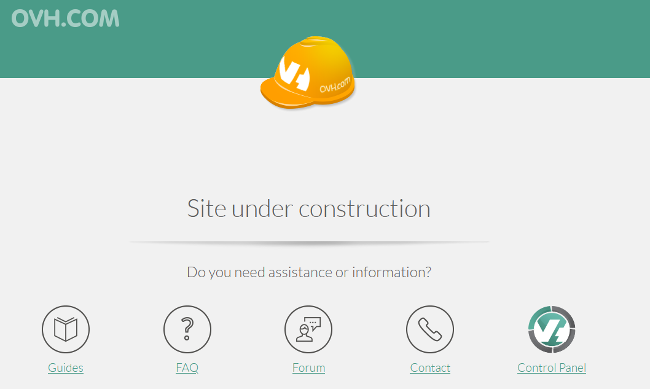
If you have not used the 1-click module feature to create your website, you will need to log in to the FTP storage space on your web hosting plan in order to delete the “Website under construction” page manually.
Go further
Using FileZilla software with your hosting
For specialised services (SEO, development, etc.), contact your OVHcloud partners.
If you would like assistance using and configuring your OVHcloud solutions, please refer to our support offers.
Join our community of users.


 Resolving a “Site not installed” error
 7775
7775