

Public VCF as-a-Service - Backups with Veeam Data Platform
614 Views
 24.02.2025
  Cloud / Hosted Private Cloud
Objective
This guide will show you how to back up and restore with the Veeam Plug-in for VMware vCloud Director managed on OVHcloud.
Requirements
- An administrator vCloud Director account with a Public VCF as-a-Service Organization.
- A user with the Organization Administrator role to connect to the Veeam Data Platform Self-Service Portal (the new admin user in a virtual datacentre has the default role).
- You need to have read the Public VCF as-a-Service guides:
- You must be familiar with how Veeam Backup works.
- An understanding of the financial impact following the various load factors that apply when setting up this solution with Public VCF as-a-Service (see the pricing grid for Veeam Managed Backup).
Instructions
Veeam Data Platform supports Public VCF as-a-Service. It uses the Public VCF as-a-Service API to back up the vApps and VMs and restore them directly in the Public VCF as-a-Service hierarchy.
The Veeam Data Platform service is available and ready to use for all 3 OVHcloud solutions (see the features catalog).
For the image processing and guest file system indexing options (compatible with the Veeam application) to work with Windows® virtual machines, the latest VMware tools must be installed. Linux VMs do not support application recognition or guest file system indexing.
If you are using application-aware image processing for MS SQL or Oracle database backups, application-aware and item recovery options will not be supported. A full restore of the virtual machine must be performed, this implies a downtime window for all database users. You cannot manually restart an immutable backup failure. You must run an active full backup or wait for the next scheduled backup to run (see Veeam documentation for more information).
Step 1 - Backup with Veeam Data Platform
The Veeam Data Platform service has a Public VCF as-a-Service plugin to back up VMs and vApps from any Virtual Data Center (VDC) in the organization. It is available at the organization level for any Public VCF as-a-Service user with the organization administrator role.
Access the Veeam Data Platform administration console
When using Public VCF as-a-Service Data Protection integration with Veeam to create backup jobs, you can choose any VM instance from any virtual datacentre in the organization.
To access the Data Protection Portal with Veeam from Cloud Director, log in to the Public VCF as-a-Service Client Portal with a vCloud Director account with the appropriate rights.
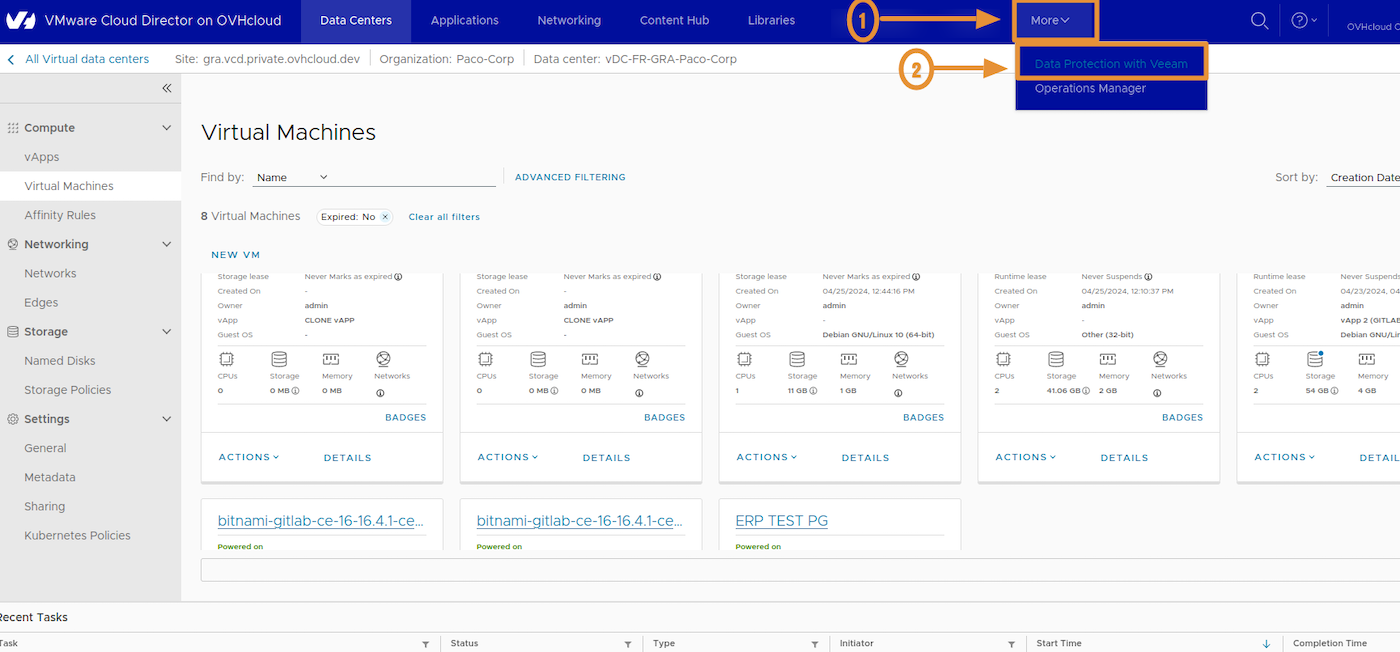
In the menu of the top center bar, click More and select Data Protection with Veeam.
The Veeam Public VCF as-a-Service Plugin window will open with a grey/black headband.
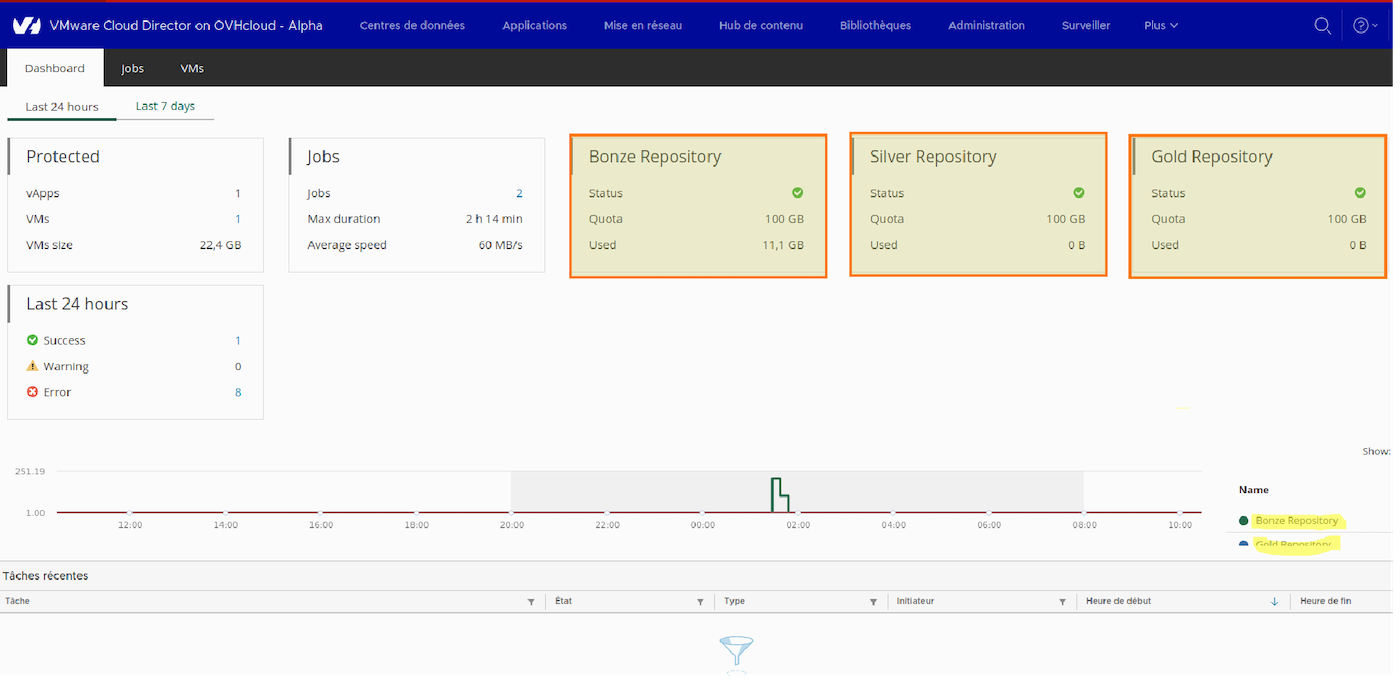
Repository
By default, you have the following repositories:
- Bronze Repository: This repository is based on the OVHcloud Object Storage Standard class. We will be using a bucket closer to your Public VCF as-a-Service environment.
- Silver Repository: This repository is based on the OVHcloud Object Storage Standard class. We will be using a Veeam SOBR (Scale-out Backup Repository) with performance tier buckets closer to your Public VCF as-a-Service environment, and a capacity tier from buckets in another OVHcloud region. We also use the Veeam SOBR copy mode to add the backups from the "performance extents" to the "capacity extents" as soon as they're created.
- Gold Repository: This repository is based on the OVHcloud Object Storage High performance class. This repository includes the previous options + OVHcloud Object Storage "High performance".
From the OVHcloud Control Panel, you can activate the Gold Repository.
All these repositories have a storage quota of 100 TB. You can reach out to the support teams to increase this quota.
Here is an example of the primary and destination sites used for Veeam Public VCF as-a-Service copying of offsite backups (for the Advanced/Premium offers):
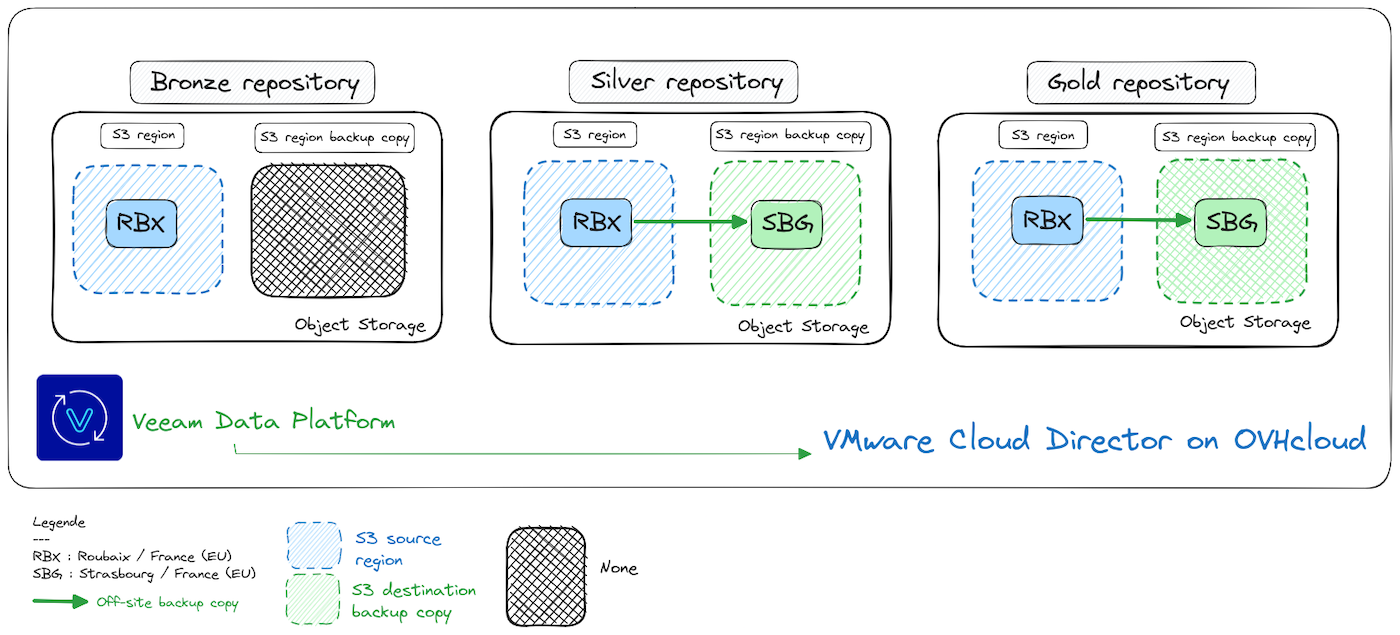
Bronze Repository: Roubaix (Europe)Silver Repository: Roubaix -> Strasbourg (Europe)Gold Repository: Roubaix -> Strasbourg (Europe)
No offsite backup is performed for the default configuration of the Bronze repository configuration.
The rest of the mapping for the backup zones is detailed here:
| Repository | Source | Destination |
|---|---|---|
| Bronze | Roubaix (fr) | None |
| Bronze | Limburg (de) | None |
| Bronze | Warsaw (pl) | None |
| Bronze | Erith (uk) | None |
| Bronze | Strasbourg (fr) | None |
| Bronze | Beauharnois (ca) | None |
| Silver | Roubaix (fr) | Strasbourg (fr) |
| Silver | Limburg (de) | Strasbourg (fr) |
| Silver | Warsaw (pl) | Limburg (de) |
| Silver | Erith (uk) | Limburg (de) |
| Silver | Strasbourg (fr) | Roubaix (fr) |
| Silver | Beauharnois (ca) | Cambridge (ca) |
| Gold | Roubaix (fr) | Strasbourg (fr) |
| Gold | Limburg (de) | Strasbourg (fr) |
| Gold | Limburg (de) | Roubaix (fr) |
| Gold | Erith (uk) | Limburg (de) |
| Gold | Strasbourg (fr) | Roubaix (fr) |
| Gold | Beauharnois (ca) | Cambridge/Tor (ca) |
- Data included in backups:
When Veeam Backup & Replication performs backups of vApp and VMs, it also captures vApp metadata.
The metadata for virtual applications (vApp) and VMs includes:
- General information on the vApps (virtual applications) where the VMs reside, such as: Name of the vApps, descriptions, description of the VMs.
- Information on the vApp networks and the organizational networks to which the vApp is connected.
- The startup options of the VM (VM Startup options).
- User information.
- Lease.
- The quota.
- Storage templates.
The vApp/VM metadata is stored with the virtual machine content. Capturing vApp/VM metadata is important for recovery: without it, you will not be able to restore vApps and VMs to Public VCF as-a-Service.
- Backup jobs:
Backup jobs require 4 default settings:
- Job parameters: Name / Deposit or Quota (Bronze/Silver/Gold: 100GB) / Description / Retention (Days/Restore point)
- Virtual machines (VMs): Add or exclude virtual machines/vApp/vCloud Organization
- Guest Processing: Application-aware processing / Guest file system indexing / Guest operating system credentials
- Email notifications: Enabling email notifications
For virtual machines managed by Public VCF as-a-Service, Veeam Backup & Replication offers a special type of backup job: Public VCF as-a-Service backup jobs. Public VCF as-a-Service backup jobs process Public VCF as-a-Service objects, ensure their proper recovery, and support Cloud Director specific features.
- How do I create a backup job with the Veeam Data Platform?
You are about to create your first backup job using the Veeam Data Platform Public VCF as-a-Service plugin:
In the Veeam Public VCF as-a-Service console, click More and select Data Protection with Veeam
Click Jobs then Create.
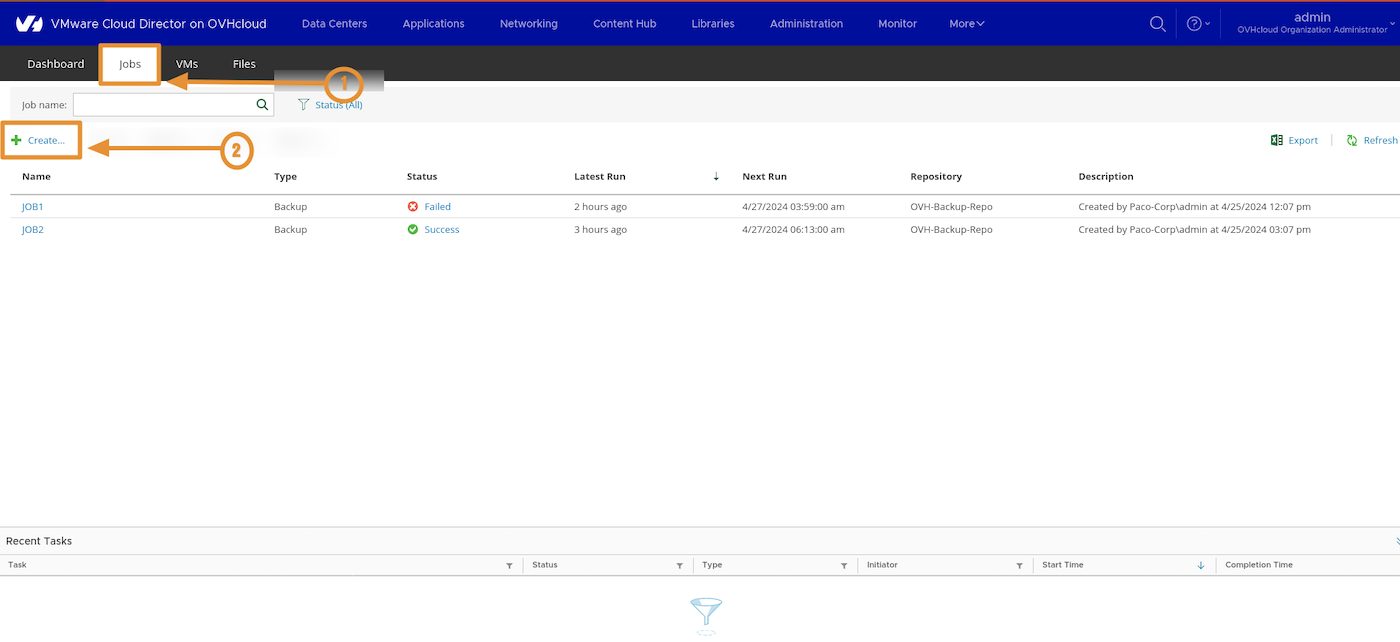
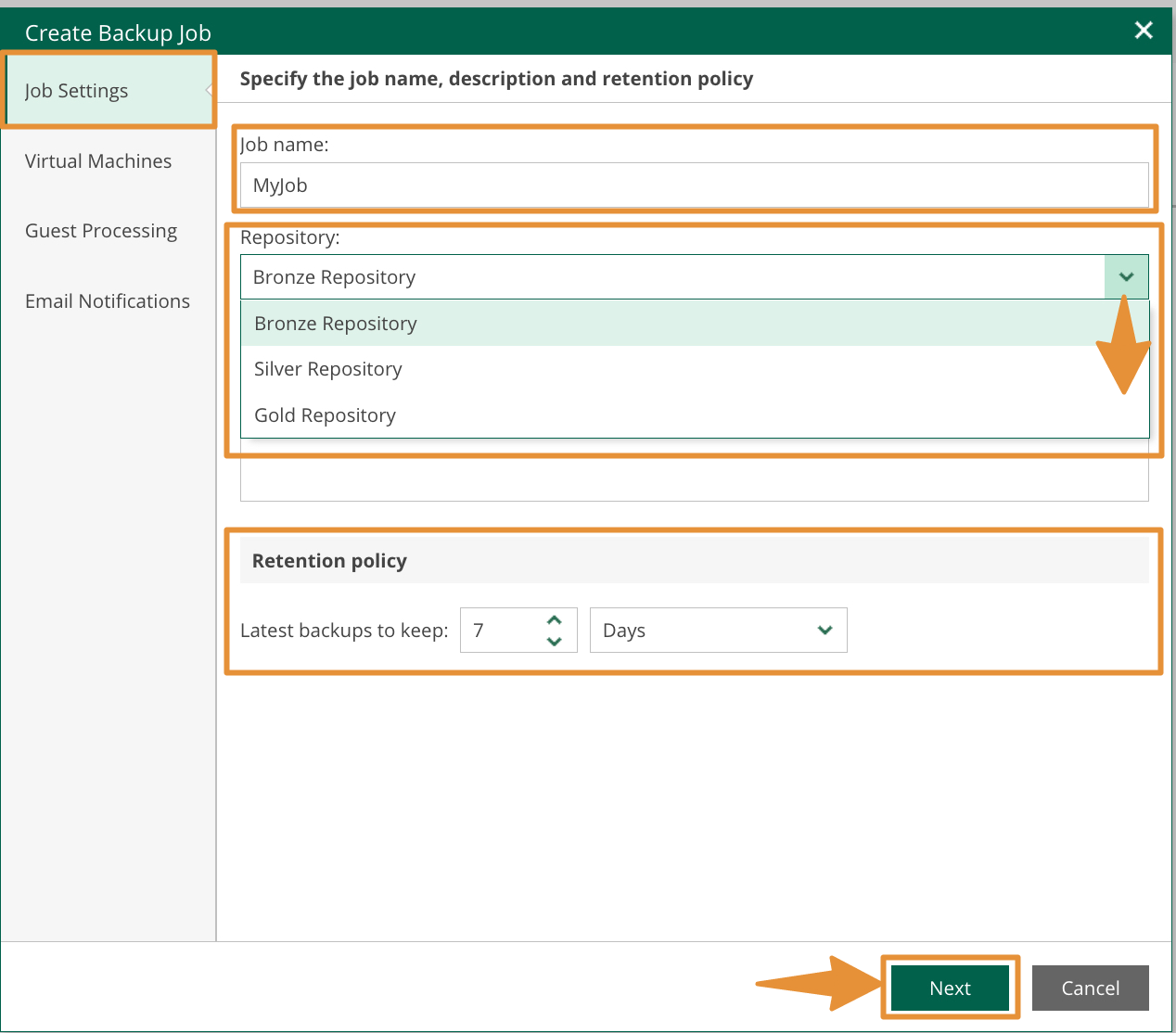
In the window that opens, specify the backup job name, description, and retention policy. Once you have defined the elements (Job name, description, retention), click Next.
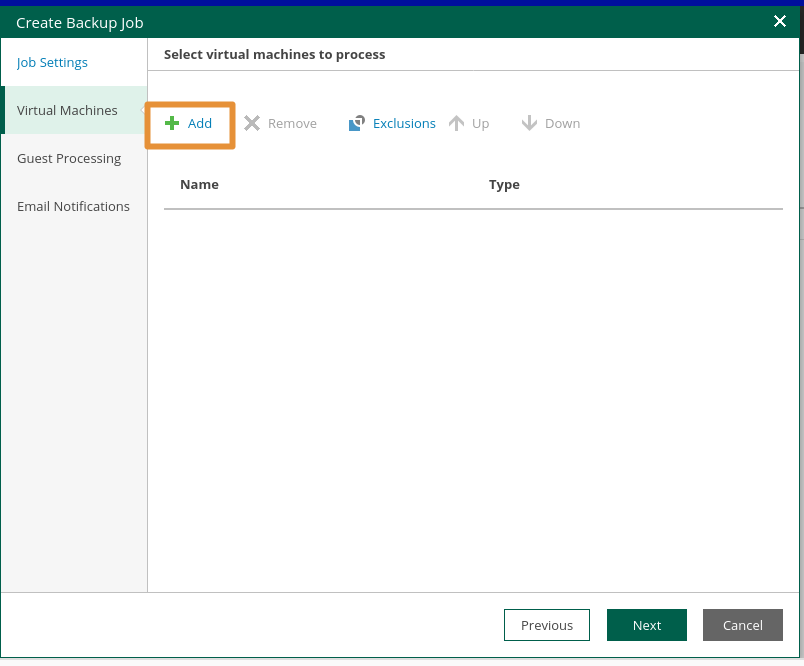
You then need to choose your virtual machine (VM). To do this, click Add.
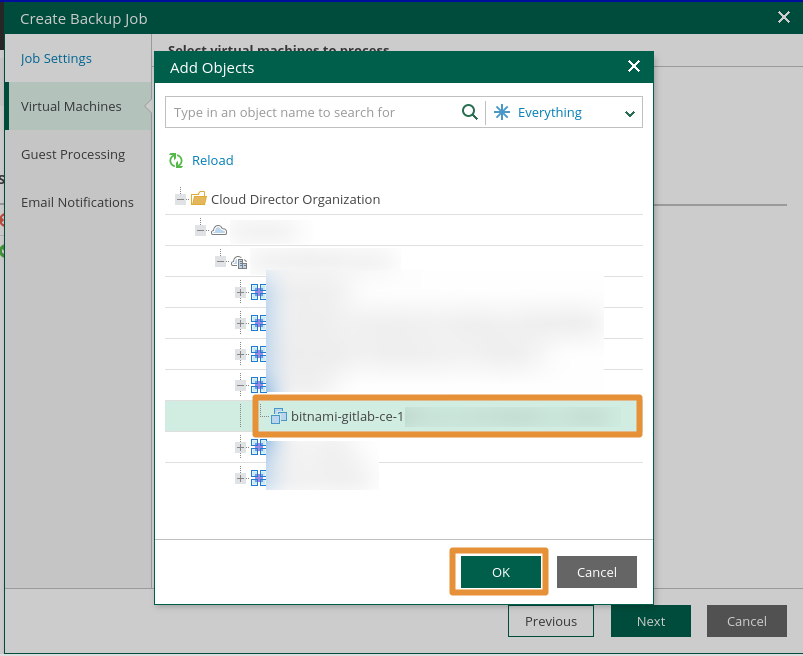
You can drill down into your Public VCF as-a-Service organization and select your VM.
Click Next.
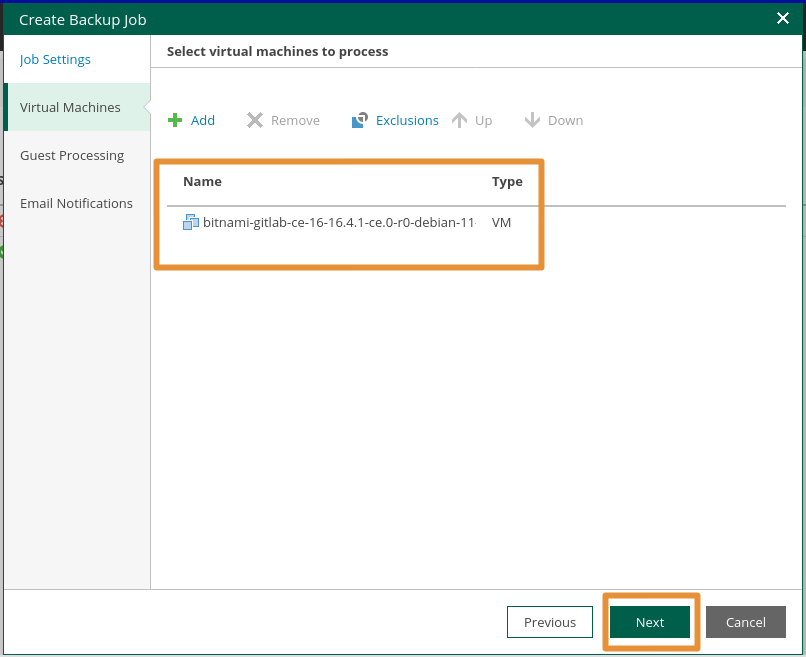
Your virtual machine will then appear in the list.
Click Next..
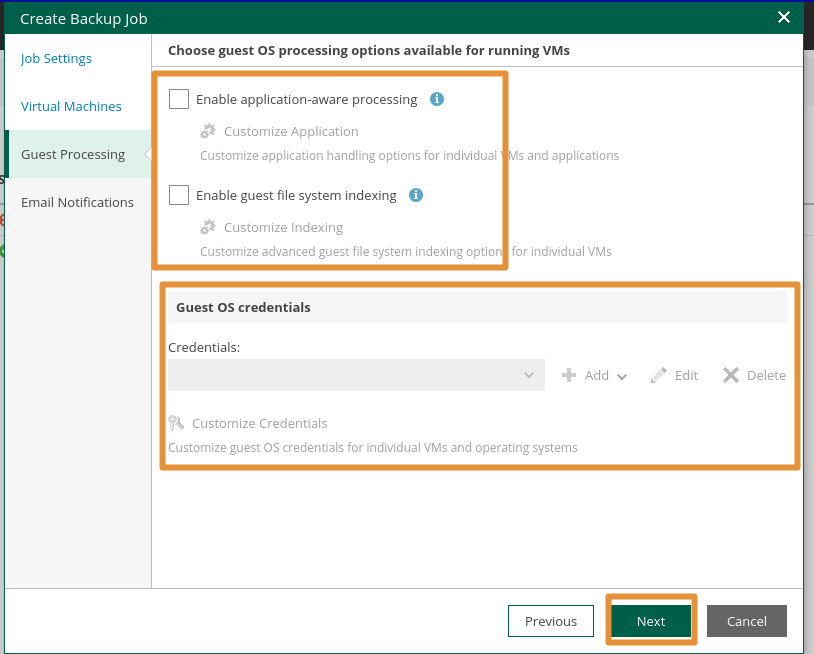
The next step is vital, as it involves adding the credentials required for your VM. If you use the "Guest OS processing" settings, you must add your backup user ID and password according to your OS type.
If you have SSH keys to add for Linux, you can do so.
For Windows you can choose a standard account or a managed service account.
Click Next.
If necessary, you can add monitoring options for your backup tasks. Finally, click Finish.
If you add multiple email addresses for monitoring, use a semicolon (;) as a separator between each address.
Example: email1@example.com; email2@example.com
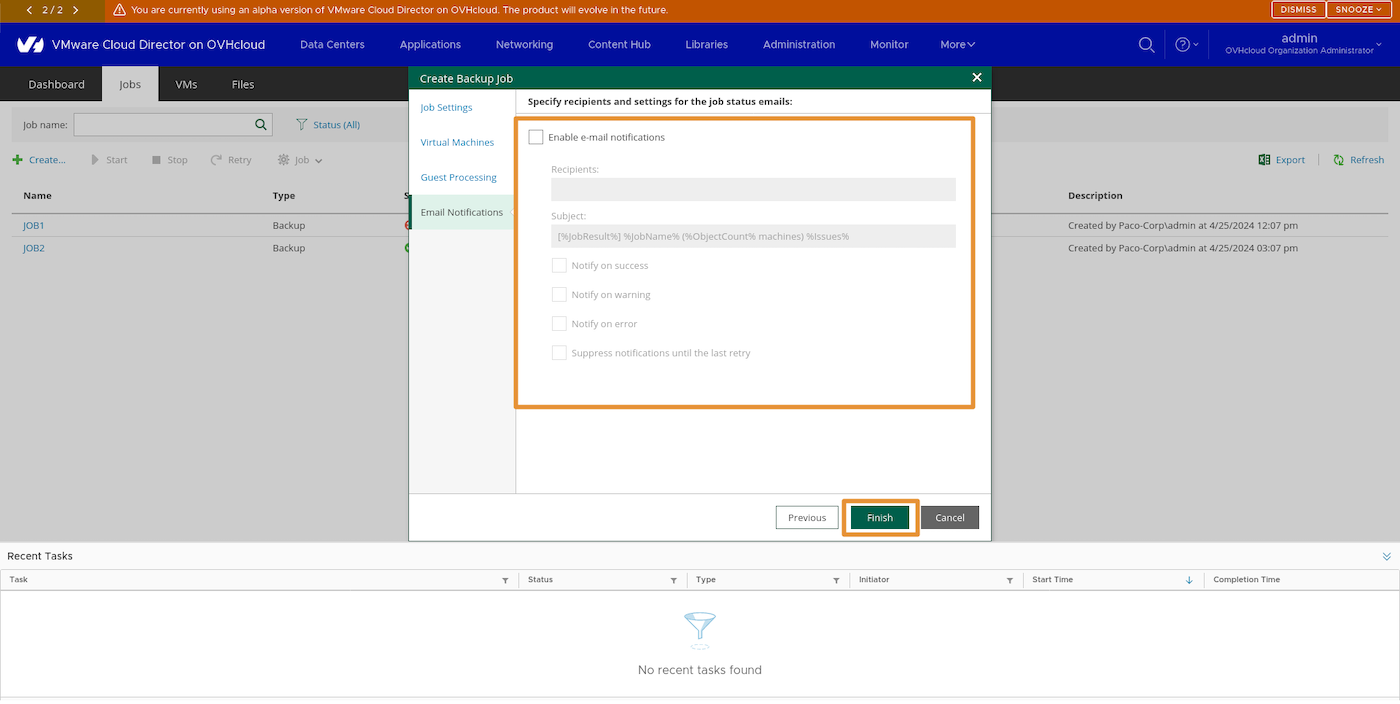
The backup job is listed.
VM backup
How do I back up a virtual machine with Veeam?
No agent is required for Veeam Data Platform backups to work from a virtual machine or vApp.
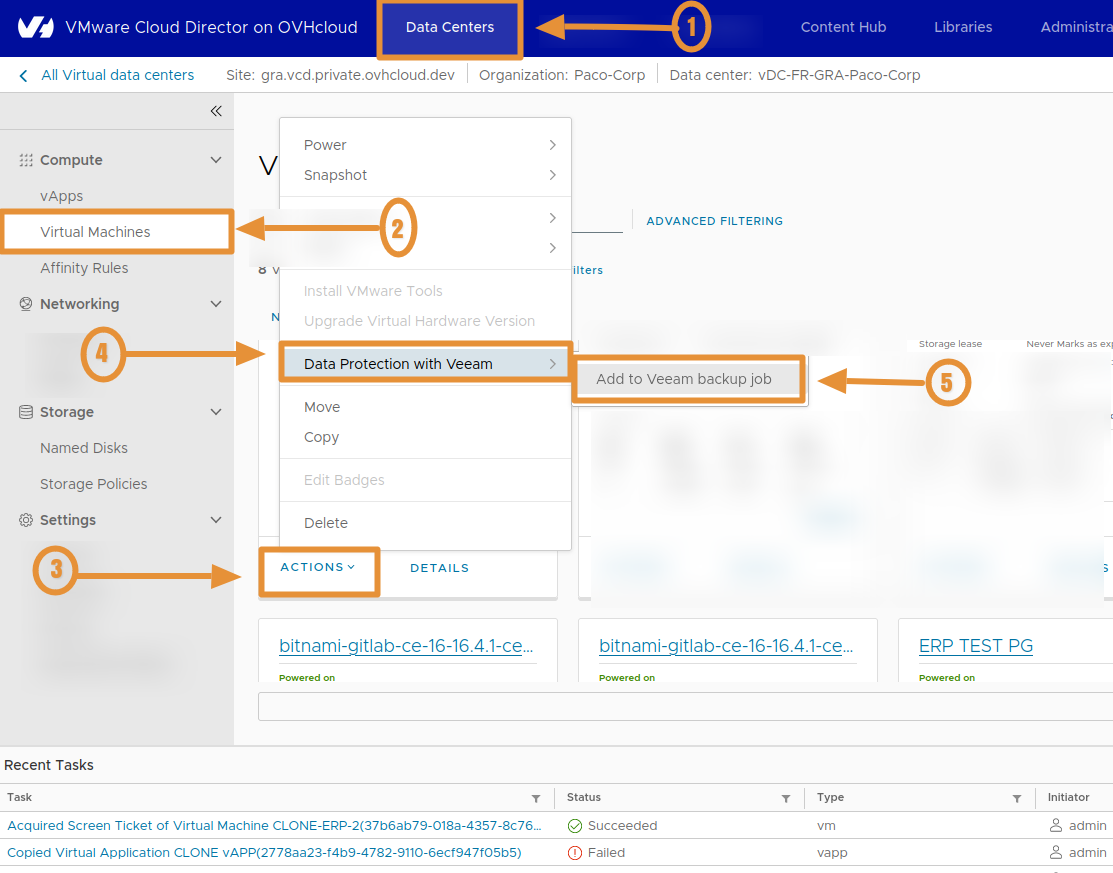
To add a backup job from a VM (... action -> ... Add a task to Veeam), it must be created beforehand.
In the Public VCF as-a-Service console, click Datacenter , then Virtual machines.
Choose a VM. Click Actions, then Data Protection with Veeam and finally Add a task to Veeam.
Step 2 - Restore with Veeam Data Platform
How do I restore a VM?
Veeam Backup has several restore features:
- Application Awareness
- The strategy per VM (Policies)
Data included in restores:
Veeam Backup & Replication enables full recovery of VMs to Public VCF as-a-Service. You can restore separate VMs to vApps, as well as VM data.
Restore options include:
- Full restore for vApps and VMs: Full restore for vApps and VMs
- Restoration of VM disks: VM files
- Restoration of VM files: VM disks
In this case, perform a Full (full/full) restore.
Restoration of a VM
Full restoration of a VM (virtual machine):
With the OVHcloud Managed Backup service, you can restore standard VMs that are part of vApps, and standalone VMs that have been created in your OVHcloud Public VCF as-a-Service portal.
When you restore normal or standalone VMs in the vCloud Director hierarchy, the restoration process includes the following steps:
- Veeam uses the captured vApp metadata to define the vApp settings and the original location of the virtual machine in the Public VCF as-a-Service hierarchy.
- Veeam restores the VMs in the backup file to their original location or to another location. In addition, Veeam restores all VM settings.
How do I restore a VM using the Veeam Data Platform Public VCF as-a-Service plugin?
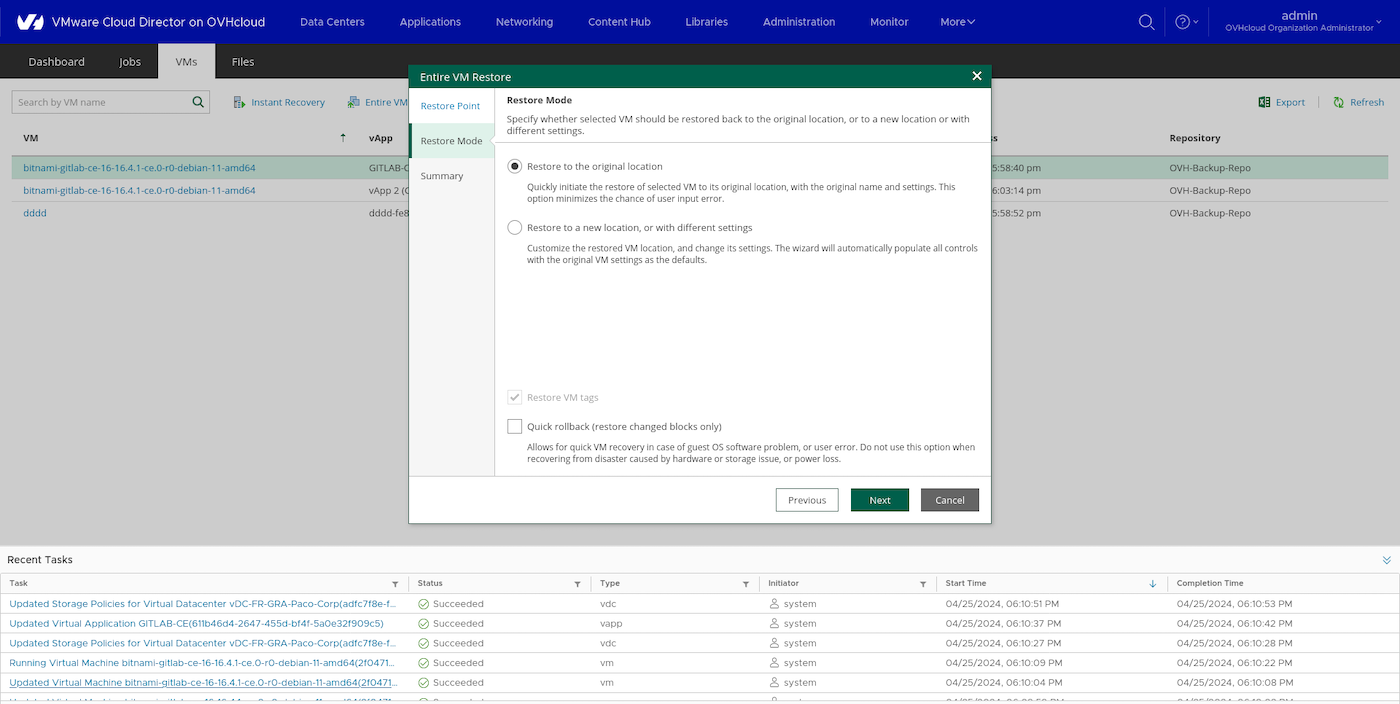
To perform a full restore, click Entire VM Restore
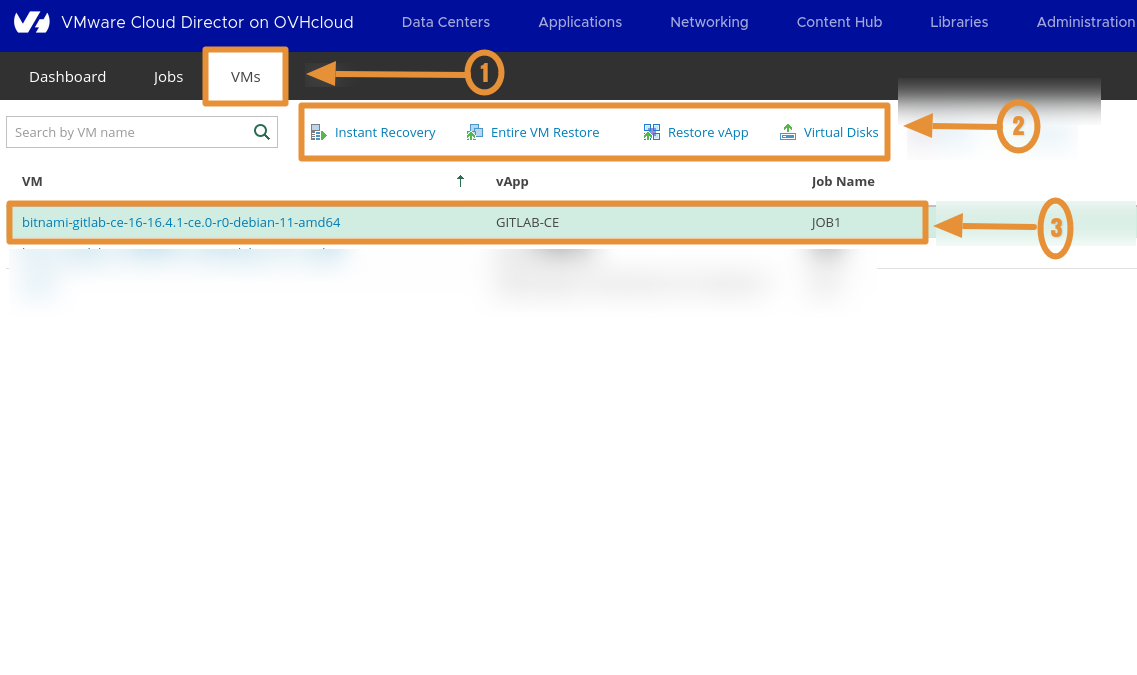
In the window that pops up, click Restore to the original location to restore a full VM.
Then click Next..
In the final step, click Finish. If you wish, you can also launch the VM by ticking the Power on VM automatically box.
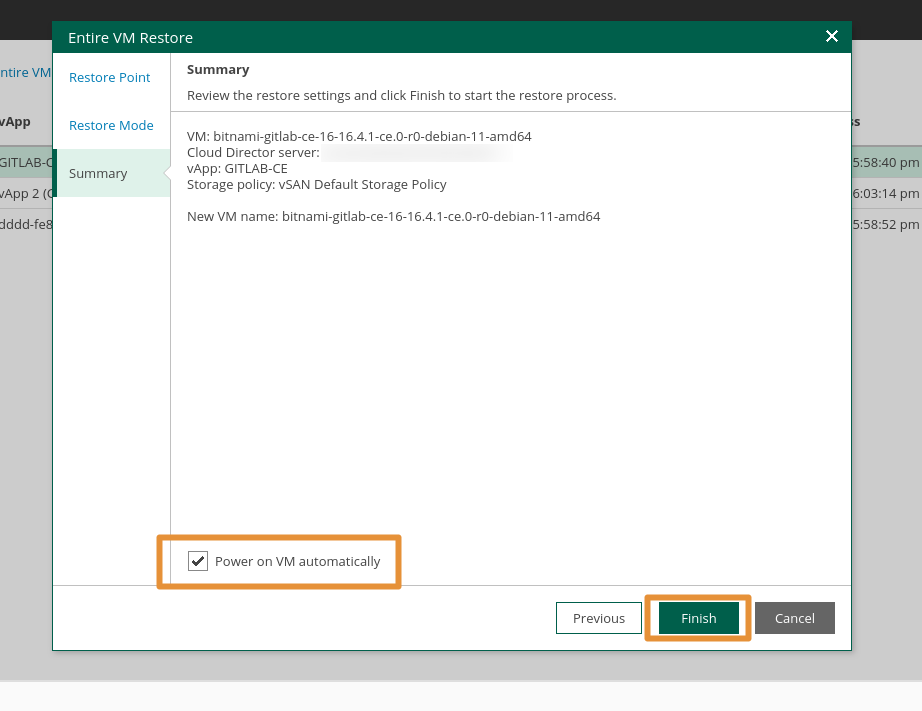
This process is simplified with Public VCF as-a-Service, Veeam and OVHcloud.
How do I restore a file using the Veeam Data Platform Public VCF as-a-Service plugin?
- File level restore: This option is not yet available.
Go further
If you need training or technical assistance to implement our solutions, contact your sales representative or click on this link to get a quote and ask our Professional Services experts for a custom analysis of your project.
Join our community of users.

