

VMware Update Manager
1142 Views
 09.12.2021
  Cloud / Hosted Private Cloud
Objective
VMware Update Manager allows you to keep your hosts up to date by installing Bug Fixes and Security Patches without intervention from our team.
vCenter updates or major updates will still require our involvement.
This guide will present the Update Manager functionalities
Requirements
- being an administrative contact of your Hosted Private Cloud infrastructure to receive login credentials.
- a user account with access to vSphere (created in the OVHcloud Control Panel)
Instructions
Maintenance Mode
Before working on a host, you'll need to put it in maintenance mode.
Indeed, patching often requires a restart of the host and would impact your live VMs.
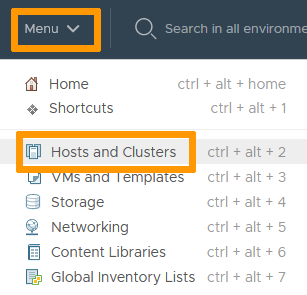
With that in mind, in the vSphere interface menu, go to the Hosts and Clusters dashboard.
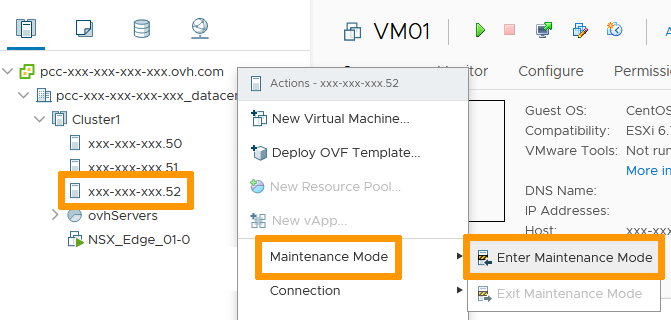
On the left side, find your host and right-click on it.
In the Maintenance Mode section, select Enter Maintenance Mode.
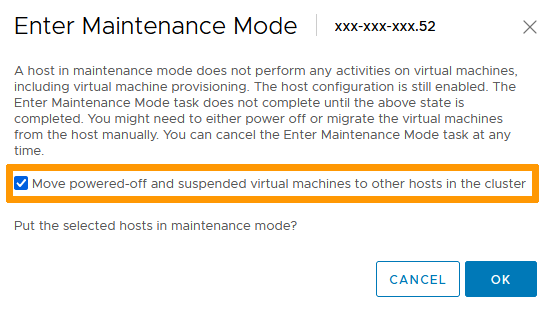
Make sure the box in the following window is checked and click OK.
Assuming DRS is implemented, any live VM will be moved.
If you customized your environment, you may have to manually move live VMs from your host before putting it in Maintenance Mode.
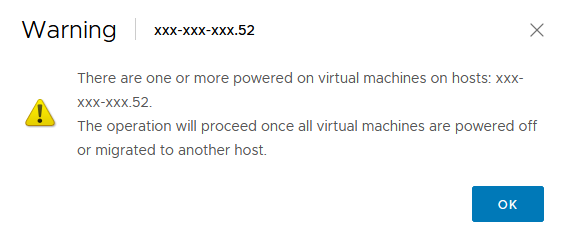
You may see the following warning:
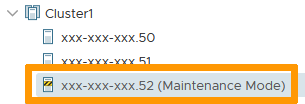
Your host is now showing in maintenance mode.
Update Manager
Select your host and go to the Update tab.
You can see a summary of what is set and its compliance.
Before trusting what is shown, let's set the baseline against which compliance will be checked.
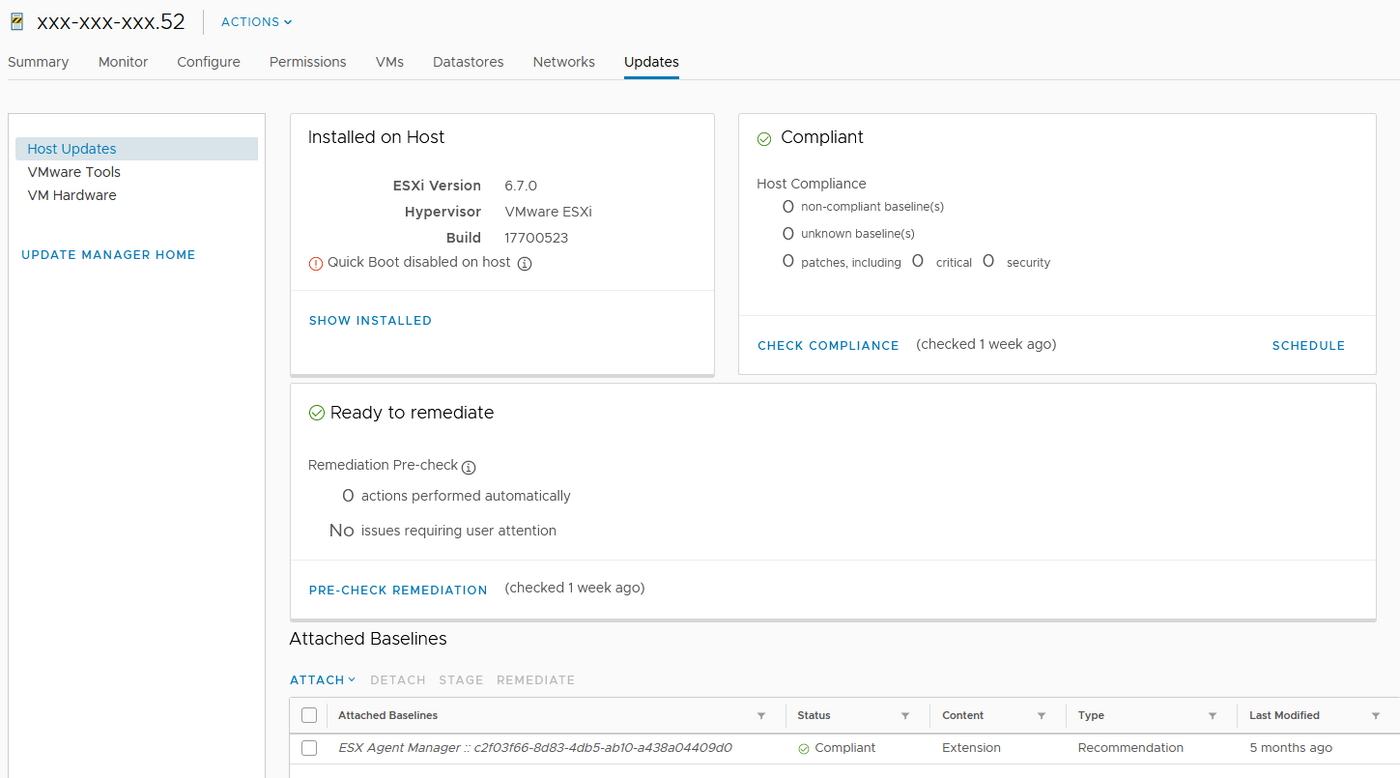
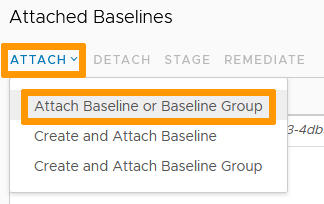
In the Attached Baselines section, click on Attach then Attach Baseline or Baseline Group.
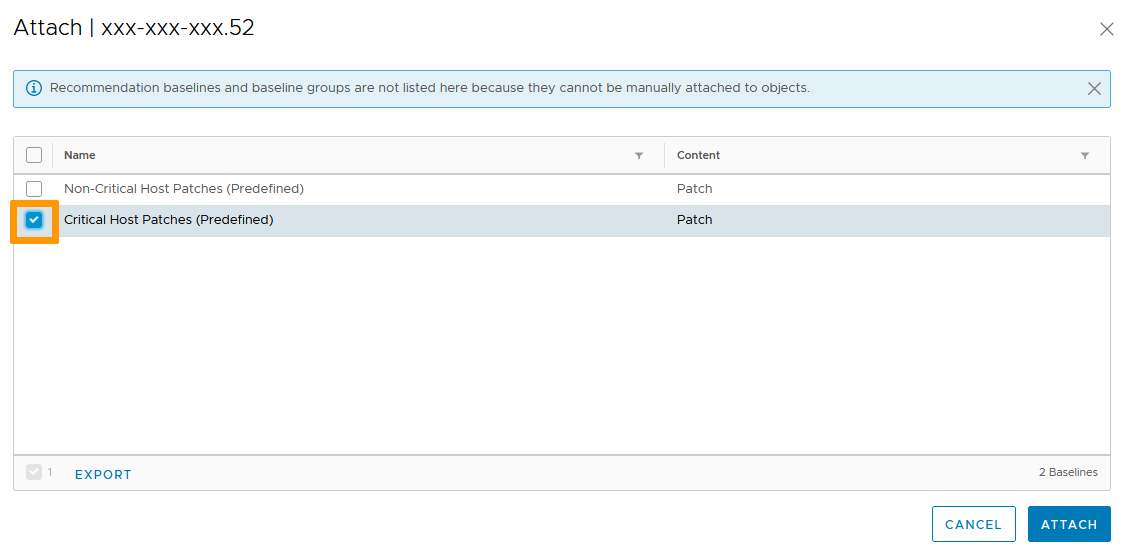
There are predefined Baselines which are the recommended patching level for your hosts depending on criticality of the updates.
We'll be using the Critical Patches in this example but you can either use or create your own baselines. You can also apply several baselines to cover different scopes for a same host.
Select the required baseline and click Attach.
Now, the compliance summary may look very different than it used to.
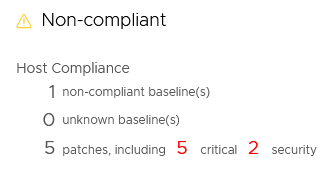
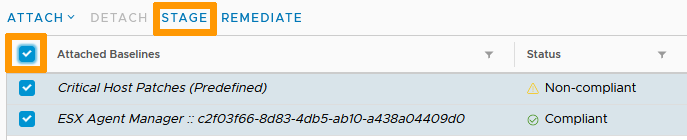
Back in the Attached Baselines section, check the box to select all assigned baselines and click on Stage.
Select the host and click on Stage again.
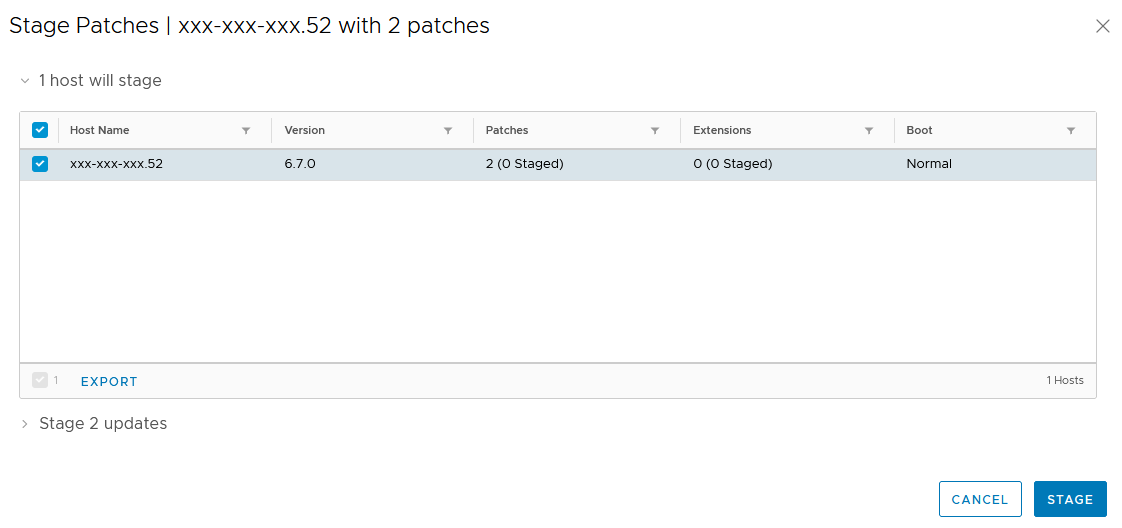
The staging process starts and will last for a while.

In the Attached Baselines section still, check the box to select all assigned baselines and click on Remediate.
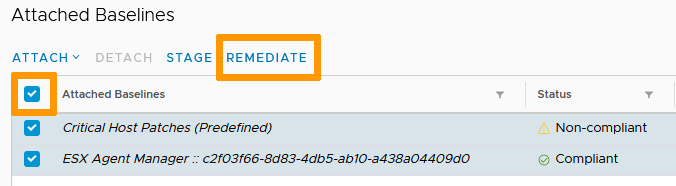
Select the host and click on Remediate again.
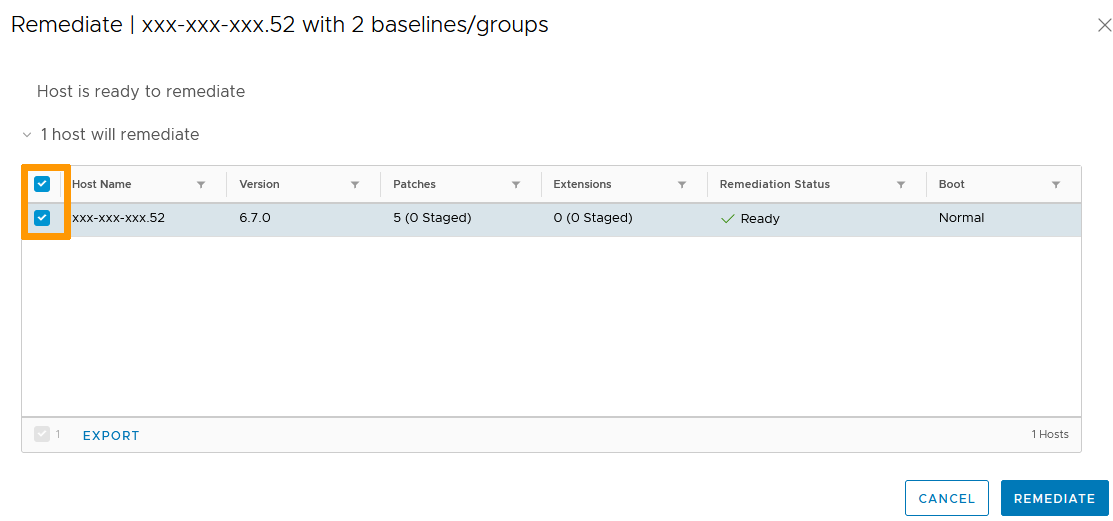
The updating process starts and will last for a while. Your host will restart if needed.

Once the process has gone through, the compliance check will happen again (you can force it by clicking on the check compliance link) and you will see a green checkmark on the Compliance level.
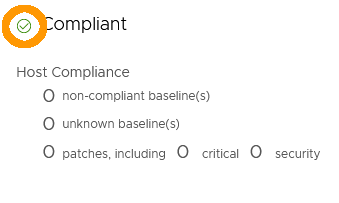
Your host is now fully up-to-date.
Don't forget to get it out of Maintenance Mode and it will be back in production.
Go further
Join our community of users on https://community.ovh.com/en/.


 VMware on OVHcloud maintenance operations
 379
379