

Load Balancing configuration in NSX
441 Views
 27.02.2023
  Cloud / Hosted Private Cloud
Objective
NSX allows load balancing on a level 4 (TCP or UDP) layer or level 7 (HTTP or HTTPS) layer.
Learn how to set up load balancing in NSX
OVHcloud provides services for which you are responsible, with regard to their configuration and management. It is therefore your responsibility to ensure that they work properly.
This guide is designed to assist you as much as possible with common tasks. However, we recommend contacting a specialist provider if you experience any difficulties or doubts when it comes to managing, using or setting up a service on a server.
Requirements
- Being an administrative contact of your Hosted Private Cloud infrastructure to receive login credentials.
- A user account with access to the OVHcloud Control Panel.
- Having NSX deployed with two segments configured in your NSX configuration, you can use this guide Segment management in NSX.
- Two virtual machines with NGINX enabled on one segment.
Instructions
We will :
- Enable Load Balancing on the gateway ovh-T1-gw.
- Create a server pool from two virtual machines that use a web server running on port 80.
- Add a virtual server in the Load Balancer configuration which contains our server pool.
- Set a NAT rule to redirect to the virtual server.
Creating the tag on both virtual machines.
To simplify the administration of the Load Balancer, we will use a tag on the two virtual machines in the future server pool.
In the NSX interface go to the Inventory tab and click on Virtual Machines on the left.
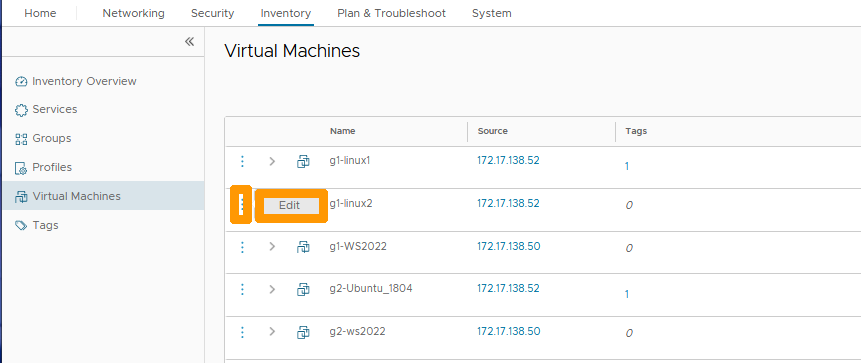
Then click on the three vertical dots to the left of the first virtual machine and choose Edit from the menu.
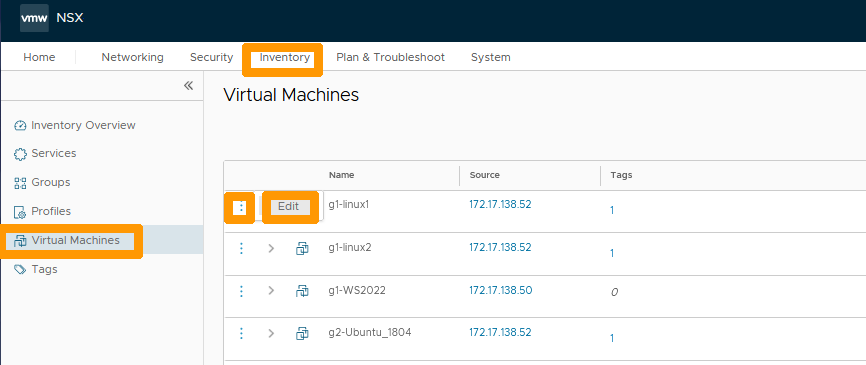
Replace Tag with loadbl, then click Add Item(s) loadbl below.
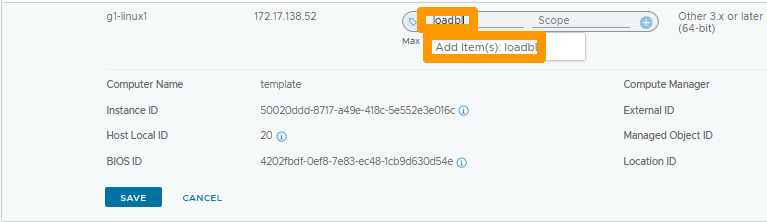
Change Scope to nginx, then click Add Item(s) nginx below.
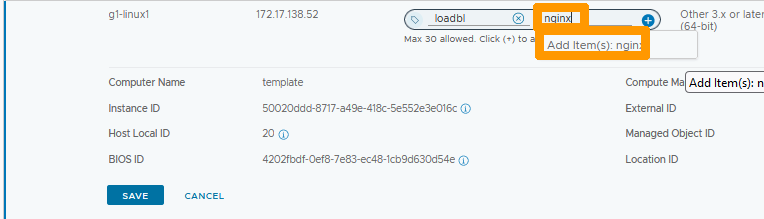
Click the + sign next to your tag to add it to your virtual machine.
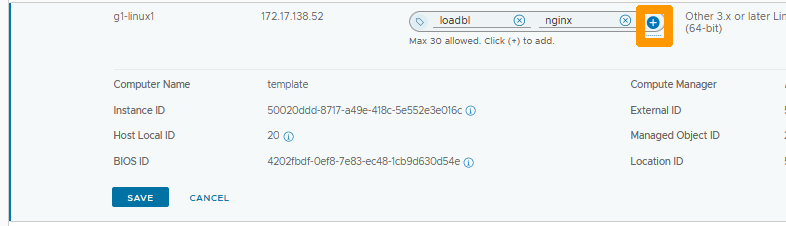
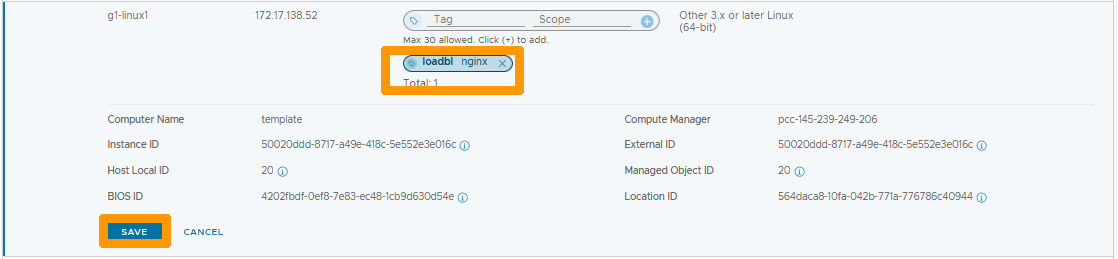
The tag appears, click SAVE.
Click the three vertical dots to the left of the second virtual machine and choose Edit from the menu.
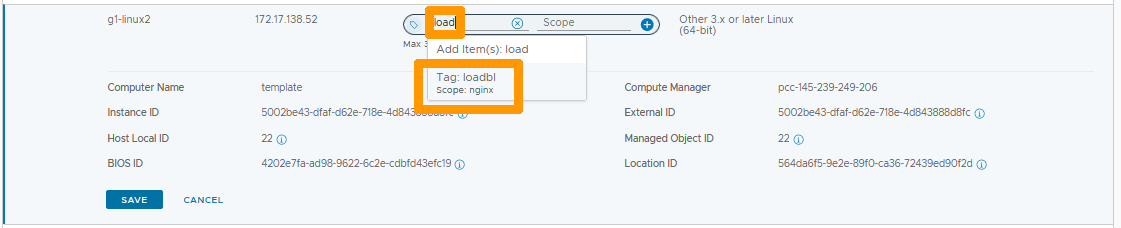
Replace Tag with load and select the Tag: loadbl Scope: nginx that just appeared below.
Click the + sign next to your tag to add it to your second virtual machine.
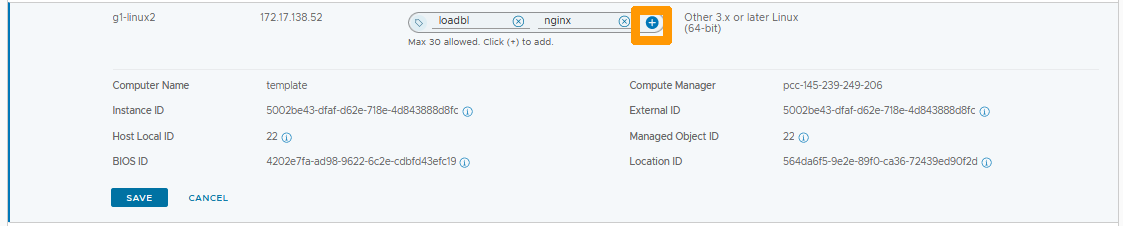
Click SAVE to add the tag to your virtual machine.
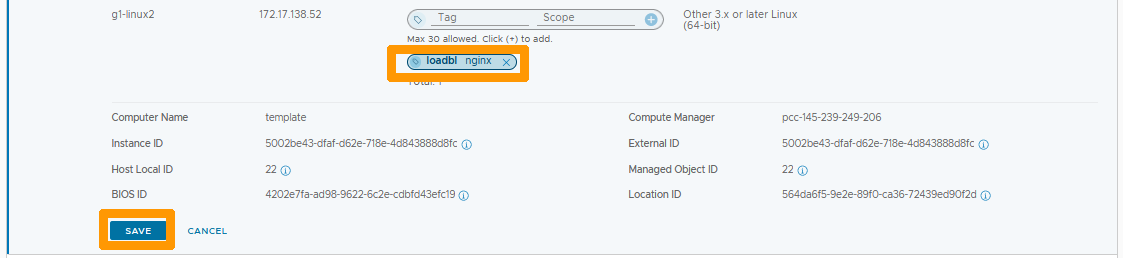
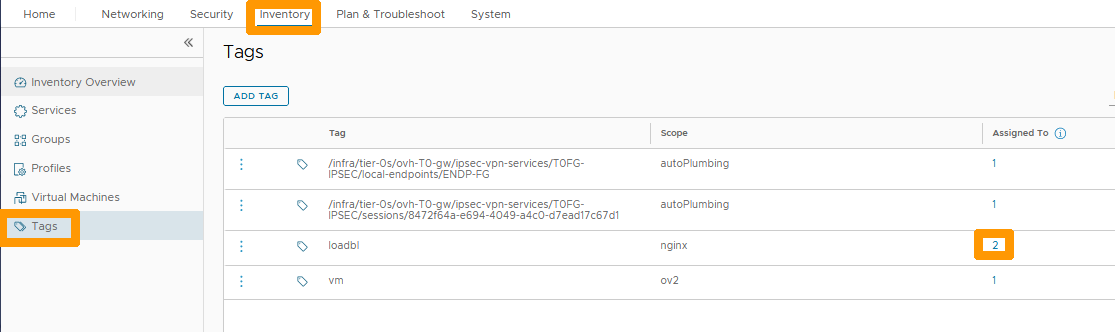
Stay on Inventory, click Tags and click on the number to the right of the marker you created.
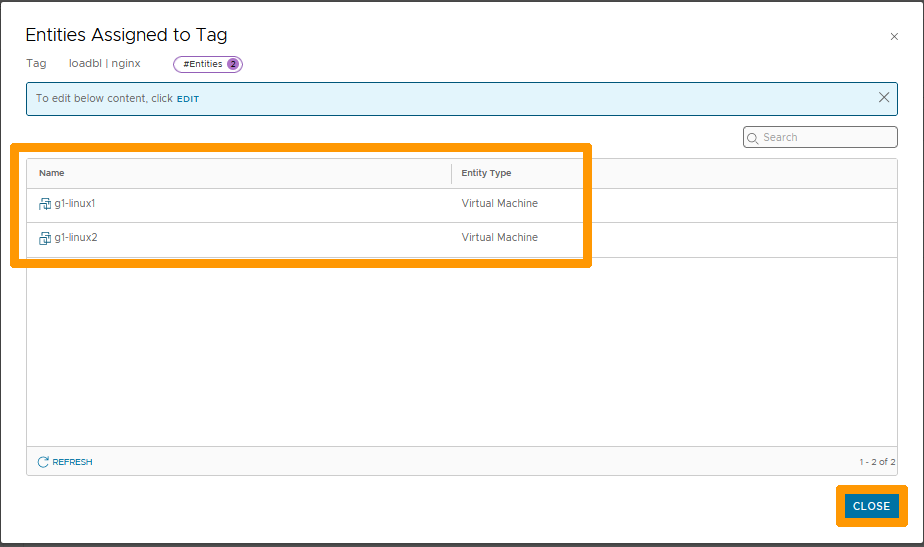
You can see your two virtual machines using the same tag.
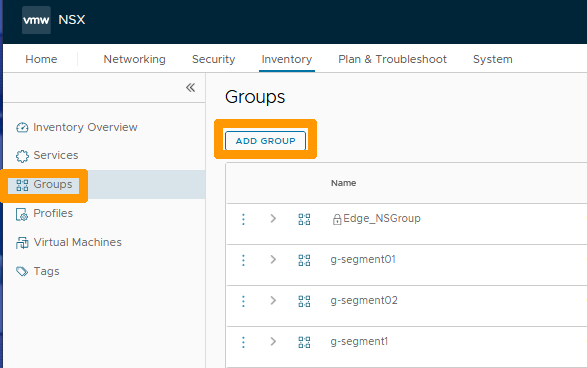
Add group with created tag
Select Groups on the left and click ADD GROUP.
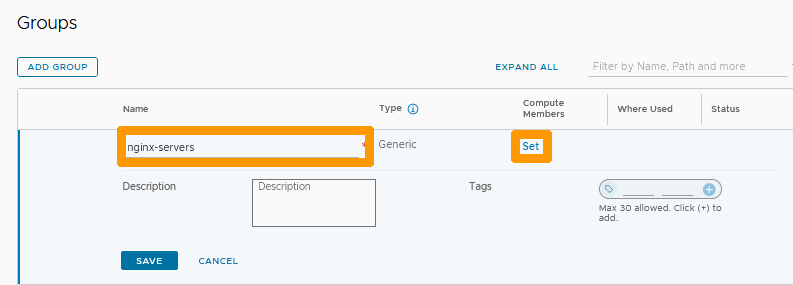
Enter nginx-server below Name and click SET under Compute Members.
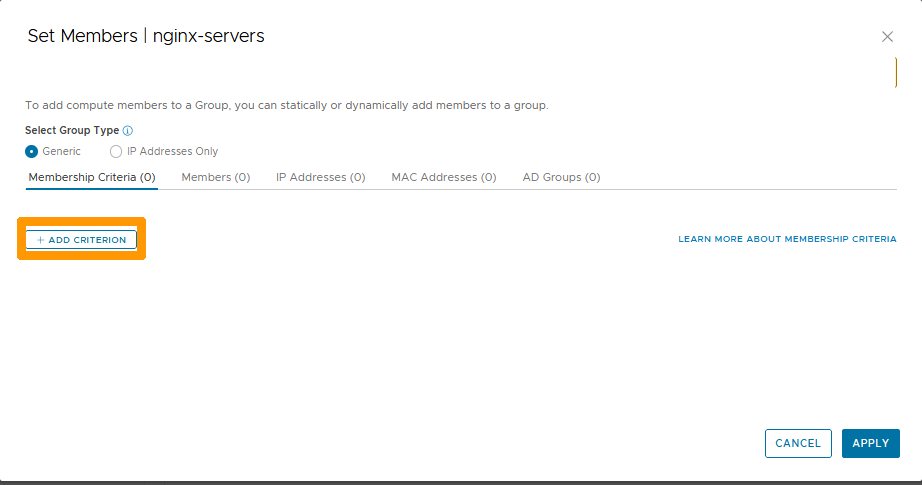
Click + ADD CRITERION.
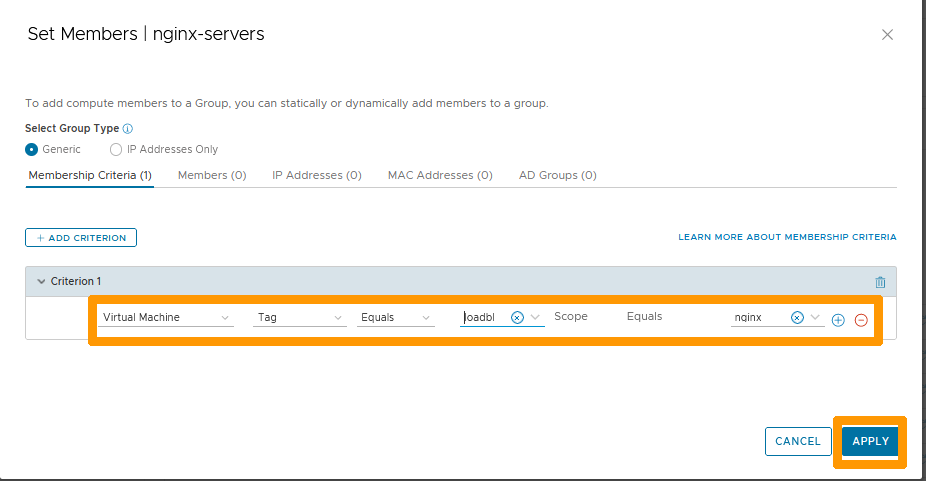
Keep Virtual Machine Tag Equals and select your loadbl tag with its nginx scope and click APPLY.
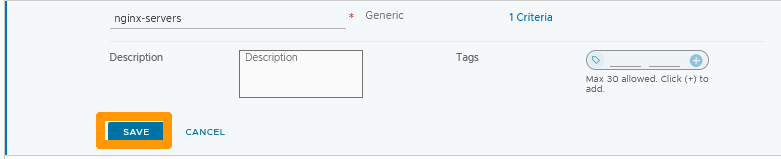
Click SAVE.
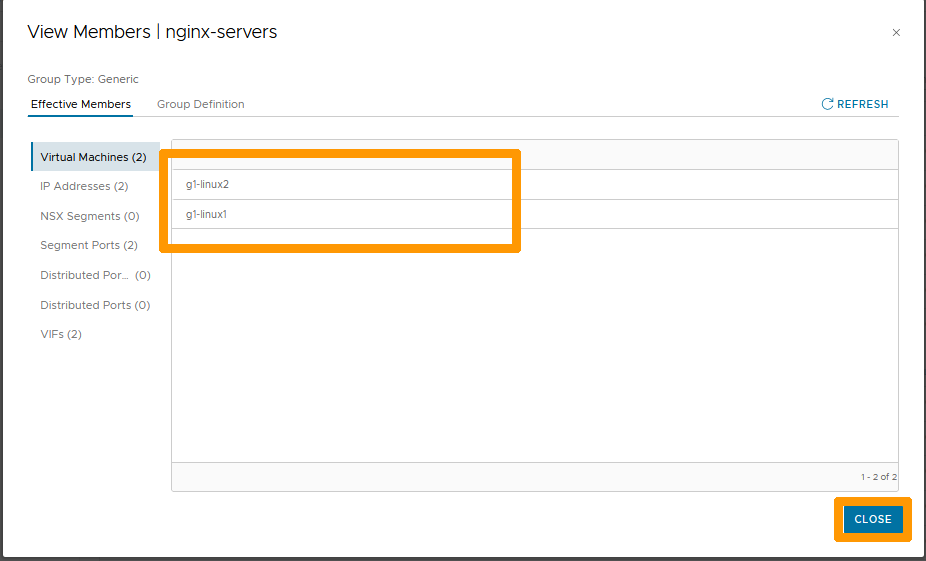
Click View Members to the right of the group.
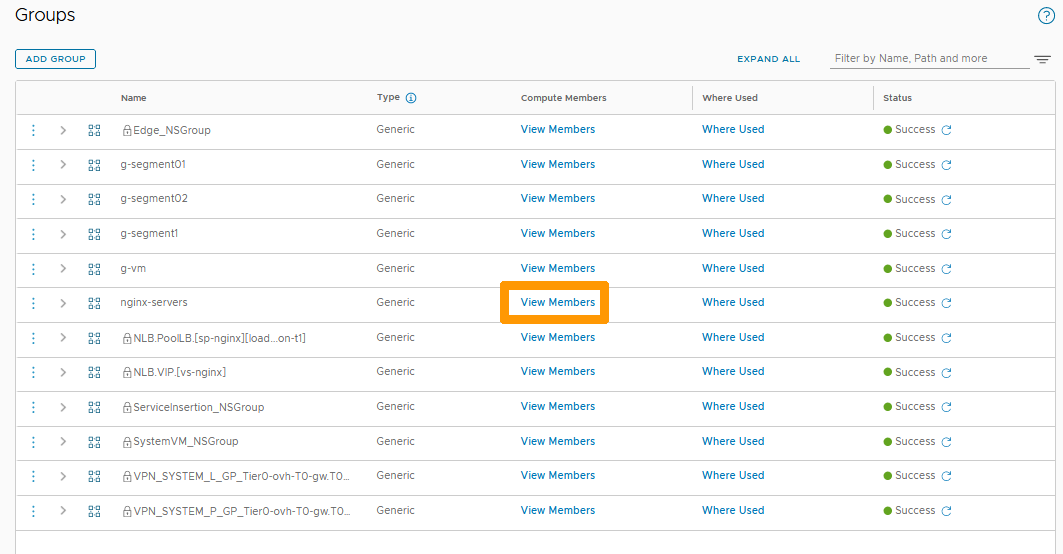
The list of virtual machines is automatically added to the group based on the criteria in your tag.
Activating the Load Balancer
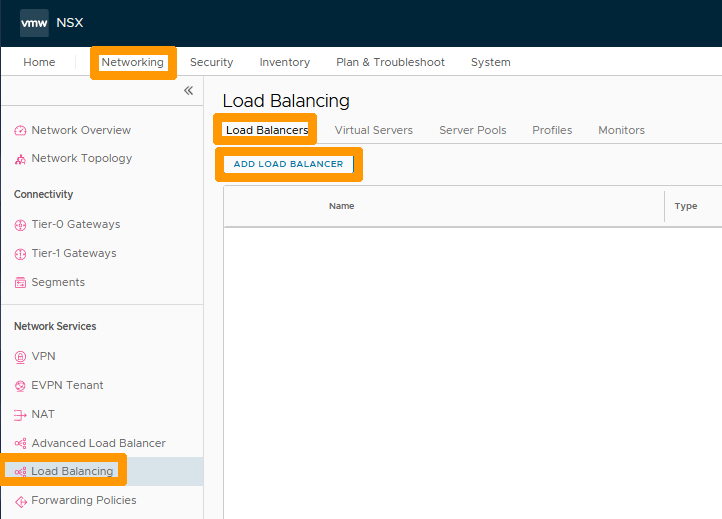
Go to the Networking tab and click on Load Balancing in the Network Services section on the left.
Then go to the Load Balancers tab and click ADD LOAD BALANCER.
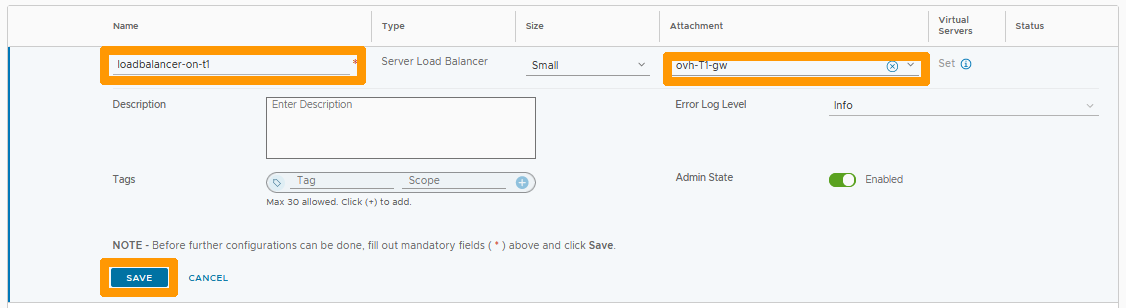
Enter loadbalancer-on-t1 below Name, select ovh-T1-gw under Attachment and click SAVE.
Click NO.

The Load Balancer is created and activated on the ovh-T1-gw gateway.

Server pool creation
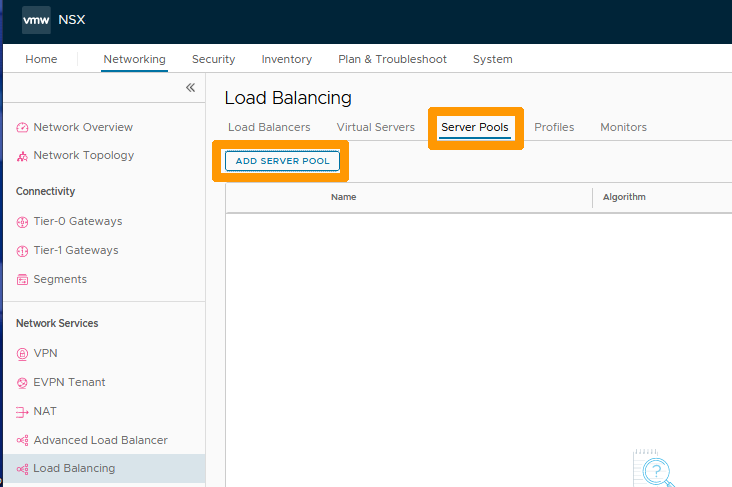
Go to the Server Pools tab and click ADD SERVER POOL.
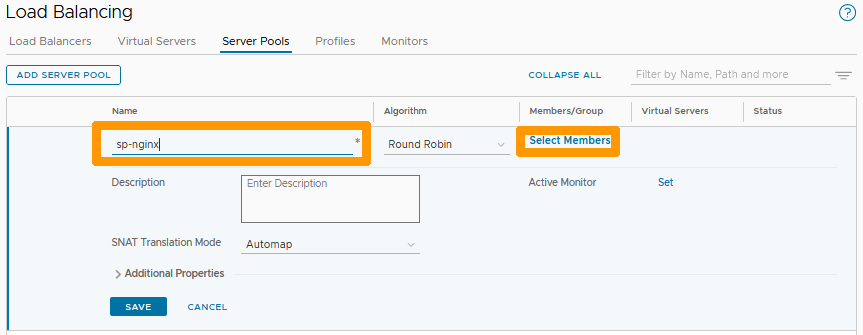
Enter sp-nginx below Name and click Select Members under Members/Group.
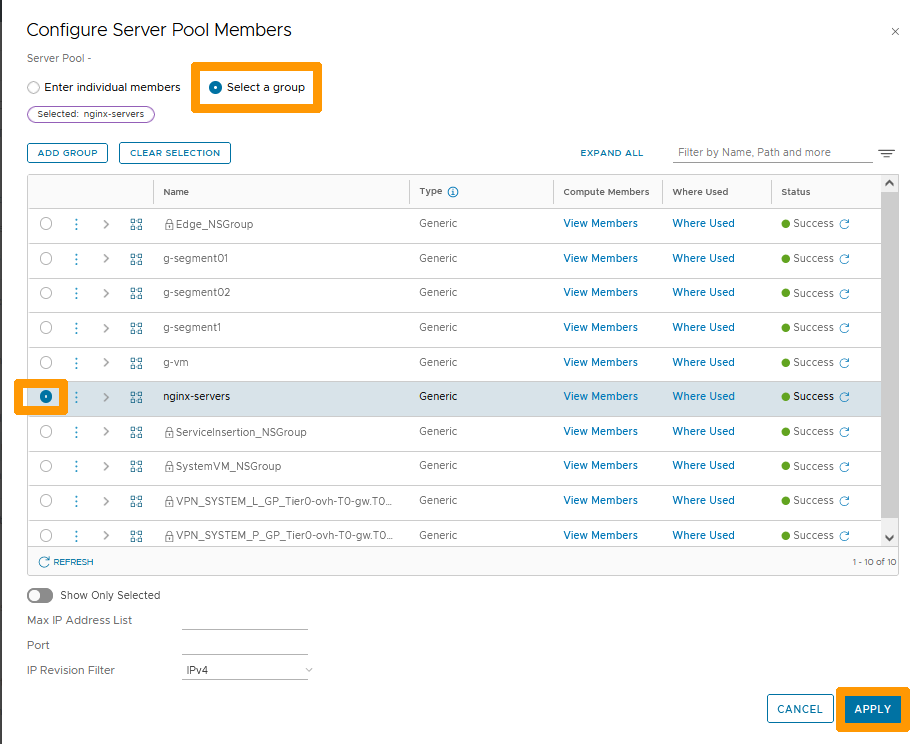
Click Select a group and choose the nginx-servers group you created then click APPLY.
Click SAVE to apply your changes.
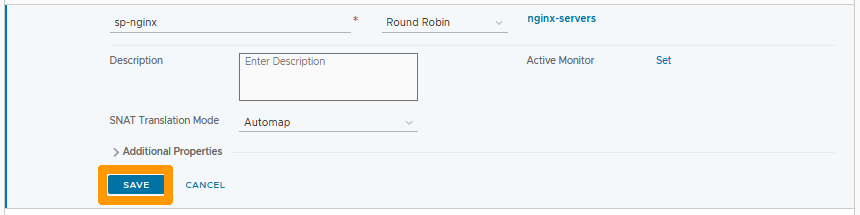
Your server pool is created with your two virtual machines that are members of the group.
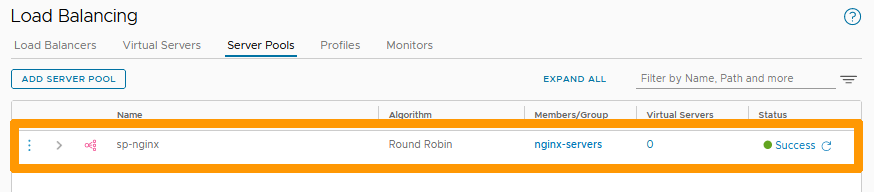
Virtual server creation
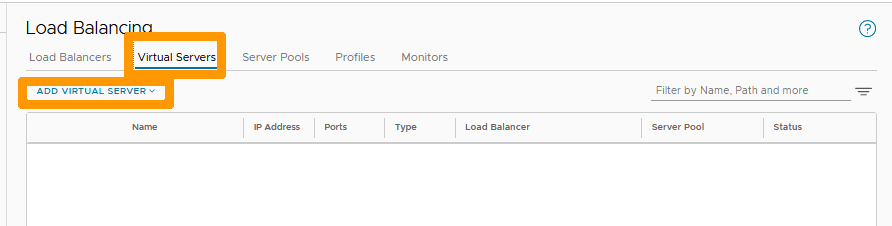
Your server pool is created with your two virtual machines which are members of the group. Go to the Virtual Servers tab and click on ADD VIRTUAL SERVER.
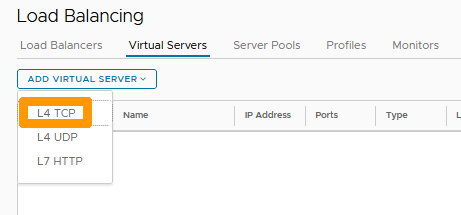
Select L4 TCP.
Fill in this information :
- Name : Name of your virtual server
vs-nginx. - IP Address: Front-end IP address of your virtual server on the same network as your NGINX virtual machines
192.168.102.3. - Port : Port
80. - Load Balancer: Your load balancer
loadbalancer-on-t1. - Server Pool: Your server pool
sp-nginx.
Then click SAVE.

Your virtual server is active. If you connect from a machine that uses a segment on a gateway of type Tier-1 Gateways with this URL http://192.168.102.3, the Load Balancer will connect to one of the two virtual machines configured in your group.
Adding a NAT rule
Go to NAT in the Network Services section on the left and click ADD NAT RULE.
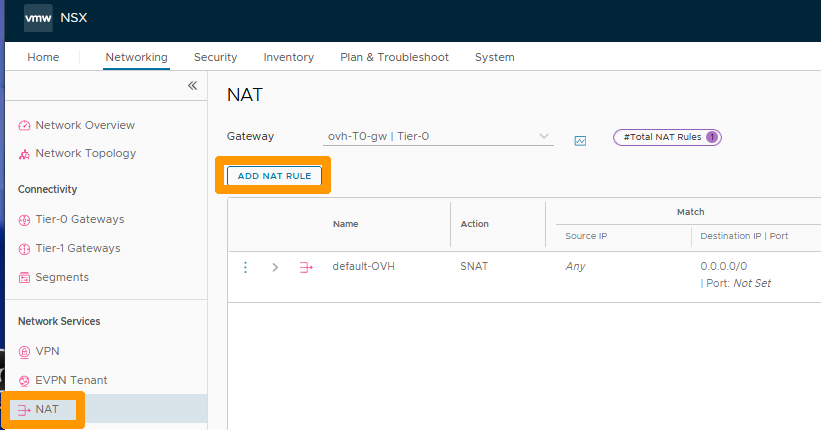
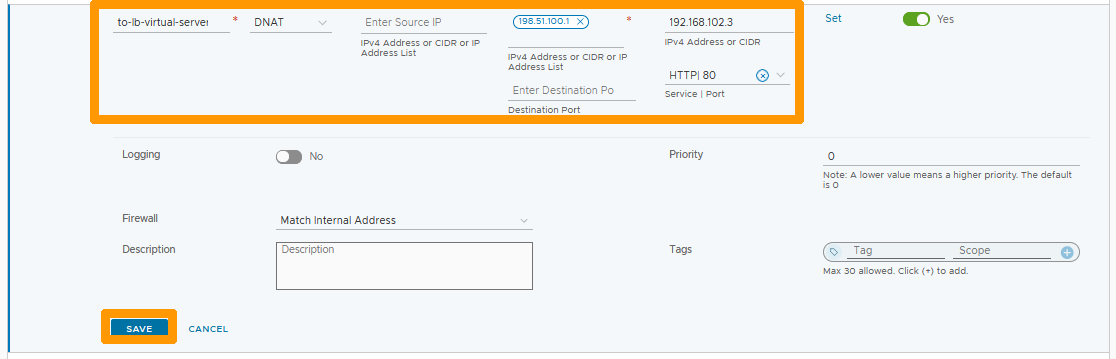
Enter to-lb-virtual-server in your rule Name with these options :
- Action :
DNAT. - Destination IP : A virtual IP address of your T0 such as
198.51.100.1. - Translated IP : IP address of your virtual server
192.168.102.3. - Service PORT : Choose the predefined port
HTTP| 80.
Then click SAVE.
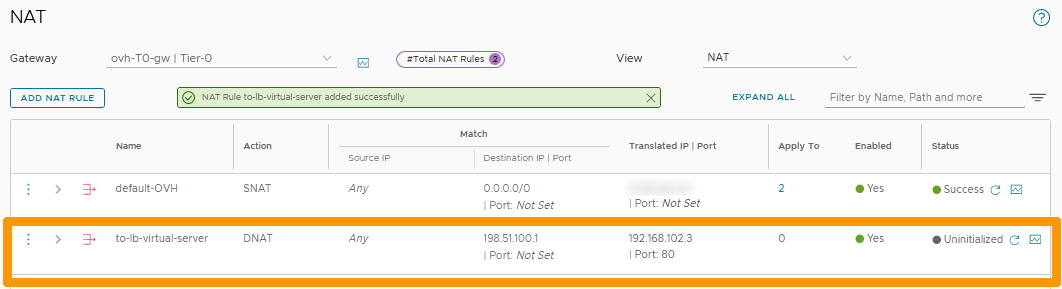
Your rule is active. If you click on http://virtual-ip-address-on-T0 you will be connected to your virtual server which will redirect the flow to one of the servers in your group.
Go further
Implementing NAT for port redirections in NSX
VMware NSX Load Balancer documentation
If you need training or technical assistance to implement our solutions, contact your sales representative or click on this link to get a quote and ask our Professional Services experts for a custom analysis of your project.
Join our community of users on https://community.ovh.com/en/.


 Configuring NAT for port redirections with NSX
 604
604