

Rescheduling a maintenance on your Hosted Private Cloud
329 Views
 30.11.2022
  Cloud / Hosted Private Cloud
Objective
When a maintenance is scheduled on your Hosted Private Cloud service, you will be sent a notification email to inform you of the maintenance date. If this date is not convenient for you, for example for production requirements, you can postpone this maintenance until a date of your choice, in the OVHcloud Control Panel or via the OVHcloud API.
We try to adapt as much as possible to your infrastructure usage and your constraints. However, we sometimes need to schedule a maintenance for which it will not be possible to change the date and/or time (e.g. infrastructure maintenance involving multiple customers, urgent interventions to avoid an incident).
For your information, when a maintenance date can be changed by you, the proposed new dates are within a reduced time interval.
This guide explains how to move the date of a scheduled maintenance on your VMware on OVHcloud solution, via your OVHcloud Control Panel or the OVHcloud API.
Requirements
- You have received a maintenance notification email specifically stating that you can change the maintenance date. Otherwise, the maintenance cannot be rescheduled.
- You are the administrative or technical contact for the VMware on OVHcloud solution infrastructure.
- You have access to the OVHcloud Control Panel or the API console for your services.
OVHcloud Control Panel Access
- Direct link: VMware vSphere
- Navigation path:
Hosted Private Cloud>Managed VMware vSphere> Select your vSphere service
Instructions
Messages sent by OVHcloud are available in your OVHcloud Control Panel as well.
Click on your name in the top right corner, then click on Service emails in the menu on the right.
From the OVHcloud Control Panel
Click this link to access the VMware vSphere section, then click on the Operations tab. Select Available from the drop-down menu to filter the operations.
Next, click on the ... button and select Modify the processing date.
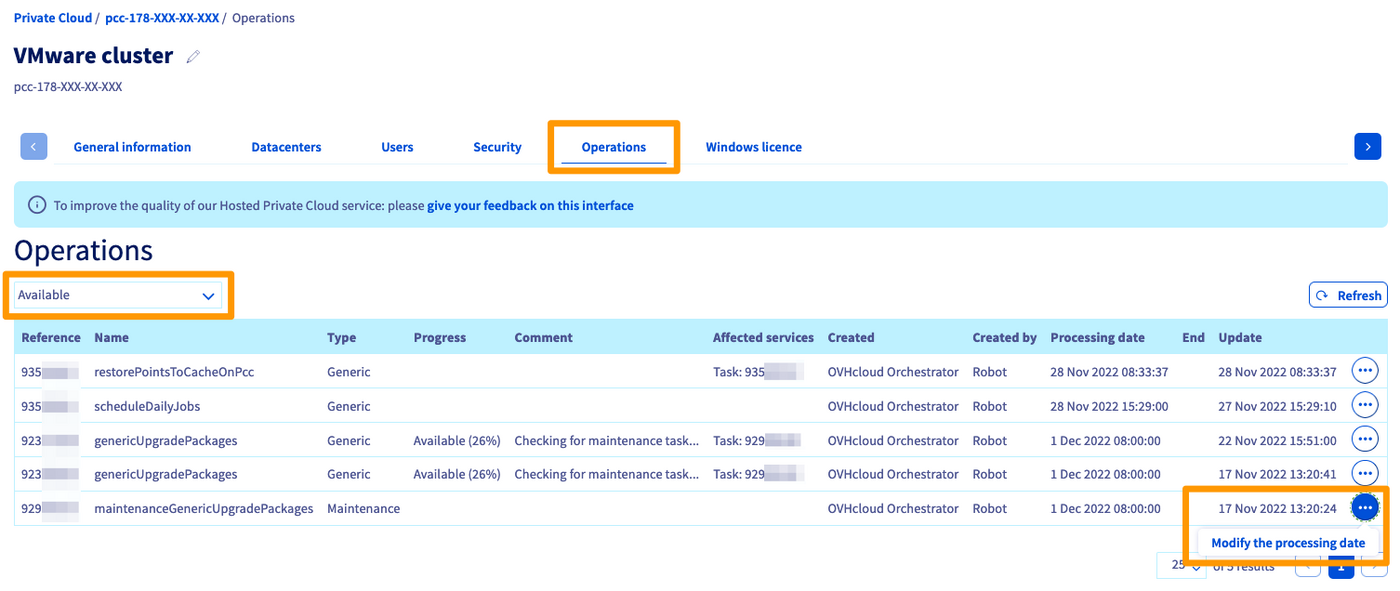
If the option Modify the processing date is greyed out, this maintenance cannot be postponed.
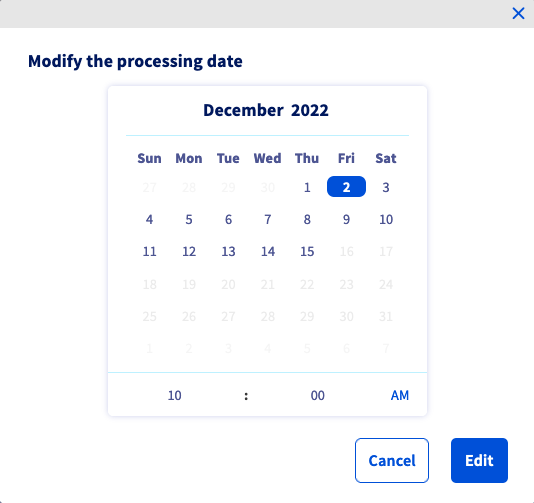
Select a date from the calendar. Only dates not appearing in grey can be chosen.
Then manually enter a new time for this maintenance, or leave the originally scheduled time unchanged. If you exceed the last authorised hour, the last possible programming time will be automatically proposed.
Beware! To be taken into account, the new schedule should no longer be highlighted in blue. Once you have entered the new time, click next to it in the window, so that the time is no longer highlighted in blue.
Finally, click the Modify button to confirm your changes.
Using the OVHcloud API
Log in to the API service administration console. You can refer to our guide on Getting started with the OVHcloud API.
Run the following API call:
Enter the following values:
- serviceName: Your Hosted Private Cloud service ID in the form
pcc-XX-XX-XX-XX. - taskId: This is the "operation reference" of the maintenance, sent to you in the notification email.
- executionDate: Enter the new maintenance date in the format
YYYY-MM-DDTHH:MM+01:SS(for example: 2023-01-02T08:00:00+01:00 for a maintenance scheduled on 02/01/2023 at 08.00 (UTC+1)).
Go further
Join our community of users on https://community.ovh.com/en/.


 VMware Update Manager
 1134
1134