

Video Center - Manage your videos online
10 Views
 27.03.2026
  Web / Web Hosting
Objective
The Video Center is currently in beta. Its features and interface are subject to change. This guide will be updated accordingly.
The OVHcloud Video Center is a video hosting and streaming solution hosted in Europe, with no advertising or third-party tracking. It allows you to import your videos, embed them on any web page via an iframe code, and manage them from a dedicated interface.
This guide explains how to access the Video Center from your OVHcloud Control Panel and manage your videos: importing, embedding via iframe, sharing, downloading and deleting.
Requirements
- An active OVHcloud Video Center.
OVHcloud Control Panel Access
- Direct link: Video Center
- Navigation path:
Web Cloud>Video Center
Instructions
Accessing the Video Center from the Control Panel
Go to your OVHcloud Control Panel, Video Center section.
The page displays your Video Center subscription:
- Your current solution: name of your subscribed plan.
- Number of videos: number of videos already hosted against your total quota.
- Number of minutes: cumulative duration of your videos relative to the plan quota.
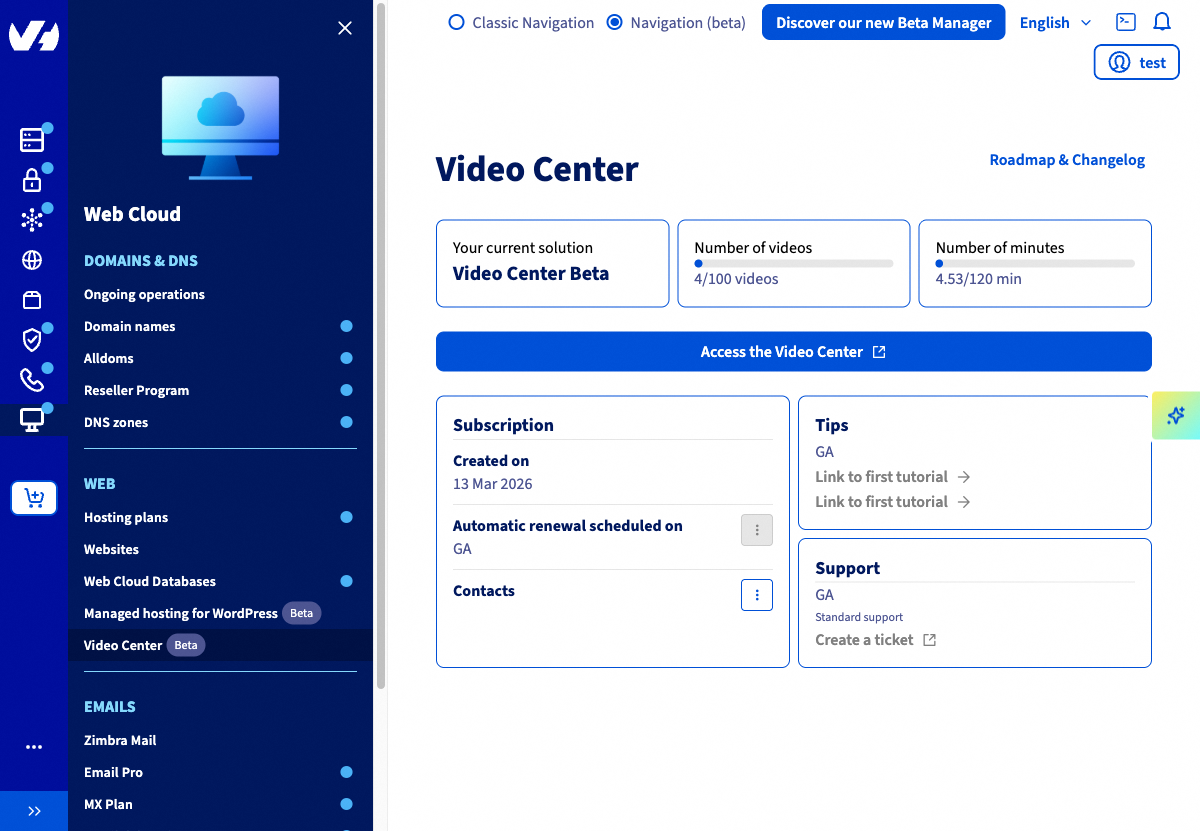
To access the video management interface, click Access the Video Center. The interface opens in a new tab.
Importing a video
From the Video Center interface, the import area is located at the top of the page, below the navigation bar.
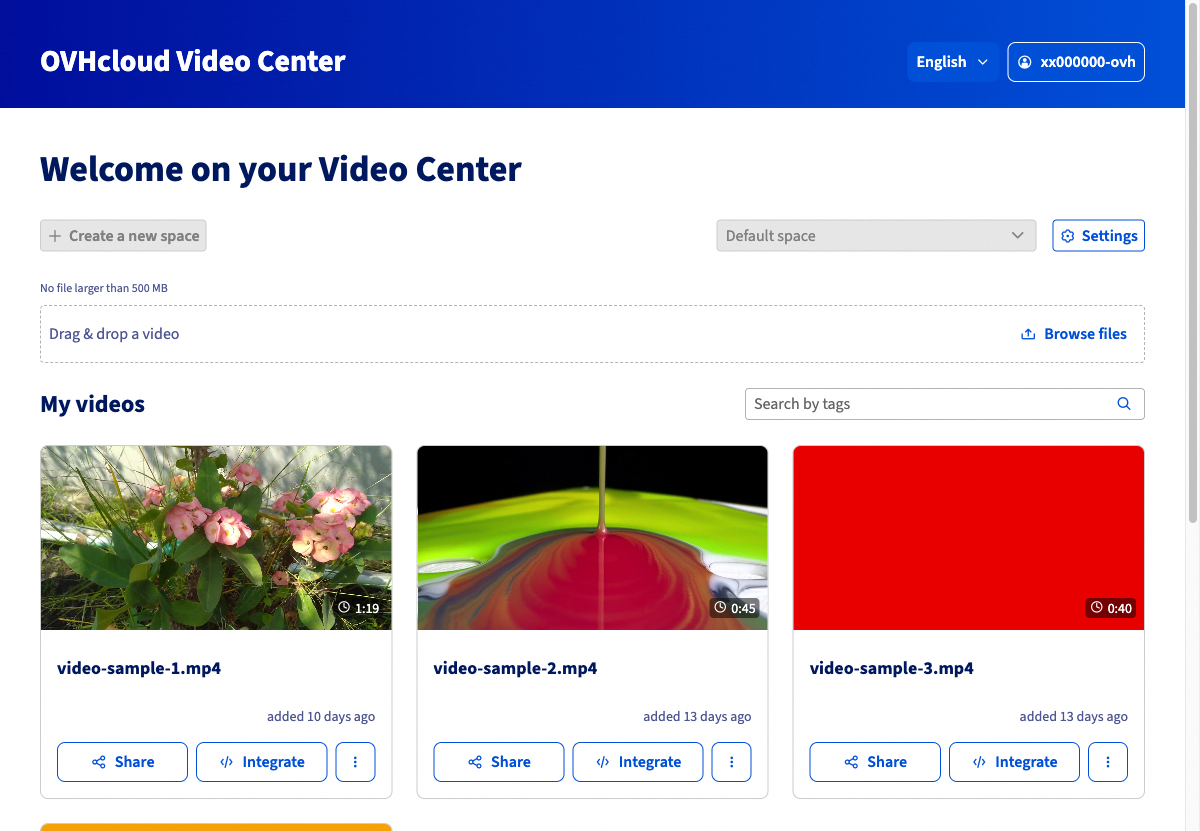
2 methods are available:
- Drag and drop: drag a video file from your file explorer directly into the dotted area.
- Browse files: click
Browse files, navigate to the file to import from your local machine, then select it.
The maximum size per video is 500 MB. Common video formats (MP4, MOV, AVI, etc.) are accepted.
Once the file is selected, the import starts automatically. The video appears in the My videos section once processing is complete.
Embedding a video in a web page
The Video Center allows you to embed videos on web pages via an iframe code.
In the My videos section, locate the video to embed and click Integrate.
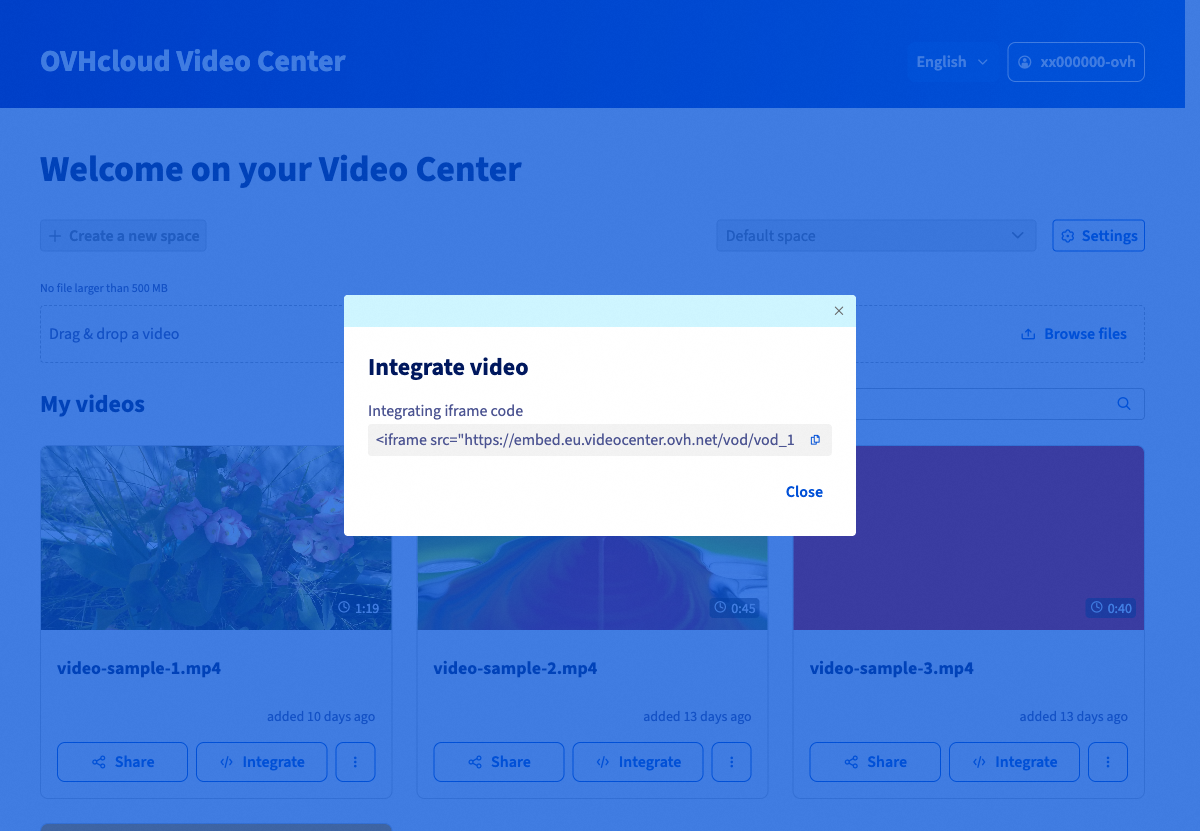
The Embed video window displays the iframe embed code. Click the copy icon to copy it to your clipboard, then paste it into the HTML source code of your web page at the desired location.
Click Close to close the window.
Sharing a video
The Video Center allows you to share a direct link to the video player.
In the My videos section, click Share next to the relevant video.
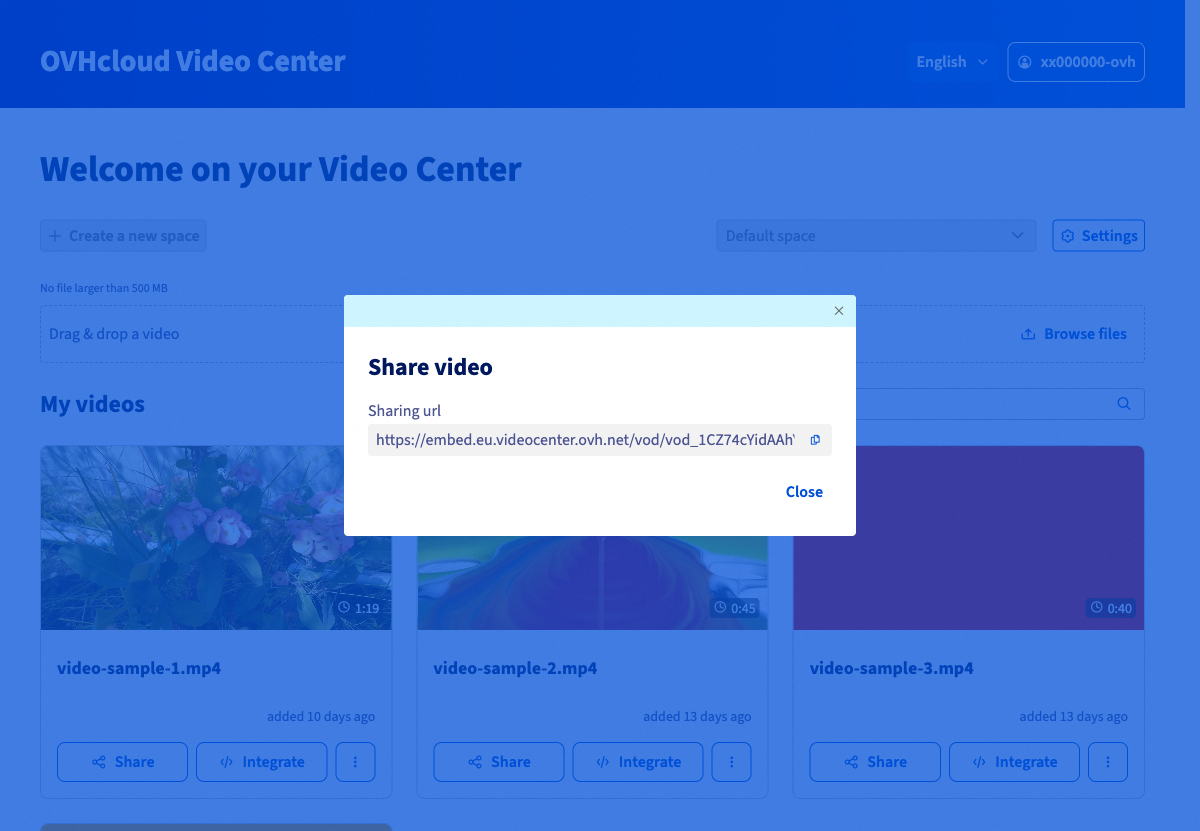
The Share video window displays the sharing URL. Click the copy icon to copy it, then send it to your recipients.
Click Close to close the window.
Downloading or deleting a video
To access additional actions on a video, click the ... button to the right of the relevant video.
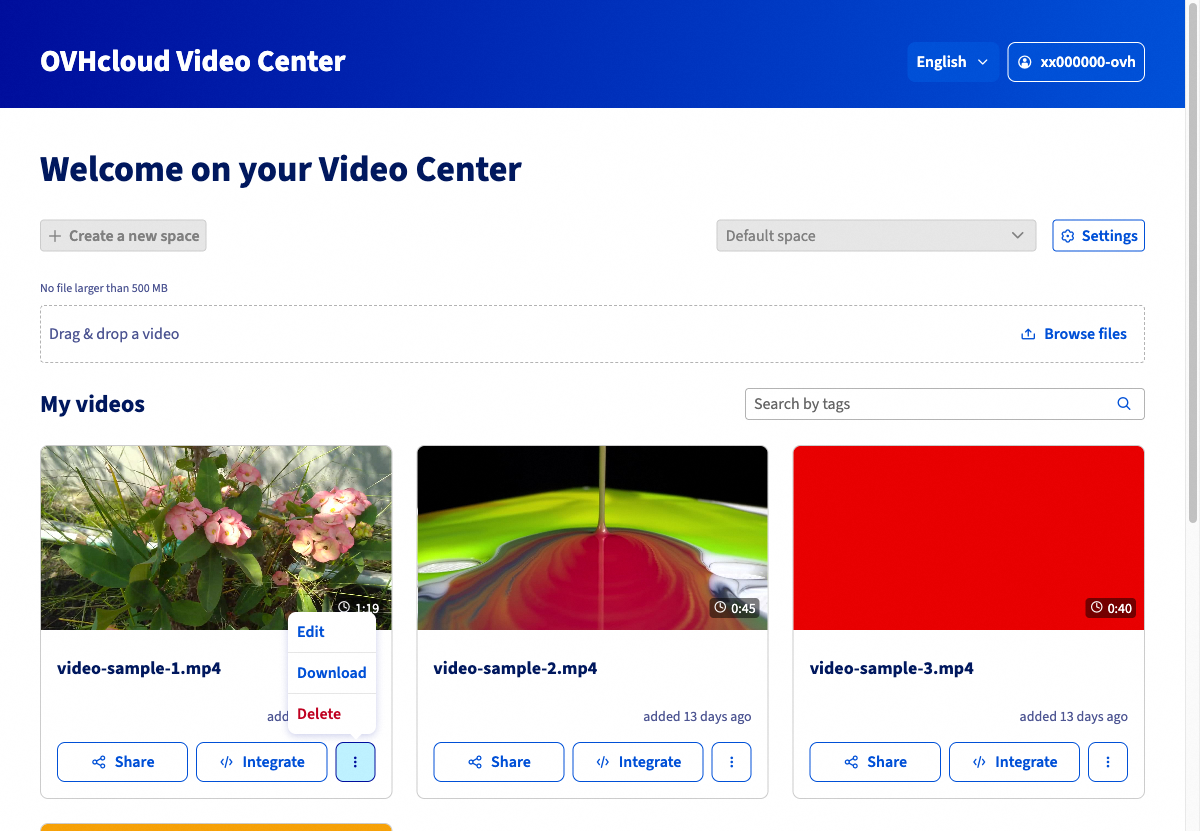
The menu offers 3 options:
| Action | Description |
|---|---|
Edit | Edits the video information (title, tags). |
Download | Downloads the original video file to your local machine. |
Delete | Permanently deletes the video from your Video Center. |
Deleting a video is irreversible. Any iframe code or sharing link associated with this video will immediately stop working.
Go further
Join our community of users.

