

Creating a volume backup
938 Views
 24.02.2026
  Block storage
Objective
If you value the data stored in your Block Storage volumes, it is worth organising the backup of this data to prevent the potential impact of any issue on this data, whether it is a human error or a cluster incident.
A volume snapshot is a recovery point stored within the same storage cluster as the original volume. Operations will be fast, but in case of an incident on the cluster, both volume and volume snapshot might be unavailable. Volume snapshot creation does not require the volume to be detached from the instance.
A volume backup is an image created out of your volume, which is stored in the Object Storage cluster where the original volume is located. The level of resiliency is ideal and will allow you to quickly react to any incident on your volume, creating another volume from the backup. Volume backup creation requires the volume to be detached from the instance.
Both volume snapshot and volume backup allow you to:
- Create backups of your volume with a few clicks and keep them for as long as you need.
- Use the backups to restore your volume state.
- Use the backups as a template to create identical volumes.
This guide explains how to create a backup of your Block Storage volume in the OVHcloud Control Panel.
Requirements
- A detached Block Storage volume created in your Public Cloud project
OVHcloud Control Panel Access
- Direct link: Public Cloud Projects
- Navigation path:
Public Cloud> Select your project
Limitations
Backups of encrypted LUKS volume types can only be restored to the same encrypted LUKS volume type.
Instructions
Open Block Storage in the left-hand navigation bar under Storage & backup.
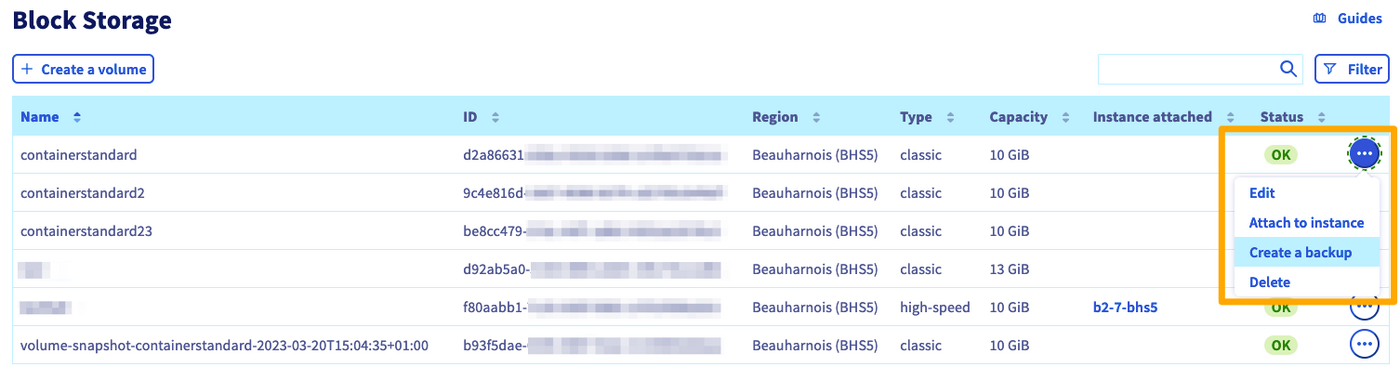
In the row of the volume concerned, click the ... button, then select Create a backup.
To create a backup, the volume must first be detached from its instance.
- For a Linux environment, refer to the Using Linux section of the guide "Create and configure an additional disk on an instance".
- For a Windows environment, refer to the Using Windows section of the guide "Create and configure an additional disk on an instance".
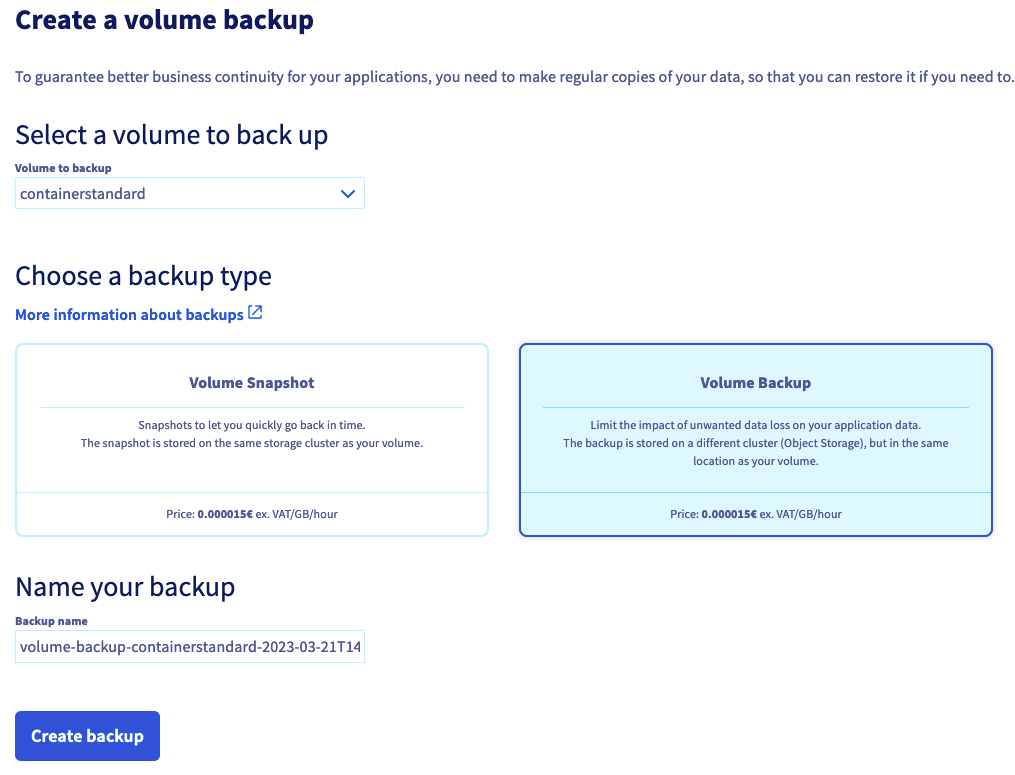
Select the volume you want to create a backup from.
Then select the type of backup you want to create: volume snapshot or volume backup.
- Choosing volume snapshot, you will have the possibility to modify the name of the volume snapshot to be created. Then click
Create backup. - Choosing volume backup, you will be asked to detach your volume from the instance in order to continue. You will then be able to modify the name of the volume backup to be created. Finally, click
Create backup.
The backup creation, be it a volume snapshot or a volume backup, may take several hours, depending on the amount of data present on the volume, as well as the instance resource utilisation for the volume snapshot and other host-specific factors.
We therefore recommend that you perform your snapshots outside of your production hours.
Other best practices include:
- Avoid creating snapshots and backups during peak hours (04:00 AM - 10:00 PM Paris time).
- Regularly validate that you are able to get your data back from your volume snapshot or volume backup.
- Install the qemu-guest agent if it is not installed, or try to disable it if necessary.
- Even if not mandatory, prefer to detach your volume when creating a volume snapshot.
Since a volume snapshot / volume backup is a clone of the entire disk, it will have the maximum size of the original volume, regardless of the actual disk space allocation.
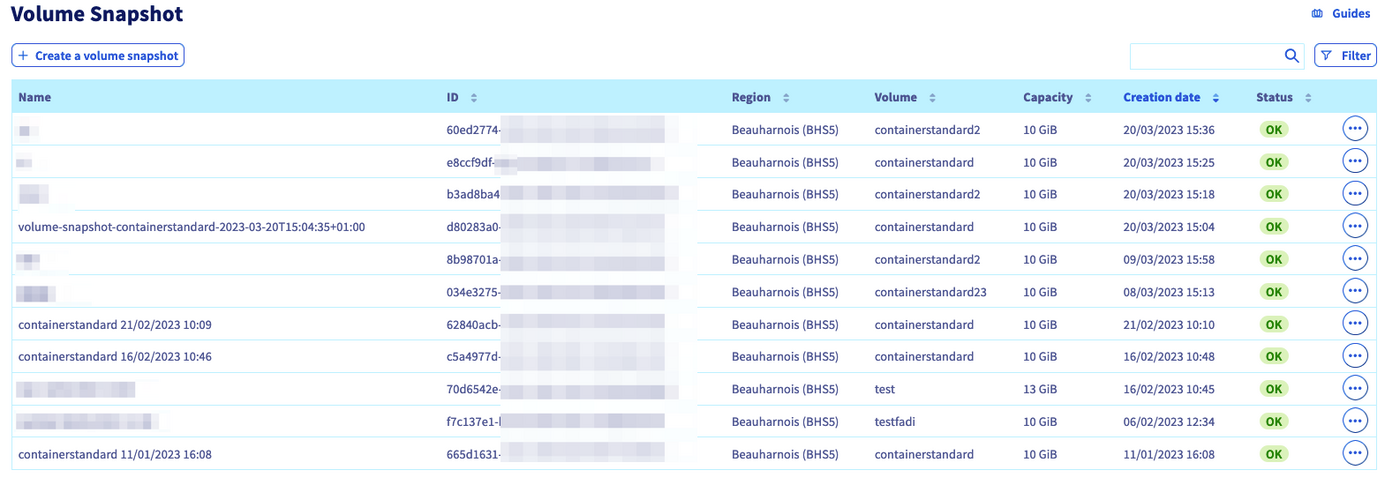
You will find the list of your volume snapshots in the section Volume Snapshot in the left-hand navigation bar. After the snapshot is created, it will be added to this table.
You will find the list of your volume backups in the section Volume Backup in the left-hand navigation bar. As soon as the volume backup creation is requested, it will be added to this table.
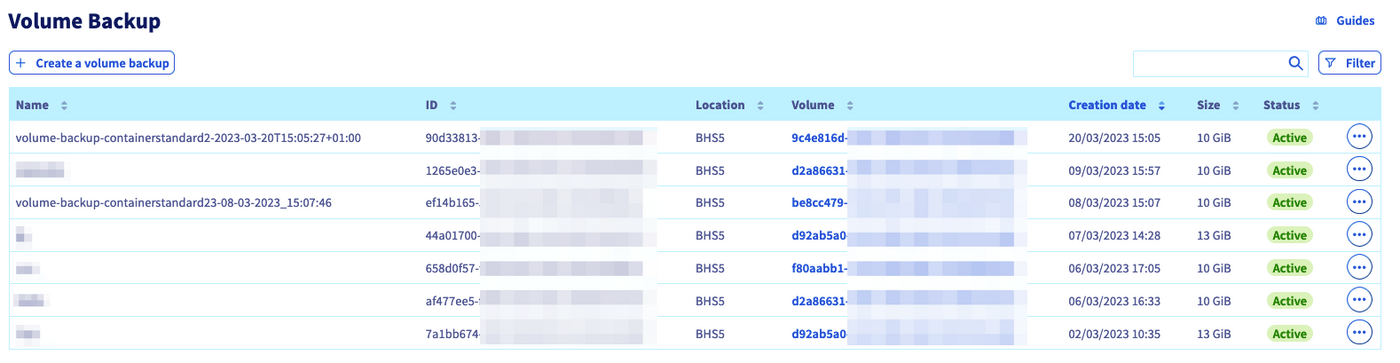
Click the ... button to Delete or to Create a volume based on the respective volume snapshot or volume backup.
You can find further information in this guide.

Go further
Creating a volume from a backup
Creating and configuring an additional disk on an instance
Increasing the size of an additional disk
Join our community of users.


 How to create and configure an additional disk on an instance
 2061
2061