

Getting started with a HA-NAS solution
1422 Views
 16.09.2021
  Cloud / NAS-HA
Objective
Network Attached Storage (NAS) is a file server connected to a network whose main function is the storing of data in a centralised volume for heterogeneous network clients.
Requirements
- An IP address attached to an OVHcloud service (Hosted Private Cloud, Dedicated Server, VPS, Public Cloud instance, etc.)
- A HA-NAS solution
OVHcloud Control Panel Access
- Direct link: NAS-HA
- Navigation path:
Bare Metal Cloud>HA-NAS> Select your NAS-HA
Instructions
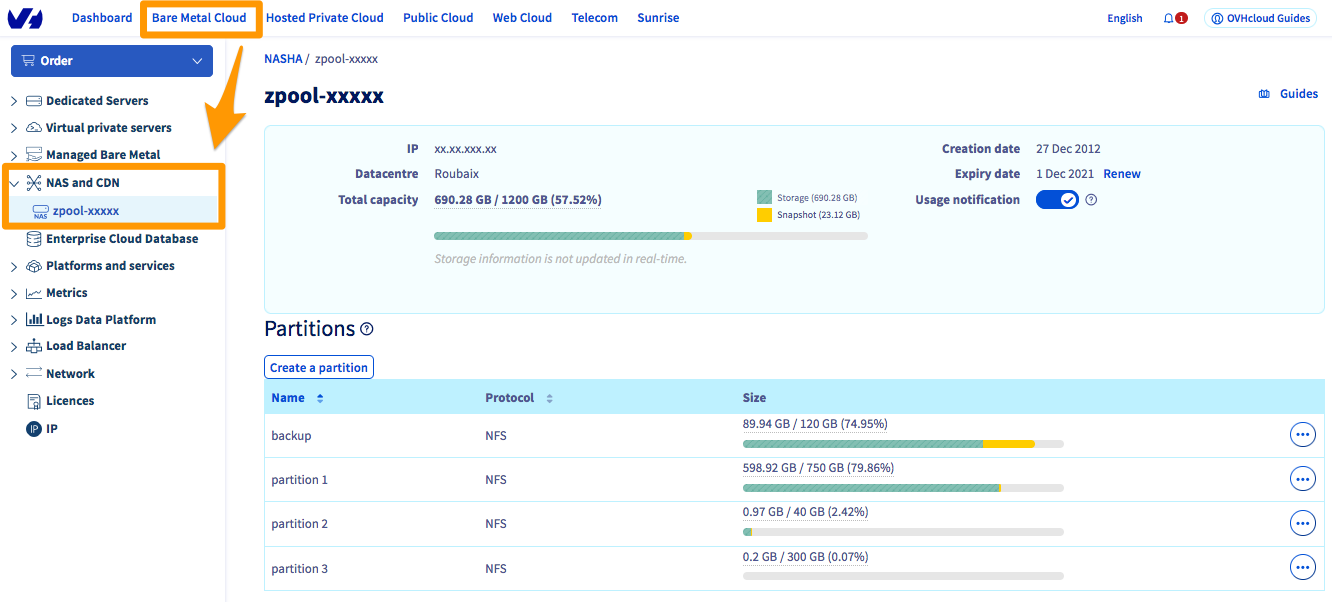
Click on your service to access the administration menu.
Creating a partition
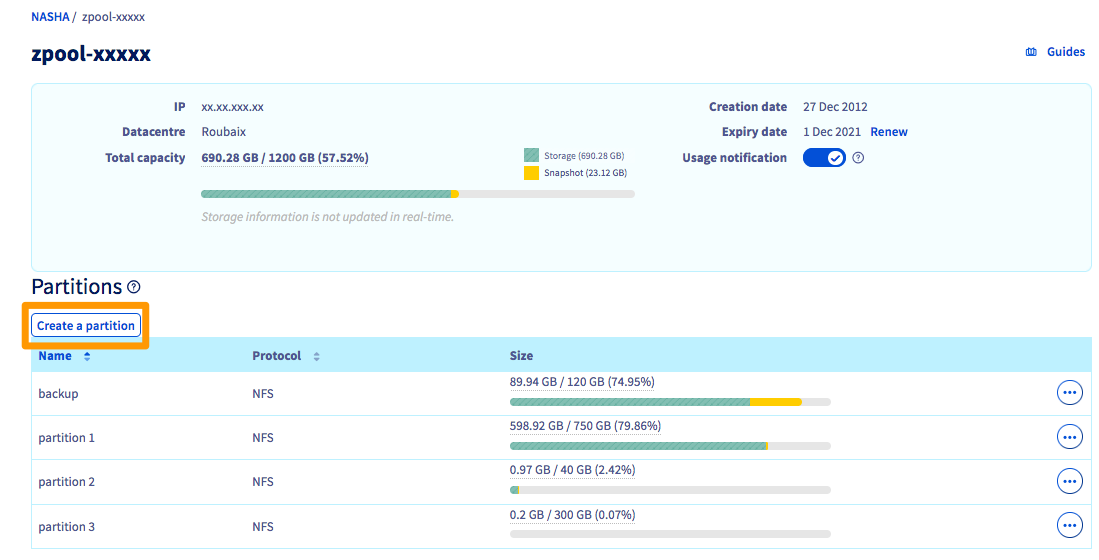
To add a new partition, click Create a partition.
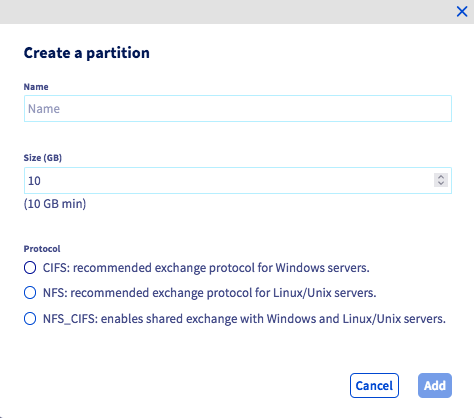
Simply enter your partition name, partition size, and authorised protocol (NFS or CIFS).
Modifying the size of a partition
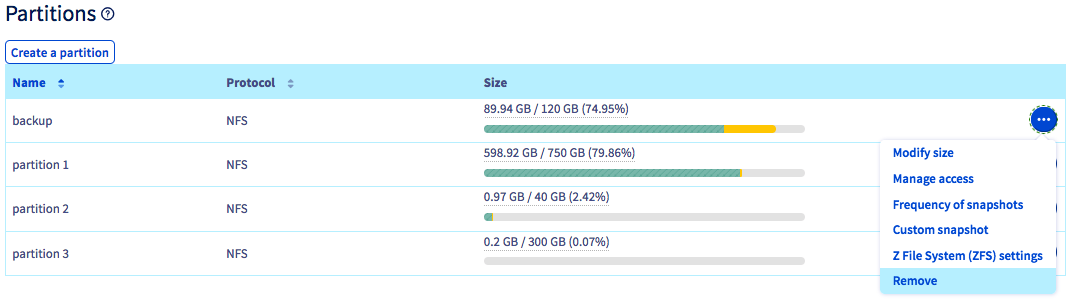
To change the size of a partition, click on the ... button to the right of the partition concerned, then Modify size.
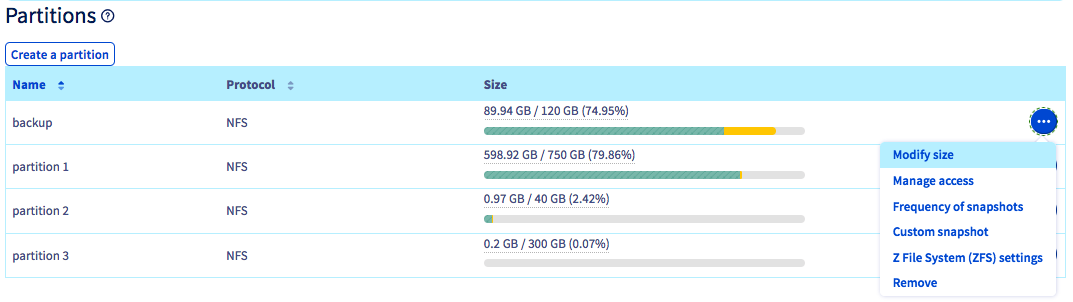
Enter the new size, then confirm.
Change the frequency of snapshots
By default, a snapshot of your NAS content takes place every hour, and is saved on your NAS.
However, you can create up to 3 additional snapshots at different frequencies if you wish, which will also be saved on your NAS.
To do this, click the ... button to the right of the partition concerned, then click Frequency of snapshots.
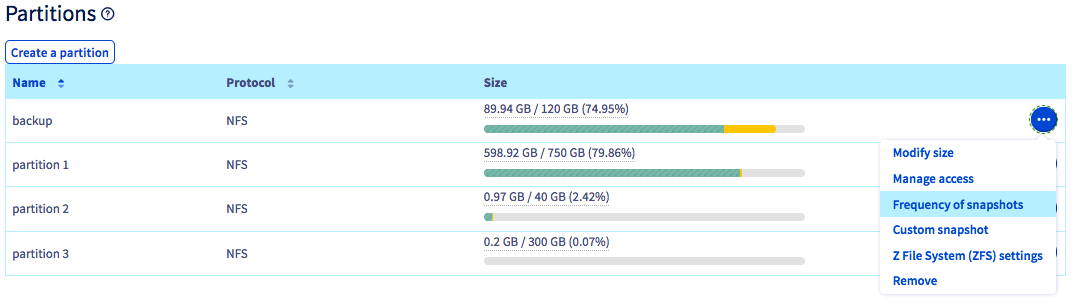
Select the new frequency, then confirm.
Creating an instant snapshot
Apart from the snapshots taken automatically, you can create an instant snapshot of a partition at any time by clicking on the ... button to the right of the partition, then on Custom snapshot.
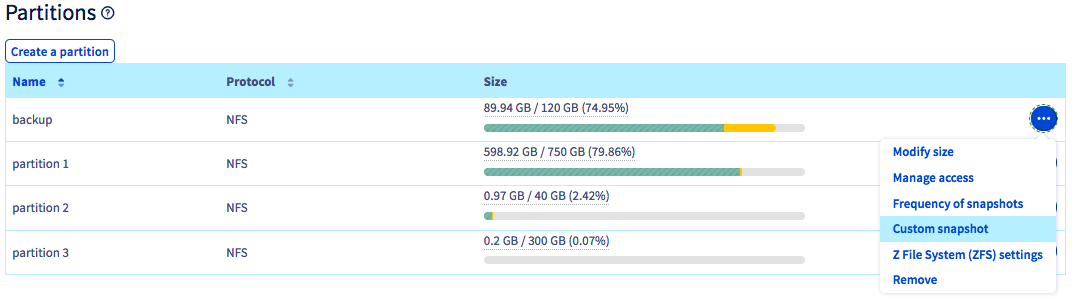
Name the snapshot and click Add.
Adding an access
In order to access the partition you created earlier, you will need to configure access.
Only OVHcloud service IP addresses can access your NAS (e.g. a dedicated server, a VPS, a Public Cloud instance, etc.).
To authorise an IP to access the NAS, click on the ... button to the right of the existing partition, then on Manage access.
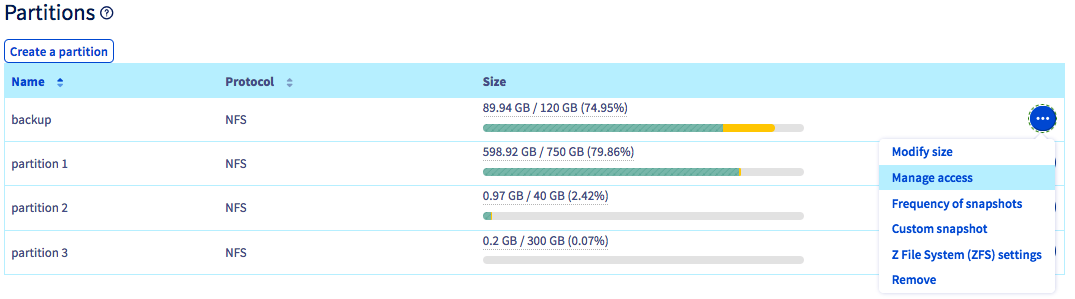
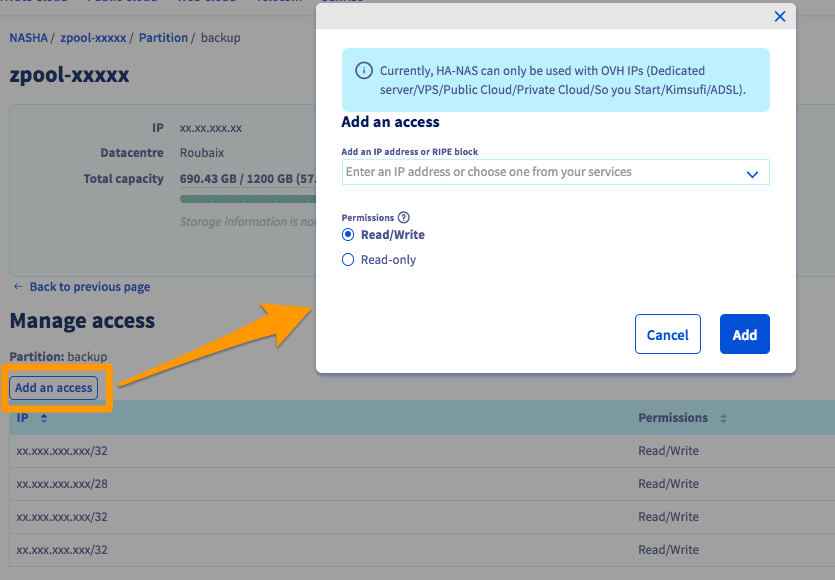
Then click Add an access, and select the IP address of your OVHcloud product.
You must also define whether the authorised access for this IP address is read-only or read/write.
Deleting an access
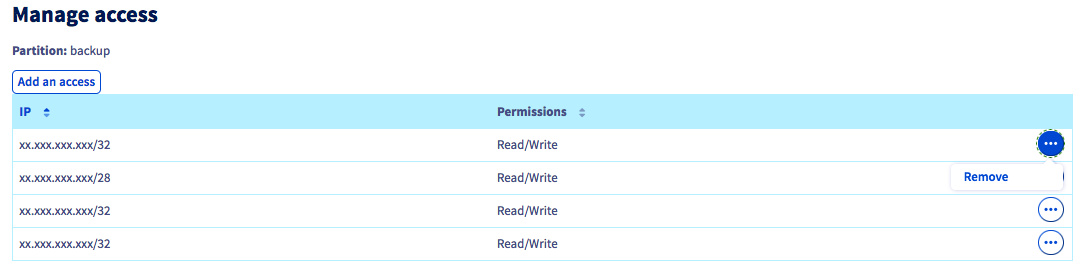
To remove access to a partition, click on the ... button to the right of the IP address concerned, then Delete.
ZFS settings
All the default Z File System settings are optimised. Though we do not recommend changing those settings, this menu does allow you to adjust the ZFS that the HA-NAS is using.
To change the ZFS settings of a partition, click on the ... button to the right of the partition concerned, then Z File System (ZFS) settings.
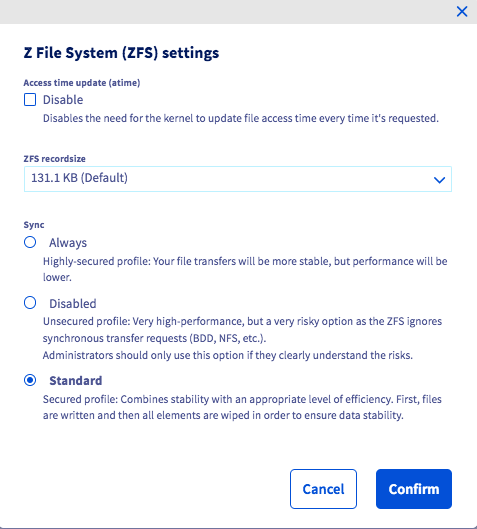
- Disabling access time update (atime): Disabling atime means the kernel will no longer update the file system timestamp each time a file is accessed. This can be useful to speed up frequent read operations, for example on static web pages. However, it should not be enabled for consistency-critical applications such as databases.
- ZFS recordsize: This property changes the maximum block size on the ZFS filesystem. Please note that ZFS will still use a smaller block size if the file is smaller than the maximum. For example, a 16 KB file will use a 16 KB block (plus metadata) to not waste storage space. We generally advise against changing ZFS recordsize for this reason.
- Sync: This changes the behaviour of ZFS filesystem transactions with regard to RAM data buffering and writing data to disk. We do not recommend changing this property without an appropriate reason.
Deleting a partition
Deleting a partition deletes all of the data stored on it permanently.
To delete a partition, click on the ... button to the right of the existing partition, then Delete.
Go further
If you need training or technical assistance to implement our solutions, contact your sales representative or click on this link to get a quote and ask our Professional Services experts for assisting you on your specific use case of your project.
Join our community of users on https://community.ovh.com/en/.


 HA-NAS - API Quickstart
 307
307