

AI Endpoints - Build a JavaScript Chatbot with LangChain
177 Views
 15.04.2026
  AI Endpoints
AI Endpoints is covered by the OVHcloud AI Endpoints Conditions and the OVHcloud Public Cloud Special Conditions.
Introduction
LangChain is a leading framework for building applications powered by Large Language Models (LLMs). While it's well-known for Python, LangChain also provides support for JavaScript/TypeScript—ideal for frontend and fullstack applications.
In this tutorial, we'll show you how to build a simple command-line chatbot using LangChain and OVHcloud AI Endpoints, first in blocking mode, and then with streaming for real-time responses.
Objective
This tutorial demonstrates how to:
- Set up a Node.js chatbot using LangChain JS
- Connect to OVHcloud AI Endpoints to access LLMs
- Support both standard and streaming response modes
Requirements
- A Public Cloud project in your OVHcloud account
- Node.js v18 or higher
- An access token for OVHcloud AI Endpoints. To create an API token, follow the instructions in the AI Endpoints - Getting Started guide.
Instructions
Set up the environment
You will need to declare the following environment variables:
Make sure to replace the token value (OVH_AI_ENDPOINTS_ACCESS_TOKEN) by yours. If you do not have one yet, follow the instructions in the AI Endpoints - Getting Started guide.
Project setup
The first step is to get the necessary dependencies. To do this, create a package.json with the following content:
Then run:
Create the blocking chatbot
Create a new file named chatbot.js and paste the following code:
You can test your new assistant with the following command:
Which will give you an output similar to:
Enable streaming mode
As usual, you certainly want a real chatbot with conversational style. To do that, let’s add a streaming feature with the following code:
Run your streaming chatbot with:
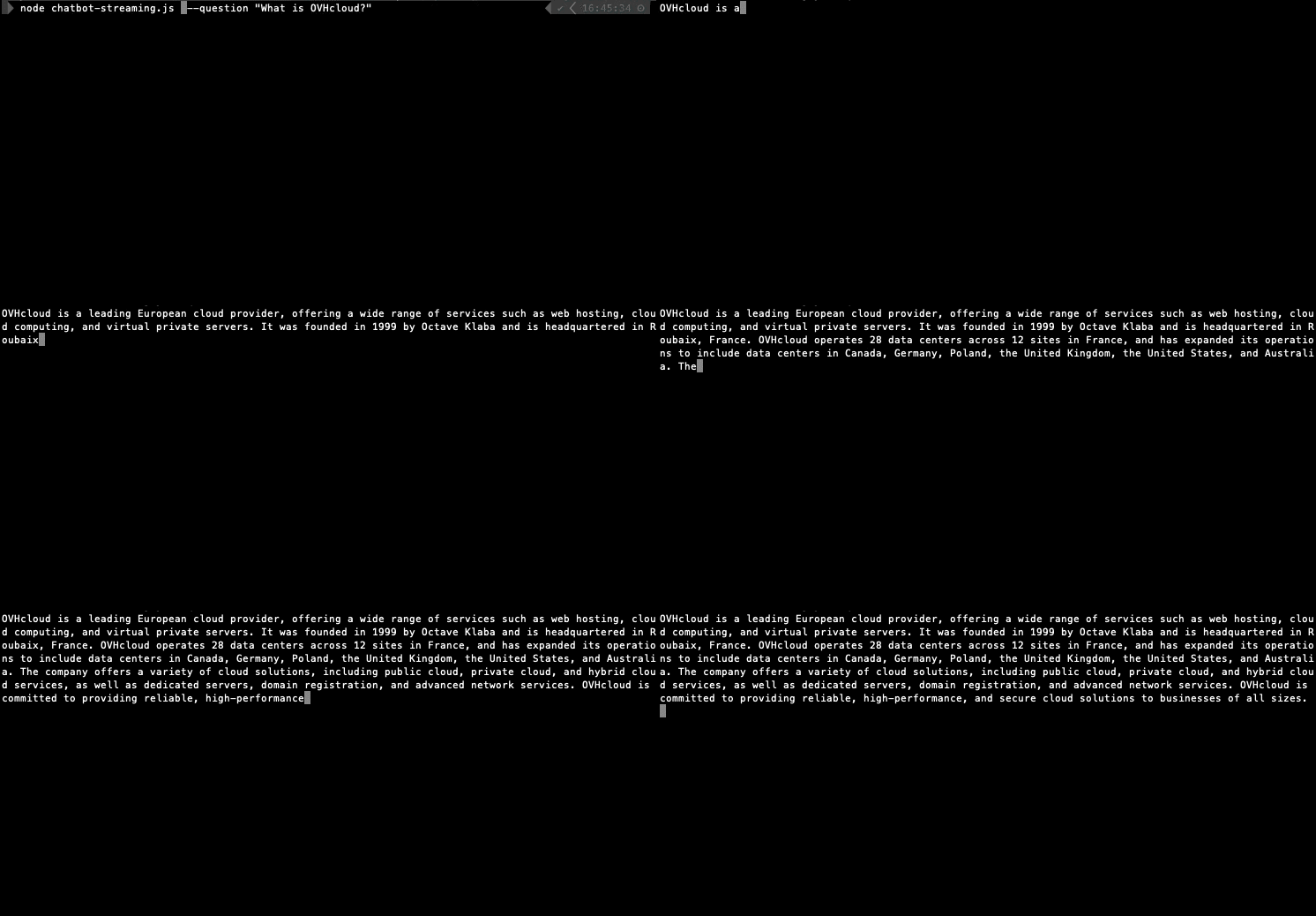
You’ll see the assistant’s response appear in real time ⏳💬
Conclusion
With just a few lines of JavaScript and LangChain, you now have a chatbot powered by the OVHcloud AI Endpoints. You can easily switch between blocking and streaming modes, giving your users a responsive chat experience.
Going further
You can then build and deploy a web app in the cloud, making your interface accessible to everyone. To do so, refer to the following articles and tutorials:
- AI Deploy – Tutorial – Build & use a custom Docker image
- AI Deploy – Tutorial – Deploy a Gradio app for sketch recognition
If you need training or technical assistance to implement our solutions, contact your sales representative or click on this link to get a quote and ask our Professional Services experts for a custom analysis of your project.
Feedback
Please feel free to send us your questions, feedback, and suggestions regarding AI Endpoints and its features:
- In the #ai-endpoints channel of the OVHcloud Discord server, where you can engage with the community and OVHcloud team members.


 AI Endpoints - Build a Python Chatbot with LangChain
 184
184