

CLI - Launch and share an AI Notebook with tokens
420 Views
 27.05.2021
  Cloud / AI Deploy
Objective
This guide shows how to share notebooks with other people through the ovhai CLI.
Requirements
- a working
ovhaiCLI (how to install ovhai CLI)
Share a notebook with people in your Public Cloud project
When you access it from your browser, you will be required to log in using your credentials.
Any person who is in the same Public Cloud project as you will also have access to this notebook using their own
credentials. The only thing you need to do is give them the URL returned by the command ovhai notebook get <notebook-id>.
First, let's create a notebook:
Wait a few seconds for the notebook to be in the RUNNING state.
Here the URL is https://d8d809f2-717b-4b60-9881-07e6987a144d.notebook.gra.ai.cloud.ovh.net.
It will be different for every notebook you will create. Anyone in your Public Cloud project can now access this URL
from their browser using their own credentials.
Share a notebook with people outside your Public Cloud project
In order to allow people outside your Public Cloud project to access your notebook, we need to generate some credentials for them that will only give them access to the notebooks we want. These credentials are named App tokens and are represented by a long string of characters.
The first step is to generate a token that will give access to notebooks with a specified label:
We just created a token named my-token, that will allow to access any notebook that has a label subject=image-recognition.
The --role read option means people using this token will only be allowed to access the address from their browser but they won't be able to stop or delete the notebook.
If you want to allow other people to do so, you should use --role operator instead.
In this example, the token is:
eyJhbGciOiJFZERTQSJ9.eyJwcm9qZWN0IjoiZDBhMzRkZDQtNzZmOC00MzhkLWJlMjQtOWJlZDg4MmIyY2RlIiwianRpIjoiMGFhM2M1NTctMTBjOS00MzMxLWIxNjgtY2Q0ZTQ1YWJlYmRjLTEiLCJpc3MiOiJ0cmFpbmluZy5haS5jbG91ZC5vdmgubmV0Iiwic3ViIjoiYmJmZTU4ZjMtODNhNS00NzBiLWFiZDUtMGY3ZTg4ZjAxYjc2In0.HuQfPBfpSOvxABtXAsSc-1RPCEZjQQFSpKZftjRy2lOcayd1xjfmR6LaRklt-68ffkQbHPcPxLQQI8WIlgyADg
This token is unique and will be different for you. You should save the token on your side as there will be no way to recover it.
Let's create a notebook with the right label and see how we can access it using the token we just created:
Wait a few seconds for the notebook to be in the RUNNING state.
$ ovhai notebook get 3cd20aa3-3f5d-49be-b027-ccaf6dd06f01

Name:
ID:         3cd20aa3-3f5d-49be-b027-ccaf6dd06f01
Created At: 27-05-21 14:03
Updated At: 27-05-21 14:03
User:       user-uY7UNgjpKBPY
Spec:
  Resources:
    GPU:       1
    GPU Model: Tesla-V100S
    CPU:       13
  Volumes:
  Labels:
    subject: image-recognition
  Unsecure: false
  Env:
    Framework ID:    pytorch
    Framework Version: 1.8.1
    Editor ID:       vscode
Status:
  State:           RUNNING
  Infos:
  Transitioned At:
  Duration:        34s
  Url:             https://3cd20aa3-3f5d-49be-b027-ccaf6dd06f01.notebook.gra.ai.cloud.ovh.net
  Monitoring Url:  https://monitoring.gra.ai.cloud.ovh.net/d/gpu?var-notebook=3cd20aa3-3f5d-49be-b027-ccaf6dd06f01&from=1622124160516
  Transitioned At: 27-05-21 14:03
The Url field corresponds to the address to paste in your browser to access the notebook.
If you're already logged in with your browser, then it will display the notebook. Otherwise, you will get a page like this:
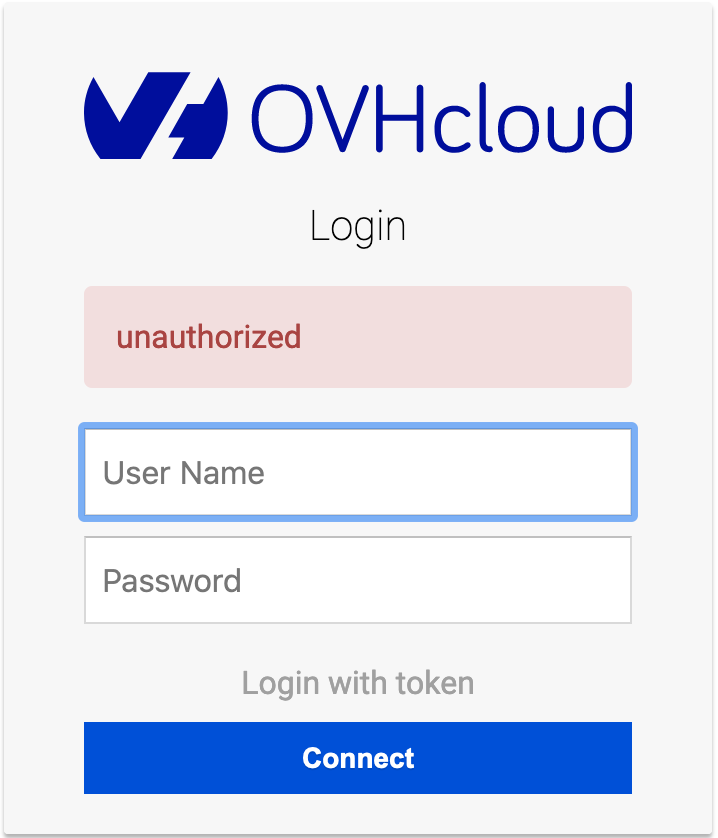
You can try in a private navigation window to get the login page and test the token.
Clicking on Login with token leads to this page:
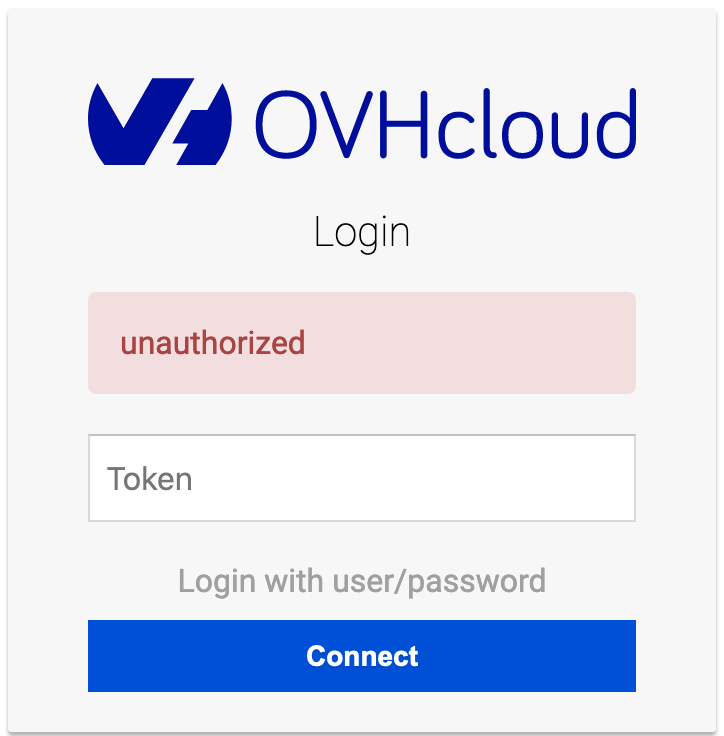
Paste the token we created earlier into the text box and click on Connect. You should now see your notebook.
You can now give this token to anyone that you wish to share the notebook with.
Share your notebook publicly
Sharing your notebook publicly mean anyone will be able to access the notebook if they have the URL. They will not be able to stop or delete the notebook but will be able to modify it, execute code, and access your mounted volumes.
You will need the --unsecure-http option when creating your notebook to make it available publicly:
Wait a few seconds for the notebook to be in the RUNNING state.
Anyone can now access the notebook by pasting the URL shown in the ovhai notebook get output in their browser.
In this example, the Url is https://8e3ac445-0b47-4eea-9269-19a36b7213c7.notebook.gra.ai.cloud.ovh.net.
If you need training or technical assistance to implement our solutions, contact your sales representative or click on this link to get a quote and ask our Professional Services experts for a custom analysis of your project.
Feedback
Please send us your questions, feedback and suggestions to improve the service:
- On the OVHcloud Discord server


 CLI - Installation
 1078
1078