

Retrieve an email header and .eml file
1061 Views
 06.03.2026
  Email and Collaborative Solutions
Objective
An email header traces the path taken by an email across the network, from the sender to the recipient.
It can be used to identify a malicious email or detect slow reception.
Every email you receive has a header (header) that is not displayed by default when you view your email. You can however retrieve it from your email client or webmail.
You can also extract the entire email as a .eml file. This file may be requested to analyse a malicious email you received.
To retrieve a .eml file, go to the Webmail section.
Find out how to retrieve an email header and extract a .eml file from your email client.
Requirements
- An email address using one of our OVHcloud email solutions, or an external solution.
- Access to your email address via webmail or an email client.
Instructions
Understanding the content of a header
The header is composed of several elements indicating the path of the email, arranged in reverse chronological order, along with additional information.
Below is a non-exhaustive list of the elements that can make up a header and their meaning.
- The
Receivedfield is present in the header each time the email passes through a sending server (SMTP). It usually contains the hostname of the server with its IP address and the date. TheReceivedfields are sorted from the most recent pass to the oldest pass on a server:
Received: from MX Plan7.mail.ovh.net (unknown [10.109.143.250])
    by mo3005.mail-out.ovh.net (Postfix) with ESMTPS id 448F4140309
    for <john@mydomain.ovh> ;Wed, 30 Jun 2021 13:12:40 +0000 (UTC)
Here the email was transmitted from server MX Plan7.mail.ovh.net to server mo3005.mail-out.ovh.net on 30 June 2021 at 13:12:40 (UTC time zone)
- The
Return-Pathfield corresponds to the return address when the message failed to be sent. The return address is usually the sender's address.
Return-Path: <john@mydomain.ovh>
- The
Fromfield indicates the sender's email address and display name.
From: John <john@mydomain.ovh>
- The
Tofield indicates the recipient's email address and display name.
To: Robert <robert@hisdomain.ovh>
- The
Subjectfield indicates the subject of the email.
Subject: Hello my friend
- The
Message-IDfield indicates the unique identifier of the email and ends with the name of the sending server (after the "@").
Message-ID: <Dc55+mK3j7hdZkf5_r-ff=fjq380ozc2h5@mailserver.domain.ovh>
- The
Received-SPFfield displays the result of the SPF check performed on the sender's domain name. Theclient-ipargument can be used to find the IP address of the server that sent the email.
Received-SPF: Pass (mailfrom) identity=mailfrom; client-ip=000.11.222.33; helo=mail-smtp-001.domain.ovh; envelope-from=john@mydomain.ovh; receiver=robert@hisdomain.ovh
- The
X-fields are custom fields that complement the standard fields. They are implemented by the servers through which the emails pass.
X-OVH-Remote: 000.11.222.33 (mail-smtp-001.domain.ovh)
X-Ovh-Tracer-Id: 1234567891011121314
X-VR-SPAMSTATE: OK
X-VR-SPAMSCORE: 0
X-VR-SPAMCAUSE:
Retrieving a header from an email client
Microsoft Outlook
Retrieving the header
There are two versions of Outlook for Windows: Classic Outlook and the New Outlook. To identify your version, type "Outlook" in the Windows search bar. If the label "(classic)" appears, you are using Classic Outlook. Otherwise, it is the New Outlook.
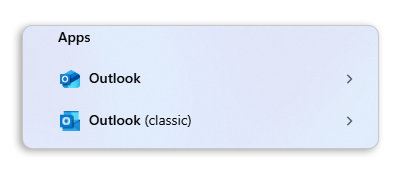
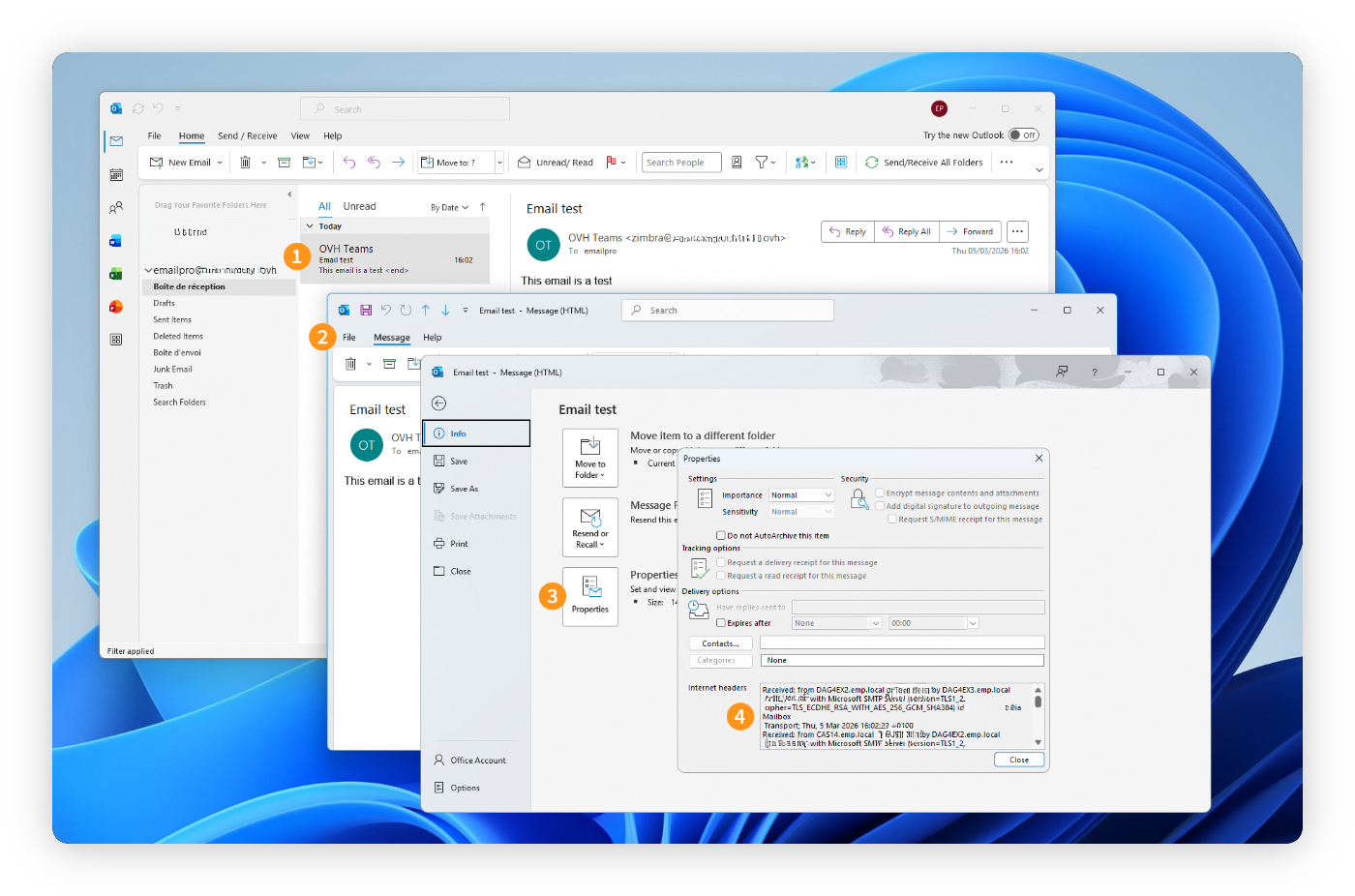
Classic Outlook:
- Double-click the email to open it in a separate window.
- In the new window, click
Filein the top left-hand corner. - Select
Infoon the left, then clickProperties. - The full email header appears in the lower box. Select the entire text and copy it to a file.
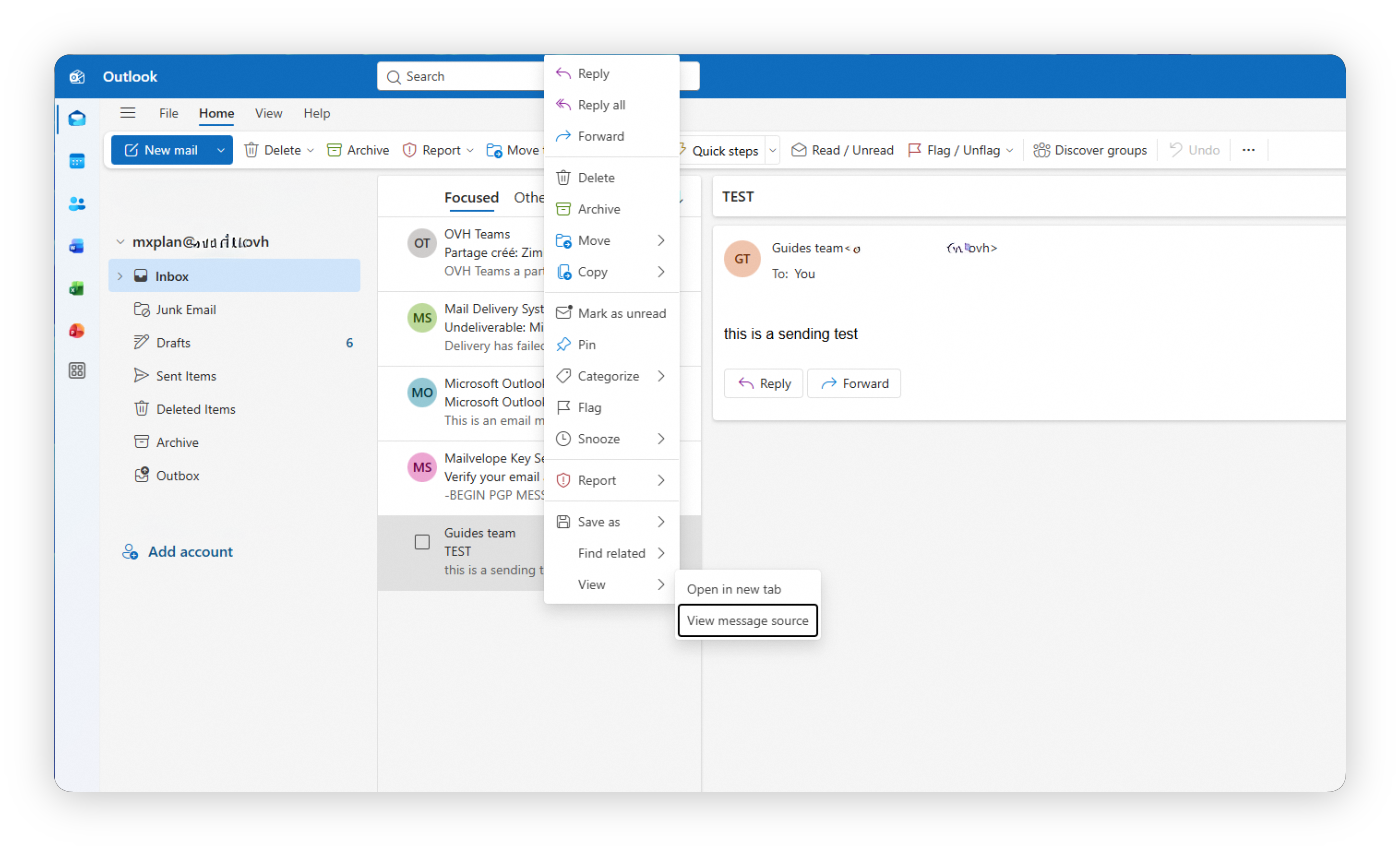
New Outlook:
- Open the email of your choice.
- Right-click on the email.
- Select
ViewthenView Message Details. - The full email header appears in the message details pane. Select the entire text and copy it to a file.
Retrieving the .eml file
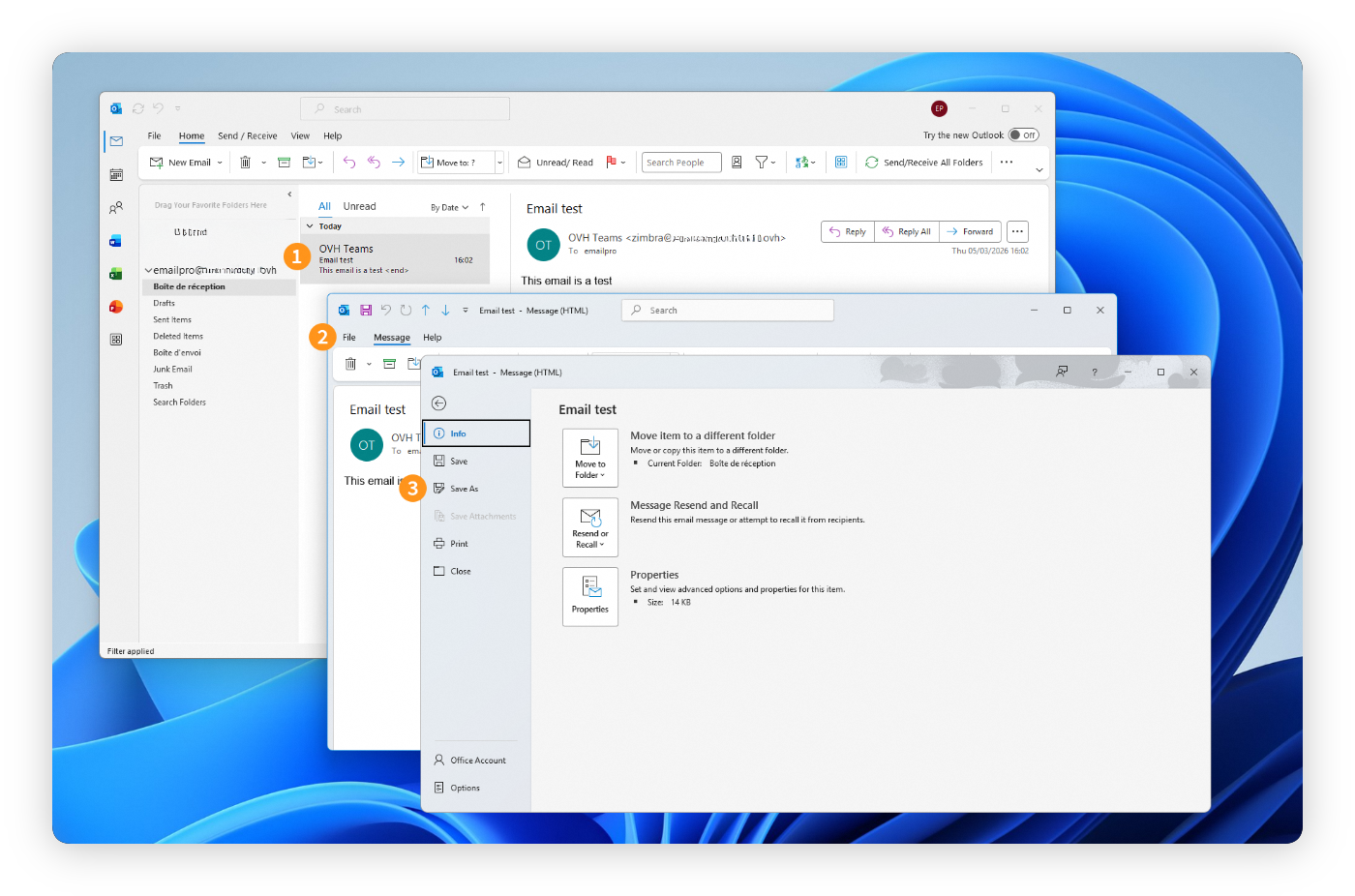
Classic Outlook:
- Select the email in your inbox (do not open it).
- Click
Filein the menu bar. - Click
Save As. - In the "Save as type" dropdown, select Outlook Message Format - Unicode (.msg). Choose a location on your computer (e.g. the Desktop) and click
Save.
You can also drag and drop the email from your inbox directly onto your Desktop. This creates a .msg file that you can attach to your report.
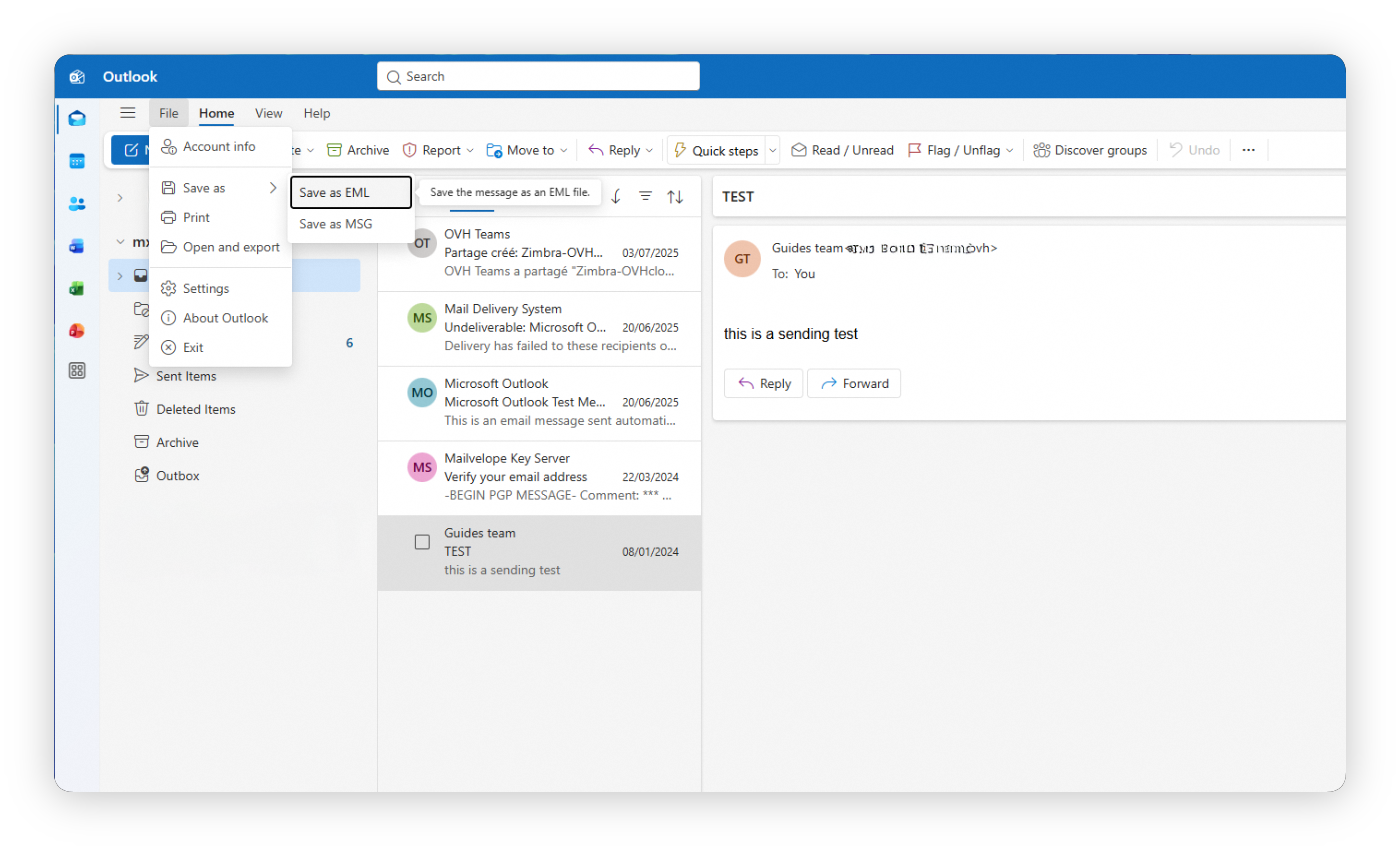
New Outlook:
- In the message list, right-click the email.
- Select
Save As, then chooseSave as EML file. - Choose a location on your computer and click
Save.
Mozilla Thunderbird
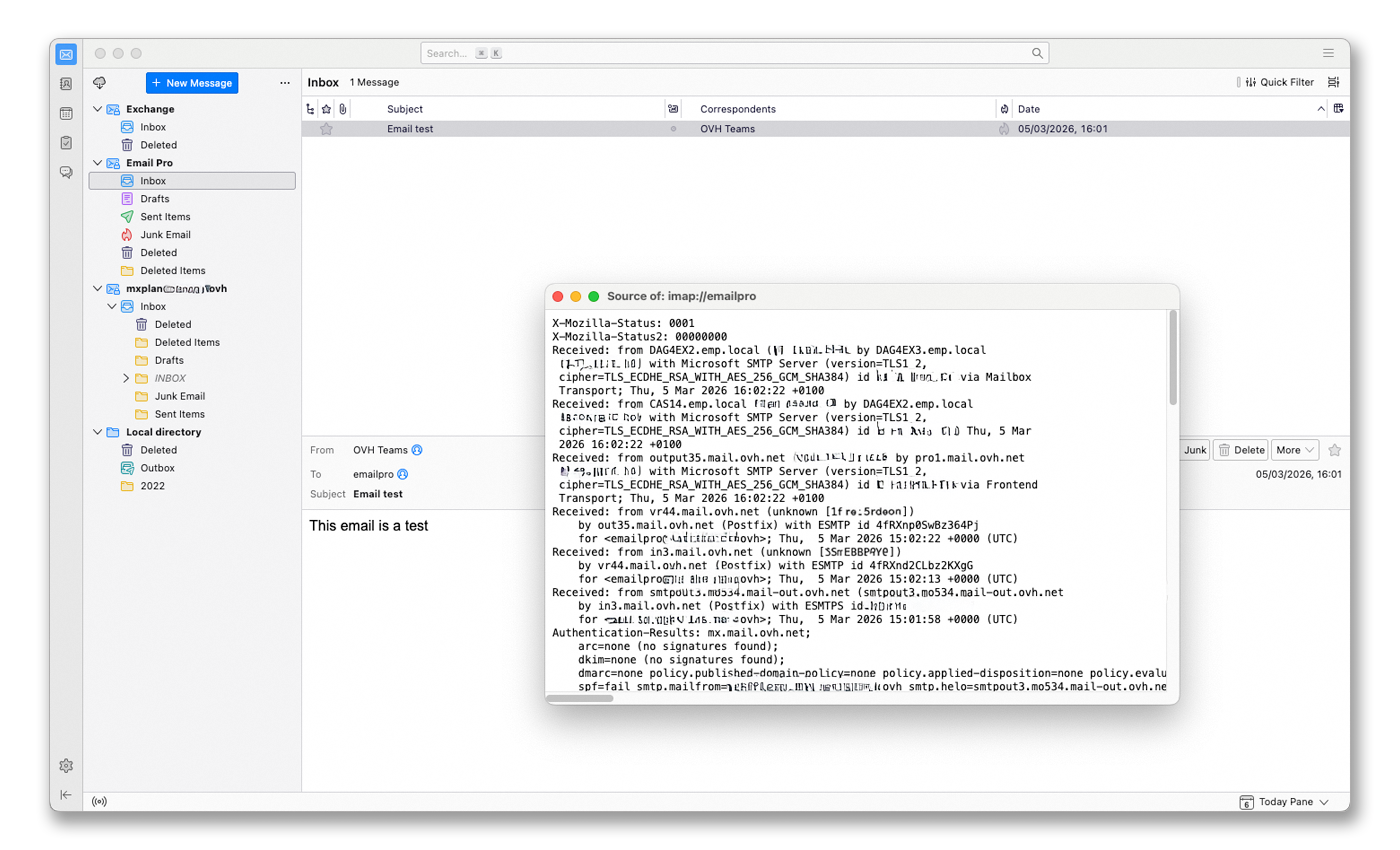
Retrieving the header
- Select the email of your choice.
- Press
Ctrl+U(Cmd+Uon macOS) simultaneously. - The full email header appears in a separate window. Select the entire text and copy it to a file.
Retrieving the .eml file
- Select the email of your choice.
- Press
Ctrl+S(Cmd+Son macOS) simultaneously. - The file is saved in
.emlformat by default.
macOS Mail
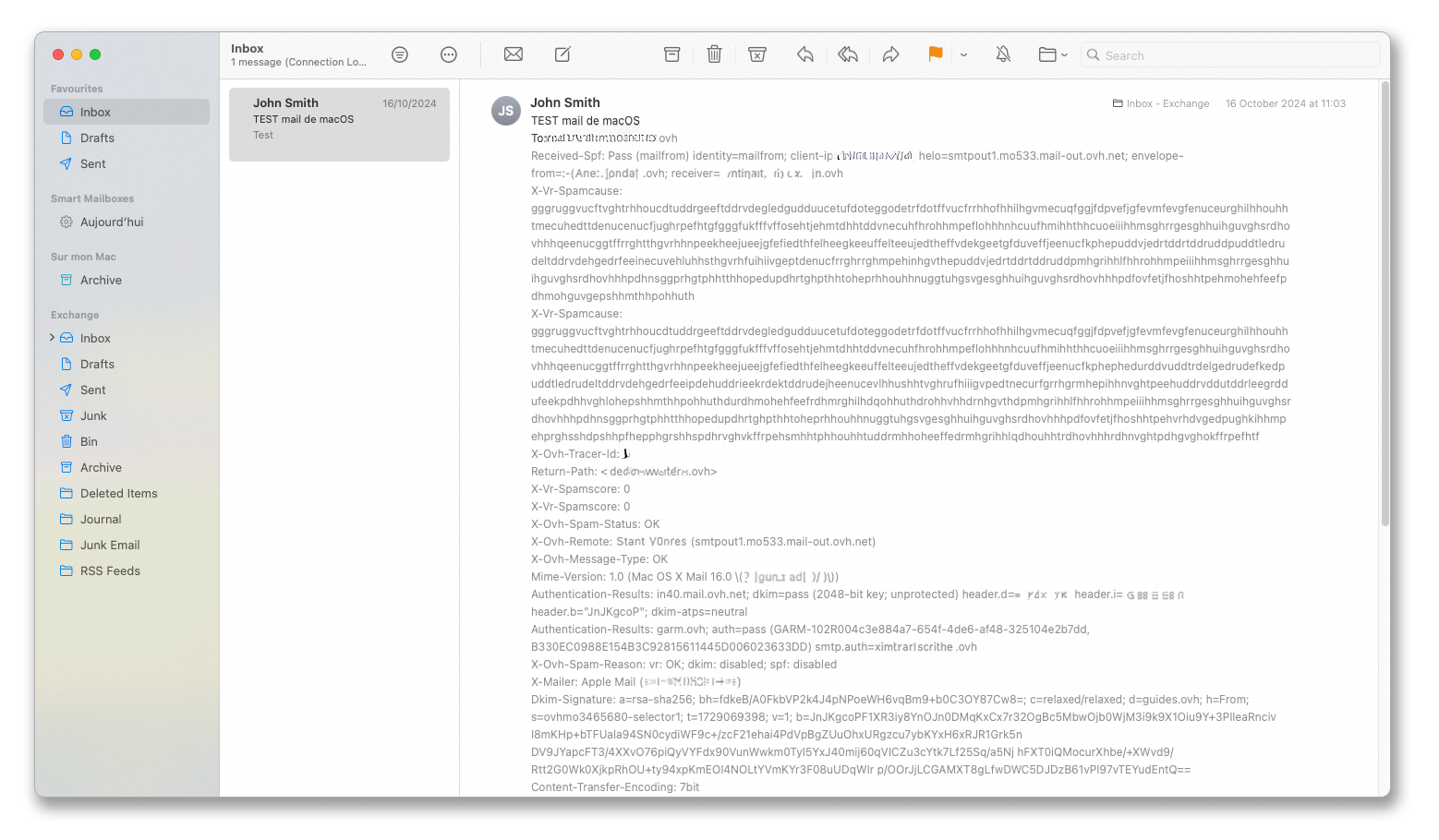
Retrieving the header
- Select the email of your choice.
- Press
Cmd+Shift+Hsimultaneously. - The full email header appears. Select the grey text and copy it to a file.
Retrieving the .eml file
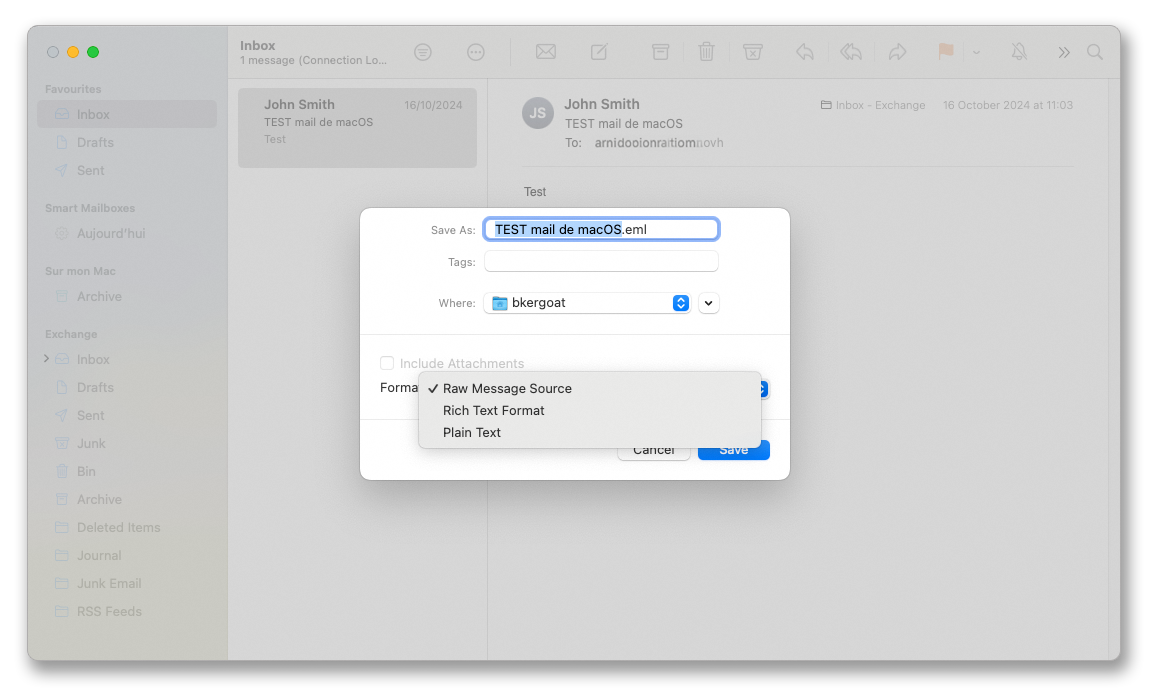
- Select the email of your choice.
- Press
Cmd+Ssimultaneously. The.emlfile is created automatically. Select theRaw Message Sourceformat. - Choose a location on your computer and click
Save.
Retrieving a header on webmail
Roundcube
Retrieving the header
- Select the email of your choice.
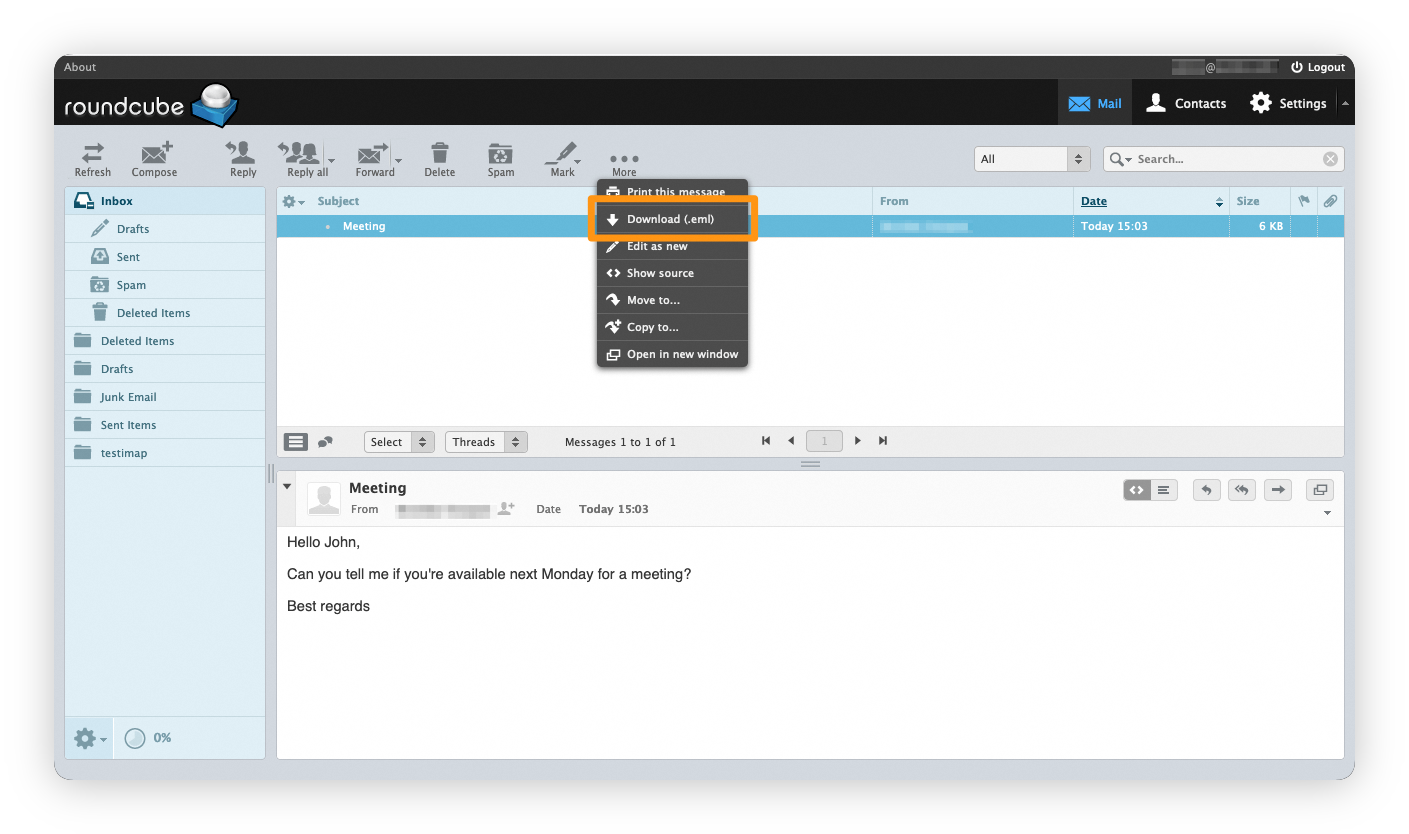
- Click the button
... Morethen< > Show source. - A new window opens with the full email header. Select the entire text and copy it to a file.

Retrieving the .eml file
- Select the email of your choice.
- Click the button
... MorethenDownload (.eml).
Outlook Web App (OWA)
Retrieving the header
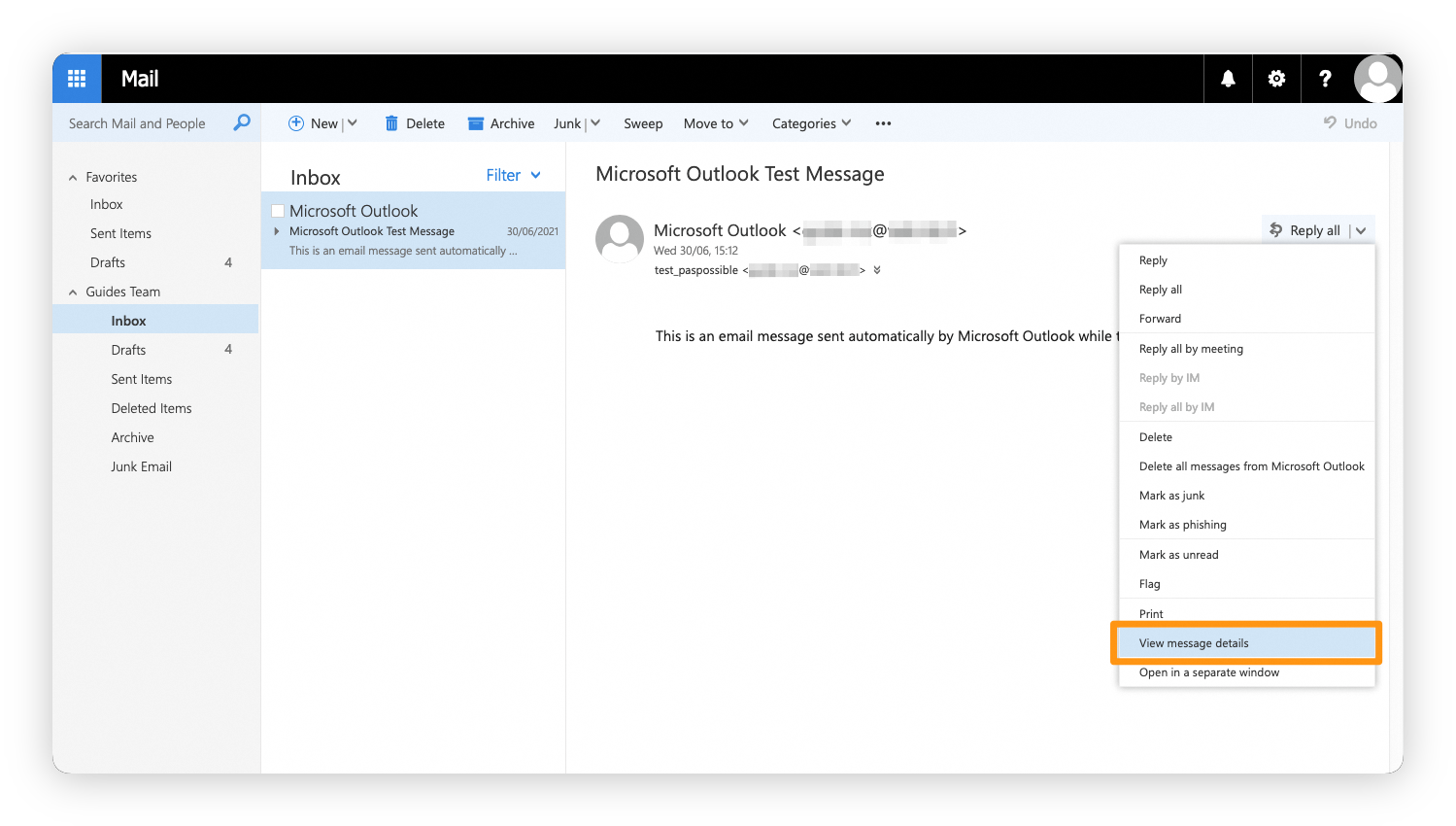
- Select the email whose header you want to view.
- Click the arrow to the right of
Reply AllthenView Message Details. - A new window opens with the full email header, allowing you to download it.
Also see our video tutorial:
Retrieving the .eml file
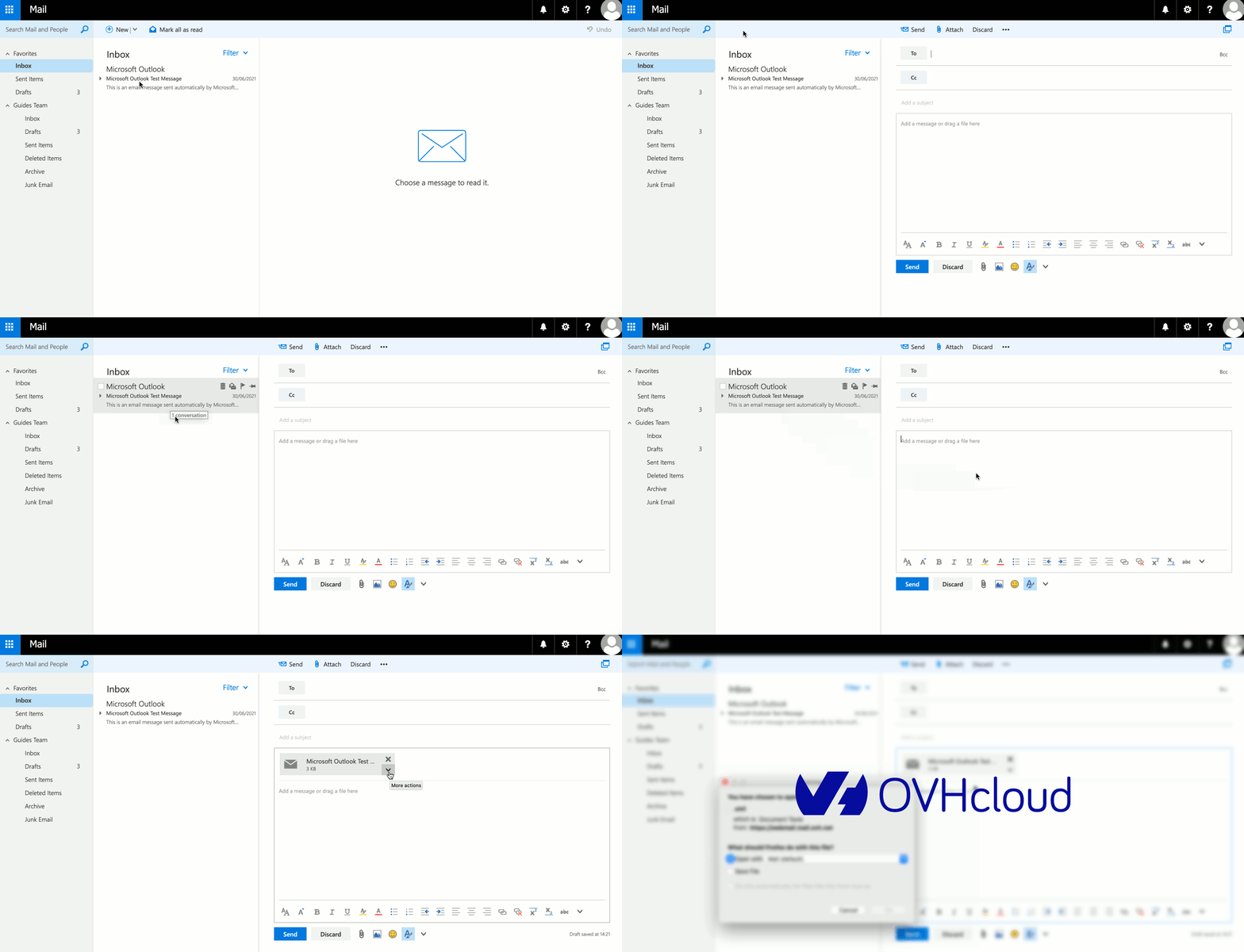
- Click
(+) Newto create a new email. - Select the email you want to extract and drag it into the content of the new message.
- Click the down arrow next to the generated attachment, then click
Downloadto save the file to your computer.
Zimbra
Retrieving the header
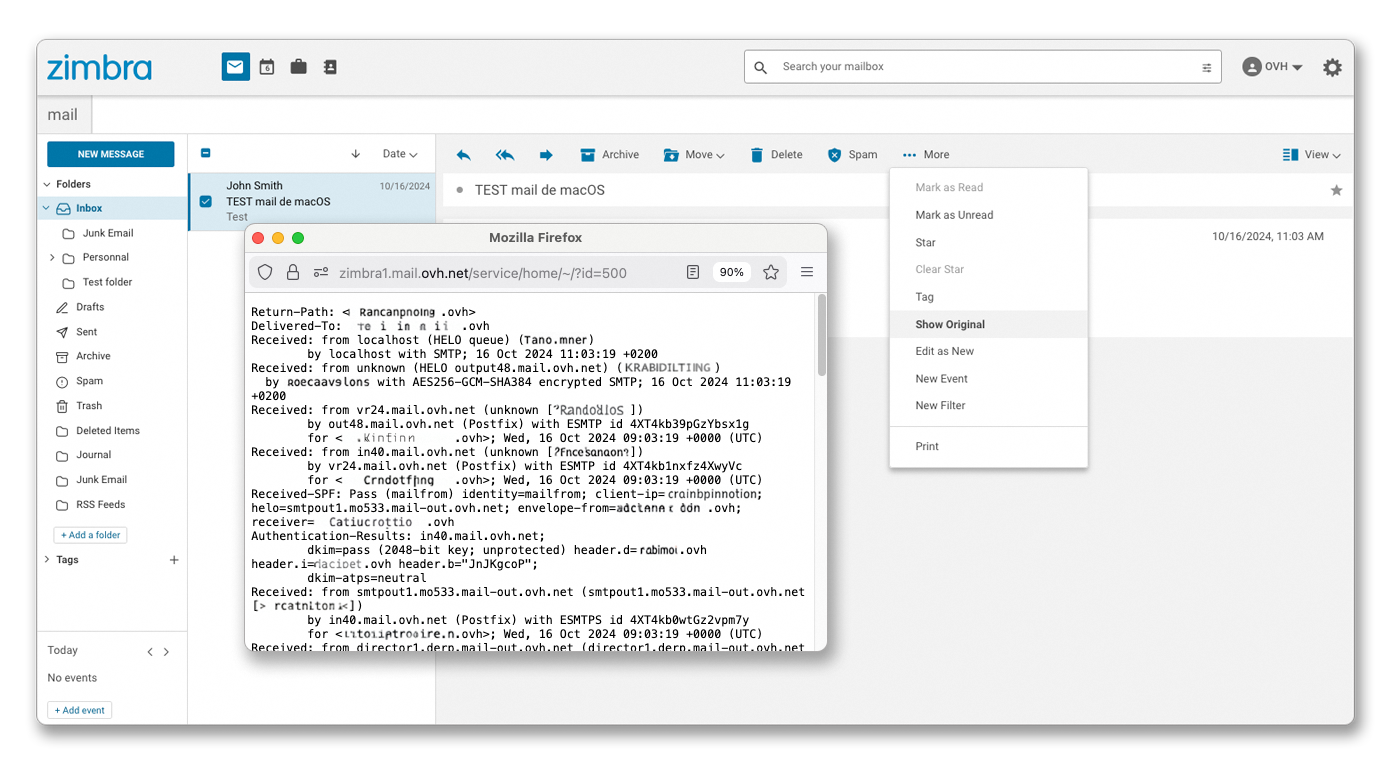
- Select the email of your choice.
- Click
Morein the action bar and selectShow original. - A new window opens with the full header and raw content of the email.
Retrieving the .eml file
- Select the email of your choice.
- Click
Morein the action bar and selectShow original. - In the window that opens, use the shortcut
Ctrl+S(orCmd+Son macOS) to save the page as a.emlfile.
Retrieving a header from another email client
Gmail
Retrieving the header
- Select the email concerned.
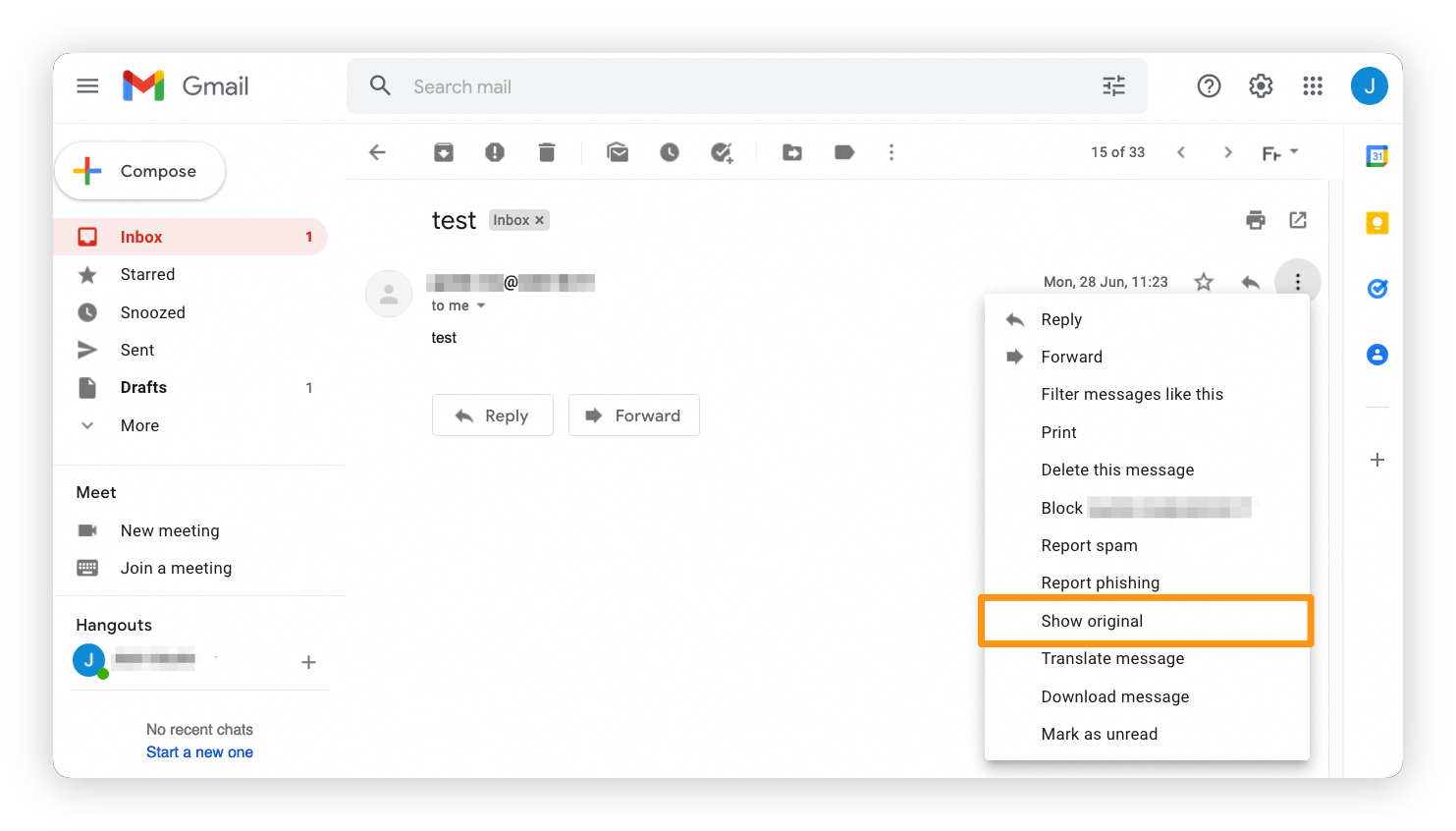
- Click the 3 vertical dots on the right and click
Show original. - A new window opens with the full email header.
Retrieving the .eml file
- Select the email concerned.
- Click the 3 vertical dots on the right and select
Download message.
Outlook.com
To retrieve the header or extract the .eml file from the <Outlook.com> webmail interface, see the Outlook Web App section of this guide.
Go further
Join our community of users.


 Unable to send or receive emails
 7242
7242