

Getting started with the MX Plan solution
9667 Views
 05.03.2026
  Web / MX Plan Email (legacy infrastructure)
Objective
If you have just purchased an MX Plan solution, this means you have email addresses that you can use to send and receive messages from a device of your choice.
Find out how to get started with an MX Plan solution.
Requirements
- An MX plan solution, available with a web hosting plan, a 100M free hosting, or ordered separately
OVHcloud Control Panel Access
- Direct link: MX Plan
- Navigation path:
Web Cloud>MX Plan> Select your MX Plan service
Instructions
Continue with the email technology used by your MX Plan service.
Identify the email technology for your MX Plan solution.
Depending on the activation date of your MX Plan solution, or on a recent migration, the email technology associated with it may differ. This version is characterized by its webmail interface. To identify it:
- In the
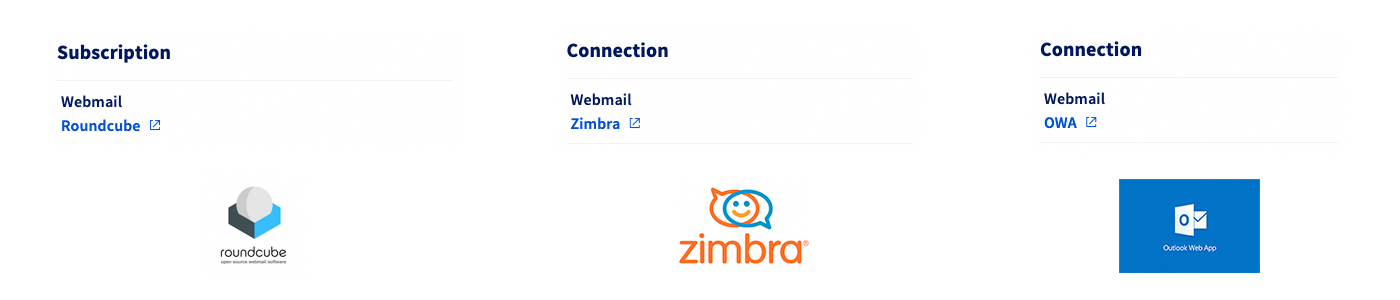
General informationtab, note the technology used under the Webmail mention in theSubscriptionorConnectionbox.
Contents
Create an email address
To find out how to create an email address, click on the tab corresponding to the email technology used by your MX Plan service:
To create an email address, go to the Emails tab. The window that opens will list the accounts that have already been created. To add a new email account, click the Add an account button.
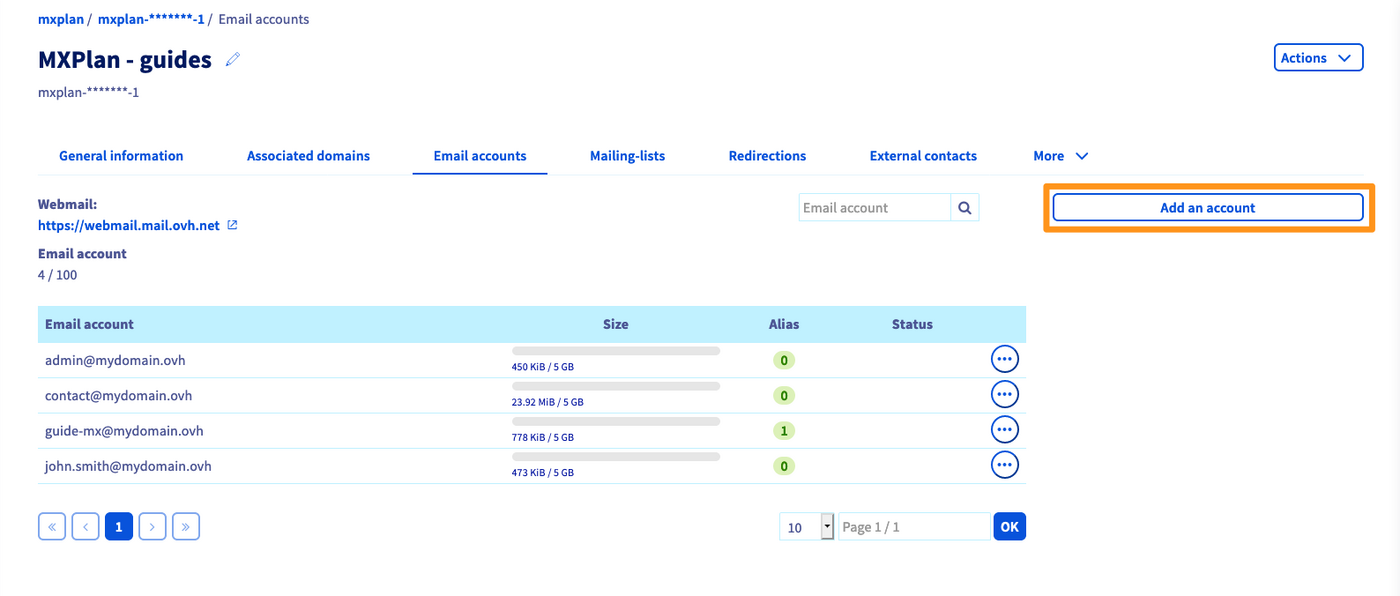
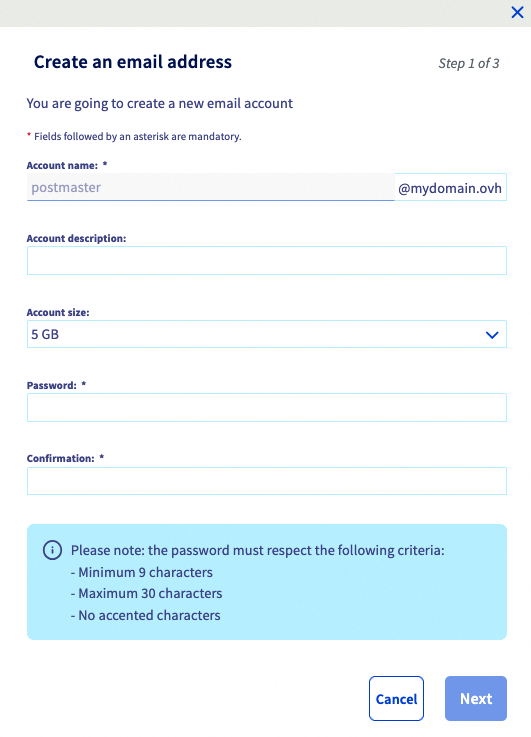
In the window that pops up, enter the following information:
- Account name: Enter your new email address (e.g. first name.surname). The domain name that makes up the email address is already pre-selected in the list.
- Account description: Information on the email address, visible only in the table in the
Emailstab of your email service. - Account size: Determine the size you would like to assign to the email account.
- Password: Enter a password and confirm it. For security reasons, we recommend not using the same password twice, choosing one that does not contain any personal information (e.g. your surname, first name and date of birth), and renewing it regularly.
Once you have filled in the fields, click Next, then check the information that appears in the summary. If the information is correct, click Confirm. Repeat this step as necessary, depending on the number of accounts you have.
To create an email address, go to the Email accounts tab. The window that opens will list the accounts that are already available, as well as those that you can still create. To add a new email account, click the Add an account button.
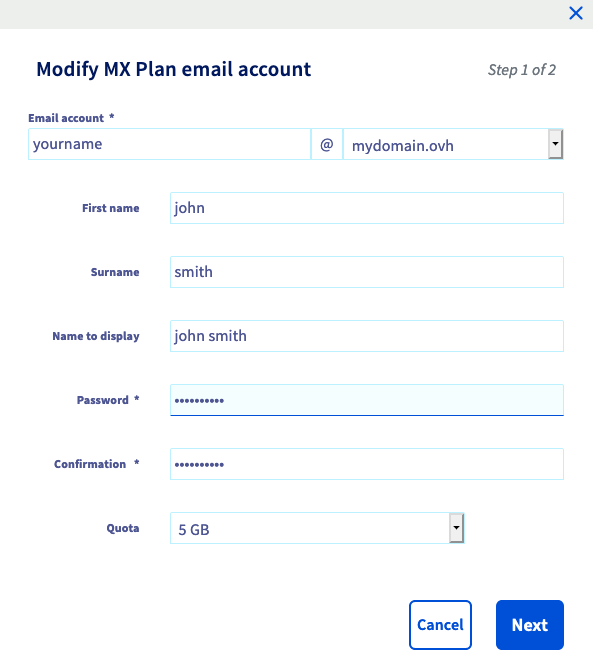
In the window that pops up, enter the following information:
- Email account: A temporary name is already pre-filled in the text box: delete it and enter your new email address (e.g. your first name.surname). The domain name that makes up the email address is already pre-selected in the list.
- First name: Enter a first name.
- Name: Enter a name.
- Display name: Enter the name that will be displayed as a sender when emails are sent from this address.
- Password: Enter a password and confirm it. For security reasons, we recommend not using the same password twice, choosing one that does not contain any personal information (e.g. your surname, first name and date of birth), and renewing it regularly.
- Quota: Determine the size you would like to assign to the email account.
Once you have filled in the fields, click Next, then check the information that appears in the summary. If the information is correct, click Confirm. Repeat this step as necessary, depending on the number of accounts you have.
Use your email addresses
Once you have created your email addresses, you can start using them. There are two ways of doing this: using webmail from a browser, or using an email client.
Use Webmail
Go to the Webmail login page, then enter the email address and password. Then click the Login button.
Select the tab corresponding to the email technology of your MX Plan solution:
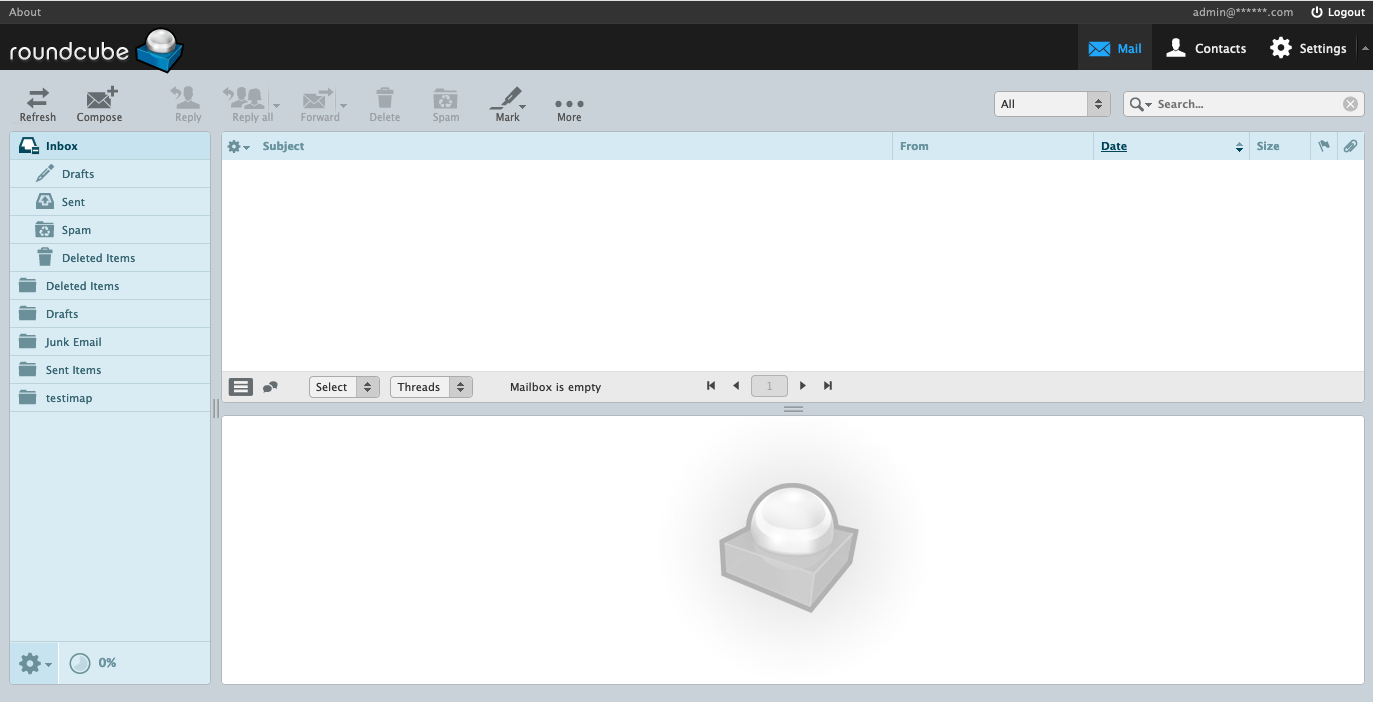
You should see an interface similar to the image below with the word "Roundcube" in the top left.
To find out how to use the Roundcube interface, please read our guide on Using an email address via the Roundcube webmail.
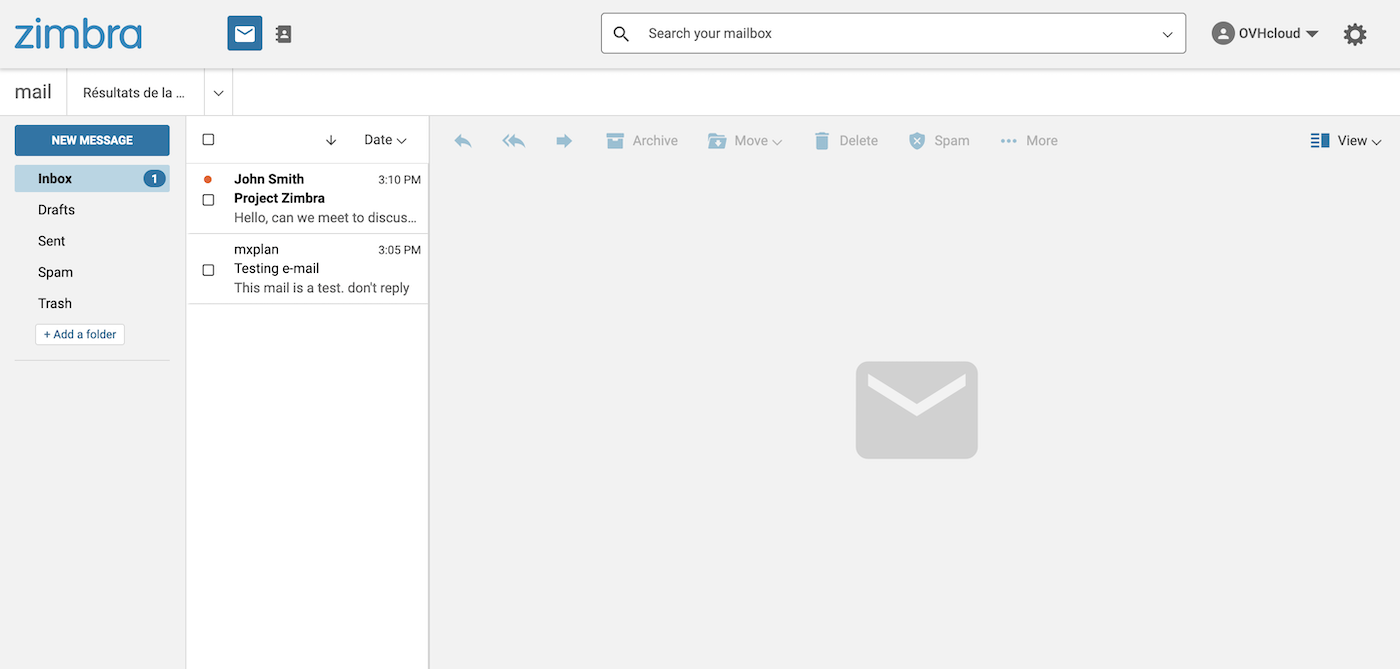
As shown in the image below, a window will appear with the word "Zimbra" in the top left-hand corner.
To find out how to use your email address via Zimbra webmail, please refer to our guide on Using Zimbra webmail.
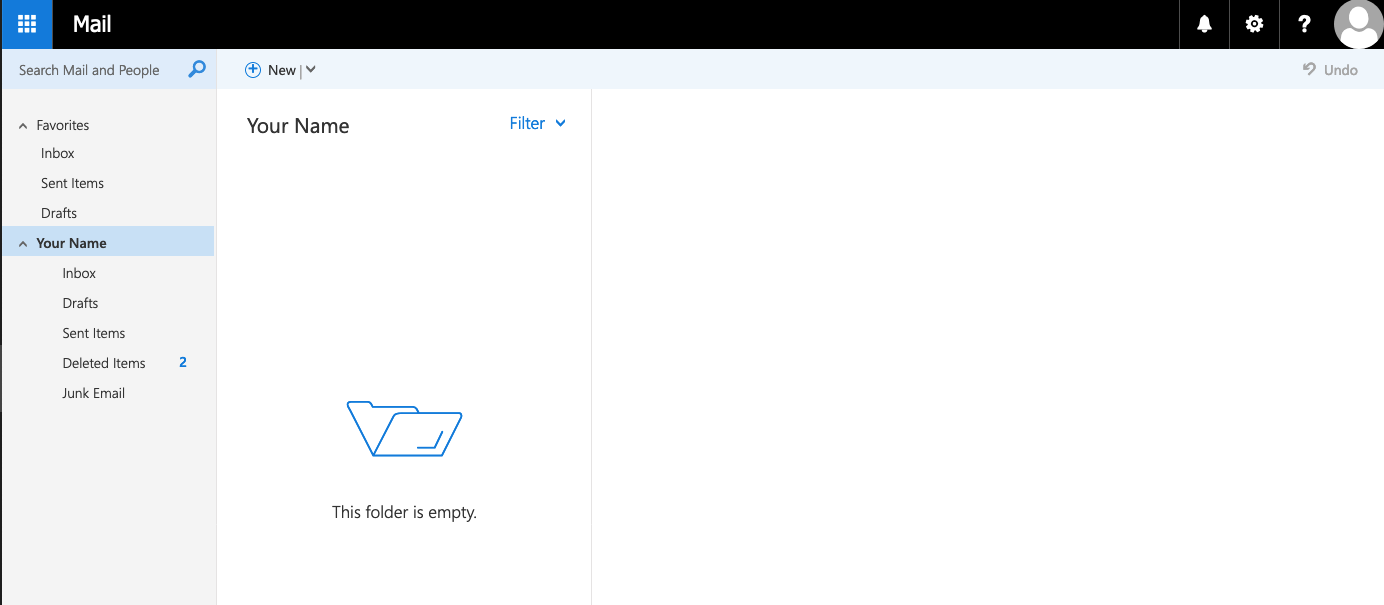
When you log in to webmail for the first time, you are prompted to set the interface language and the time zone you are in. Your inbox will then appear.
To find out how to use your email address via OWA webmail, please refer to our guide on Using your email address via Outlook Web App (OWA) webmail.
Use an email client
You can configure your email account on an email client such as Outlook, Thunderbird, Mac Mail, etc.
Below are the links to the configuration guides depending on your device type:
If you only need the connection parameters to configure an email account on an email client, you can find these settings below.
IMAP and POP Receive Settings
When you choose your account type, we recommend using IMAP to receive emails. However, you can select POP as well.
Please only enter the values corresponding to your location (EUROPE or AMERICA/ASIA-PACIFIC).
Select the tab corresponding to your configuration type:
- Username: Enter the full email address.
- Password: Enter the password for the email account.
- EUROPE server (incoming): imap.mail.ovh.net or ssl0.ovh.net.
- AMERICA/ASIA-PACIFIC server (incoming): imap.mail.ovh.ca.
- Port: 993.
- Security type: SSL/TLS.
- Username: Enter the full email address.
- Password: Enter the password for the email account.
- EUROPE server (incoming): pop.mail.ovh.net or ssl0.ovh.net.
- AMERICA/ASIA-PACIFIC server (incoming): pop.mail.ovh.ca.
- Port: 995.
- Security type: SSL/TLS.
SMTP Send Settings
Below are the SMTP settings to use when sending emails:
SMTP configuration
- Username: Enter the full email address.
- Password: Enter the password for the email account.
- EUROPE server (outgoing): smtp.mail.ovh.net or ssl0.ovh.net.
- AMERICA/ASIA-PACIFIC server (outgoing): smtp.mail.ovh.ca.
- Port: 465.
- Security type: SSL/TLS.
Redirections and Aliases
Do you want to redirect your emails to another recipient, create an alias or systematically copy another email address?
To do this, click on the tab corresponding to your email technology:
To add a redirection or an alias, click on the Emails tab of your MX Plan service, then click on the Manage redirections button on the right.
The table of redirections that are already active appears. On the right, click Add a redirection to start creating your redirection or alias.
From address: Enter the email address you would like to redirect.To address: Enter the address you would like to redirect to here. This can be one of your OVHcloud email addresses, or an external email address.Choose a copy method: Define whether you want to keep a copy of the email received at the targeted email address (From address) or directly redirect to the redirection address (To address) without saving a copy.
To understand how to use redirections and aliases on your MX Plan service, please read our full guide: “Use email redirections”.
When you are using OWA or Zimbra, you can do this in two ways:
-
Create your redirection via webmail: Via inbox rules or filters. These rules, which are applied when an email is received, allow an email to be forwarded or redirected. To do this, please follow our guide on Inbox rules via the OWA interface, or read the Filters section of our guide on Using webmail Zimbra.
-
Create your redirection and alias via the OVHcloud Control Panel: To add a redirection or alias, click on the
Redirectionstab. The table of redirections that are already active is displayed. On the right, clickAdd a redirection. -
From address: Enter the email address you would like to redirect. To address: Enter the address you would like to redirect to here. This can be one of your OVHcloud email addresses, or an external email address.Choose a copy method: Define whether you want to keep a copy of the email received at the targeted email address (From address) or directly redirect to the redirection address (To address) without saving a copy.
To understand how to use redirections and aliases on your MX Plan service, please read our full guide: “Use email redirections”.
Automatic reply
It is important to be able to set up an automatic response in case you cannot view or process your emails.
Select the tab corresponding to the email technology of your MX Plan solution:
To add an automatic reply to one of your email addresses, click on the Emails tab of your MX Plan service, then click the Manage replies button on the right.
The table of auto-replies that are already active is displayed. On the right, click Add auto-reply to start creating your redirection or alias.
For more details on setting up an automatic response from your MX Plan service in the OVHcloud Control Panel, please read our guide on “MX Plan - Creating an automatic response on an email address”.
You can set up an automatic reply directly by logging in to your email account via Webmail. For further details, please refer to our guide on Using Zimbra webmail, in the section “Automatic replies/Voicemail”.
You can set up an automatic reply directly by logging in to your email account via Webmail. For further details, please refer to the section "Adding automatic replies" in our guide on Using an email address via the Outlook Web App (OWA).
Go further
Use Outlook Web App (OWA) webmail
MX Plan - Create an automatic response on an email address
For specialised services (SEO, development, etc.), contact OVHcloud partners.
If you would like assistance using and configuring your OVHcloud solutions, please refer to our support offers.
Join our community of users.


 Using your email account via the Roundcube webmail interface
 8855
8855