

Changing the password of an email account
2587 Views
 12.08.2025
  Web / MX Plan Email (legacy infrastructure)
Objective
You can access your OVHcloud email accounts using the password associated with them. There are 2 ways you can modify it, depending on your email plan:
- From Webmail
- Via the OVHcloud Control Panel
This guide explains how to change the password for an OVHcloud email account.
Requirements
- Access to the email account via webmail, depending on the method used.
- A preconfigured OVHcloud email solution:
- MX Plan available with a web hosting plan, or included in a 100M free hosting.
- Exchange.
- Email Pro.
- Zimbra.
OVHcloud Control Panel Access
MX Plan:
- Direct link: MX Plan
- Navigation path:
Web Cloud>MX Plan> Select your MX Plan service
Zimbra:
- Direct link: Zimbra
- Navigation path:
Web Cloud>Zimbra Mail> Select your Zimbra service
Email Pro:
- Direct link: Email Pro
- Navigation path:
Web Cloud>Email Pro> Select your platform
Exchange:
- Direct link: Exchange
- Navigation path:
Web Cloud>Exchange> Select your platform
Instructions
When you change the password for your email account, you will also need to apply this change to all email clients that access this account. You can find the configuration guides for your email software on the guide homepage of your email offer.
Changing the password via the Control Panel
For security reasons, we recommend not using the same password twice, and choosing one that does not contain any personal information (e.g. your surname, first name and date of birth). We also recommend renewing your password regularly.
Identify the email technology for your MX Plan solution.
Depending on the activation date of your MX Plan solution, or on a recent migration, the email technology associated with it may differ. This version is characterized by its webmail interface. To identify it:
- In the
General informationtab, note the technology used under the Webmail comment in theSubscriptionorConnectionbox.
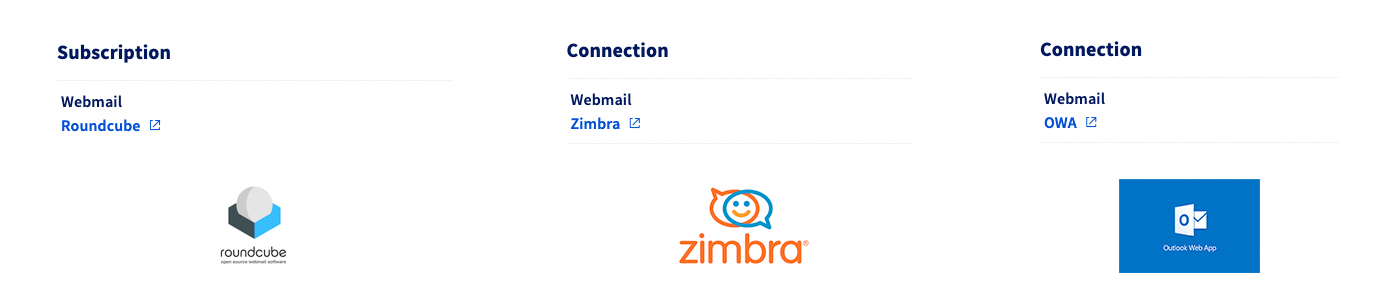 Webmail
Follow the instructions for your solution:
If you do not know which type of MX Plan solution you have, please read the section Identify your MX Plan solution.
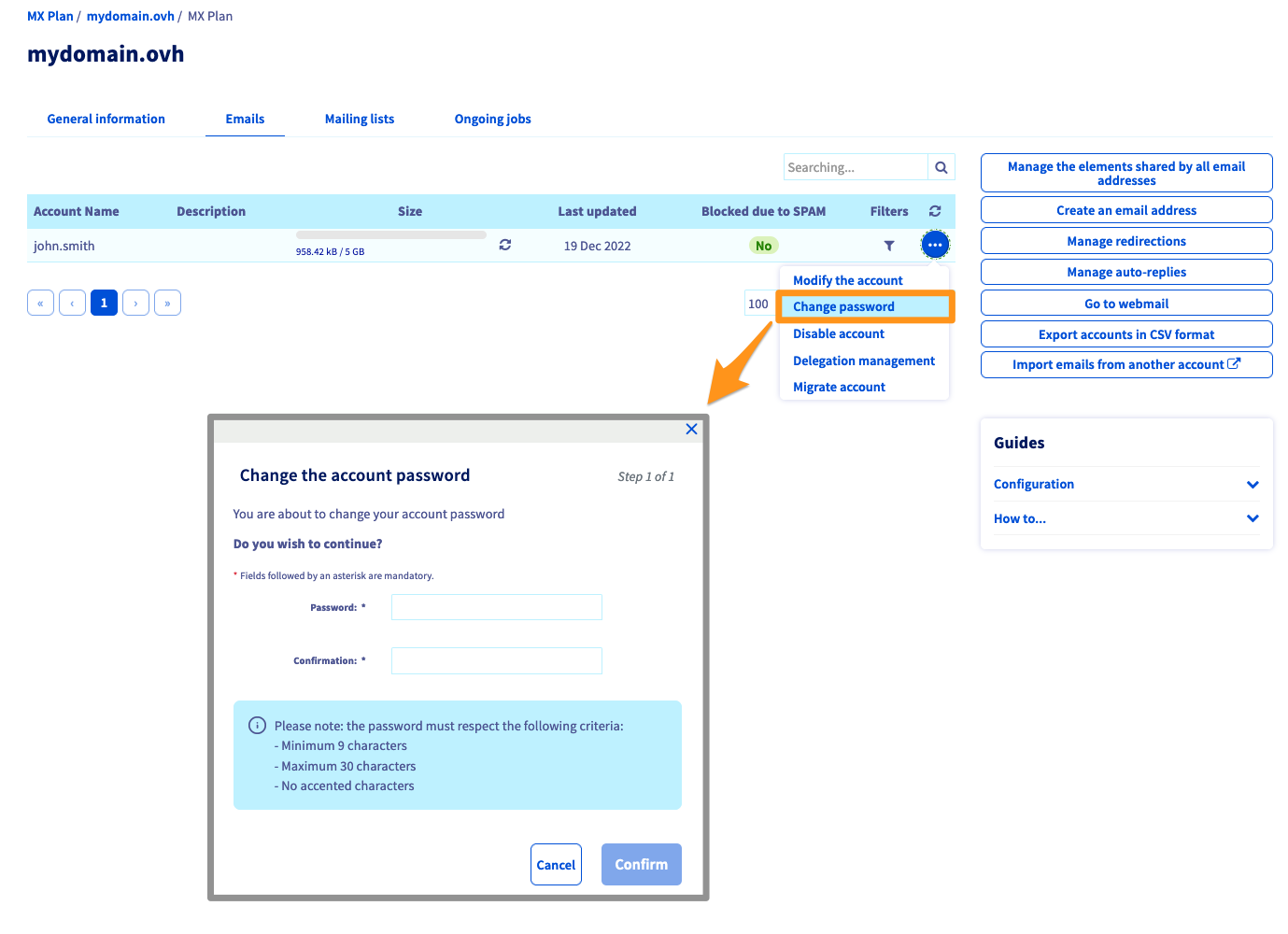
Click MX Plan, then choose the name of the MX Plan service concerned. Go to the Emails tab. The window that appears will display all email accounts.
Click the ... button, then click Change password.
If you do not know which type of MX Plan solution you have, please read the section Identify your MX Plan solution.
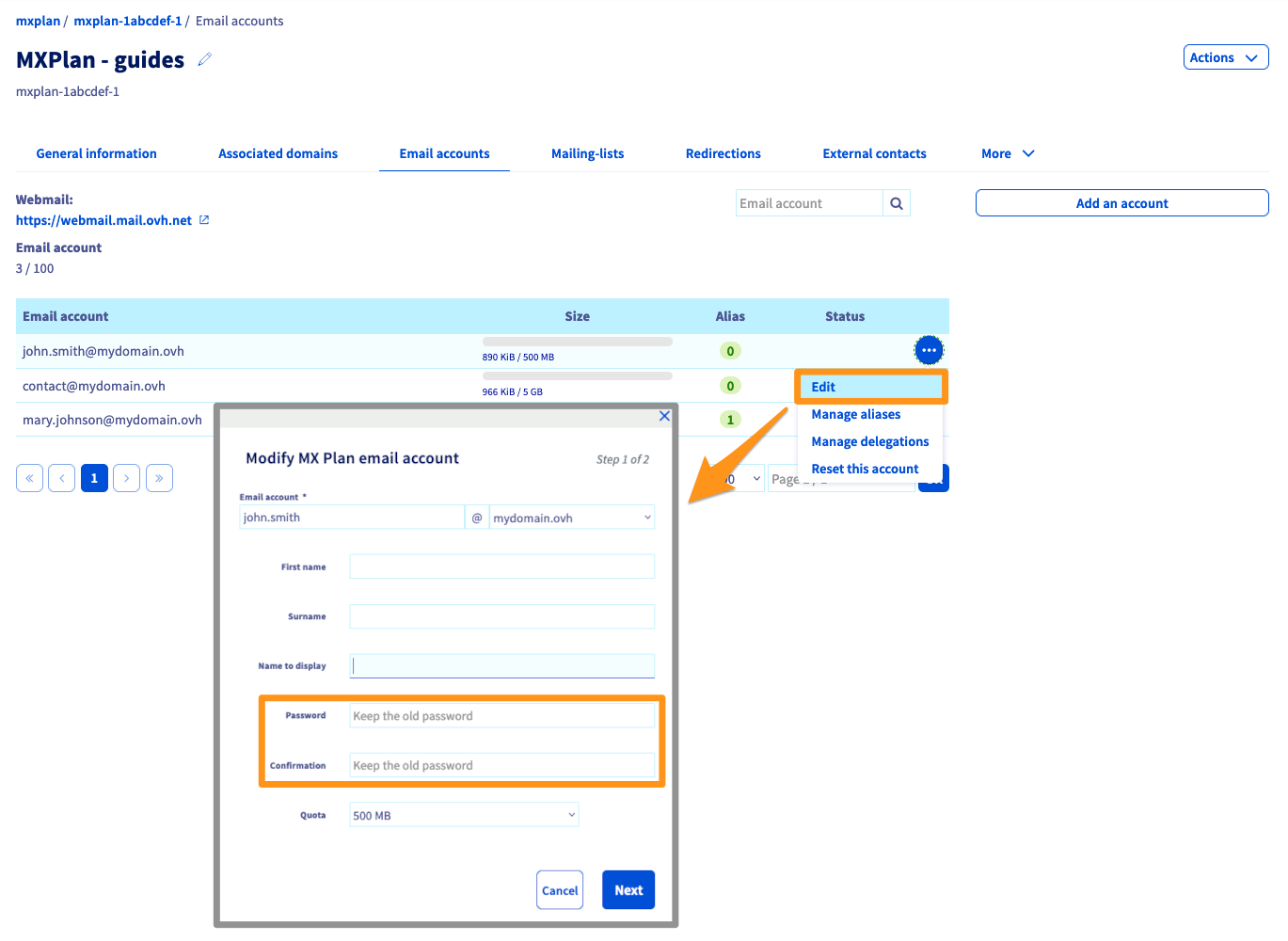
Click MX Plan, then choose the name of the MX Plan service concerned. Go to the Emails tab. The window that appears will display all email accounts.
Click the ... button, then click Edit.
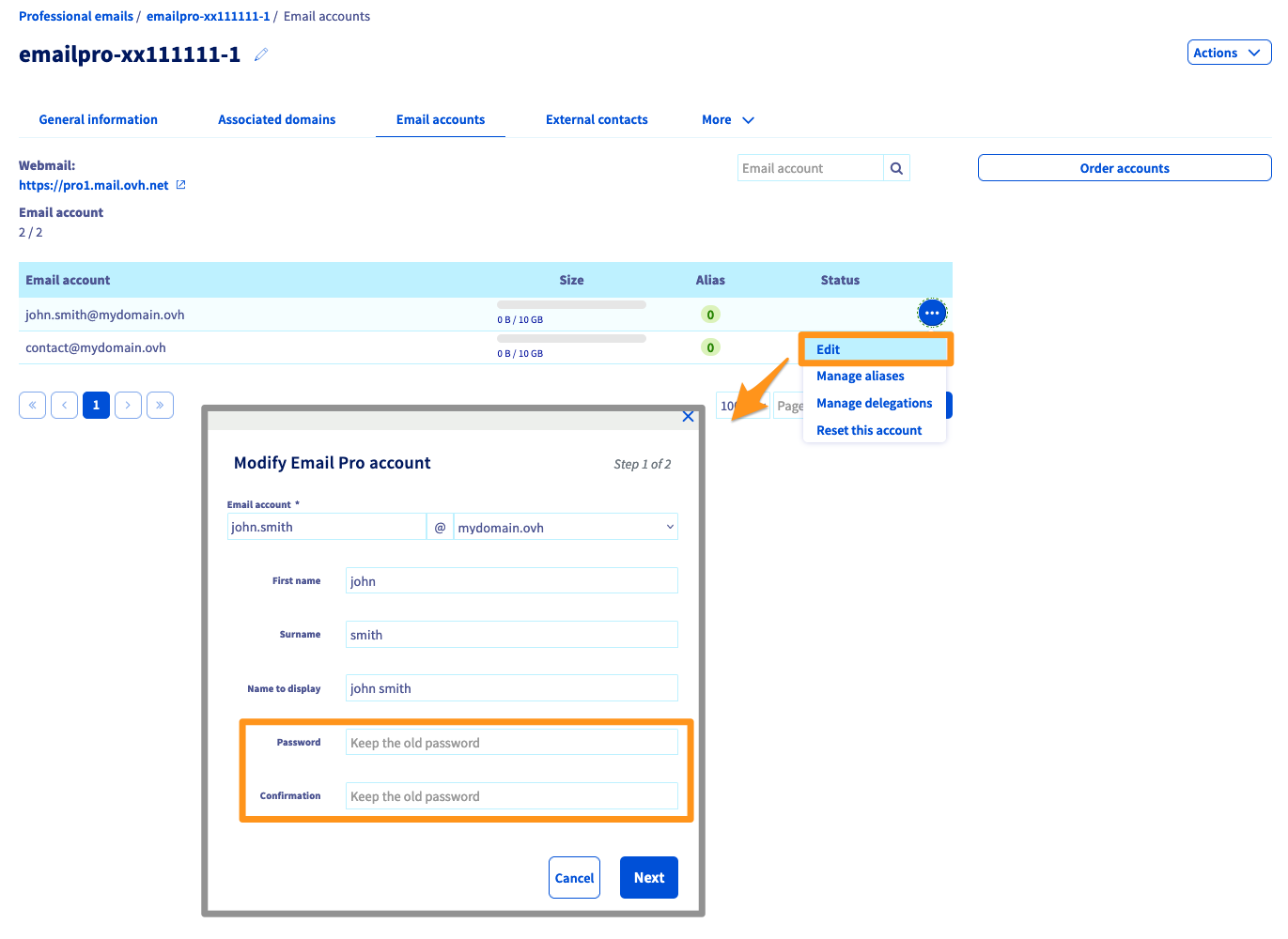
Click Email Pro, then choose the name of the service concerned. Go to the Email accounts tab. The window that appears will display all email accounts.
Click the ... button, then click Edit.
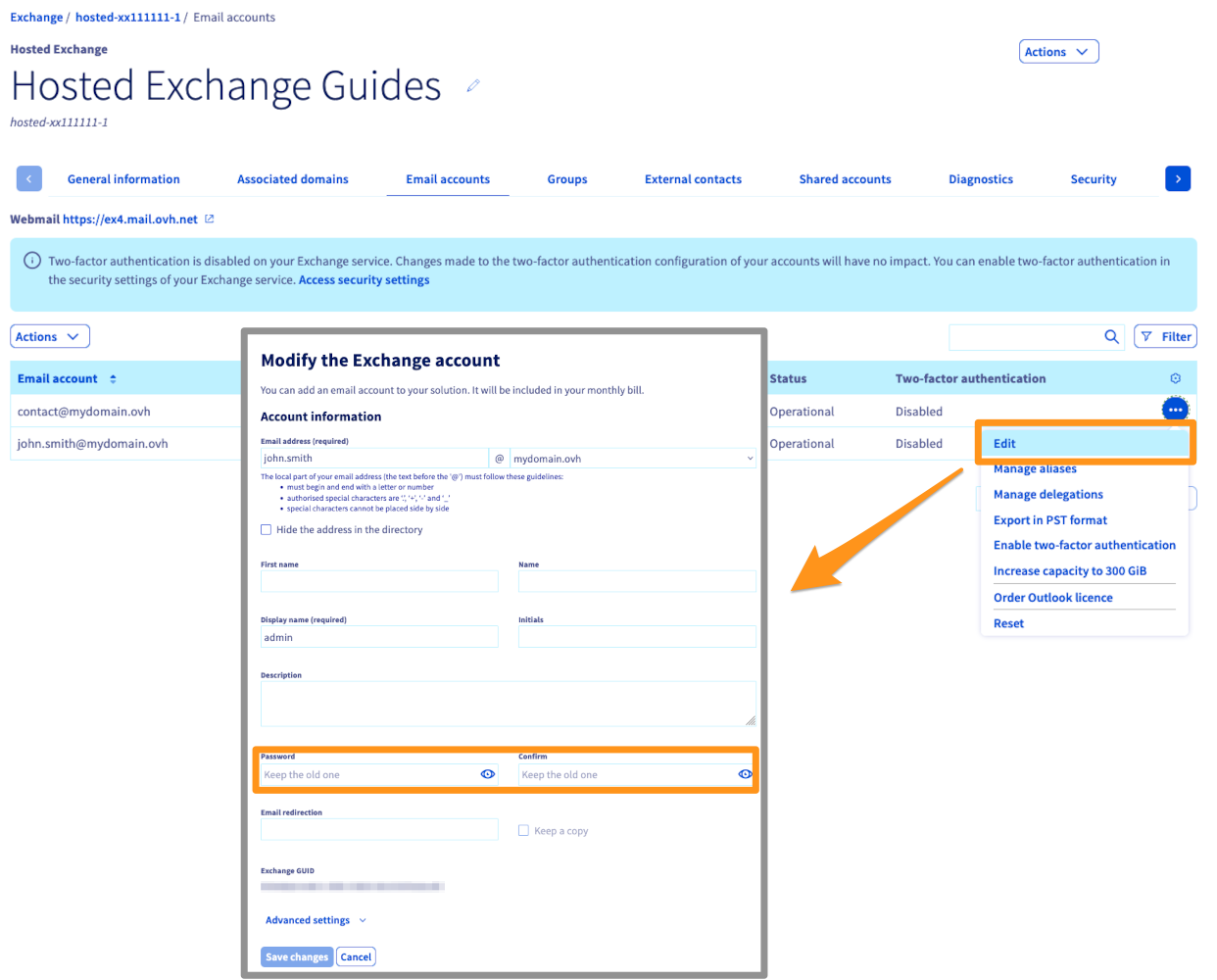
Click Microsoft, then Exchange and choose the name of the service concerned. Go to the Email accounts tab. The window that appears will display all email accounts.
Click the ... button, then click Edit.
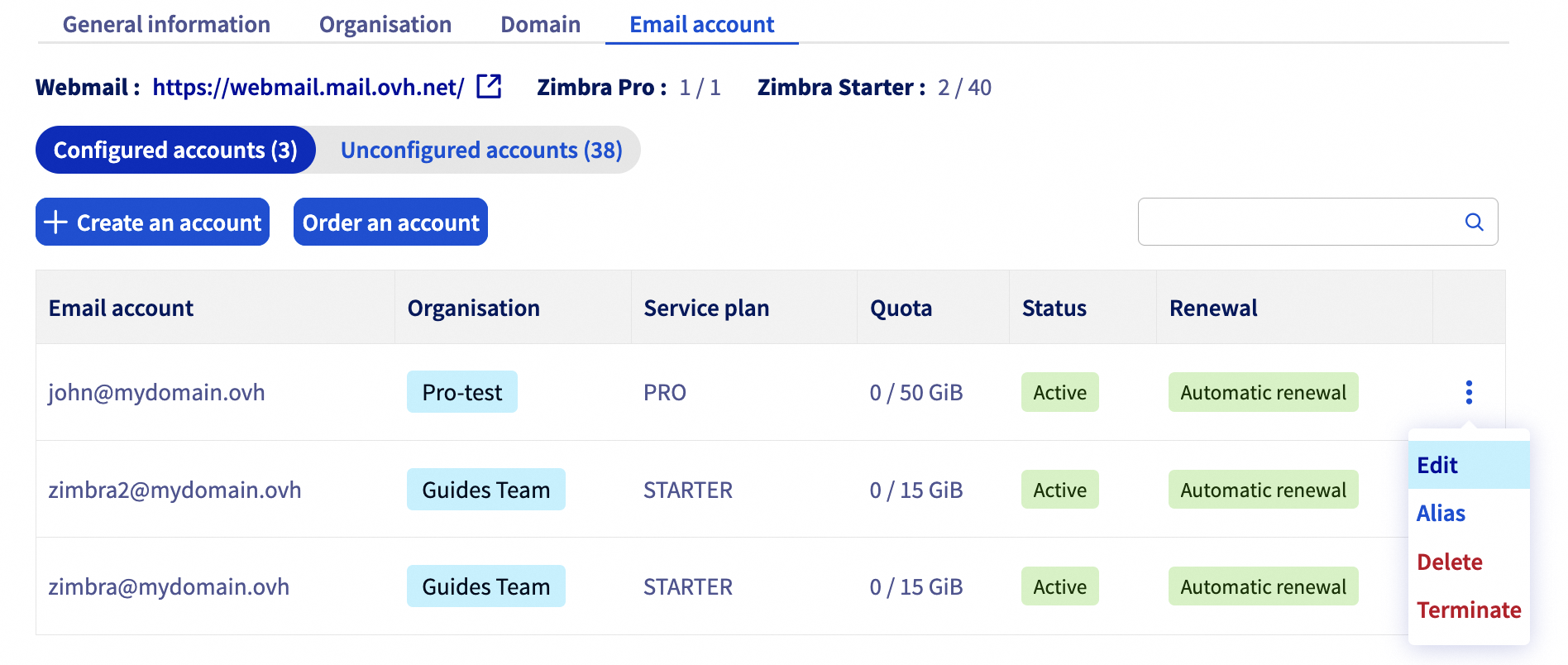
Click Zimbra Mail then go to the Email account tab. The window that opens will display the existing email accounts.
Click the ... button, then Modify.
Changing the password via webmail
Changing your password via webmail is available for OVHcloud email offers using OWA (Outlook Web App):
- MX Plan OWA
- Email Pro
- Exchange
- MX Plan Zimbra
- Zimbra Starter / Pro
For the MX Plan Roundcube solution, you can only change your password via the OVHcloud Control Panel.
OWA
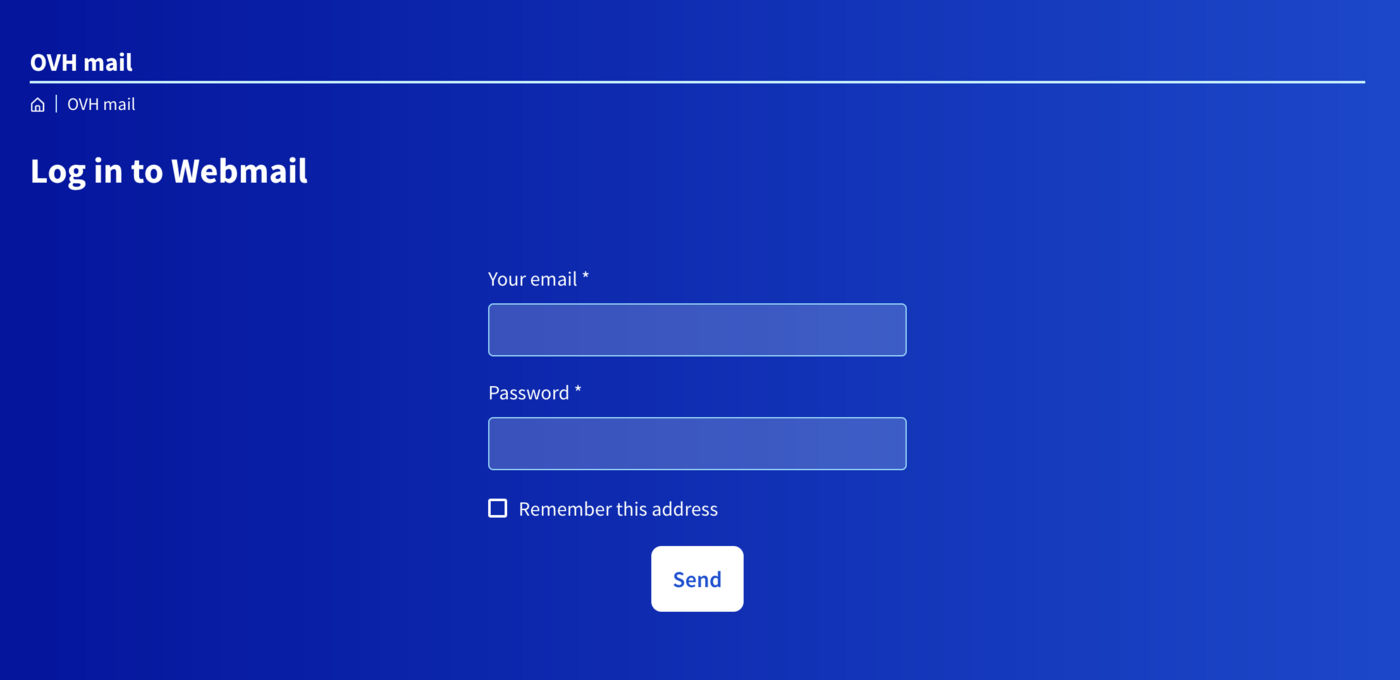
Go to the webmail page. Enter your full email address and password, then click the Login button.
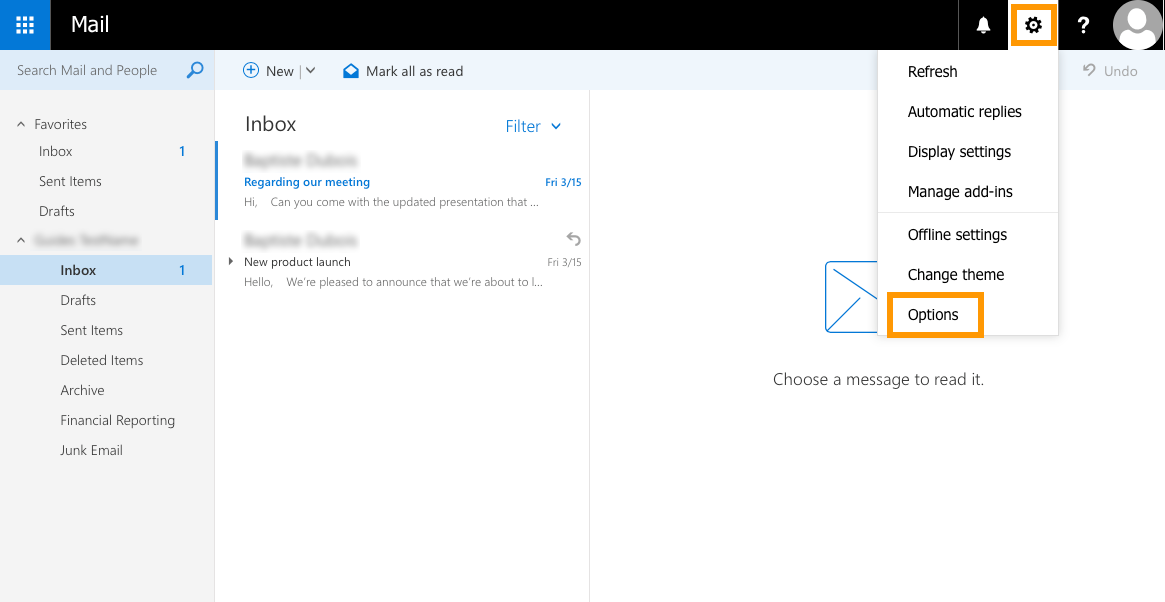
Click the gear icon at the top, then click Options.
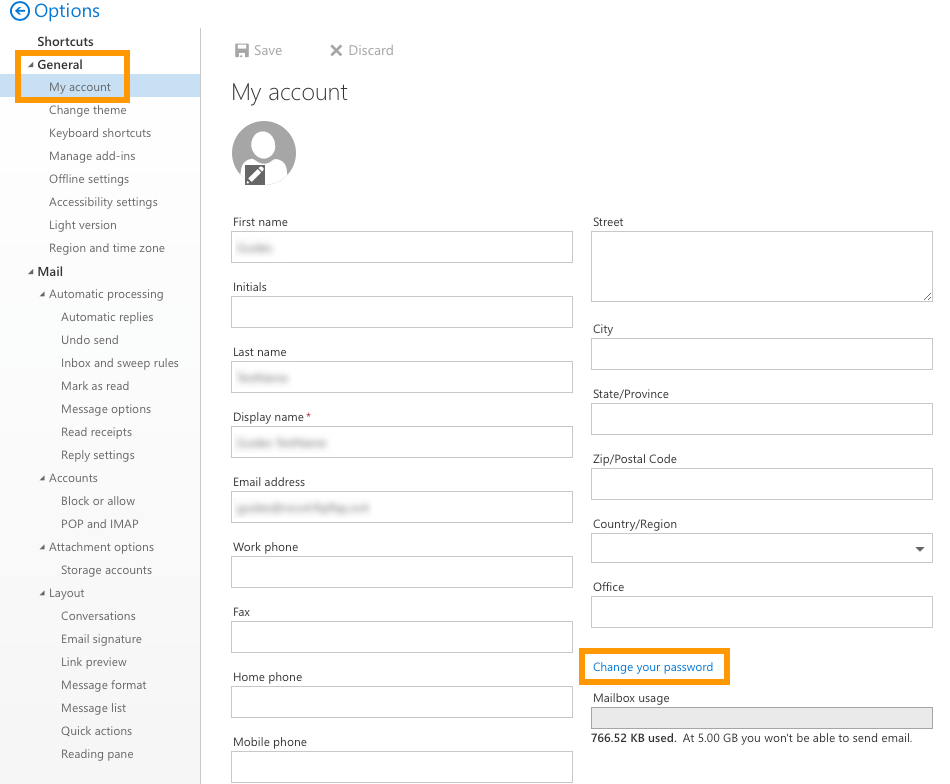
On the left-hand side of the new page that opens, expand the "General" tab in the tree-view, then click My account. Next, click Change password.
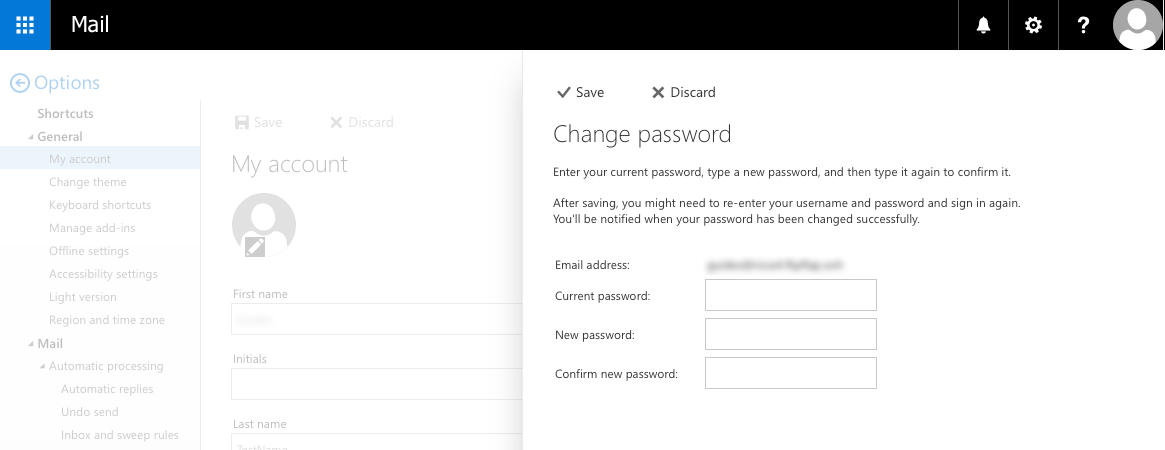
In the new window that opens, enter your current password first. Then enter your new password, and reenter it to confirm. Click the Save button to save the new password.
You will need to enter the new password in all email clients that access this account.
Zimbra
Go to the Webmail. Enter your email address and password, then click Login.
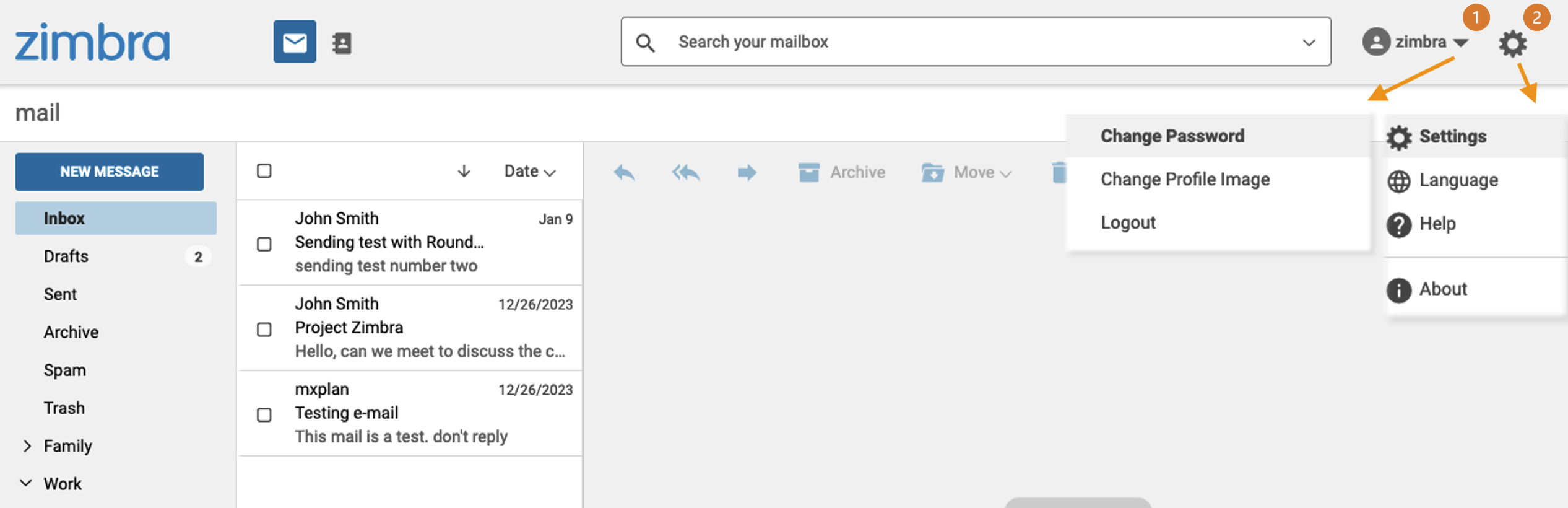
Click on the name of your email account in the top right-hand corner of your interface. From this menu, you can Change the password.
Retrieve a password
For security and confidentiality reasons, it is not possible to retrieve a password. As described in the previous steps, you will need to reset your password if you have forgotten it.
If you want to store a password, we recommend using a password manager, such as KeePass.
Go further
Getting started with the MX Plan solution
Getting started with the Email Pro solution
Getting started with the Hosted Exchange solution
If you would like assistance using and configuring your OVHcloud solutions, please refer to our support offers.
Join our community of users.


 Getting started with the MX Plan solution
 9557
9557