

Using Remote Desktop with Microsoft 365 apps
2625 Views
 06.09.2021
  Web / Microsoft Hosted Exchange
Objective
You have the option to use the software suite in the Microsoft 365 apps pack on a remote or shared machine. To do this, you will need to follow the installation procedure described in this guide.
Learn how to install and use Microsoft 365 apps on a remote desktop (RDS) or shared computer.
Requirements
- a Microsoft 365 Apps for enterprise licence (formerly: Office 365 ProPlus)
- using Microsoft Windows via a remote desktop (Remote Desktop Services)
The Microsoft 365 Apps for business licence is incompatible with RDS and shared computer usage.
Instructions
This guide is based on the official Microsoft documentation: Deploy Microsoft 365 Apps by using Remote Desktop Services.
This guide will show you how to use one or more OVHcloud solutions with external tools, and the changes you need to make in specific contexts. You may need to adapt the instructions according to your situation.
If you experience any difficulties carrying out these operations, we recommend that you contact a specialist service provider and/or discuss the issue with our community. OVHcloud cannot provide you with technical support in this regard. You can find more information in the Go further section of this guide.
Method 1: Manual configuration
Installing a Microsoft 365 Apps for enterprise solution on a shared computer using Remote Desktop Services (RDS) does not work without a specific configuration. Without this setting, you should get the following message:

If you have already installed your Office 365 ProPlus licence, you will need to uninstall it.
-
Once you have uninstalled your licence, please click here to download the Microsoft 365 Deployment Tool.
-
Run the deployment tool on your machine.
-
Edit the
configuration.xmlfile.
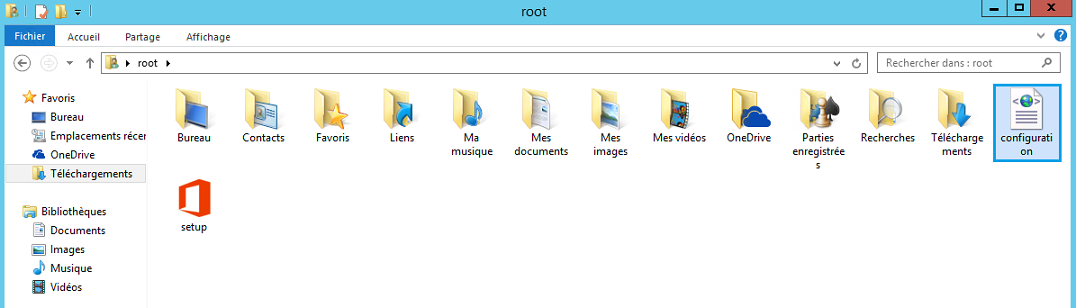
Edit the configuration.xml file, then uncomment the following lines:
If these lines do not exist, you can copy and paste them into the file.
- Save the changes you have made. Then open a Powershell terminal and run the following two commands from the folder where the
configuration.xmlfile is located:
These commands can take several minutes to complete.
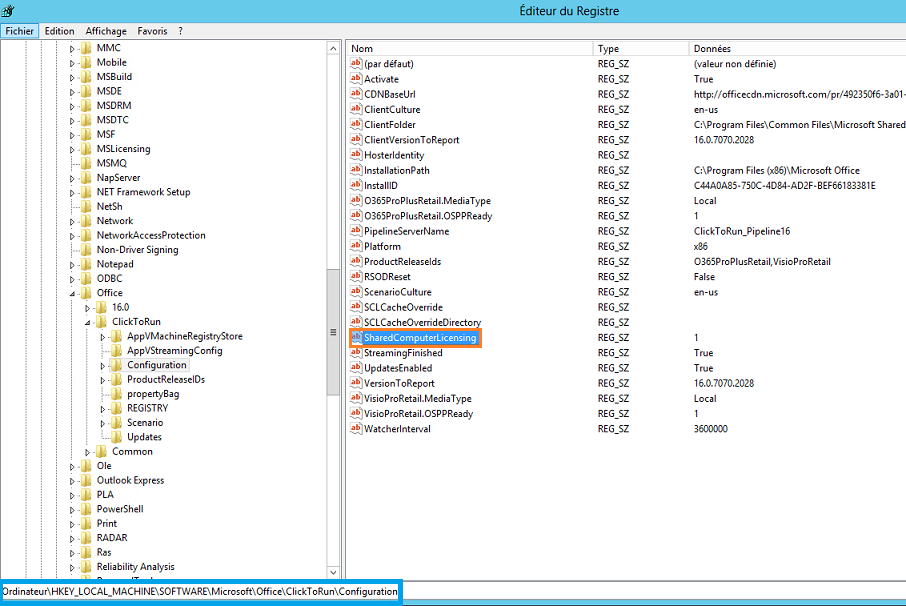
- Open the Windows registry editor by running
Regedit, then follow this path:
- Check the following key:
Make sure the value is 1. If this key does not exist, you can create it.
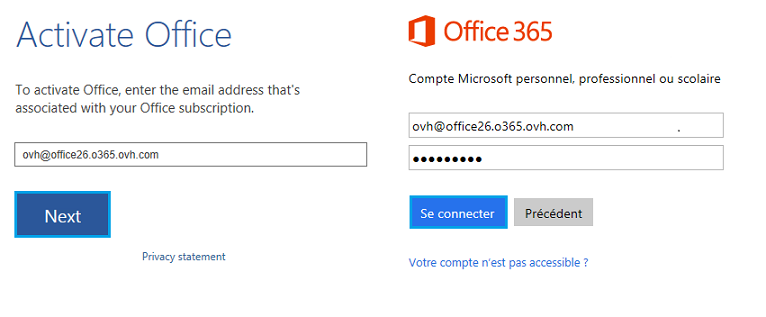
- Launch an Office 365 suite application, and you will be prompted to enter your user name and password.
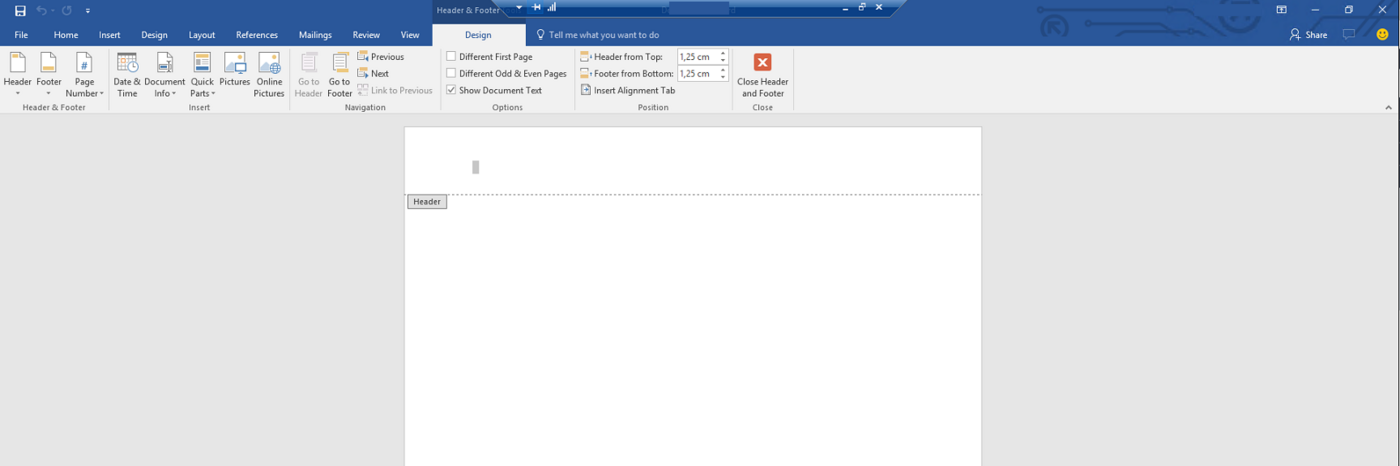
- You can now use your Office 365 suite from your shared computer using Remote Desktop Services (RDS).
Go further
Join our community of users.


 How to manage Microsoft 365 licence groups at OVHcloud
 1556
1556