

How to manage Microsoft 365 licence groups at OVHcloud
1617 Views
 22.05.2025
  Web / Microsoft Hosted Exchange
Objective
There are several advantages to subscribing to the OVHcloud offers Microsoft 365 Apps for Business or Microsoft 365 Apps for Enterprise. Billing is monthly and you can use one licence for 5 PCs/Macs, 5 tablets and 5 smartphones.
Your Microsoft 365 licences are collected into a group, also called Service. An Apps for Business licence group can contain up to 300 licences, an Apps for Enterprise licence group is unlimited.
Here is the list of software included in the suite:
- Apps for Business licences: Excel, Word, PowerPoint, Outlook, OneNote, Publisher.
- Apps for Enterprise licences: Excel, Word, PowerPoint, Outlook, OneNote, Publisher, Access.
This guide explains how to subscribe to a Microsoft 365 licence and manage it in the OVHcloud Control Panel.
Requirements
OVHcloud Control Panel Access
- Direct link: Microsoft 365
- Navigation path:
Web Cloud>Microsoft 365
Instructions
Order a license
- Go to the Microsoft 365 sales page, or from the Microsoft 365 section of the OVHcloud Control Panel, click
Order. - Choose from our available solutions, namely "Apps for Business" and "Apps for Enterprise".
- Set the renewal frequency for your license group.
- Define the number of licenses you want, then finalize your order.
Activate your license
To activate the license ordered:
- Select the Microsoft 365 service concerned.
- Click the
Licensestab. -
Click the
⁝button on the license line for the activation, then clickEdit account.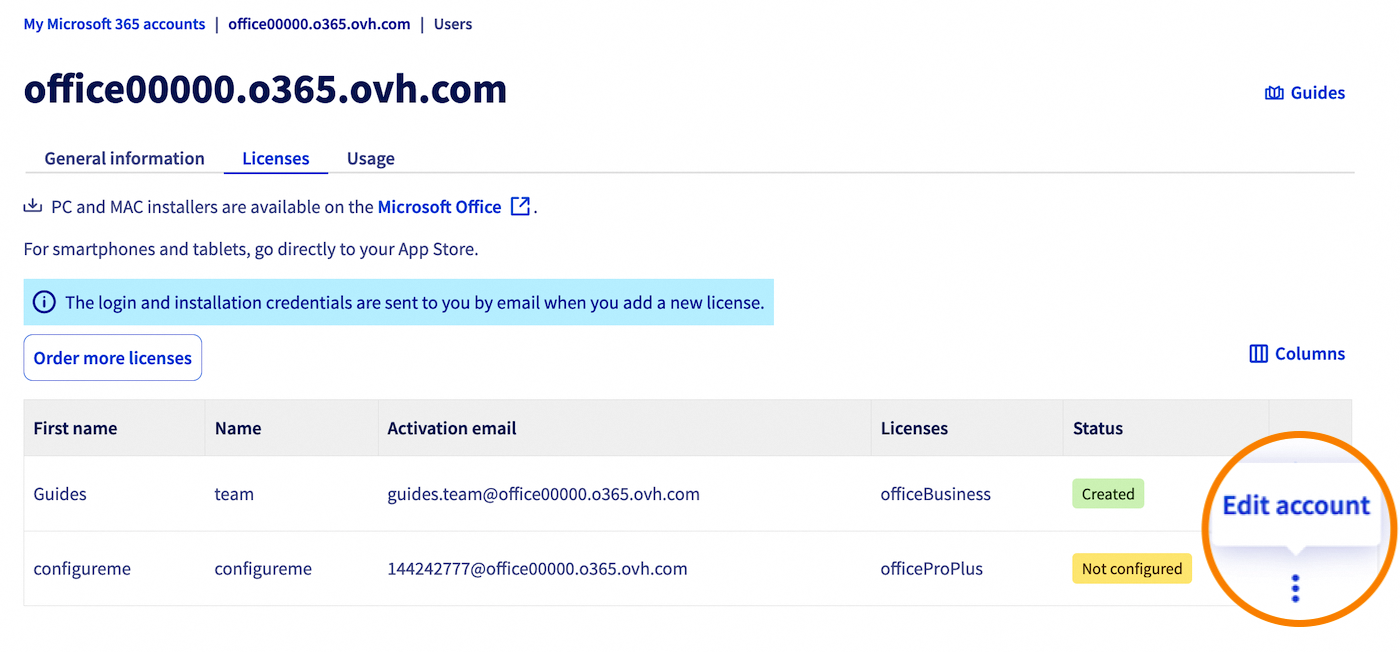
-
Enter the license user information, then click
Confirm.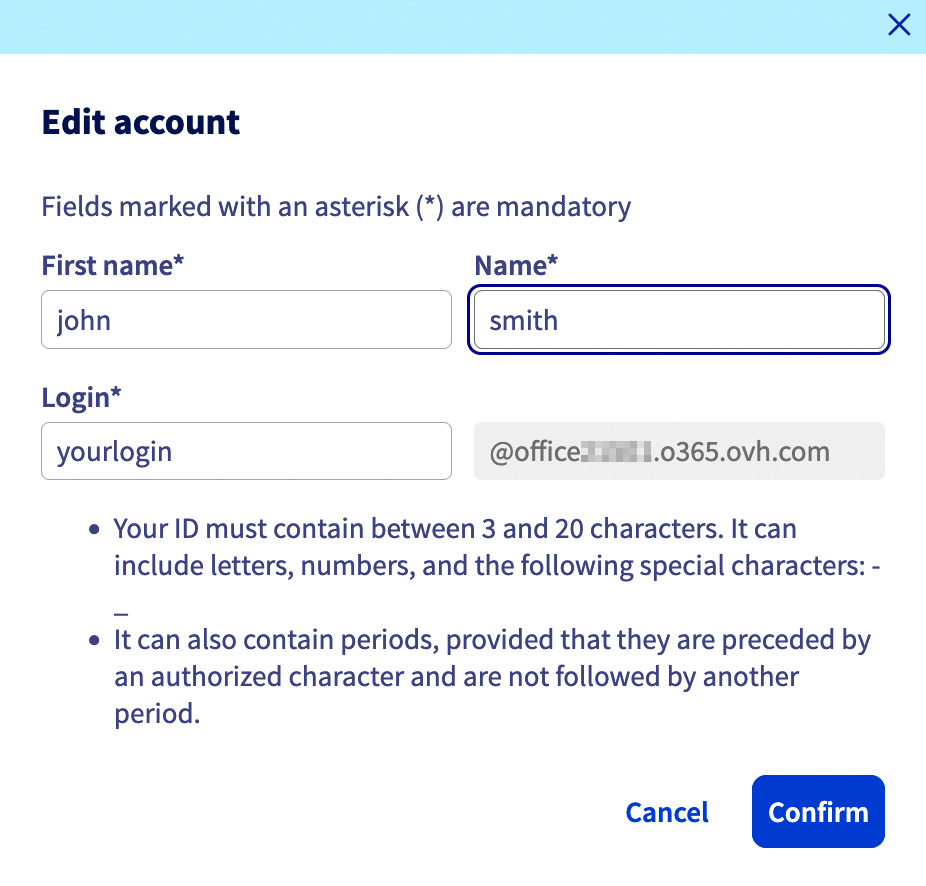
Install the Microsoft 365 suite on your device
Once the license has been activated, you will receive an email to the contact email address of your OVHcloud account. You can also find this email in your OVHcloud Control Panel, by clicking on your account name in the top right-hand corner, then My communications in the Emails received section.
This email contains the information required to download and install your Microsoft 365 suite, namely the activation email address and the password.
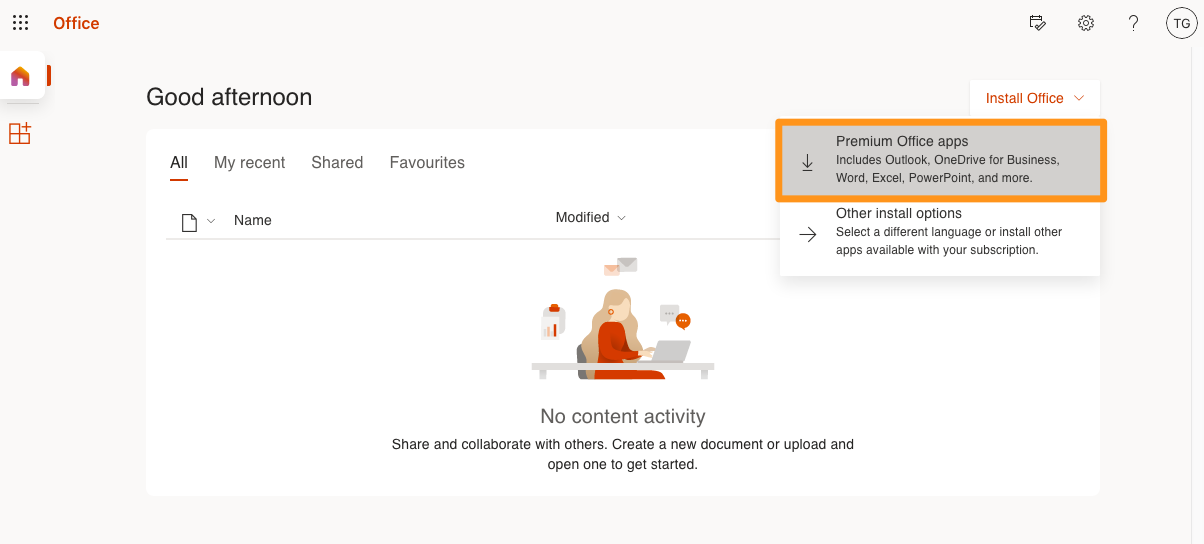
Go to https://portal.office.com/ and log in with the activation email address and the password previously configured. You will be taken to a window where you can download the Microsoft 365 suite to your desktop, along with the installation instructions.
Install Suite 365 on multiple devices
With a license, the user can install Microsoft 365 on 5 Windows and macOS devices, on 5 tablets and 5 smartphones. This represents a total of 15 devices for a license. All of these devices must be owned by the licensee.
To install your license on several devices, simply reproduce the previous step on each device, ensuring that each is managed by the same user.
Change a license password
If you would like to set your own license password:
- Select the Microsoft 365 service concerned.
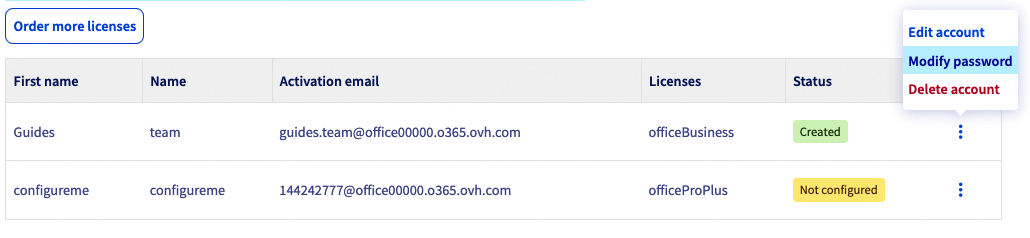
- Click the
Licensestab. - Click the
⁝button to the right of the license concerned, thenChange password.
Add a license to an existing group
If you want to add one or more licenses to your existing license group:
- Select the Microsoft 365 service concerned.
- Click the
Order more licensesbutton on the right. - Determine the number and license type you wish to order, then click
Confirm.
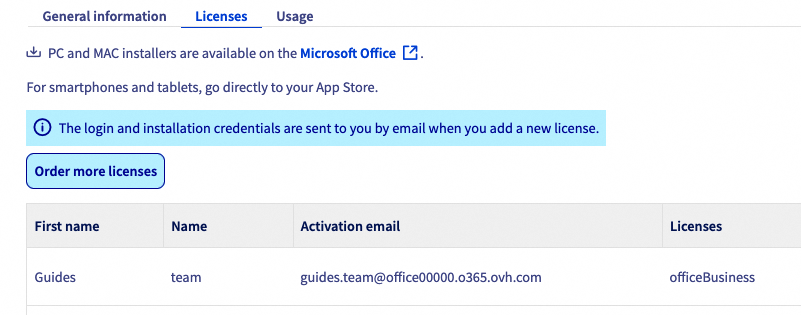
Manage your subscriptions
Delete a license in a license group
In the Licenses tab of your license group, click the ⁝ button to the right of the license you want to cancel, then click Delete account.
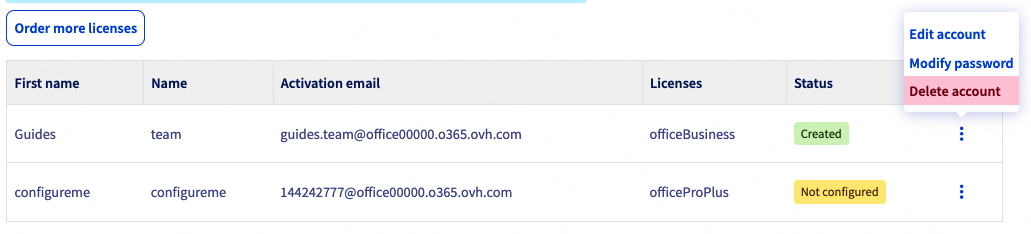
Usage for the current month will be billed at the end of the month.
Cancel a license group
To terminate your Microsoft Office 365 CSP1 license group:
- Click on your name in the top right-hand corner of the OVHcloud Control Panel.
- Click
My offers and services. - Identify your license group in the table for your services.
- Click the
...button to the right of the license group you want to terminate, thenTerminate. - Specify the reasons for your termination request, then click
Confirm.
Usage for the current month will be billed at the end of the month.
Go further
Using Remote Desktop with Microsoft 365 apps
For specialised services (SEO, development, etc.), contact OVHcloud partners.
If you would like assistance using and configuring your OVHcloud solutions, please refer to our support offers.
Join our community of users.


 Using Remote Desktop with Microsoft 365 apps
 2662
2662