

IAM for Logs Data Platform - Presentation and FAQ
63 Views
 16.10.2025
  Cloud / Logs Data Platform
IAM for Logs Data Platform will be available starting 17th September 2025. The content of this documentation will be valid from this date.
Objective
This guide explains the integration of Logs Data Platform with OVHcloud IAM.
Requirements
- An OVHcloud account
- Access to the OVHcloud Control Panel
- A Logs Data Platform service
Instructions
How is IAM useful for Logs Data Platform?
Enabling OVHcloud IAM on Logs Data Platform delegates authentication, access management, and permissions to OVHcloud IAM. There are several benefits to using IAM:
- All OVHcloud identities can connect using their credentials to all Web UIs (Graylog/OpenSearch Dashboards). The connected account will be the identity chosen for UI access. You will no longer need the Logs Data Platform username. IAM enables also the use of two-factor authentication methods and Federation Services.
- API tokens can be both service account tokens and Personal Access Tokens handled directly with OVHcloud IAM APIs.
- Resource groups allow you to share Logs Data Platform sub resources in a more cohesive way.
- IAM Policies unlock advanced use cases which are not possible with permissions, thanks to fine-grained actions.
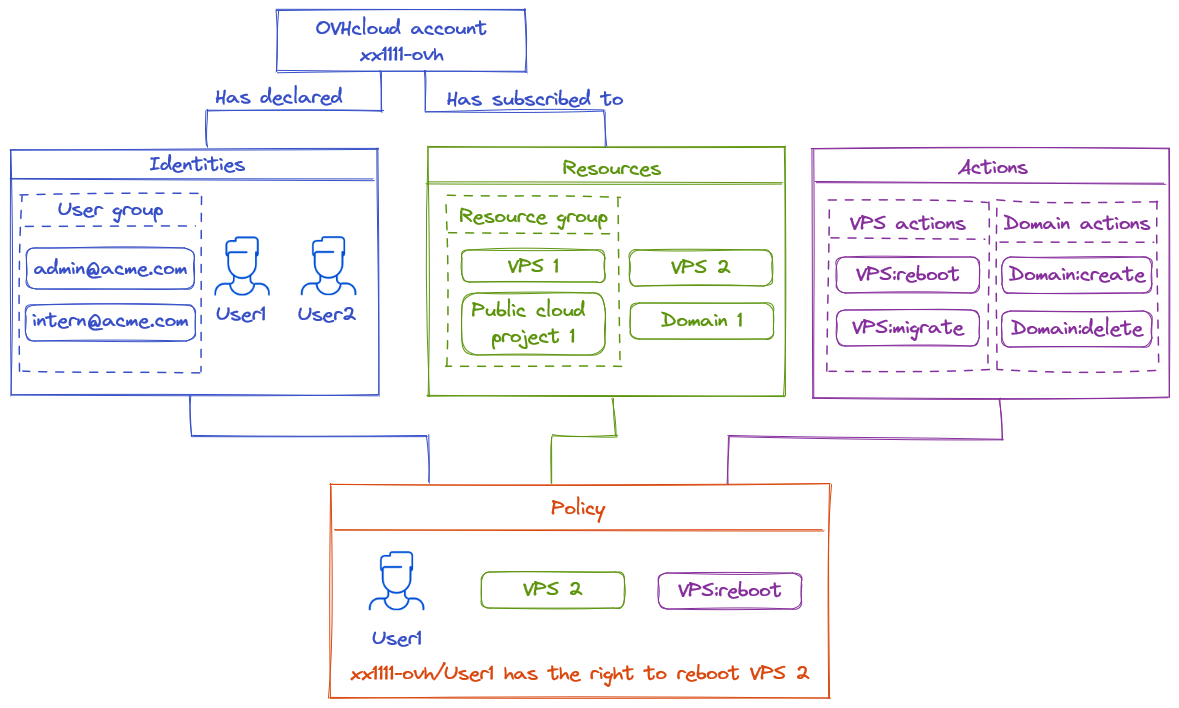
How to enable OVHcloud IAM for my existing account in Logs Data Platform?
If you have an existing service, follow these steps:
- Replace all your Roles and permissions with appropriate policies.
- Ensure you have no Roles declared in your service.
- Ensure your service is not in any Roles.
- Ensure you don't have any tokens.
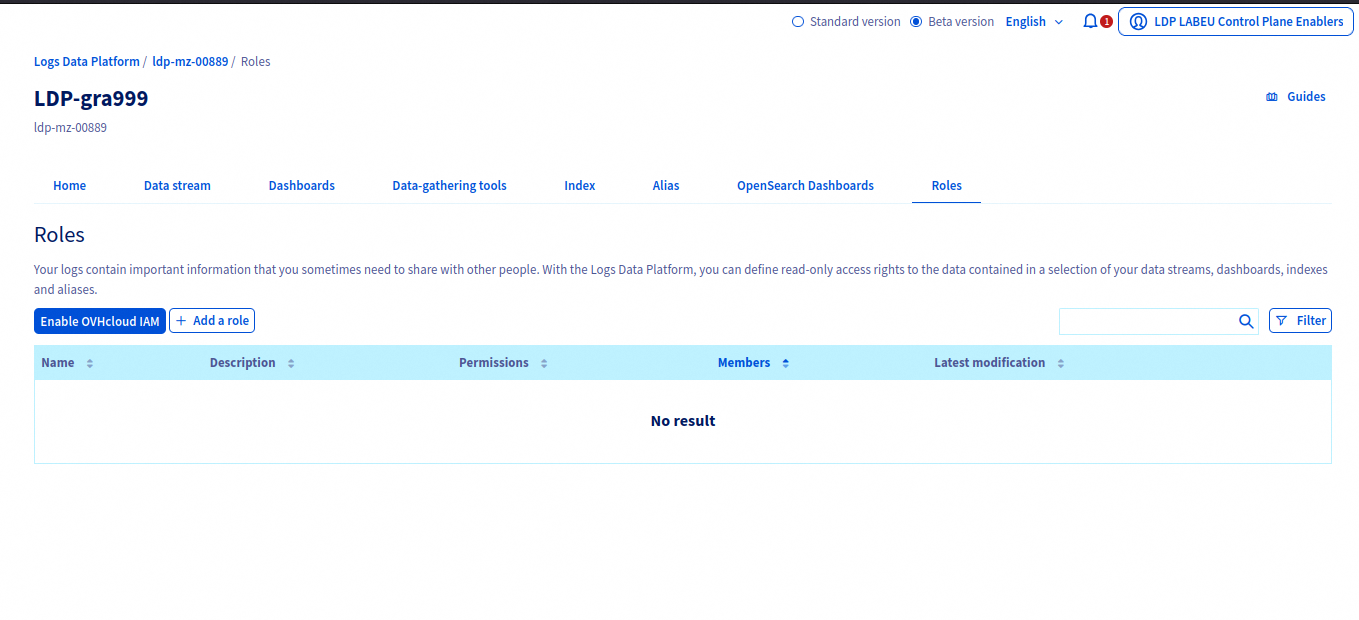
- Use the dedicated
Enable OVHcloud IAMin the Roles sections of the Logs Data Platform Control Panel.
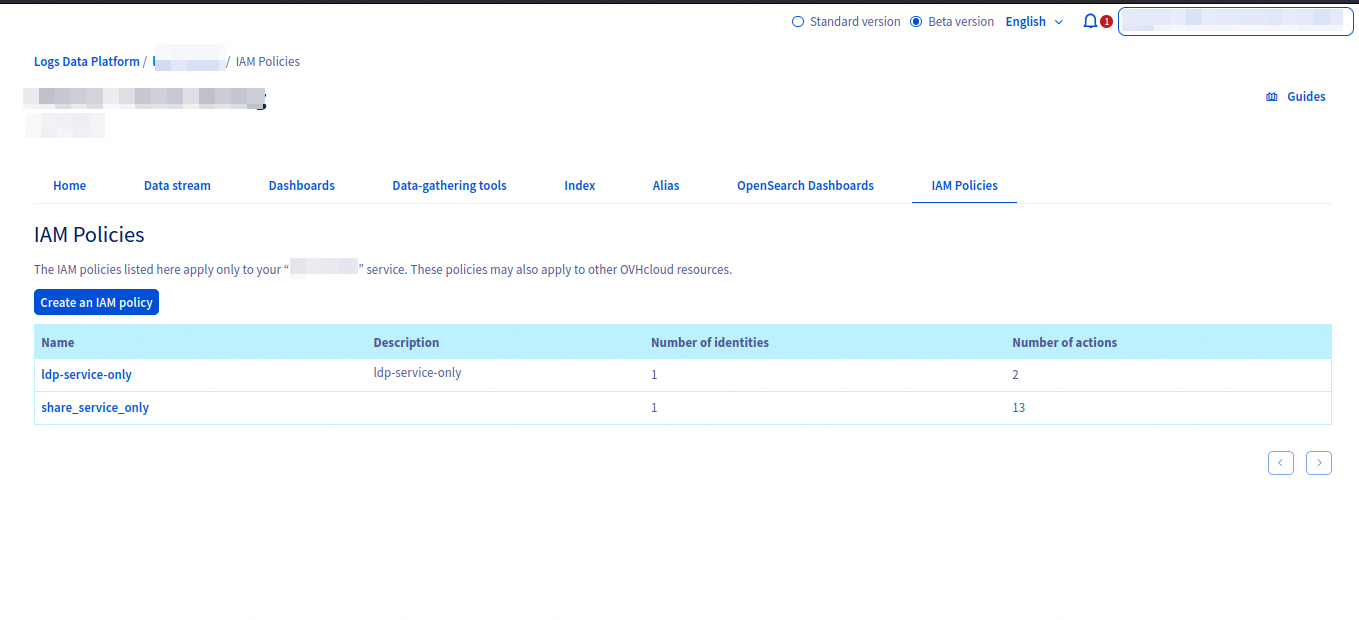
Once IAM is activated, a new IAM Policies section will replace the previous Roles section.
How to enable OVHcloud IAM on a new service?
When a new service is created, you can directly opt-in into using IAM directly and use IAM policies to handle access rights.
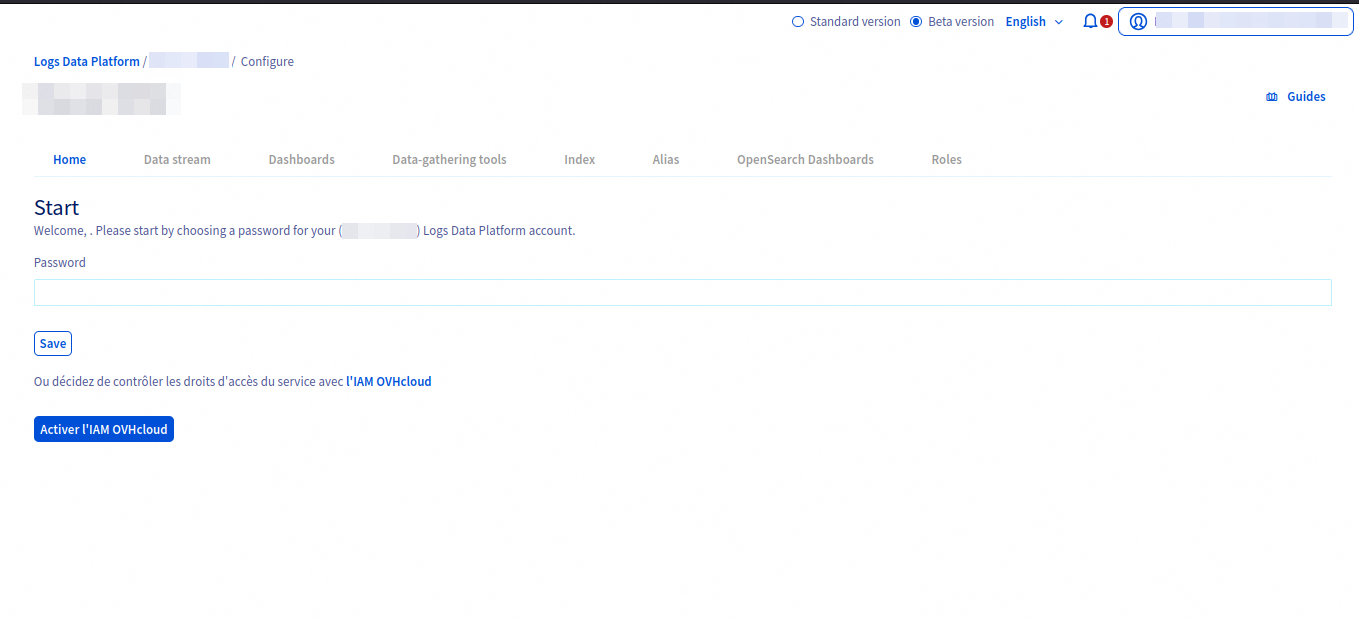
Once IAM has been activated, you can freely use any OVHcloud identities to interact with Logs Data Platform.
How to connect to Graylog with IAM?
When connecting to Graylog, you can choose between the legacy username/password system (for services without IAM activated) or any OVHcloud IAM providers (EU, CA, or US). Clicking the corresponding Log in button redirects you to the appropriate OVHcloud IAM provider to complete authentication.
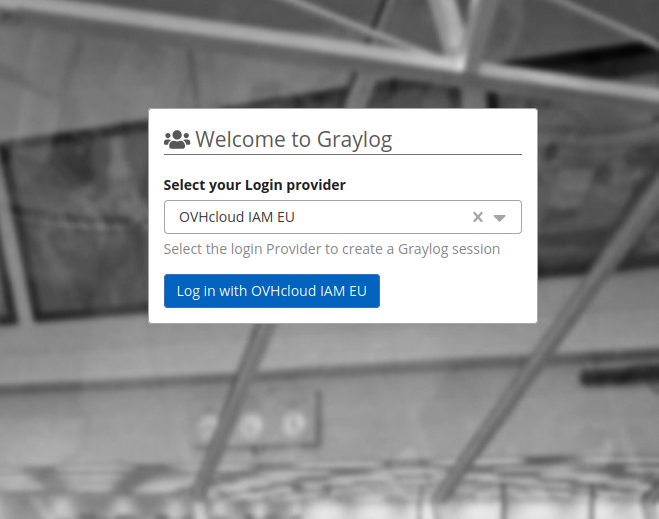 | 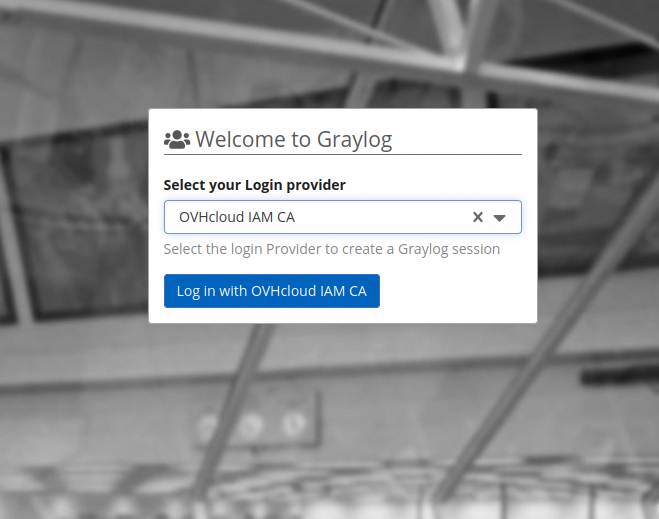 | 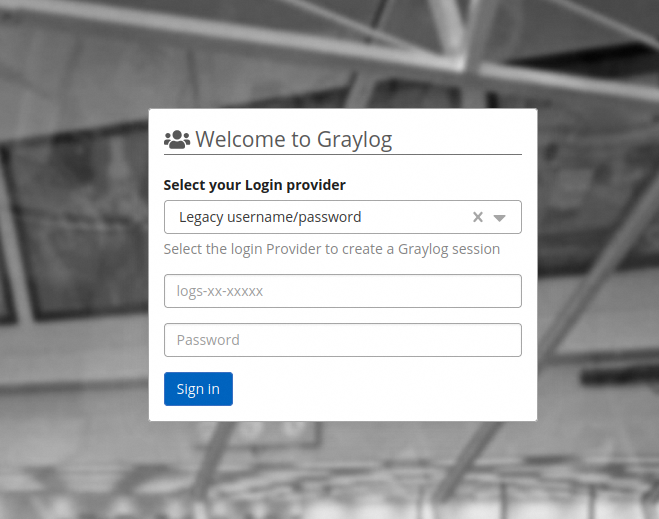 |
How to connect to OpenSearch Dashboards with IAM?
When connecting to OpenSearch Dashboards, select the provider linked to your OVHcloud service. The Log in with OVHcloud IAM button redirects you to your provider to complete authentication.
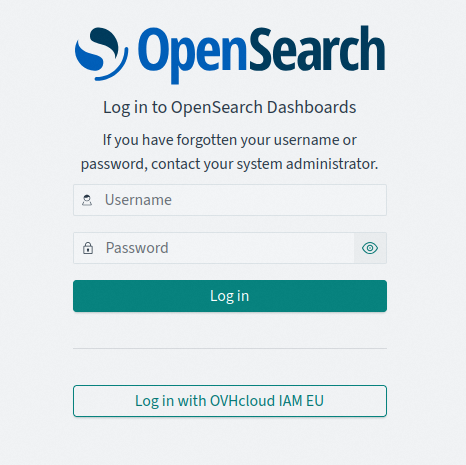
Once completed, you will be redirected back to the OpenSearch Dashboard instance fully authenticated.
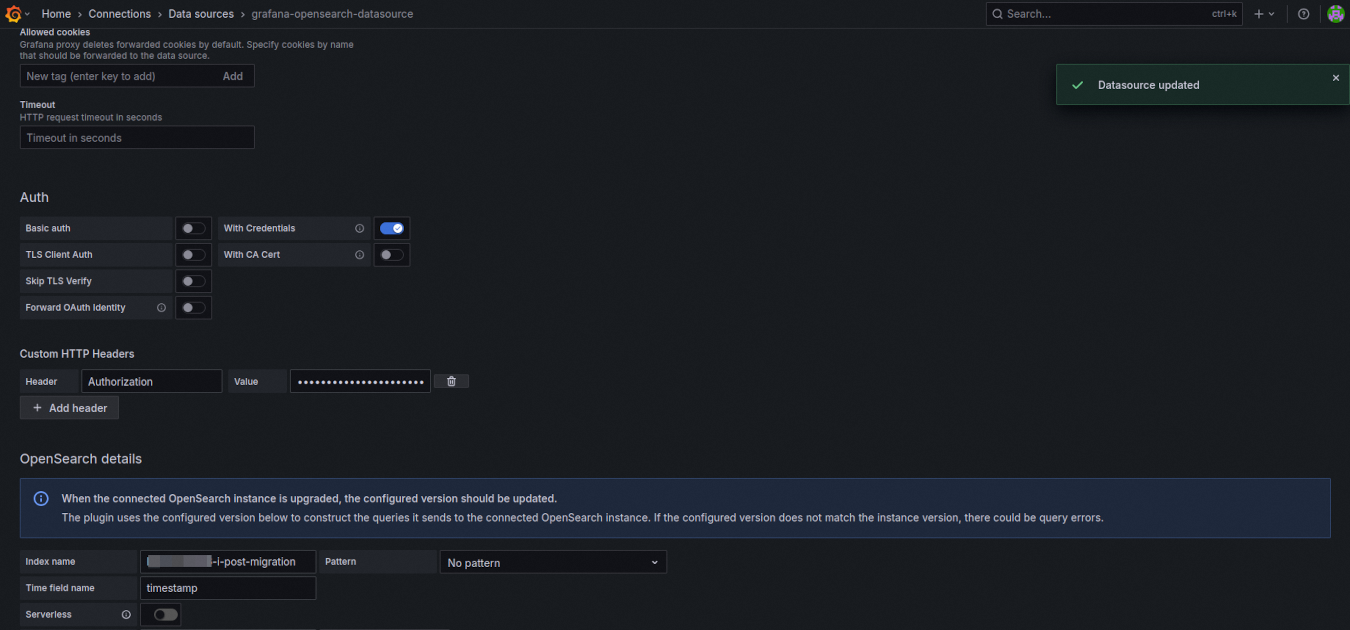
How to connect to Grafana with IAM?
- If your Identity Provider is the OVHcloud IAM, you can select the option Forward OAuth identity to forward the identity connected to the Logs Data Platform.
- If you use another authentication provider, you can forge an Authorization header with an IAM compatible token. See the next section to see how to generate that kind of token. The content of the header must be
Bearer: <Your Token>. Replace<Your Token>with the value of your token.
How to interact with Logs Data Platform backends API?
With IAM enabled, tokens are replaced by API keys (Bearer authentication scheme). These keys can be tokens from service accounts or Personal Access Tokens. Use the OVHcloud API to generate these tokens.
For example if you are on gra1 cluster, curl can use these tokens in the following way:
ldp@laptop curl -H 'content-type: application/json' --oauth2-bearer eyJhbGciOiJIUzI1NiIsInR5cCI6IkpXVCJ9.eyJzdWIiOiIxMjM0NTY3ODkwIiwibmFtZSI6IkpvaG4gRG9lIiwiaWF0IjoxNTE2MjM5MDIyfQ.SflKxwRJSMeKKF2QT4fwpMeJf36POk6yJV_adQssw5c -XGET 'https://gra1.logs.ovh.com:9200/_cluster/health?pretty'How to create indices or aliases on Logs Data Platform backend APIs?
First, ensure the identity you want to use has permission to create indices and aliases for the service. If authorized, Personal Access Tokens or service account OAuth2 clients can perform creation/deletion operations.
The previous prefix for indices and aliases was the username. Now the prefix is the service name. You will find the service name on the homepage of the Logs Data Platform control panel. It is also the suffix of a Logs Data Platform service URN. For example:
urn:v1:eu:resource:ldp:ldp-ab-56945
The service is tied to a unique Logs Data Platform so you will be allowed to create items only on this cluster. For example if ldp-ab-56945 is on gra1:
ldp@laptop curl -k -v -H 'content-type: application/json' --oauth2-bearer eyJhbGciOiJIUzI1NiIsInR5cCI6IkpXVCJ9.eyJzdWIiOiIxMjM0NTY3ODkwIiwibmFtZSI6IkpvaG4gRG9lIiwiaWF0IjoxNTE2MjM5MDIyfQ.SflKxwRJSMeKKF2QT4fwpMeJf36POk6yJV_adQssw5c -XPOST 'https://gra1.logs.ovh.com:9200/ldp-ab-56945-i-my-new-index/_doc' -d '{ "user" : "ldp" }'Similarly aliases created through OpenSearch APIs must be prefixed by one of your allowed services.


 IAM for Logs Data Platform - Configuring Access Rights
 83
83