

Creating an IAM policy to allow users access to the OVHcloud Control Panel
612 Views
 02.10.2024
  IAM
IAM
Objective
This guide explains how to provide a user with the minimum rights to allow them to log in to the OVHcloud Control Panel.
Requirements
- You have an OVHcloud account.
- You know how to manage account users.
- You know how to configure policies for IAM.
OVHcloud Control Panel Access
- Direct link: IAM Policies
- Navigation path:
Identity, Security & Operations>Policies
Instructions
To be able to log in to the OVHcloud Control Panel, a user should have at least this set of rights on the account resource:
- account:apiovh:me/get
- account:apiovh:me/supportLevel/get
- account:apiovh:me/certificates/get
- account:apiovh:me/tag/get
With these rights, a user will be able to log in to the OVHcloud Control Panel. To be able to perform any actions inside the Control Panel however, additional rights have to be assigned through IAM.
Using UI
Using the UI, you can set up a policy with the following configuration:
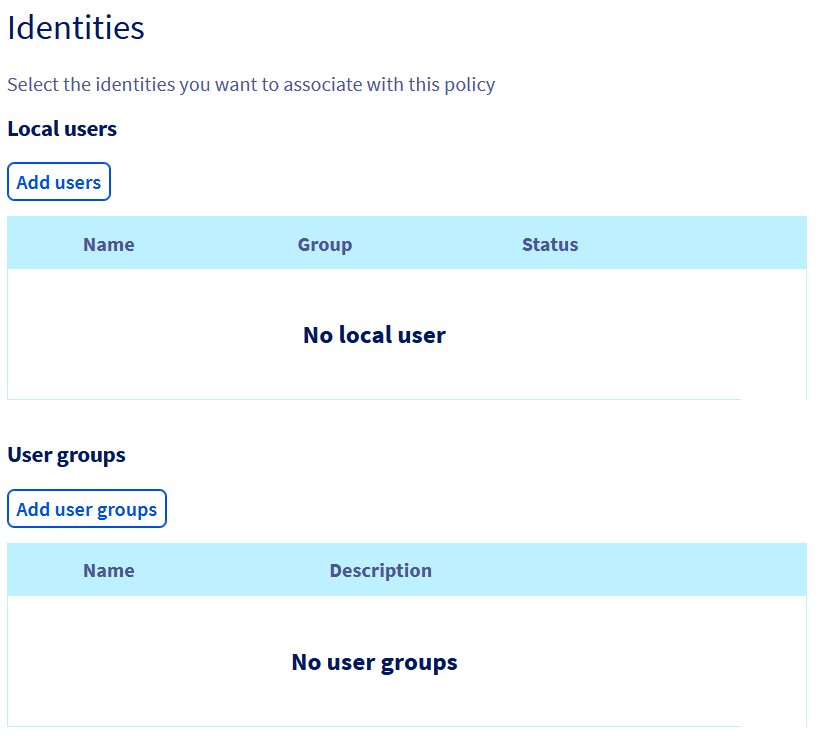
Add the identites you want to give access to.
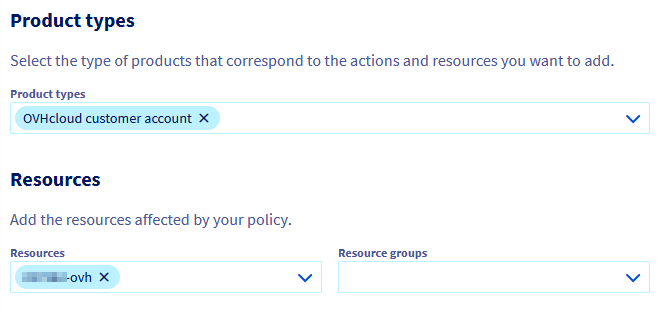
Add a resourceType "OVHcloud customer account" and add your account as a resource.
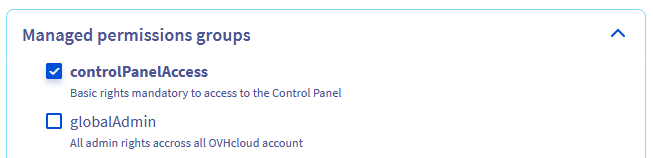
Then you can either use the managed permissions group controlPanelAccess
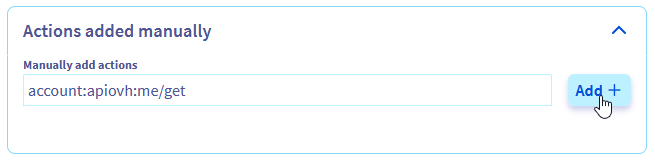
Or add the 4 rights listed above as an action.
You can now link your users to this policy to give them the right to log in to the OVHcloud Control Panel.
Using API
Using the API, you can set up a policy according to the following example:
Go further
Join our community of users.


 How to use IAM policies using the OVHcloud Control Panel
 2899
2899