

Web Hosting - How to configure an SSL certificate
15129 Views
 16.12.2025
  Web / Web Hosting
Objective
With Secure Socket Layer (SSL) certificates, you can encrypt the exchanges made from or to your website. This prevents unauthorized persons and malicious bots from viewing requests to or from your website.
OVHcloud offers several types of SSL certificates for OVHcloud web hosting solutions. They are presented below in this guide. SSL certificates are essential for the security of your website.
There are three types of SSL certificates:
- Domain Validation (DV)
- Organization validation (OV)
- Extended Validation (EV)
The SSL encryption levels are identical between these three certificate types.
The main difference lies in the level of checks that will be carried out by the Certification Authority (CA) that issues the SSL certificate and attests to its authenticity.
You must have an SSL certificate in order to use HTTPS for your website.
This guide explains how to manage an SSL certificate on an OVHcloud web hosting plan.
Requirements
- An OVHcloud web hosting plan
- At least one domain name
OVHcloud Control Panel Access
- Direct link: Hosting plans
- Navigation path:
Web Cloud>Hosting plans> Select your web hosting plan
Instructions
Before you continue, please ensure that each domain name and/or subdomain covered by a future SSL certificate:
- Points to the IP address of your web hosting plan.
- Is declared on one of the websites on your web hosting.
- Does not already have an active SSL certificate.
To check this, please refer to our guides below:
- Hosting multiple websites on your Web Hosting plan
- Web Hosting - List of IP addresses by cluster
- Editing an OVHcloud DNS zone
- Web Hosting - How to configure an SSL certificate, part Disable an SSL certificate on a web hosting plan
Activate an SSL certificate on your web hosting plan
OVHcloud offers 4 solutions for activating/installing an SSL certificate on a web hosting plan. Each of these solutions is documented in detail.
Below are the 4 links to our guides dedicated to these 4 solutions:
- Web Hosting - How to activate a free Let's Encrypt SSL certificate: Free certificate available with our web hosting plans.
- WWeb Hosting - Activate a Sectigo DV SSL certificate: Certificate valid for a single domain name + its www subdomain (for example:
domain.tldandwww.domain.tld) or only a subdomain (for example:sub.domain.tld). - Web Hosting - Activate a Sectigo EV SSL certificate: Certificate valid for a single domain name + its www subdomain (for example:
domain.tldandwww.domain.tld) or only a subdomain (for example:sub.domain.tld). - Web Hosting - How to install a custom SSL certificate: If you have your own SSL certificate, or none of the 3 solutions listed above meet your needs.
Delete an SSL certificate on a web hosting plan
The deletion of a paid Sectigo SSL certificate (DV or EV) is permanent, even if the certificate has not yet expired. No refund may be made on a pro rata basis for the remaining time. If you would like to reinstall such an SSL certificate, you will need to place a new order and pay for the new SSL certificate.
Furthermore, if you would like to permanently deactivate an SSL certificate on your Web Hosting plan, please ensure that you do not make your websites inaccessible by permanently deactivating the SSL certificate before you proceed. If this is the case, your users will encounter a security error when they try to access your website in HTTPS.
Since this verification is linked to your website settings, we recommend that you contact a specialist service provider if you encounter any difficulties. We will not be able to assist you with this.
Click on the tabs below to view each of the 4 steps.
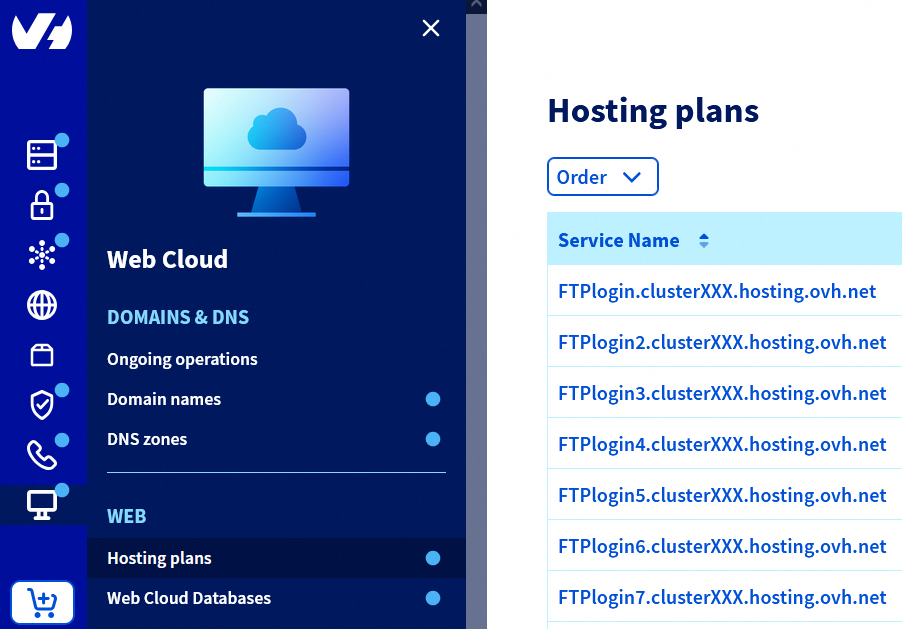
Go to the Hosting plans page, then select the web hosting plan concerned.
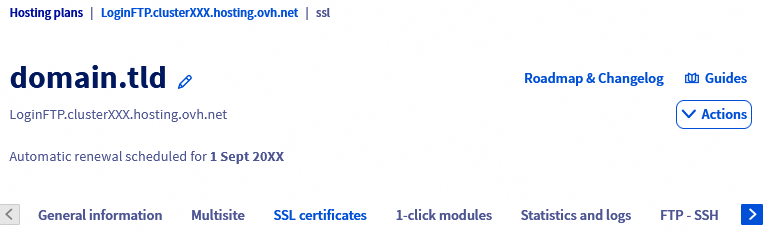
On the page that pops up, click on the SSL certificates tab.
In the table at the bottom of the new page that pops up, click the ⁝ button, located to the right of the line corresponding to the domain name concerned, then click Disable SSL.

In the window that opens, confirm the deactivation by clicking Confirm.
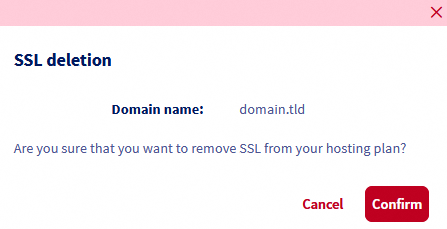
The SSL certificate will be deactivated within a few hours.
Correct frequently encountered errors with SSL certificates offered on web hosting plans
"You already have an SSL certificate on your account. It will be migrated on new SSL offers in the next week."
This message indicates that you already own an SSL certificate. You do not need to activate a new SSL certificate on your web hosting plan.
If the SSL certificate installed on your Web Hosting plan is not the one you want to use, you can disable your current SSL certificate, then enable a new SSL certificate on your Web Hosting plan.
"No attached domain with SSL enabled or no attached domain that redirect on hosting IPs, please use hosting IP in your domain zone."
There are three possible reasons for this notification.
- 1: The domain name associated with your website points to the IP address of your web hosting plan’s CDN, with no CDN option enabled on your web hosting plan.
To resolve this situation, assign the web hosting plan’s own IP address to your domain name in your domain name’s DNS zone.
To retrieve the IP addresses of your web hosting plan, please refer to our guide on "IP address list for Web Hosting clusters".
To edit your domain name’s active DNS zone, please read our guide on "Editing an OVHcloud DNS zone".
- 2: The domain name associated with your website does not point to the IP address of your web hosting plan.
To resolve this situation, assign the web hosting plan’s IP address to your domain name in your domain name’s DNS zone.
If you have enabled a CDN option on your web hosting plan, you can also use the web hosting plan’s IP address for CDN.
To retrieve the IP address of your web hosting plan, please refer to our guide on "IP address list for Web Hosting clusters".
To edit your domain name’s active DNS zone, please read our guide on "Editing an OVHcloud DNS zone".
You have ordered a Sectigo EV SSL along with your web hosting plan, but the certificate is not yet active and the web hosting plan is not working properly
This situation is linked to the steps you need to take to activate SSL EV on your web hosting plan.
If you need assistance with this, please refer to our guide on Web Hosting - Activating a Sectigo EV SSL certificate to resolve this situation.
If the EV SSL certificate is not fully active, the order will not be closed and will never generate an invoice. As a result, the web hosting service will not work properly.
After the Sectigo SSL certificate (DV or EV) expires, you receive the error "No attached domain with SSL enabled or no attached domain that redirect on hosting IPs, please use hosting IP in your domain zone"
This error occurs whenever the Sectigo SSL certificate (activated directly from the web hosting plan) expires and the IP address of the web hosting plan changes. For this reason, you will need to point your domain name to the correct IP address (type A record) in your domain name’s active DNS zone.
To retrieve the IP address of your web hosting plan, please refer to our guide on "IP address list for Web Hosting clusters".
To edit your domain name’s active DNS zone, please read our guide on "Editing an OVHcloud DNS zone".
The SSL certificate is active on your web hosting plan, but you see the message "Your connection is not private" on your website
This message appears in the following cases:
- 1: The redirection rule to your URL in HTTPS is misconfigured or does not exist in the .htaccess file.
To correct this, please read our tutorial “Rewrite the URL for accessing your website using mod_rewrite via the .htaccess file” or contact a specialist provider if you experience any difficulties.
- 2: Some elements of the web page are not redirected correctly to elements encrypted in "HTTPS".
To correct this, you need to ensure that your entire website is encrypted via the HTTPS protocol.
If you need help with this, please refer to our tutorial on "Web Hosting - Switching your website to HTTPS", or contact a specialist provider if you encounter any difficulties.
The elements concerned on the web page can be seen directly from the SSL information of the web browser, by consulting the certificate details.
Go further
Web Hosting - Switching your website to HTTPS.
Common errors related to securing your website with SSL.
For specialized services (SEO, development, etc.), contact OVHcloud partners.
If you would like assistance using and configuring your OVHcloud solutions, please refer to our support offers.
Join our community of users.


 Web Hosting - Switching your website to HTTPS
 22622
22622