

Creating an alert
332 Views
 08.07.2020
  Cloud / Hosted Private Cloud
Objective
You can create an alert on all items in your Private Cloud: the data centre itself, the clusters, the VMs, the datastores, the network ...
This guide explains how to create alerts on your vSphere client.
Requirements
- a Hosted Private Cloud infrastructure
- a user account with access to vSphere (created in the OVHcloud Control Panel)
Instructions
Creating an alert
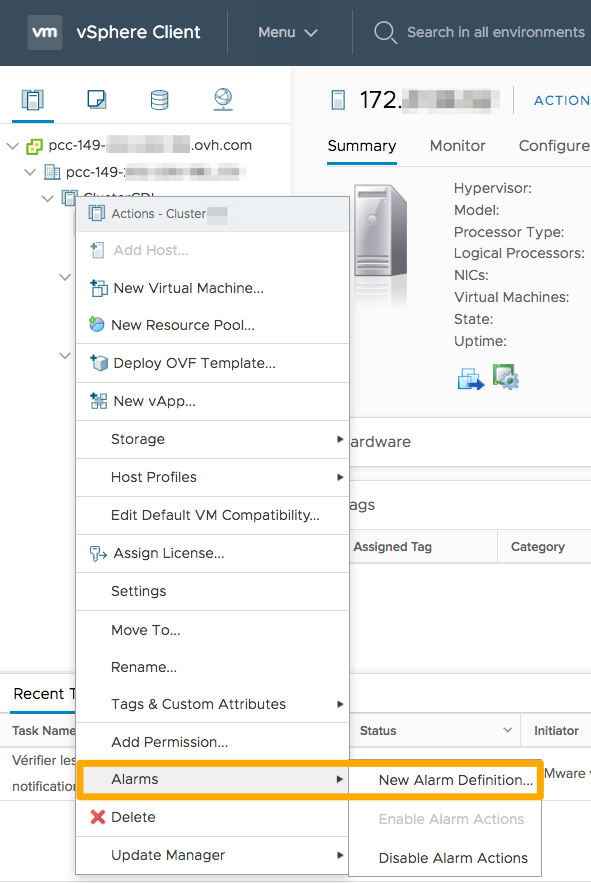
To create an alert, right-click on the data centre or any other item you want to monitor, and then click on Alarms and New Alarm Definition.
Setting name and target
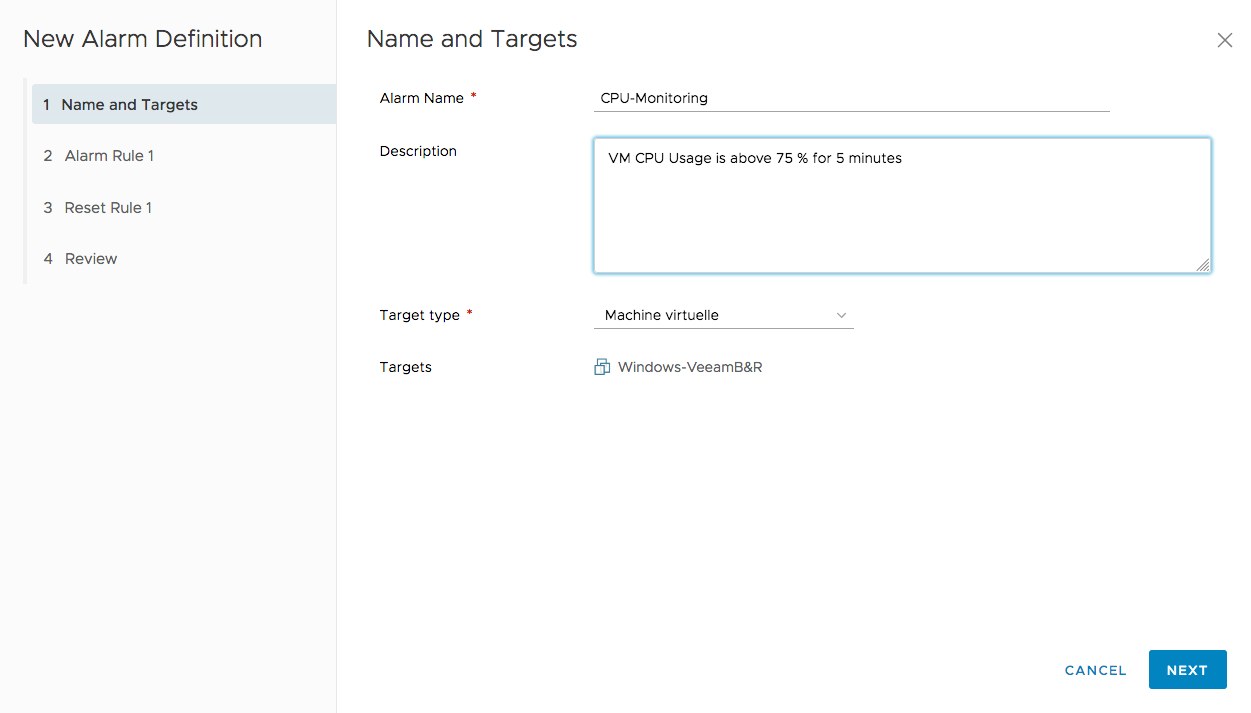
The first step is to name the alert and set its target. You can also add a description.
Setting alert rules
The second step is to define the rules of the alert and the actions it triggers.
The IF field allows you to set an alert trigger from a selection of variables. Depending on the variable chosen, a list of arguments will be offered.
The THEN field allows you to indicate that the alert is triggered with a certain degree of criticality and will result in actions such as sending an email, executing a script or shutting down a VM.
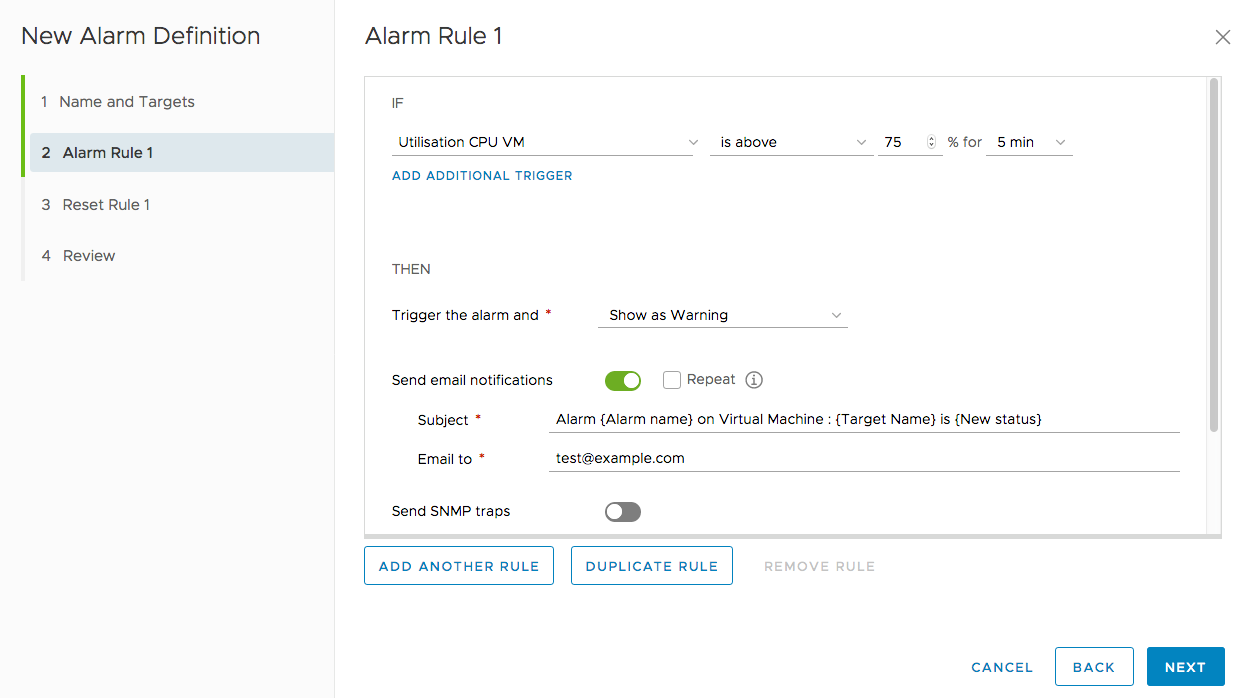
This allows you to monitor the RAM of a host, for example, by specifying a threshold not to exceed before its status goes on alert and you receive a warning email.
You can add several rules to your alert by clicking ADD ANOTHER RULE.
Suspending an alert
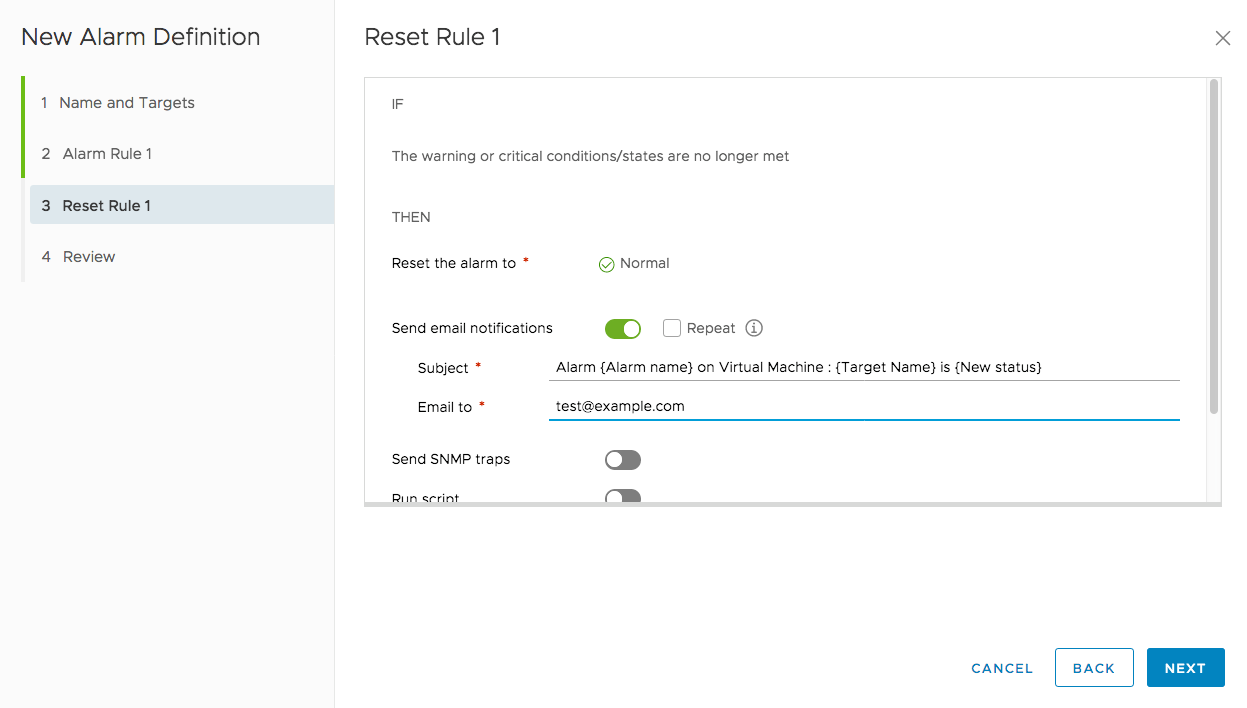
The third step allows you to set the end of the alert criteria and trigger new actions.
Alert summary
The last step shows you a summary of the rules defined. You can activate the alarm by checking the cursor or choose to activate it later by right-clicking the selected item and then clicking Alarms and Enable Alarm Actions.
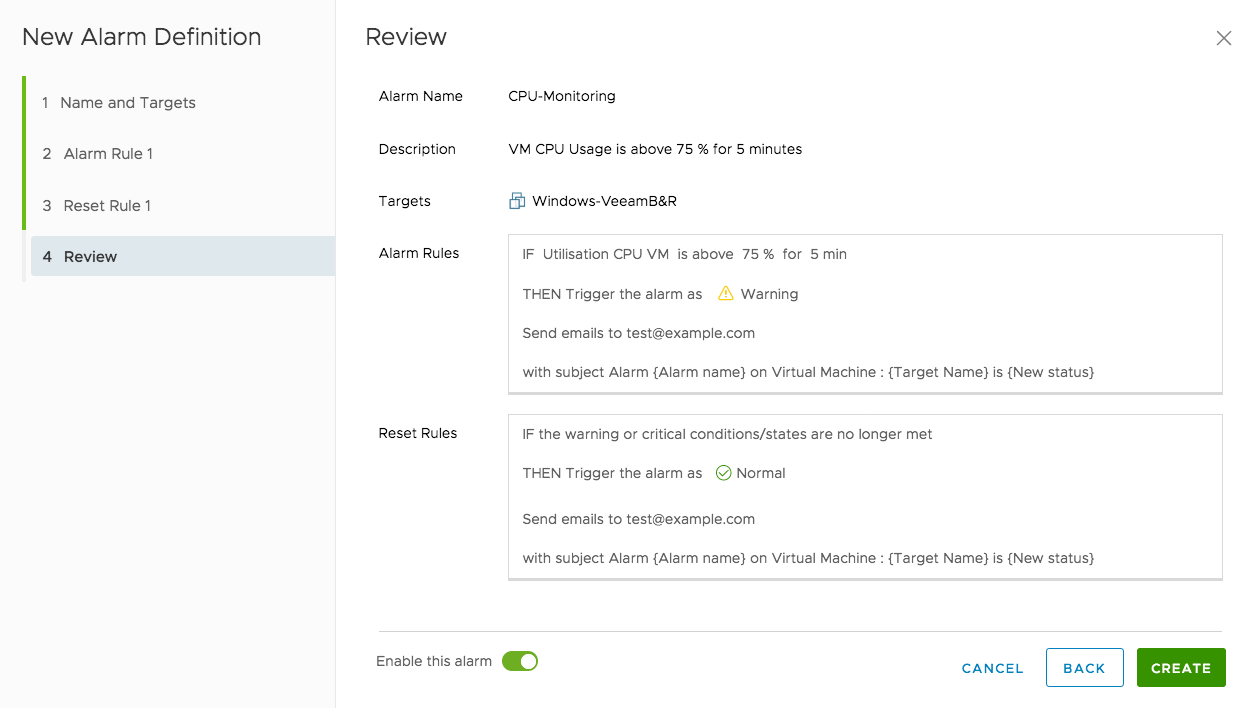
You can also configure the frequency of repeat alerts in this step.
Go further
Join our community of users on https://community.ovh.com/en/.


 VMware vCenter Converter
 1034
1034