

Managing an SMS SMPP account
734 Views
 09.02.2023
  Telecom / SMS / Time2Chat
Objective
In the OVHcloud Control Panel, you can retrieve your SMPP credentials, change your password, manage access to the service, and transfer SMS credits.
Find out how to manage an SMS SMPP account settings from the OVHcloud Control Panel.
We recommend that you read the technical specifications of the OVHcloud SMPP solution.
Requirements
OVHcloud Control Panel Access
- Direct link: SMS
- Navigation path:
Telecom>SMS> Select your SMS account
Instructions
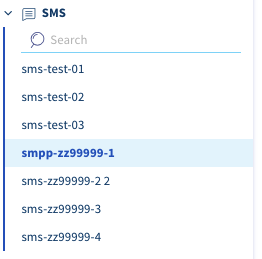
Select your SMPP account. Its name is different from other OVHcloud SMS accounts. It starts with smpp- instead of sms- for standard SMS accounts.
Credentials
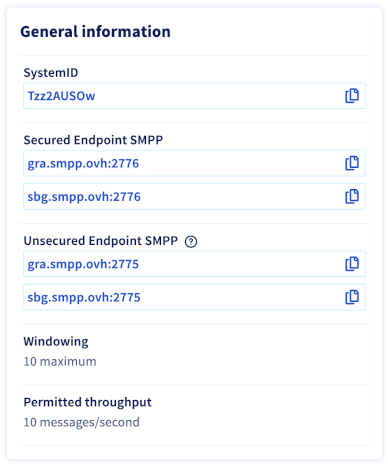
In the General Information box, you can find the login details required to use your service. Use the button to the right of each field to copy its contents.
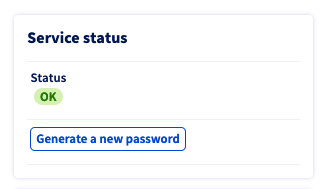
If you have forgotten your SMPP password, use the Generate a new password button. A new password will then be sent to the contact email address for your OVHcloud account, and it will be displayed to you.
Click Send to confirm this action.
Access management
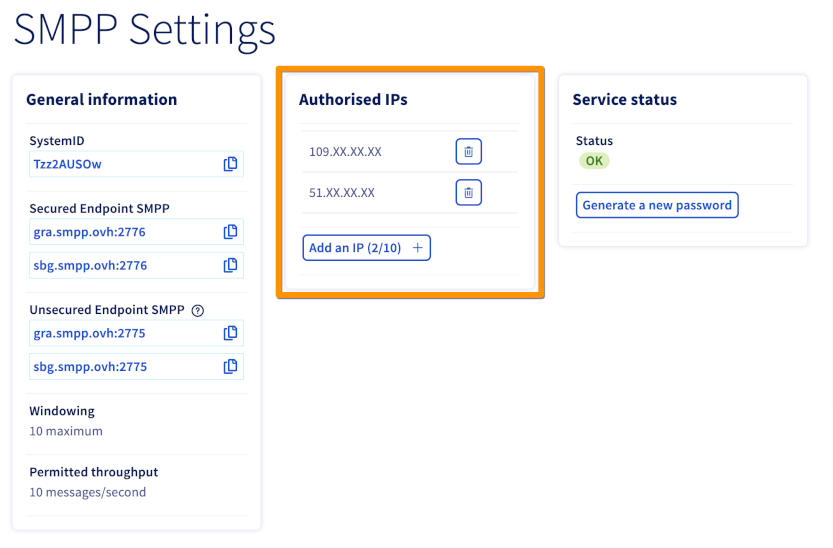
Click the Options tab and then click SMPP Settings.

The authorised IP framework lists the IP addresses of your SMPP clients that are authorised to access the SMPP server.
Click the Add IP button to add IP addresses to this list.
Manage senders and credits
See our guides on sender management and managing SMS credits and enabling automatic re-crediting.
Go further
See our guide on managing SMS history.
The technical specifications of the OVHcloud SMPP solution.
Join our community of users.


 SMPP Technical Specifications
 1732
1732