

Launching your first SMS campaign
589 Views
 05.08.2022
  Telecom / SMS / Time2Chat
Objective
OVHcloud provides tools in the OVHcloud Control Panel for sending SMS messages. This guide helps you get familiar with these tools and send your first SMS campaign.
Requirements
- an OVHcloud SMS account with SMS credits
OVHcloud Control Panel Access
- Direct link: SMS
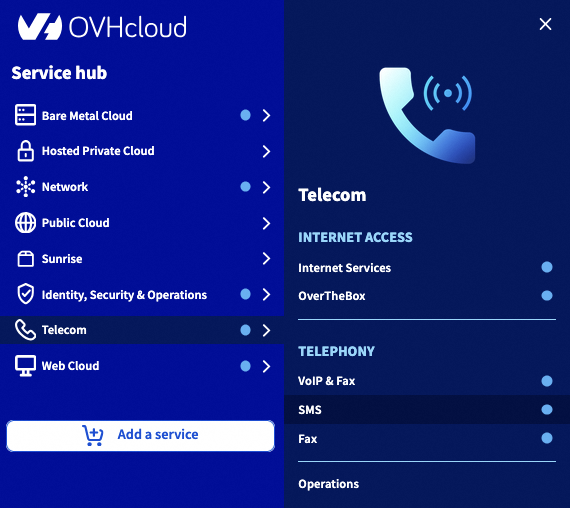
- Navigation path:
Telecom>SMS> Select your SMS account
Instructions
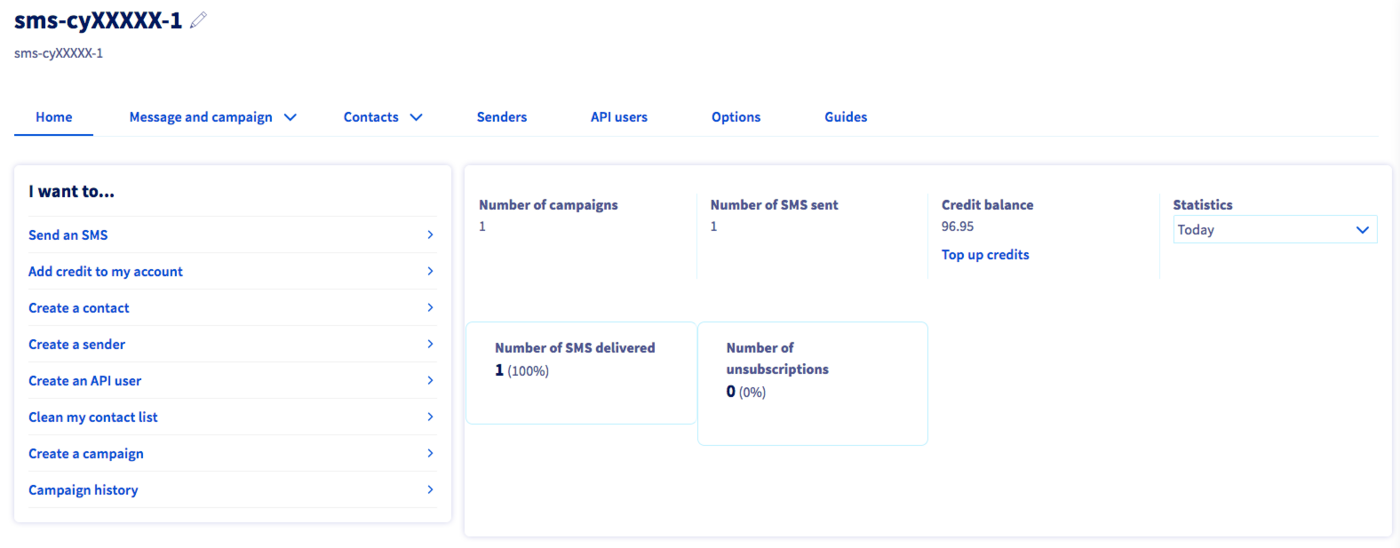
The toolbar and shortcuts will give you access to the main features for sending SMS campaigns.
Step 1: Add contacts
Add a contact list
A contact list can be imported via a .csv or .txt file.
To add a contact list, click the Contacts tab, and then click Create a contact list.

With the following guide, you can find out how to create a list of SMS recipients.
Add an address book
Unlike contact lists, address books contain contacts that you can name and more easily identify for targeted campaigns.
To add an address book, click the Contacts tab, then Address book.

Refer to our guide on Managing SMS address books to find out more.
Step 2: Create a sender
By default, SMS messages from an OVHcloud account in France are sent from a short number, which enables recipients to reply back. You may want to create an alpha-numeric sender name via the Senders tab, so that your SMS messages are sent with your company or organisation’s name.
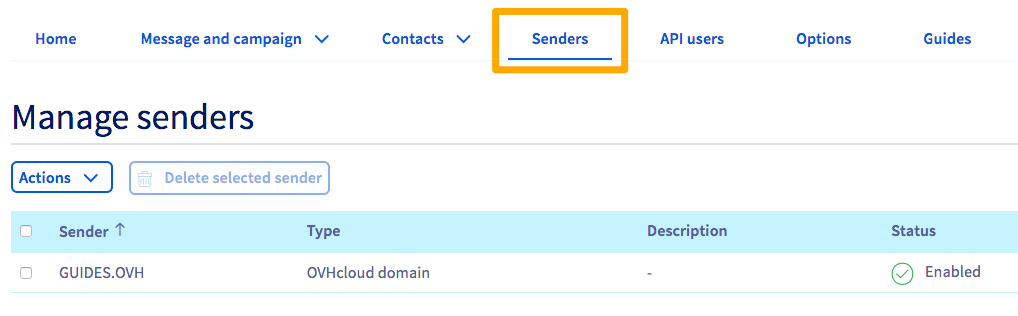
To do this, you can refer to the section on choosing an SMS sender, in our guide on sending SMS messages via the OVHcloud Control Panel.
Step 3: Sending an SMS campaign
In the Message and Campaign tab, you can access the sending options, the log of SMS messages sent and received, and scheduled SMS messages that are due to be sent in future.

To send a unit SMS message via the OVHcloud Control Panel, you can refer to the guide on Sending SMS messages via the Control Panel.
To send an SMS campaign, click Campaign Management, then Create a campaign.

First, enter a name for your campaign in the field provided.
Then choose the sender from the list.
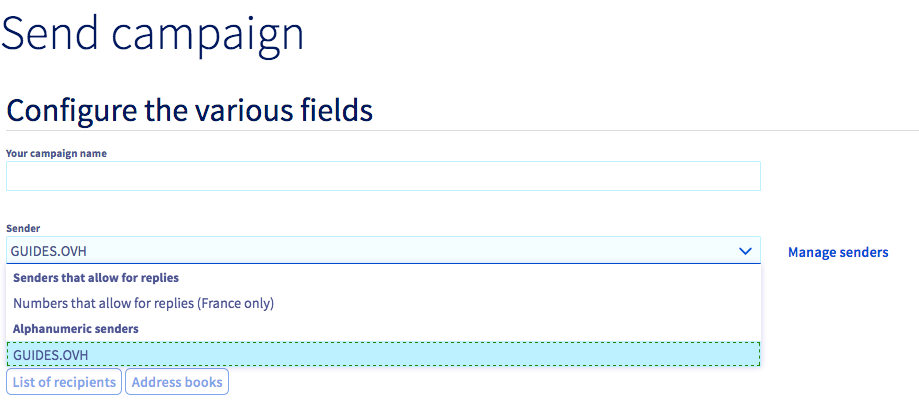
Then compose your message, and choose between sending it immediately or sending it on schedule. If you choose to schedule your campaign, you will need to define the date and time of sending.
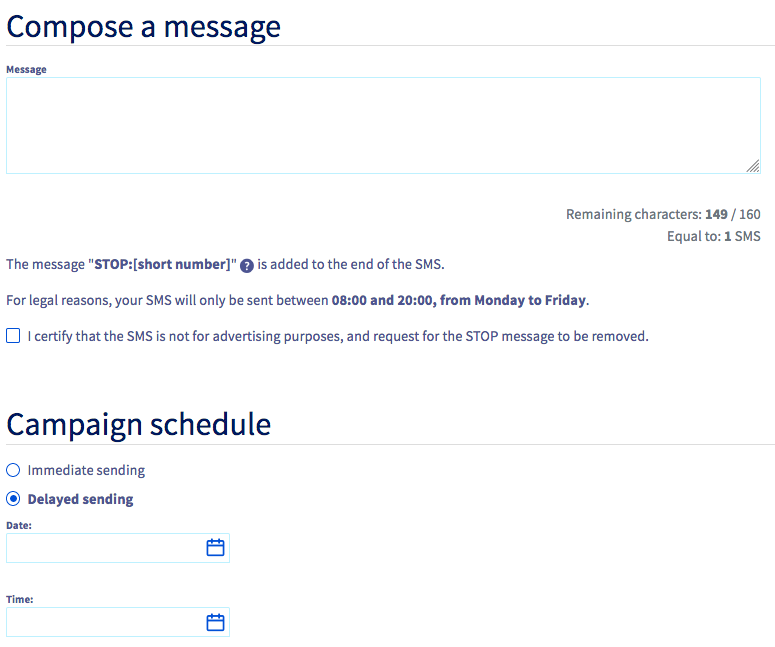
You just need to click the Send button to send or schedule your campaign.
Go further
See our guide on managing your SMS history.
Join our community of users.


 OVHcloud SMS FAQ
 35
35