

Using the Secret Manager with the REST API
145 Views
 15.10.2025
  Secret Manager
Objective
The objective of this guide is to present the use of the REST API for the Secret Manager.
Requirements
Instructions
Description
The Secret Manager is a product that allows you to securely store credentials, API keys, SSH keys, or any other type of secret necessary for the operation of your applications.
A secret is a collection of one or more key-value pairs grouped within a version. Each modification of a secret creates a new version of that secret, allowing you to go back in the history of changes to the secret.
The REST APIs are one of the two API sets offered by the Secret Manager, along with the Hashicorp Vault KV2 compliant API. These APIs are designed to be similar to the OVHcloud API set and the OKMS APIs for the Key Management Service.
The REST APIs can be used either through the centralized OVHcloud API or directly on the OKMS domain in the region. The only difference lies in the exact API path:
- Centralized OVHcloud API: /v2/okms/resource/{okmsId}/secret/{path}
- Regionalized OKMS API: /api/{okmsId}/v2/secret/{path}
This documentation will focus on the APIs of the OKMS domain in the region.
Contacting the OKMS domain
Communication with the OKMS domain for encryption and signature actions is available via APIs.
Since the OKMS domain is regionalized, you can access the API directly in its region: https://my-region.ovh.com.net.
For example, for a OKMS domain created in the eu-west-rbx region: https://eu-west-rbx.okms.ovh.net.
It's possible to communicate with the OKMS domain using:
- The Swagger UI
- The OMKS CLI: https://github.com/ovh/okms-cli
- The Golang SDK: https://pkg.go.dev/github.com/ovh/okms-sdk-go
Using the OKMS API via the Swagger UI
You can access the OKMS Swagger UI by clicking on the link in your OKMS domain dashboard.
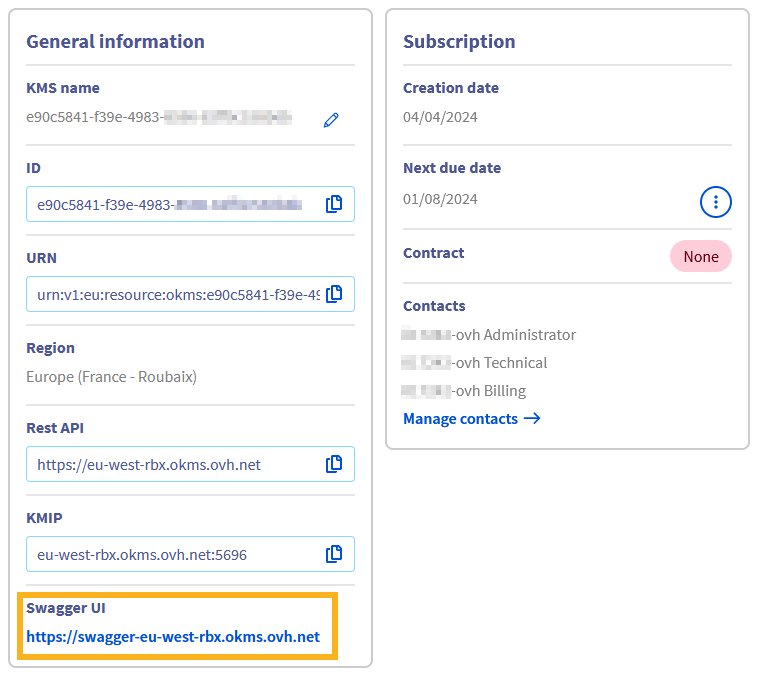
You will land on the non-authenticated version of the Swagger UI, that is meant for API documentation purposes. If you want to use the Swagger UI to make requests on your own OKMS domain, you will need to switch to the authenticated version, whose link is in the description section:

The next steps will guide you on how to authenticate.
Importing your OKMS credentials into the browser
To access the authenticated Swagger UI, you need to load your OKMS access certificate into the browser Certificate Manager.
For that, it is required to convert it to PKCS#12 format. PKCS#12 is a binary format for storing a certificate chain and private key in a single, encrypted file. It is commonly used for importing and exporting certificates and private keys, especially in environments that require secure transport of these items, such as web servers and client applications.
To convert your OKMS domain credentials (assuming you saved them into files named ID_certificate.pem and ID_privatekey.pem) to PKCS#12 with the openssl Command Line Interface, use the following command:
You will be prompted to enter a password that will be used for the symmetrical encryption of the file content. Then, you need to import it into your web browser.
On Firefox
- Type
about:preferences#privacyinto the address bar. - Scroll down until reaching a section named
Certificates.
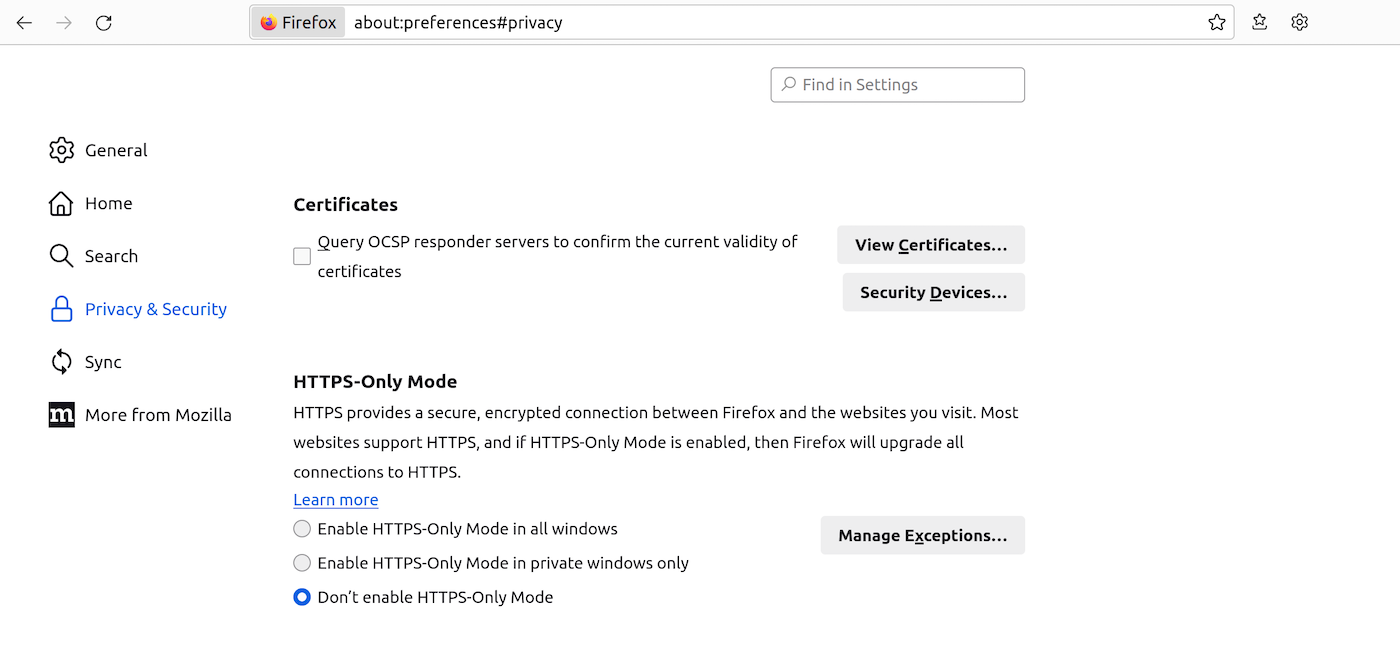
- Click
View Certificates...to open the Certificate Manager. - Go to the tab named
My Certificates, thenImport...and select the location of yourclient.p12file. - You will be prompted to enter the password you used during the PKCS#12 file creation.
- After entering the password, your certificate will be imported and ready for use.
On Chrome/Chromium
- Type
chrome://settings/certificatesinto the address bar. - Go to the
Your certificatestab. ClickImportand select yourclient.p12file. - You will be prompted to enter the password you used during the PKCS#12 file creation.
- After entering the password, your certificate will be imported and ready for use.

Accessing the authenticated Swagger UI
Once your certificate is loaded into your browser, you can go to the authenticated Swagger UI.
You will be prompted to identify yourself with a certificate. Select the previously imported PKCS#12 certificate in the drop-down list.
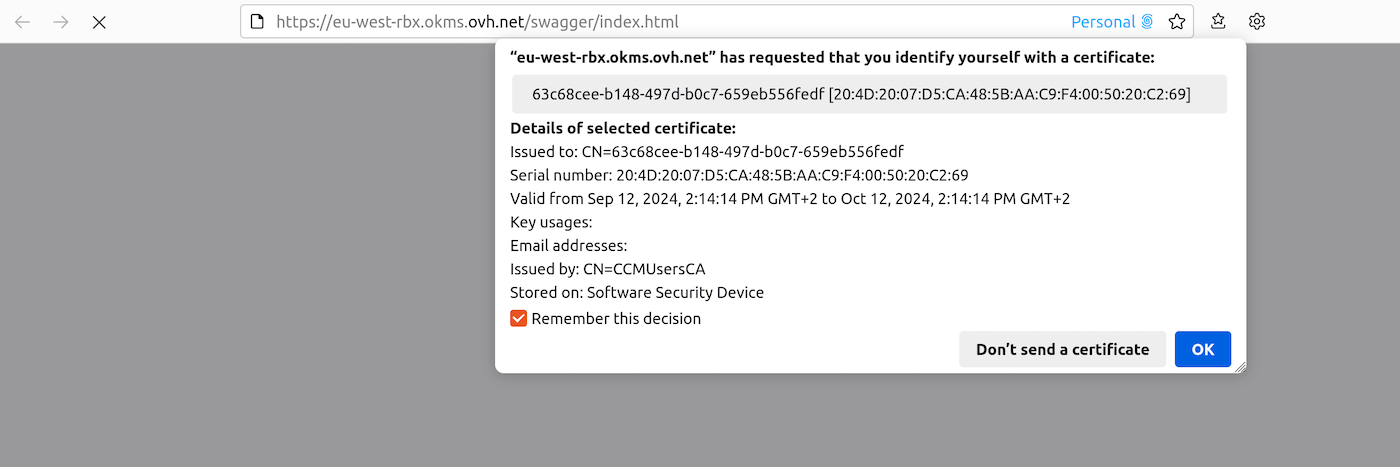
You can now use the Swagger UI interactively.
Create a Secret
To create a secret, you can use the following API:
| Method | Path | Description |
|---|---|---|
| POST | /api/{okmsId}/v2/secret/ | Create a Secret |
The API expects the following values:
| Field | Value | Description |
|---|---|---|
| cas_required | boolean | If enabled, it is necessary to systematically specify the current version number when making changes |
| custom_metadata | Json | Additional data associated with the secret. This data is not protected by the secret |
| deactivate_version_after | Duration String | Duration after which versions are deactivated |
| max_versions | Integer | Maximum number of versions for the secret |
| path | String | Secret path |
| version | Json | Secret content. It is possible to have nested JSON |
For example:
Manage Secrets
Update Metadata and configuration
Once the secret is created, it is possible to update the secret's metadata or configuration.
| Method | Path | Description |
|---|---|---|
| PUT | /v2/secret/{path} | Update a secret |
The API expects the following values:
| Field | Value | Description |
|---|---|---|
| cas_required | boolean | If enabled, it is necessary to systematically specify the current version number when making changes |
| custom_metadata | Json | Additional data associated with the secret. This data is not protected by the secret |
| deactivate_version_after | Duration String | Duration after which versions are deactivated |
| max_versions | Integer | Maximum number of versions for the secret |
It is also possible to change the default configuration of the OKMS domain for the values cas_required, deactivate_version_after, and max_versions using the API:
| Method | Path | Description |
|---|---|---|
| PUT | /v2/secretConfig | Set the default configuration of the OKMS domain |
Create a new version
It is also possible to modify the secret's content, which implies creating a new version for the secret. New versions can be created using the API:
| Method | Path | Description |
|---|---|---|
| PUT | /v2/secret/{path} | Update a secret |
| PUT | /v2/secret/{path}/version | Create a new version of a secret |
Whether the modification of the data of the secret is done using the general API for updating the secret or the specific API, a new version of the secret is created.
A secret can contain as many versions as desired, up to the maximum limit of the max_versions parameter. If the maximum number of versions is reached, the oldest version is automatically deleted.
Manage versions
It is possible to manage the different versions of the secret using the API:
| Method | Path | Description |
|---|---|---|
| PUT | /v2/secret/{path}/version/{version} | Update the version of a secret |
The API expects the unique value:
| Field | Value | Description |
|---|---|---|
| state | active , deactivated, deleted | active: The value of this version is accessible deactivated: The value of this version is still present in the system but is no longer accessible until the version is reactivated deleted: The value of this version is no longer present in the system and cannot be restored. |
Go further
Join our community of users.


 Using the Secret Manager in the OVHcloud Control Panel
 606
606